Batch — Workloads
This article refers to Platform v3.4.0. The current Platform version is v3.4.0.
Overview
The Workloads category of the batch wizard covers everything you do to applications and models across a fleet. Rather than one general-purpose install command, it offers a separate command per operation, so deploying an application for the first time and updating one already running are distinct actions with distinct parameters.
These commands apply the same way regardless of the kind of workload: a Docker app you built yourself, a Marketplace app, or an AI model. There are no separate batch categories per workload type; Deploy, Update, Delete, Start, and Stop below are the ones you use for all three.
Only a Marketplace application already present in your App Library can be deployed via batch. If it is missing, add it from the Marketplace first.
Each command becomes a batch: you pick the command in Action, the nodes in Target Nodes, optionally the hypervariable sets in Hypervariables, the values in Parameters, and confirm in Batch validation. See Batch operations for the wizard itself.
In this article, you will learn what each Workloads command does and which parameters and policies it exposes.
Workload commands
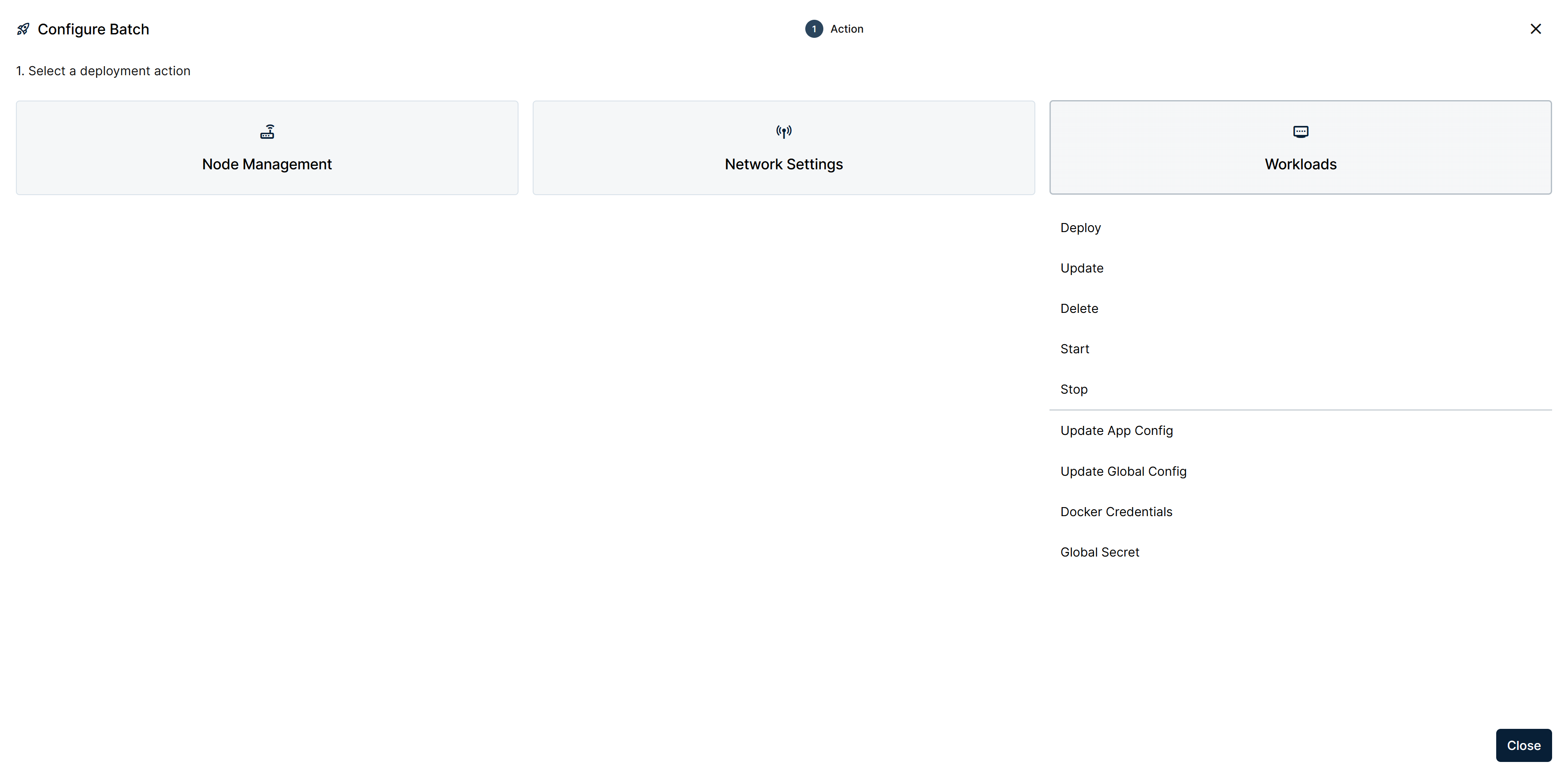
Workloads category with its commands
Deploy
Installs the selected application on all your target nodes. Use it for a first installation rather than to move an existing one to a new version.
Parameters asks for the application and the version, and exposes the configuration the workload starts with: App Secrets, Compose Config, and the App Config JSON. Each of these accepts hypervariables, so a single Deploy can give every node its own configuration. See Using hypervariables in batches.
Because a target node may already have the application installed, Deploy asks what to do in that case:
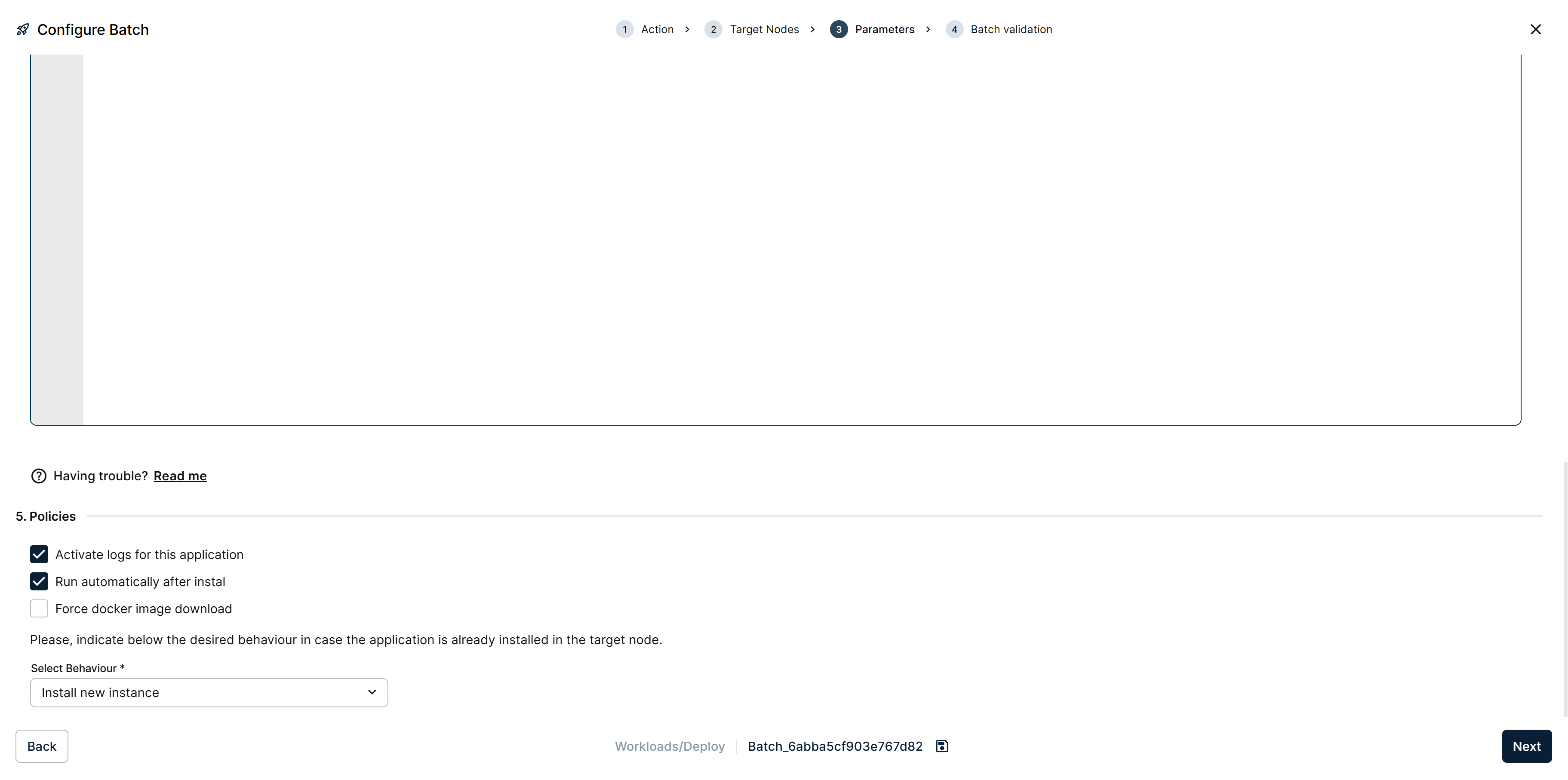
Policies section of a Deploy batch, with the reinstall behaviour selector
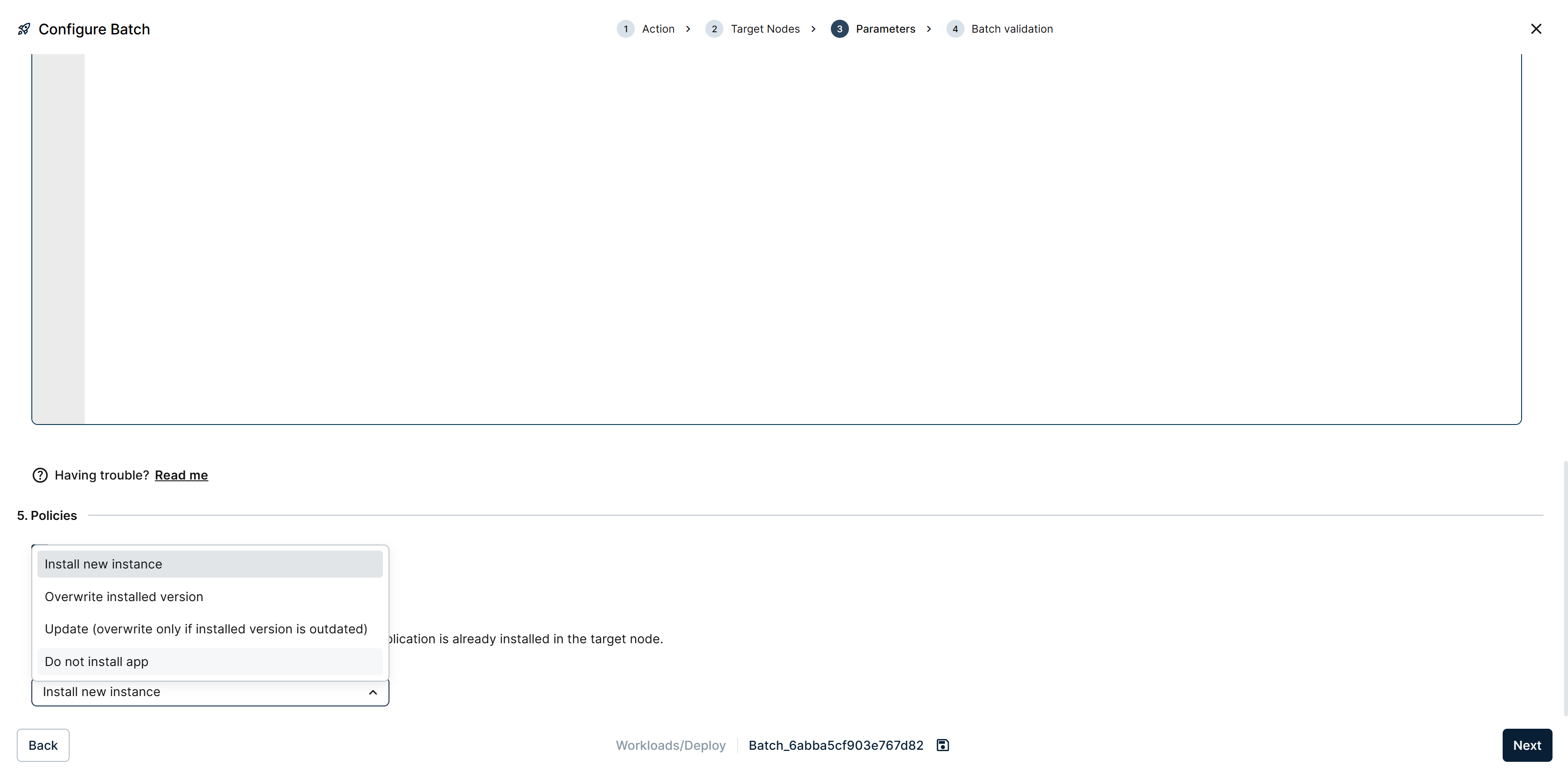
Select Behaviour dropdown expanded with its four options
- Install new instance — leave the existing one alone and add another.
- Overwrite installed version — replace what is there.
- Update (overwrite only if installed version is outdated) — replace it only when the target node's version is older than the one being deployed.
- Do not install app — skip those nodes.
Update
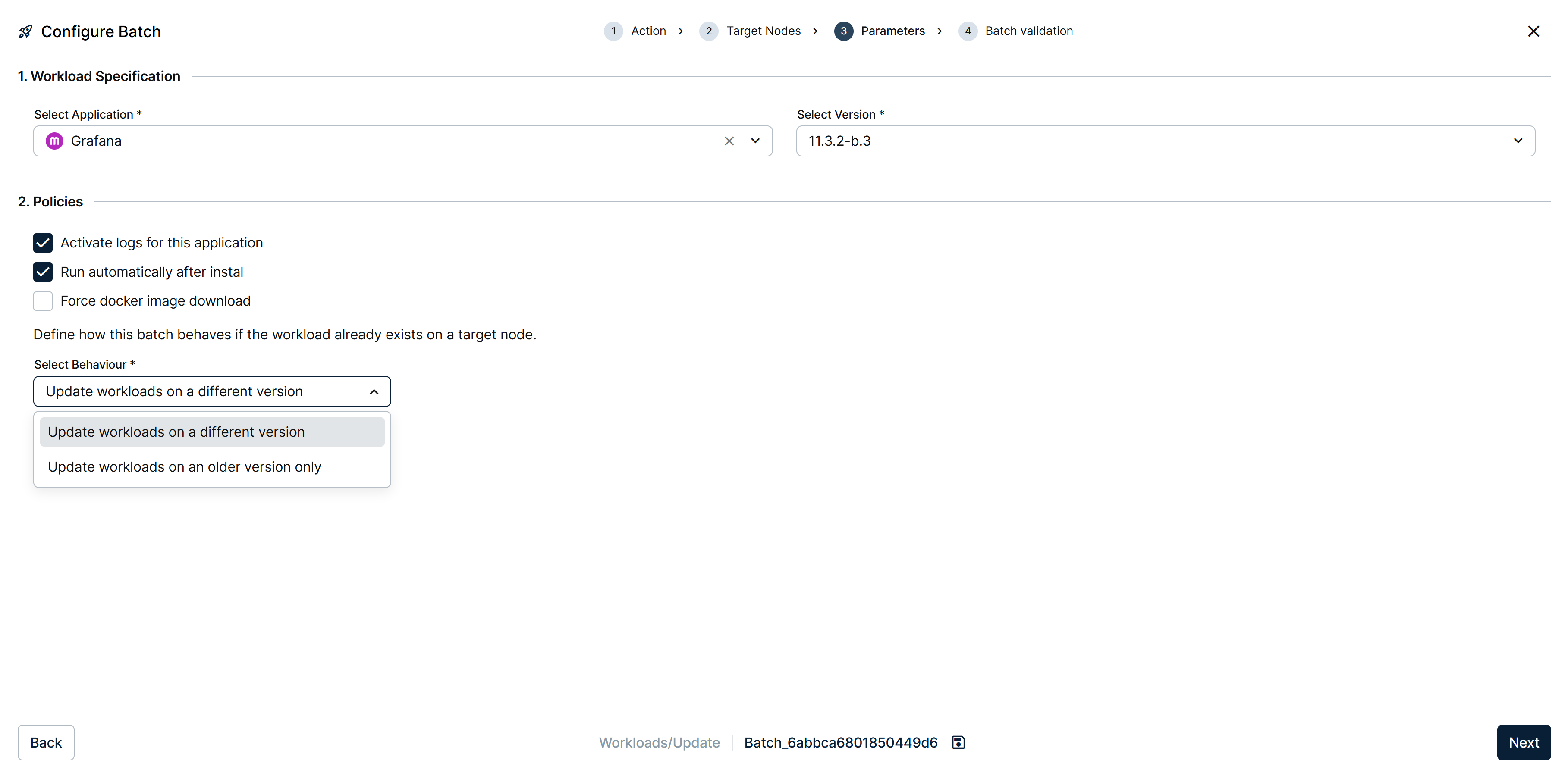
Parameters step of an Update batch
Updates the selected application to its latest available version on your target nodes. It changes the version and nothing else: existing configuration, secrets, and Compose settings are left untouched.
Parameters asks for the application and version, exposes the same 3 policies as Deploy (Activate logs for this application, Run automatically after install, Force docker image download), and a Select Behaviour for nodes where the workload already exists at a different version:
- Update workloads on a different version — update regardless of whether the installed version is older or newer.
- Update workloads on an older version only — update only nodes whose installed version is behind the target.
The Batch validation step is particularly useful here, because a node only qualifies if the application is actually installed on it. Use Remove invalid nodes to drop the rest in one action before launching.
Update App Config
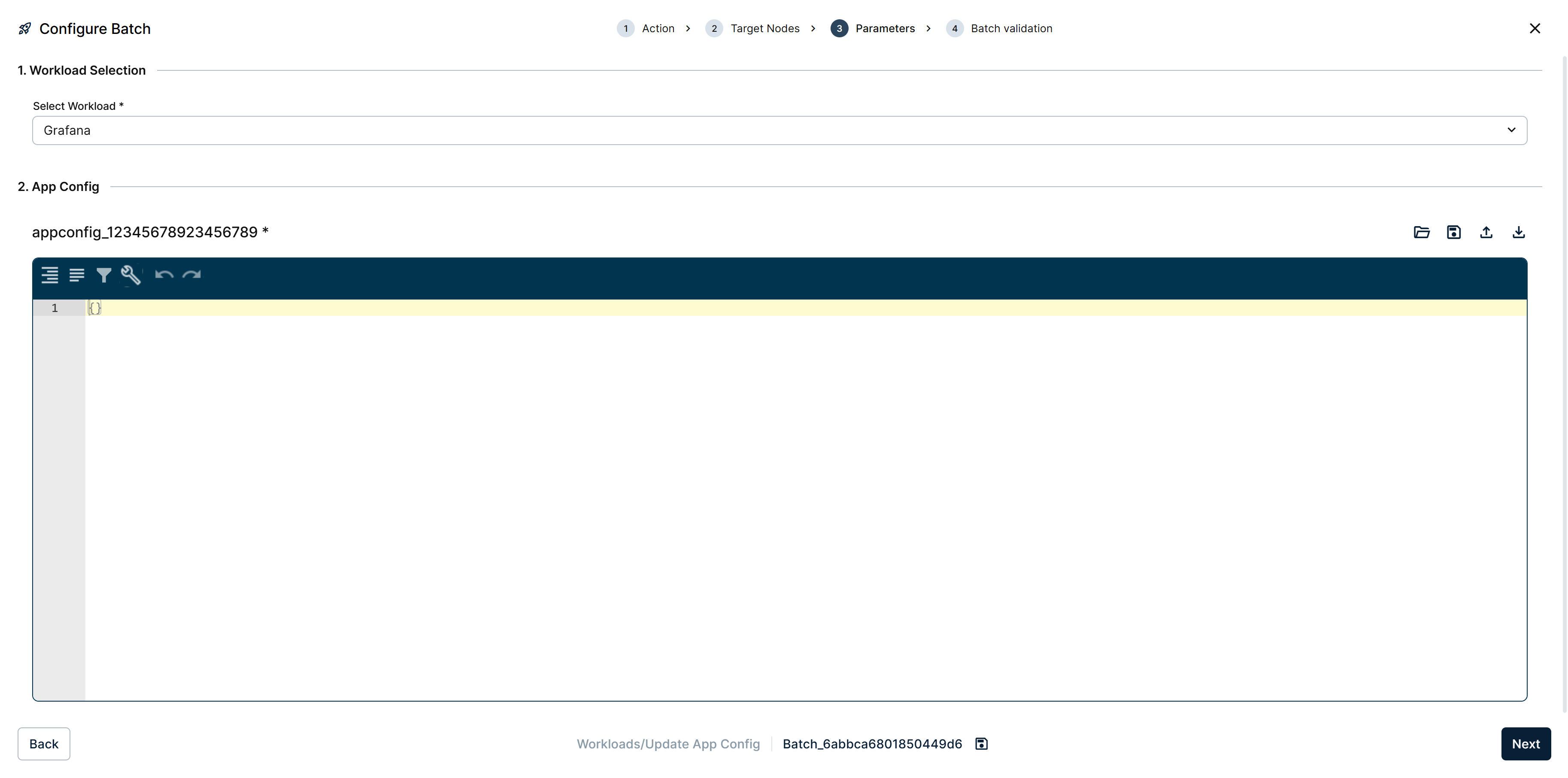
Parameters step of an Update App Config batch
Replaces the current app configuration with an updated version across your target nodes. The workload keeps running on its installed version: only the configuration changes. Parameters covers Workload Selection (pick the workload) and App Config, the same JSON editor used in Deploy.
This is the command that pairs most naturally with hypervariables. Combined with a set, one batch delivers a different configuration to every node, which is otherwise a per-node operation.
An App Config that contains hypervariable references cannot be applied to a single node from that node's own configuration view. References only resolve in a batch, where Barbara knows the group and can look up each node's value. To use such a configuration on one node, either remove the references or run this command with a single-node target.
Delete
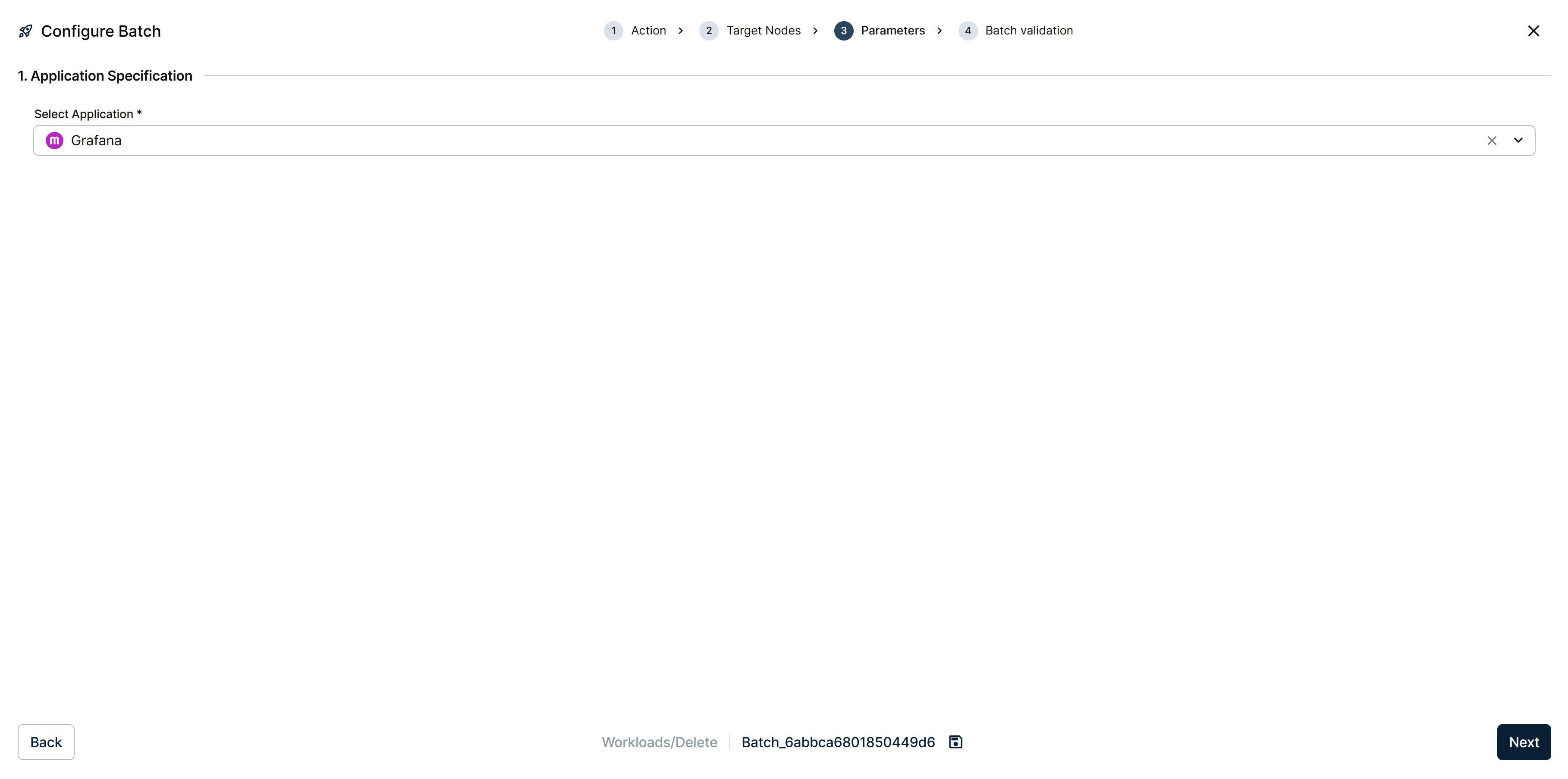
Parameters step of a Delete batch
Deletes the selected workload on all your target nodes. If several instances of the workload are installed on a target node, all of them are deleted. Parameters is just Application Specification, no policies.
Start and Stop
Start and Stop change the run state of the selected workload across the fleet. As with Delete, if a node has several instances of the workload, the command applies to all of them. Their Parameters step is the same single Application Specification field, with no policies.
Configuration commands
Three further commands in the same category set configuration that workloads draw on, rather than acting on a workload directly.
Update Global Config
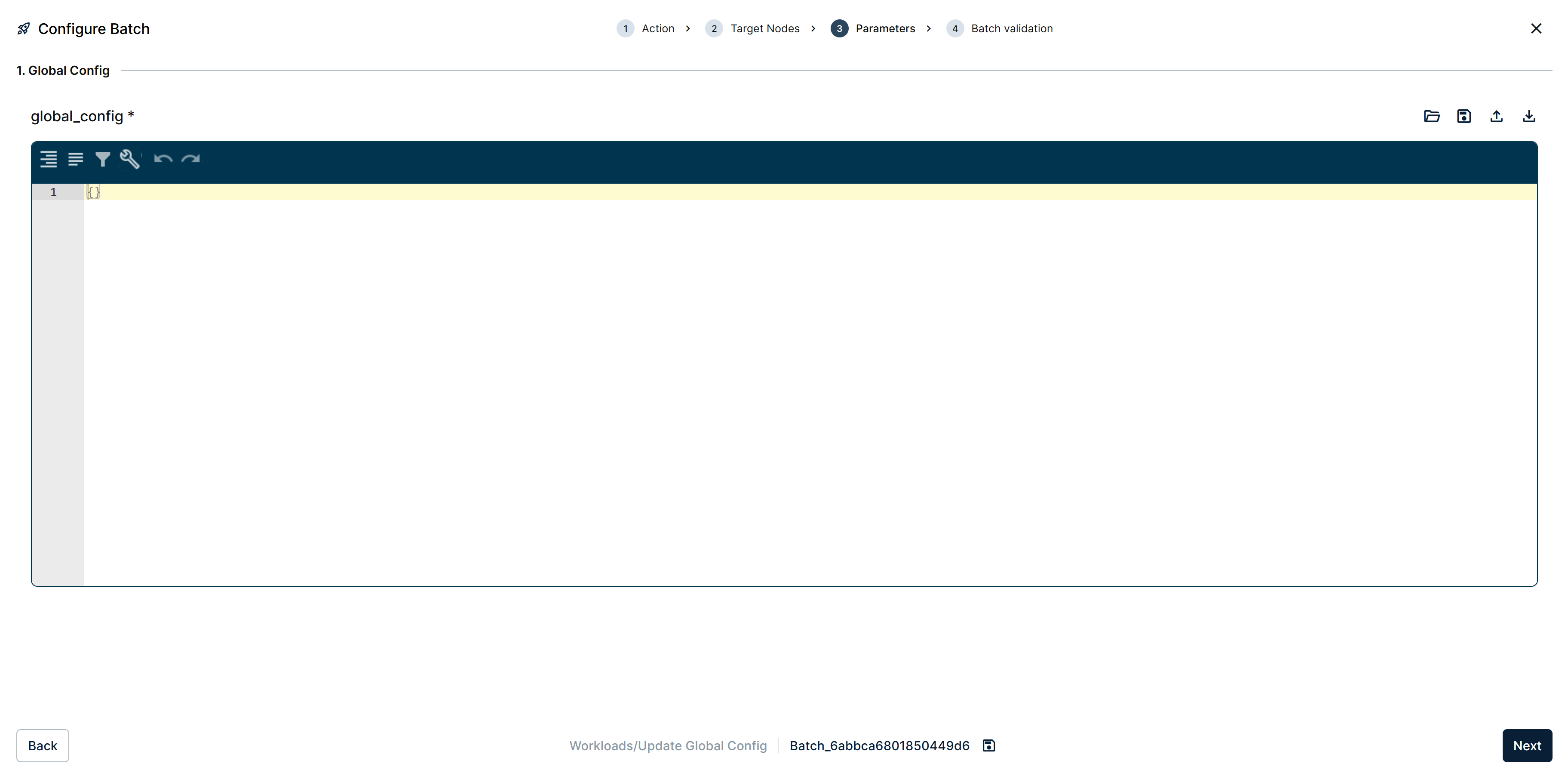
Parameters step of an Update Global Config batch
Defines global configuration parameters for all workloads on the target nodes. Parameters is a single JSON editor, Global Config.
Docker Credentials
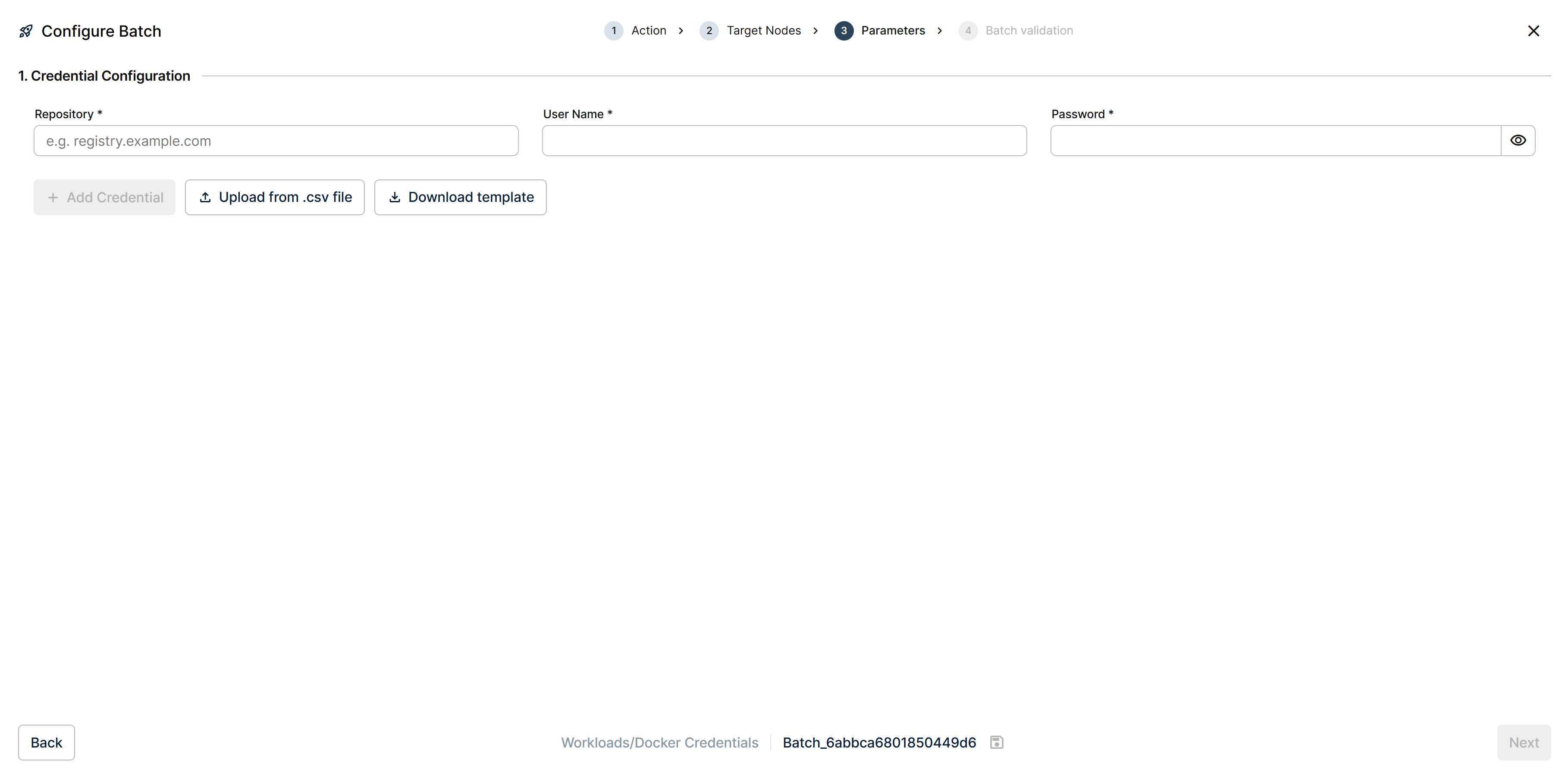
Parameters step of a Docker Credentials batch
Adds (or updates) Docker registry credentials on every target node. Each credential is a triple of Repository, User Name, Password. If a credential with the same key (repository) already exists on a node, it is updated; otherwise it is added.
Two ways to supply credentials in Parameters:
- Fill in the Repository, User Name, Password form to add them one by one.
- Upload from .csv file with multiple credentials. Use Download template to get the correct layout.
For the dedicated reference of the Docker Credentials card on a single node, read Repository credentials.
Global Secret
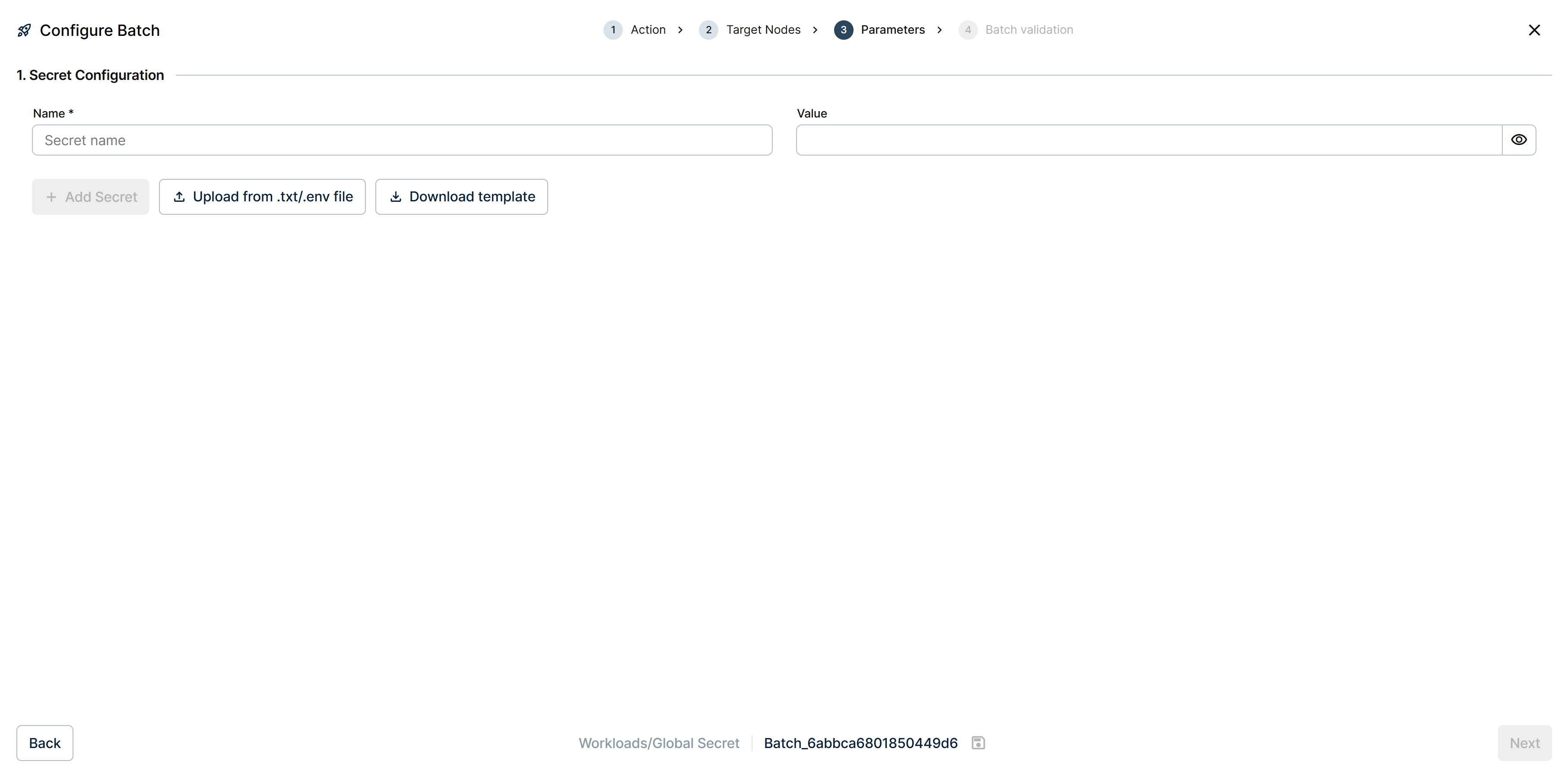
Parameters step of a Global Secret batch
Adds (or updates) Global Secrets on every target node. Each secret is a Name / Value pair. If a secret with the same name already exists on a node, its value is updated; otherwise it is added.
Two ways to supply secrets in Parameters:
- Fill in the Name and Value form to add them one by one.
- Upload from .txt/.env file with one
KEY=valueper line. Use Download template to get the correct layout.
For the dedicated reference of the Secrets card on a single node, read Secrets.
Policies
Depending on the command, Parameters exposes a few switches that control how the operation runs:
- Run automatically after install? — start the workload as soon as it is installed.
- Activate logs for this application — begin capturing logs immediately.
- Force docker image download? — pull the image again instead of reusing the one cached on the node.
- Enable Rollback — return to the previous state if the operation fails.
- Run using GPU — schedule the workload on the node's GPU when available. Relevant mainly for AI models.
Keep the defaults unless you have a reason to change them. Force docker image download? is the one worth knowing about: it makes a batch considerably slower across a large fleet, and it is only necessary when a tag has been republished and the cached image is stale.
Confirmed against the shipped interface, command by command:
- Deploy and Update — Activate logs for this application, Run automatically after install, and Force docker image download.
- Delete, Start, Stop, Update Global Config, Docker Credentials, and Global Secret — no policies at all; Parameters is just the fields these commands need.
Enable Rollback and Run using GPU did not appear on any of the screenshots taken for this article; whether they apply to a command not yet captured still needs confirming.
Summary
The Workloads category gives each fleet operation its own command, applied the same way to Docker apps, Marketplace apps, and AI models alike: Deploy for a first installation, Update for a version change, Update App Config for configuration alone, and Delete, Start and Stop for lifecycle. Three configuration commands cover Global Config, Docker credentials, and Global Secrets.
Separating them means the parameters you see are only the ones the operation needs, and Batch validation can tell you in advance which nodes qualify. Combined with hypervariables, one batch configures a fleet whose values all differ.