Repository credentials
This article refers to Platform v3.2.0. The current Platform version is v3.4.0.
Overview
Docker Credentials are the username/password pairs that an edge node uses to log into private Docker registries and pull your private images. They live on a dedicated card on the Node Details page, scoped to a single node. The agent on the node uses them at deployment time — they are not visible to the apps, to the operating system, or to the Docker daemon outside the pull operation.
Docker Credentials card UI
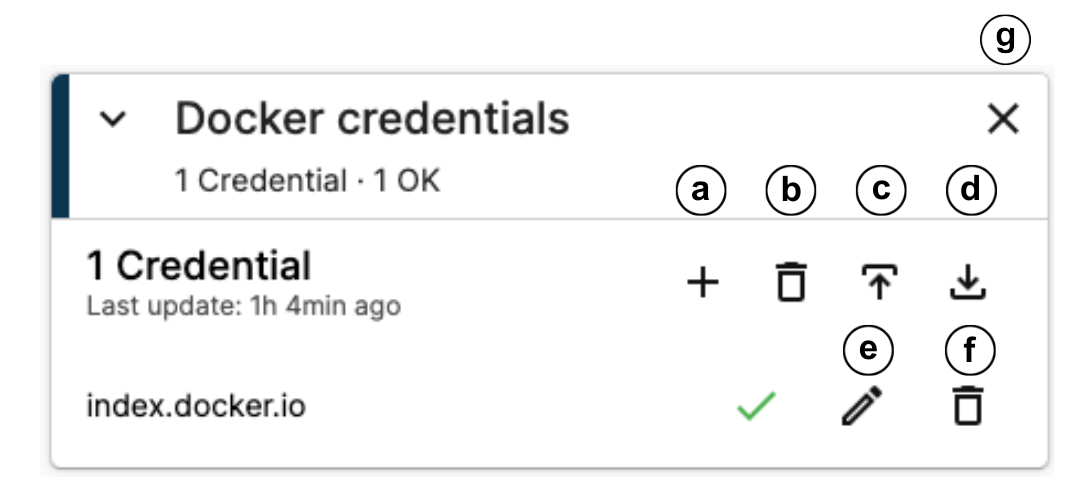
Docker Credentials card
- (a) Add a credential.
- (b) Delete all credentials.
- (c) Upload credentials from a file.
- (d) Download all credentials as a file.
- (e) Edit a credential.
- (f) Delete a single credential.
- (g) Hide the card.
Show the Docker Credentials card
The card is not always visible by default. To add it to the Node Details page:
- Click Add card (the floating
+button at the bottom-right of the Node Details page). - Scroll down and select Docker Credentials.
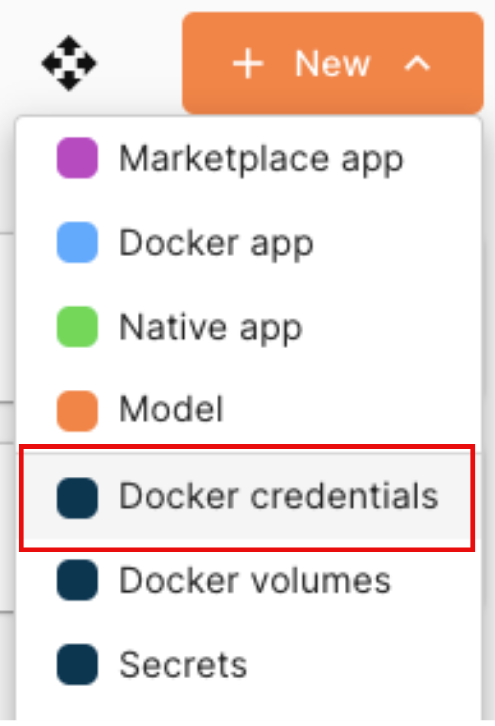
Adding the Docker Credentials card
If Docker Credentials is missing from the Add card menu, the card is already on the page.
Add a credential
Click the + icon on the card and fill in the form: Repository URL, Username, Password.
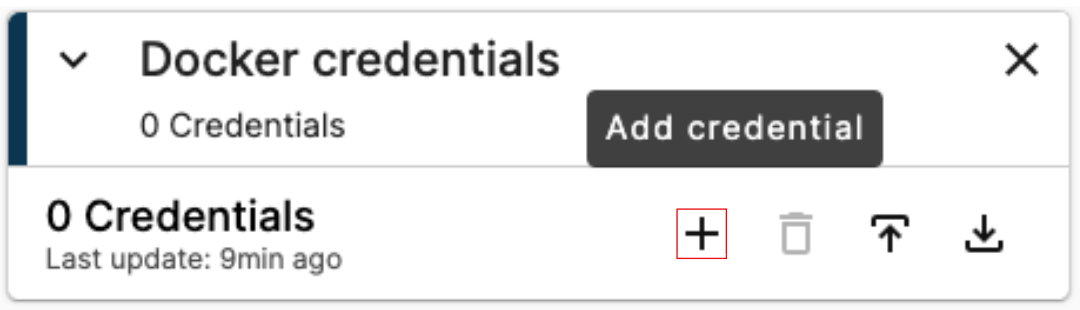
Add credential button
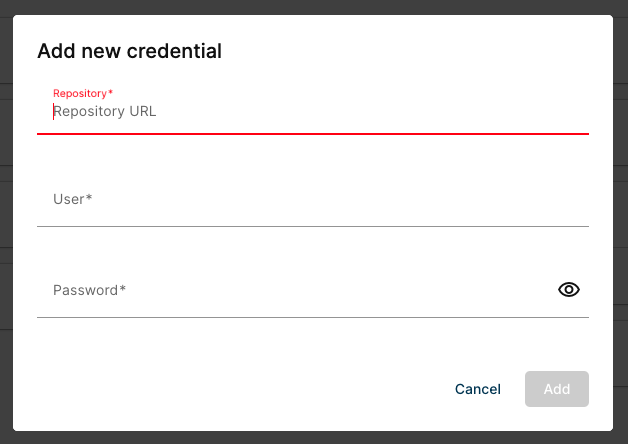
Add credential form
The URL for Docker Hub is http://index.docker.io. Use it verbatim when adding a credential that targets Docker Hub.
Credential status
After you add a credential, the node attempts to log into the registry with it. The result drives the credential's status indicator: green tick for a valid credential, red cross for an invalid one.
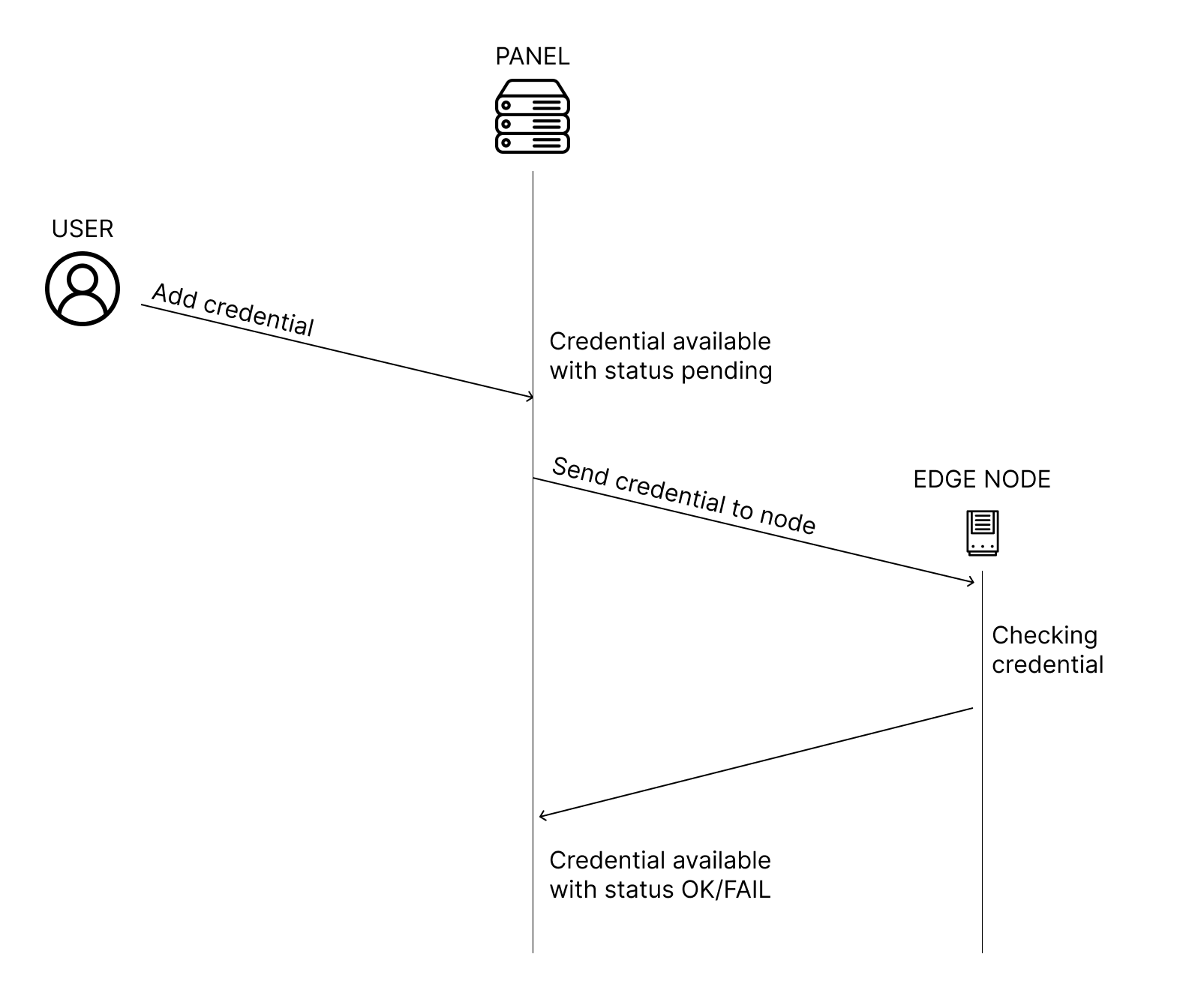
Credential validation flow
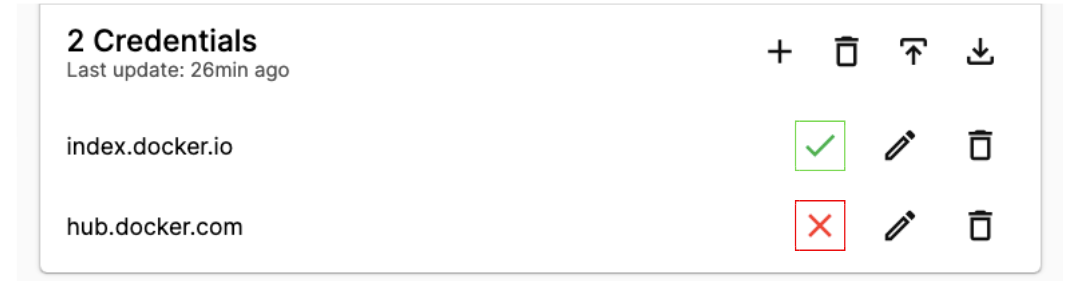
Credential status per row
The card header carries an aggregate summary. A warning icon highlights credentials that failed to validate.

Aggregate credential status in card header
Download and upload credentials in bulk
For convenience, you can download every credential on the card as a CSV file, edit it locally, and upload it back.
Download
Click the Download icon on the card.
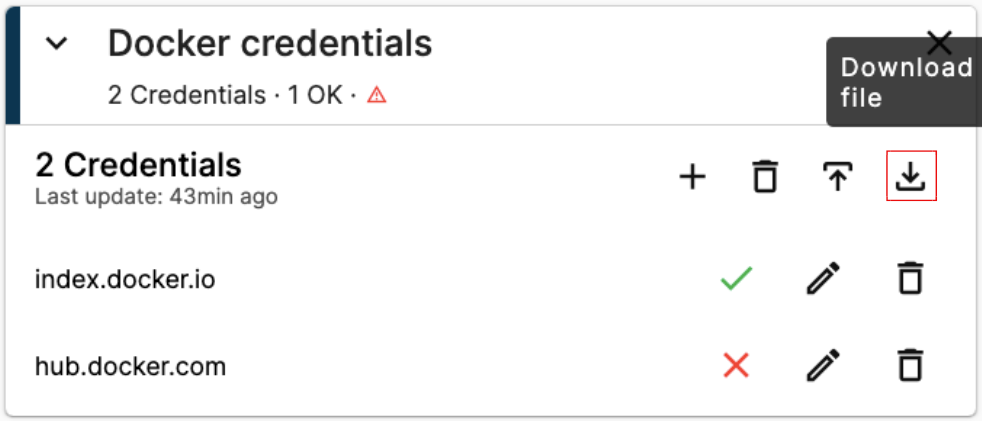
Download credentials
If the card has no credentials yet, the Download action returns an empty CSV template you can fill in offline.
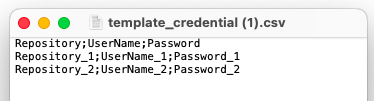
Empty CSV template
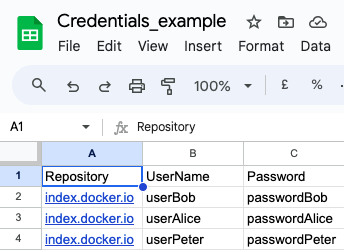
Downloaded CSV with credentials
Upload
Click the Upload icon and pick the CSV file from your computer, then click Upload File to save it.
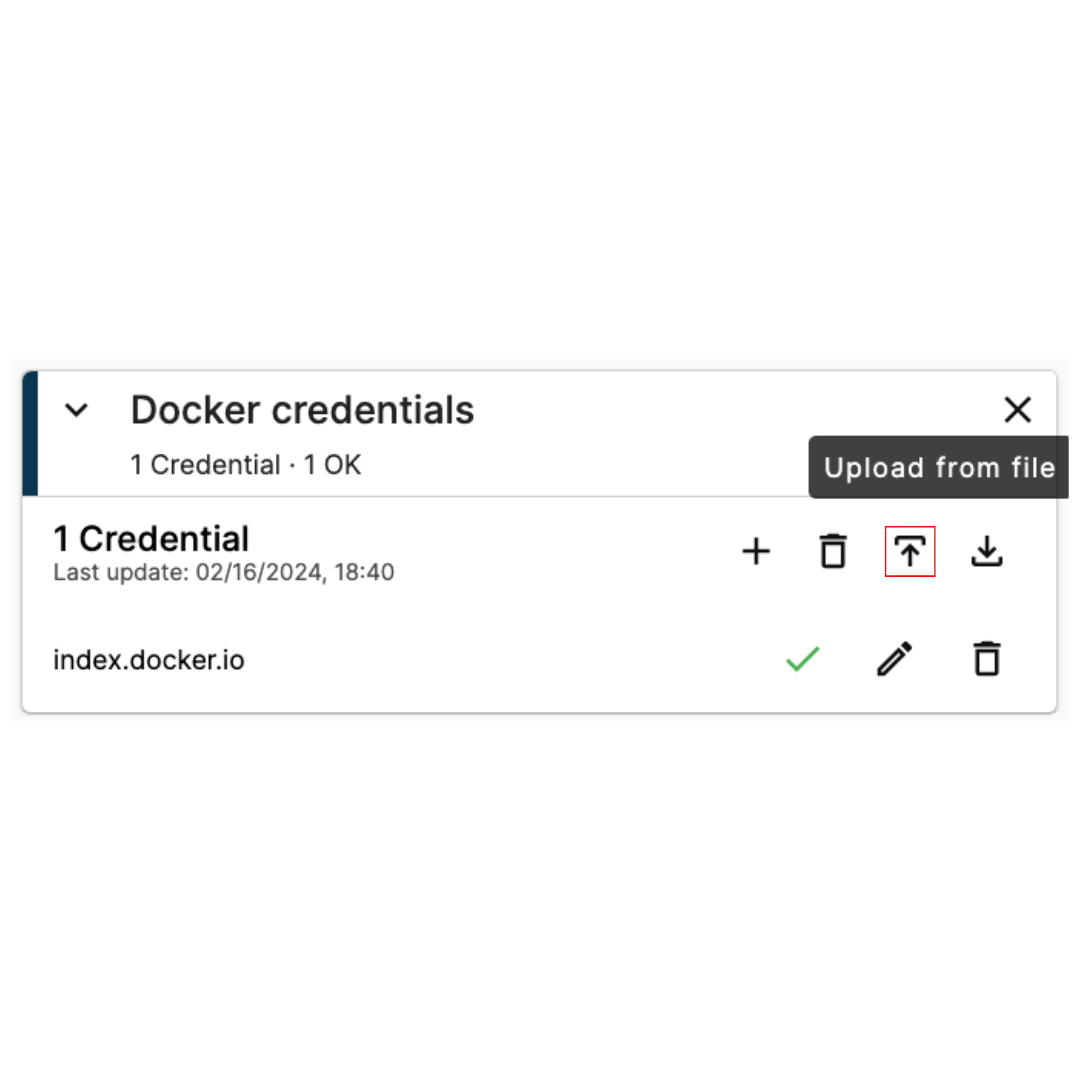
Upload credentials
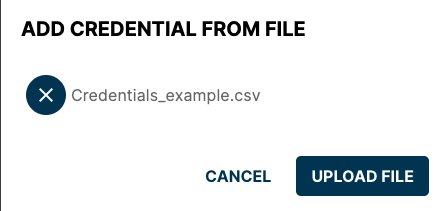
Upload confirmation
Edit a credential
Click the Edit icon on a credential's row, update the fields in the popup, and save.
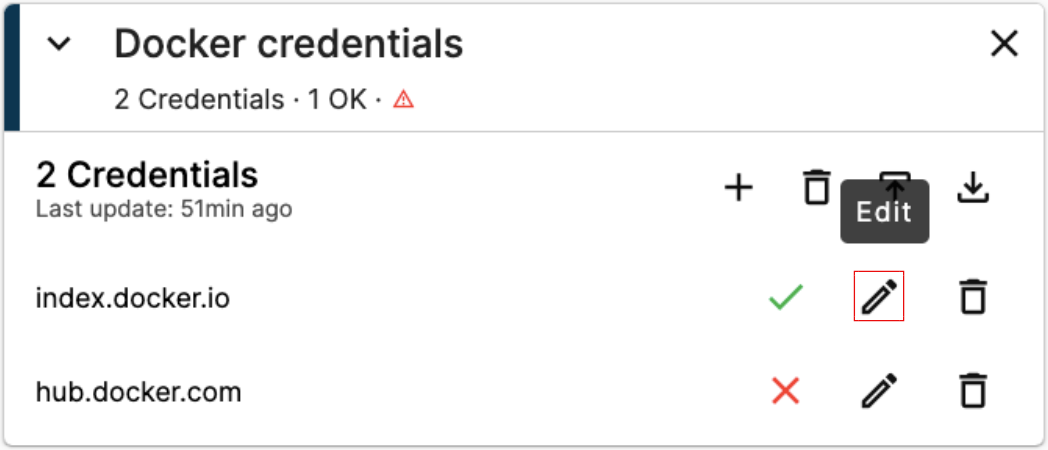
Edit credential
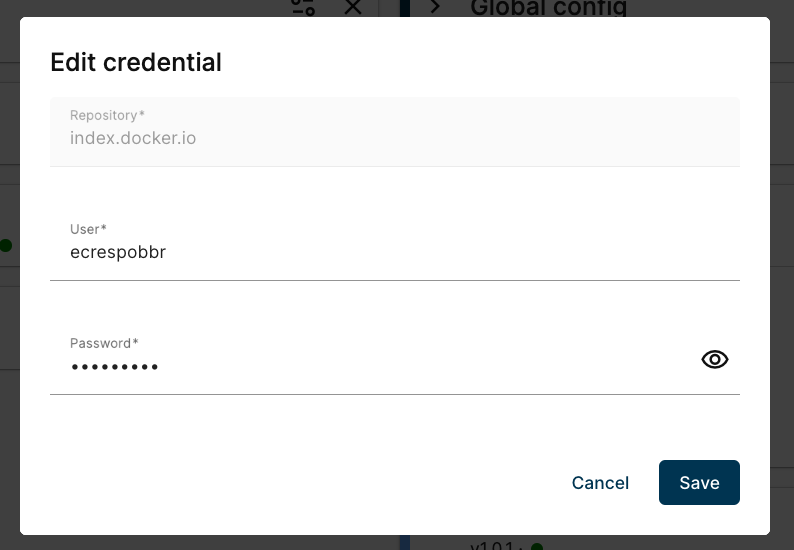
Edit credential popup
Delete credentials
To delete a single credential, click its Delete icon and confirm.
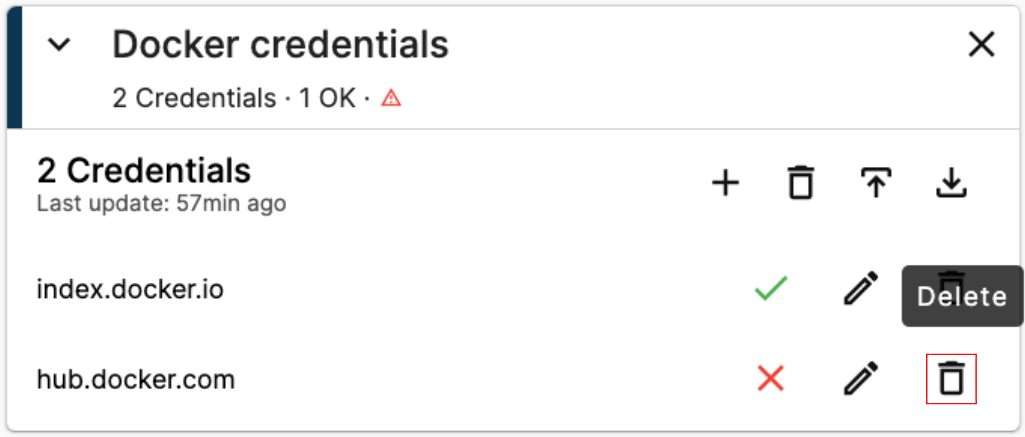
Delete credential
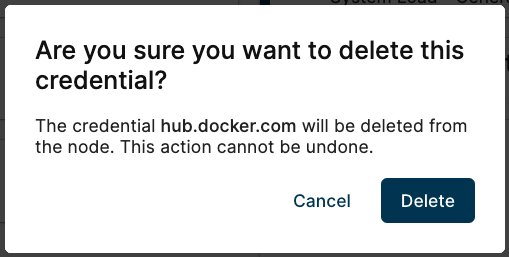
Delete confirmation
To delete every credential on the card, click Delete all Credentials in the card header and confirm. The number of credentials being deleted is shown in the confirmation.
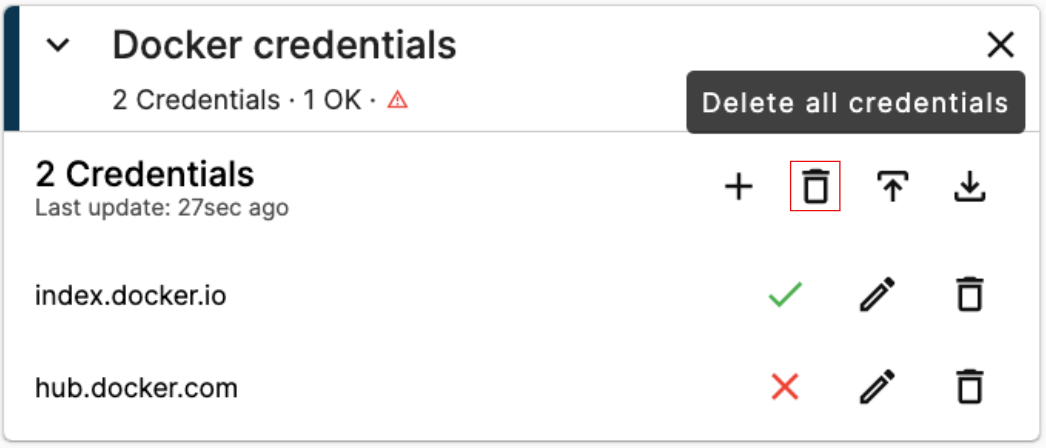
Delete all credentials
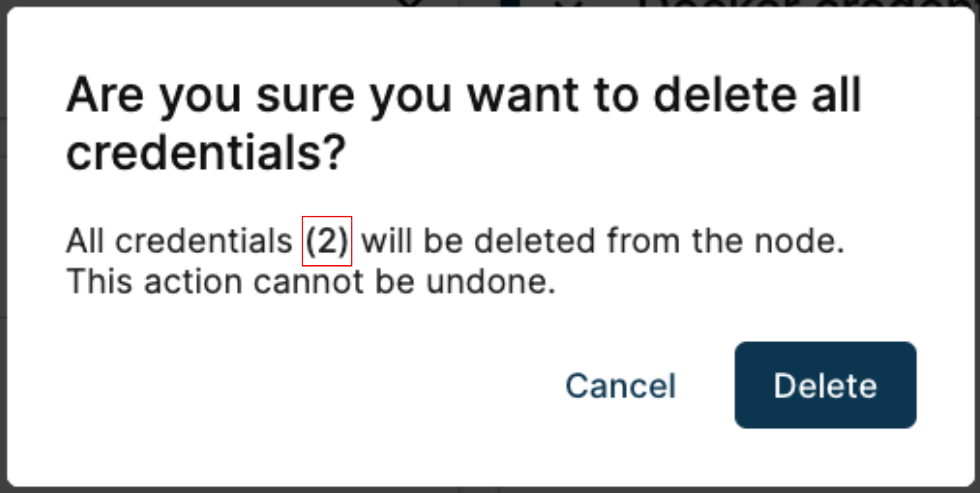
Delete all credentials confirmation
Hide the card
Click the Hide icon to remove the card from the Node Details page without losing its content. Bring it back via the Add card menu (see Show the Docker Credentials card).
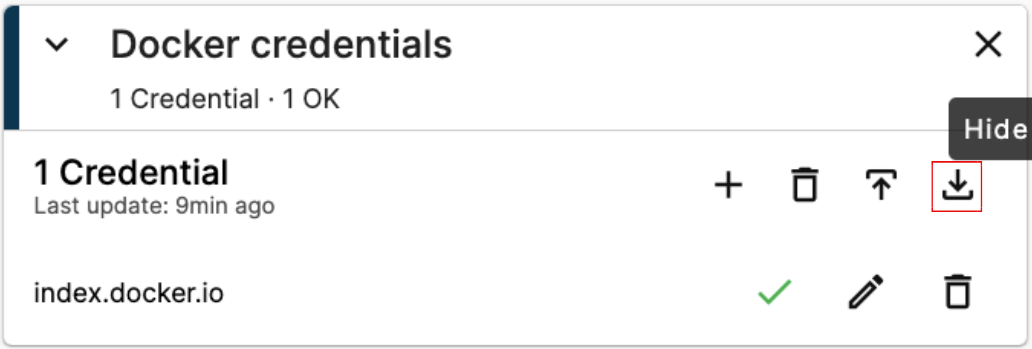
Hide card button
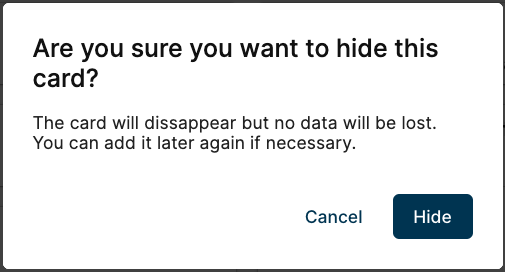
Hide card confirmation
Summary
The Docker Credentials card stores per-node registry login details (URL + user + password) that the agent uses to pull private images at deployment time. Use the Download / Upload CSV workflow when you need to manage many credentials at once.