Docker apps
This article refers to Platform v3.2.0. The current Platform version is v3.4.0.
Overview
A Docker app in Barbara is your own container application — packaged as a zip with a docker-compose.yaml at the root — uploaded to the App Library and deployed to one or more edge nodes. This article covers the packaging requirements, the deployment flow, and the conventions for reading runtime configuration and secrets from inside the container.
If you are new to Docker, read the upstream Docker overview and the Docker Compose docs first.
Package a Docker app
A Docker app is a zip file that contains, at a minimum, a docker-compose.yaml at the root. We recommend also including a ./persist/ folder for any data that should survive container restarts.
version: "3.3"

services:
  dummy_container:
    build: .
    volumes:
      - "./appconfig/:/appconfig/"
      - "./persist/:/persist/"
    env_file:
      - .barbara_env
    networks:
      - barbaraServices
    devices:
      - /dev:/dev2
    ports:
      - 80:8090

networks:
  barbaraServices:
    driver: bridge
    name: barbaraServices
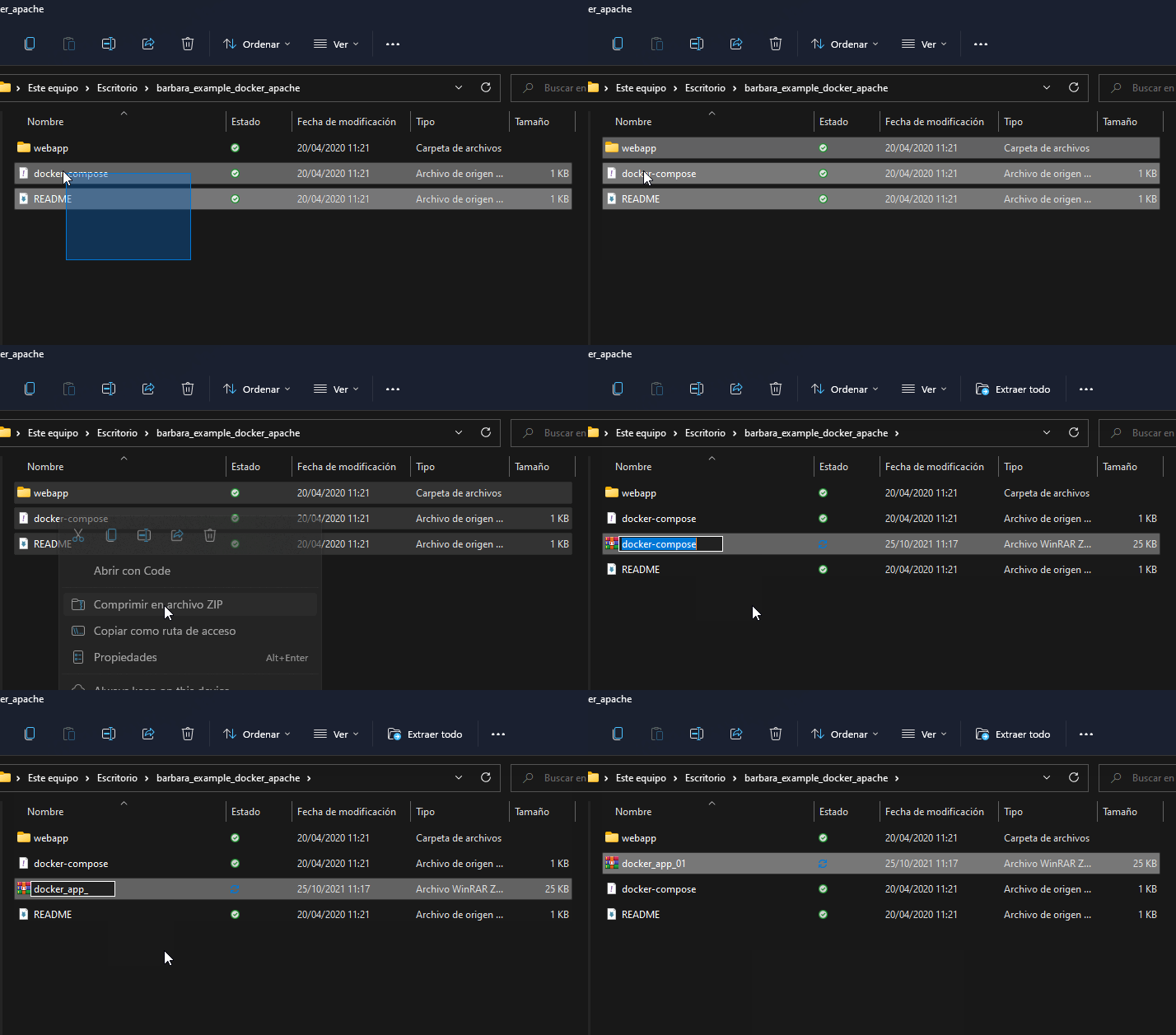
Zipping a Docker app
Packaging rules
- The compose file must be named
docker-compose.yamlordocker-compose.yml— any other name breaks the deployment. - Persistent data goes into
./persist/(which is then mounted into the container). - Other files at the root of the zip are allowed but get replaced or deleted on every update, so don't store data there.
- Native Docker named volumes are supported.
- Bind mounts are only accepted when the host-side path starts with
./persist/,./appconfig, or./sys/. - Privileged containers are forbidden.
- Admin-related capabilities are forbidden.
- Device access must be declared explicitly via the
devices:section.
Delete an example app to free room
If your device is constrained, remove an example app by clicking the X next to the app's name on its workload card.
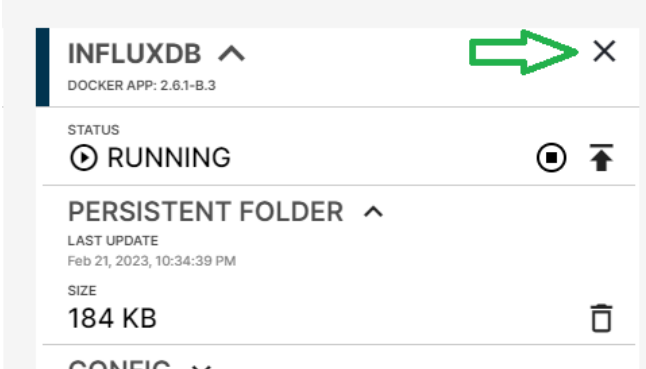
Deleting a Docker app card
Upload a Docker app to the Library
- Open the App Library in Barbara Panel.
- Click New app.
- Fill in the New Application popup, making sure to set the application type to Docker, then click CREATE.
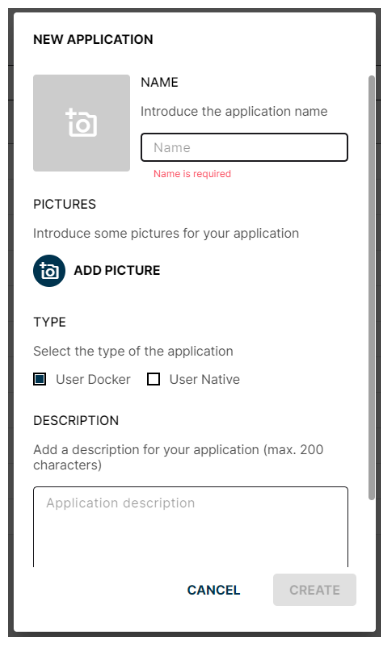
New Docker application popup
- Click the new application's name to open its Application view.
- Click ADD VERSION and upload your zip as the first version.
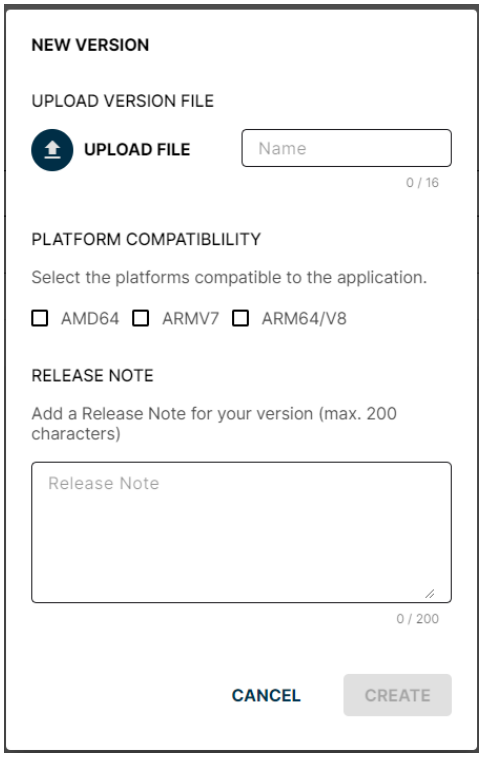
Uploading the first version of a Docker app
Deploy the Docker app to a node
- Open the Node Details page of the target node (reference).
- Click Add card and pick Docker to start the deployment wizard.
- Pick your application and version, configure it, and submit.
- Enable logs from the workload card to inspect startup output.
Manage runtime configuration
Barbara exposes four mechanisms to inject dynamic configuration into your container:
- App Config (local) — JSON config local to one workload, available at
/appconfig/appconfig.jsoninside the container. - Global Config — JSON config shared across every workload on the node, available at
/appconfig/global.json. - App Secrets — sensitive key-value pairs scoped to a single Marketplace workload, injected as environment variables.
- Global Secrets — sensitive key-value pairs shared across every workload on the node, also injected as environment variables.
To expose these files to your container, the compose file must mount the appconfig and persist directories and load the .barbara_env env file (see the example above).
Read App Config from your container
For example, after pushing this App Config JSON from Barbara Panel:
{
  "data": "exampleData",
  "data_object": {
    "data_in": "exampleDataIn"
  }
}
The container can read it the same way it would read any JSON file:
import json

def read_appconfig():
    with open("/appconfig/appconfig.json") as f:
        cfg = json.load(f)
    print(cfg["data"])
    print(cfg["data_object"]["data_in"])

if __name__ == "__main__":
    read_appconfig()
exampleData
exampleDataIn
Barbara keeps /appconfig/appconfig.json and /appconfig/global.json up to date with whatever you push from Panel — your app only needs a function that re-reads the file on demand or watches it for changes.
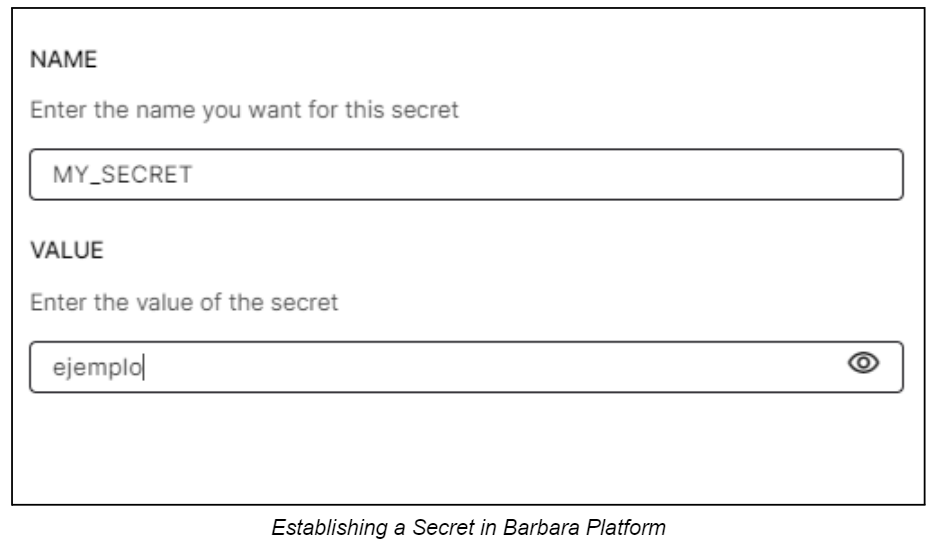
Defining a Global Secret in Panel
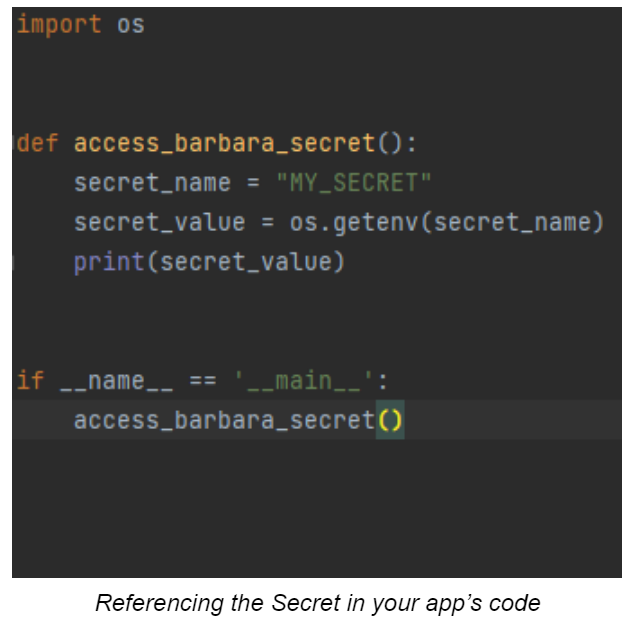
Referencing a Secret from compose
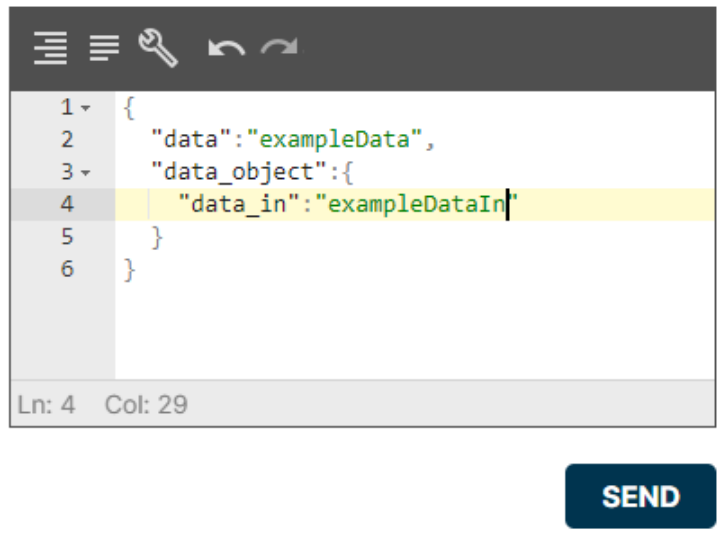
App Config editor
For the full configuration-types reference (App Config vs Global Config vs Secrets vs Compose Config), read App configuration types.
Docker app examples
These repositories illustrate the conventions above end-to-end:
- Apache — minimal Docker container running Apache with a static page.
- Golang — Go app that prints logs driven by App Config.
- Grafana + InfluxDB + Node-RED — multi-container compose showing how to use the
persistfolder across services. (Not compatible with armv7.) - Node.js — Node.js app whose log content and refresh rate are driven by App Config.
Every example ships an appconfig sample so you can drive the app from Barbara Panel without rebuilding the image.
Summary
A Docker app is a zip with docker-compose.yaml at the root, deployed through the App Library and configured at runtime via the /appconfig/*.json files and the injected .barbara_env. Stick to the bind-mount rules (./persist/, ./appconfig, ./sys/ only) and read /appconfig/appconfig.json from your code to consume dynamic configuration pushed from Barbara Panel.