Deploying Marketplace apps
This article refers to Platform v3.2.0. The current Platform version is v3.4.0.
Overview
Once an application is in your App Library you can deploy it to any compatible edge node through the Marketplace app deployment wizard. This article walks you through the three wizard steps — select app/version, set environment variables, and configure the application — and shows how to access the deployed app afterwards.
Open the wizard
From the Node Details page of the target node, click Add card and pick Marketplace App to launch the wizard.
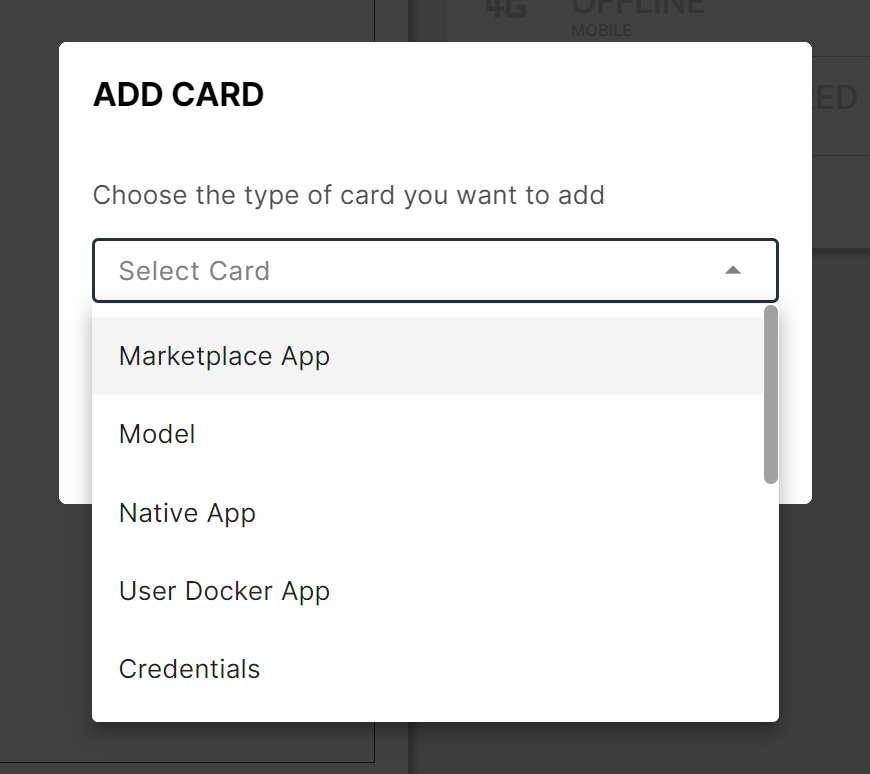
Add card → Marketplace App
Step 1 — Select app and version
Pick the Marketplace application and version you want to deploy. Only applications already added to your Library are listed.
Add one first — see Add a Marketplace app to your Library.
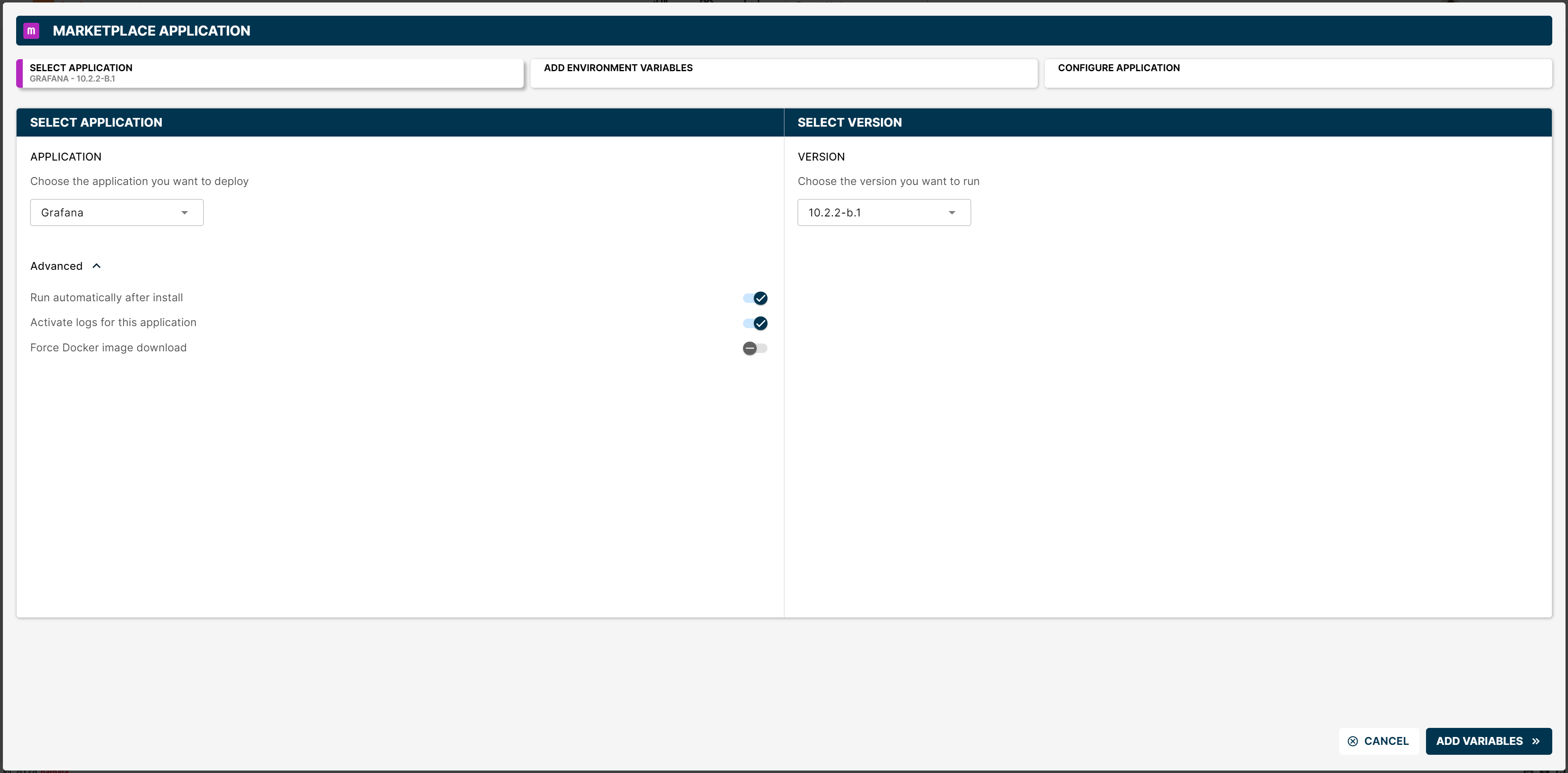
Wizard step 1: select app and version
The Advanced section of this step exposes three toggles:
- Run automatically after install — start the application as soon as the installation finishes.
- Activate logs for this application — enable application logs automatically.
- Force Docker image download — re-download Docker images even if they are already cached on the node.
Step 2 — Environment variables
Every Marketplace app defines its own set of environment variables, so this step is app-specific. Useful conventions:
- Required variables are marked with an asterisk on the field name.
- Hover the info icon to the right of a field to see a description of the variable.
- Each input shows its default value, when one is defined.
- The right-hand panel exposes the README of the application — read it for the full reference of every variable.
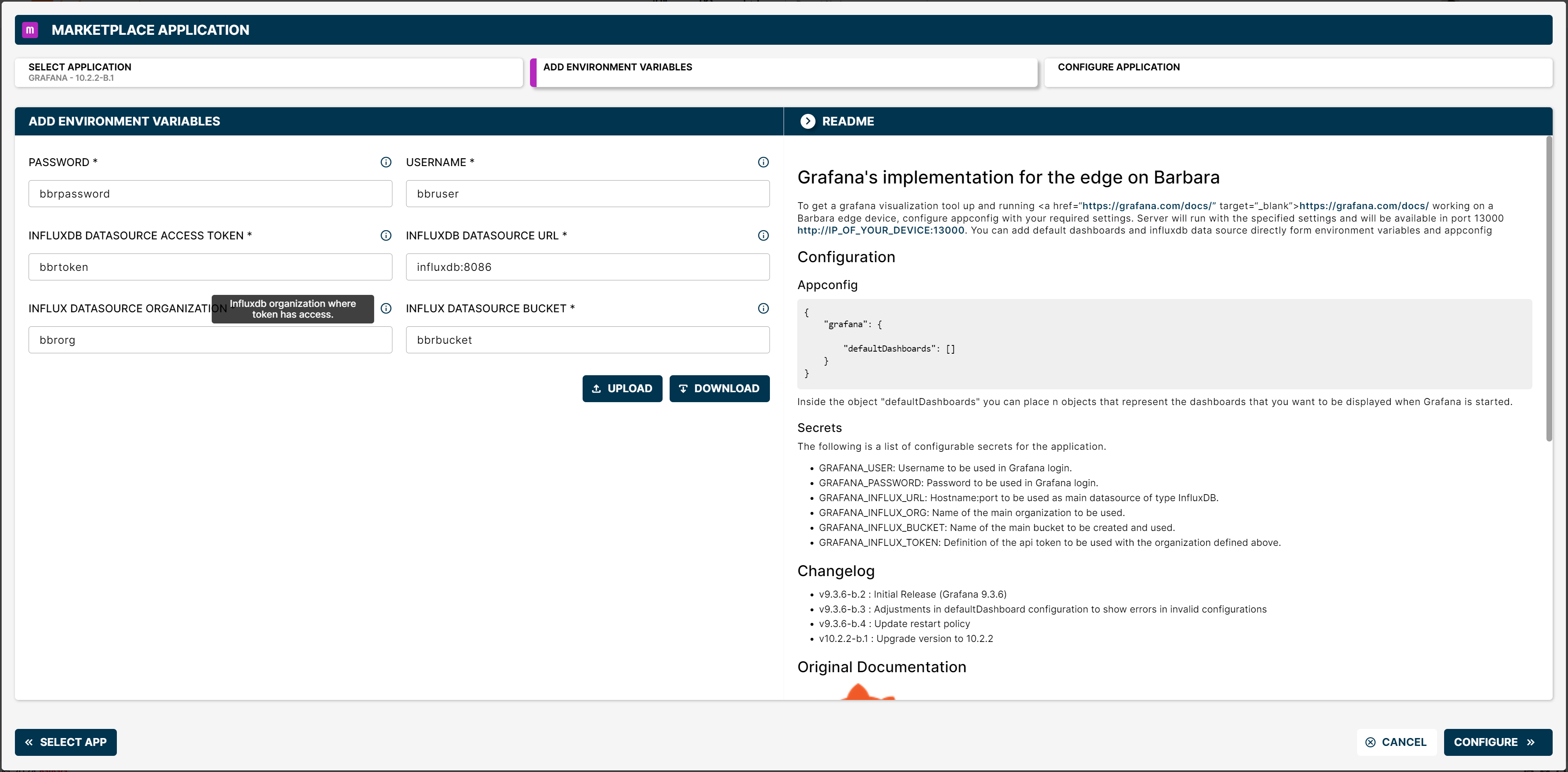
Wizard step 2: environment variables
Two buttons help when there are many variables:
- DOWNLOAD — exports the current values as a file you can edit offline.
- UPLOAD — re-imports the edited file in one click.
Step 3 — Application configuration
The final step is a JSON editor for the application-specific configuration. The schema is defined by each app — read its README for the available fields.
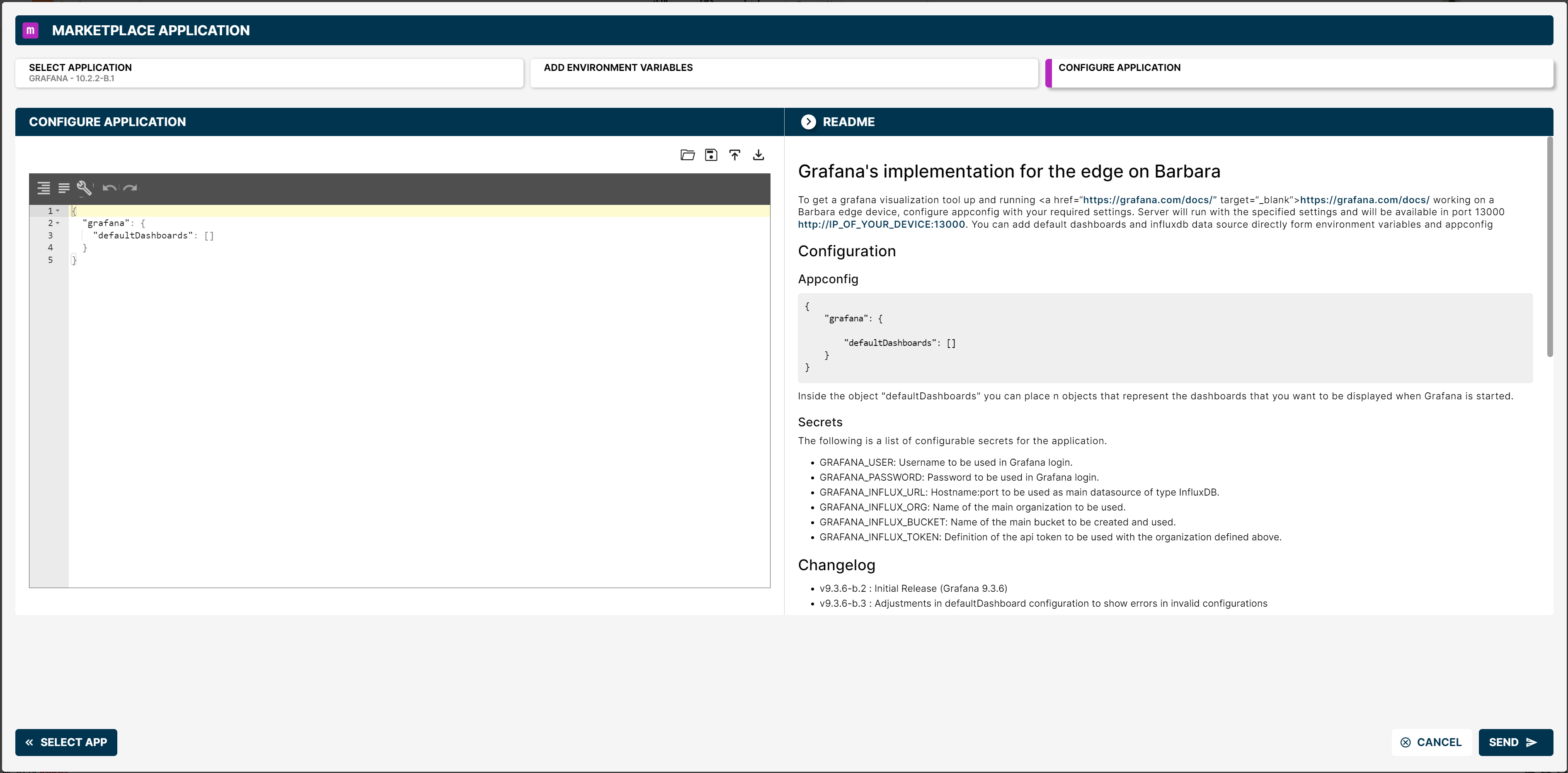
Wizard step 3: application configuration
Click SEND to deploy. A new workload card appears on the Node Details page.
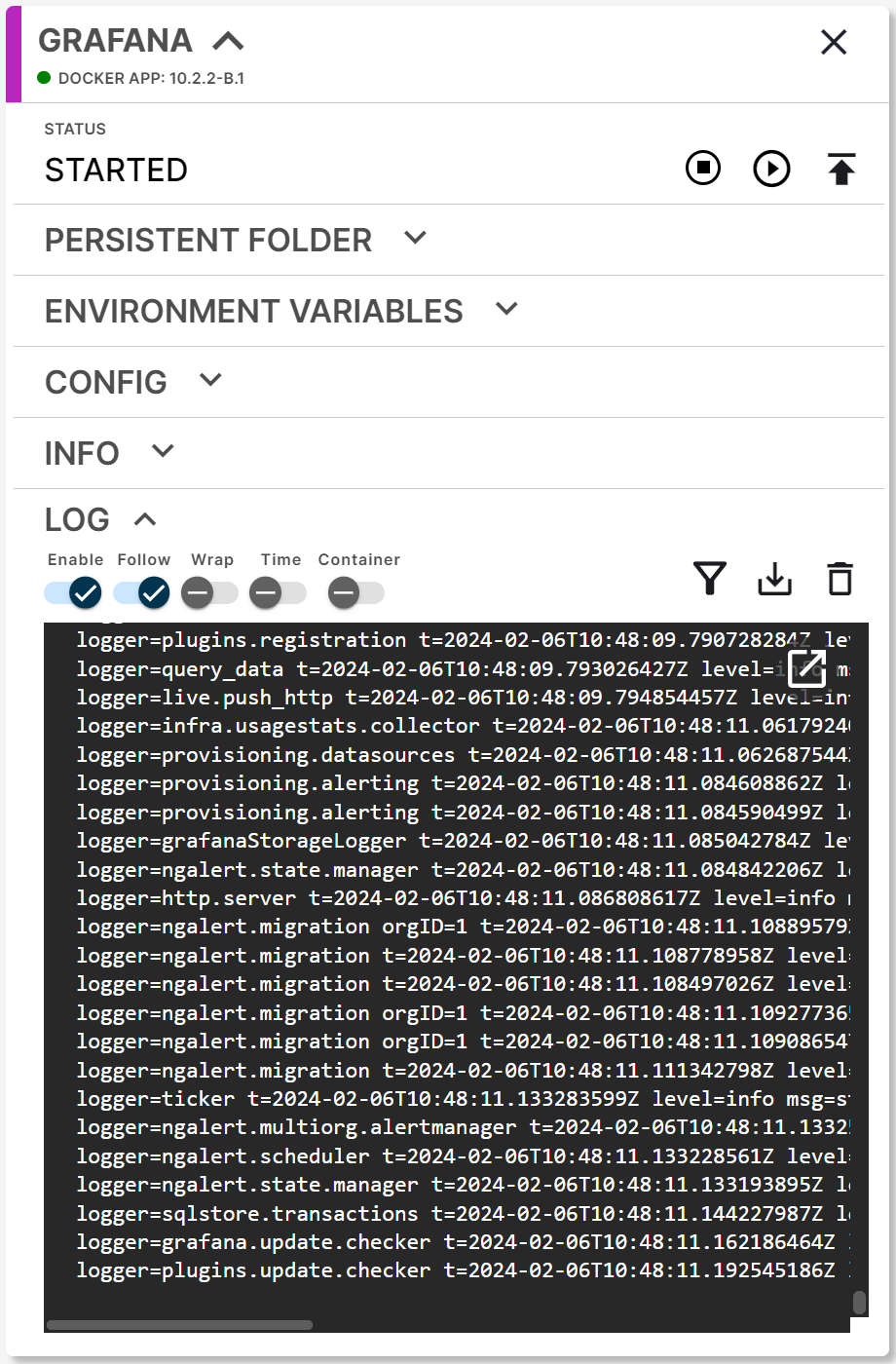
Marketplace app card after deployment
Access the deployed application
Most Marketplace apps expose a web UI on a specific port. For example, the Marketplace Grafana application listens on port 13000 by default, so you would open http://<NODE_IP>:13000 in your browser.
- Find the node's IP on the Network card.
- If the node is on a different LAN, you may need to enable the VPN.
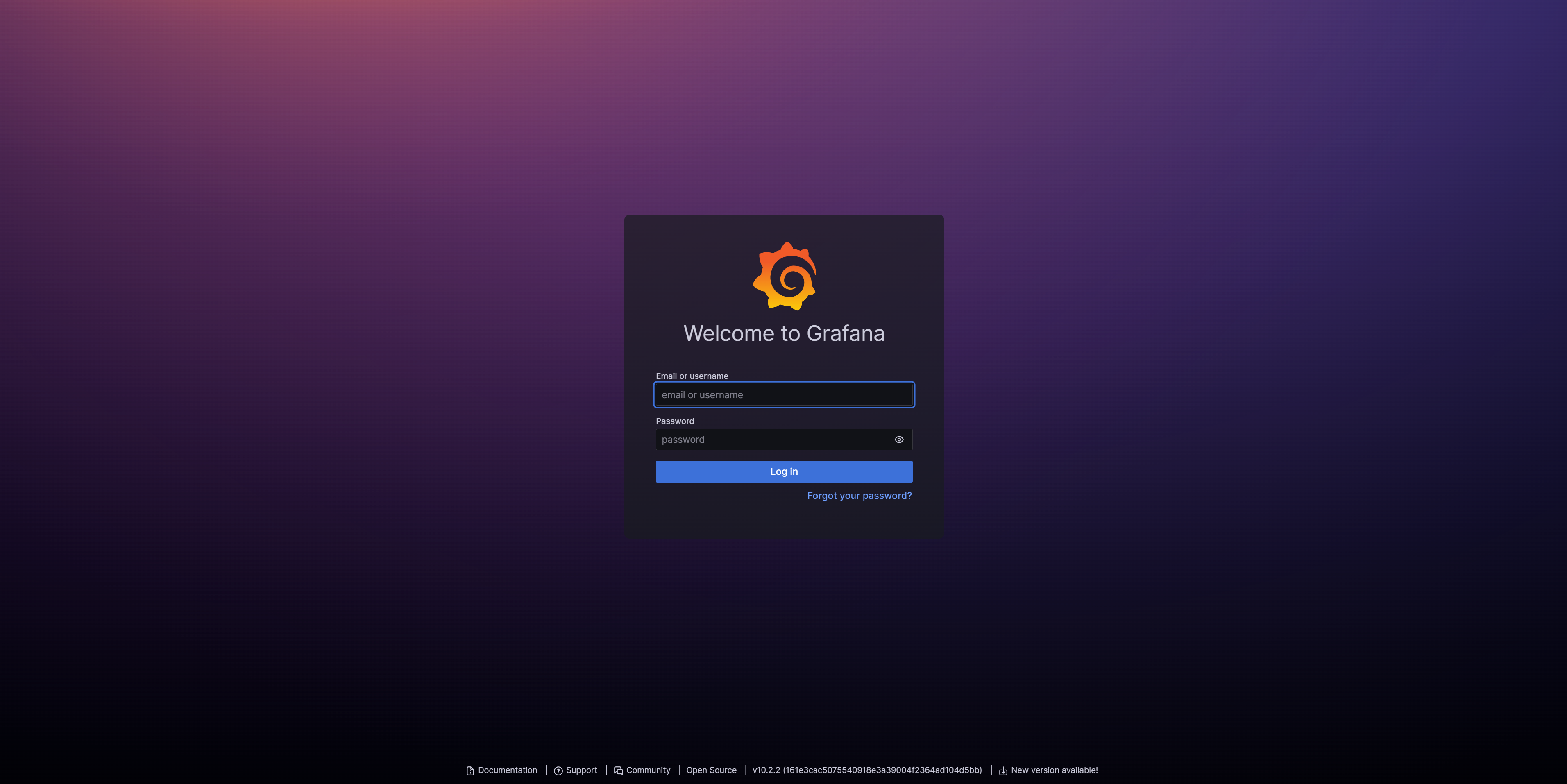
Grafana login served from the edge node
Summary
The Marketplace deployment wizard takes you from a library entry to a running workload in three steps — pick app/version, set environment variables, configure the app. Once deployed, the app shows up as a workload card on the Node Details page and is reachable on the network ports it exposes.