Configure the VPN
This article refers to Platform v3.3.0. The current Platform version is v3.4.0.
Overview
Barbara ships a VPN based on WireGuard that lets you reach an edge node from outside its LAN. This article walks you through activating the VPN on the node, installing WireGuard on your laptop, and using the user configuration file delivered by Barbara Panel to open a tunnel into the same VPN as the node.
For an introduction to VPNs in general, see the Wikipedia article on Virtual Private Networks.
Activate the VPN on the node
The VPN row lives in the Advanced section of the Network card on the Node Details page. Before activation, the row is shown disabled.
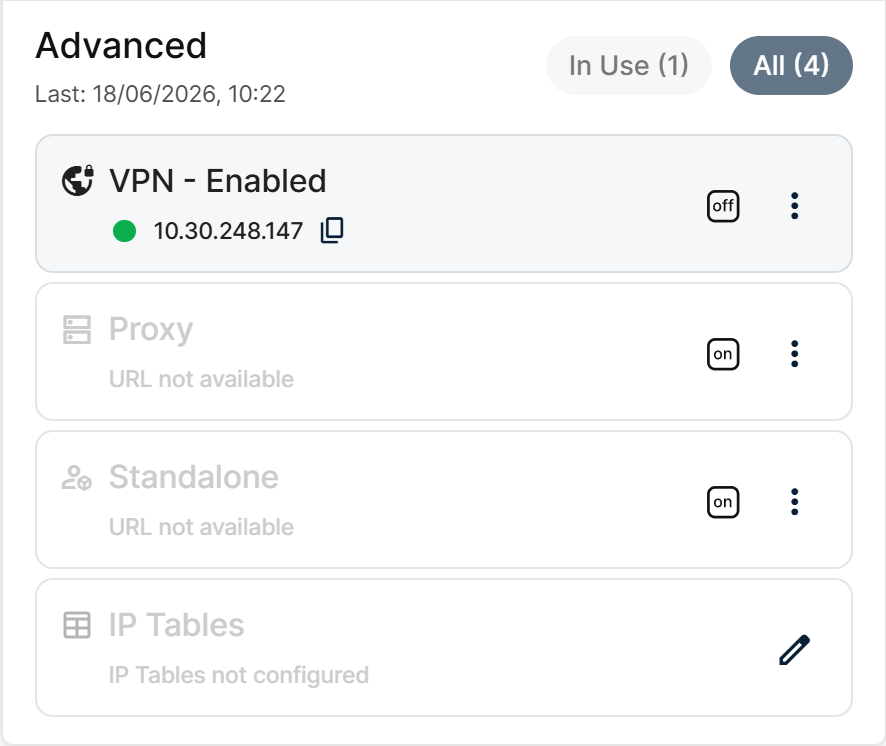
VPN row in the Advanced section
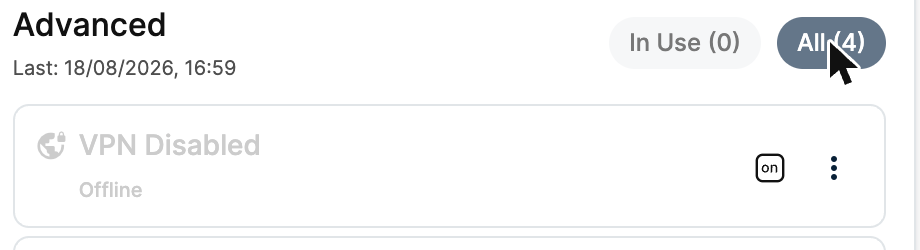
VPN entry before activation
Click Activate VPN to send the activation command to the node.

Activate VPN button
Once activated, the VPN area on the card shows:
- The node's VPN IP.
- An ON / OFF toggle (blue = ON).
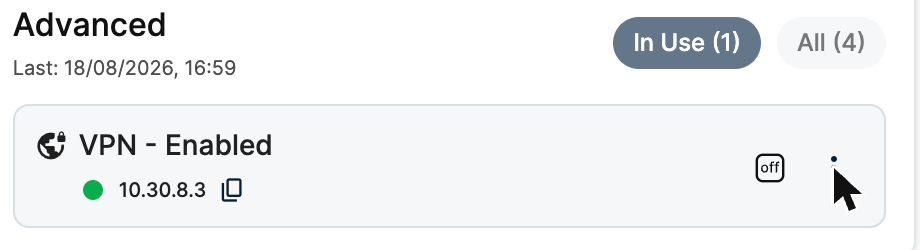
VPN ON with the node IP visible
Any other device connected to the same Barbara VPN can now reach the node at that IP.
Connect to the node from your laptop
To reach the node from your laptop, you need a WireGuard client with the user configuration file that Barbara Panel issues for you.

WireGuard
1. Install WireGuard
Download the WireGuard client for your operating system from the official installer page: wireguard.com/install. Follow the installer.
2. Download the user configuration file
In Barbara Panel, open the VPN entry from the three-line menu in the top-left.
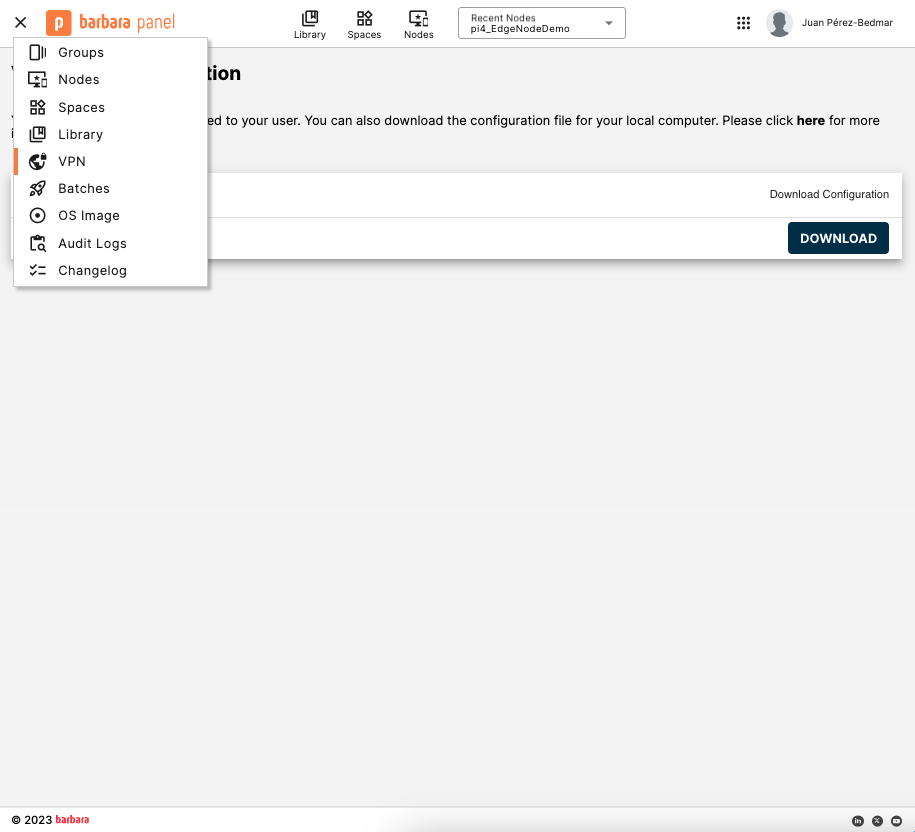
VPN section in Barbara Panel
Click Download to save the WireGuard configuration file (wg.conf) for your user.
3. Import the tunnel into WireGuard
Open the WireGuard client and choose Import tunnel(s) from file. Select the wg.conf you just downloaded.
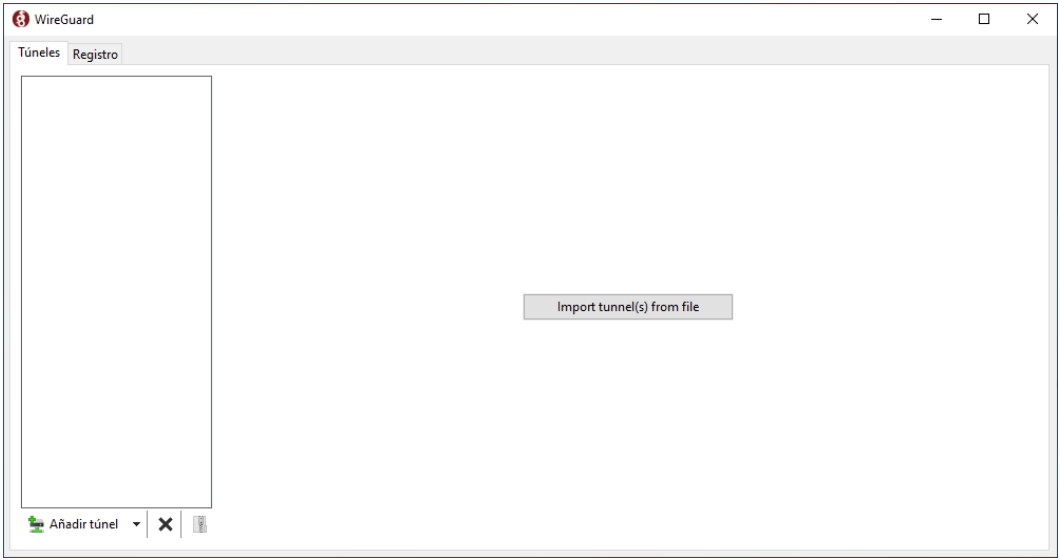
Importing the WireGuard tunnel
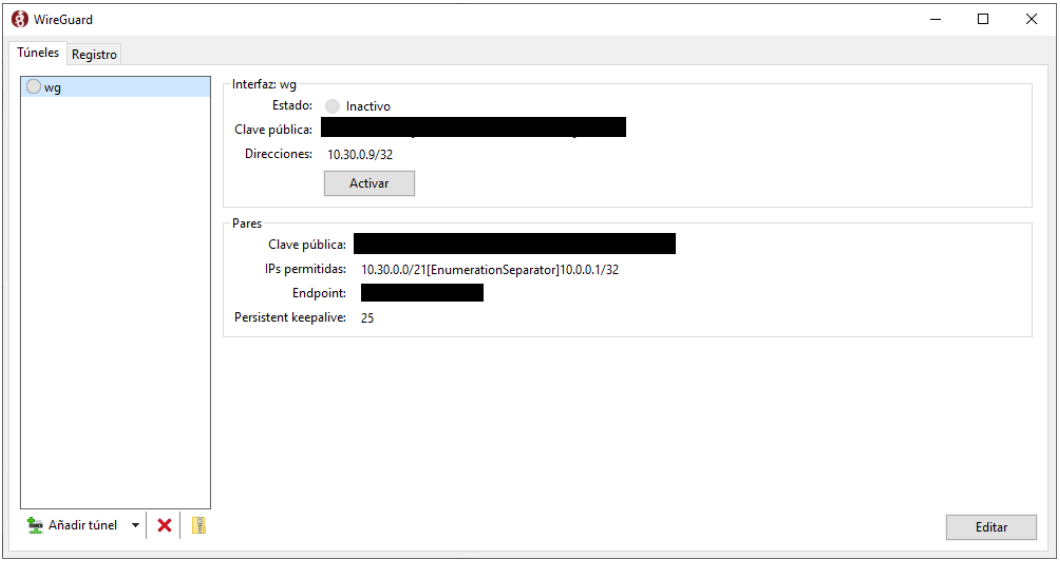
Tunnel imported
Click Activate on the new tunnel. WireGuard shows it as Active with a green check.
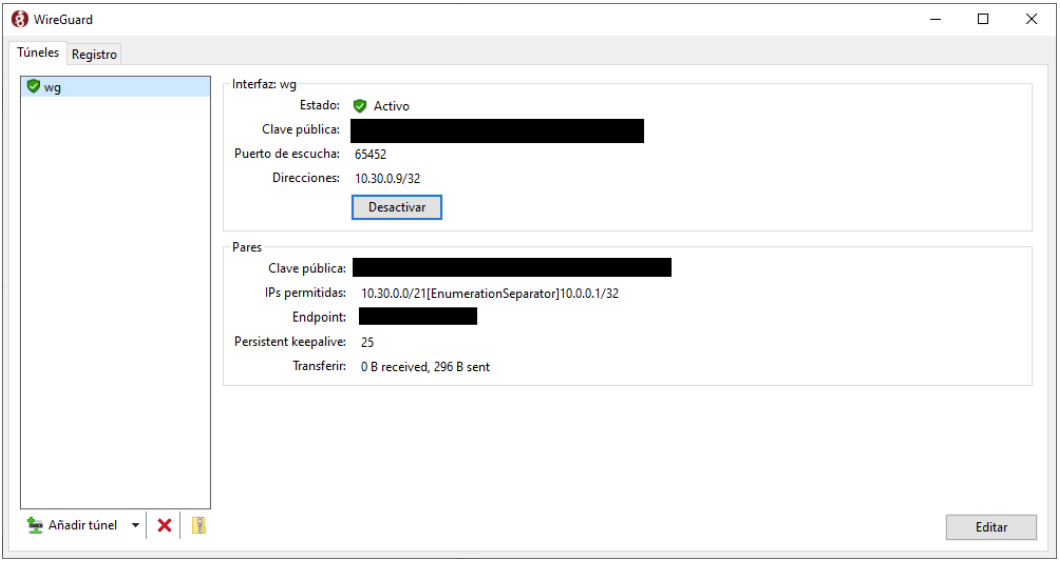
Tunnel active
4. Reach the node
With both VPNs up (the node's and your laptop's), you can reach any service running on the node by its VPN IP (shown in the Network card).
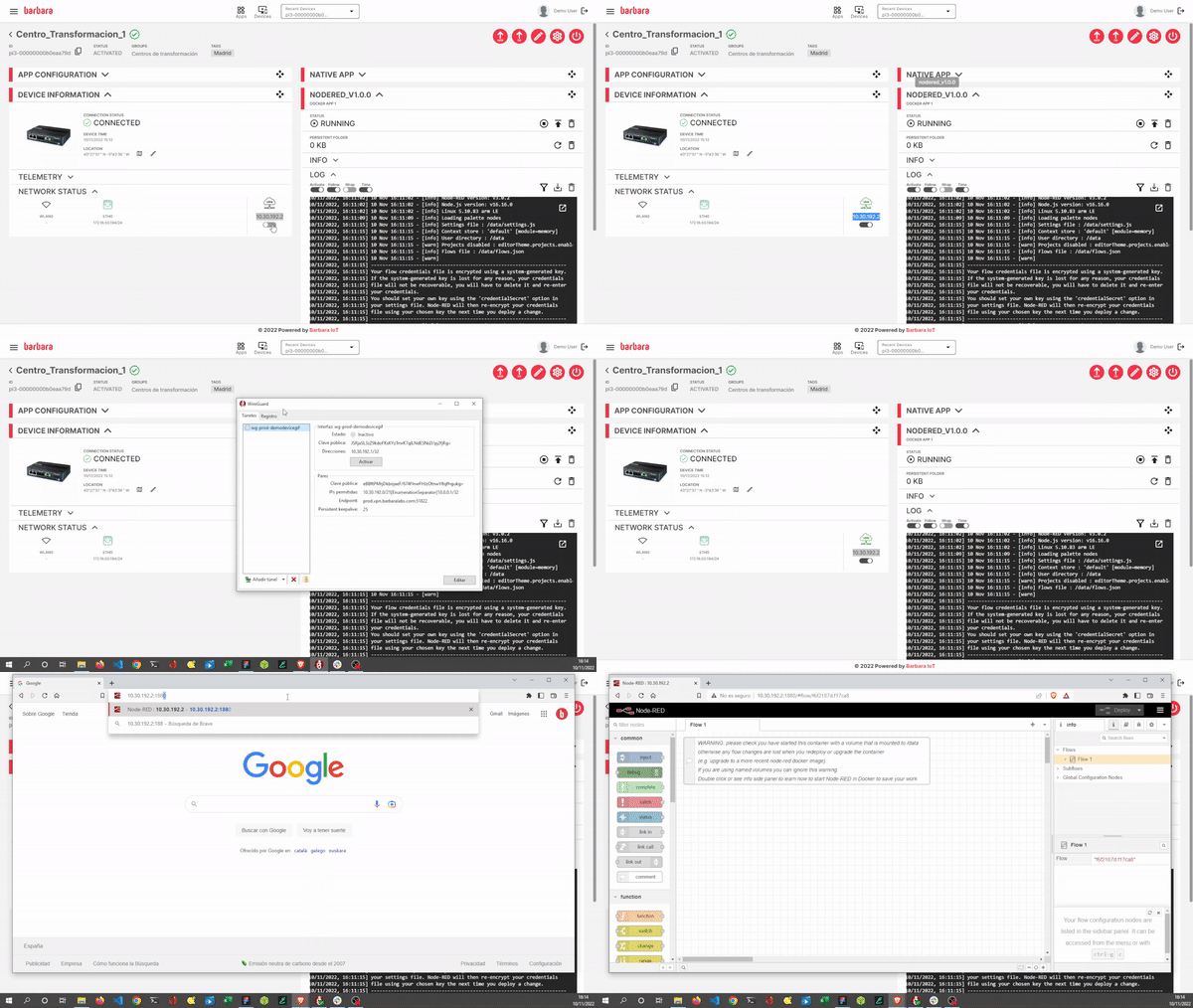
Reaching a Node-RED service over the VPN
Summary
The Barbara VPN is a WireGuard tunnel between your laptop and your edge nodes. Activate it on the node from the Network card, download the WireGuard user configuration file from the VPN section in Panel, and import it into the WireGuard client to reach the node from anywhere.