Configure the Proxy
This article refers to Platform v3.3.0. The current Platform version is v3.4.0.
Overview
A proxy sits between the edge node and the external network and can be used to enforce security, caching, or organizational policy. Barbara Panel lets you enable, configure, and disable a proxy per node from the Proxy row in the Network card's Advanced section.
For a generic introduction to proxies, see Proxy server (Wikipedia).
Proxy controls
The Proxy row in the Network card's Advanced section shows the configured URL, and its ON/OFF control enables or disables the proxy.
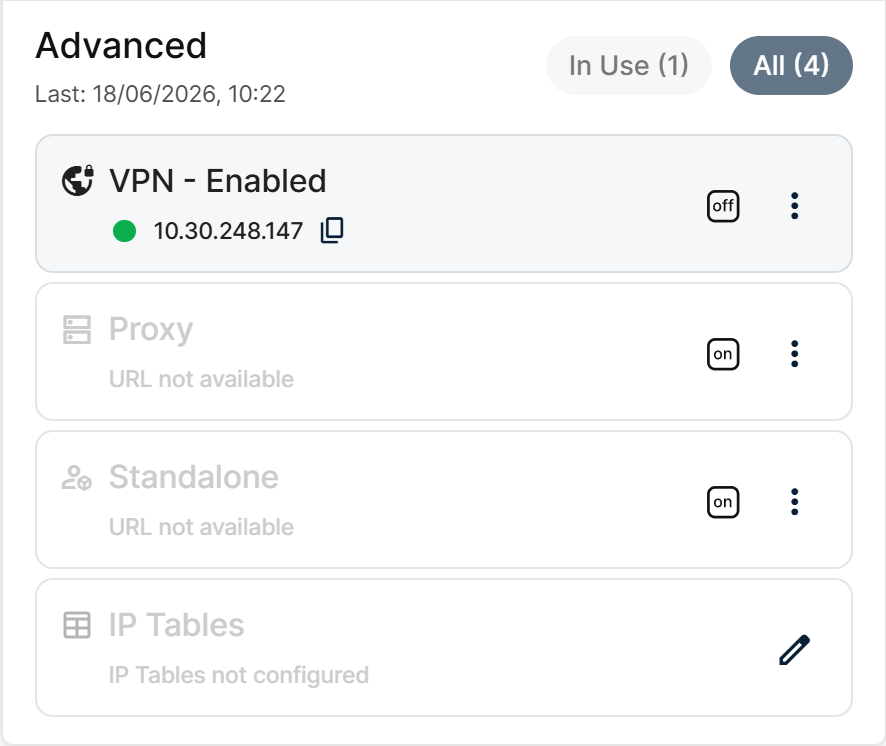
Proxy row in the Advanced section
Before enabling a proxy on a node:
- Make sure the proxy settings are correct for your network.
- Make sure the proxy server itself is reachable.
- If you lose connectivity after enabling, the proxy configuration is the first place to check.
Enable the proxy
- On the Network card, click the ON control on the Proxy row. The Proxy Settings popup opens.
- Fill in the configuration:
- URL — protocol, address, and port of the proxy server.
- User (optional) — username for authentication.
- Password (optional) — password for the user above.
The only supported proxy protocols are HTTP and Socks5.
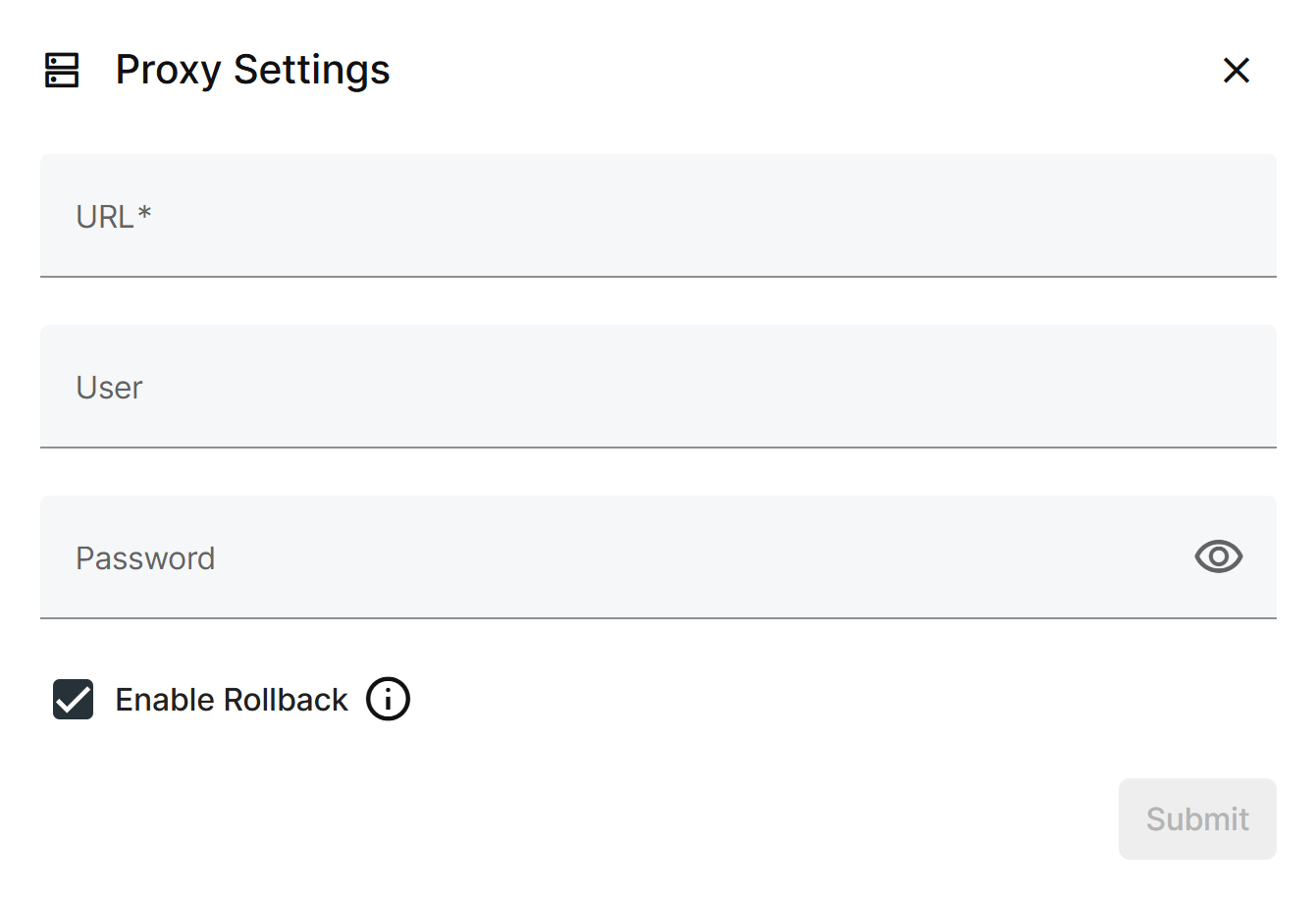
Proxy Settings popup
- Check Enable Rollback if you want the change protected.
- Click Submit. A confirmation warns you that the node needs to reboot for the change to take effect.
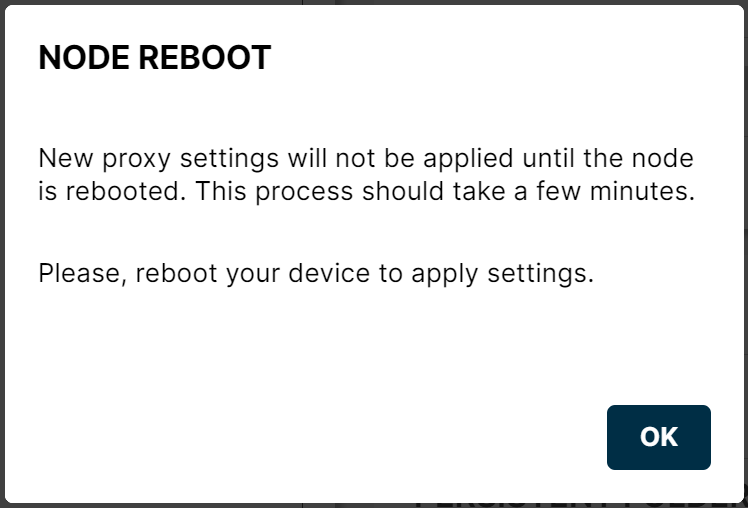
Proxy enable reboot confirmation
Until the node reboots, the proxy status shows OFF with a Pending reboot to be enabled warning.
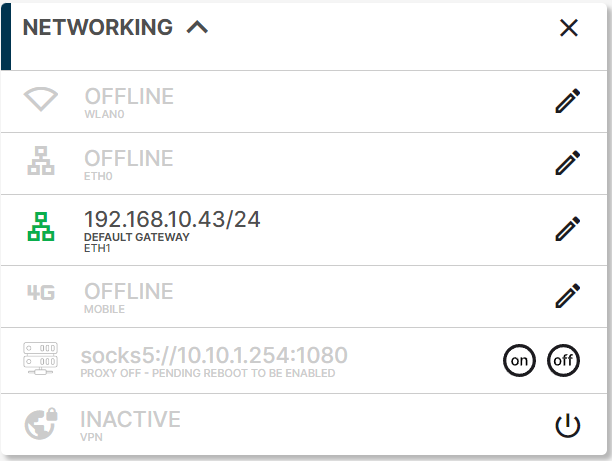
Proxy pending reboot
Once the node reboots, the proxy status becomes ON.
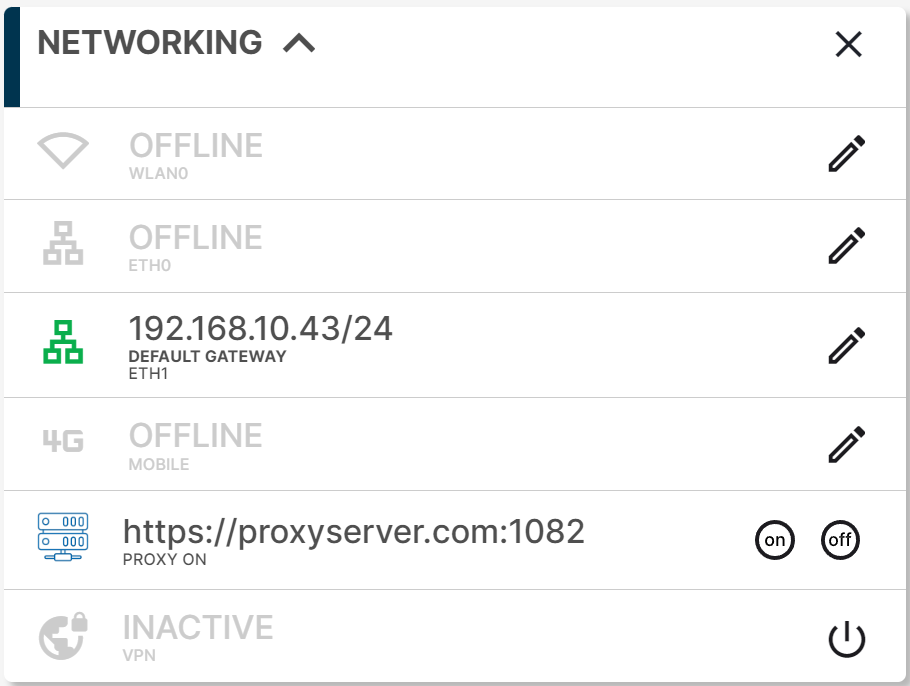
Proxy ON after reboot
Disable the proxy
- On the Network card, click the OFF control on the Proxy row. A confirmation warns you that the node needs to reboot for the change to take effect.
Proxy disable reboot confirmation
- Until the node reboots, the proxy status still shows ON with a Pending reboot to be disabled warning.
- Once the node reboots, the proxy status becomes OFF.
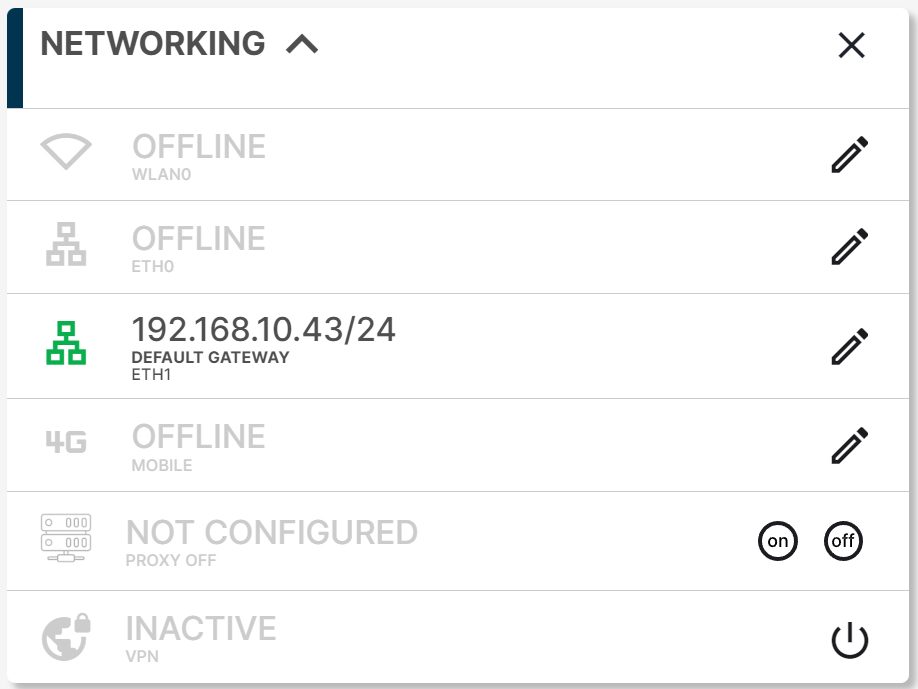
Proxy OFF after reboot
Summary
A proxy on an edge node is configured from the Proxy row of the Network card's Advanced section: only HTTP and Socks5 are supported, the URL is the only mandatory field, and every change to the enabled state requires a node reboot to take effect.