Standalone Mode
This article refers to Platform v3.3.0. The current Platform version is v3.4.0.
Overview
Standalone Mode lets you configure an edge node's network interfaces directly on the device, even when the node cannot reach Barbara Panel. It is the right tool for:
- Offline deployments — nodes brought up at customer sites with limited or no upstream connectivity.
- Independent reconfiguration — adjusting network settings locally without round-tripping through Panel.
While Standalone Mode is enabled, the local configuration takes precedence; the changes you make from the local UI are still pushed back to Panel whenever the node is online. When Standalone Mode is disabled, Panel is the source of truth as usual.
Open Standalone Mode
Standalone Mode has two entry points that lead to the same Standalone Settings popup:
- The Standalone Mode row in the Advanced section of the Network card, on the Node Details page.
- The Standalone Mode section of the Advanced Actions popup, opened from the wheel icon in the Node Details header: useful when the node has already lost its connection to Panel and you got there through a different path.
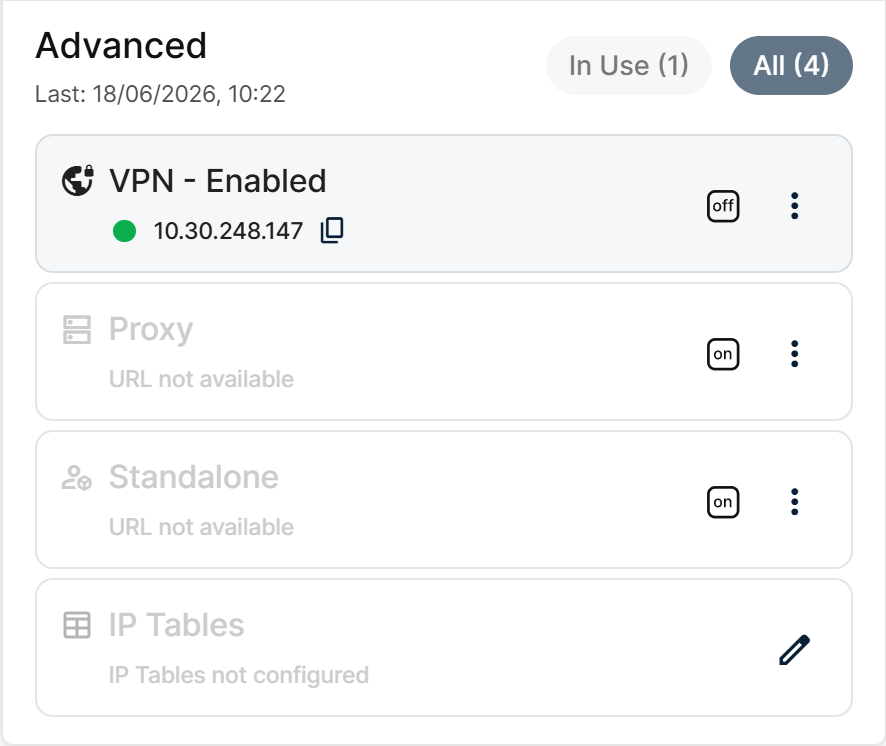
Standalone Mode row in the Advanced section
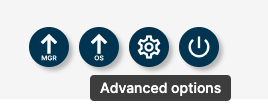
Advanced Actions button
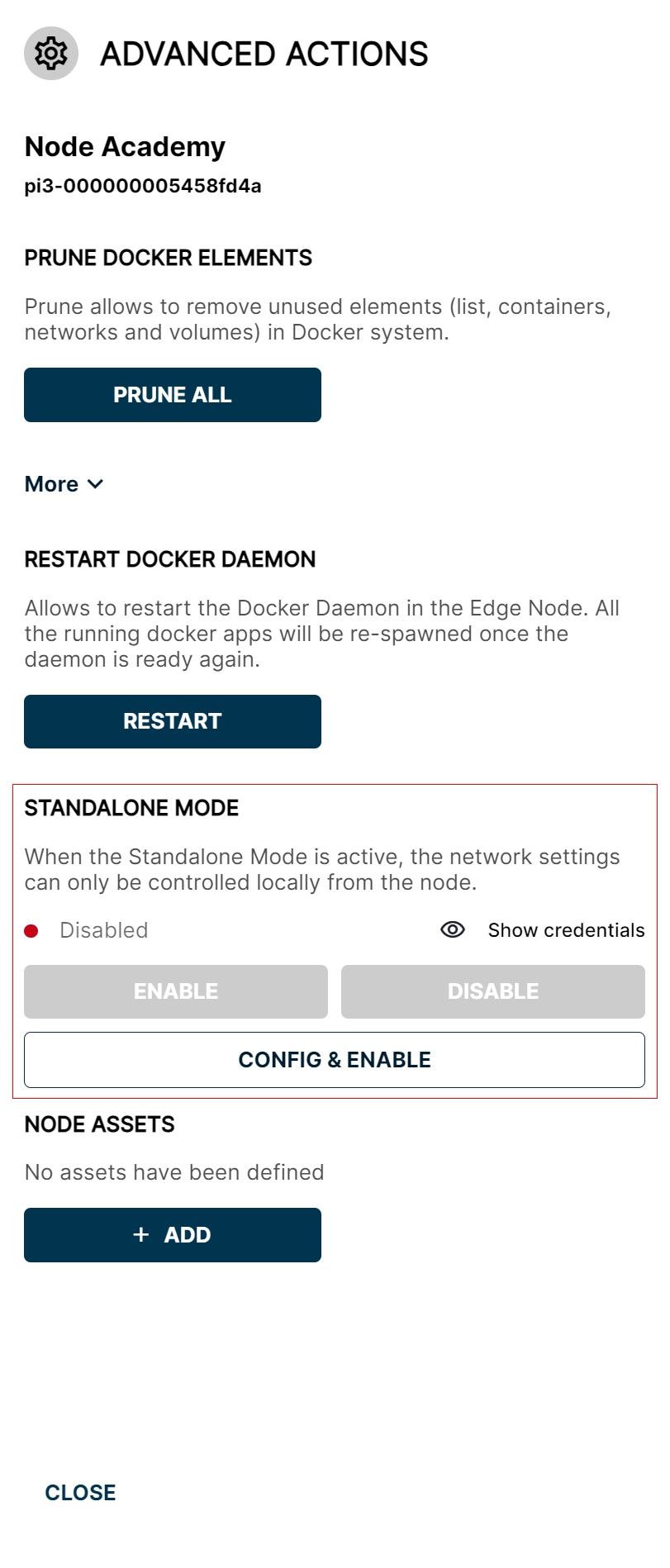
Standalone Mode section in Advanced Actions
Configure and enable Standalone Mode
Opening either entry point brings up the Standalone Settings popup. Pick a Network Interface from the dropdown:
- Any interface — the most flexible option. Works on any available Ethernet or WiFi interface using the DHCP-assigned IP.
- A specific interface (eno1, wlan0, …) — the actual name and number of interfaces depend on the hardware.
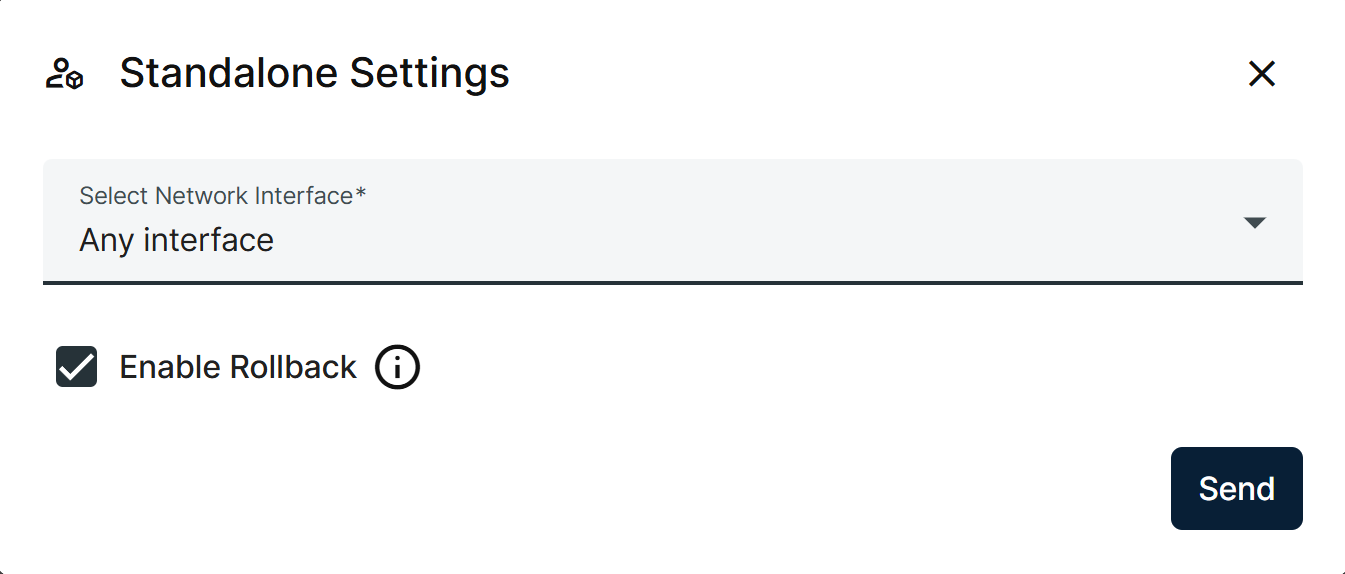
Any interface selected
Pick Any interface when you are already on the same local network as the node and you don't need to change the network parameters of the interface: no further configuration is needed, and no existing multi-IP setup is touched.
Picking a specific interface instead lets you set its static parameters. It overwrites the interface's existing multi-IP configuration, so use it when you need the node to listen on that interface's own address rather than whatever DHCP assigns.
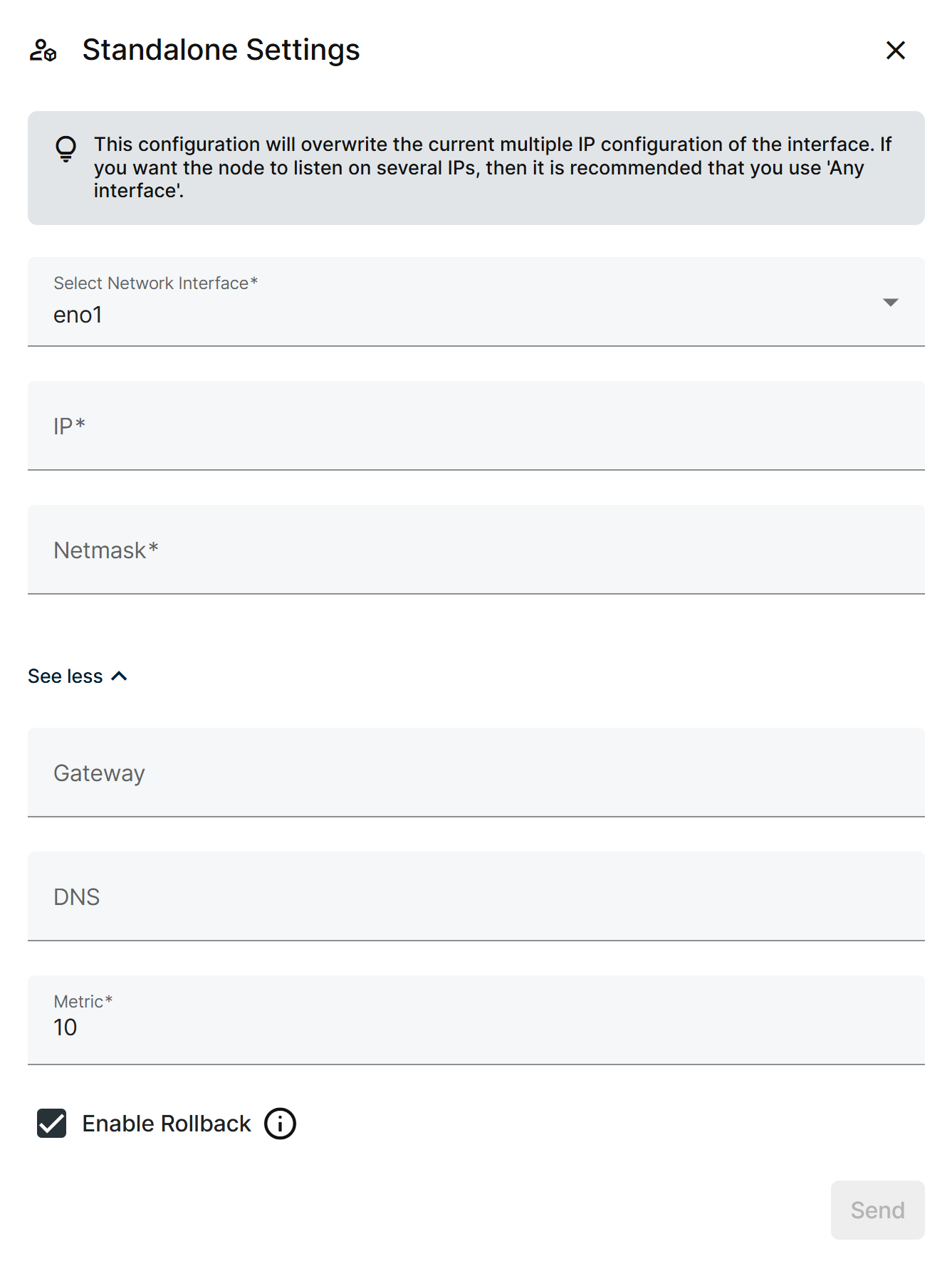
A specific interface selected, with optional fields expanded
- Set IP and Netmask. For a WiFi interface, also set SSID and Password.
- Click See more for the optional Gateway, DNS, and Metric fields, if you need them.
- Check Enable Rollback if you want the change protected.
- Click Send.
Once enabled, reach the node depending on how your laptop connects to the interface you picked:
Through a shared LAN
Use this approach when your laptop is on the same local network as the node.
- From the Network card, copy the IP address (
IP_ADDRESS) of the interface Standalone Mode is running on. - Open
IP_ADDRESS:4010in your browser. The local network configuration UI loads.
Through a direct cable connection
Use this approach when you connect the node to your laptop with an Ethernet cable directly.
- On your laptop, configure the Ethernet adapter manually:
- Disable DHCP.
- Set an IP in the same range as the node's.
- Set the same Netmask as the node's.

Static Ethernet configuration on the laptop
- From the Network card, copy the IP address (
IP_ADDRESS) of the interface. - Open
IP_ADDRESS:4010in your browser. The local network configuration UI loads.
Once Standalone Mode is enabled, remote configuration of network settings from Barbara Panel is disabled until Standalone Mode is turned off again.
Use the local UI
Open IP_ADDRESS:4010 and log in with the credentials Barbara Panel generated for this node.
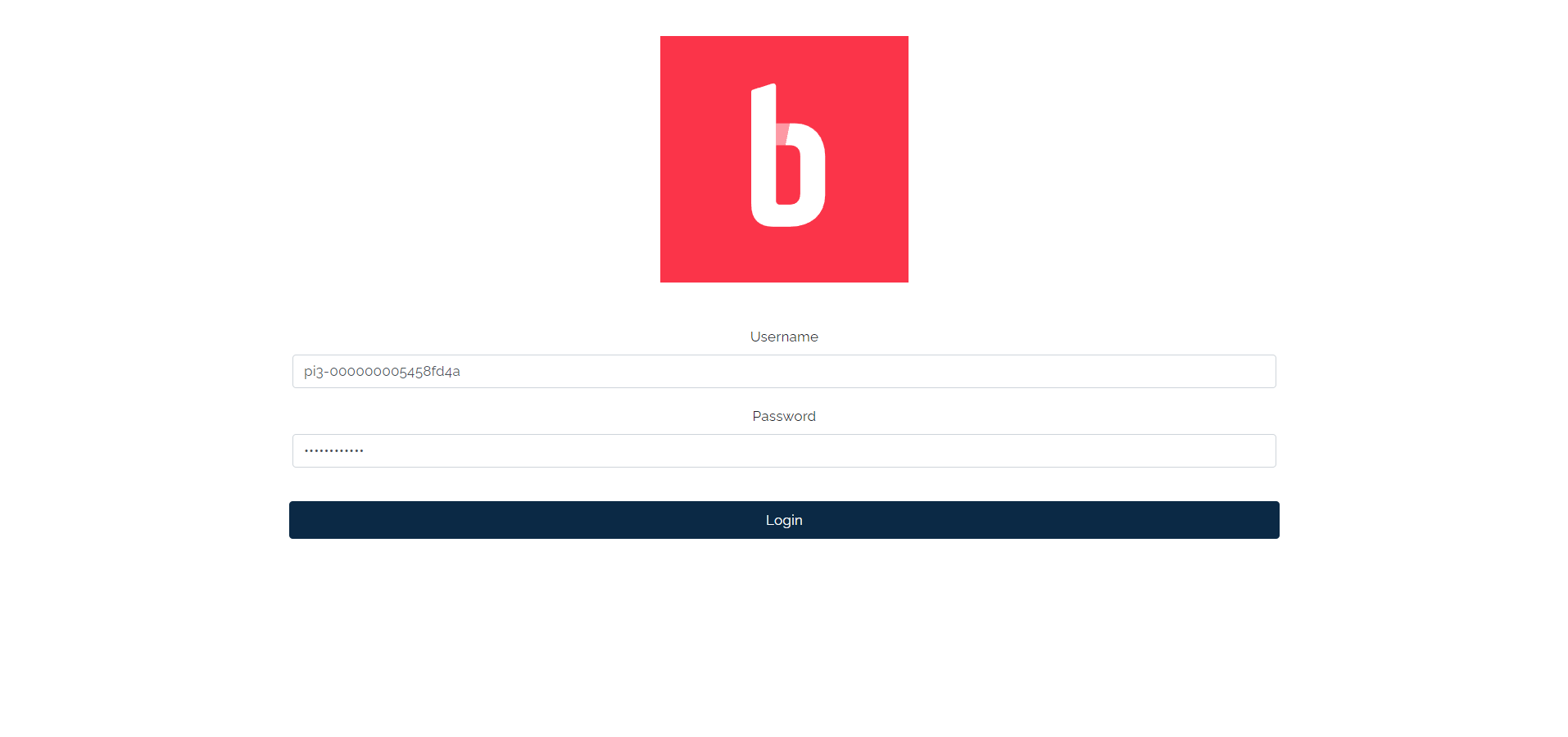
Local UI login page
If you don't remember the credentials, go back to the Standalone Mode section in Panel and click Show Credentials.
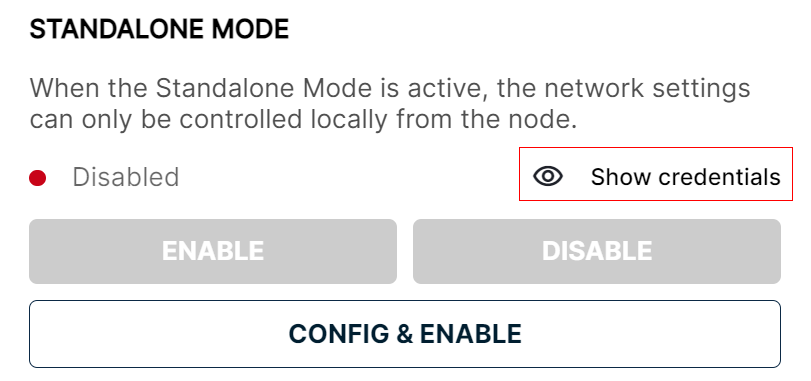
Show Credentials button
The Standalone password is auto-generated by Panel. Click Regenerate (highlighted in red) to issue a new one.
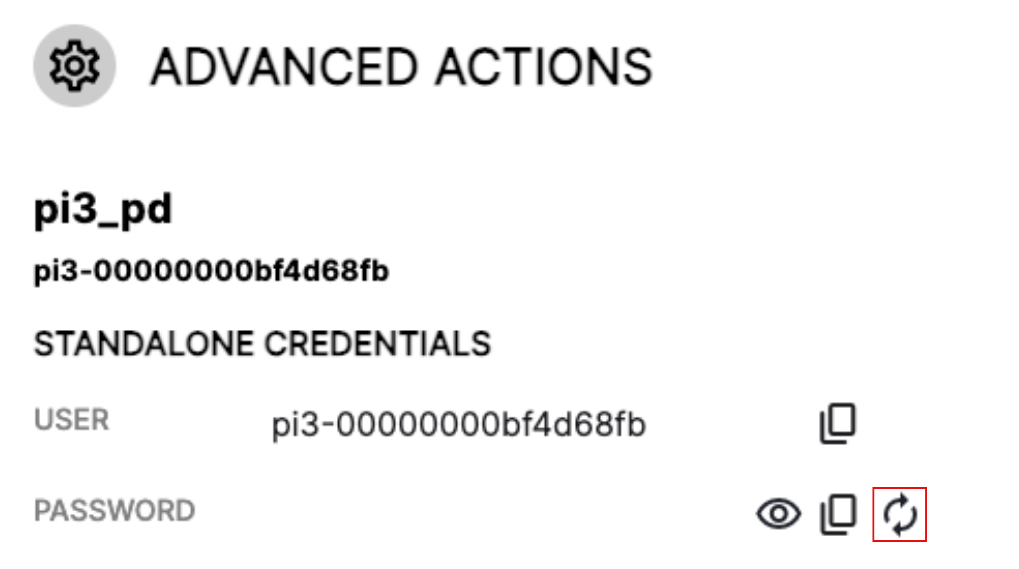
Regenerate password
Once logged in, you can configure every interface available on the node, including the one Standalone Mode is currently using.
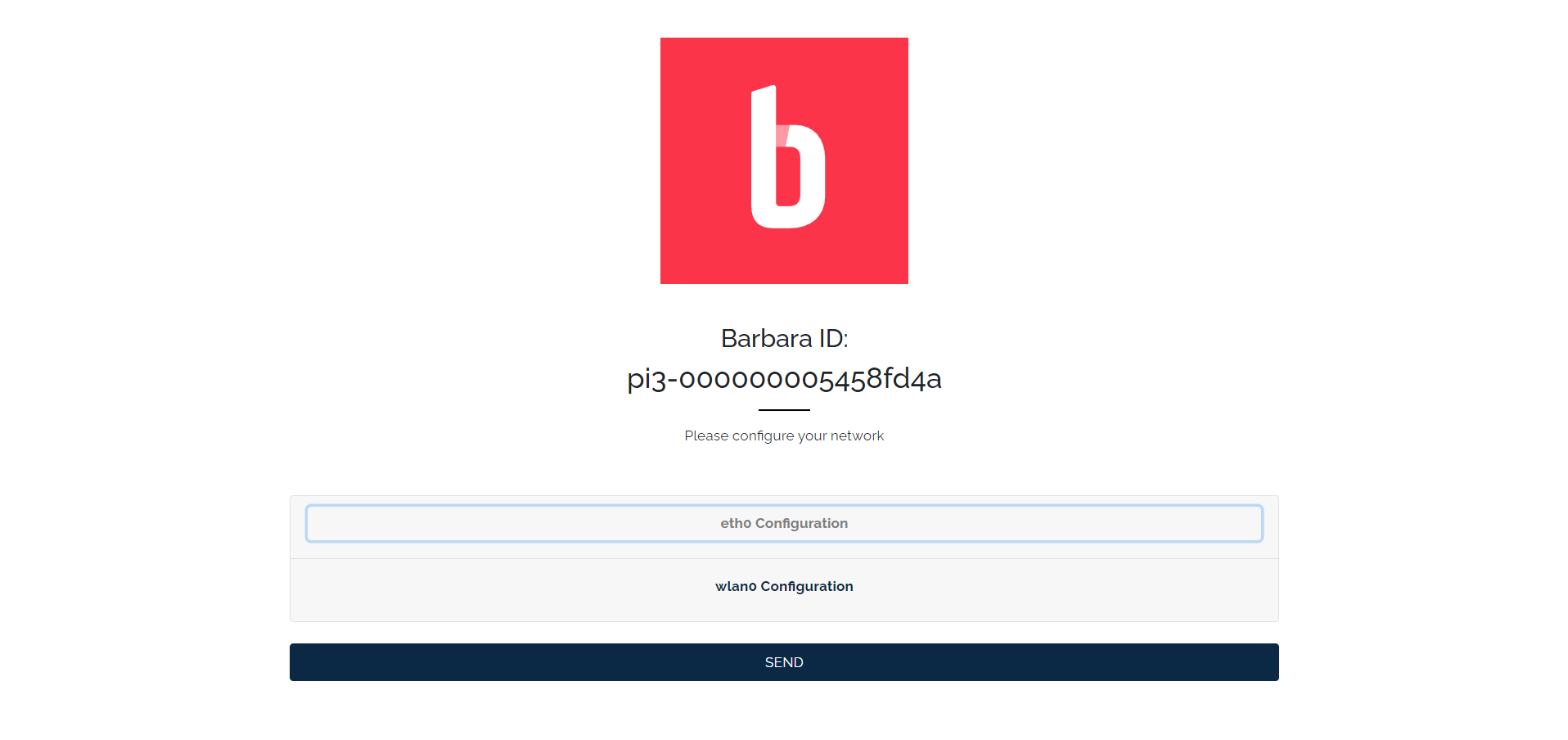
Local UI
Changes made in the local UI propagate back to Barbara Panel only when the node is online.
Disable Standalone Mode
From either entry point, click Disable to turn Standalone Mode off.
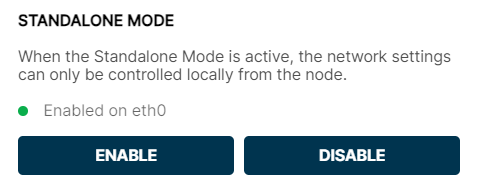
Disable button
The status indicator turns red and reads Disabled.
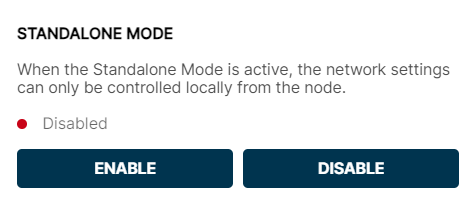
Standalone Mode disabled
Remote configuration through Barbara Panel is re-enabled.
Summary
Use Standalone Mode when an edge node needs to be reconfigured locally: at a customer site, on a closed network, or when the link to Panel is down. Pick Any interface when you share a LAN with the node and don't need to touch its settings, or a specific interface when you need static parameters or a direct cable connection. Point your browser to IP_ADDRESS:4010, and remember to disable Standalone Mode once you are done so Barbara Panel resumes control.