Batch operations
This article refers to Platform v3.4.0. The current Platform version is v3.4.0.
Overview
The Batches view in Barbara Panel lets you apply the same command to many edge nodes at once — install an app on every node in a group, change network settings across a fleet, push a firmware update to dozens of nodes simultaneously. Each batch is created with the Configure Batch wizard, lives in a clear lifecycle (Pending → Sign → Sent), and is governed by RBAC: not every user can send a batch once it has been created. Once sent, the view reports what each node did with the command.
Open the Batches view
In Barbara Panel, select the rocket icon in the left sidebar to open Batches.
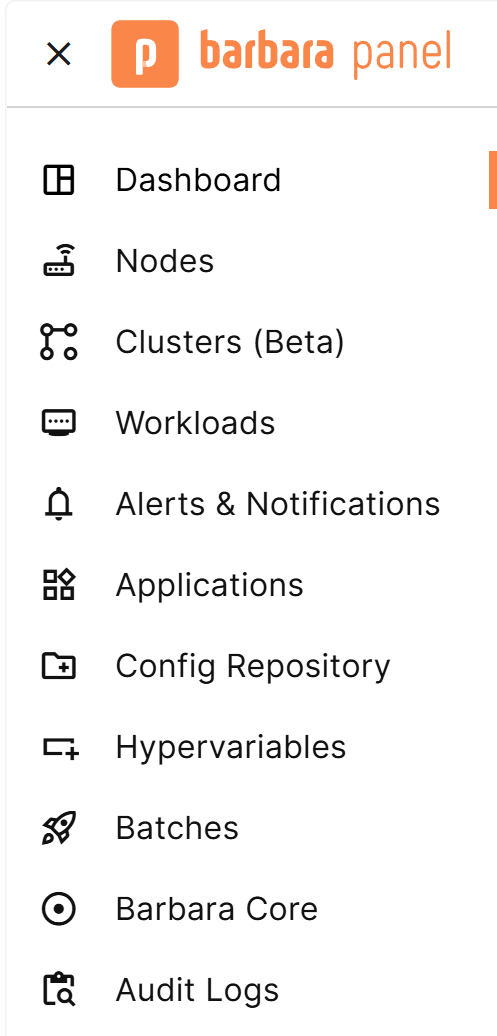
Batches entry in the left sidebar
Batches view UI
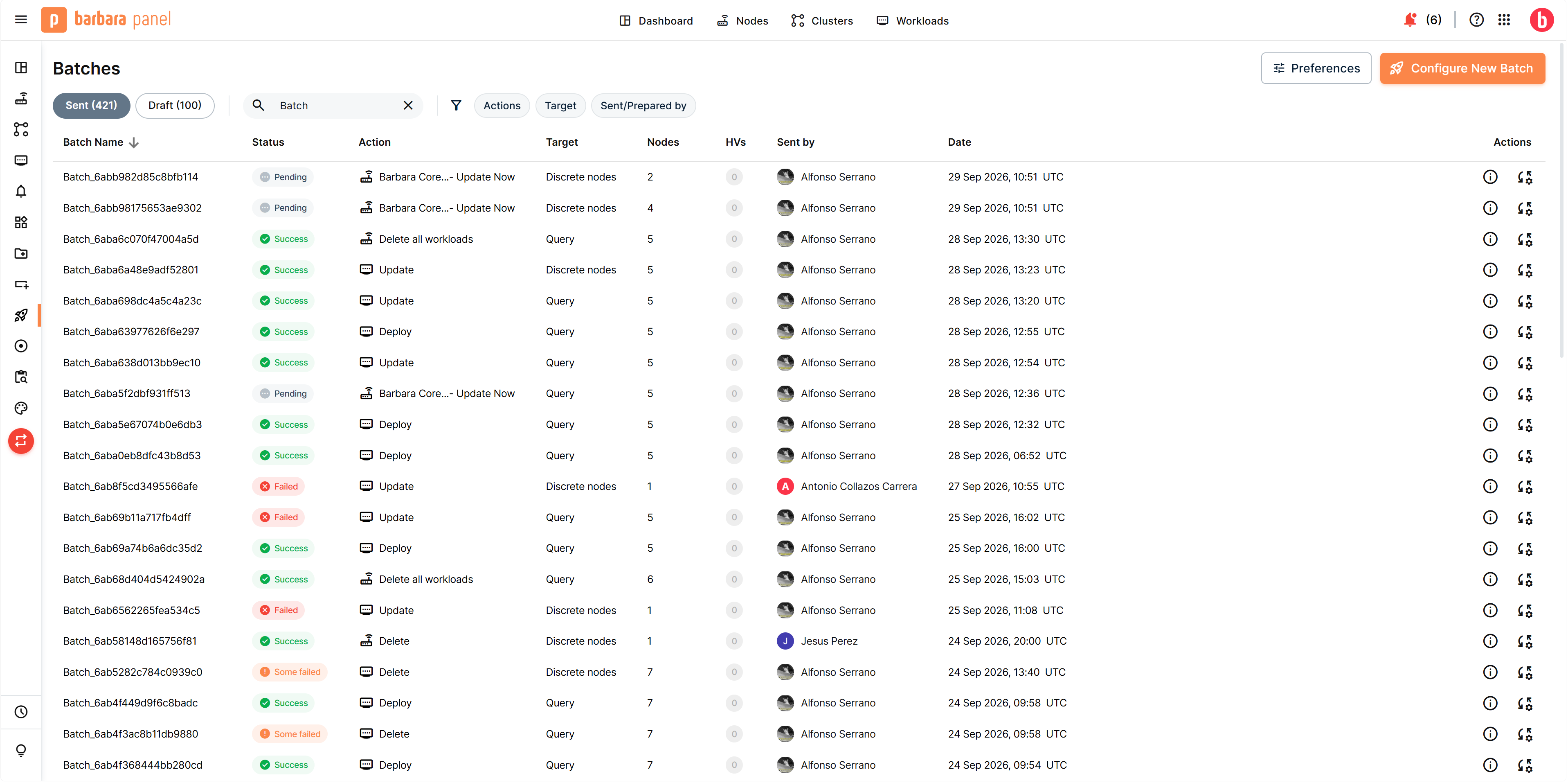
Batches view
- Configure New Batch — opens the Configure Batch wizard from scratch.
- Filter and the Actions / Target / Sent/Prepared by dropdowns — narrow the list by batch name, author, command, or target.
- Tabs — switch between Sent and Draft.
- Batch Name, Status, Action, Target, Nodes, HVs, Sent by, Date columns describe each batch. HVs counts the hypervariable sets the batch resolves,
0when it uses none. - Actions column opens the details view of a batch.
Batch lifecycle
A batch goes through three states, grouped into the two tabs of the Batches view:
- Pending — the batch has been created but not yet executed. Users with Reader or Editor permissions can create batches but cannot send them. Listed under Draft.
- Sign — the batch is awaiting an authorized user to validate and send it. This intermediate state separates batch authoring from batch dispatch. Also listed under Draft.
- Sent — the batch has been dispatched to the target nodes. Only users with Supervisor or Administrator permissions can move a batch out of Pending / Sign into Sent. Listed under Sent.
Selecting a batch from the list opens its own detail view, which reuses the Configure Batch wizard itself in read-only form:
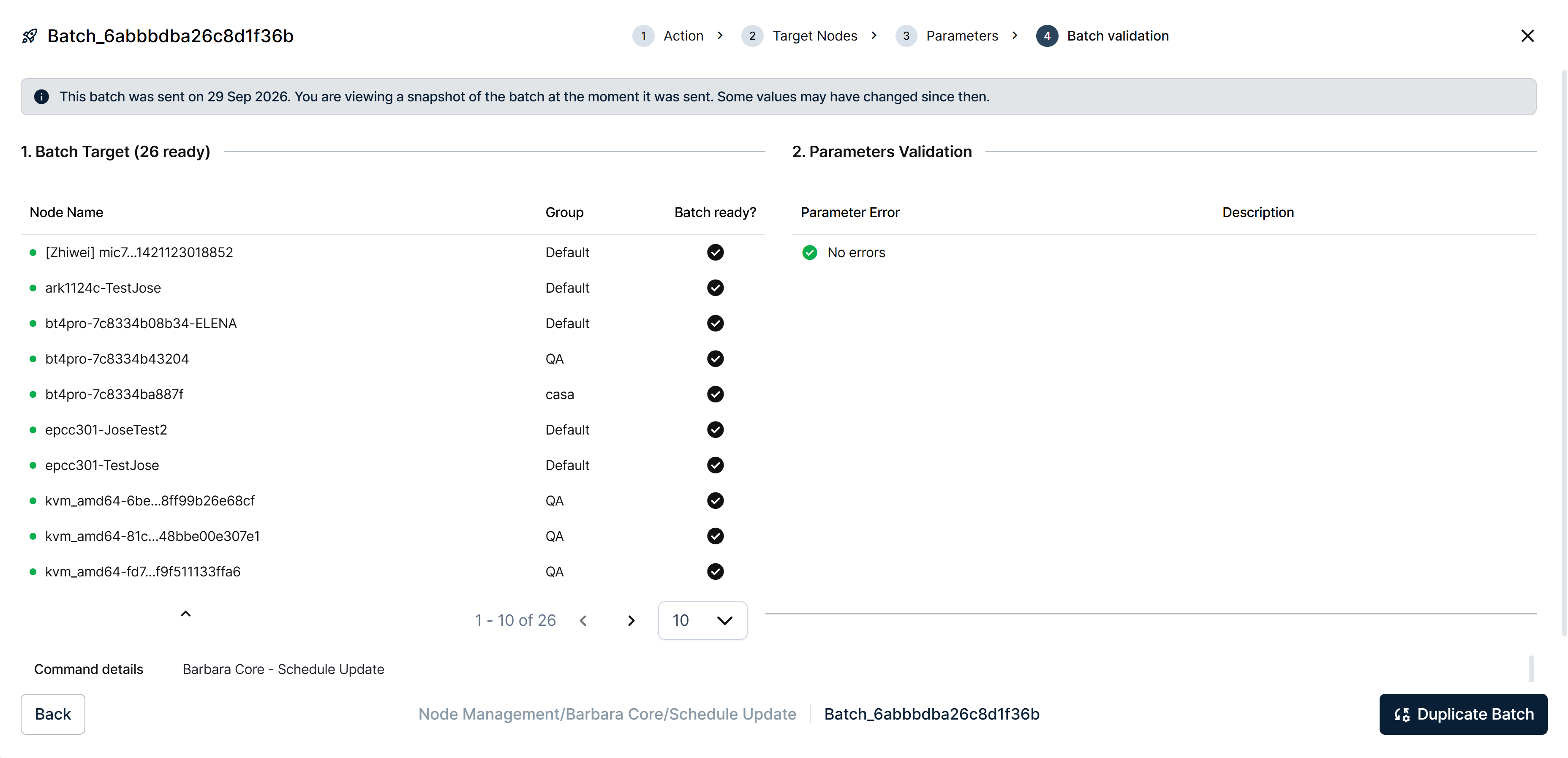
Detail view of a sent batch
For a Sent batch, a banner states it is a snapshot taken at the moment it was sent, since some values may have changed since then. The view shows the same Batch Target and Parameters Validation blocks as the wizard's own Batch validation step, plus Command details naming the command that was run. A Duplicate Batch button starts a new Configure Batch wizard pre-filled with the same command, nodes, and parameters.
Open the Configure Batch wizard
There are two ways to start a new batch.
From the Batches view
Click Configure New Batch in the top-right corner of the Batches view (see the screenshot under Batches view UI above). The wizard opens with a clean slate.
From the Nodes view
You can also start a batch from a selection of nodes already on the Nodes list. Tick the checkbox of every node you want to target, then launch the wizard from there; it opens pre-populated with the selected target nodes.
Wizard steps
The Configure Batch wizard has five steps. Two of them are conditional: Hypervariables appears only for commands that support them, and Parameters is skipped for commands that take none.
Step 1 — Action
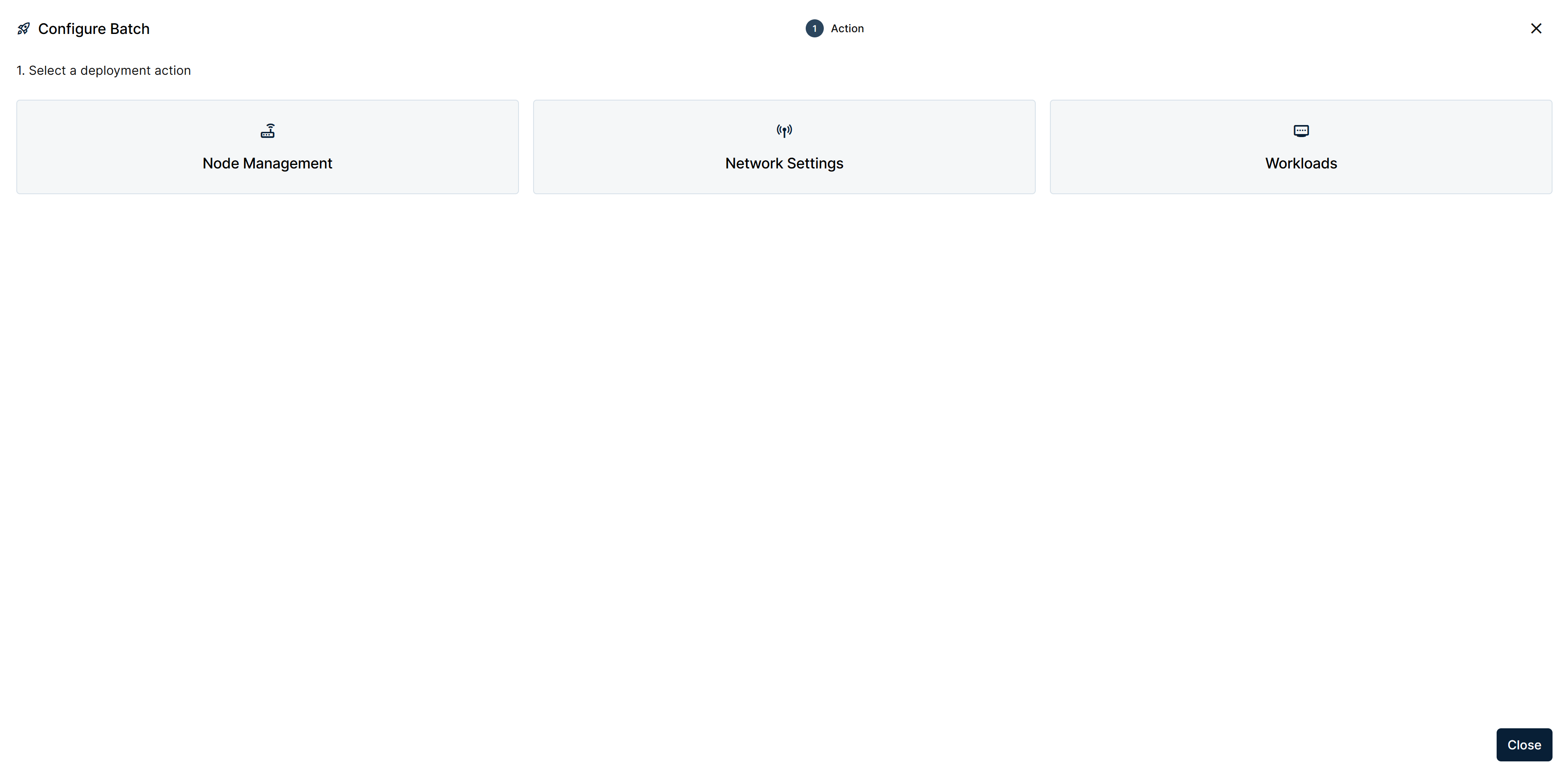
Action step with the top-level command categories
Pick a top-level category first: Node Management, Network Settings, or Workloads. Selecting one expands the list of individual commands it groups.
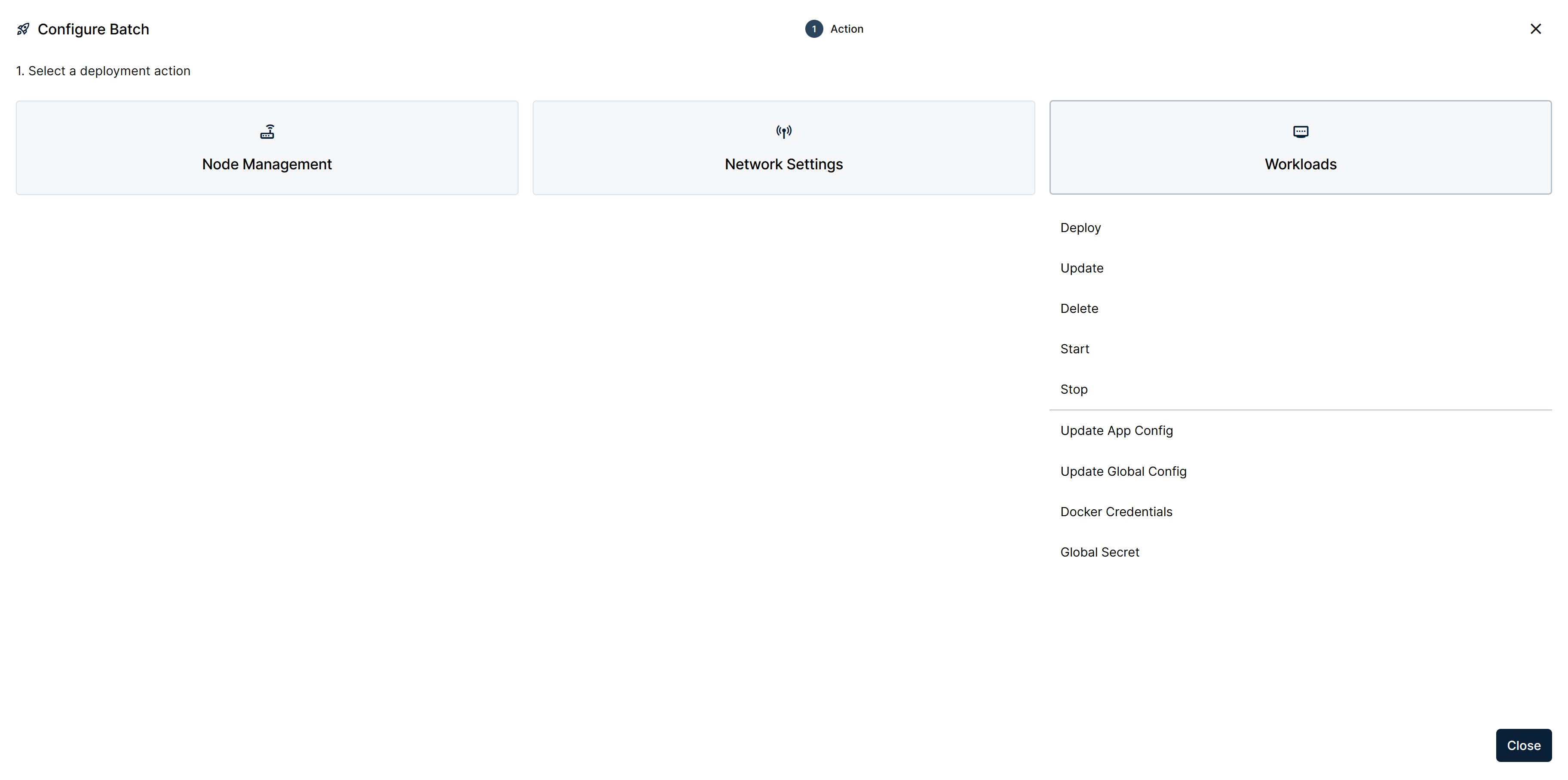
Action step with Workloads expanded into its individual commands
Workloads expands directly into its commands: Deploy, Update, Delete, Start, Stop, and, below a separator, the configuration commands Update App Config, Update Global Config, Docker Credentials, and Global Secret. See Batch — Workloads for what each one does.
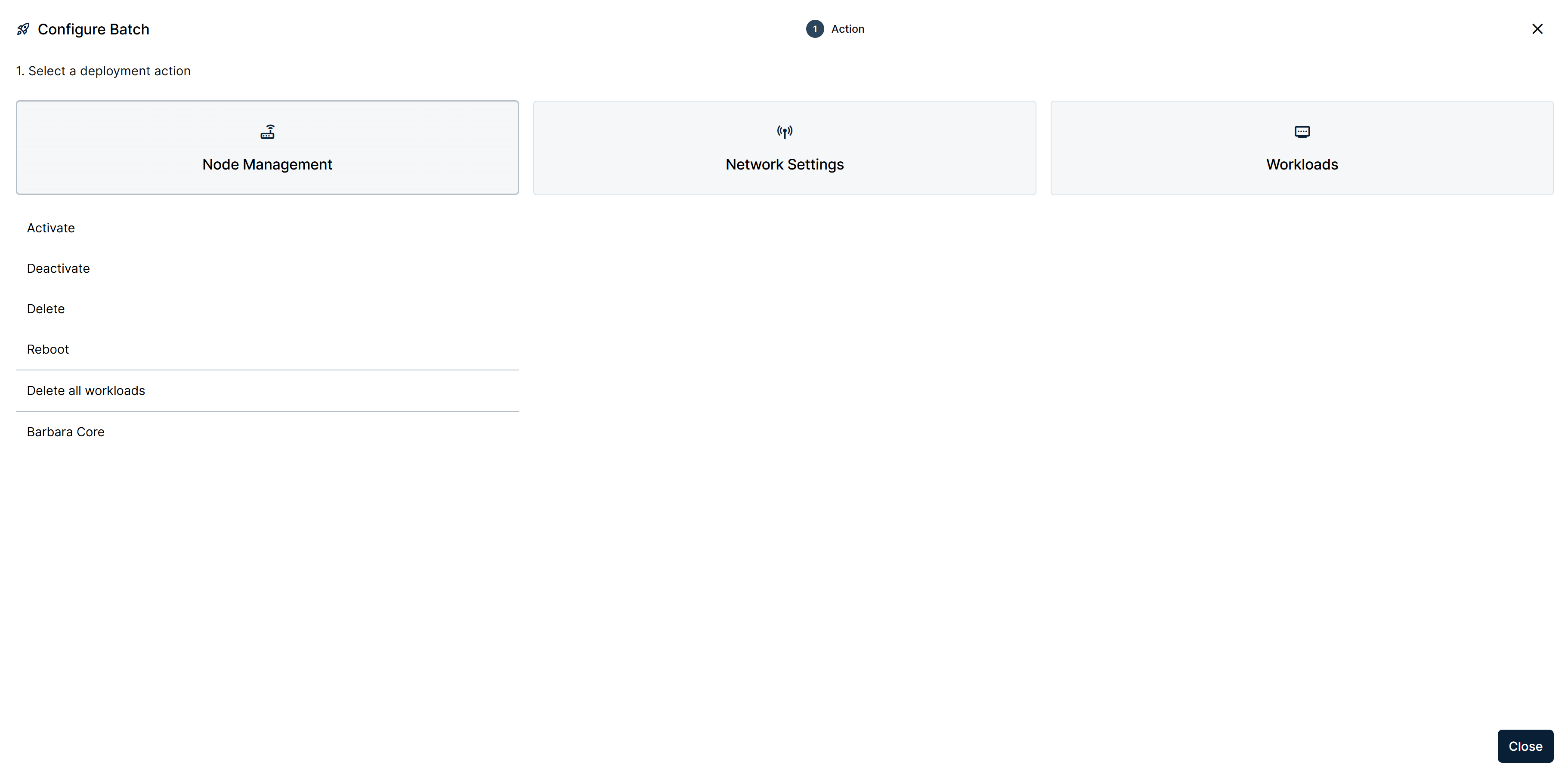
Action step with Node Management expanded into its commands
Node Management expands into Activate, Deactivate, Delete, and Reboot, then, below separators, Delete all workloads and Barbara Core. See Node management and Barbara Core updates.
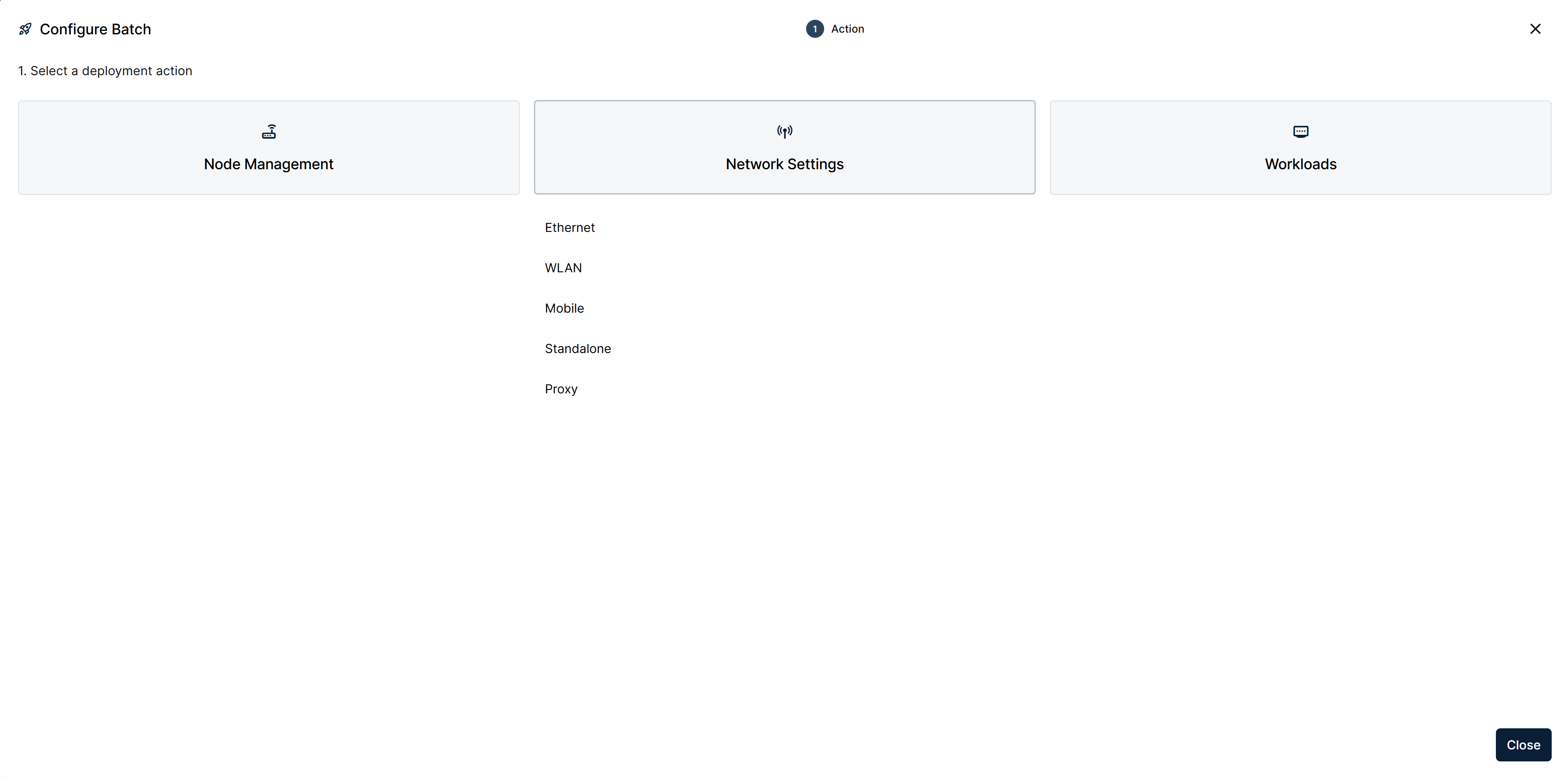
Action step with Network Settings expanded into its commands
Network Settings expands into Ethernet, WLAN, Mobile, Standalone, and Proxy. See Node settings.
Barbara Core opens a further level of its own: see Batch — Barbara Core updates. There are no separate categories for Docker applications, Marketplace applications, or AI models: the Workloads commands above apply uniformly to all three. See Batch — Workloads.
Step 2 — Target Nodes
Pick the nodes the batch applies to, either by selecting them individually or by defining a filter.
The two are not equivalent. A filter is re-evaluated, so the batch targets whatever matches your criteria at the time it runs rather than a list frozen when you saved it. Barbara states the difference in the step: "This ensures your batch always targets the nodes matching your criteria, rather than committing to a fixed list."
If you launched the wizard from the Nodes view with a pre-selection, this step is already filled in.
Step 3 — Hypervariables
Select the hypervariable sets whose values the batch should resolve per node. The step appears only for commands that support hypervariables, and it requires every target node to belong to the same group.
Skip it to give every node the same literal values. See Using hypervariables in batches.
Step 4 — Parameters
Configure the command. The form differs per command, so see the dedicated article for each category linked above. Fields that accept a hypervariable offer a control for assigning one from the sets you selected in Step 3.
Step 5 — Batch validation
Barbara resolves the batch against every target node and reports the result before anything is dispatched. The node table shows Node Name, Group, and Batch ready?.
Use Refresh to re-run the validation after fixing something, and Remove invalid nodes to drop every node that does not qualify in one action. Nodes that fail are excluded from the launch and the batch proceeds for the rest; if none qualify, it cannot be sent.
Before launching, check that the target nodes are the ones you intend to act on, that the command is the right one, and that the parameters are compatible with every target node.
Track a sent batch
A sent batch is not fire-and-forget. Each node acknowledges the command, and the Batches view aggregates those acknowledgements into a status per batch.
Batch status
The Status column, visible in the Batches view UI screenshot above, reports one of four values per batch:
| Status | What it means |
|---|---|
| Pending | At least one node has not reached a final state. A node that is offline reports nothing until it reconnects. |
| Success | Every node acknowledged the command. |
| Failed | No node acknowledged it, and none are still pending. |
| Some failed | Some nodes succeeded and others did not. |
The status reflects what is known so far and updates on its own as offline nodes reconnect and acknowledge.
Per-node results
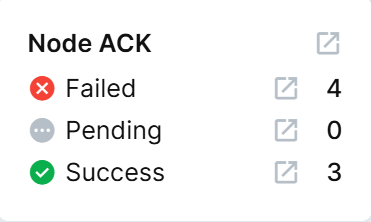
Node ACK breakdown of a sent batch
Select the status to open the Node ACK breakdown, an aggregated count of nodes per acknowledgement state: Failed, Pending, and Success. Each row carries its own icon to open that state's list of nodes.
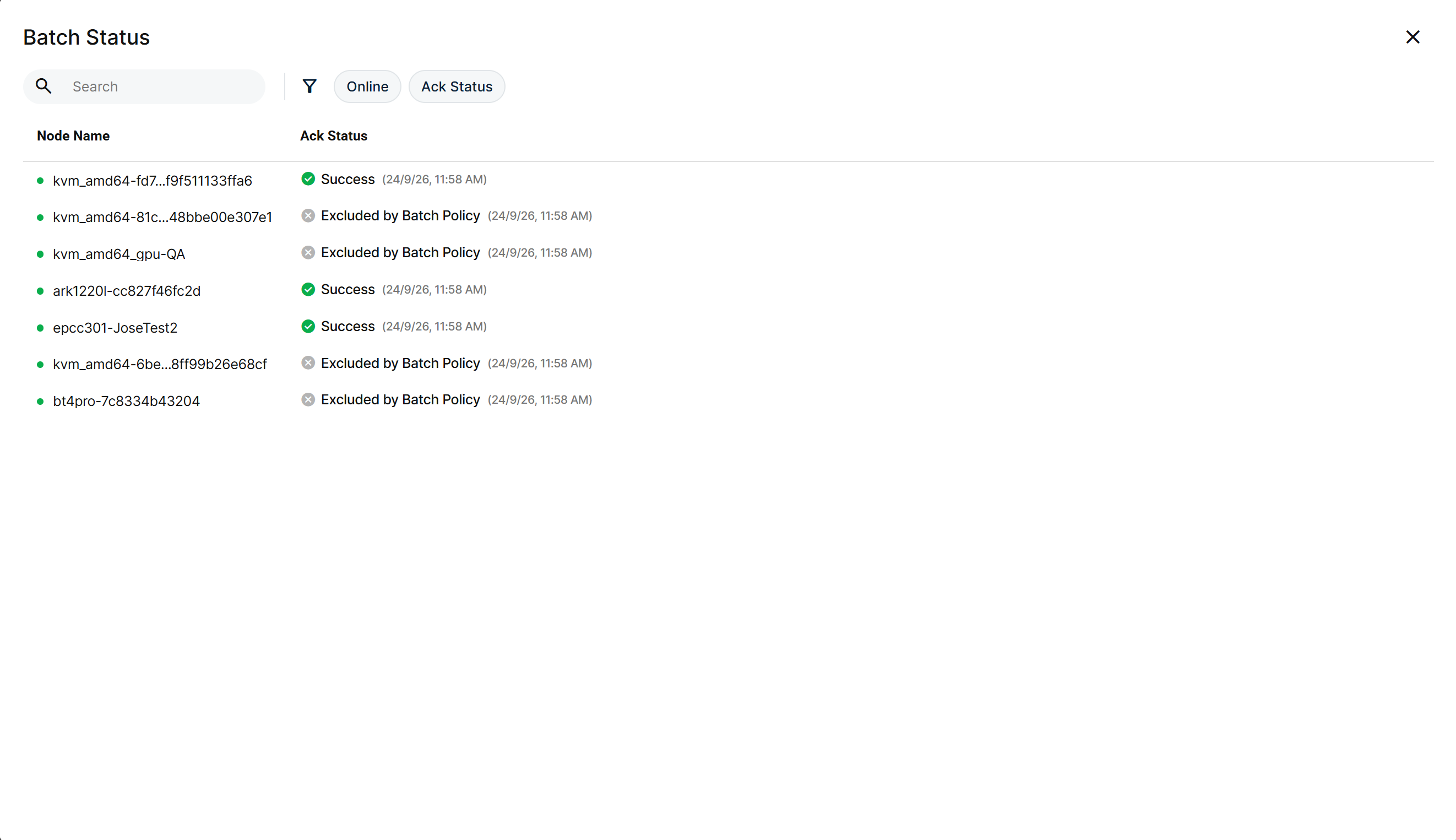
Batch Status modal with the per-node Ack Status breakdown
That opens the Batch Status modal: a Node Name / Ack Status table, with the timestamp when each node reached its current state. Filter it by Online or by Ack Status to narrow a large fleet.
Not every failure is an error, and the distinction matters when you are deciding whether to act:
- Command Error — the command reached the node and failed. The node reports an error code and description.
- Permission failed — the node refused the command for permission reasons.
- Excluded by Batch Policy — the node did not meet a condition set in the batch, so the command was never applied.
- Not supported by node — the node's agent does not support this command.
- Aborted or superseded by user — a newer batch sent to the same node replaced this one while it was still pending.
The first two are genuine failures worth investigating. The last three are outcomes the platform chose deliberately, and only the last is likely to surprise you: sending a batch to a node that already has one pending supersedes the older command by design. If you see it often, check for overlapping batch operations rather than for a fault.
A batch that stays Pending for a long time usually has an offline node in its target list. It resolves itself when the node reconnects. If a node stays pending well after reconnecting, check its agent version, because an older agent may not support the command.
Summary
The Batches view is the bulk-operations control plane: create batches with the five-step wizard, watch them transition through Pending → Sign → Sent under RBAC, and then follow what each node did with the command once it was dispatched.
The wizard groups its commands under Node Management, Network Settings, and Workloads, each with the individual command articles linked above, and resolves per-node values through hypervariables for the commands that support them.