Docker Volumes
This article refers to Platform v3.0.0. The current Platform version is v3.4.0.
Overview
The Docker Volumes card on the Node Details page is the operational view of every Docker volume currently known to a node. From here you can see what each volume is mounted into, create new external volumes, and prune ones that are no longer in use.
Internal vs external volumes
Docker volumes persist data across container restarts and can be shared between containers. Barbara distinguishes two kinds:
- Internal volumes — declared by your
docker-compose.yaml, created automatically by Docker the first time the app starts, and managed by Docker on the host. Use them for data that only the workload needs (logs, application state, …). - External volumes — created by you (manually from this card, or with
docker volume create). Use them for data that should be shared between containers or that must outlive any single workload.
| Feature | Internal volumes | External volumes |
|---|---|---|
| Created by | Docker | You |
| Location | Docker host | Docker host (or remote) |
| Accessible outside the container | No | Yes |
| Typically used for | Workload-private data | Data shared between containers or persisted independently |
How a compose file behaves depends on the volume kind:
- Internal volume not yet created — Docker creates it before starting the workload.
- Internal volume already exists — the workload reuses the existing volume and its data.
- External volume not yet created — the workload fails to start. Create the volume from this card first, or with
docker volume create.
Internal volumes are never deleted automatically when a workload stops; that is what the prune actions on this card are for.
Docker Volumes card UI
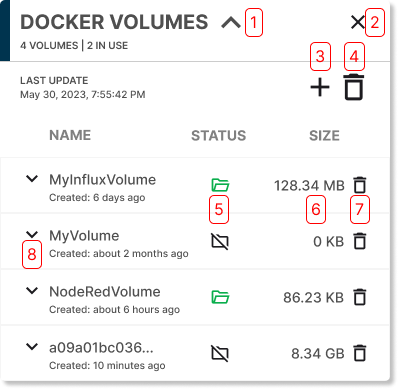
Docker Volumes card
- Collapse / Expand the card.
- Hide the card.
- Add a new external volume.
- Prune all volumes that are not in use.
- Status — In use or Unused.
- Size of the volume on disk.
- Delete a single volume.
- Expand the volume's details.
Volume details
Click a volume to expand its details:
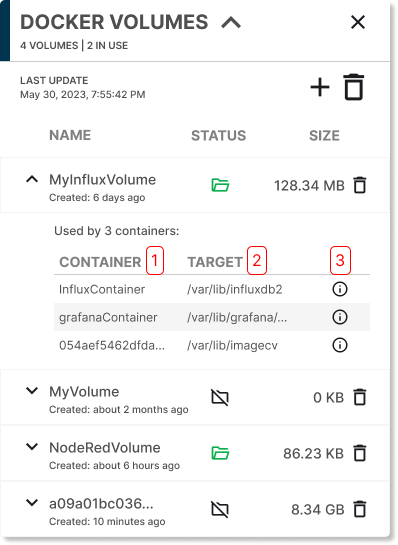
Volume details
- Containers using the volume.
- Target — path inside each container where the volume is mounted.
- More info — tooltip with the full mapping.
The More info tooltip shows, for each consumer:
- The container name.
- The app that owns the container.
- The service within that app.
- The target path inside the container.

More info tooltip
Add the Docker Volumes card
If the card is not on the Node Details page yet, click Add card in the top-right corner.

Add card menu
Scroll down and pick Docker Volumes.
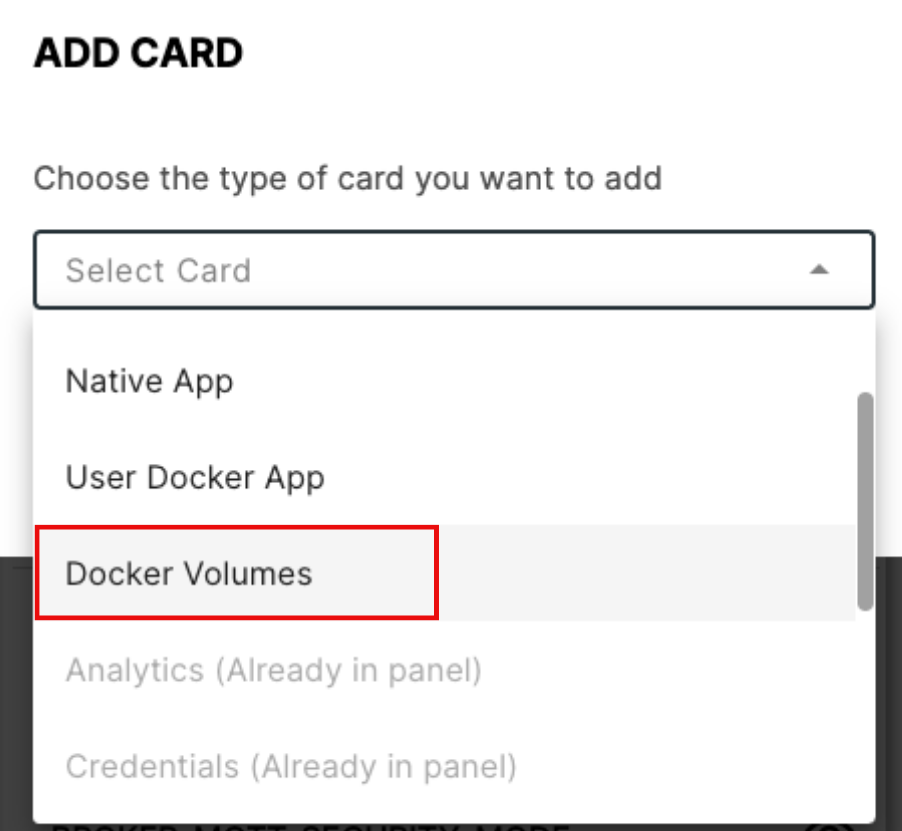
Select Docker Volumes
If Docker Volumes is missing from the menu, the card is already on the page.
Create an external volume
Click the + button.
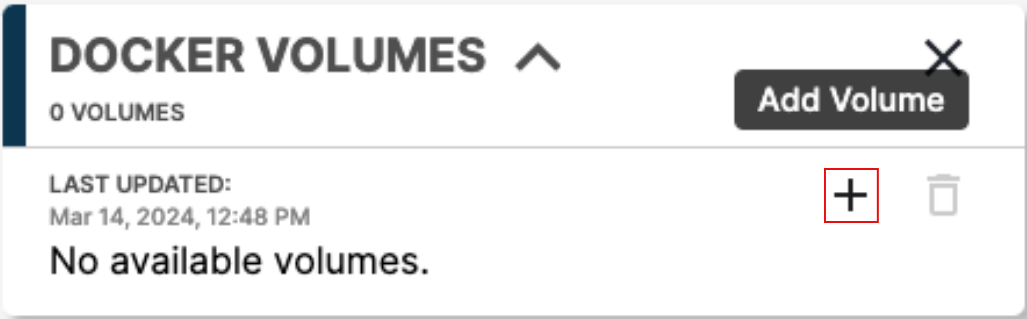
Add external volume
Enter the volume name and click Send.

Add volume popup
The new volume appears immediately on the card.
Internal volumes show up on the card automatically — you do not need to create them by hand.
Delete a single volume
Click the Delete icon on a volume's row.
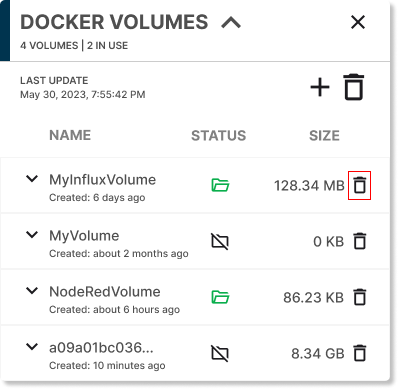
Delete a volume
A volume in use cannot be deleted. Stop or uninstall the workload that holds it first.
Prune all unused volumes
Click Prune All in the card header to remove every volume that is not in use.
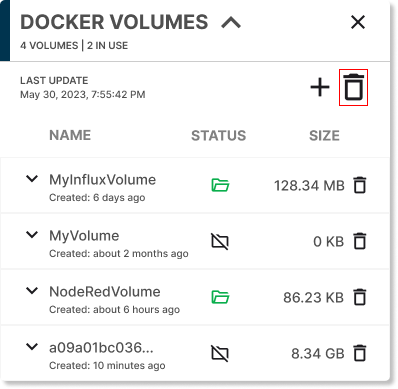
Prune all volumes
Confirm in the popup.
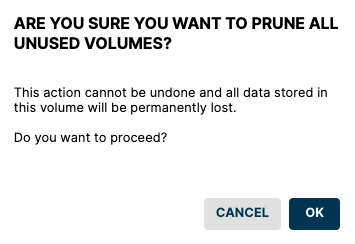
Prune confirmation
Volumes that are currently in use are skipped.
Hide the card
Click the Hide icon at the top-right to remove the card from the Node Details page without losing data. Bring it back via Add card as described above.
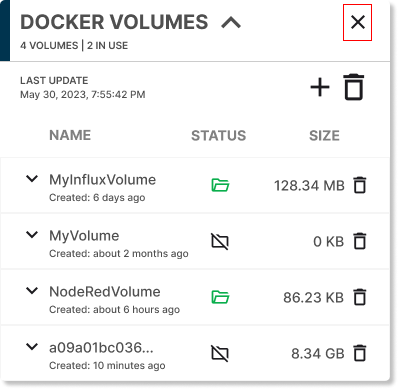
Hide card icon
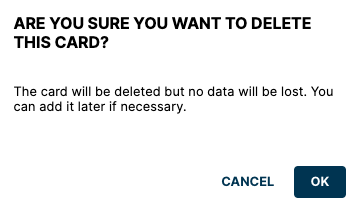
Hide card confirmation
Summary
The Docker Volumes card gives you a per-node view of every Docker volume — internal (auto-managed) and external (yours) — with the actions you need to inspect what they are mounted into, create new external ones, delete unused ones, and prune them in bulk.