Global Config
This article refers to Platform v3.0.0. The current Platform version is v3.4.0.
Overview
The Global Config card is the place to define and push a single JSON object that every workload on the node — Docker apps and Marketplace apps alike — can read at runtime. Changes are propagated live, so workloads do not need to be restarted or rebuilt to pick up a new value.
For an end-to-end overview of all five configuration mechanisms, read Application configuration types.
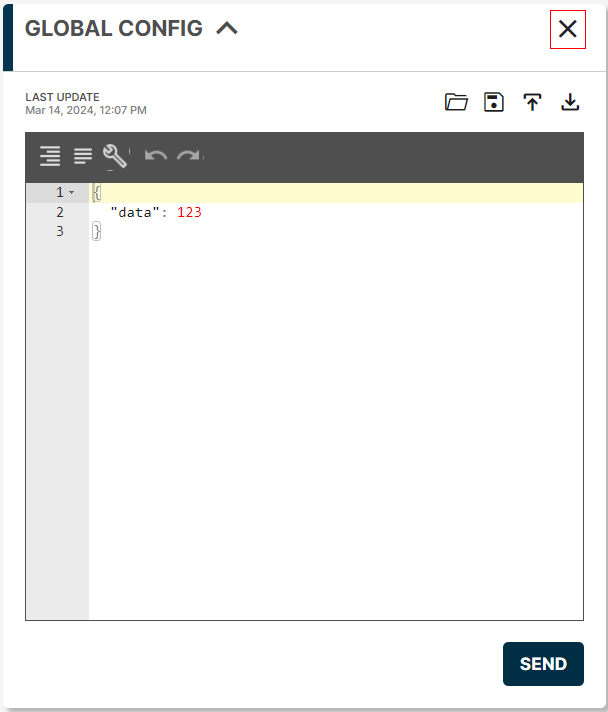
Global Config card UI
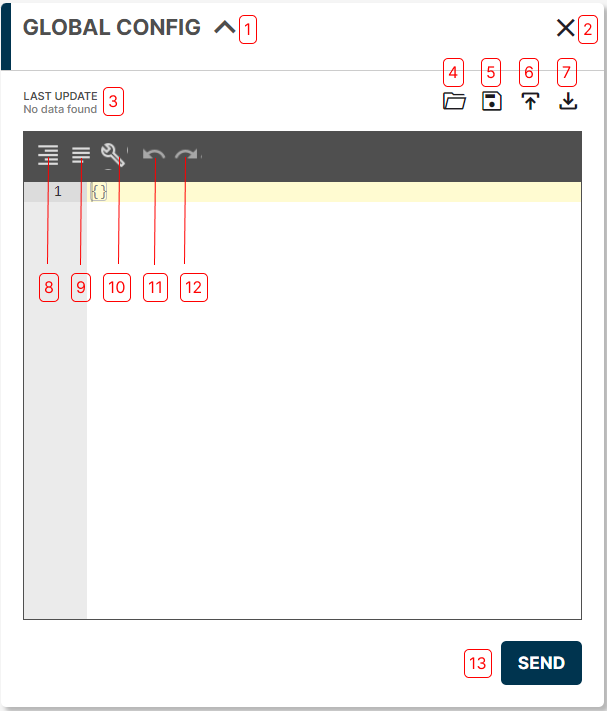
Global Config card
- Collapse / Expand the card.
- Hide the card.
- Last update timestamp.
- Load a previously saved configuration.
- Save the current configuration under a name.
- Upload a configuration from a JSON file.
- Download the current configuration as a JSON file.
- Format the JSON (proper indentation and line breaks).
- Compact the JSON (remove every whitespace).
- Repair the JSON (fix quotes, escape sequences, remove comments and JSONP wrappers, turn JS objects into JSON).
- Undo the last action in the editor.
- Redo the last undone action.
- Send the JSON to the edge node.
Add the Global Config card to the Node Details page
If the card is not on the Node Details page yet, click Add card in the top-right corner of the page.

Add card menu
Scroll down and pick Global Config.
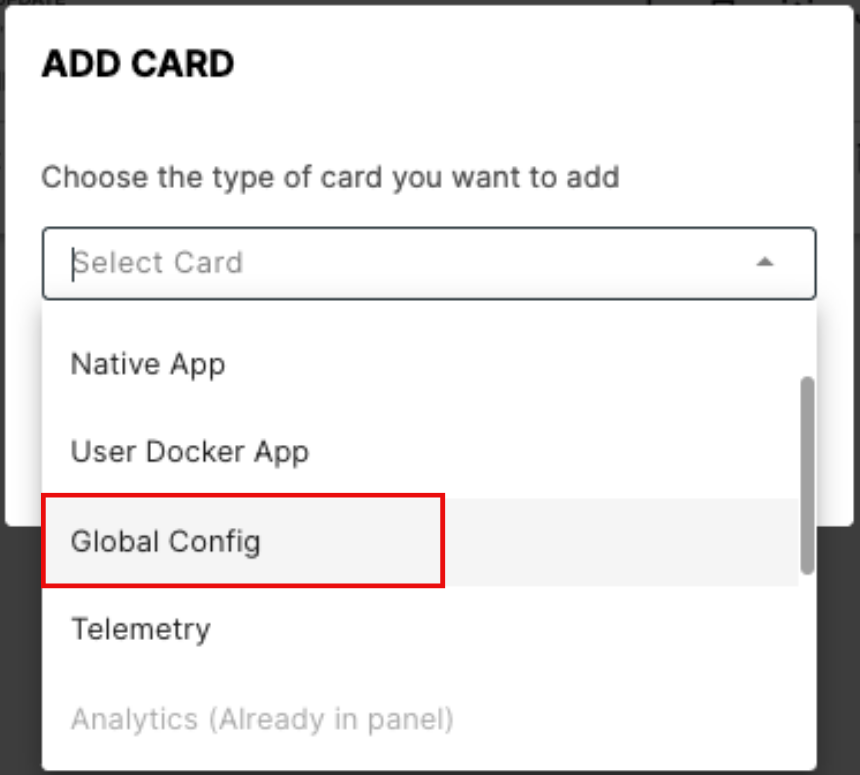
Select Global Config
If Global Config is missing from the menu, the card is already on the page.
Send a Global Config to the node
Type or paste the JSON in the editor area and click Send.
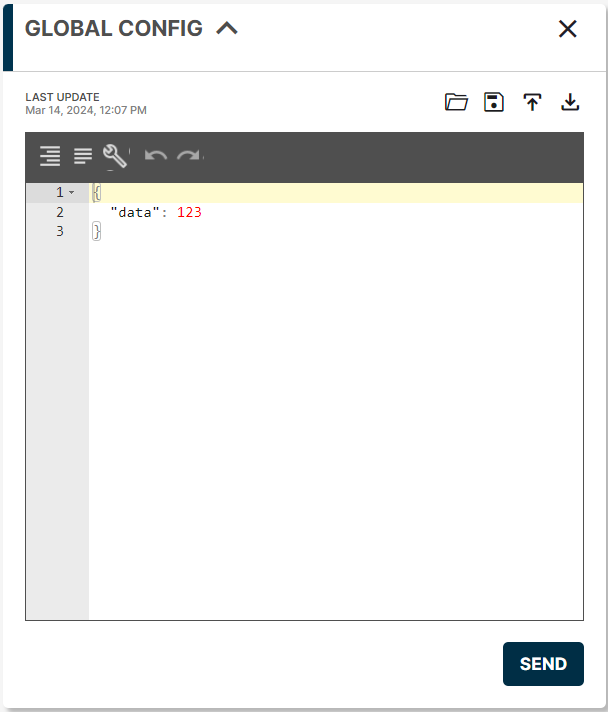
Editing the Global Config
The editor validates the JSON on the fly. Any errors are flagged with a red cross next to the offending line — hover over the cross for the full message. The Send button stays disabled until the JSON is valid.
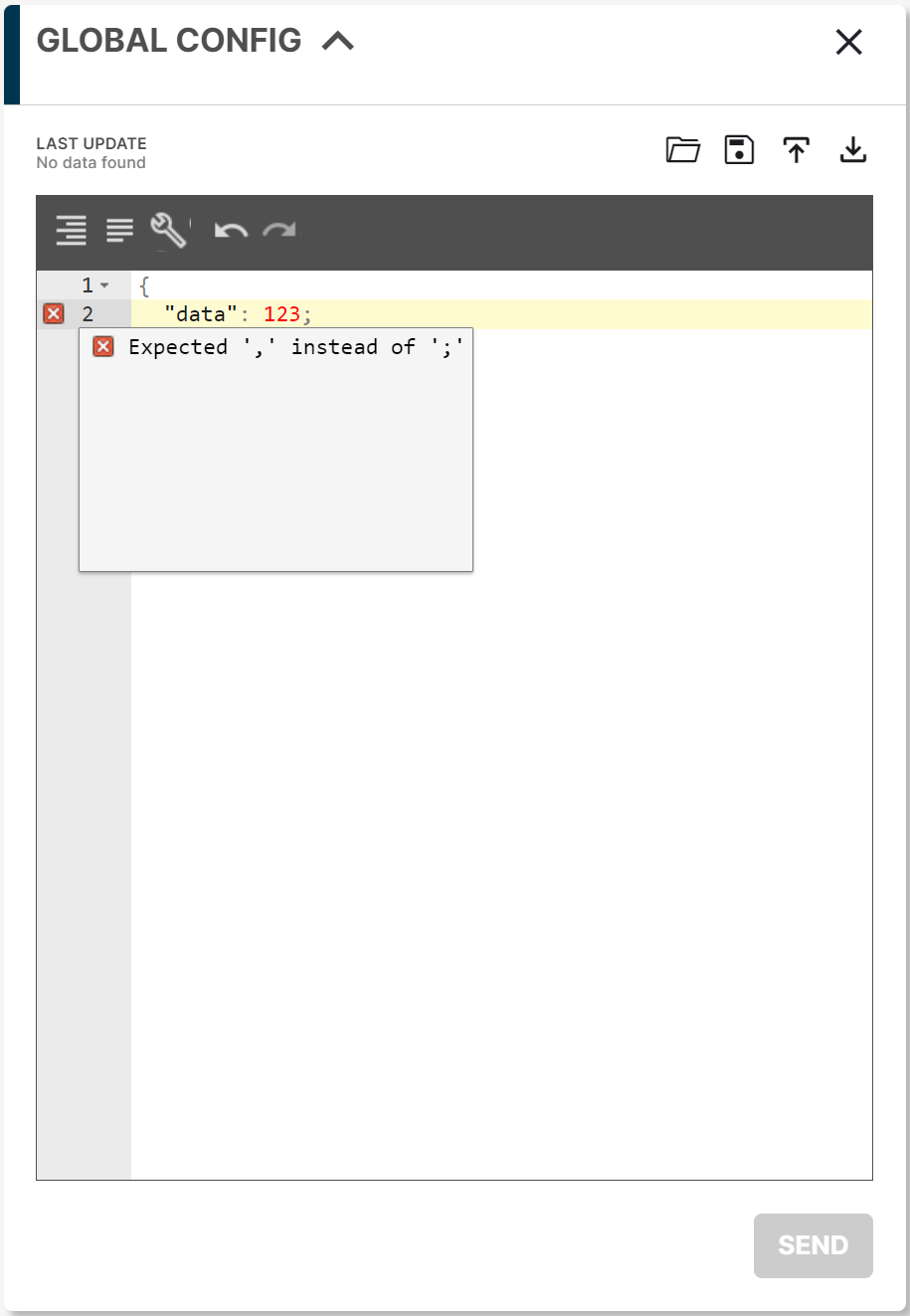
Validation error in the editor
Save a configuration
Click Save to bookmark the current editor content. A popup opens with a suggested name; rename it if you want, and confirm.
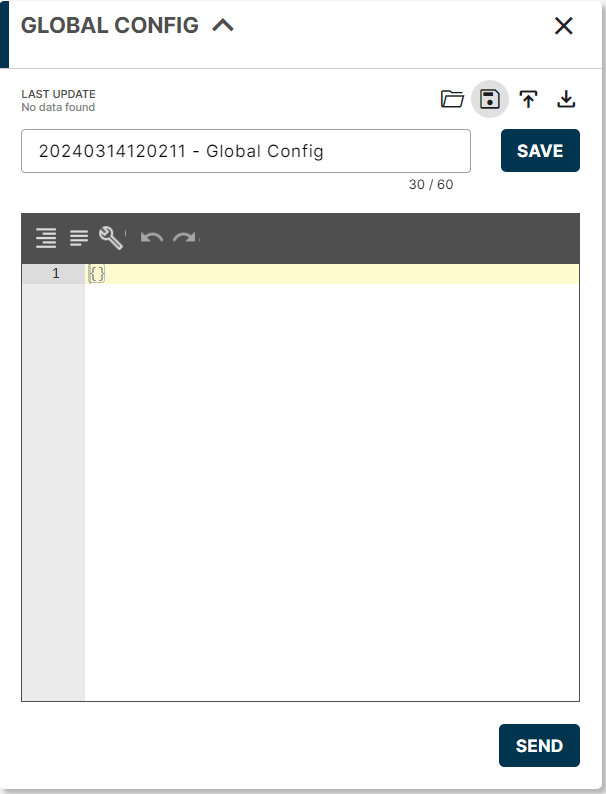
Saving the configuration
Pick a descriptive name — saved configurations are listed by name when you reload them later, so good names save time.
Load a saved configuration
Click Load to expand the list of saved configurations, pick one, and click Send to push it to the node.
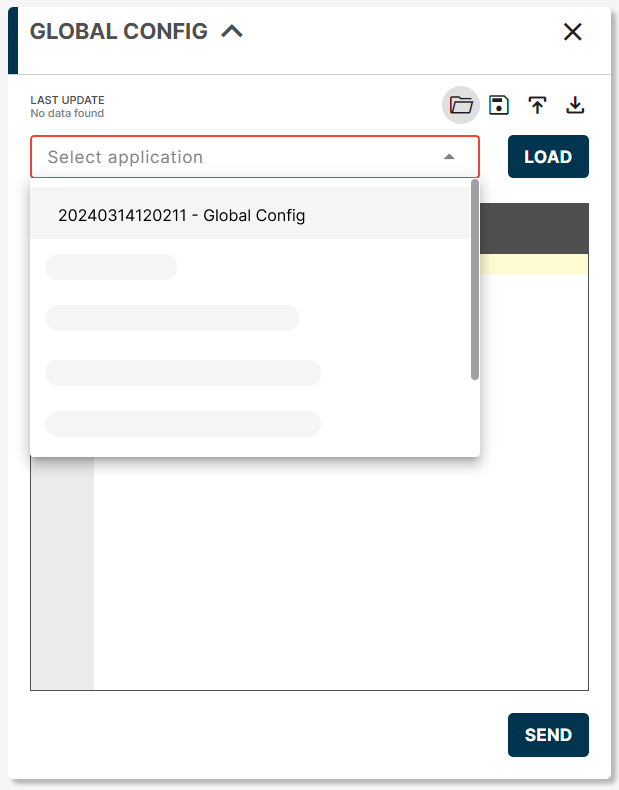
Loading a saved configuration
Upload from a JSON file
Click Upload and pick the JSON file on your computer. The file contents are loaded into the editor; review them and click Send to push the configuration to the node.
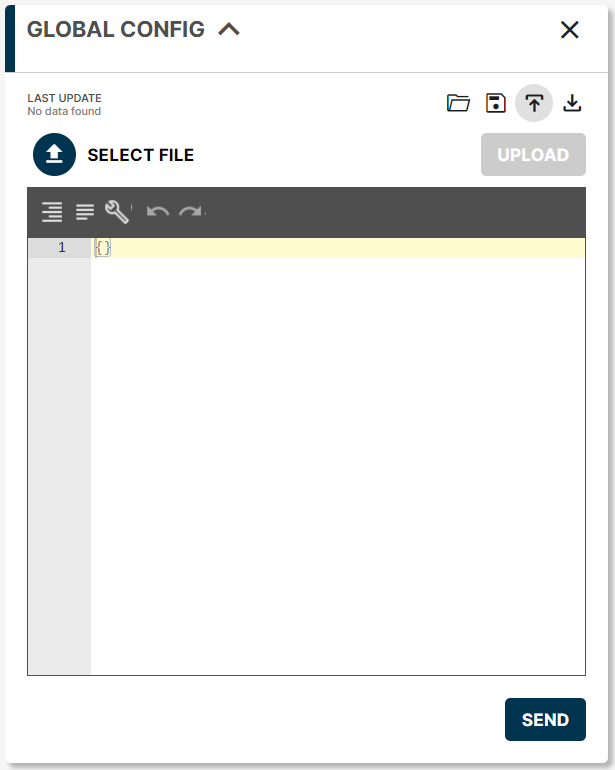
Uploading from a JSON file
Download to a JSON file
Click Download to export the current editor content as a JSON file — useful for offline edits or backups.
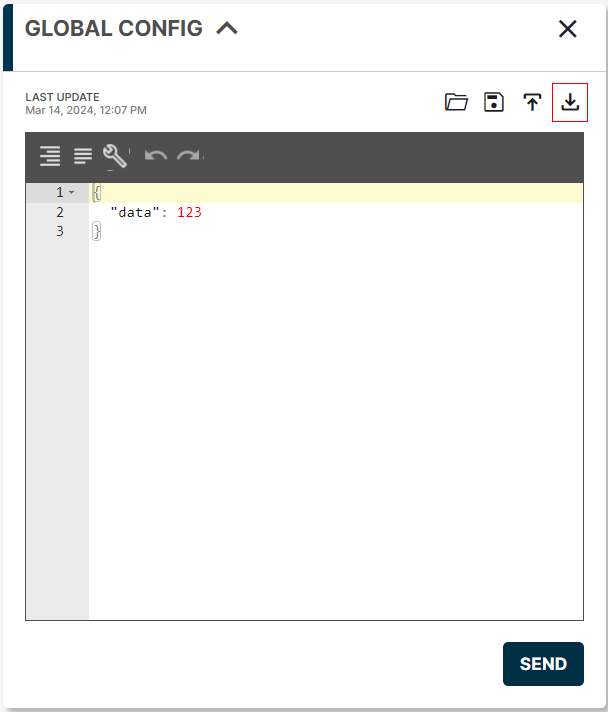
Downloading the configuration
Hide the card
Click the Hide icon at the top-right of the card to remove it from the page without losing its content. Bring it back via Add card as described above.
Hide card icon
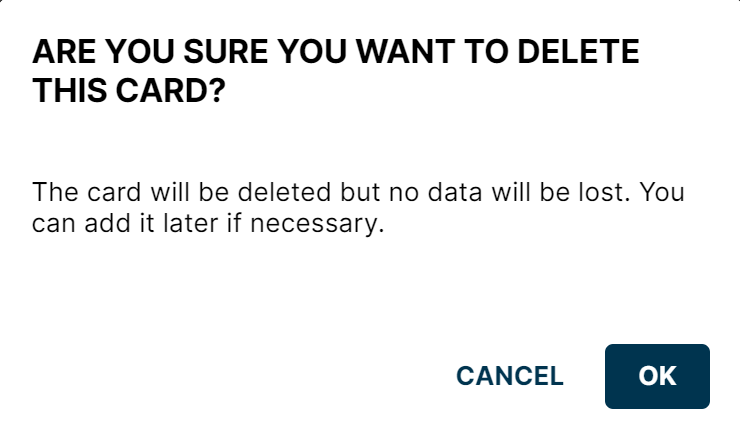
Hide card confirmation
Summary
The Global Config card lets you push a single JSON object to a node and have it picked up at runtime by every workload that mounts /appconfig/global.json. Use the editor's validation, undo/redo, and repair buttons to fix invalid JSON before sending, and rely on the Save / Load workflow to keep a library of named configurations for later reuse.