Alerts and notifications
This article refers to Platform v3.4.0. The current Platform version is v3.4.0.
Overview
Barbara Panel watches your Edge Nodes and raises an alert when something needs attention, such as high CPU usage, a node going offline, or a workload becoming unhealthy. What counts as worth your attention differs from one person to another, so alerts in Barbara are personal: each user decides which conditions to watch, on which nodes, and where the notification is delivered.
You do this with notification rules. A rule is based on one alert type from the platform catalog and defines the nodes it covers, its severity, its thresholds, and its delivery channels. Two users looking at the same node can therefore receive different alerts.
In this section, you will learn how the alerting model works, how to create and manage notification rules, which alert types are available, and how to follow the resulting events.
Open Alerts & Notifications
Select Alerts & Notifications in the side menu of Barbara Panel, or the bell icon in the top bar. The Alerts screen lists your active and past events. From it, Configure Notifications opens the popup where you create and manage your notification rules.
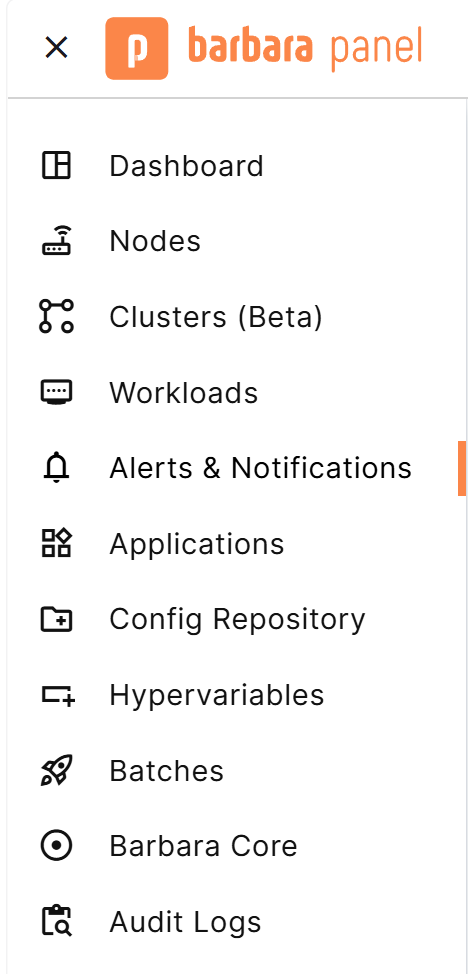
The Alerts & Notifications entry in the side menu
How alerts work
Notification rules are per user
Every user manages their own rules. Editing or deleting a rule never affects another user's rules, and no alert is mandatory: you can remove every rule, or disable every channel, and Barbara simply stops notifying you.
When a user account is created, Barbara adds two default rules for it, both delivered through the Front (UI) channel only:
| Rule name | Severity |
|---|---|
| Default - Workload Unhealthy | P2 - High |
| Default - Disk Safety Action Executed | P4 - Low |
These rules are ordinary rules. You can edit or delete them like any rule you create yourself.
Node scope
A rule applies to individual nodes. You can select several nodes when you create a rule, or choose All platforms nodes, which covers every node you can access now and any node added to the platform later.
If your permissions change and you lose access to a node, your active alerts for that node are deactivated.
Severity
You assign a severity to every rule. Barbara uses a five-level scale aligned with PagerDuty, with fixed labels:
| Severity | Typical meaning |
|---|---|
| P1 - Critical | Requires immediate attention. |
| P2 - High | Significant, but not catastrophic. |
| P3 - Medium | Affects performance, but is not urgent. |
| P4 - Low | Minor issue that could become a problem later. |
| P5 - Informational | Informational only, no action required. |
The severity is a label for your own triage and for external tools. It does not change how the alert is evaluated.
Notification channels
Each rule delivers through one or more channels:
- Front (UI): the Barbara Panel interface, through the Alerts screen and the node details. It is selected by default and can be cleared.
- Email: sends a message to the address you provide.
- Webhook: sends the notification to a URL you enter per rule, so you can integrate systems such as Jira, PagerDuty, or your own ITSM tool.
Barbara has no built-in acknowledgment. Following up on an alert over time (tracking, escalation, resolution) belongs to the external tools your team already uses, connected through a webhook.
Events and the alert lifecycle
An event opens when the condition of a rule is detected and closes automatically when the condition disappears. Barbara notifies you once when the event opens, and optionally a second time when it closes. See Alert events and delivery for the details.
Looking further back
The Alerts screen only shows events generated by your rules. To review what happened without a rule in place, use Audit Logs in the side menu for discrete events such as a node going offline, and Analytics for continuous telemetry such as CPU or disk usage.
Where to go next
- Notification rules: create, edit, and delete rules.
- Alert catalog: the alert types you can base a rule on.
- Alert events and delivery: the Alerts screen and how notifications are sent.
The Alert Manager is a separate Marketplace application that you deploy on a node and configure through its App Config. It is independent of the notification rules described in this section. See Use the Alert Manager.
Summary
Alerts in Barbara are personal: each user defines notification rules over a catalog of alert types, chooses the nodes and severity, and selects the channels that suit their workflow. Barbara opens and closes events automatically, and delegates follow-up to the tools your team already uses.
To start, create your first rule in Notification rules.