Alert events and delivery
This article refers to Platform v3.4.0. The current Platform version is v3.4.0.
Overview
When the condition of a notification rule is detected on a node, Barbara opens an event and notifies you through the channels of that rule. The event closes automatically when the condition disappears. This article explains how events are evaluated and notified, and where you can follow them in Barbara Panel.
How events are evaluated
Barbara evaluates all active rules every 5 minutes and behaves as follows:
- One notification per event. Barbara notifies you once, when the event opens. It does not repeat the notification while the condition remains active.
- Resolution notice. If the rule has Notify when alerts is resolved? set to Yes, Barbara sends a second notification when the condition disappears and the event closes.
- Time Threshold. For rules that use one, the notification is sent only when the condition has been active for the configured time.
- Grouping. Within each 5-minute window, notifications are grouped by rule. If several nodes trigger the same rule in that window, you receive a single notification listing all the affected nodes.
- Several channels. If you have several rules over the same alert type with different channels, Barbara sends one notification per channel.
Follow events in Barbara Panel
Events delivered through the Front (UI) channel appear in two places: the Alerts screen and the node details.
Alerts screen
Select Alerts & Notifications in the side menu to open the Alerts screen. It lists the events generated by your rules, with one row per affected node.
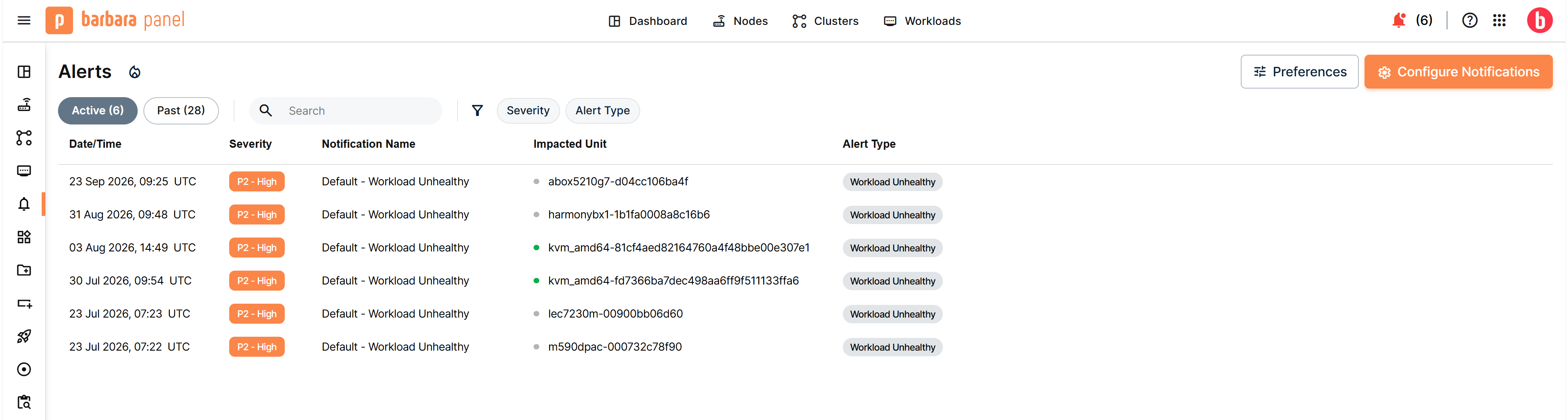
The Alerts screen
Two tabs separate the events by state, each with its count:
- Active: events whose condition is still present.
- Past: events that closed automatically because the condition disappeared.
The table shows:
- Date/Time: when the event opened, in UTC.
- Severity: the severity of the rule, for example P2 - High.
- Notification Name: the rule that generated the event.
- Impacted Unit: the node affected. A dot next to the name shows its connection status: green when the node is online and gray when it is offline.
- Alert Type: the alert the rule is based on.
The Past tab uses the same columns. Its Severity chips appear dimmed and struck through, which distinguishes closed events from active ones.
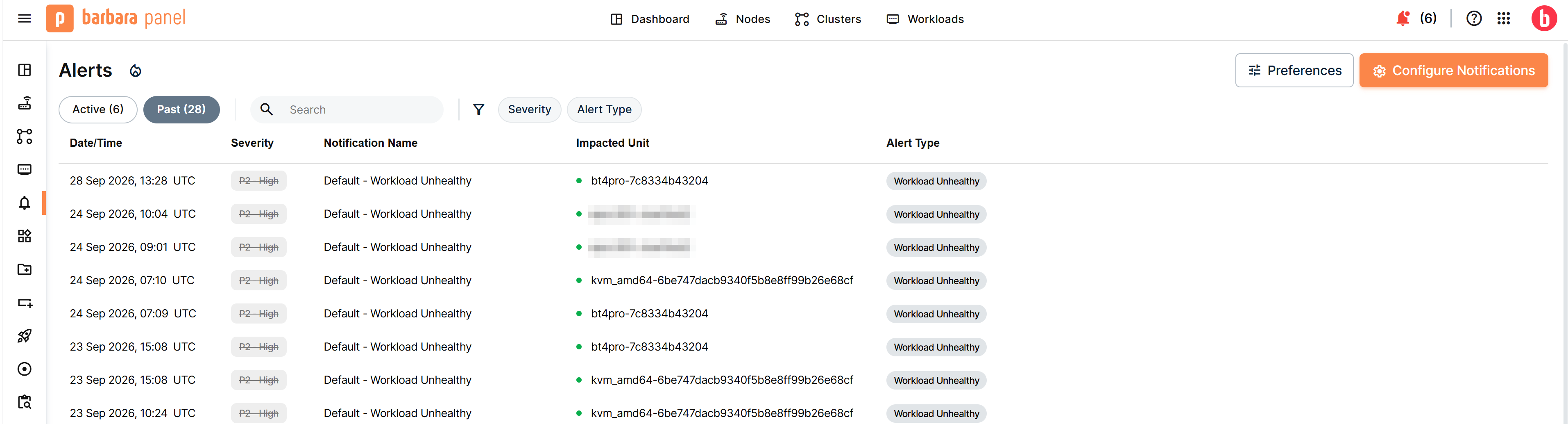
The Past tab
Use the search box to find an event, the Severity and Alert Type filters to narrow the list, and Preferences to choose the visible columns. Configure Notifications opens the popup where you manage your rules; see Notification rules.
An event is recorded if an active rule existed when it opened, even if you delete the rule afterward. The bell icon in the top bar of Barbara Panel is a shortcut to this screen, and its counter shows the number of active events.
Alerts & Notifications card
The Alerts & Notifications card in the node details summarizes the alerts of that node. Its header shows the number of active alerts, for example 1 Active Alerts, next to a red dot.
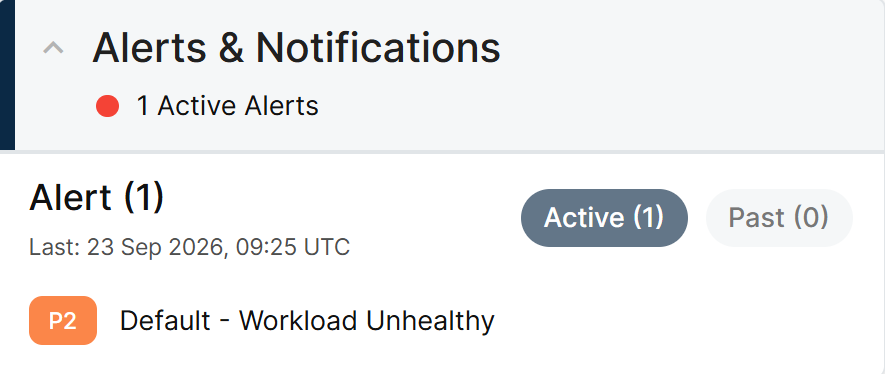
The Alerts & Notifications card
Inside the card, Alert (N) counts the events of the selected tab, and Last shows the date of the most recent one. The Active and Past tabs, each with its count, separate open events from closed ones. Each entry shows the severity chip (P1 to P5) and the name of the rule that generated it.
The card only lists events from your own rules that cover that node. Because rules are personal, two users can see different cards for the same node.
Summary
Barbara opens an event when a rule's condition is detected, notifies you once through your chosen channels, and closes it automatically when the condition clears. You can follow events on the Alerts screen and in the card in the node details, and use Audit Logs and Analytics for anything outside your rules.
For the concepts behind alerts, return to Alerts and notifications.