Secrets
This article refers to Platform v3.0.0. The current Platform version is v3.4.0.
Overview
The Secrets card on the Node Details page stores Global Secrets — encrypted key-value pairs shared by every workload on the node. Use it for credentials, API keys, tokens, certificates, and anything else you don't want sitting in plain JSON config.
For the difference between Global Secrets and App Environment Secrets, and how each type is consumed by workloads, read Application configuration types.
Secrets card UI
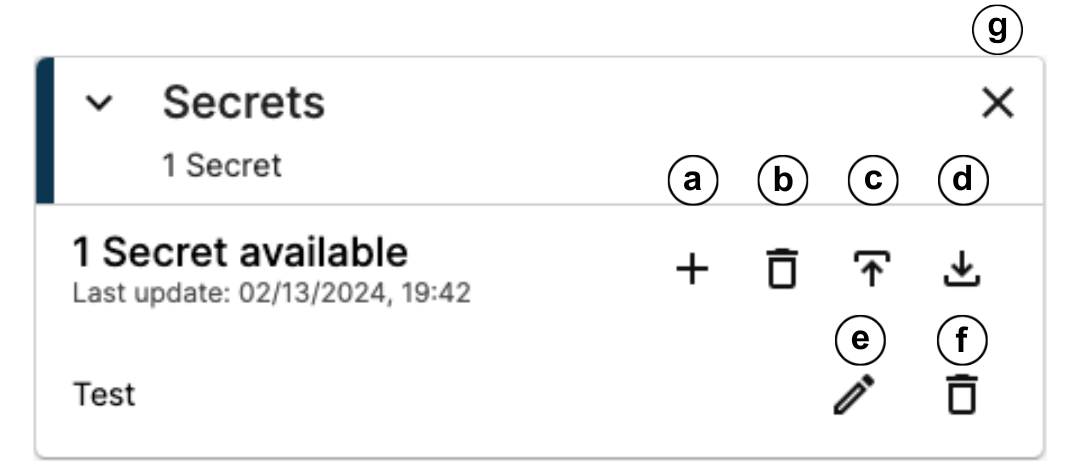
Secrets card
- (a) Add a secret.
- (b) Delete all secrets.
- (c) Upload secrets from a file.
- (d) Download all secrets as a file.
- (e) Edit a secret.
- (f) Delete a single secret.
- (g) Hide the card.
Add the Secrets card
If the card is not on the Node Details page yet, click Add card in the top-right corner of the page and pick Secrets.

Add card → Secrets
If Secrets is missing from the menu, the card is already on the page.
Add a secret
Click the + icon on the card.
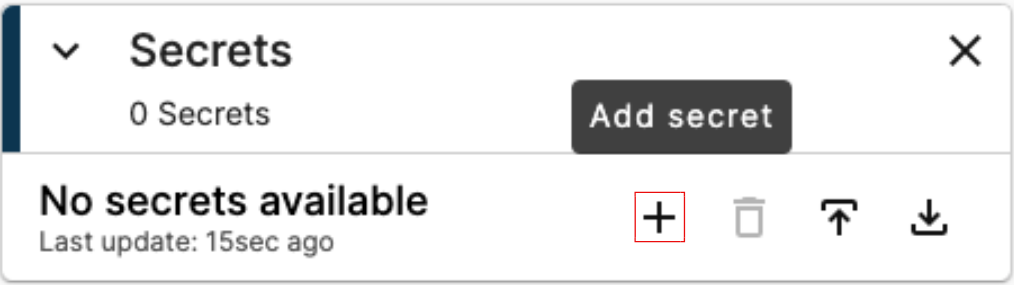
Add secret button
Secrets can be added in two ways.
Manual entry
Fill in the name and value of the secret in the popup and confirm.
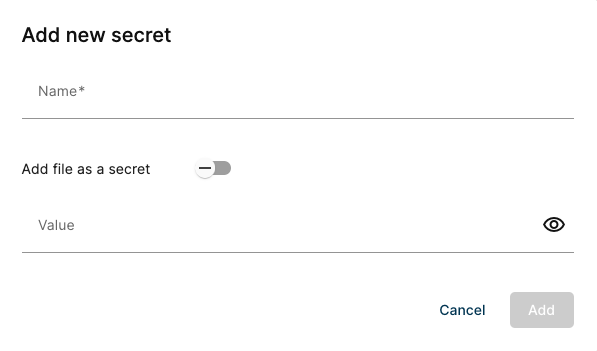
Manual secret popup
From a file
Toggle Add file as a Secret in the popup and pick a file from your computer. Useful when the secret is itself a file — for example a certificate.
For a secret named Test whose content is the certificate ca.crt:
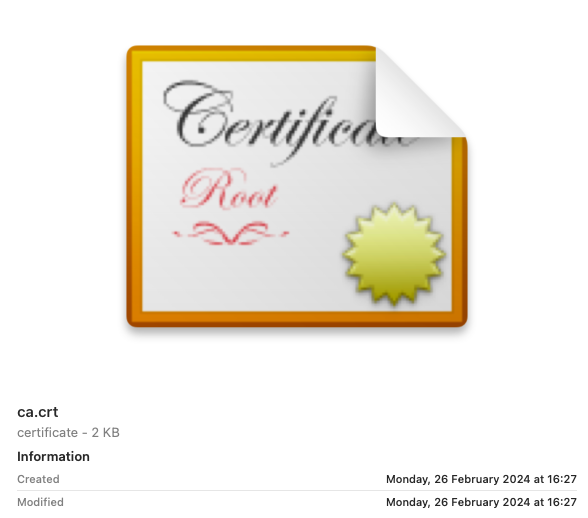
Selecting the ca.crt file
Click Add to save it as a secret.
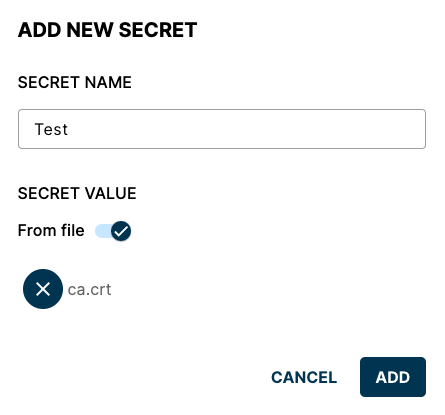
Saving the file-backed secret
Download secrets
Click Download to save every secret on the card to a .txt file on your computer.
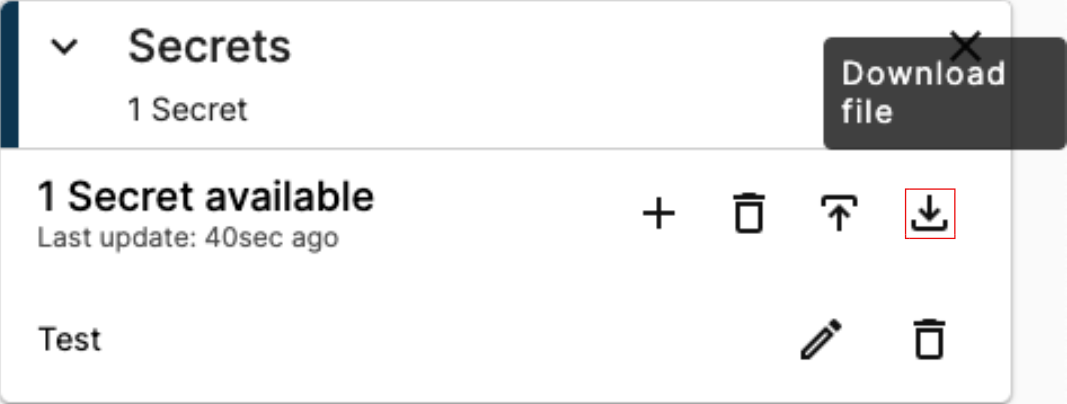
Download button
If the card has no secrets, the download returns an empty template you can fill offline:
SECRET_1=value_1
SECRET_2=value_2
SECRET_3=value_3
Upload secrets
Click Upload and pick a .txt file with one secret per line in the KEY=value format.
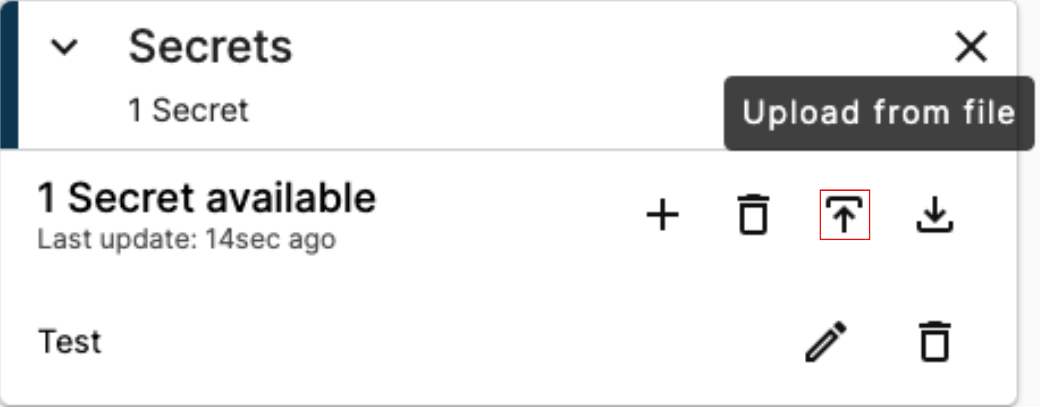
Upload button
For example:
user=bob
password=passwordbob
port=9093
Click Upload File in the popup. Every line becomes its own secret on the card.
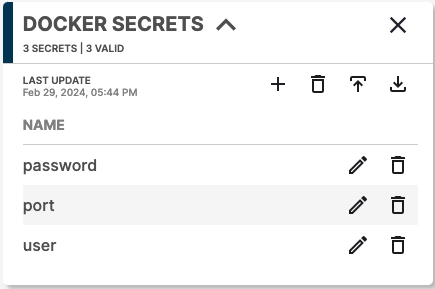
Secrets created from the uploaded file
Edit a secret
Click the Edit icon on a secret's row and update its value in the popup.
Secrets added from a file cannot be edited in place. To change them, re-upload the file with the new content — the existing secret is overwritten.
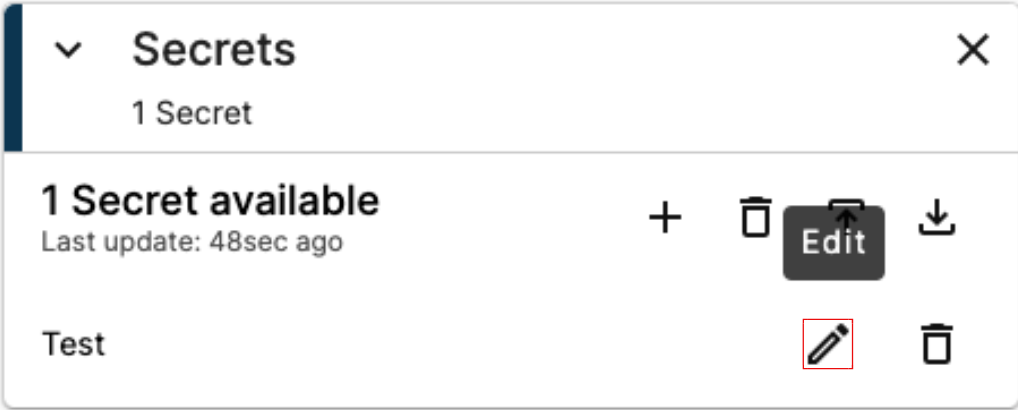
Edit secret
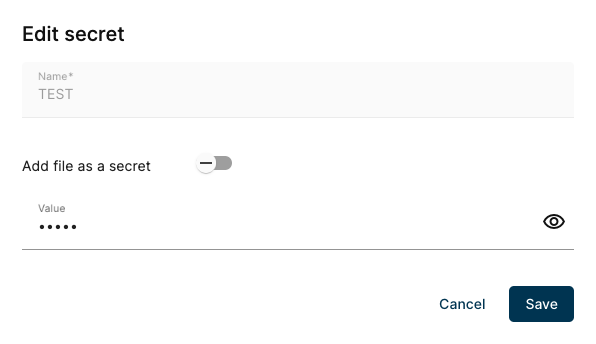
Edit secret popup
Delete secrets
Click the Delete icon on a row to remove that secret.
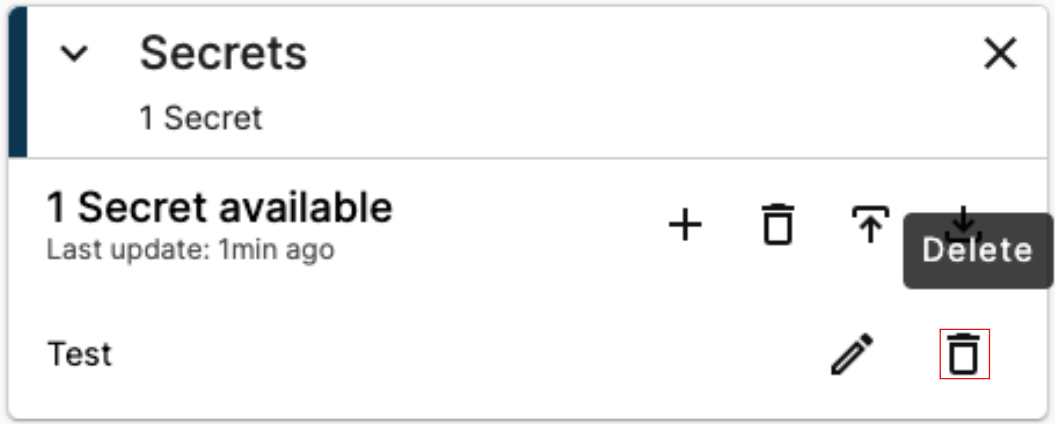
Delete secret
When the card has no secrets, the delete button is disabled.
Confirm in the follow-up prompt.
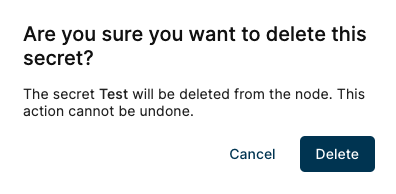
Delete confirmation
Deleting a secret does not affect running workloads immediately — they keep the in-memory value they were started with. The missing secret only takes effect the next time the workload is restarted or updated, at which point an app that relies on it may fail to start.
To remove every secret on the card, click Delete all Secrets in the card header and confirm.
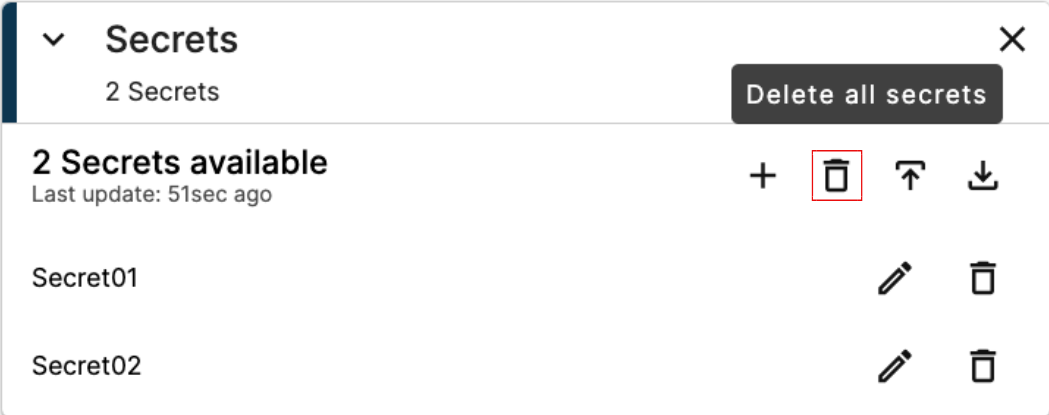
Delete all secrets
Hide the card
Click the Hide icon at the top-right of the card to remove it from the page without losing data. Bring it back via Add card as described above.
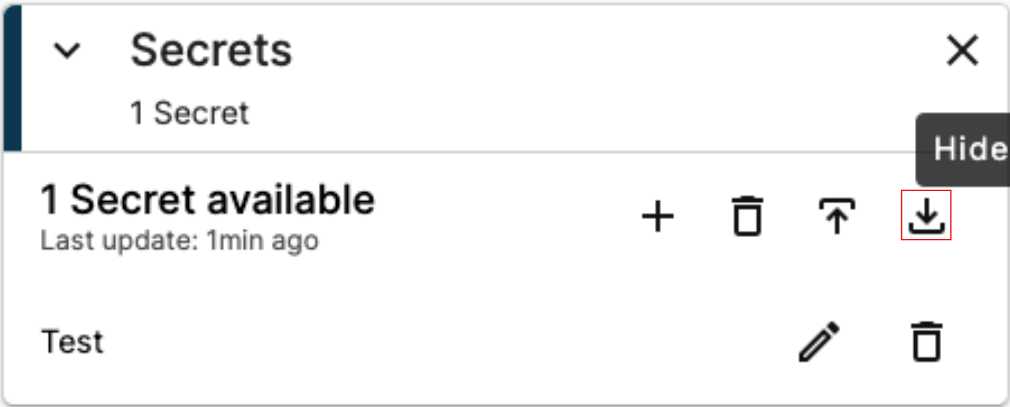
Hide card icon
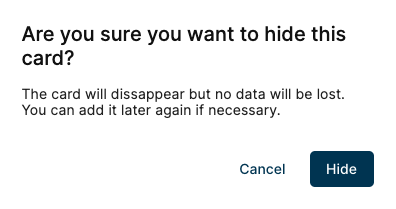
Hide confirmation
Summary
The Secrets card is where you store the sensitive key-value pairs (and file-backed secrets like certificates) that every workload on the node can consume. Use the .txt upload format to seed many secrets at once, and remember that deleting a secret only takes effect when the consuming workload restarts.