Batch — Barbara Core updates
This article refers to Platform v3.4.0. The current Platform version is v3.4.0.
Overview
Barbara Core is the command under Node Management that rolls out a Barbara Core update to many edge nodes at once, either right away or at a time you choose.
In this article, you will learn what each of its three actions does: Update Now, Schedule Update, and Cancel Schedule Update.
Barbara Core now ships as a single firmware package. Earlier versions updated the OS and the Node manager as two separate components; that distinction no longer applies, and this command updates the node as a whole.
Update Now
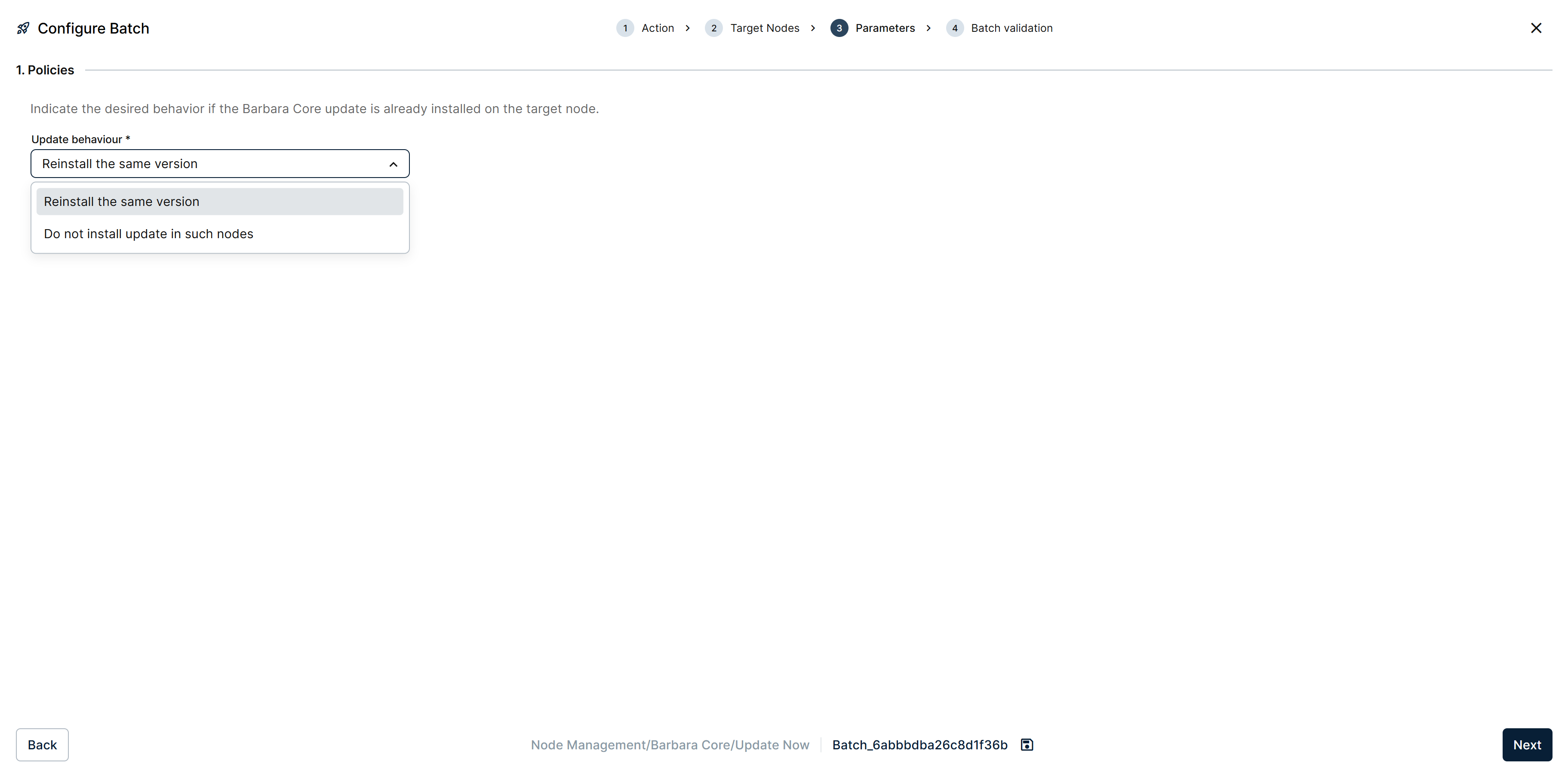
Parameters step of a Barbara Core Update Now batch
Deploys the Barbara Core update to every target node as soon as the batch is sent.
For nodes where the update is already installed, the Update behaviour field decides what happens:
- Reinstall the same version — useful for a clean software state.
- Do not install update in such nodes — leave those nodes as they are.
Schedule Update
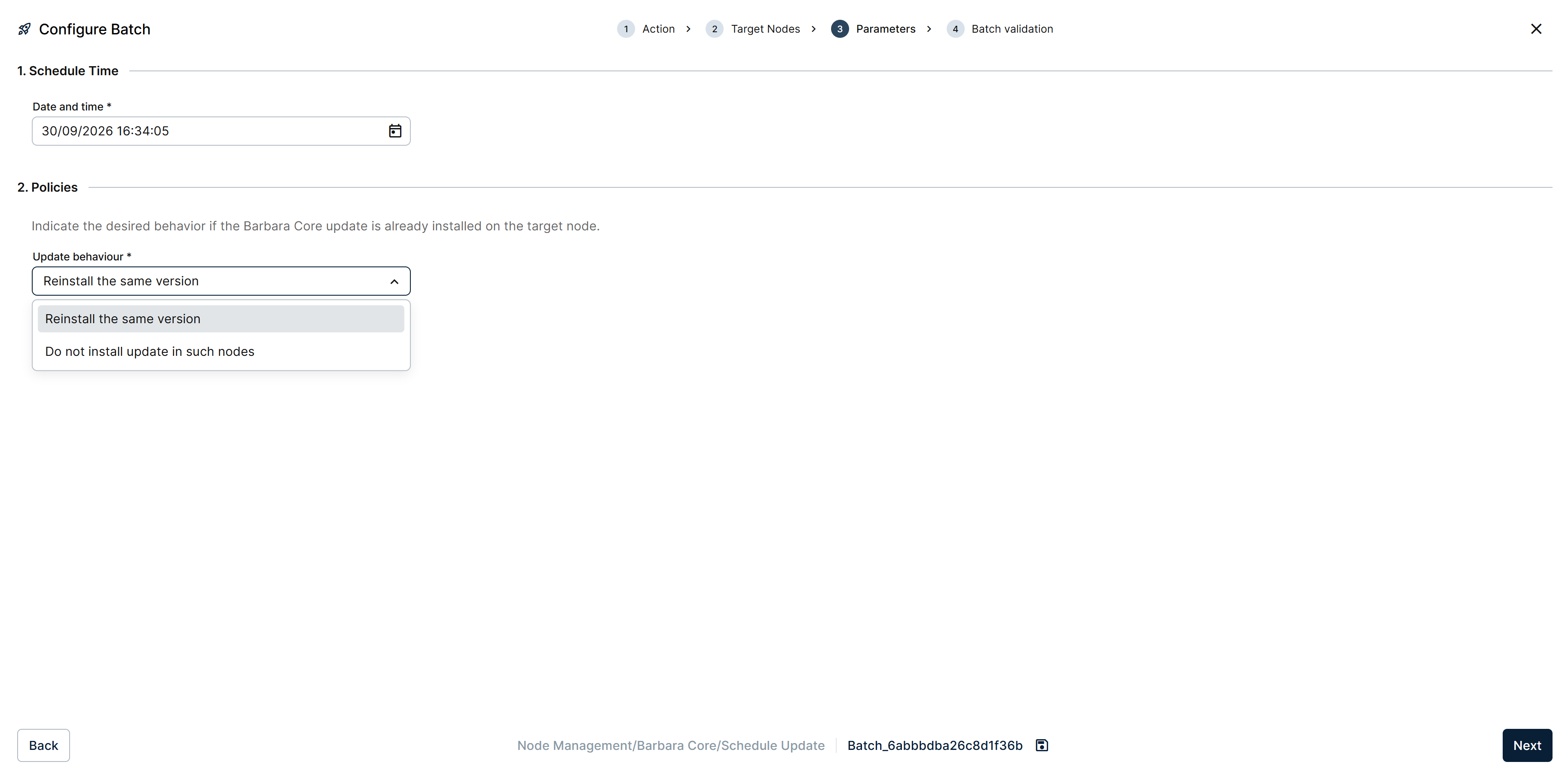
Parameters step of a Barbara Core Schedule Update batch
Same update, deployed at a Date and time you set instead of immediately. Parameters adds that field ahead of the same Update behaviour choice described above.
Cancel Schedule Update
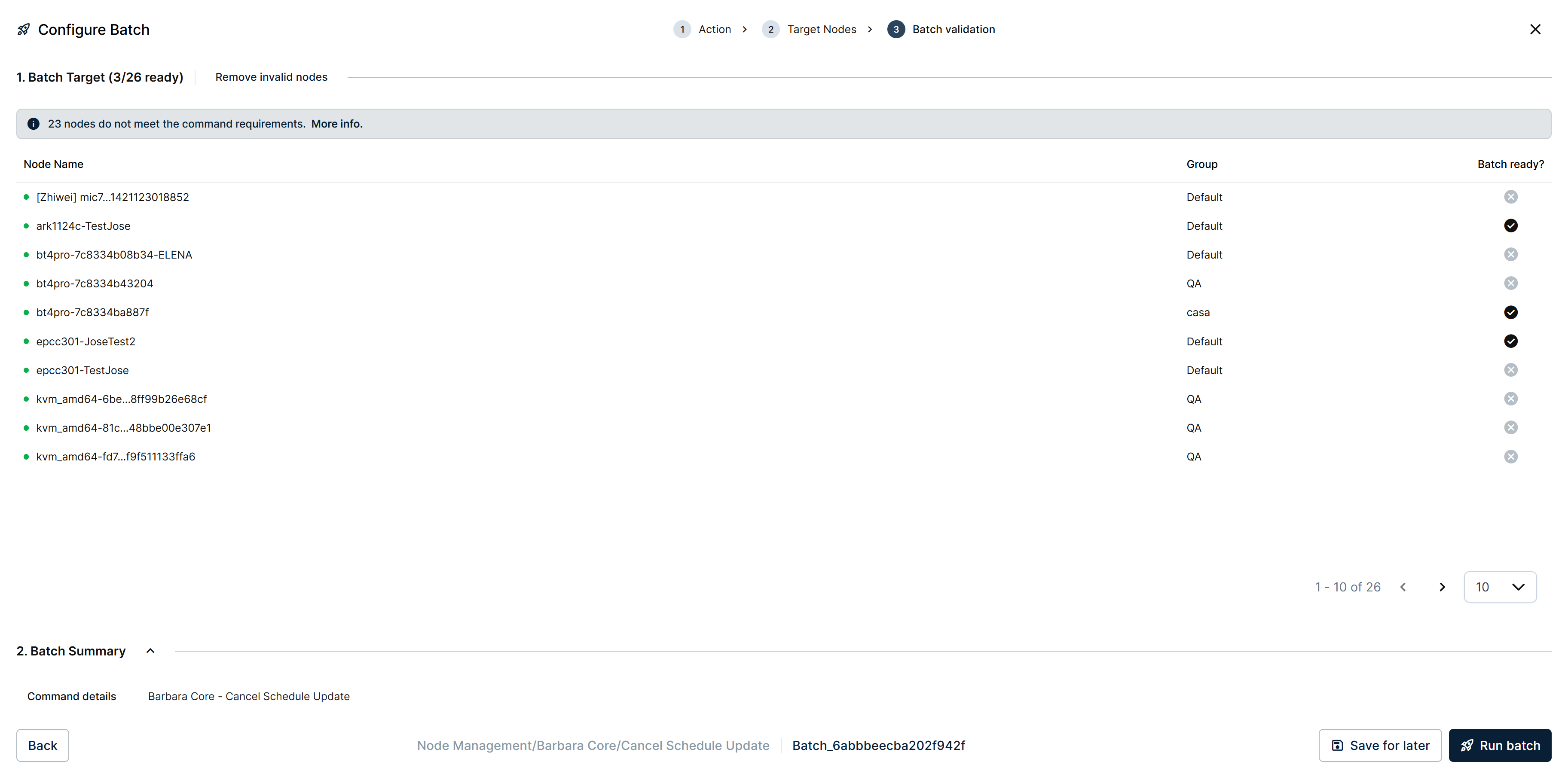
Batch validation step of a Barbara Core Cancel Schedule Update batch
Cancels a Barbara Core update that was previously scheduled on the target nodes, before it runs. The command needs no parameters, so the wizard skips straight from Target Nodes to Batch validation. Only nodes with a pending scheduled update qualify; the rest are reported as not meeting the command's requirements.
Summary
Barbara Core rolls the platform's own firmware out to a fleet: Update Now for an immediate rollout, Schedule Update to run it at a set time, and Cancel Schedule Update to pull back one already scheduled. Both update actions let you decide whether a node that already has the version reinstalls it or is left alone.