Hypervariables
This article refers to Platform v3.4.0. The current Platform version is v3.4.0.
Overview
A batch applies the same command to many Edge Nodes at once, but some parameters need a different value on every node. A gateway address, a site identifier, or an MQTT host is rarely the same across a fleet, and without a way to vary them you would need one batch per node.
Hypervariables solve that. A hypervariable set holds one value per node for each variable you define, and a batch parameter can reference a variable instead of a literal value. When the batch runs, Barbara substitutes the value that belongs to each node.
In this article, you will learn how a set is structured, how to create one from a CSV template, and how to keep it up to date.
How hypervariable sets work
A set is scoped to a group and behaves like a table: one row per node in the group, one column per variable. Each cell holds the value delivered to that node.
Sets are managed entirely through CSV. You download a template for the group, fill it in with a spreadsheet editor, and upload it. Every upload replaces the whole set, so the file you upload is the complete state of the set from that point on.
Naming rules
Both set names and variable names accept only letters, digits, and underscores, between 3 and 32 characters. Neither accepts hyphens, spaces, or accented characters.
Keep variable names short and consistent. A name cannot be changed on its own: renaming a variable means editing the column header and uploading the file again, so it pays to agree on a convention such as network_gateway or mqtt_host before the first upload.
Reference syntax
A batch parameter references a variable through the set it belongs to:
$hv.set_name.variable_name$
Inside an App Config JSON, the reference also carries the expected type, because the substituted value has to land in the JSON as the right kind of literal:
| Type | Syntax |
|---|---|
| String | $hv.set_name.variable_name$ |
| Number | $hv_as_num.set_name.variable_name$ |
| Boolean | $hv_as_bool.set_name.variable_name$ |
You do not have to type these by hand. The batch wizard writes the plain form for you when you assign a variable to a field, and offers a Hypervariable Assistant that copies the typed form for JSON. See Using hypervariables in batches.
The Hypervariables page
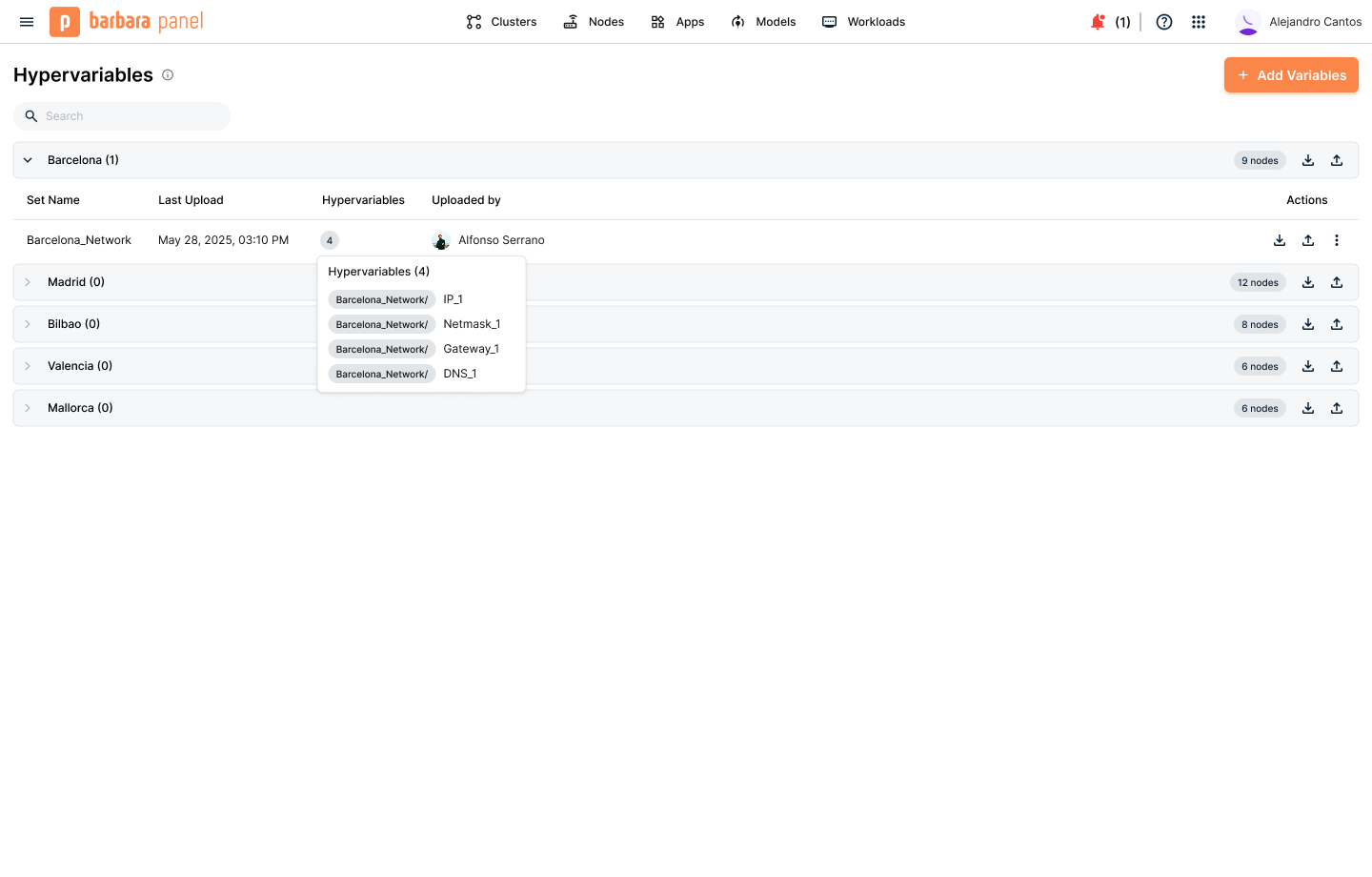
Hypervariables page with one group expanded
Open Hypervariables from the main navigation. The page groups sets by the group they belong to, and each group expands to show what it holds.
Each group header reports how many sets it contains and how many nodes it has, and a group with no sets yet is perfectly normal. For every set the table shows:
- Set Name — the name you gave it.
- Last Upload — when it was last replaced.
- Hypervariables — how many variables it defines.
- Uploaded by — who uploaded it last.
- Actions — upload, download, and a menu for renaming and deleting.
Uploaded by is worth a look before you touch a shared group: because every upload replaces the whole set, it tells you whose work you would be overwriting.
Create a hypervariable set
Creating a set means uploading a CSV. Add Variables starts that from anywhere on the page, and each group row also carries its own upload and download actions.
1) Download the CSV template
Select the target group and download its template. Barbara pre-fills one row per node in the group, with three reference columns:
- Node Name — the node's readable name.
- Barbara ID — the node's unique identifier.
- Tag — the tags currently assigned to the node.
Alongside them come placeholder columns for the variables you are about to define.
Imports match nodes by Barbara ID, never by Node Name. Keep that column intact and unedited: a node renamed later still maps to the right values, but a missing or malformed Barbara ID means that node is skipped.
2) Fill in the values
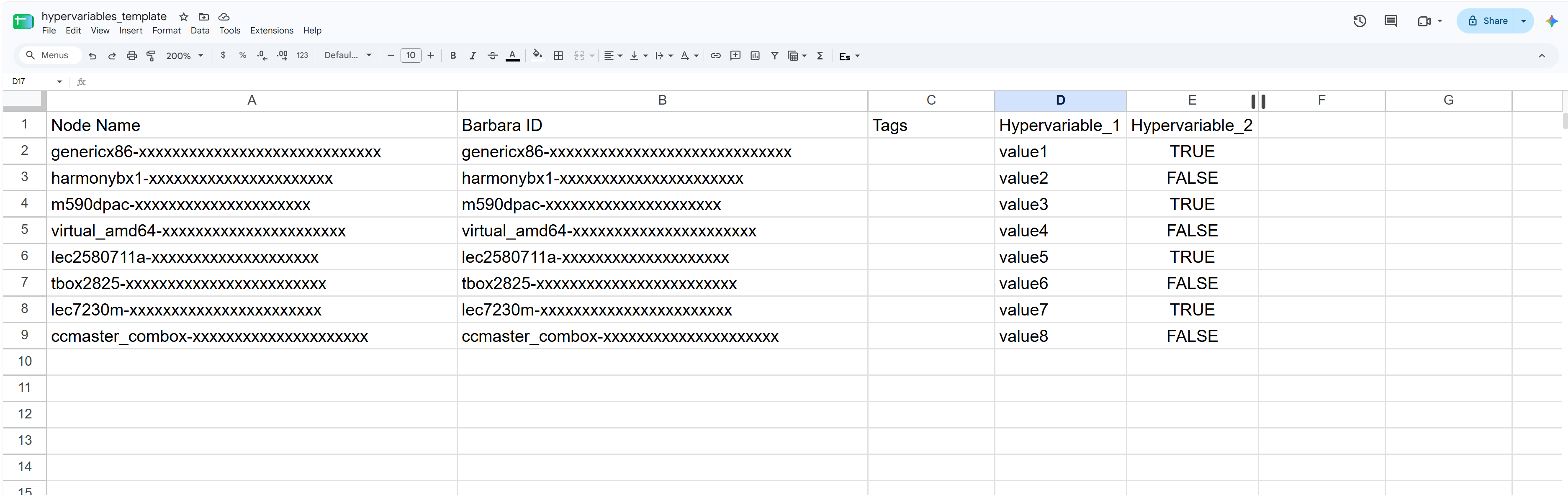
CSV template open in a spreadsheet editor
Open the template in any spreadsheet editor, replace the placeholder headers with your variable names, and enter the value for each node. Add a column per variable you need and delete the placeholders you do not use.
Leave a cell empty only when that node should genuinely receive an empty value. The upload reports empty cells as a warning, so an accidental blank is recoverable, but it is easy to miss on a large fleet.
3) Upload the set
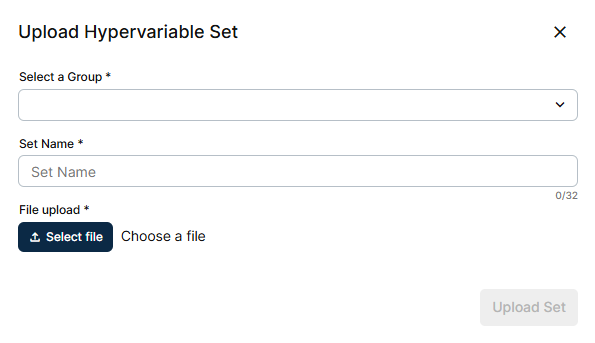
Upload Hypervariable Set popup
The Upload Hypervariable Set popup asks for three things, all required: Select a Group, a Set Name of up to 32 characters, and the file itself through File upload. There is no default name, so decide one before you get here. Upload Set stays disabled until all three are filled in.
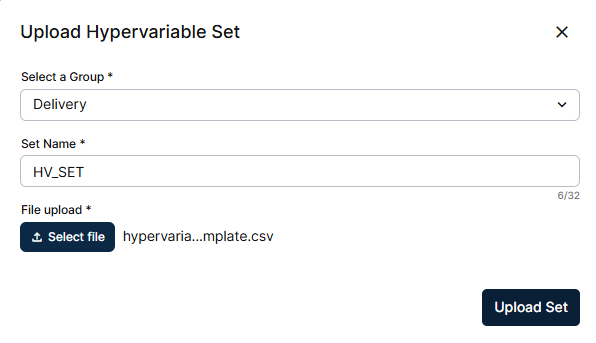
Upload Hypervariable Set popup with every field filled in
On success the set appears under its group. If the file cannot be read at all, the popup explains why and nothing is imported.
Review and edit a set
Select a set to open its detail page: the same table, filled with the real values, one row per node and one column per variable. Node Name, Barbara ID and Tag stay fixed on the left while the variable columns scroll, so a set with many variables stays readable.
To change anything, use Download .csv on the detail page, edit the file, and put it back with Upload & Overwrite. The download carries the current values rather than placeholders, so it is the natural starting point. A re-upload lets you change values, add a variable as a new column, or remove one by deleting its column.
Every upload is a full overwrite, not a merge. The uploaded file becomes the entire set, so a column you leave out is a column you delete. Always start from a fresh download rather than an older copy of the file.
Rename or delete a set
Each set offers Rename set and Delete set. Renaming is safe for the values it holds, but any batch that references the set by its old name has to be updated, because the reference syntax carries the set name.
Deleting is permanent, and batches that reference the set lose their hypervariable assignments.
Import issues
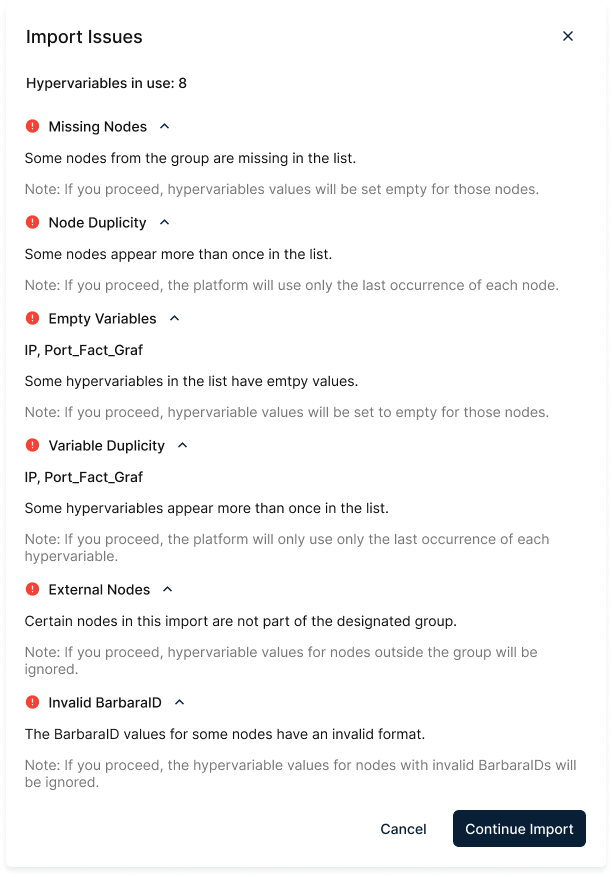
Import Issues report before confirming
When the file is readable but something about its content needs your attention, Barbara shows an Import Issues report and asks you to confirm before applying it. You can review the issues and select Continue Import, or cancel and fix the file first.
| Issue | What it means |
|---|---|
| Variable Duplicity | The same variable name appears in more than one column. Only the last occurrence is used. |
| Node Duplicity | The same node appears in more than one row. Only the last occurrence is used. |
| Invalid BarbaraID | One or more Barbara IDs are malformed. Those nodes are ignored. |
| External Nodes | The file contains nodes that do not belong to the selected group. Those nodes are ignored. |
| Empty Variables | Some cells have no value. Those nodes receive an empty value for that variable. |
| Missing Nodes | Some nodes of the group are absent from the file. Those nodes receive an empty value. |
Every one of these is a warning rather than a rejection: the import proceeds once you confirm, applying the rule described above. Read the report before continuing, because each rule silently discards something.
Summary
A hypervariable set is a per-node value table scoped to a group, managed as a CSV that you download, edit, and upload as a whole. Barbara resolves each node's value at the moment a batch runs, so one batch covers a fleet whose parameters all differ.
Define your sets first, then continue to Using hypervariables in batches to reference them from a batch.