Config repository
This article refers to Platform v3.4.0. The current Platform version is v3.4.0.
Overview
A workload's configuration is a JSON document, and the same document is often needed on many nodes. The config repository keeps those documents in one place instead of inside each workload, so a configuration you wrote once is searchable, reusable, and traceable to the nodes running it.
Each entry records what kind of configuration it is, which application it belongs to, how many nodes it is applied on, and whether it uses hypervariables. That last one matters: a config whose varying values are hypervariable references is what lets a single document configure a whole fleet.
In this article, you will learn how the repository is organized, how to create and edit a config, and the rules Barbara applies once a config is in use.
The repository view
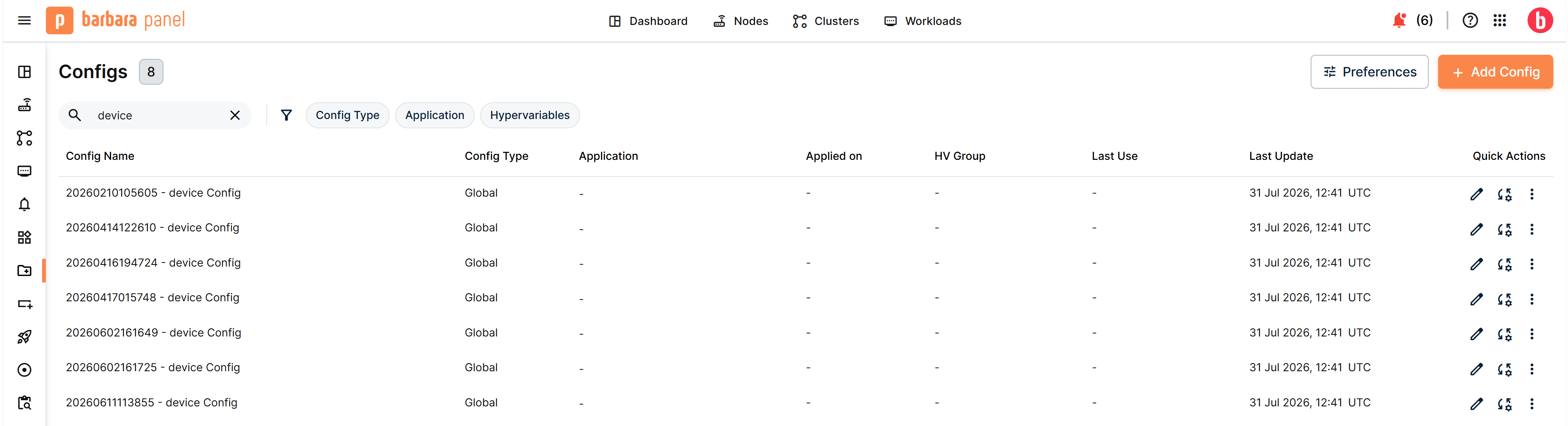
The Configs repository table
Each row is one config, and the table reports:
- Config Name — the name you gave it.
- Config Type — whether it configures an application or applies globally.
- Application — the application it belongs to, shown as App/Model. A global config has none.
- Applied on — how many devices and clusters currently use it. Select the count to list them.
- HV Group — the group whose hypervariable set the config references, or nothing if it uses none.
- Last Use and Last Update — when it was last applied and last edited.
- Quick Actions — edit, metadata, download, and delete.
Search filters by name, and three further filters narrow the list: Config Type, Application, and Hypervariables. As elsewhere in the panel, Preferences chooses which columns are visible; Config Name and Quick Actions always stay.
Config types
A config is either scoped to one application or to the node as a whole:
- An application config configures a specific workload, and the repository records which one.
- A Global config applies at node level rather than to a single workload, so its Application column is empty.
Configs created before the repository existed appear as Unassigned, because there is no record of which application they belonged to. They still work; assign one through Edit Config Metadata when you next touch them.
Create a config
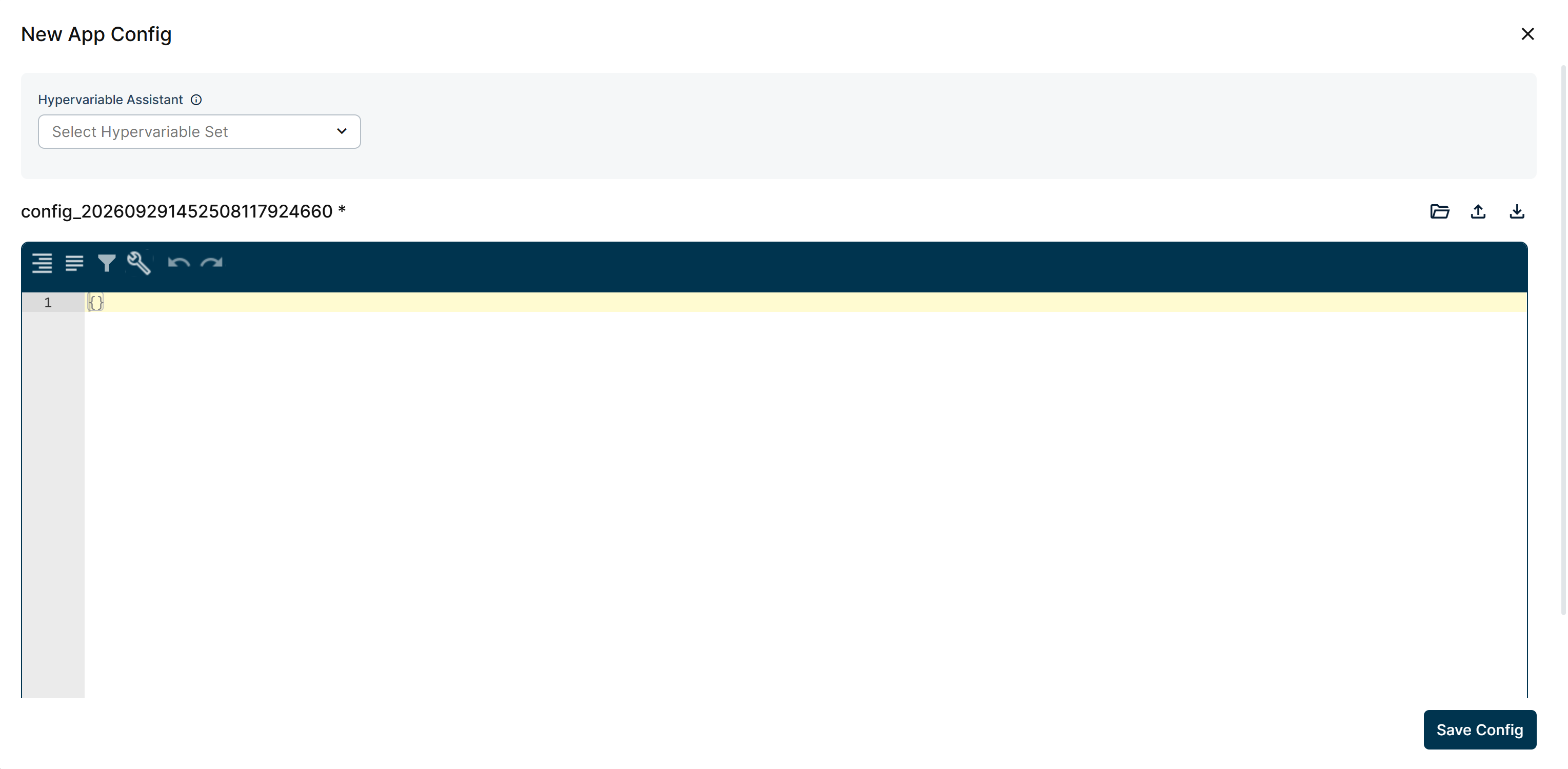
New App Config editor with the Hypervariable Assistant
Select Add Config to open the JSON editor. It opens empty with an auto-generated name (for example config_20260929145208...), which you can overwrite, and you either write the document or bring one in with Upload .json. Load from repo starts from an existing config instead, which is usually faster than writing a variant from scratch.
If the configuration needs values that differ per node, use the Hypervariable Assistant at the top: pick a set from Select Hypervariable Set, and it lists that set's variables, copying each reference in the format the JSON needs at that position, string, number, or boolean. See Hypervariables.
Save Config stores the document. Its metadata (Config Name, Config Type, and, for an application config, which application it belongs to) follows in a further step; names are unique, so a name already taken is rejected.
Barbara then validates any hypervariable references before storing anything. A reference to a set or a variable that does not exist is reported, and so is a document that mixes sets from different groups, because a config resolves against one group only. The editor stays open with the problems listed until they are resolved.
Edit a config
The edit action reopens the JSON editor. An asterisk after the name marks unsaved changes, and until you make one the save actions stay disabled.
What you may do next depends on whether the config is currently applied:
| The config is | You can |
|---|---|
| Not applied on any node | Overwrite it, or save your changes as a new config |
| Applied on one or more nodes | Only save as a new config |
Save as New Config is the only option for a config in use, and the restriction is deliberate: Applied on records the exact document each node received, and overwriting it in place would make that record wrong. Barbara proposes a name derived from the original, so the new config stays recognizably related to the one it came from.
This applies wherever you edit, including from a node's own configuration view rather than from the repository.
Edit Config Metadata changes the name, type, and application without touching the JSON. Download Config saves the document to your machine.
Delete a config
Deleting is permanent and there is no recovery, so Barbara confirms first.
A config that is in use cannot be deleted at all. The action is available but reports "This config is in use and cannot be deleted." Remove it from the workloads using it first, then delete it.
Configs with hypervariables
A config that contains hypervariable references only resolves where Barbara knows which group the target nodes belong to, which means a batch. On a single node, there is no group context to look up each value against.
Because of that, such a config appears in the picker in single-node contexts but is not selectable. To use that configuration on one node, either save a version with fixed values instead of references, or run a batch with a single-node target.
A config in use is a live document: the nodes listed under Applied on are running it. Before editing one, check that count. Saving as a new config leaves those nodes untouched, which is usually what you want, but it also means your change does not reach them until you apply the new config through a batch.
Summary
The config repository turns configuration from something buried in each workload into a managed collection: typed, named, searchable, and aware of where it is applied. The rules around configs in use exist to keep Applied on honest, so you can always tell which document a node actually received.
Combined with hypervariables and applied through a batch, one config in this repository configures an entire fleet whose values all differ.