Using hypervariables in batches
This article refers to Platform v3.4.0. The current Platform version is v3.4.0.
Overview
Once a group has at least one hypervariable set, a batch can take its parameter values from that set instead of from a literal you type once for every node. The batch wizard covers this across three of its five steps: you pick the sets in Hypervariables, assign variables to fields in Parameters, and confirm that every node resolves correctly in Batch validation.
In this article, you will learn how to assign variables in both kinds of field, plain parameters and App Config JSON, and how to read the validation report before launching.
If you have not created a set yet, start with Hypervariables.
Step 3 — Hypervariables
This step lists the sets available for your target nodes. Select the ones whose variables you intend to use; you can select several if your parameters draw on different sets.
Hypervariables resolve per node within a group, so this step requires that every target node belongs to the same group and that the group has at least one set defined. If your node selection spans several groups, the step explains why no sets are offered. Narrow the selection in Target Nodes and come back.
The step is optional. Skip it and every parameter takes the literal value you type.
Step 4 — Parameters
Assigning a variable to a field
Each configurable field carries a control for picking a hypervariable from the sets you selected in Step 3. Selecting it opens a searchable list of every variable available, each labeled with the set it belongs to.
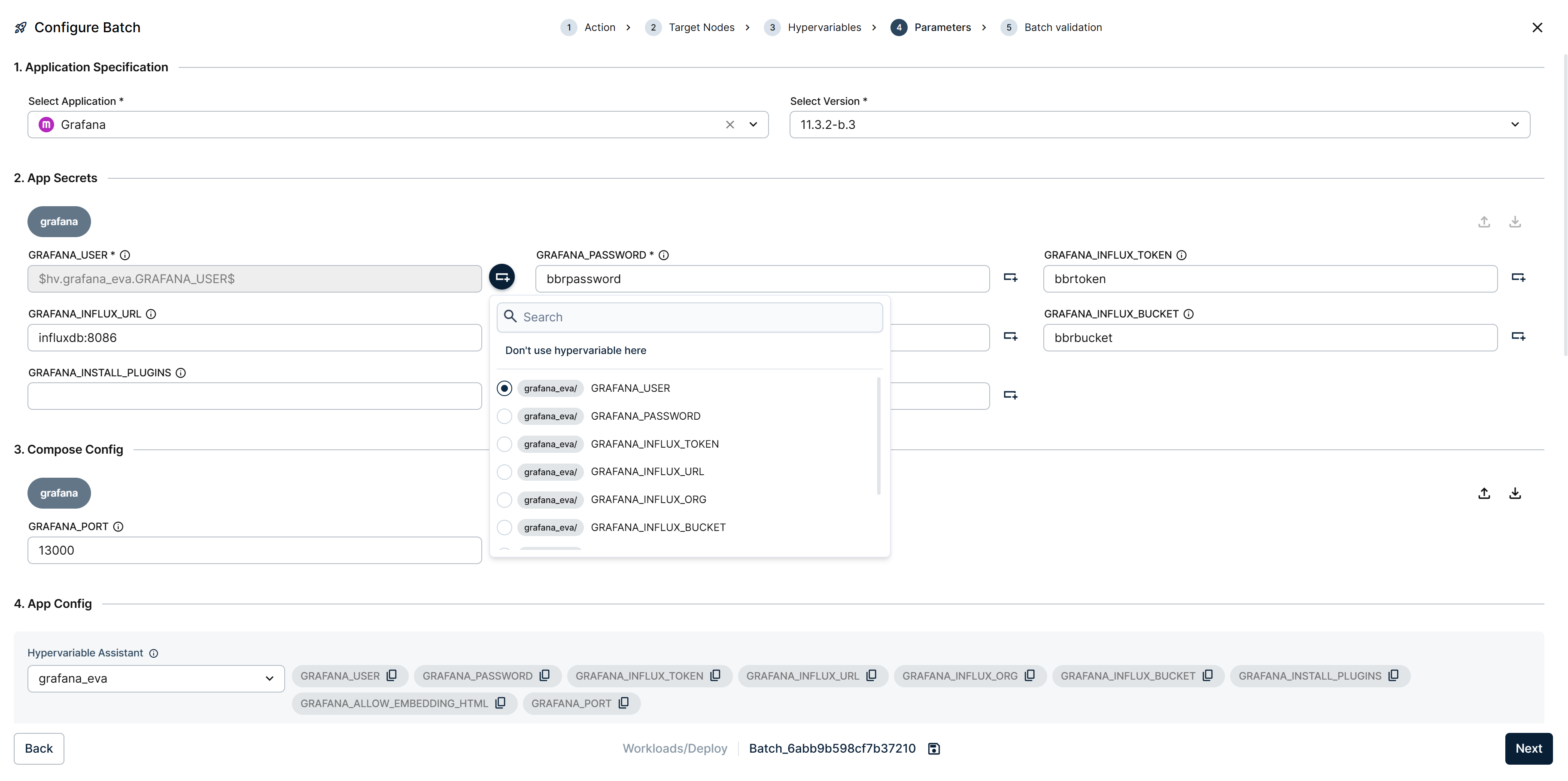
Parameters step with the hypervariable picker open on a field
Assign one and the field takes its value from the set rather than from the form. Use the same control to change the assignment, or Don't use hypervariable here to clear it and go back to typing a fixed value.
Assigning a variable to a field that already contains a value replaces that value. Clearing the assignment afterwards does not bring the old text back.
Assigning variables inside App Config
Workload batches configure their application through an App Config JSON, where a reference has to be typed into the document rather than picked in a field. For those, the Parameters step shows a Hypervariable Assistant above the editor.
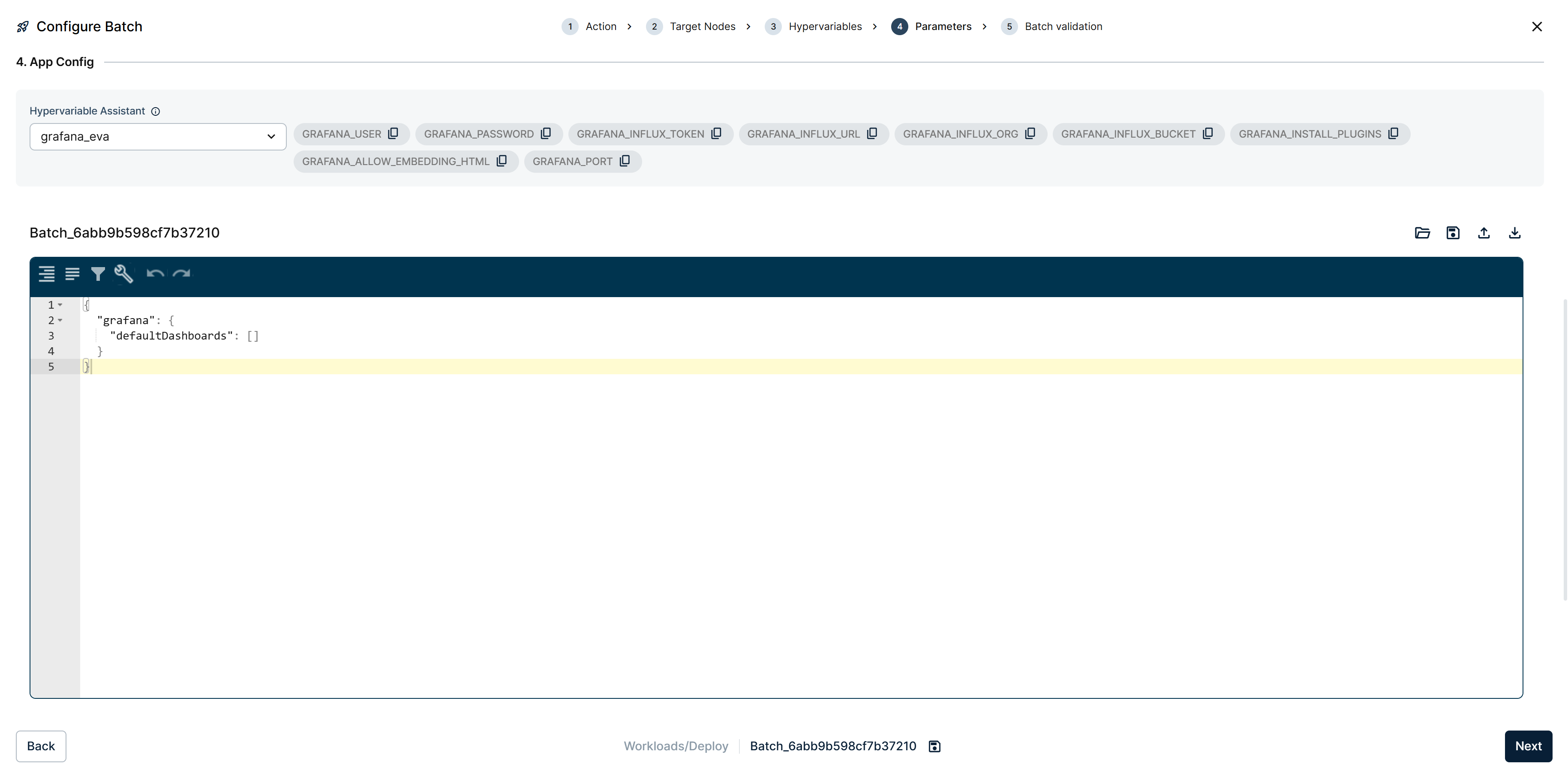
App Config section with the Hypervariable Assistant above the JSON editor
The assistant lists every variable from the selected sets as a chip. Selecting one opens a small menu with the three formats to copy it in, so you paste a reference that is already correct for its position in the JSON:
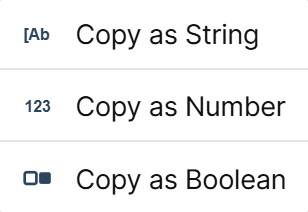
Copy format menu opened on a Hypervariable Assistant chip
- Copy as String for text values such as hostnames or paths.
- Copy as Number for numeric values such as ports or thresholds.
- Copy as Boolean for flags.
Pick the format that matches what the application expects at that key. A numeric setting that receives a string reference produces a JSON value of the wrong type, which the application rejects at startup rather than at launch time.
Step 5 — Batch validation
The final step resolves every reference against every target node and reports what it finds, in three blocks.
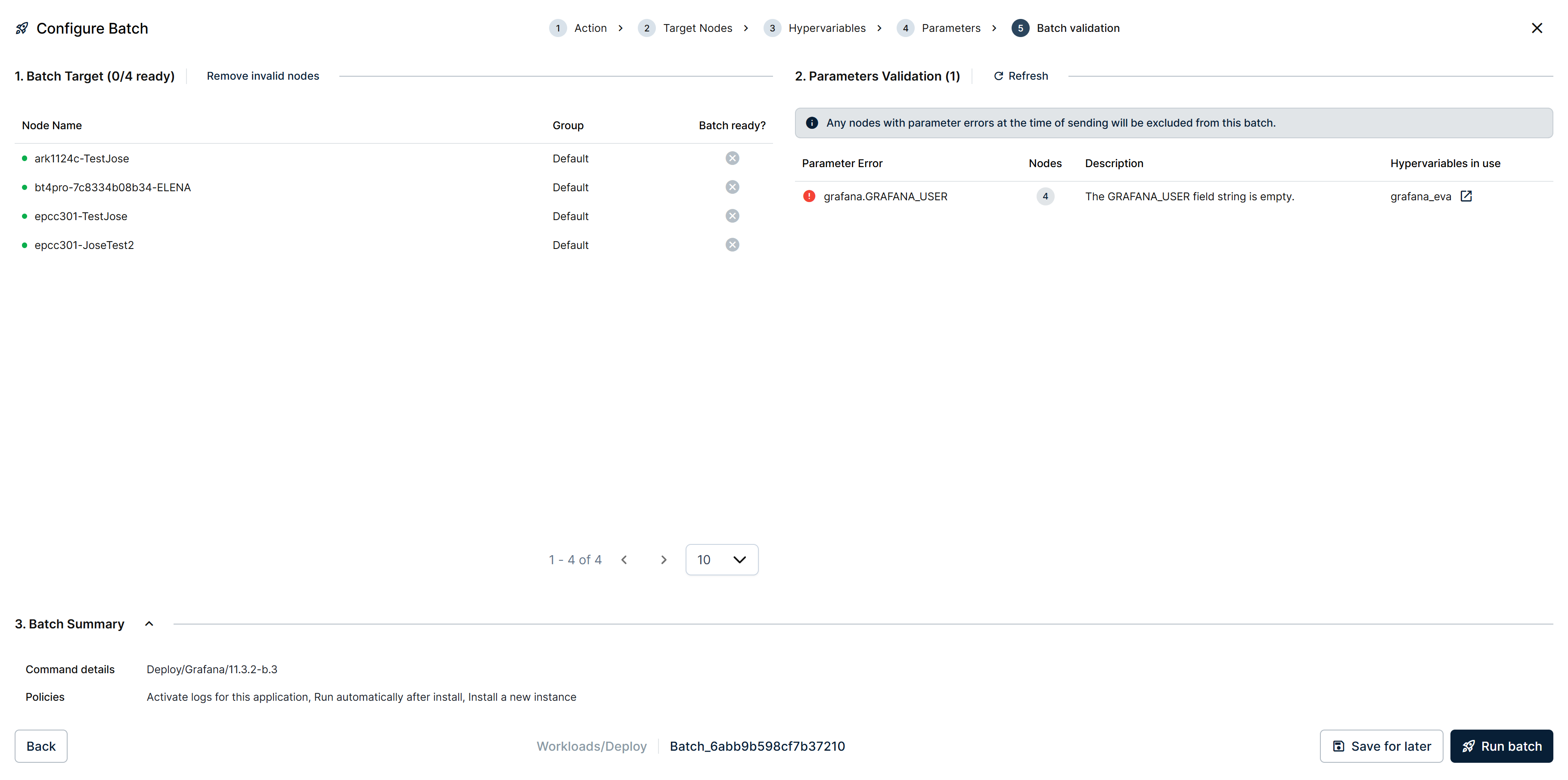
Batch validation with a ready count and one parameter error
Batch Target lists the nodes with their Group and a Batch ready? column, and its heading counts how many qualify. Parameters Validation reports each problem as a row with the Parameter Error, the number of Nodes it affects, a plain-language Description, and the Hypervariables in use behind it. Batch Summary restates the command and the policies you chose, which is the last chance to catch the wrong version or the wrong policy.
Barbara states the consequence in the step itself: "Any nodes with parameter errors at the time of sending will be excluded from this batch."
A node typically fails validation because a variable has no value for it, which happens when the node was added to the group after the set was uploaded, or when a cell was left empty. The report names the variable and the field responsible.
Two controls make the report actionable:
- Refresh re-runs the validation, which is what you use after correcting a set.
- Remove invalid nodes drops every node that is not ready, in one action.
Nodes that fail validation are excluded from the launch, and the batch proceeds for the rest. If no node passes, the batch cannot run.
When the report is clean, Run batch dispatches it. Save for later keeps everything as a draft instead, which is what you want if you need to fix a set before launching.
To fix a missing value without losing your progress, open Hypervariables in a second browser tab. Correct the set there, then return to Batch validation and select Refresh. Leaving the wizard to fix the set means starting it over.
Malformed references
A reference that does not match the expected structure is reported separately, because it is a problem with what you typed rather than with the data. Barbara states the three valid forms and blocks the batch until the reference is corrected:
$hv.set_name.var_name$           strings
$hv_as_num.set_name.var_name$    numbers
$hv_as_bool.set_name.var_name$   booleans
This is the reason to copy references from the assistant rather than write them by hand.
When a saved batch loses its hypervariables
A batch saved as a draft stores its hypervariable information along with everything else. If you reopen it and its node selection no longer supports hypervariables, Barbara warns you that the stored information cannot be applied.
The usual cause is that a node changed group since the batch was saved, which breaks the same-group requirement. Restore the node selection to a single group, or reselect the sets, and the stored assignments become usable again.
Barbara reports a related case separately: if groups or nodes referenced by the draft no longer exist, it loads only the ones still available. Review the target selection before launching a draft you saved a while ago.
Summary
Hypervariables turn one batch into a per-node operation: Hypervariables selects the sets, Parameters binds variables to fields or pastes typed references into App Config, and Batch validation proves that every node resolves before anything is dispatched. Barbara does the substitution at launch, so a fleet whose parameters all differ is still a single operation.
For the batch types that use this most, see Batch operations.