Batch — Docker apps
This article refers to Platform v3.1.0. The current Platform version is v3.3.0.
Overview
The Docker apps category of the Configure Batch wizard lets you operate your own Docker applications across many nodes at once. The four available commands are Install, Delete, Run, and Stop.
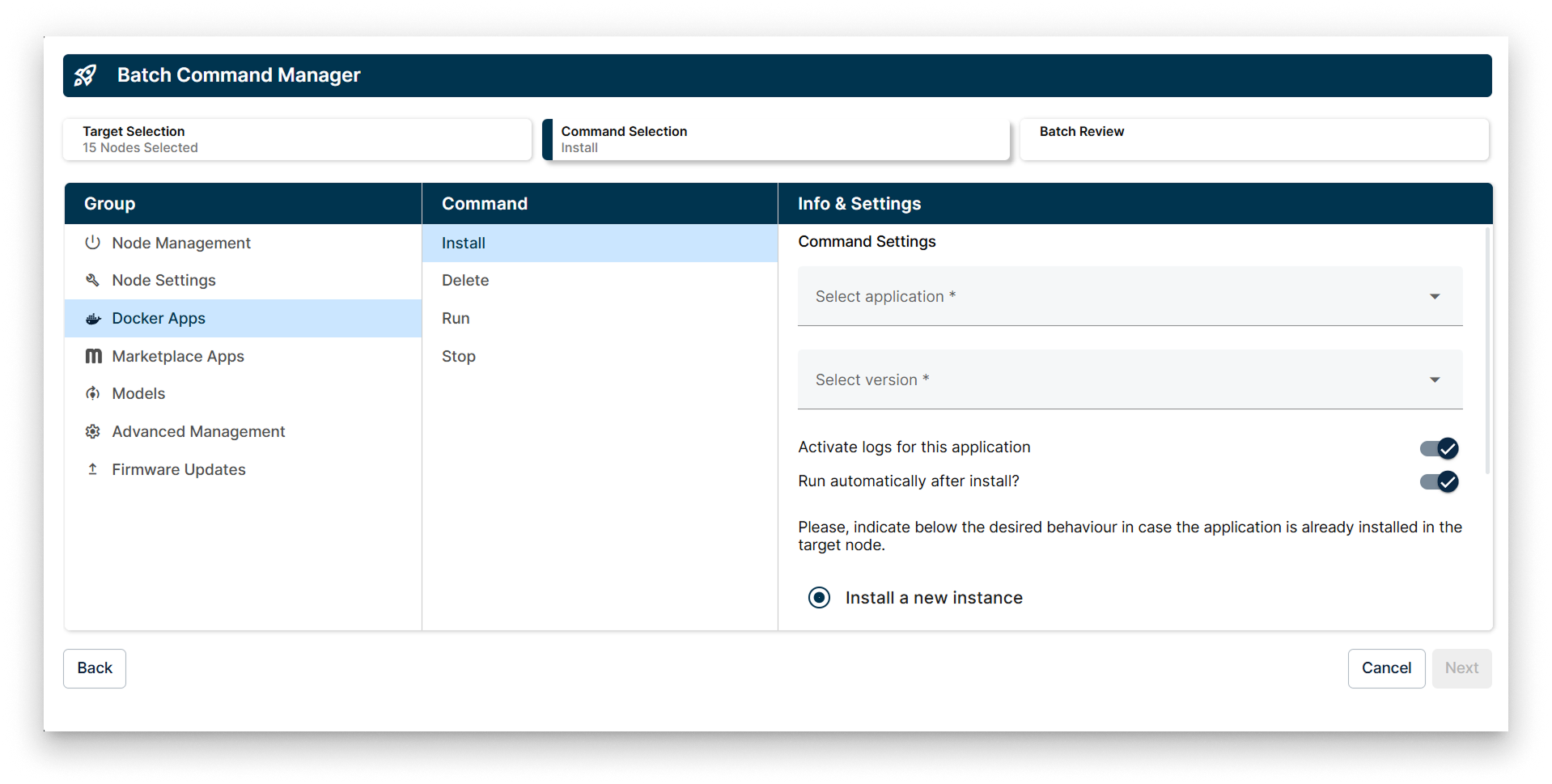
Docker apps options in the batch wizard
Commands
1. Install
Deploy a Docker application from the App Library to every selected node. The form asks you to pick the application and version, and exposes two advanced toggles:
- Activate logs — start capturing logs immediately after install.
- Run automatically after install — start the workload right after installation.
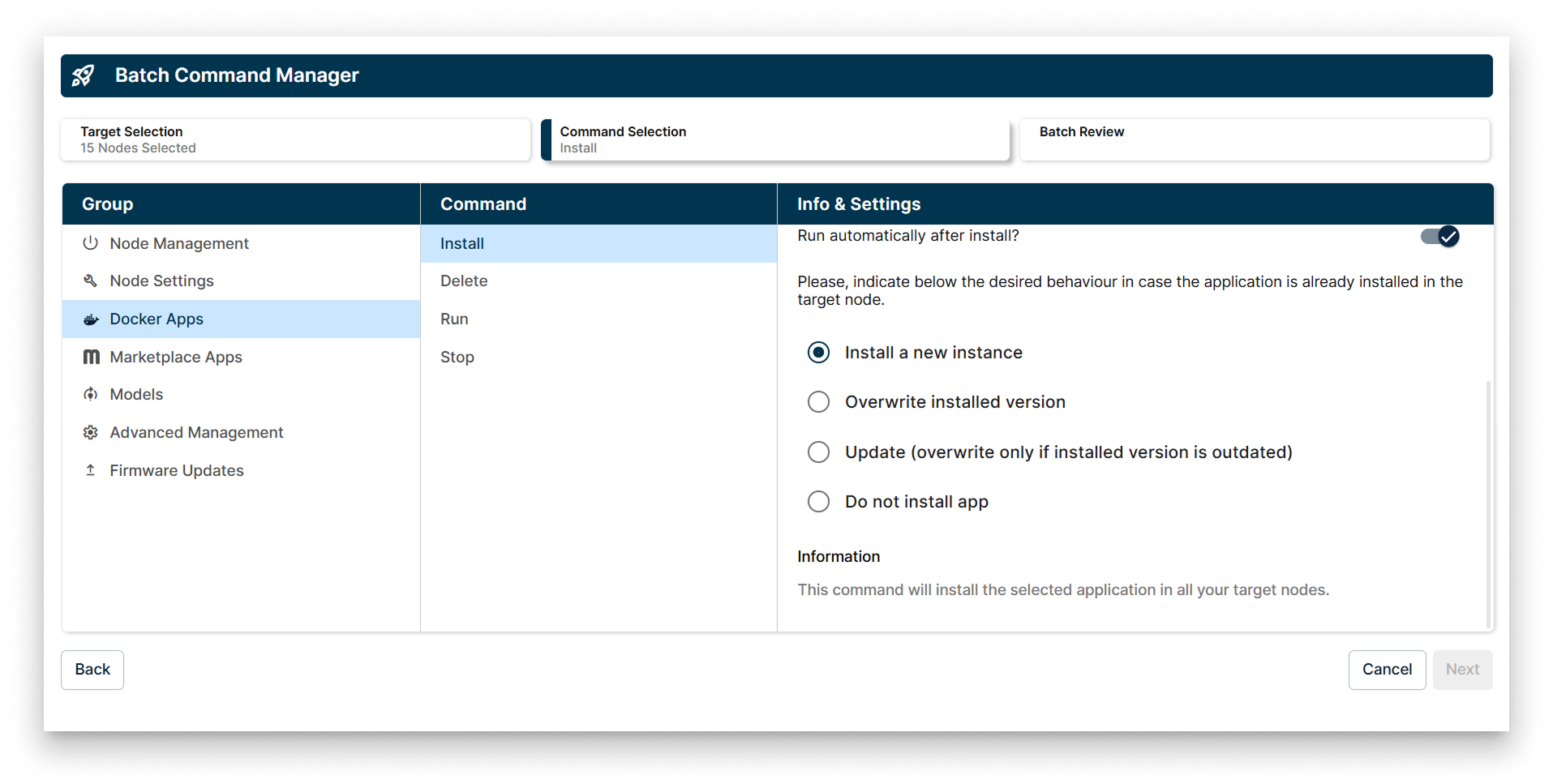
Install policy for Docker apps
If the application is already installed on a target node, pick the desired behaviour:
- Install a new instance of the application.
- Overwrite the already installed application.
- Update — overwrite only if the installed version is outdated.
- Do not install the application.
2. Delete
Remove the selected Docker application from every target node.
If a node has more than one instance of the application, the Delete command is applied to every instance in parallel.
3. Run
Start the selected Docker application on every target node where it is installed but stopped.
If a node has more than one instance of the application, the Run command is applied to every instance in parallel.
4. Stop
Stop the running instances of the selected Docker application on every target node.
If a node has more than one instance of the application, the Stop command is applied to every instance in parallel.
Summary
Use the Docker apps batch category to roll out new versions of your own containerised applications across many nodes consistently, and to start, stop, or remove them in bulk.