Add a Marketplace app to your Library
This article refers to Platform v3.2.0. The current Platform version is v3.4.0.
Overview
The Barbara Marketplace is the catalogue of applications and integrations curated for the Barbara platform. Anything you add from the Marketplace lands in your organization's App Library and can then be deployed to your edge nodes. This article walks you through finding an app in the Marketplace, accepting its terms, and confirming that it landed in your Library.
Open Barbara Marketplace
Browse to market.barbara.tech.
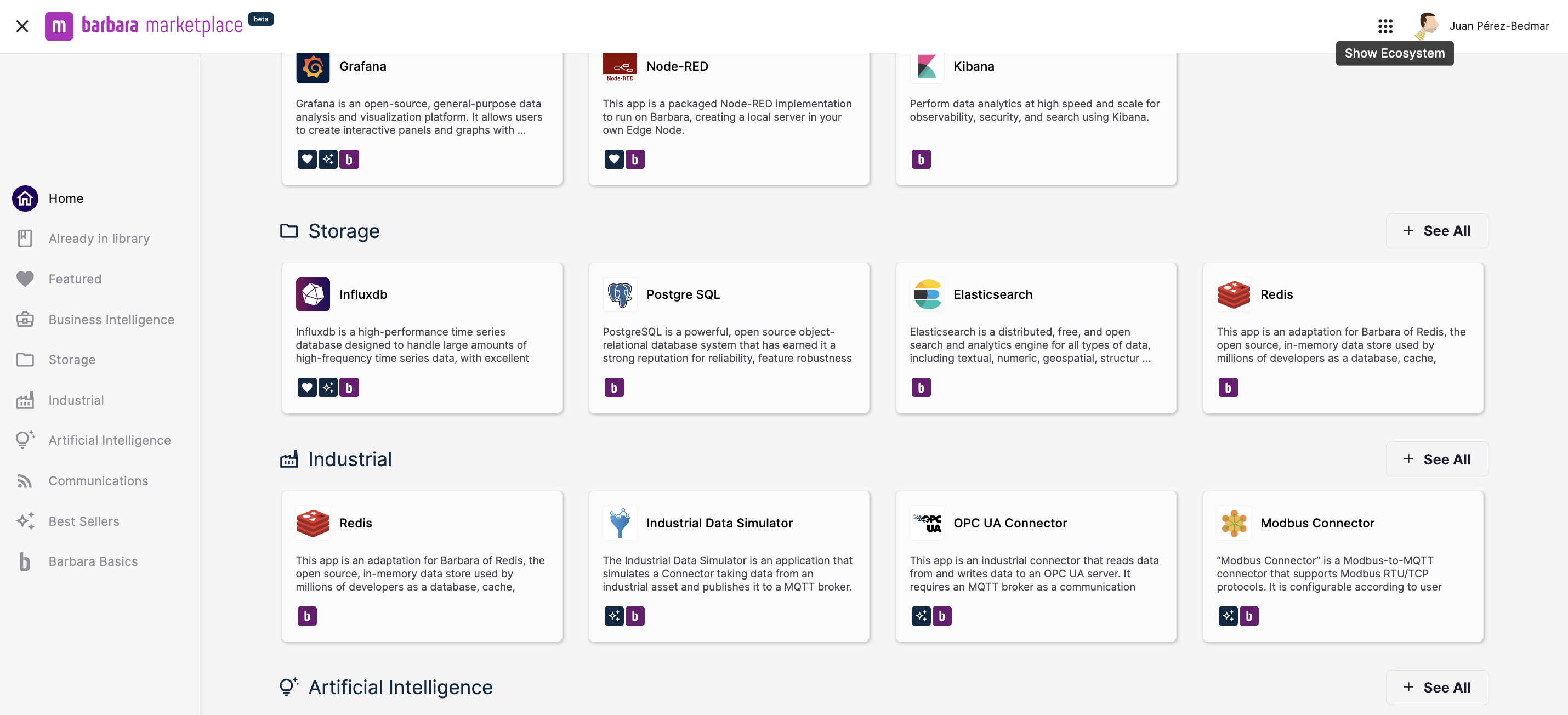
Barbara Marketplace home
If you are not already signed in, click Login in the top-right.
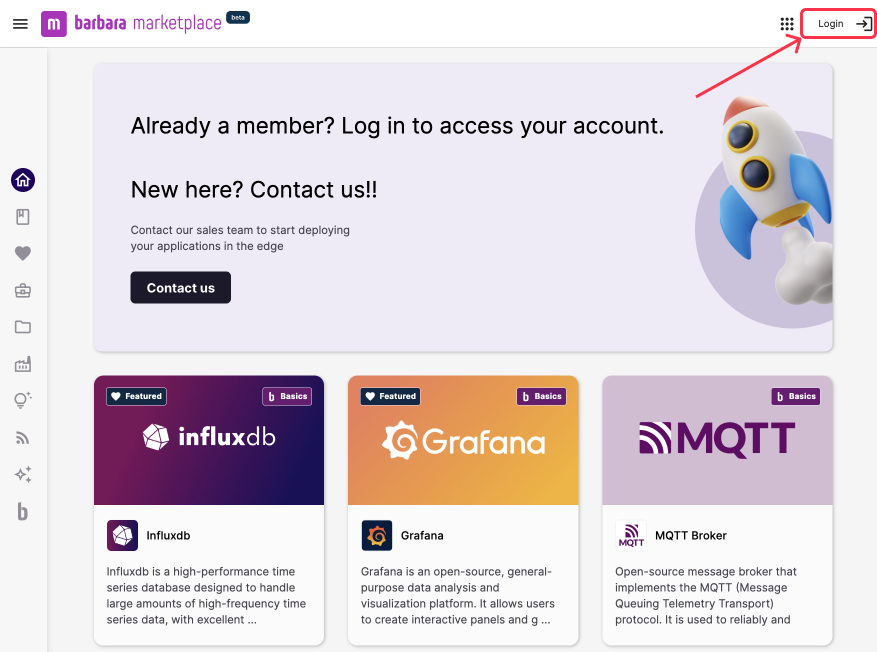
Login button on the Marketplace
Sign in with the same credentials you use for Barbara Panel.
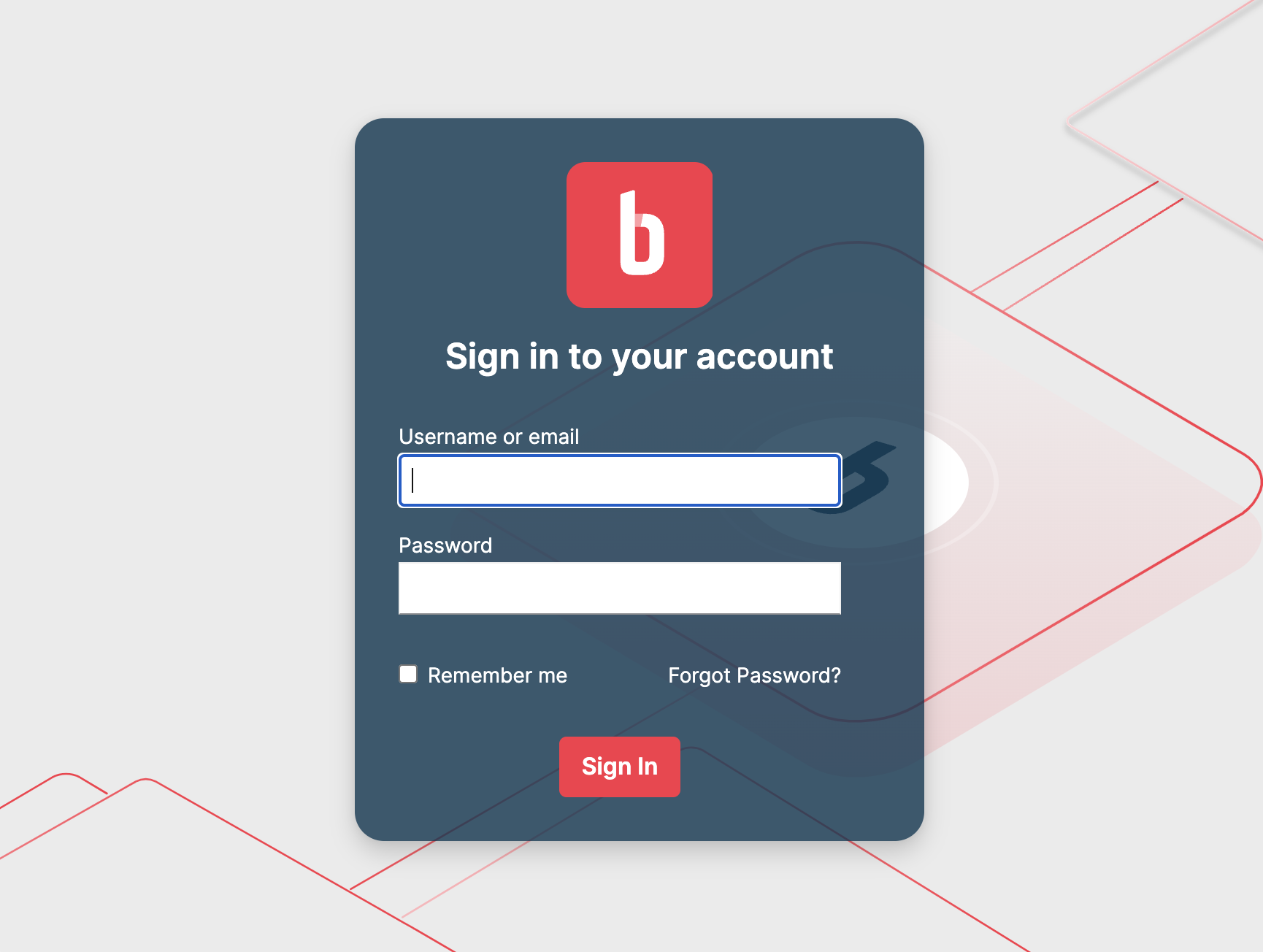
Barbara platform login page
Add an application to your Library
Find the application you want — by category, by search, or by direct link. Click the application card to open its details page.
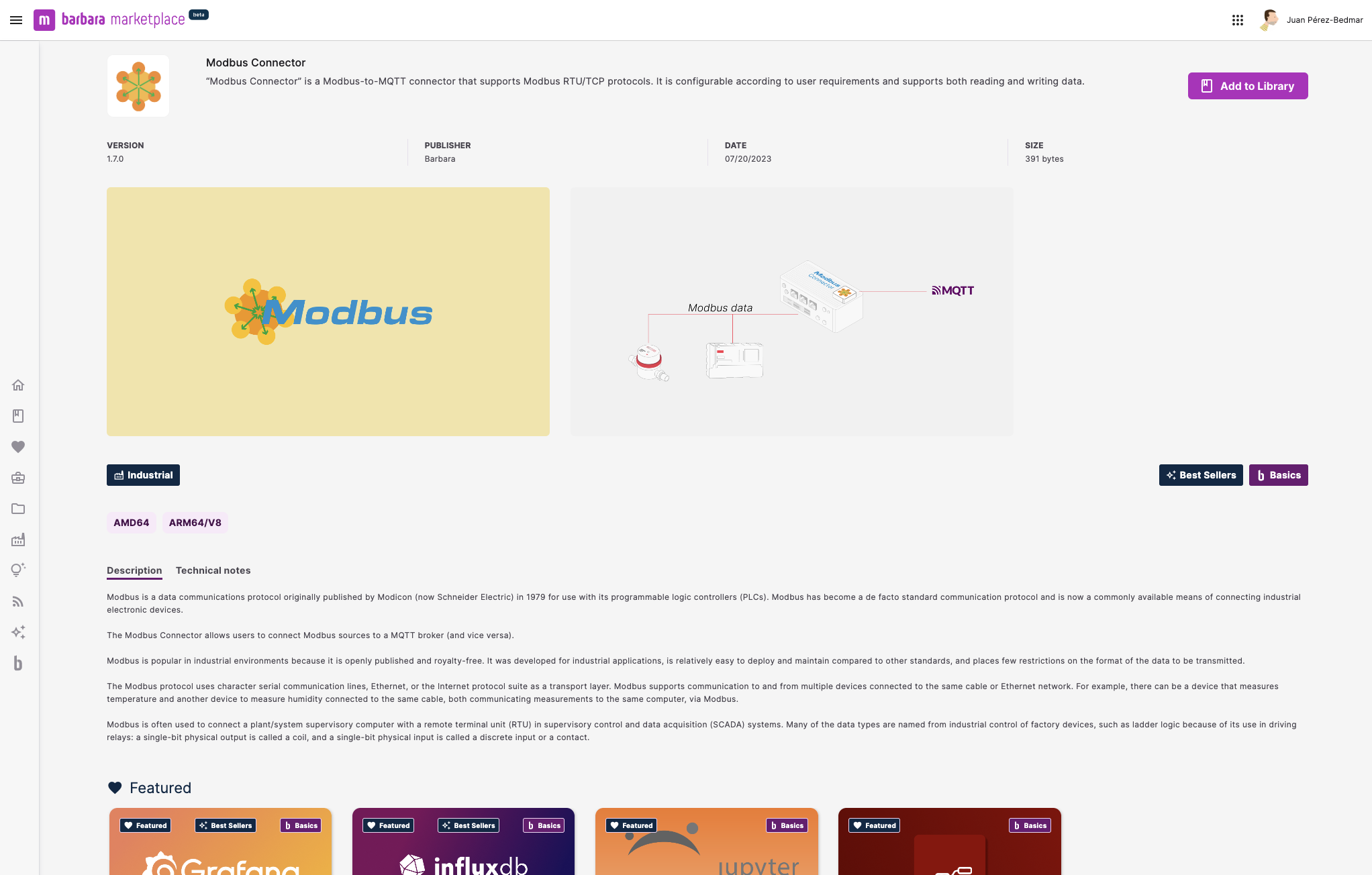
Application detail page in the Marketplace
Click Add to Library in the upper-right.
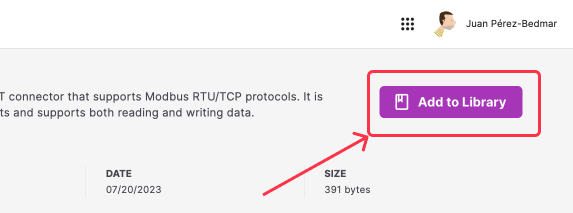
Add to Library button
A popup opens with the terms and conditions and the price of the app. Click Add to Library to confirm, or Close to back out.
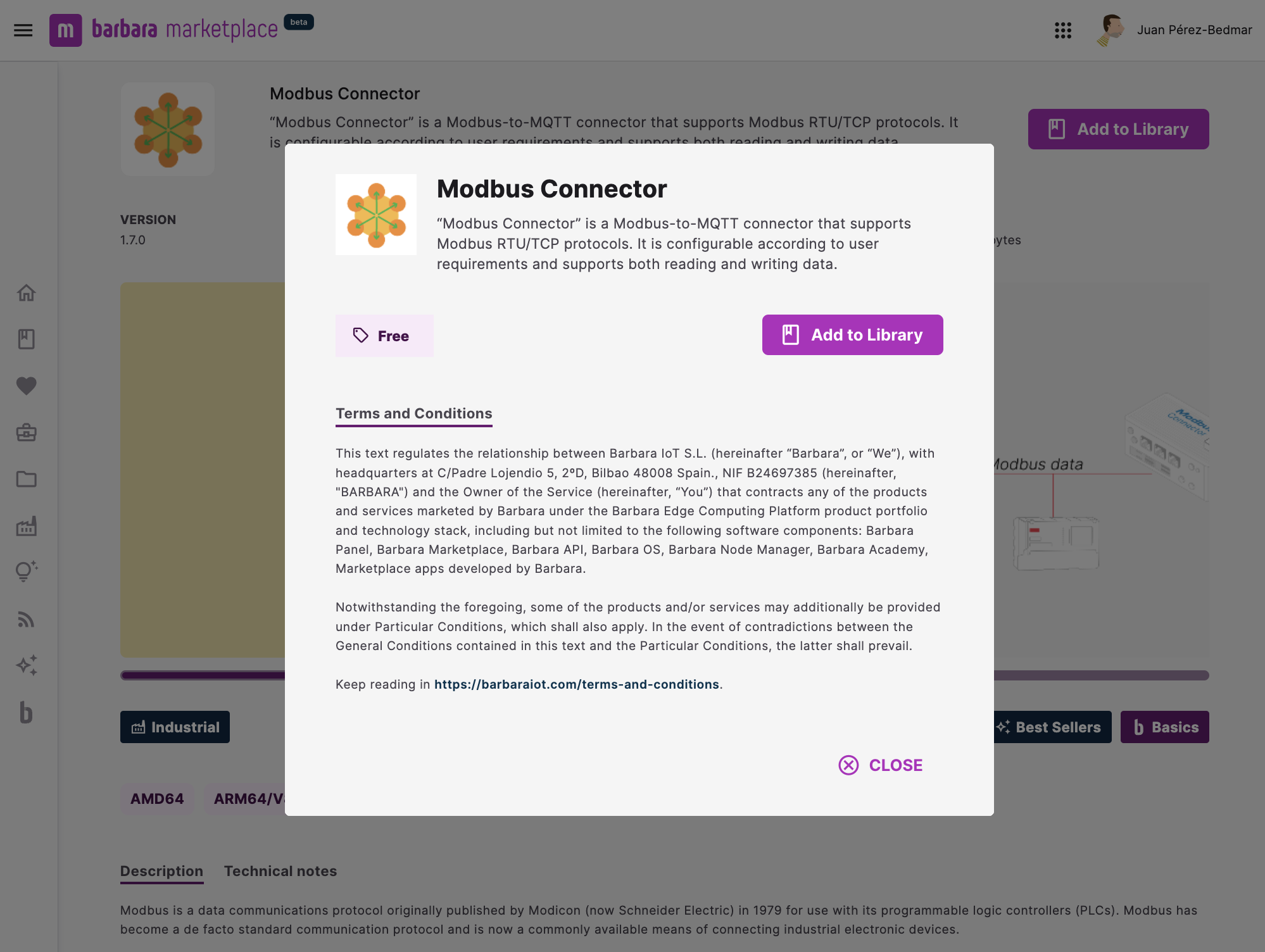
Add to Library confirmation popup
Once added, the button on the detail page changes to a non-clickable Already in Library.
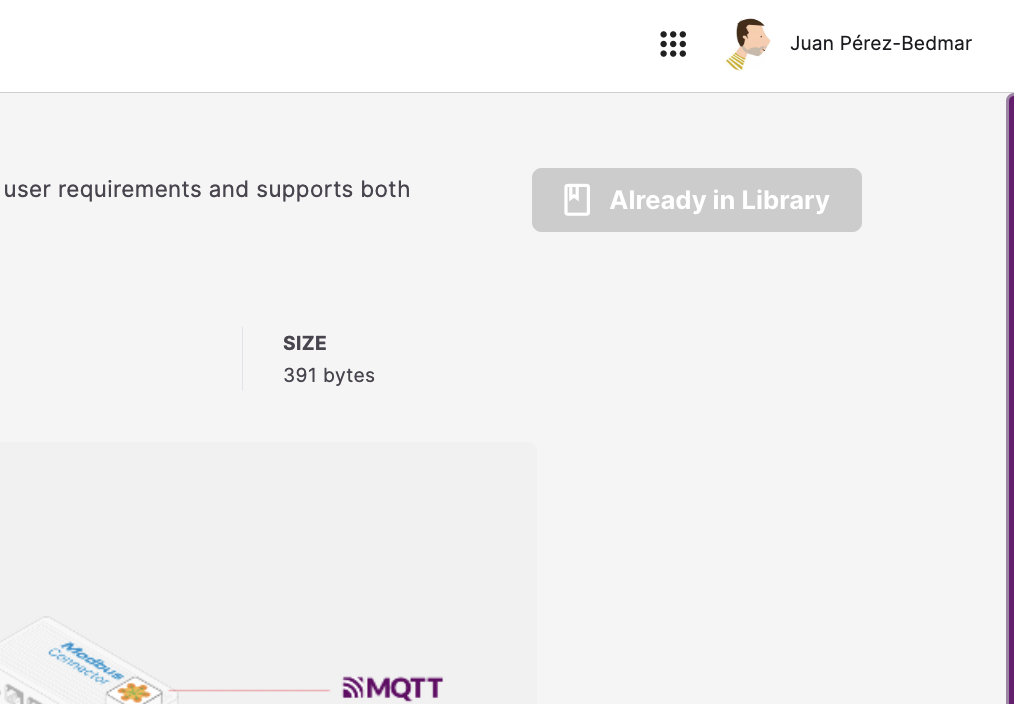
Already in Library state
Confirm the app in your Library
Switch over to Barbara Panel — either by typing panel.barbara.tech in the browser, or by clicking the grid icon next to your user name in the top-right of the Marketplace and selecting Panel.
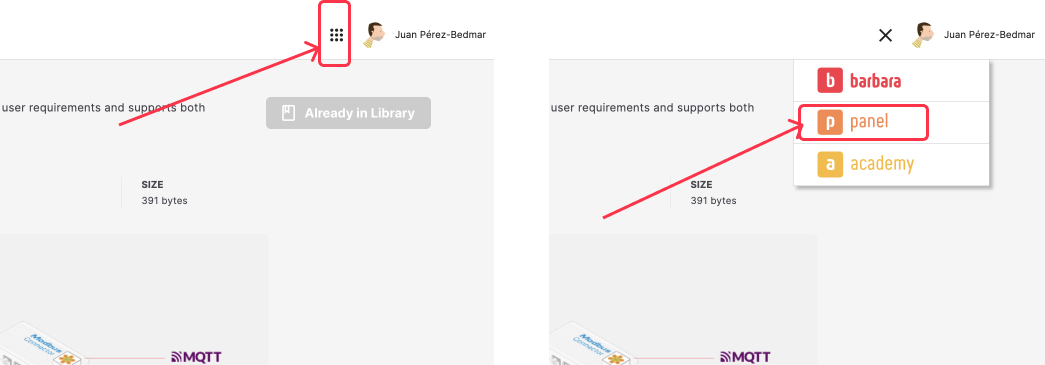
Switching from Marketplace to Panel
In Panel, open the Library view. The newly added application is now there, ready to deploy.
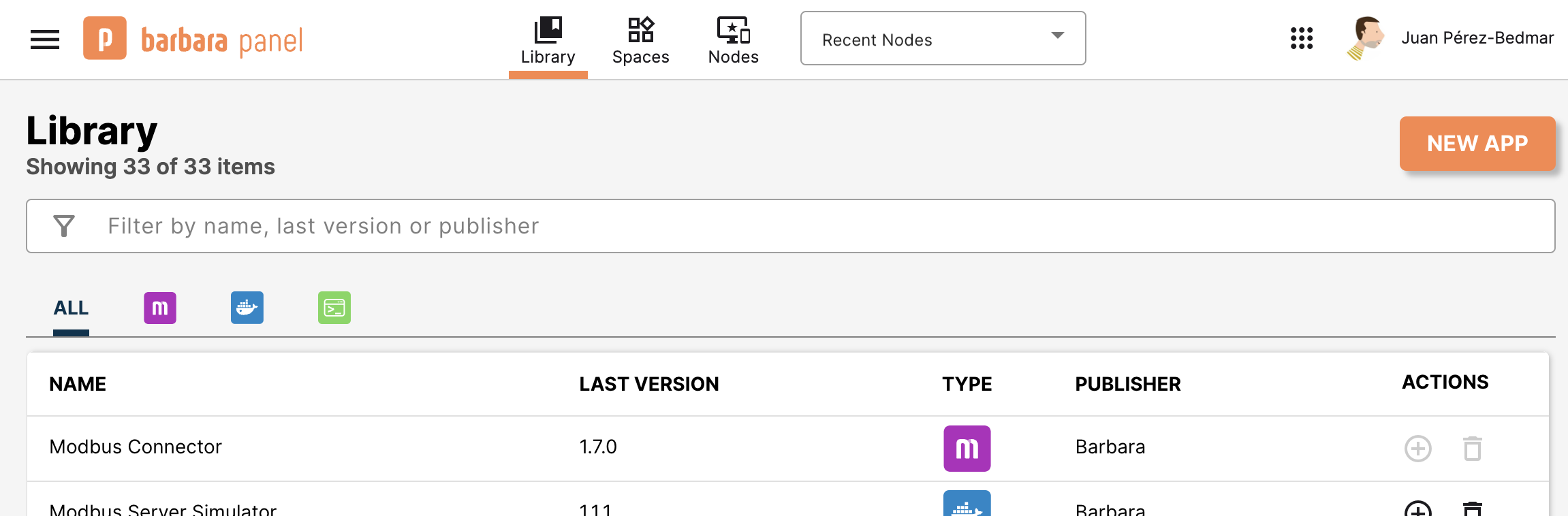
App Library showing the new entry
Summary
You have added a Marketplace application to your organization's App Library and confirmed it shows up in Panel. The next step is to deploy it to a node — see Deploying Marketplace apps.