Marketplace apps
This article refers to Platform v3.2.0. The current Platform version is v3.4.0.
Overview
Every Marketplace application you deploy on a node gets its own workload card on the Node Details page. The card is your operational view of that workload: state, logs, persistent storage, environment variables, app config, and Docker info — plus the actions to start, stop, update, and uninstall the app.
Workload card UI
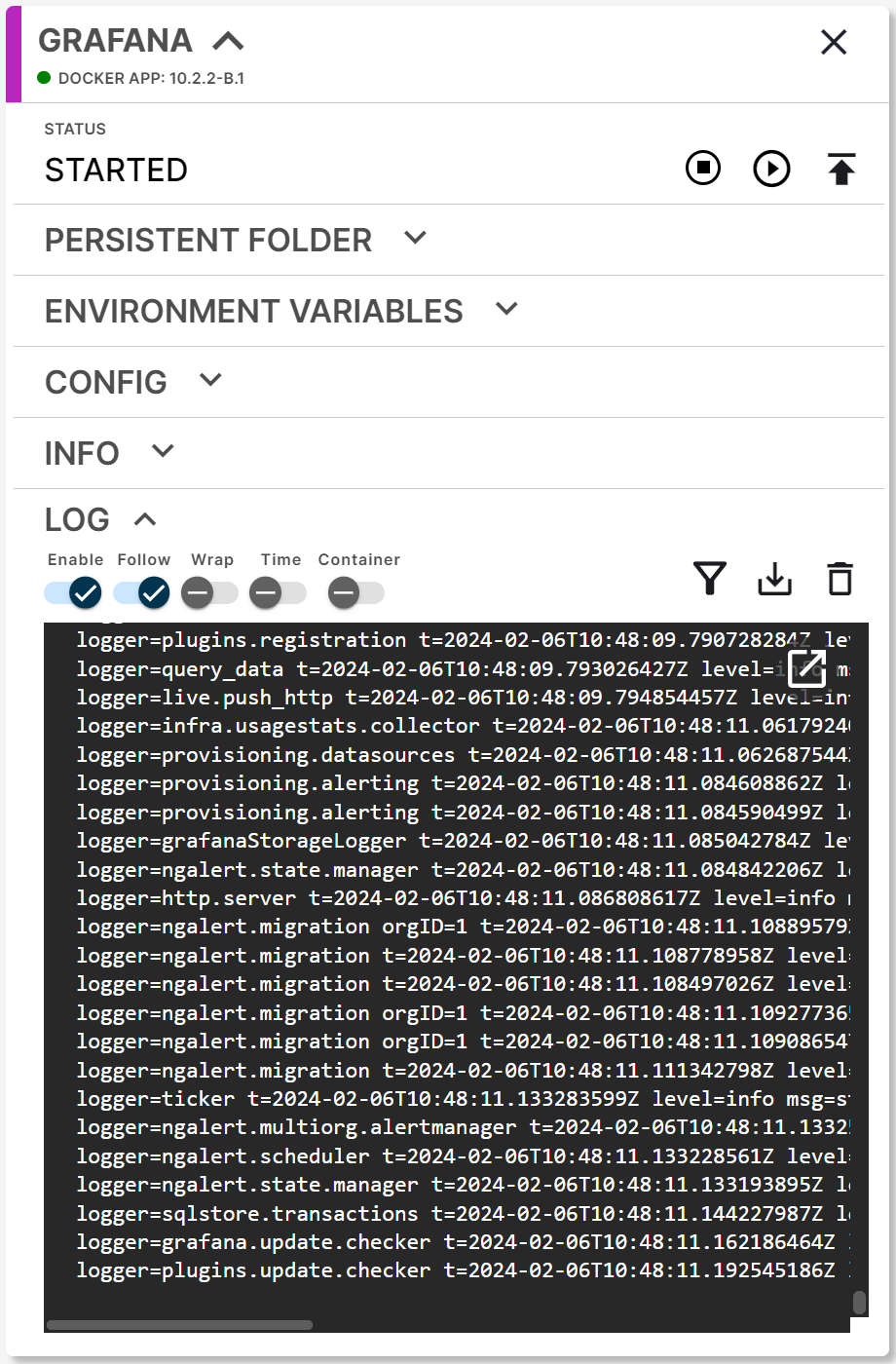
Marketplace app workload card
The card is split into a header and a series of expandable segments.
Header

Card header (collapsed)
The header shows:
- Application name.
- Deployed version.
- State indicator (colored dot):
- Red — stopped.
- Green — started.
- Yellow — installing.
- Update warning — an icon appears when a new version is available in the Library.
The header also exposes two actions:
- Collapse / expand the card — right of the application name.
- Uninstall the workload — top-right corner.
Status segment

Status segment
The first segment of the body shows the current state and exposes:
- Start — start the workload.
- Stop — stop the workload.
- Update version — pull a newer version from the Library.
- Cancel building — only available while the workload is in the Installing state.
Persistent Folder segment
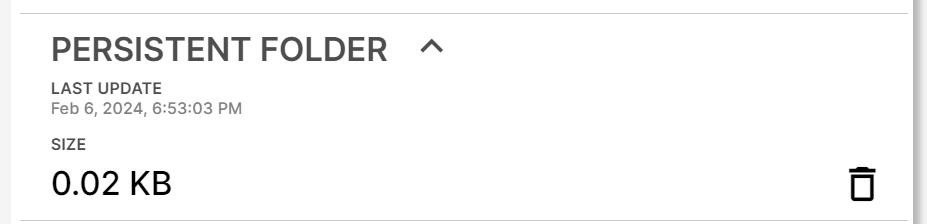
Persistent folder segment
A persistent folder is a directory whose contents survive container restarts and updates — typically what holds user-generated data, databases, or anything the workload should keep across restarts.
The segment shows the current size of the persistent folder and exposes a delete action to wipe it.
Environment Variables segment
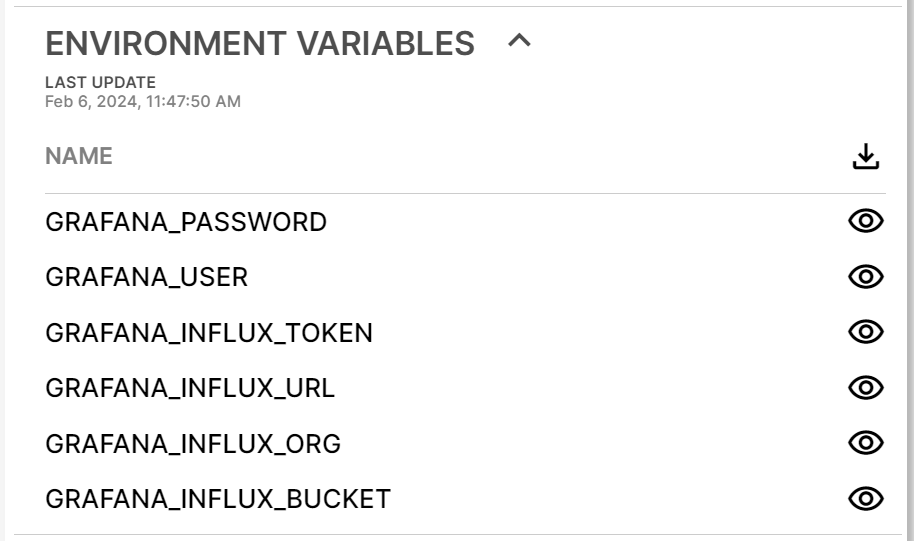
Environment variables segment
The full list of environment variables passed to the workload — the values you configured during deployment.
Only admin and supervisor users can read and edit environment variable values.
App Config segment

App Config segment
The App Config payload that drives the workload's runtime configuration. Click the pencil to open the JSON editor.
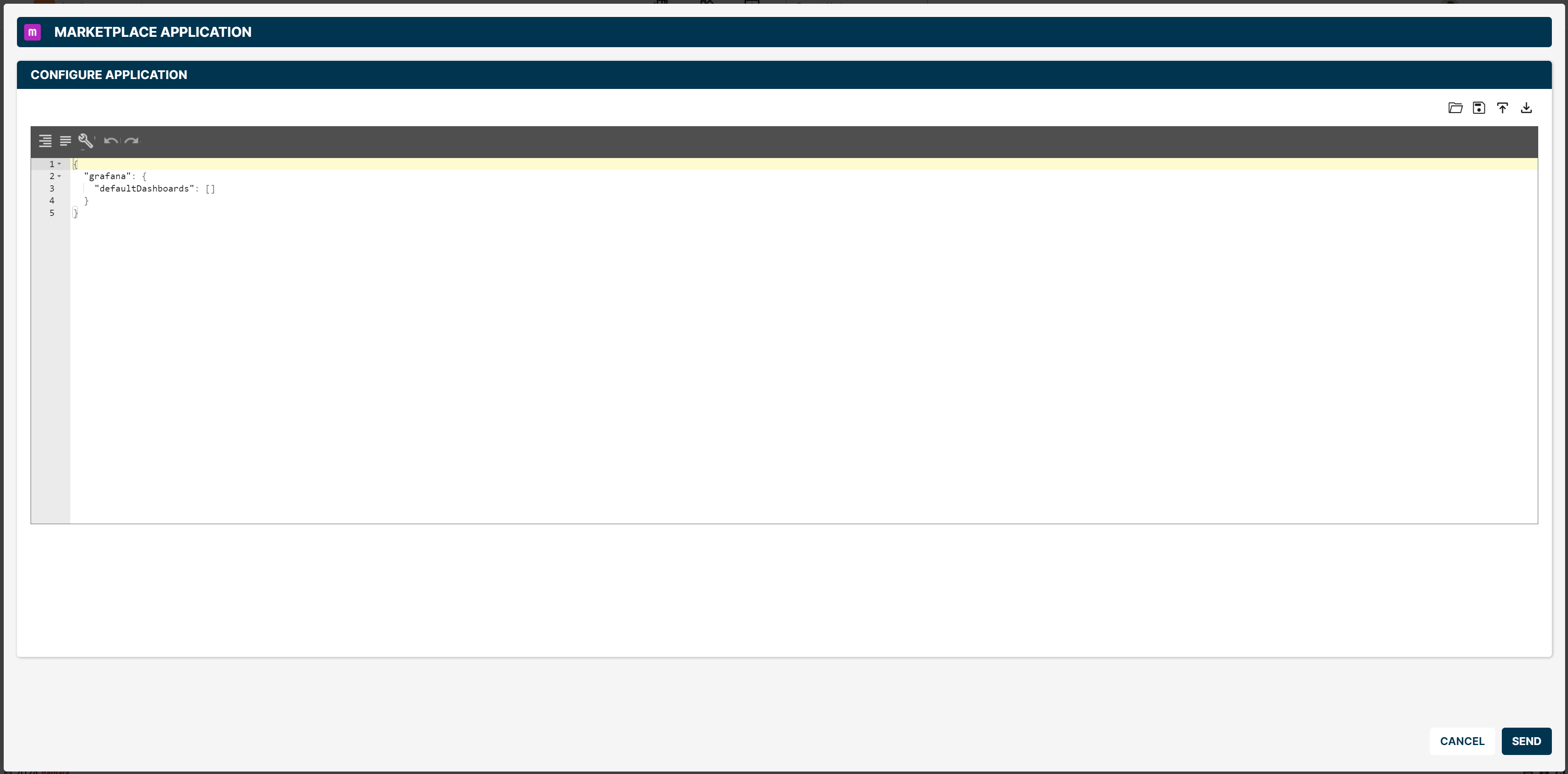
App Config editor
Info segment
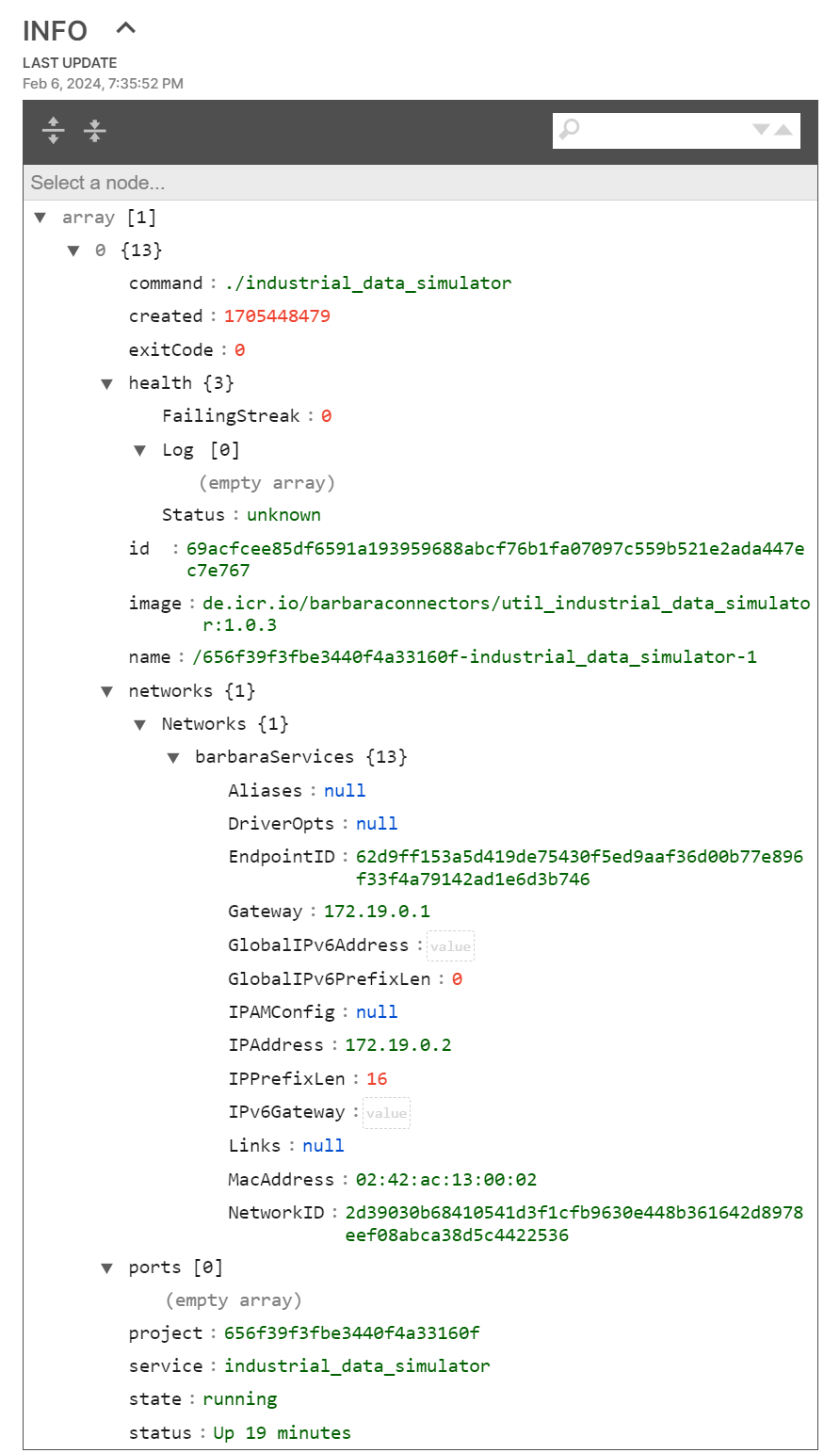
Docker info segment
The Docker-level information of the workload (images, ports, networks). The content refreshes every time you expand the segment.
Logs segment
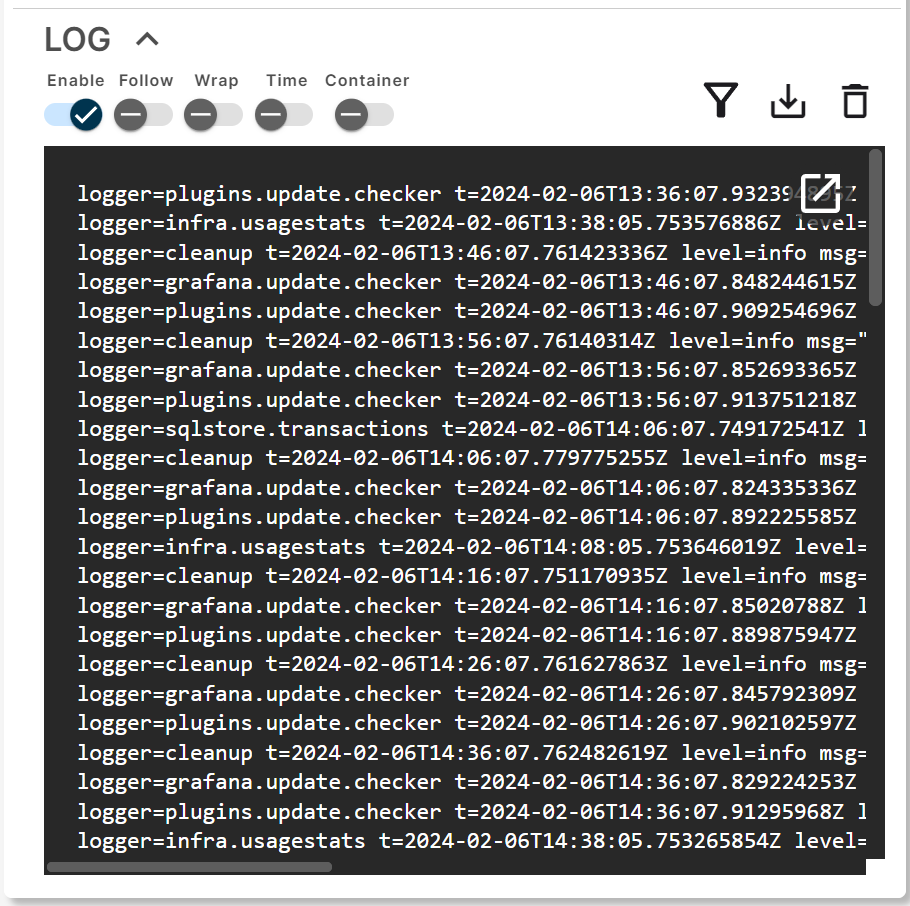
Logs segment
The live log stream from the workload. Toggle the row of switches on the left:
- Enable — start or stop the log capture for this workload.
- Follow — auto-scroll to the last line received.
- Wrap — wrap long lines instead of truncating them.
- Time — show timestamps per line.
- Container — show the container name that emitted each line.
On the right side of the segment:
- Filter — substring search inside the visible log buffer.
- Download — export the log range as CSV.
- Delete — wipe the captured logs. Cannot be undone.
Summary
The Marketplace workload card is the single operational surface for a deployed Marketplace app — header for state and updates, dedicated segments for persistent folder, env variables, app config, Docker info, and logs. Use it to drive the day-to-day lifecycle of the workload without leaving the Node Details page.