VMware

Pre-requisites

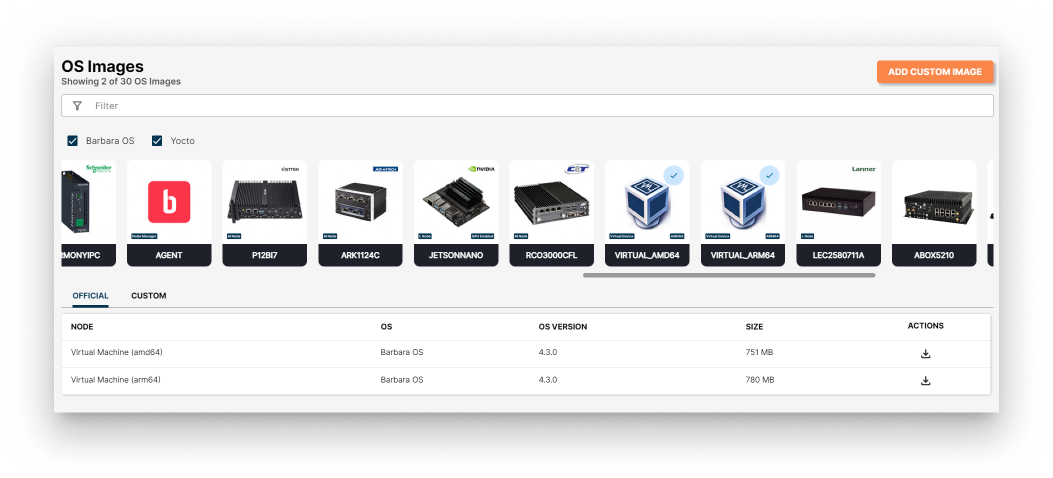
  1. Download the image of the virtual machine from Barbara Panel. If you don' t have access to the required version, contact the administrator.

Download OS Image

Download OS Image

  1. Unzip the downloaded file.

General Hardware Requirements

Minimum

  • RAM: 2GB
  • Hard Drive: 32GB
  • Processor: 1 processor / 2 cores
  • Network: 1 x Ethernet Interface
  • RAM: 4GB
  • Hard Drive: 64GB
  • Processor: 2 processor / 2 cores
  • Network: 2 x Ethernet Interface

Installation Options

There are two ways to deploy the Barbara OS on a VMWare virtual machine:

Did you know?

VMware Workstation and vSphere are both virtualization tools, but for different scales!

  • Workstation lets individual users run multiple operating systems on a single machine, ideal for development and testing.
  • vSphere, on the other hand, manages virtual machines across entire data centers, offering features like high availability and resource management for large-scale business needs.

Workstation

Requirements

  • Minimum VMware Worskstation version: 17

Creating the Virtual Machine

This section guides you through creating a new virtual machine (VM) in VMware Workstation and configuring it to use the downloaded virtual disk containing Barbara OS.

  1. Launch the New Virtual Machine Wizard: In the main menu of VMware Workstation, select New to start the "New Virtual Machine Wizard."

New vm in vmware

New vm in vmware

  1. Specify Operating System Installation: Choose I will install the operating system later. We'll be using the pre-installed Barbara OS on the downloaded virtual disk.

Install OS later

Install OS later

  1. Select Guest Operating System: Select Linux as the Guest operating system and choose Other Linux 5.x kernel 64-bit for the specific version.

Select Linux OS

Select Linux OS

  1. Name and Location: Provide a descriptive name for your VM and choose a location on your computer to store the VM files.

Select OS location

Select OS location

  1. Configure Virtual Disk: Set the maximum disk size to 32 GB and choose Store virtual disk as a single file.

Select single file

Select single file

  1. Review And Finish: Review the configuration summary to ensure everything is correct. Click Finish to create the virtual machine.

Review And Finish

Review And Finish

  1. Edit Virtual Machine Settings: After creation, right-click the VM and select Edit Settings.

Edit Settings

Edit Settings

  1. Remove Default Disk: In the Hardware tab, select the existing hard disk and click Remove to delete it. We'll replace it with the downloaded virtual disk.

Delete Disk

Delete Disk

  1. Add NVMe Hard Disk: Click "Add" and choose "NVMe" as the hard disk type.

Add Disk

Add Disk

  1. Select Downloaded Disk File: In the "Browse" window, navigate to the location where you unzipped the downloaded virtual disk file and select it.

Select Disk File

Select Disk File

  1. Keep Existing Disk Format: A warning message might appear regarding the disk format. Choose "Keep" to maintain the existing format of the downloaded disk.

Select Keep Existing Format

Select Keep Existing Format

  1. Configure Firmware (External Editor)
  • Important: To configure the system for EFI boot, close VMware Workstation.
  • Navigate to the folder where the VM is stored (usually Documents/Virtual Machines/{name_of_virtual_machine)

VM Folder

VM Folder

  1. Edit .vmx File (External Editor)
  • Open the file with a .vmx extension using a text editor (e.g. Notepad)
  • Add the single line (this line enables EFI boot for the virtual machine):
firmware="efi"

Edit file

Edit file

  1. Save changes. Save your changes to the .vmk file.
note

Go here to start working with the virtual machine in Barbara Panel.

vSphere

Requirements

Convert the virtual disk

This section guides you through converting the original virtual disk file (.vmdk) obtained from the downloaded archive from Panel (a compressed .zip file) into a format compatible with your vSphere environment.

Using the vSphere Web Client

  1. Locate the Datastore Path: Launch the vSphere web interface and navigate to the storage section. Identify the datastore path where you intend to store the virtual machine files. Copy this path for later use.

Copy Datastore path

Copy Datastore path

  1. Upload the Original Disk: Open the datastore explorer within the vSphere web client. Create a new folder within the datastore to store the original .vmdk file. Navigate to this folder and upload the original .vmdk file from the downloaded archive.

Upload original disk

Upload original disk

  1. Prepare for Conversion: Create a separate folder within the datastore to store the converted virtual disk file. Ensure this folder is empty before proceeding.

Create conversion folder

Create conversion folder

Converting the disk (SSH)

  1. Access via SSH: Establish an SSH connection to the vSphere host using appropriate credentials.
  2. Navigate to Datastore: Use the cd command within teh SSH session to navigate to the datastore path you copied earlier. Verify the existence of the two folders you created using the ls command.

Check previous folders

Check previous folders

  1. Perform Conversion: Execute the following command to convert the original .vmdk file originalDiskPath to the desired format and save it as convertedDiskPath.

Converting .vmdk file

Converting .vmdk file

vmkfstools -i originalDiskPath convertedDiskPath

By following these steps, you should have successfully converted the virtual disk file and prepared it for use with your vSphere virtual machine.

Creating the Virtual Machine

  1. Create a New Virtual Machine:
  • Launch the vSphere client and navigate to the desired location where you want to create the VM.
  • Right-click and select New virtual machine.
  • In the wizard, choose Create a new virtual machine and click Next.

Add VM in VSphere

Add VM in VSphere

  1. Provide Basic Information:

    • Enter a descriptive name for your VM in the "Name" field.
    • Fill in other details (refer to image below).
    • Click Next to proceed.

Add Name and compatibility

Add Name and compatibility

  1. Even though later on you'll have to change these settings, for now they cannot be altered so simply continue:

Continue

Continue

  1. Configure Virtual Machine Options:
    • Under "Firmware", select EFI.
    • Uncheck the box for Secure UEFI Boot.

Select EFI

Select EFI

  1. Confirm the configuration.Review the configuration summary displayed. Click Next to confirm.

Confirm Settings

Confirm Settings

  1. Edit Virtual Machine Settings:

    • Before powering on the VM, we need to modify its hardware configuration. Click "Finish" to complete the initial creation process.
    • Right-click the newly created VM and select "Edit settings."

Edit VM Settings

Edit VM Settings

  1. Remove Default Hardware:

    • In the "Hardware" tab, select and delete the existing hard disk and CD/DVD drive

Delete HD & CD

Delete HD & CD

  1. Click "OK" to save the changes and exit the settings window. Do not edit further settings yet, as the disk deletion might not be applied otherwise.

  2. Add Converted Hard Disk:

    • Edit the VM settings again by right-clicking the VM and selecting "Edit settings."
    • Under the "Hard Disks" section, click "Add Hard Disk."
    • Choose "Existing virtual disk" and select the converted virtual disk file you prepared earlier.
warning

If you haven't already converted the downloaded .vmdk file from Barbara Panel, follow the instructions in the previous section before proceeding.

Add Hard Drive

Add Hard Drive

  1. Add a NVMe controller under the add device option:

Add NVMe Controller

Add NVMe Controller

  1. Attach Hard Disk to NVMe Controller

Use NVMe Controller

Use NVMe Controller

  1. Select VMXNET3as the network driver

Select Network Driver

Select Network Driver

  1. Save the changes and you're ready to start the Virtual Machine in next section.

Start the Virtual Machine

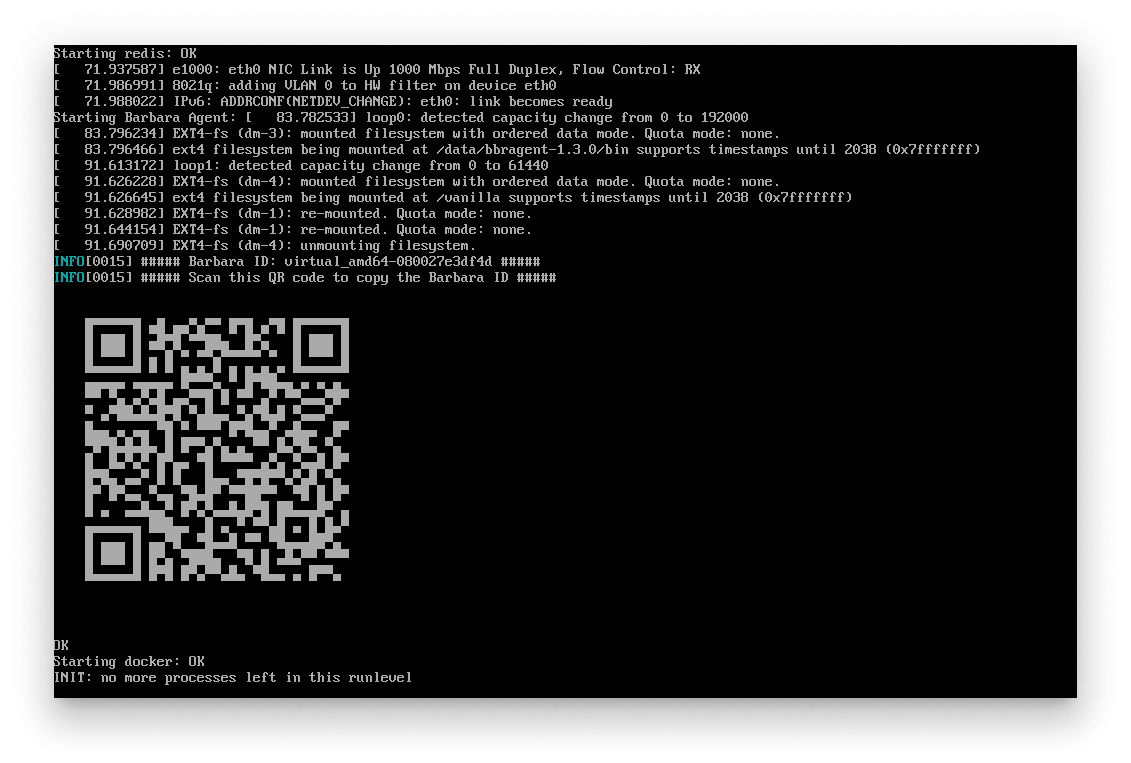
  1. Start the Virtual Machine and wait until the following screen appears to get the BarbaraID:

QR Code

QR Code

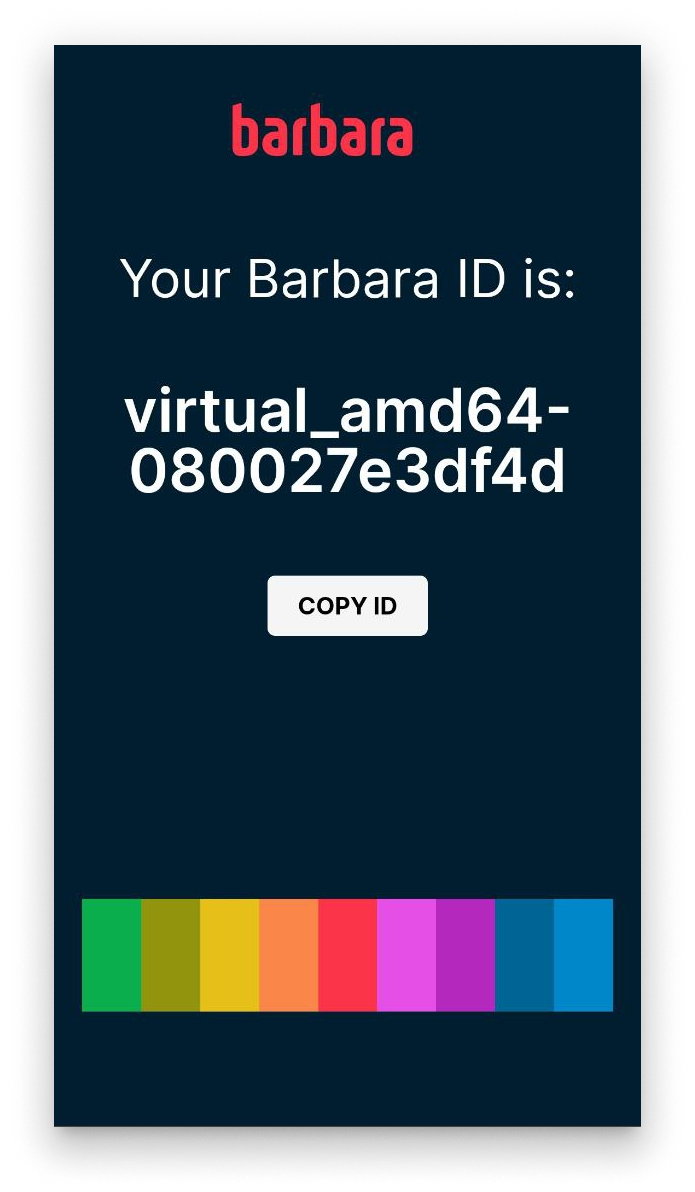
  1. Scan the QR and you'll get the Barbara ID to be able to add your device to Barbara Panel:

Get BarbaraId

Get BarbaraId

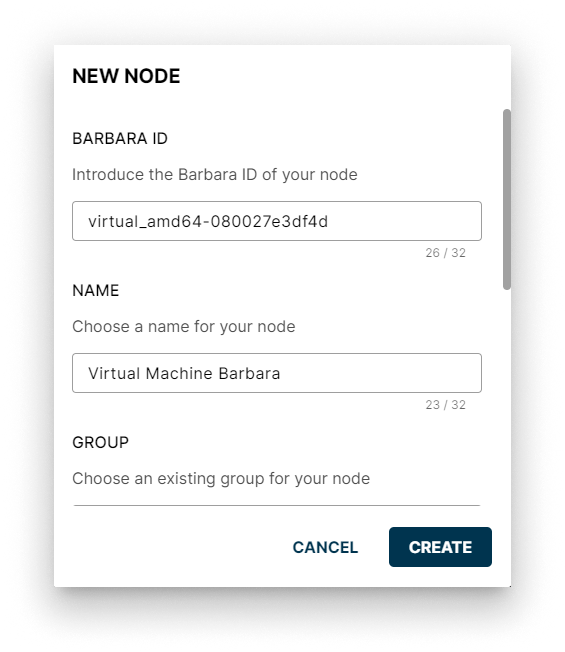
  1. Once in Barbara Panel, click on the NEW NODE button to add the virtual machine:

Add a New Node

Add a New Node

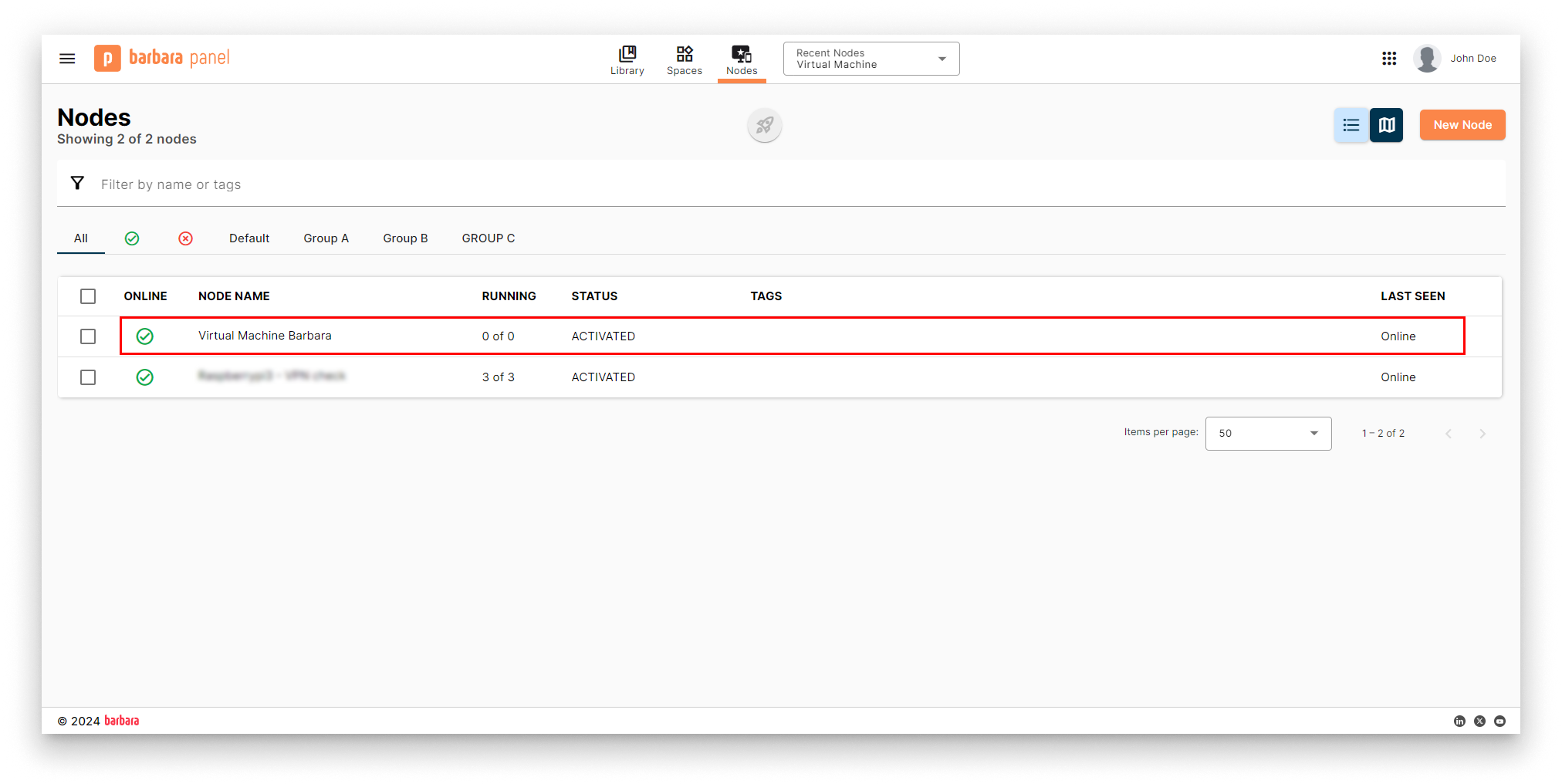
  1. Then fill in the field with the ID you previously got add a descriptive name. When the disk finishes encrypting, it should appear as connected.

New VM Online

New VM Online

Now you can freely use your virtual machine as a device to deploy your solutions.