VMware with GPU
This article refers to Platform v3.4.0. The current Platform version is v3.4.0.
Overview
This guide walks you through installing Barbara OS on a VMware ESXi virtual machine with GPU passthrough. With a GPU attached to the VM, you can run AI workloads (training, inference, vision) at the edge with hardware acceleration.
The procedure follows the regular VMware install, with two differences:
- The image is VMWare VM (amd64/gpu) from Barbara Panel. Its OVA appliance comes ready for passthrough: 64-bit MMIO is enabled with 128 GB of address space, and all of the VM memory is reserved.
- After the import, you attach the GPU to the VM. The GPU belongs to the ESXi host, so the OVA cannot carry it.
Pre-requisites
- ESXi 7.0 Update 2 or later, managed directly or through vCenter Server.
- A GPU on the ESXi host already configured for PCI passthrough.
Download the OS image
In Barbara Panel, open the OS Images view and search for VMWare VM (amd64/gpu). Click Download to retrieve the .ova file.
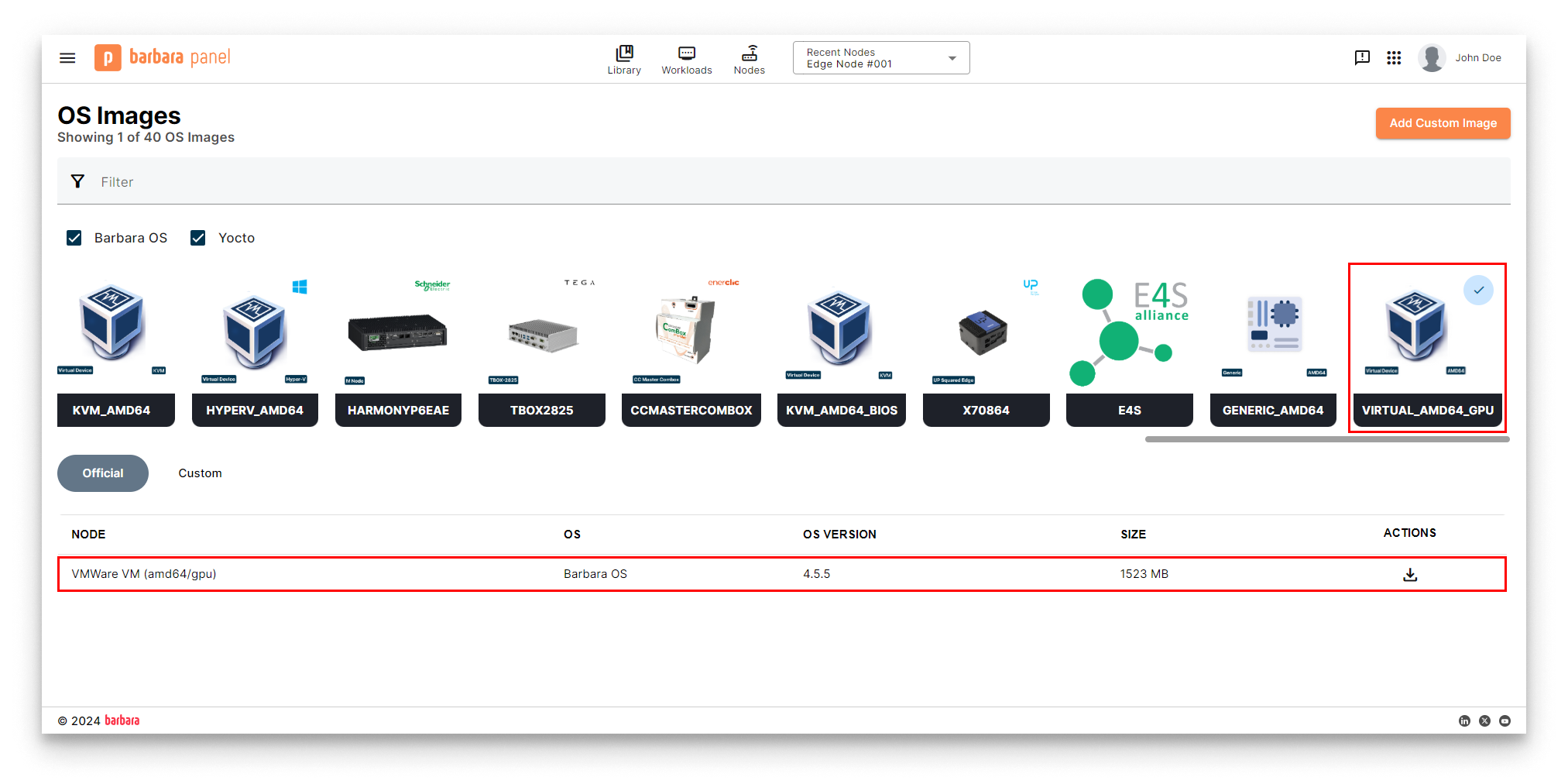
Download the GPU-enabled VMware OS image
Hardware requirements
The OVA creates a VM with 2 vCPUs, 2 GB of RAM and a 16 GB disk. GPU workloads usually need more memory: set it before the first power-on. The memory reservation follows the size you set, so all of it stays reserved.
Minimum
- RAM: 2 GB
- Disk: 16 GB
- CPU: 2 vCPUs
- Network: 1 × Ethernet interface
Recommended
- RAM: 8 GB
- Disk: 64 GB
- CPU: 4 vCPUs
- Network: 2 × Ethernet interfaces
Import the OVA
Import the .ova from the ESXi Host Client or the vSphere Client, as described in Import the OVA in the VMware guide. Don't power the VM on yet: the GPU must be attached first.
Configure GPU passthrough
- Open Edit settings for the imported VM and add two PCI devices via Add device → PCI Device:
- A VGA Compatible Controller (the GPU itself).
- The Audio Device that is paired with the GPU on the PCI bus.
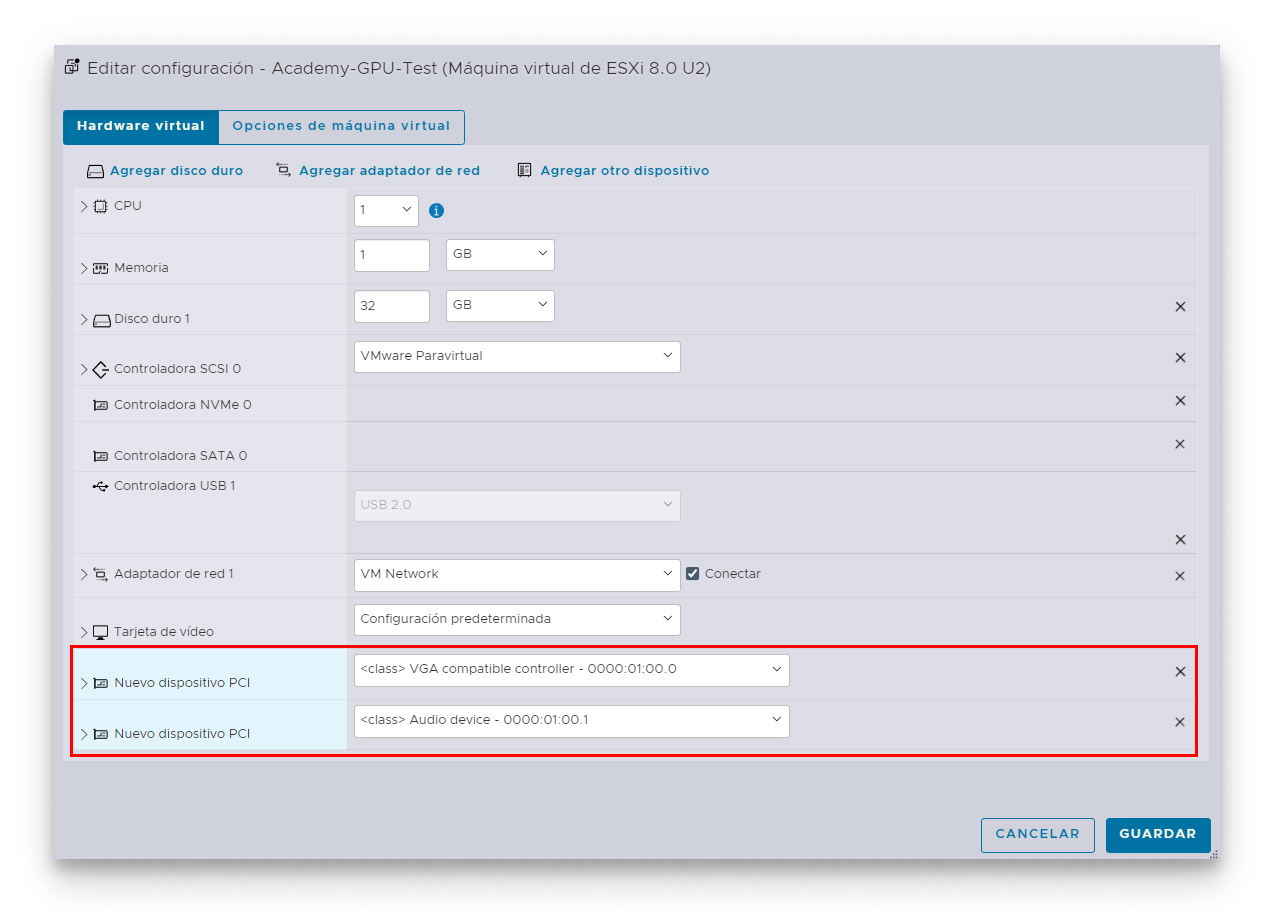
GPU and audio device added as PCI devices
- Adjust the memory and disk to your workload, as described in Hardware requirements.
- Add the device-specific parameters if your GPU needs them. Open VM Options → Advanced → Edit Configuration Parameters and add:
| Parameter | Value | Why |
|---|---|---|
pciPassthru.msiEnabled | FALSE | Disables Message-Signaled Interrupts for the device (improves stability with some GPUs). |
hypervisor.cpuid.v0 | TRUE | Tweaks the CPUID information the VM sees, improving driver compatibility for many NVIDIA GPUs. |
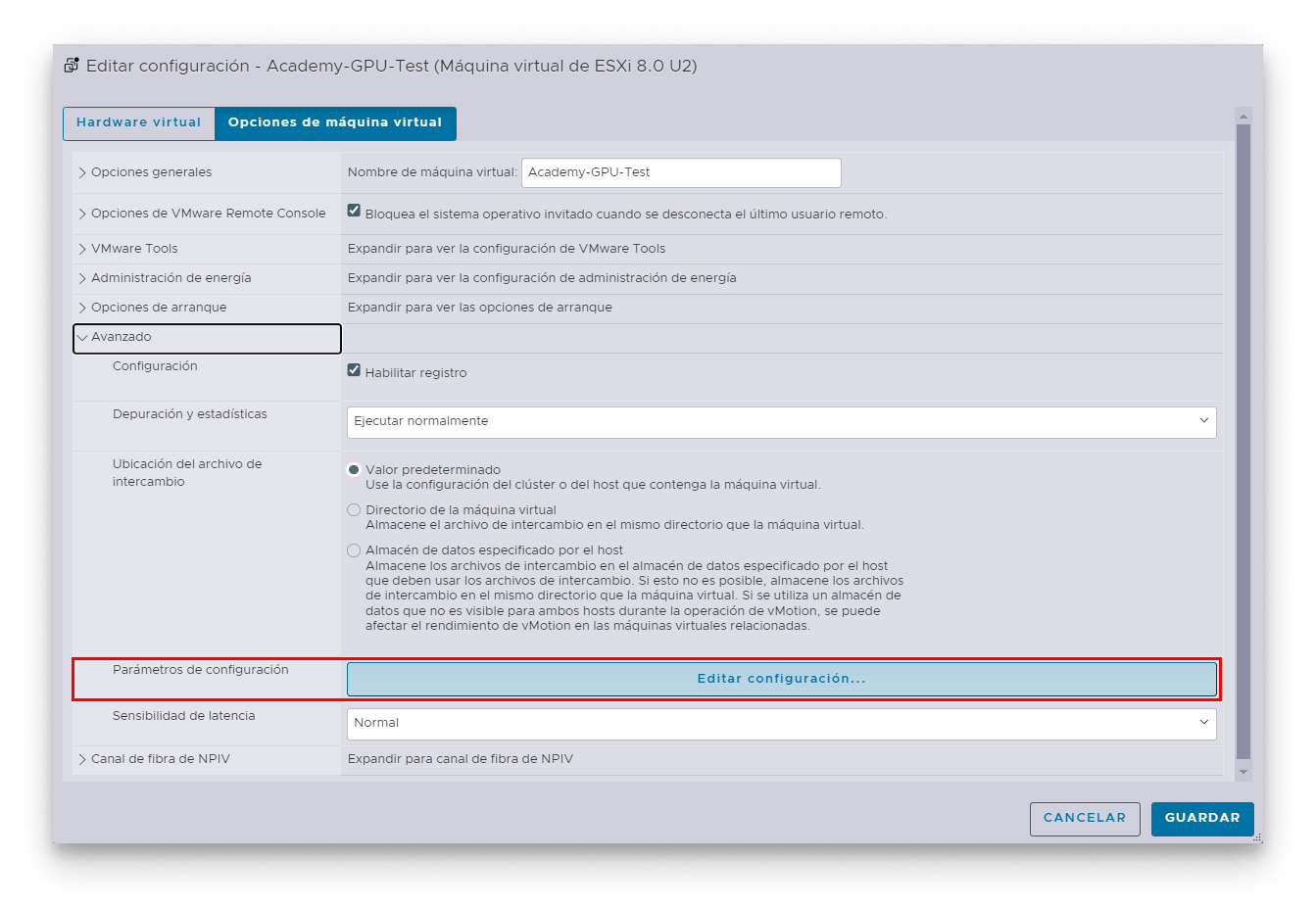
Edit configuration parameters
- Save the changes. The VM is ready for first boot.
The OVA already sets pciPassthru.use64bitMMIO to TRUE and pciPassthru.64bitMMIOSizeGB to 128, and reserves all guest memory. You can see these values under VM Options → Advanced → Edit Configuration Parameters and Memory → Reservation after the import.
Start the virtual machine
- Power on the VM and wait until Barbara OS prints the Barbara ID and a QR code on the console.
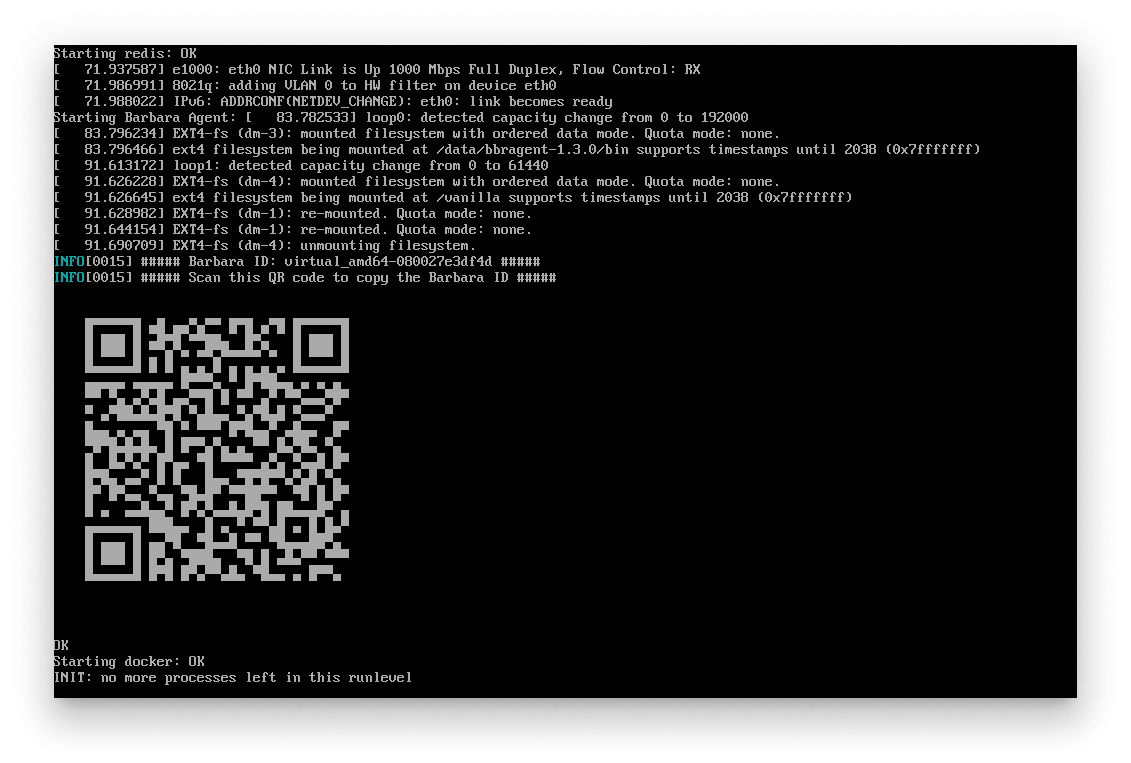
Barbara ID QR code on first boot
- Scan the QR or read the Barbara ID directly from the console.
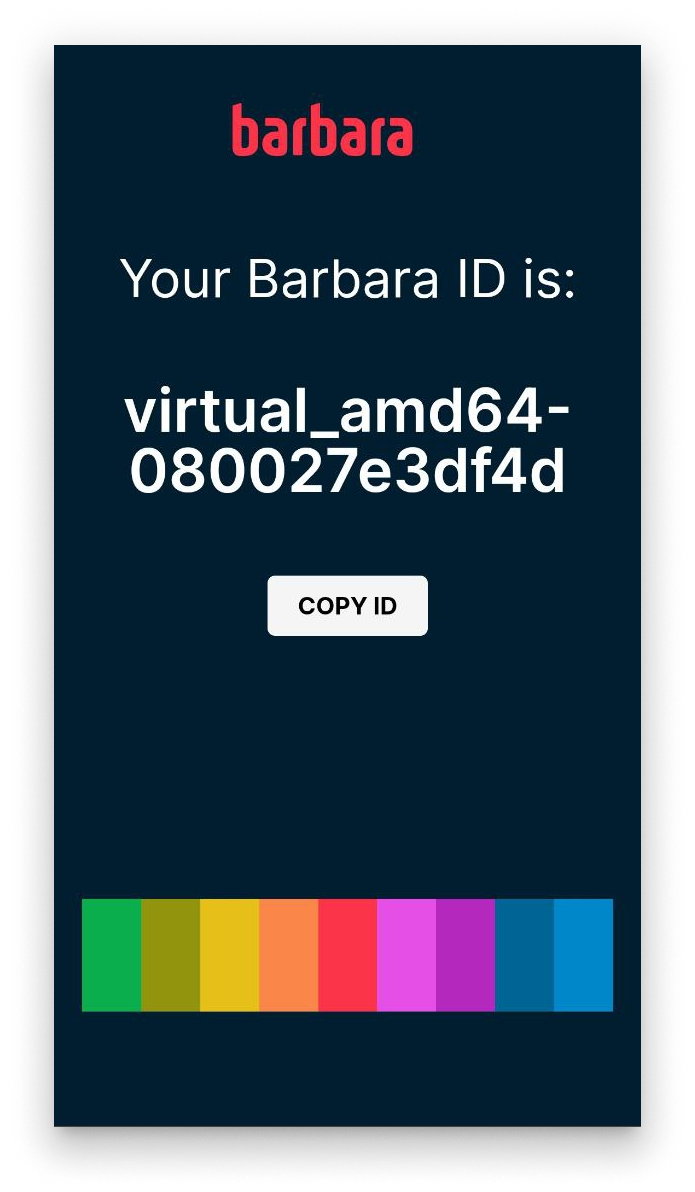
Barbara ID page
- In Barbara Panel, open the Nodes List and click + Add Node to register the VM.
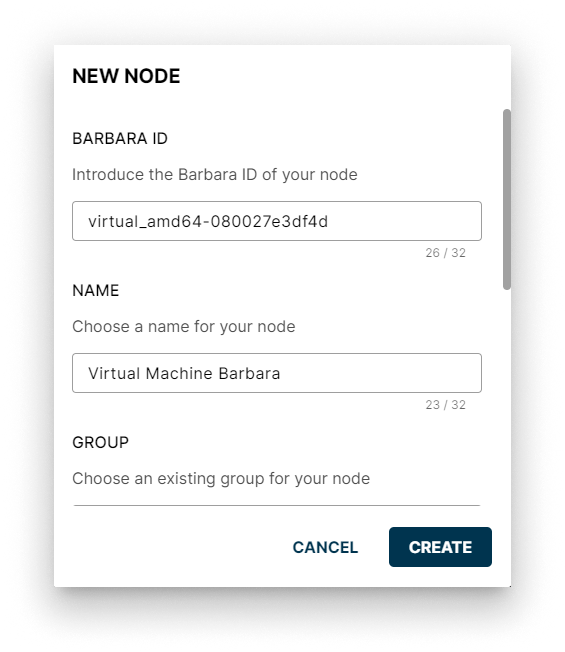
Add Node in Panel
- Paste the Barbara ID, give the node a name, and complete the form. After the activation reboot and the disk encryption complete, the VM appears as online.
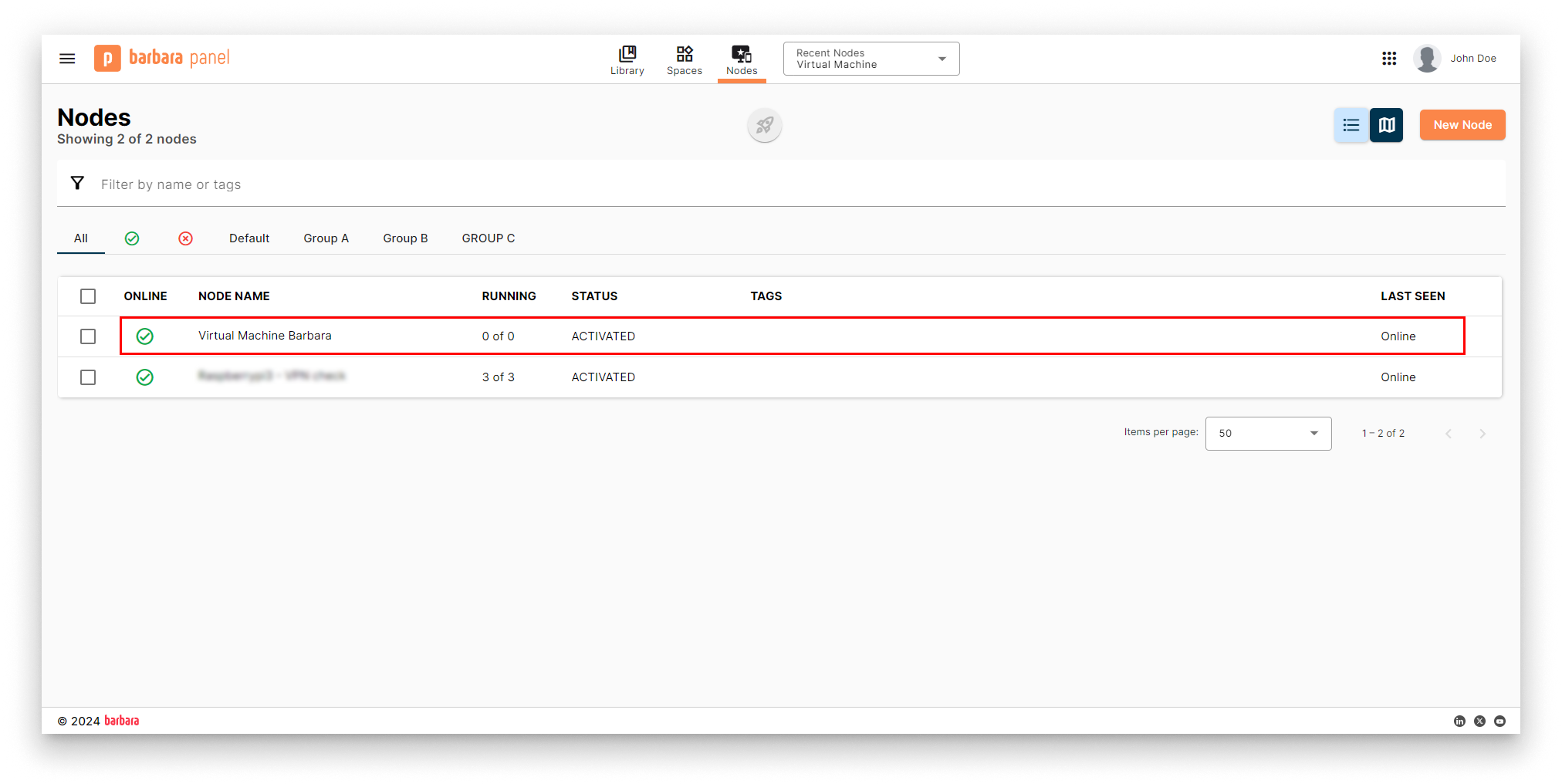
VM online in Panel
Summary
You have imported the GPU-ready Barbara OS appliance into ESXi, attached the GPU through PCI passthrough, and registered the VM in Barbara Panel. Because the OVA carries the passthrough settings, only the device itself needs to be configured on each host. From here, you can deploy GPU-accelerated workloads: see the Computer Vision solution for an end-to-end example, or go straight to deploying applications from the App Library.