Cluster Details
This article refers to Platform v3.1.0. The current Platform version is v3.4.0.
Overview
The Cluster Details page is the operational view of a single cluster. It splits into two tabs:
- Cluster Info — cluster-wide configuration, secrets, volumes, and credentials.
- Workloads — the applications and models installed on the cluster.
Cluster Info tab
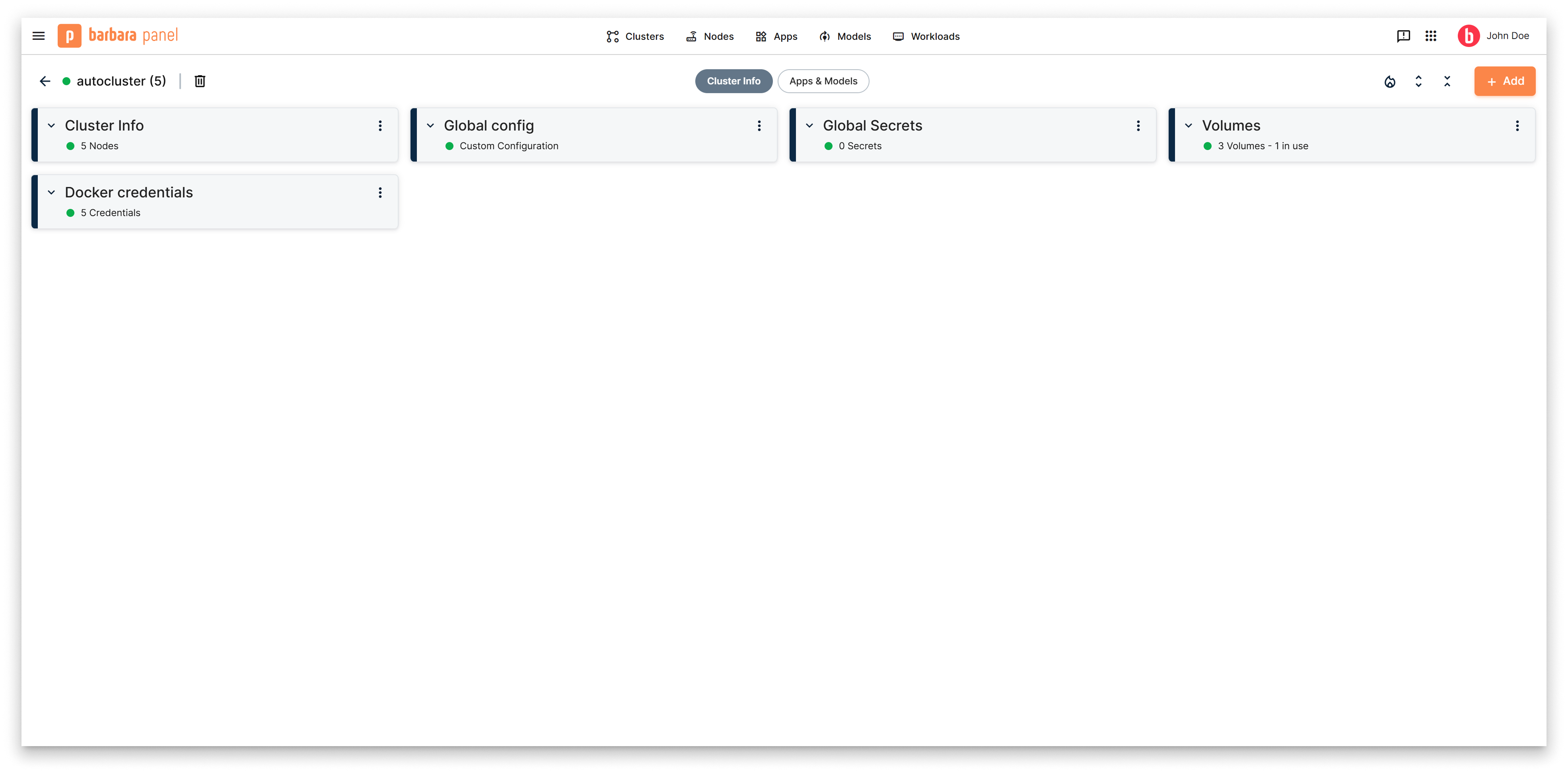
Cluster Info tab
Each card in this tab covers one aspect of the cluster:
- Cluster Info — cluster header, node list, and node-level actions. See Cluster Info.
- Global Config — JSON configuration available to every workload deployed on the cluster. See Global Config (HA).
- Global Secrets — cluster-wide secrets, Barbara-managed and synchronised across nodes. See Global Secrets (HA).
- Volumes — cluster-level Docker volumes. See Swarm Volumes.
- Docker Credentials — credentials for private registries, propagated to every node. See Repository Credentials (HA).
Workloads tab
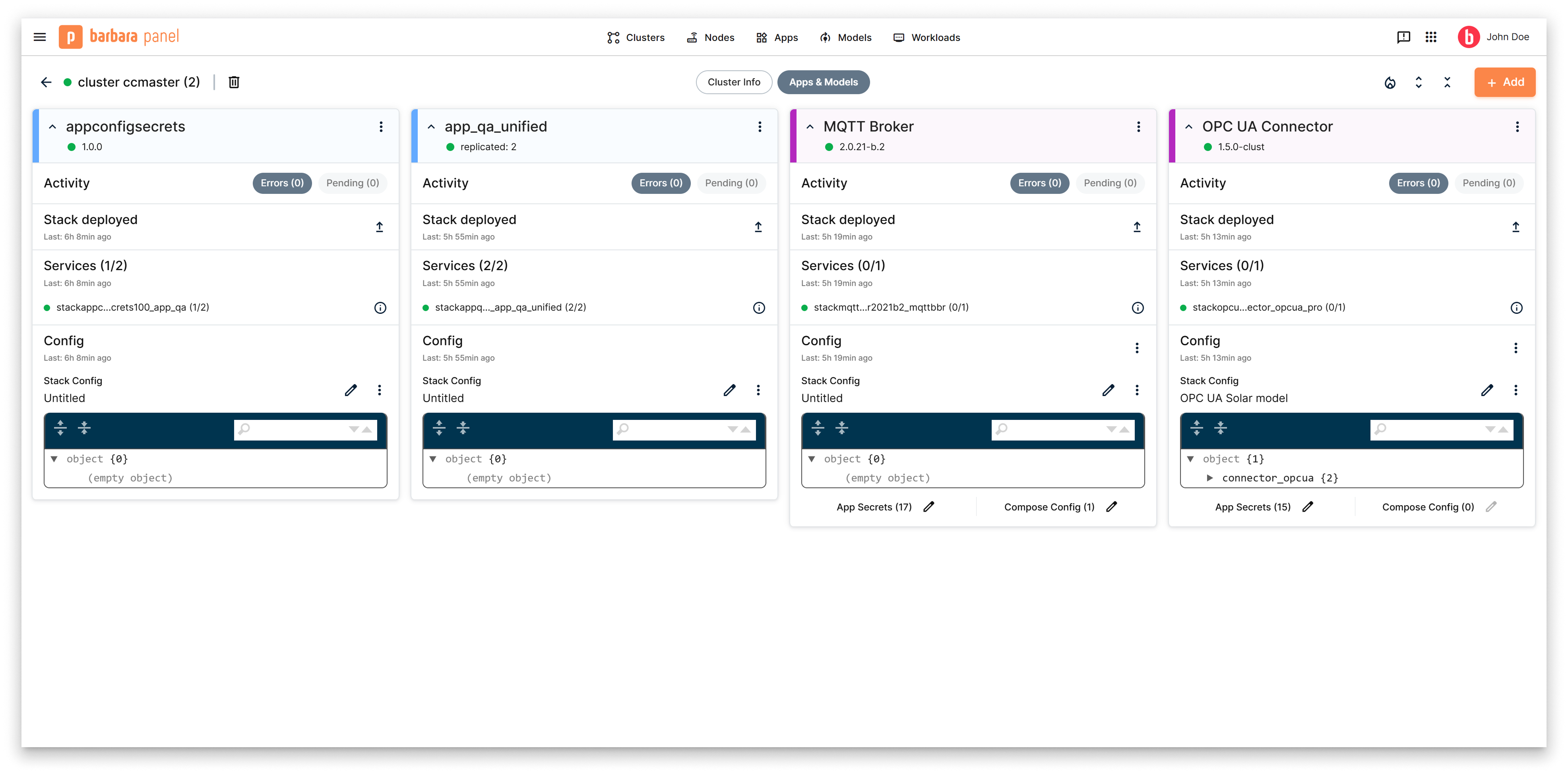
Workloads tab
The Workloads tab lists every workload running on the cluster. Three kinds are supported:
- Marketplace applications — apps installed from Barbara Marketplace.
- User Docker applications — your own Docker-Compose-based apps.
- User-uploaded AI models — TensorFlow / ONNX / PyTorch / Scikit-learn / XGBoost models.
Add a new workload with the + Add button. Once installed, each workload exposes its own card with status, services, configuration, logs, and update controls. The full add flow is documented in Adding applications.
Summary
The Cluster Details page is the per-cluster operational hub: switch to Cluster Info for the configuration and node management cards, switch to Workloads for the apps and models running on the cluster.