Real-Time Kernel
This article refers to Platform v3.4.0. The current Platform version is v3.4.0.
Overview
Some workloads need more than speed: they need predictable response times. Software PLCs, motion control, and other latency-sensitive applications depend on deterministic behavior, which a real-time kernel provides.
A compatible Edge Node can have both the Standard and the Real Time kernel installed at the same time. From Barbara Panel, you can see which one is active and switch between them without touching the device, so the same node can serve a latency-sensitive workload today and general-purpose workloads tomorrow.
In this article, you will learn which nodes support it, where to see the active kernel, and how to switch it.
Check compatibility
Not every device has room for both kernels, so real-time support depends on the device family. Nodes without it keep working exactly as before, and the pencil icon next to Kernel only appears on devices that can switch.
Only nodes running a Barbara Core version that supports this feature can use it. On an older version, the kernel cannot be changed from Barbara Panel, even if the device itself supports both kernels. Update the node first; see Barbara Core updates.
See the active kernel
The Kernel row of the General info card shows the kernel the node is running, Standard or Real Time. When the node supports both, a pencil icon next to the value lets you change it.
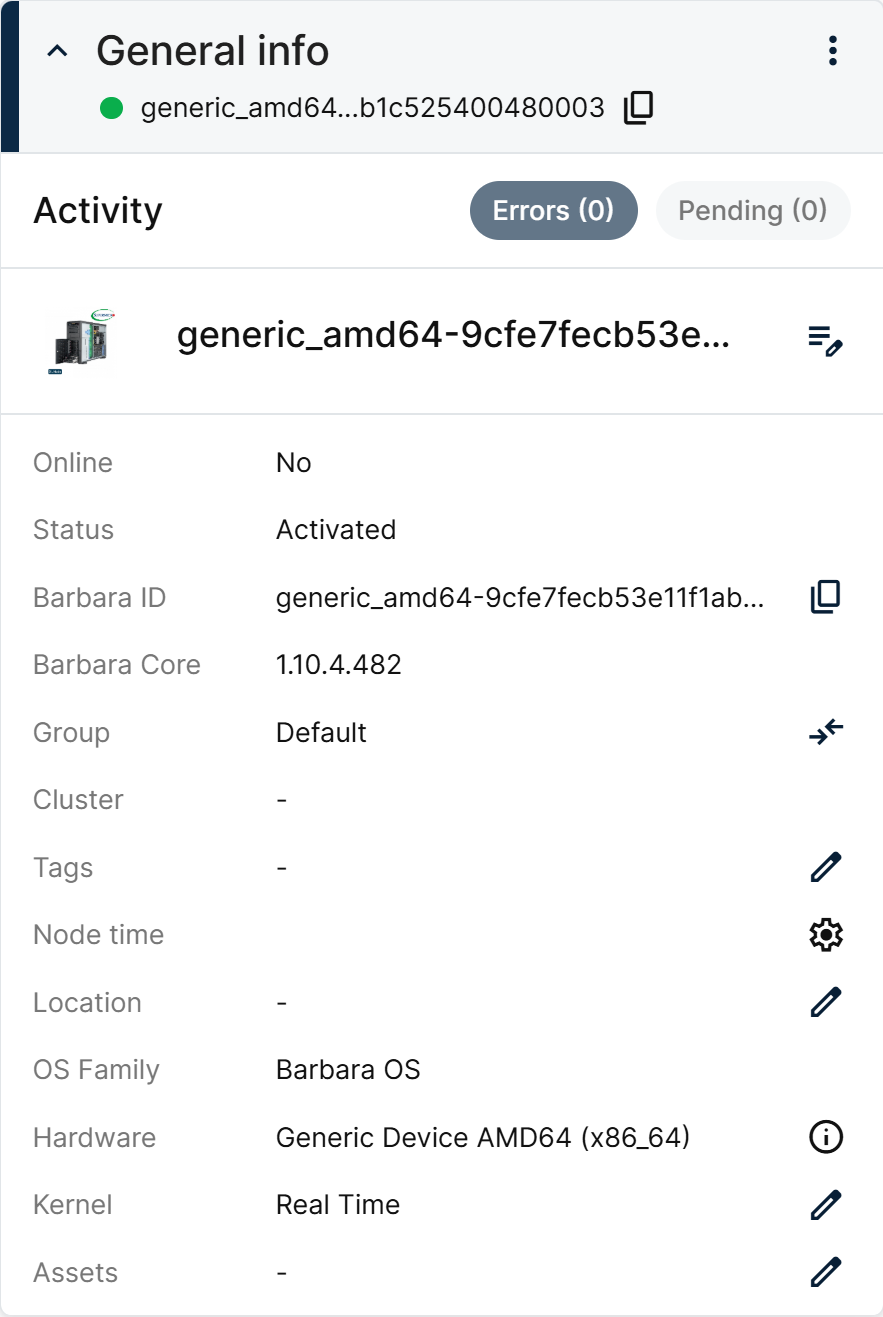
The Kernel row in General info
For the rest of the card, see General Info.
Switch the kernel
- Open the node and, in the General info card, select the pencil icon next to Kernel.
- In the Kernel settings popup, select the kernel you want. The one currently running is labeled (Current).
- Select Change now.
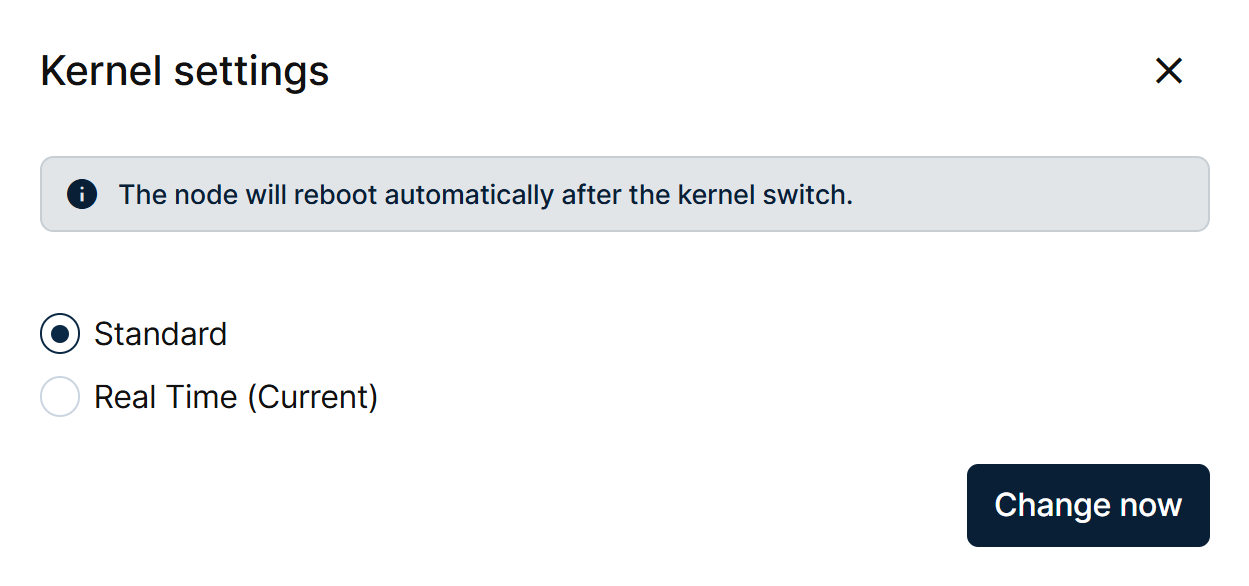
The Kernel settings popup
Barbara confirms with a Kernel switch initiated notification, and the node reboots automatically to load the new kernel.

Kernel switch confirmation
Once the node is back online, the Kernel row shows the new kernel.
The node reboots as part of the switch, so the workloads running on it are interrupted while it restarts. Choose a moment when that is acceptable.
Summary
The General info card shows which kernel an Edge Node runs and, on compatible devices, lets you switch between Standard and Real Time with a single action. Barbara reboots the node to apply the change, and the card reflects the new kernel once the node is back online.
With the real-time kernel active, you can deploy latency-sensitive workloads on the same managed node. Continue with Node management for the other actions you can run on a node.