Advanced Actions
This article refers to Platform v2.9.0. The current Platform version is v3.4.0.
Overview
The Advanced Actions popup collects in-depth maintenance operations for a single edge node. Open it from the wheel icon at the top of the Node Details page.
From the popup you can:
- Reclaim disk space with Docker prune.
- Restart the Docker daemon to recover from a misbehaving container runtime.
- Enable Standalone Mode for situations where the node operates without Panel connectivity.
- Manage Node Assets — arbitrary files attached to the node.
Open the Advanced Actions popup
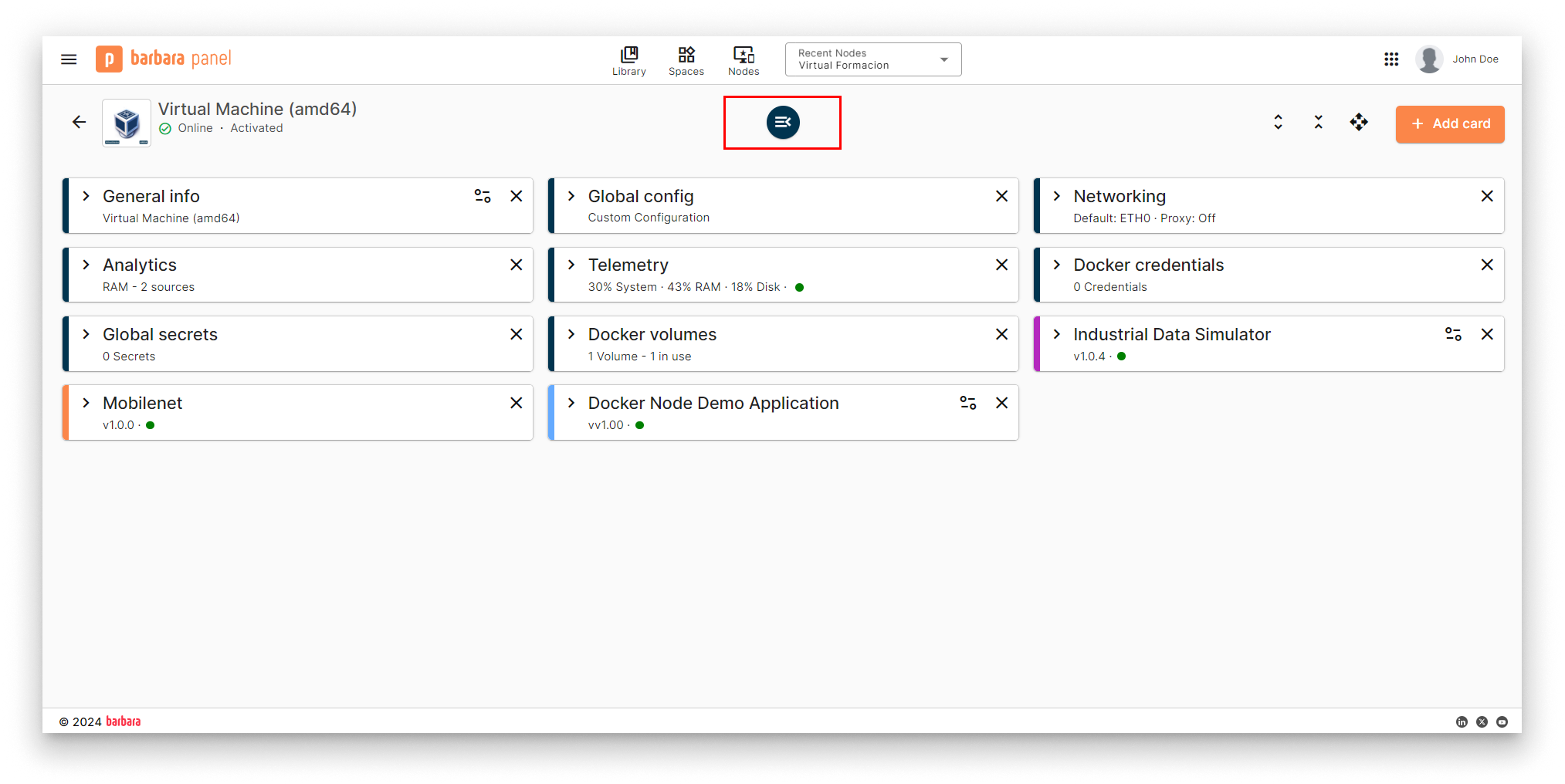
Node Details page
- Open the Node Details page of the target node.
- Click the Advanced Actions wheel icon in the header. The lateral popup opens with the available operations.

Advanced Actions button
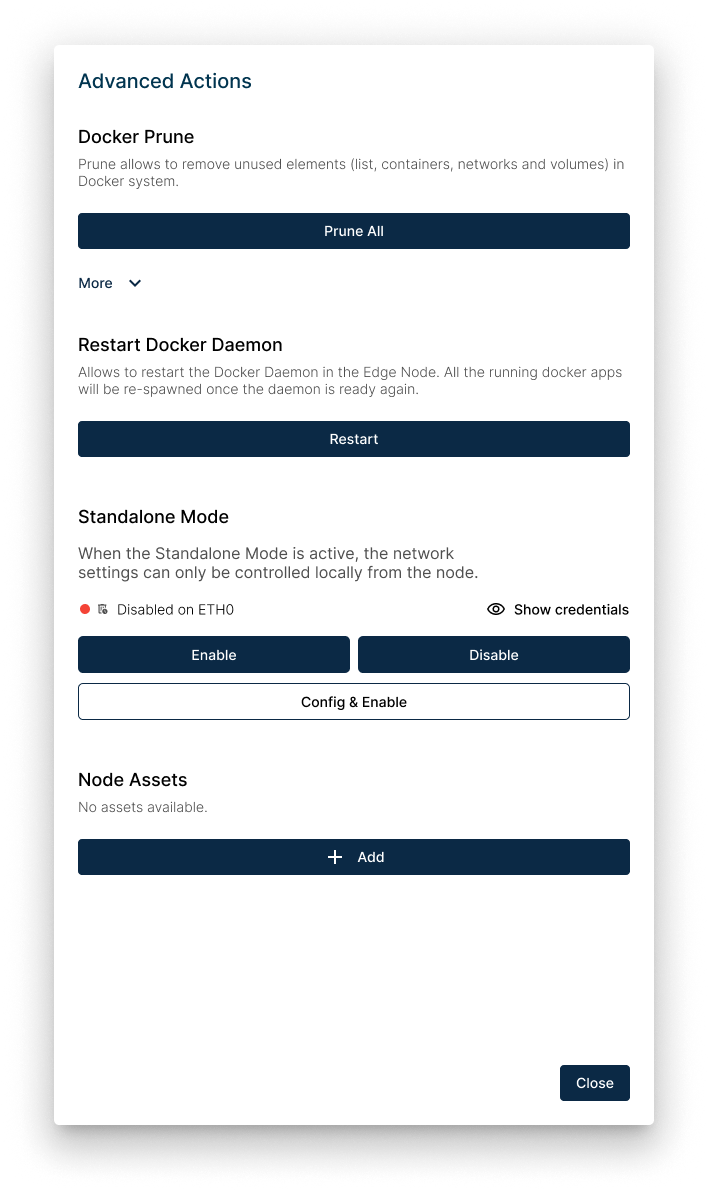
Advanced Actions popup
Docker prune
The Docker prune section reclaims disk space by removing unused Docker objects on the node. Each kind of object has its own dedicated action:
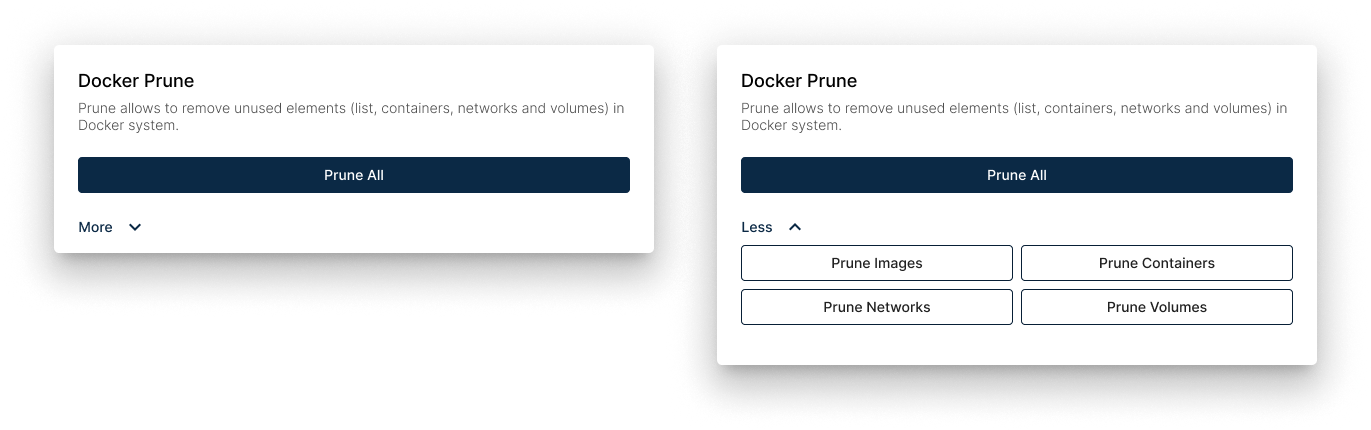
Docker prune controls
- Prune Images — removes dangling images and any image not associated with a running container.
- Prune Volumes — removes volumes that are no longer attached to any container. Volumes may contain important data; use with care.
- Prune Networks — removes Docker networks that no container is connected to.
- Prune Containers — removes stopped containers.
Restart Docker Daemon
Restarting the Docker daemon is a recovery action — useful when the daemon has misbehaved (containers stuck, commands timing out, …) and a clean restart can fix it.
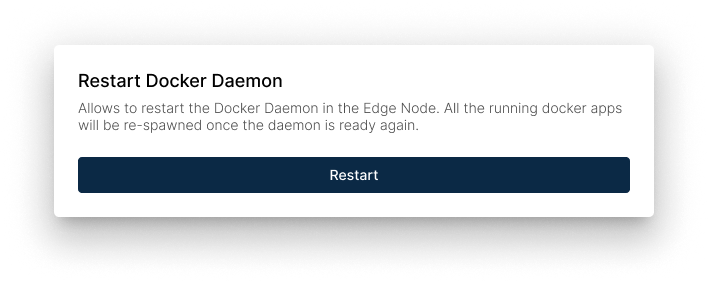
Restart Docker Daemon
Restarting the daemon interrupts every running container on the node. Plan the restart accordingly.
Standalone Mode
Standalone Mode lets you configure the node's network interfaces directly on the device, without going through Barbara Panel. It is the right tool when the node has lost connectivity to Panel and you need to re-establish networking from the console. The same Standalone Mode controls are also available directly from the Advanced section of the Network card; use whichever you already have open.
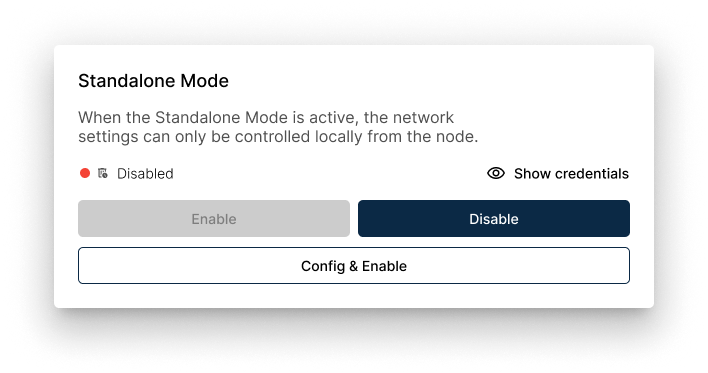
Standalone Mode controls
For the full reference on what Standalone Mode can do and when to use it, read Standalone Mode.
Node Assets
Node Assets is a per-node file store. Use it to attach the operational documentation that goes with the node — schemas, installation pictures, scripts, configuration files, tutorial videos.
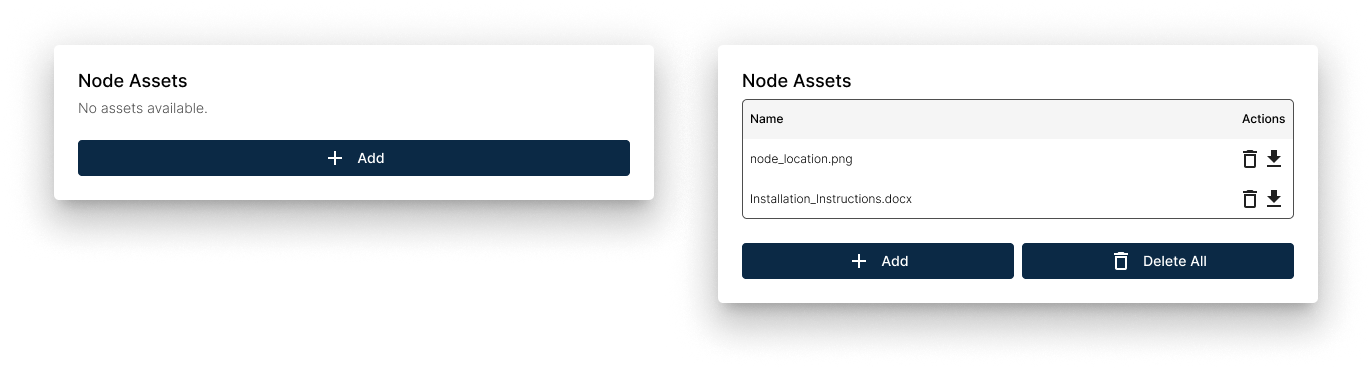
Node Assets list
From the assets list you can:
- Upload files of any kind (documents, images, videos…) from your computer.
- Download an asset to your computer.
- Delete an asset that is no longer needed.
Summary
Use the Advanced Actions popup for the maintenance operations that don't fit anywhere else: reclaim disk space with Docker prune, restart the Docker daemon when it gets stuck, configure networking directly on the device with Standalone Mode, and keep operational documentation alongside the node via Node Assets.