Batch operations
This article refers to Platform v3.1.0. The current Platform version is v3.2.0.
Overview
The Barbara platform's Batches View empowers you to manage your Edge Nodes efficiently through bulk operations. Batch commands streamline repetitive tasks, allowing you to apply actions to a large number of Nodes simultaneously. This significantly reduces management overhead and ensures consistency across your deployments.
Here are some key functionalities you can achieve with Batches View:
- Effortless Software Deployment: Distributing software updates to a fleet of Edge Nodes can be time-consuming. Batch commands eliminate this hassle, allowing you to deploy the latest software to a multitude of Nodes in a single operation.
- Simplified Device Configuration: Maintaining consistent configurations across numerous Edge Nodes is crucial for optimal performance. Batch commands enable you to configure a large group of Nodes with the desired settings simultaneously, saving you valuable time and ensuring uniformity within your deployments.
- Streamlined Firmware Updates: Keeping your Edge Nodes' firmware up-to-date is essential for optimal security and performance. Batch commands simplify this process by allowing you to update the firmware across multiple Nodes in one go, ensuring your entire network remains protected and operates at peak efficiency.
The Batches View provides a powerful and convenient way to manage your Edge Nodes at scale. By leveraging batch commands, you can significantly reduce management overhead, streamline repetitive tasks, and ensure consistency across your deployments.
Accessing the Batches View
Getting started with bulk management is simple! To access the Batches View, follow these steps:
- Locate the Main Menu within the Barbara Panel located in the top left corner of the Panel platform.
- From the menu options, select "Batches".
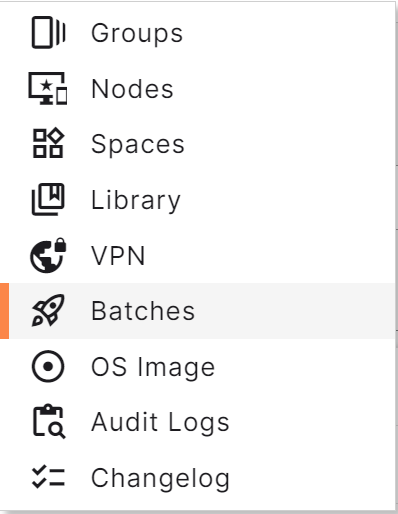
Accessing the batches view
The Batches View will then be displayed, providing you with a central hub to manage your Edge Nodes through powerful batch commands.
The Batches View UI
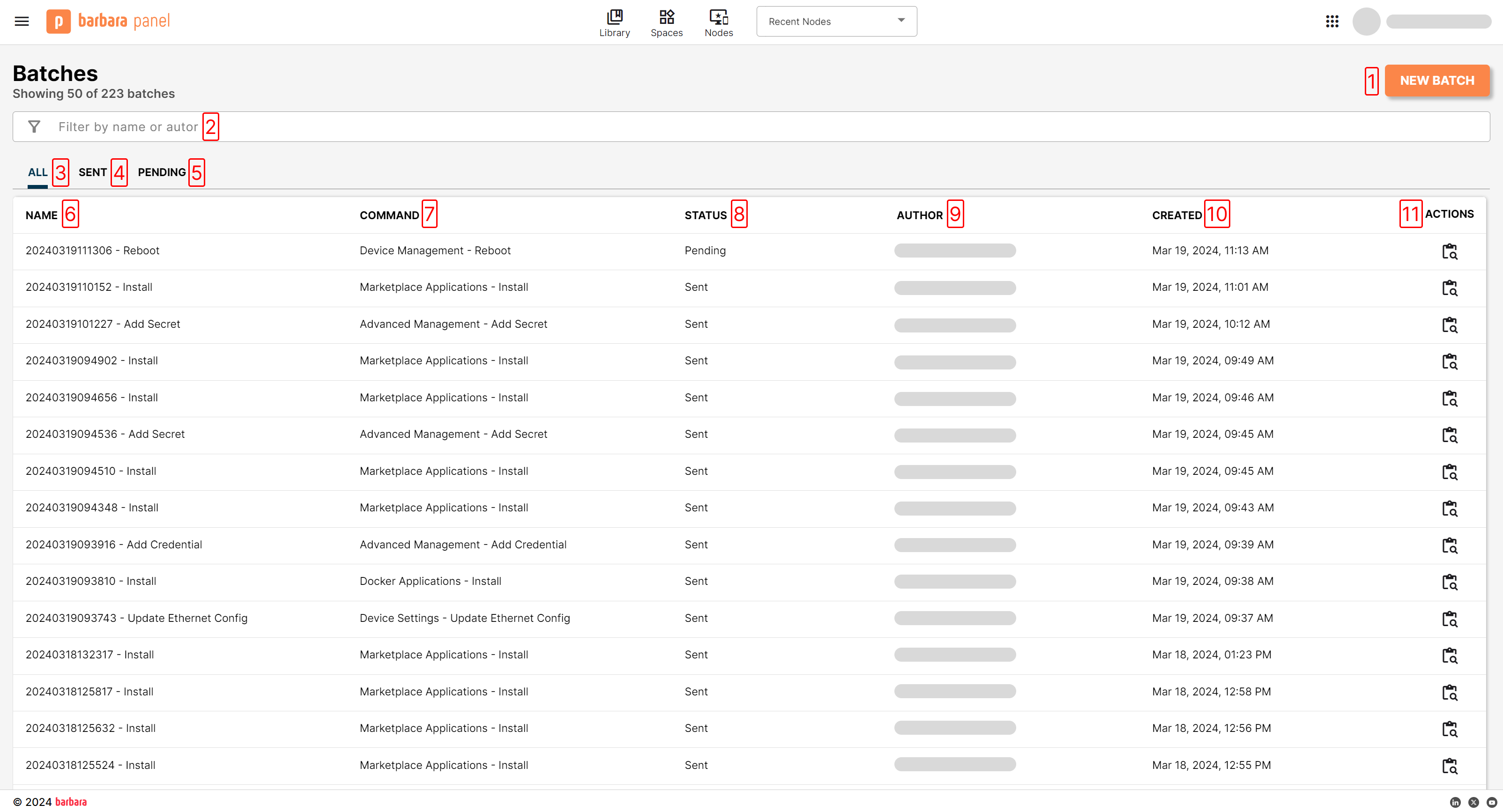
The Batches View UI
Batches View Index:
- "New Batch" button. Opens the wizard to create a new batch command.
- Filter batches. Filters results indicating a batch name or author.
- All View. Shows all batches.
- Sent View. Shows all batches with status "Sent".
- Pending View. Shows all batches with status "Pending".
- Name column. Indicates the name of the batch.
- Command column. Indicates the command of every batch.
- Status column. Indicates the status of every batch.
- Author column. Indicates the user that created every batch.
- Created colunn. Indicates the timestamp when every batch was created.
- Actions column. Shows the button to open every batch's details view.
The Batch Command
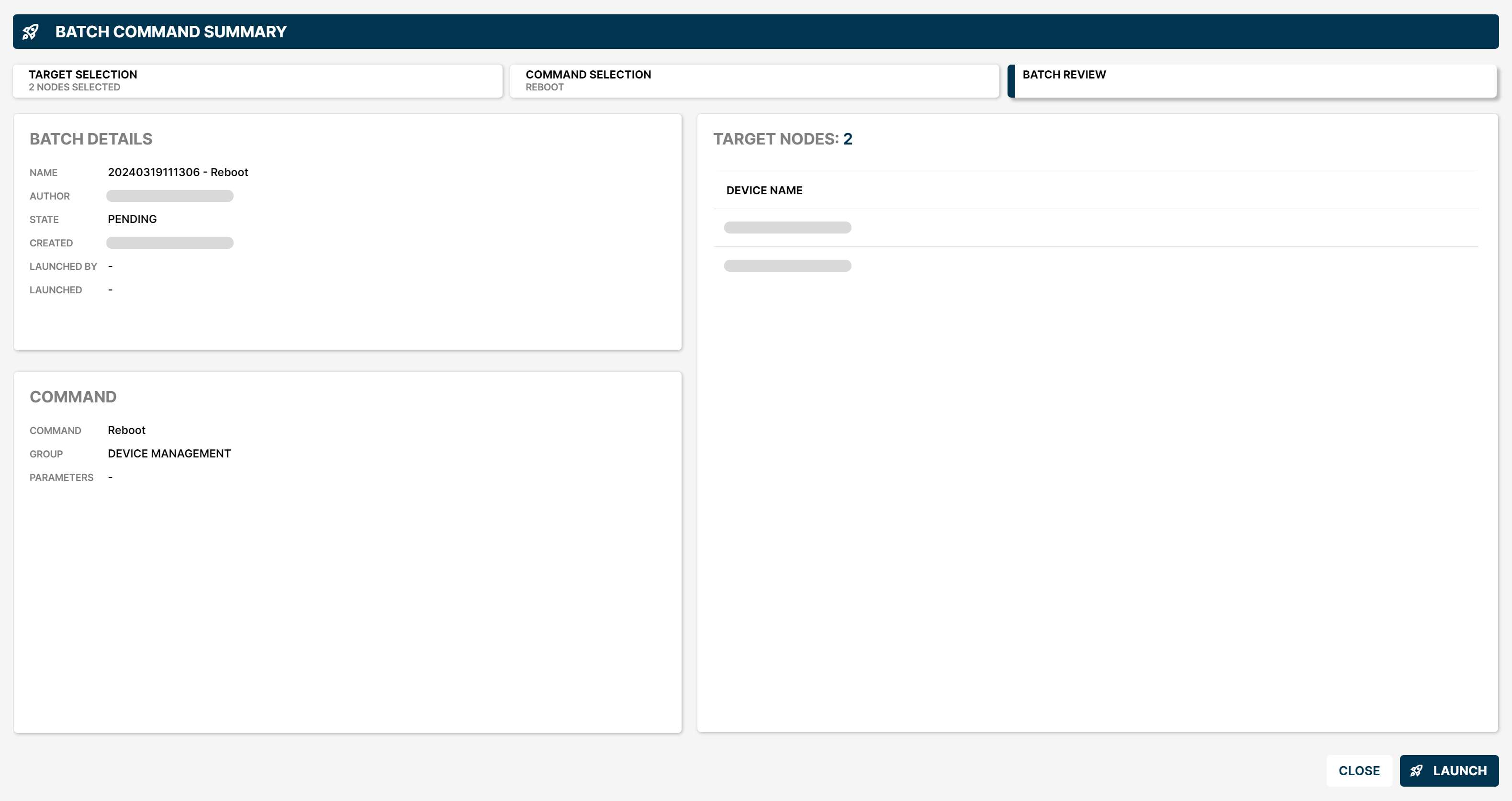
The Batches View UI
The core functionality within the Batches View lies in the concept of the Batch Command. A Batch Command essentially defines an action to be applied simultaneously to a selected group of Edge Nodes. These commands are created and managed through the Batch Command Manager.
Each Batch Command is comprised of three key sections:
- Batch Details. This section provides informative metadata about the command itself, including:
- Name: A user-defined name for the Batch Command.
- Author: The username of the individual who created the command.
- Status: The current state of the Batch Command (e.g., Pending or Sent).
- Created: The date and time the Batch Command was created.
- Launched by: The username of the individual who initiated the execution of the command (if applicable).
- Launched: The date and time the Batch Command was launched (if applicable).
- Command. This section defines the specific action to be carried out on the target Nodes. It includes:
- Command: The type of operation to be performed (e.g., install application, configure devices, update firmware).
- Group: Group of the command to apply.
- Parameters: Any additional parameters required for the specific command.
- Target Nodes. This section defines the specific Edge Nodes to which the Batch Command will be applied.
Batch Commands can exist in two different states:
- Pending. The command has been created but not yet applied to the target Nodes. Users with "Reader" or "Editor" profiles can create Batch Commands but cannot initiate their execution. These commands remain in a Pending state until a user with sufficient privileges sends them.
- Sent. The command has been successfully applied to the target Nodes. Only users with "Supervisor" or "Administrator" profiles have the permissions to send Batch Commands and initiate their execution.
Accessing the Batch Command Manager
There are two different ways to access the Batch Command Manager:
- From the Batches View
- From the Edge Nodes View
From the Batches View
- New Batch Button: Once within the Batches View, locate the "New Batch" button typically positioned near the top right corner of the interface.

New Batch Button
- Batch Command Manager: Click the "New Batch" button. This will launch the Batch Command Manager with a clean slate, allowing you to define a new Batch Command from scratch.
"From the Edge Nodes View"
Begin by opening the Edge Node view. This is typically accessed by selecting the "Nodes" button located at the top bar of the Barbara Panel.
- Identify the Batch Command Trigger: Locate the greyed-out rocket icon on top of the Edge Nodes view.
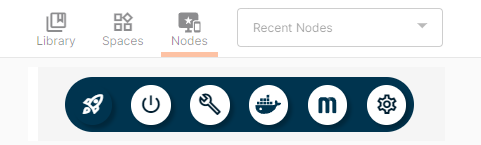
Launcher buttons
- Select Target Nodes: To activate the Batch Command functionality, select the checkboxes to the left of the specific Edge Nodes you intend to target with your Batch Command. Once at least one Node is selected, the rocket icon will be enabled.
- Open the Batch Command Manager: Click on the now active rocket icon. This will display five buttons corresponding to the various Batch Command categories:
- Device management
- Device settings
- Docker applications
- Marketplace applications
- Advanced management
Selecting any of these buttons will launch the Batch Command Manager pre-populated with the chosen command type and your selected target Nodes, allowing you to define the specifics of your Batch Command.
Batch Commands Manager
This tool is made up of 3 required steps:
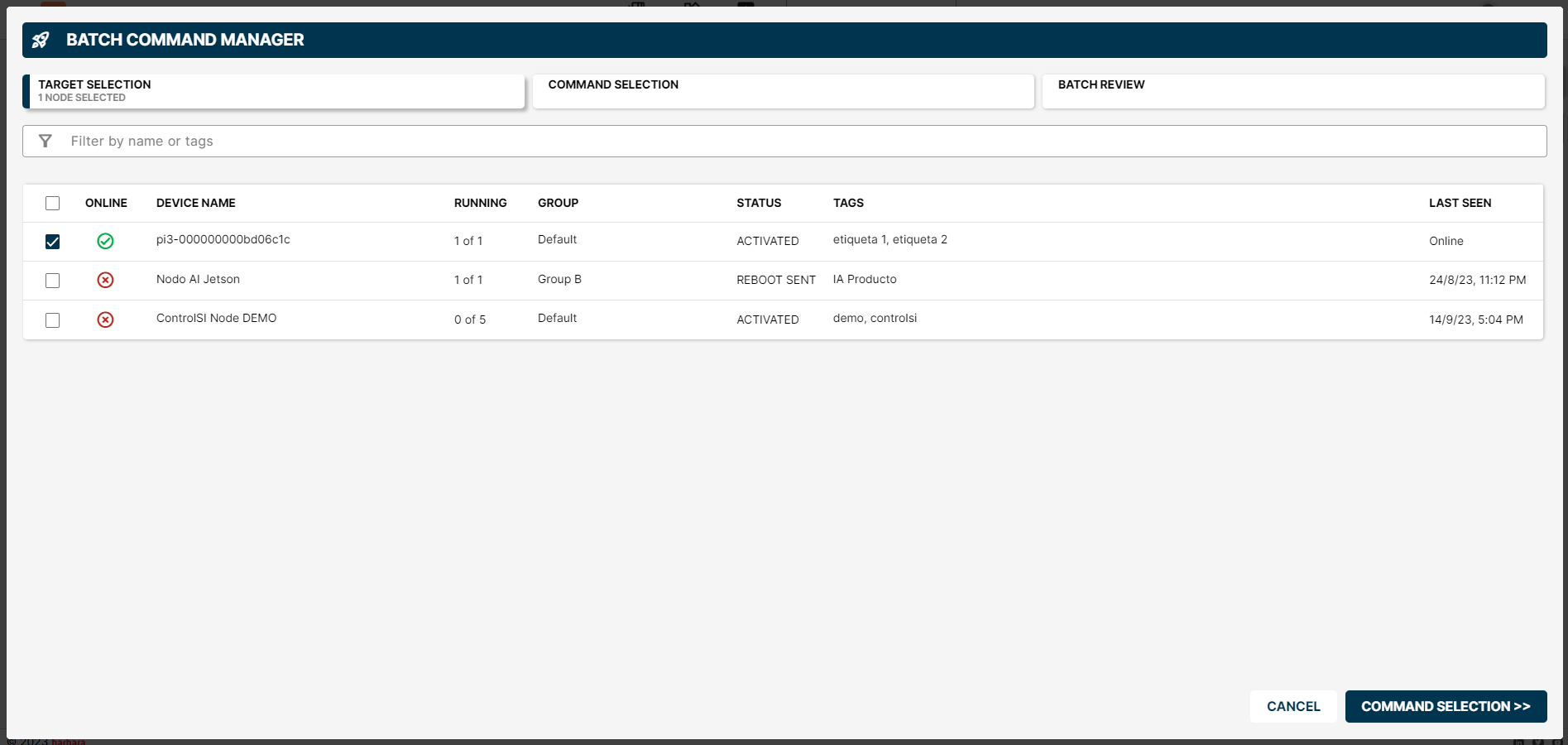
Step 1: Target Selection
Target selection
In this first step, select the total amount of Nodes to send the command to. You may also do this directly from the Node list before the Batch Command Manager opens.
There's a shortcut for launching the Batch Command Manager when working within the Node Details view:
Selecting the rocket icon in the Node Details view automatically skips step 1 (target selection) and takes you directly to step 2 (command selection).
Need to modify the target Nodes after launching from the Node Details view? Simply click the button located in the bottom left corner of the Batch Command Manager window. This will allow you to add or remove Nodes from your Batch Command.
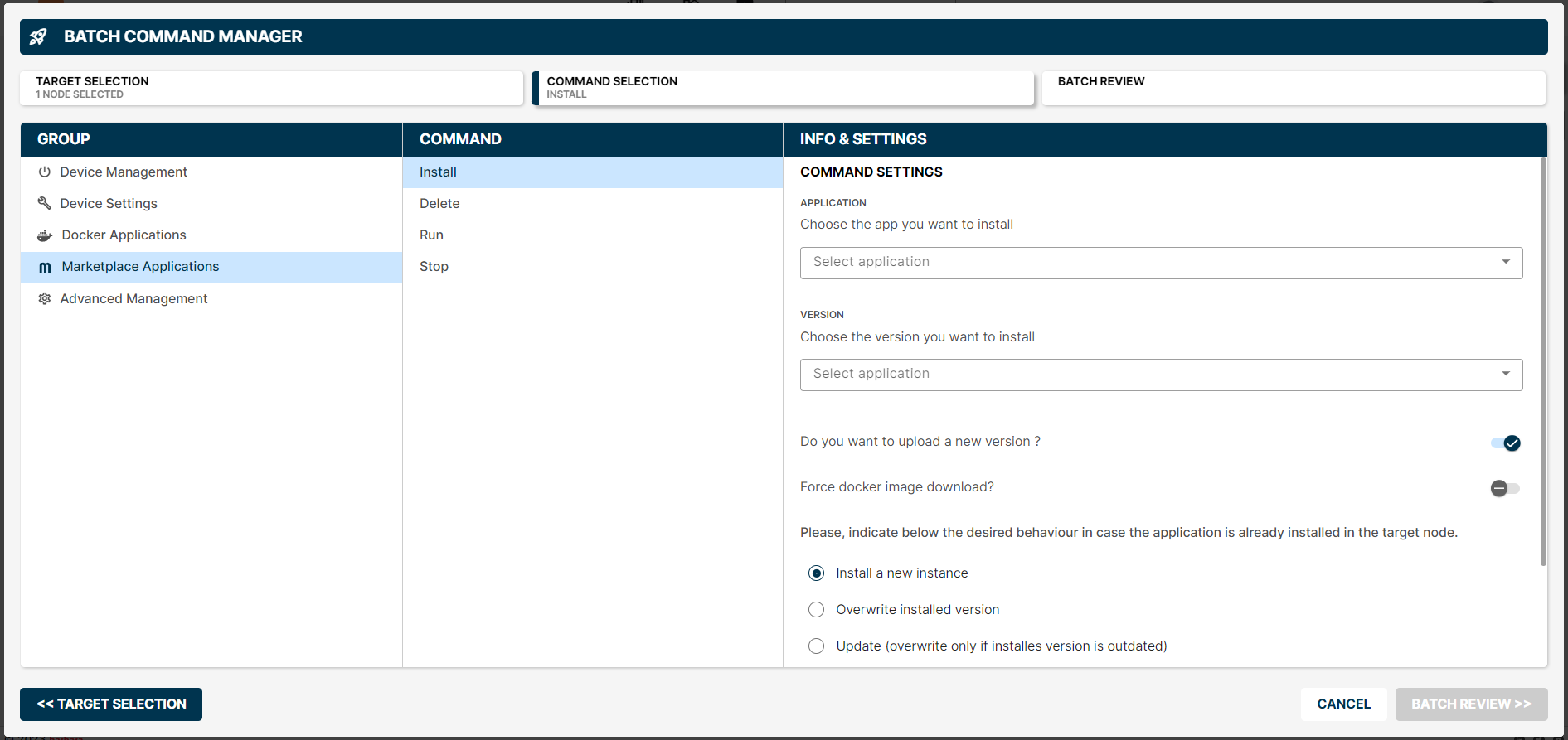
Step 2: Command Selection
Command selection
In this second step, select the command to send to the target Node group. Depending on the chosen command, specific parameters are required for the batch commands to be sent (e.g.application to install, configuration to update and so on).
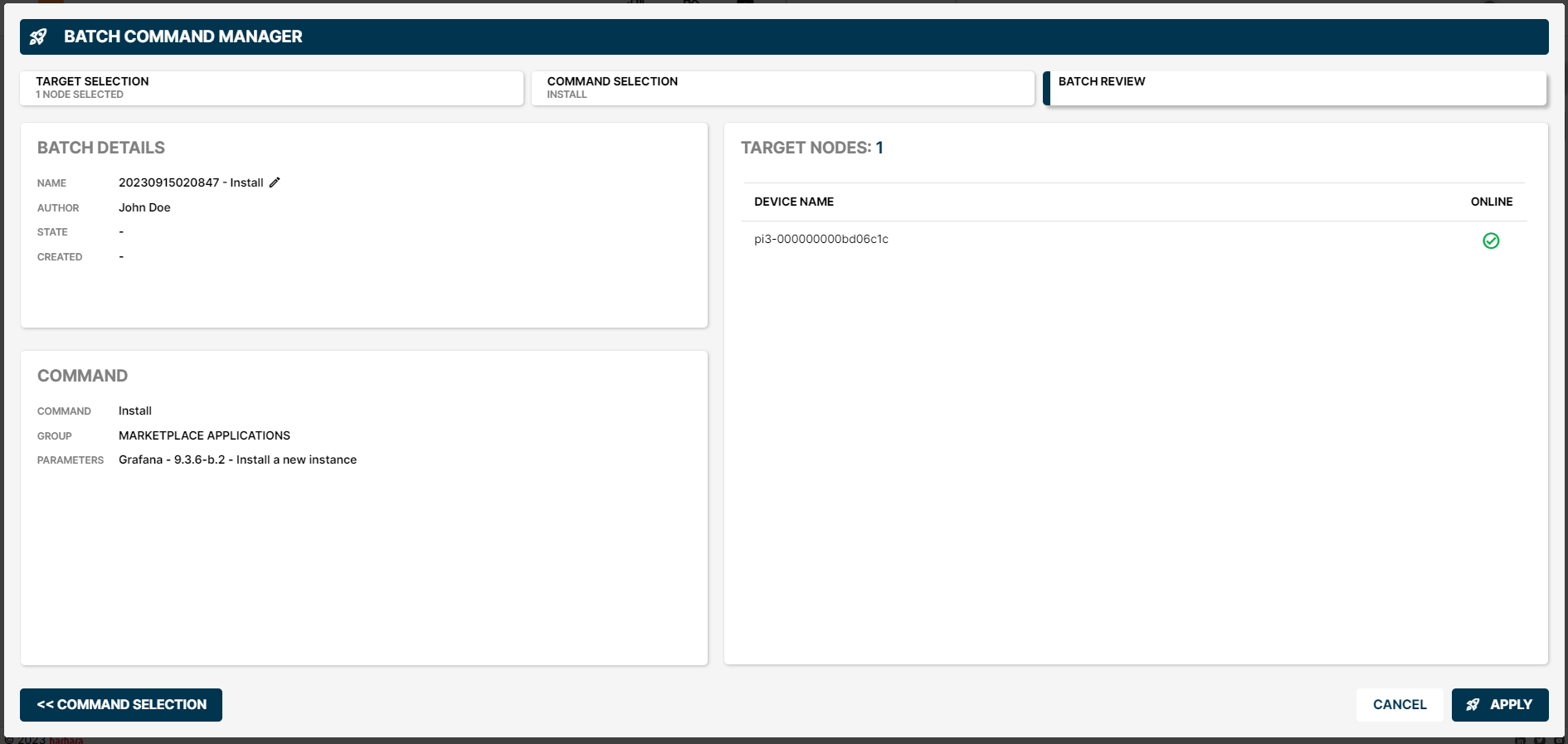
Step 3: Batch Command Review
Batch Review
Before confirming the command to be sent, we recommend reviewing its respective details.
Before sending a batch command, please ensure...
- All TARGET NODES are correct.
- The selected COMMAND is the right one.
- All BATCH DETAILS and required parameters are correct and compatible with the selected target Nodes.
Once you've revised these details, click the "Apply" button and the batch command is sent to the target Nodes you defined.