List of Workloads
Overview
The list of workloads displays all the workloads that have been deployed in your Edge environment, organized into several categories: Marketplace, Docker, and Models. Note that native applications are no longer supported.
In addition to applications, there are now five new types of workloads classified as models. These models include:
From the Workloads view, you can Start and Stop any workload, check its respective operation logs, and verify if there are available version updates.
The Workloads UI
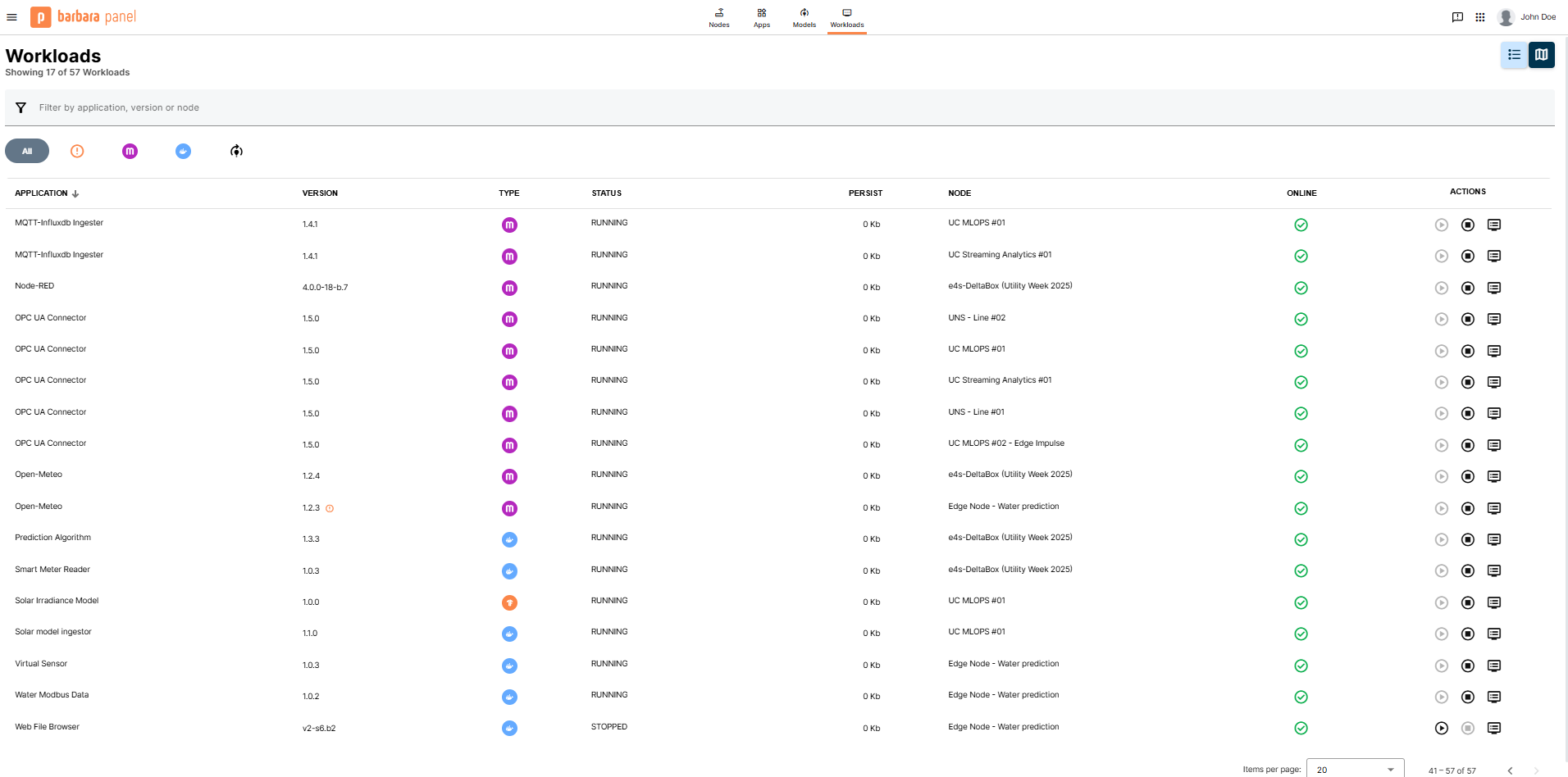
Workloads View
-
Title and summary
Underneath the "Workloads" title, you can see the total number of workloads in your Edge environment. This number updates dynamically when you filter by selecting workload type icons. The available filter options are:- All
- Out of date
- Marketplace
- Docker
- Models (TensorFlow, ONNX, PyTorch, Scikit-learn, XGBoost)
-
List or Map toggle buttons
These buttons allow you to view your workloads either in a list format or on a map for any workload with configured GPS coordinates. -
Search bar
Use the search bar to filter workloads by application name, version, or node. For example, typing "InfluxDB" will display all deployed instances of this workload, including version, type, status, and node. You can also filter workloads by version or node. -
Workloads list
This section displays all workloads along with their version, type, status, persistence size, the node they are running on, and their online status. The final column (ACTIONS) allows you to start or stop a workload and view its logs.
An icon appears next to workloads that have a new version available, indicating that they are out of date and can be updated.
- Filtering tabs
These tabs filter workloads according to their type (ALL, Marketplace, Docker, Models) or whether the workload is out of date (indicated by an exclamation mark icon).
Start and Stop Workloads
From the Workloads View, click on the "Start" or "Stop" icon under the "Actions" column. This opens a confirmation modal; select OK to proceed.
Visualize the Operating Log
Click on the log icon under the "Actions" column to open a new window displaying the respective workload's operation log.