Step 2 — Deploy the Industrial Data Simulator
This article refers to Platform v3.0.0. The current Platform version is v3.2.0.
This step assumes the MQTT Broker is already deployed on the same node. If you haven't done that yet, go back to Step 1 first.
Overview
The Industrial Data Simulator (IDS) generates synthetic industrial data — values that imitate what a real PLC or sensor would publish — and pushes them to the MQTT Broker on the node. It removes the need for real equipment while you build the pipeline.
This step adds IDS to your Library and deploys it with default settings.
Add the Industrial Data Simulator to your Library


Industrial Data Simulator (IDS)
Powerful tool designed to mimic the behaviour of real-world industrial equipment and generate synthetic data streams.
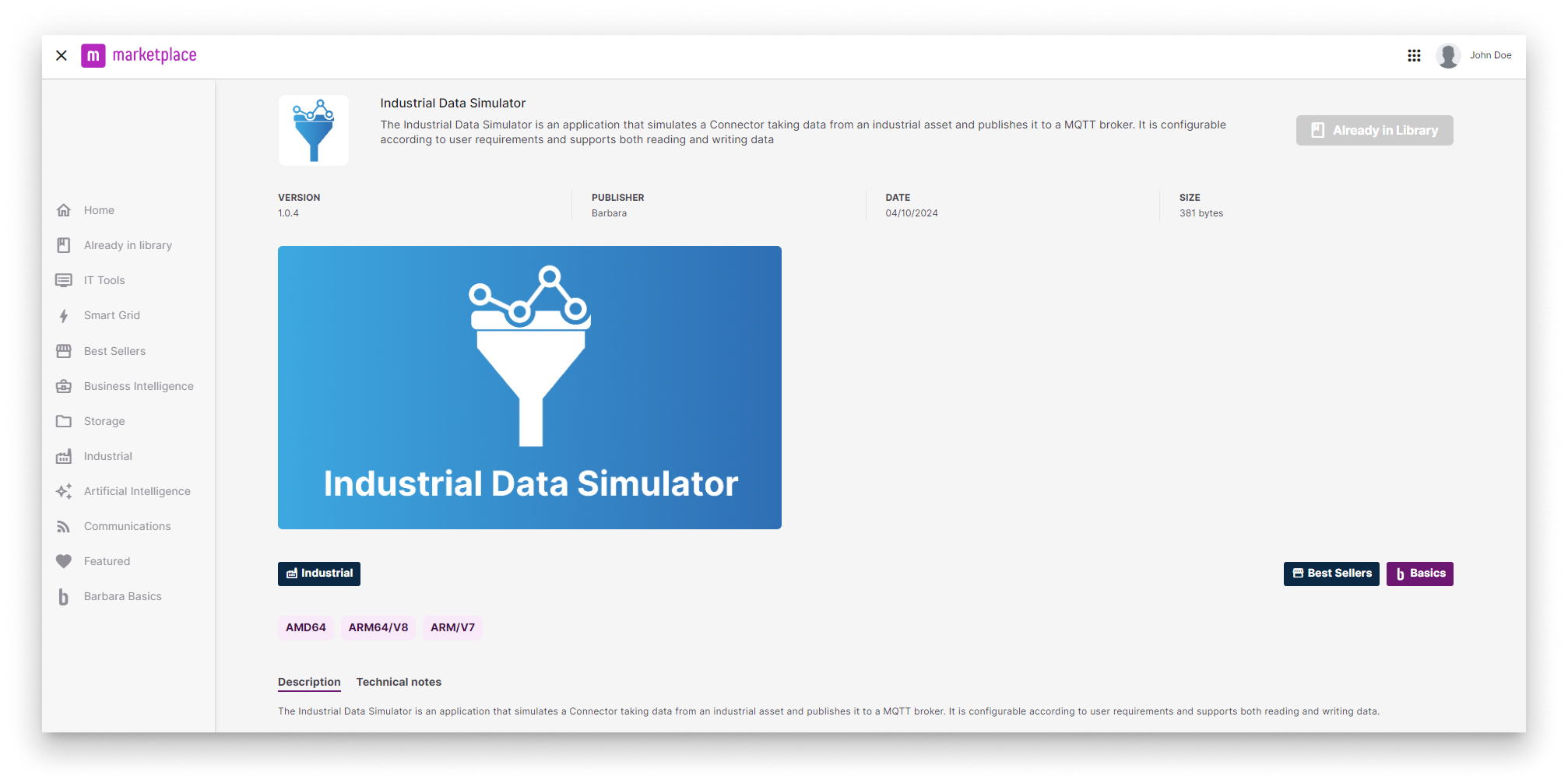
Industrial Data Simulator in the Marketplace
For the full Marketplace flow, see Add a Marketplace app to your Library.
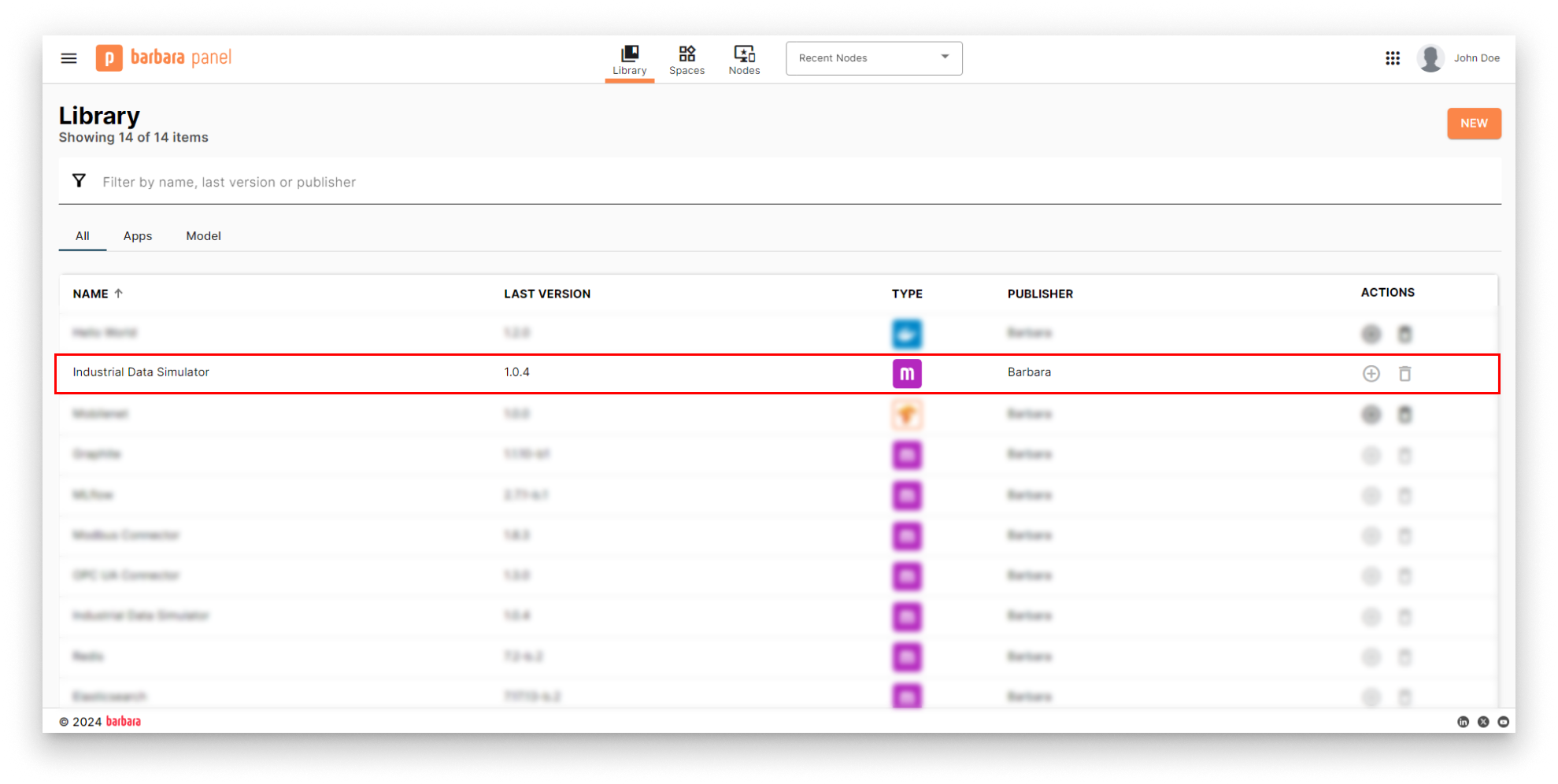
Industrial Data Simulator in the App Library
Deploy the Industrial Data Simulator
- Open the Node Details page of the target node and click Add card.
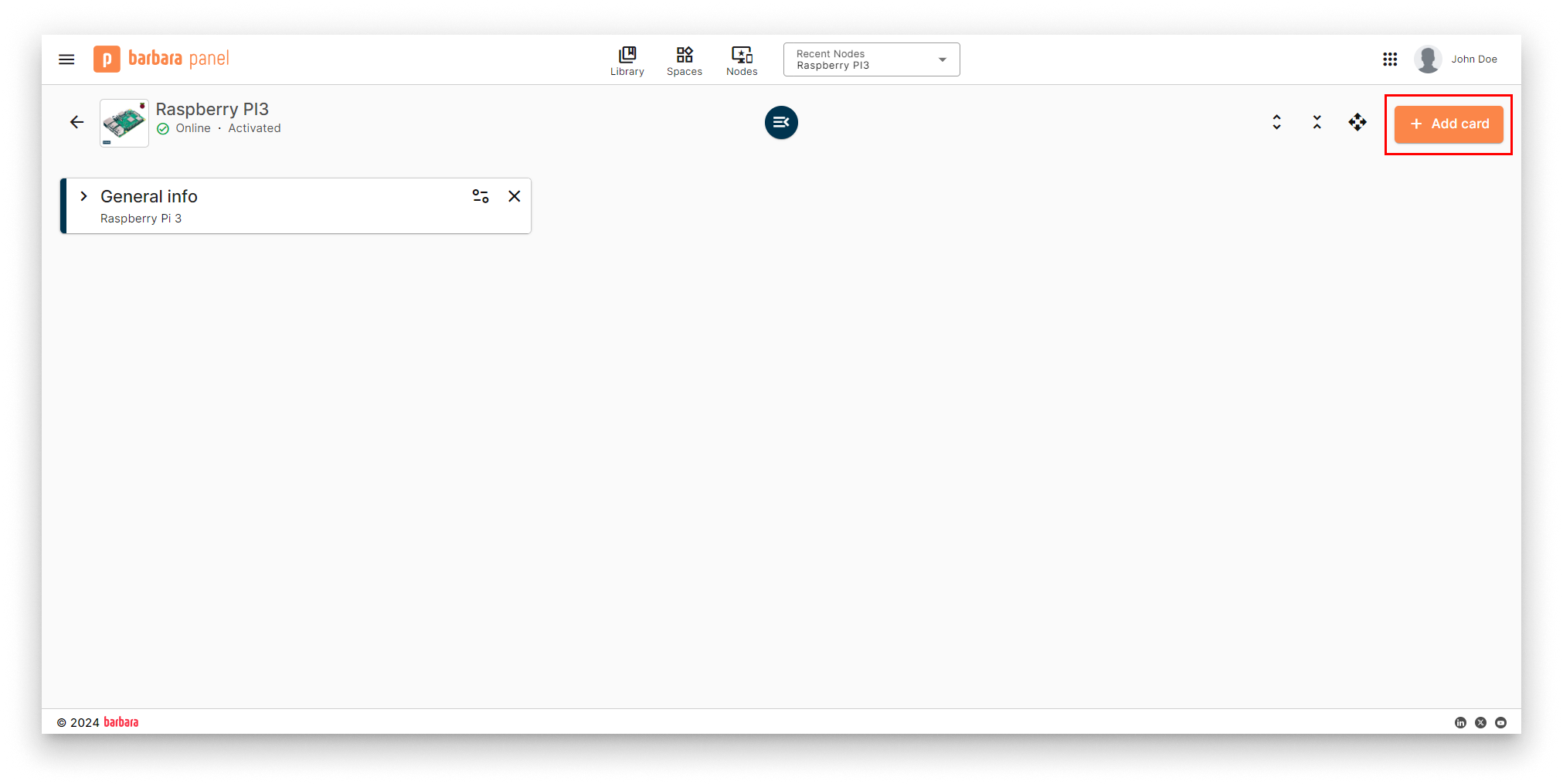
Add card menu
- Pick Marketplace App from the menu.
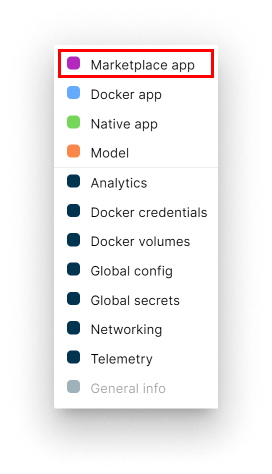
Select Marketplace App
- Select app and version. Pick Industrial Data Simulator and its latest version. Click Next.
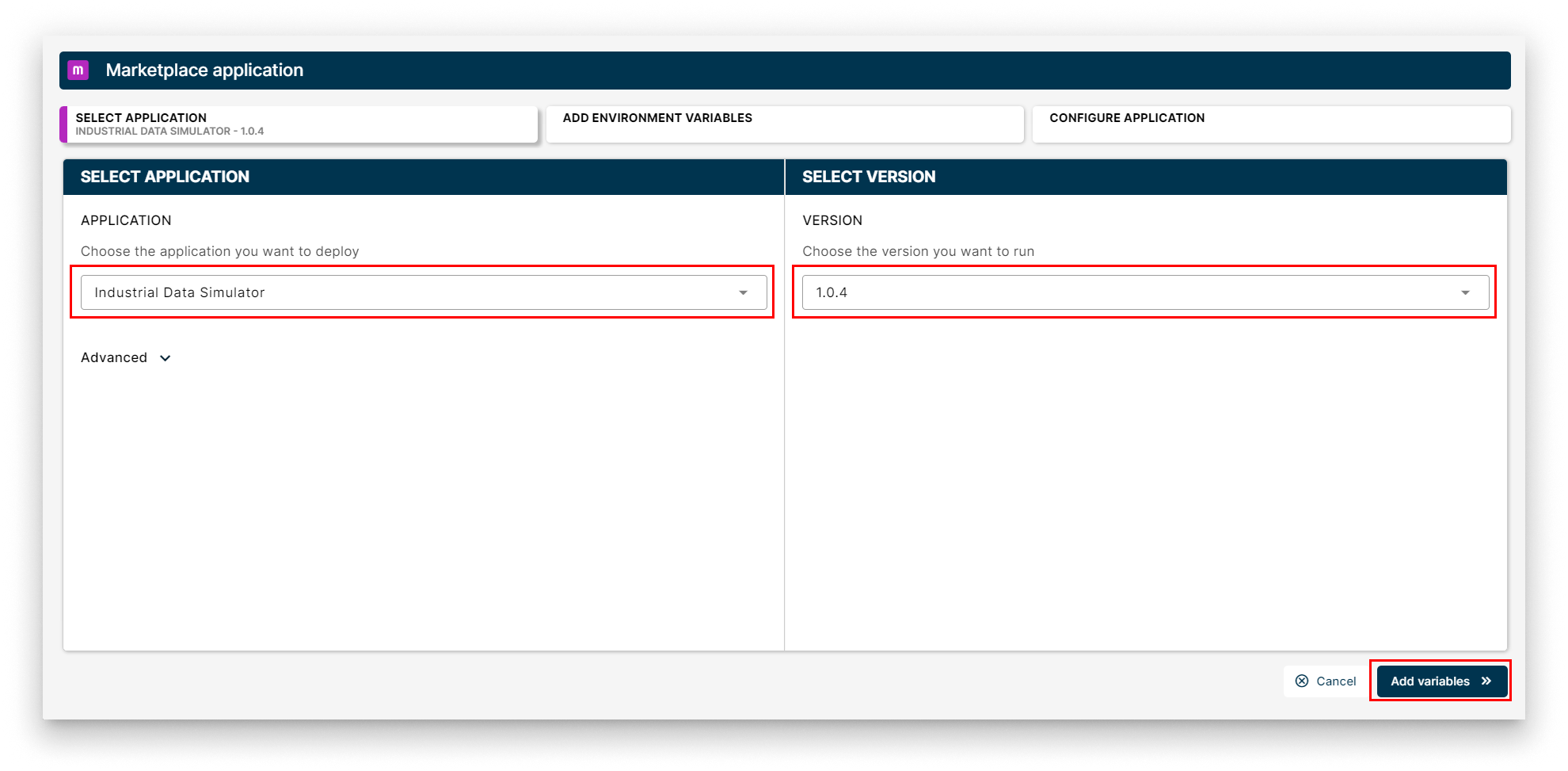
Select the Industrial Data Simulator
- App Secrets. Keep the defaults and click Next.
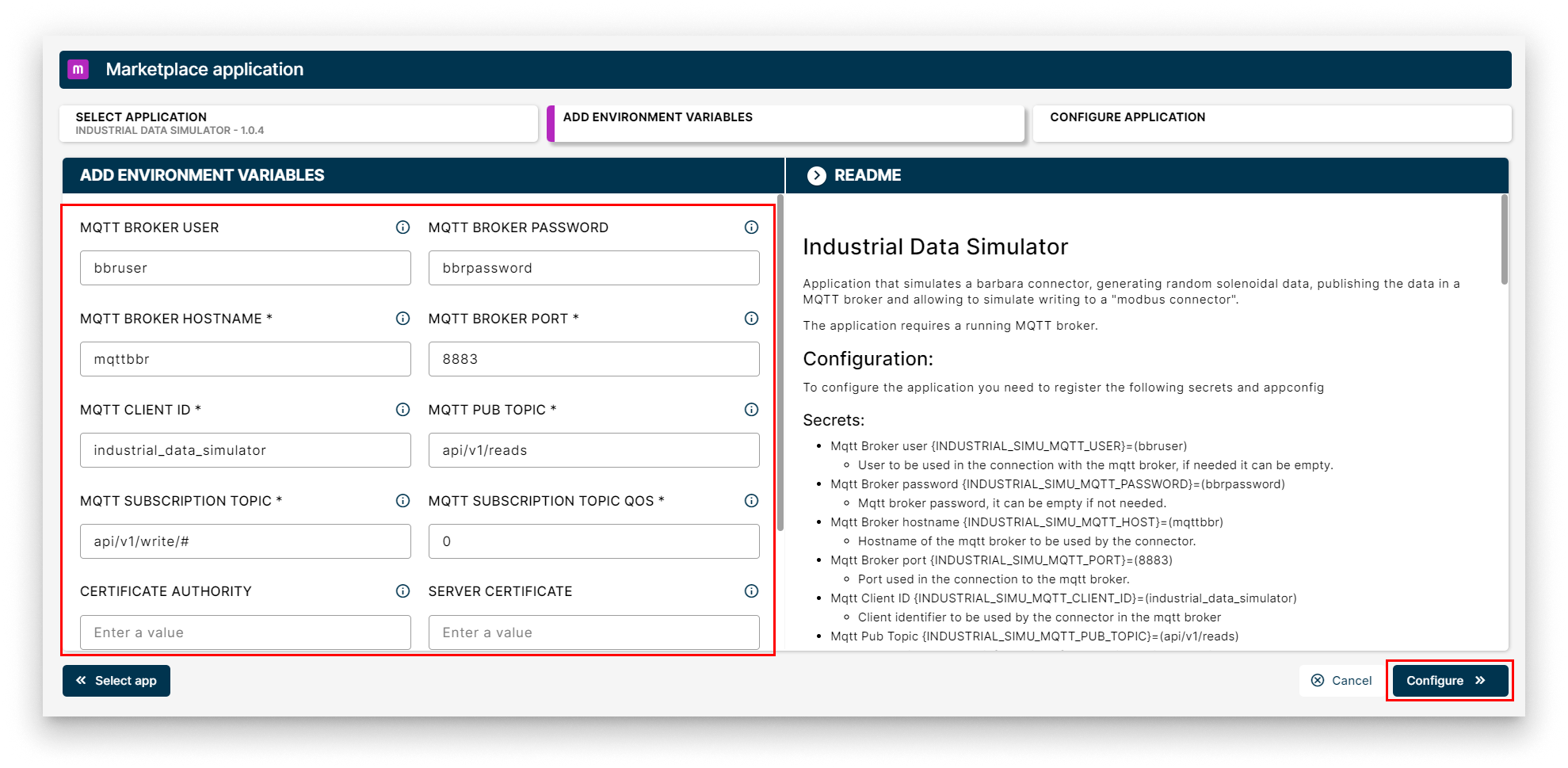
App Secrets for IDS
- App Config. Leave the configuration empty for this walkthrough and click Send App to deploy.
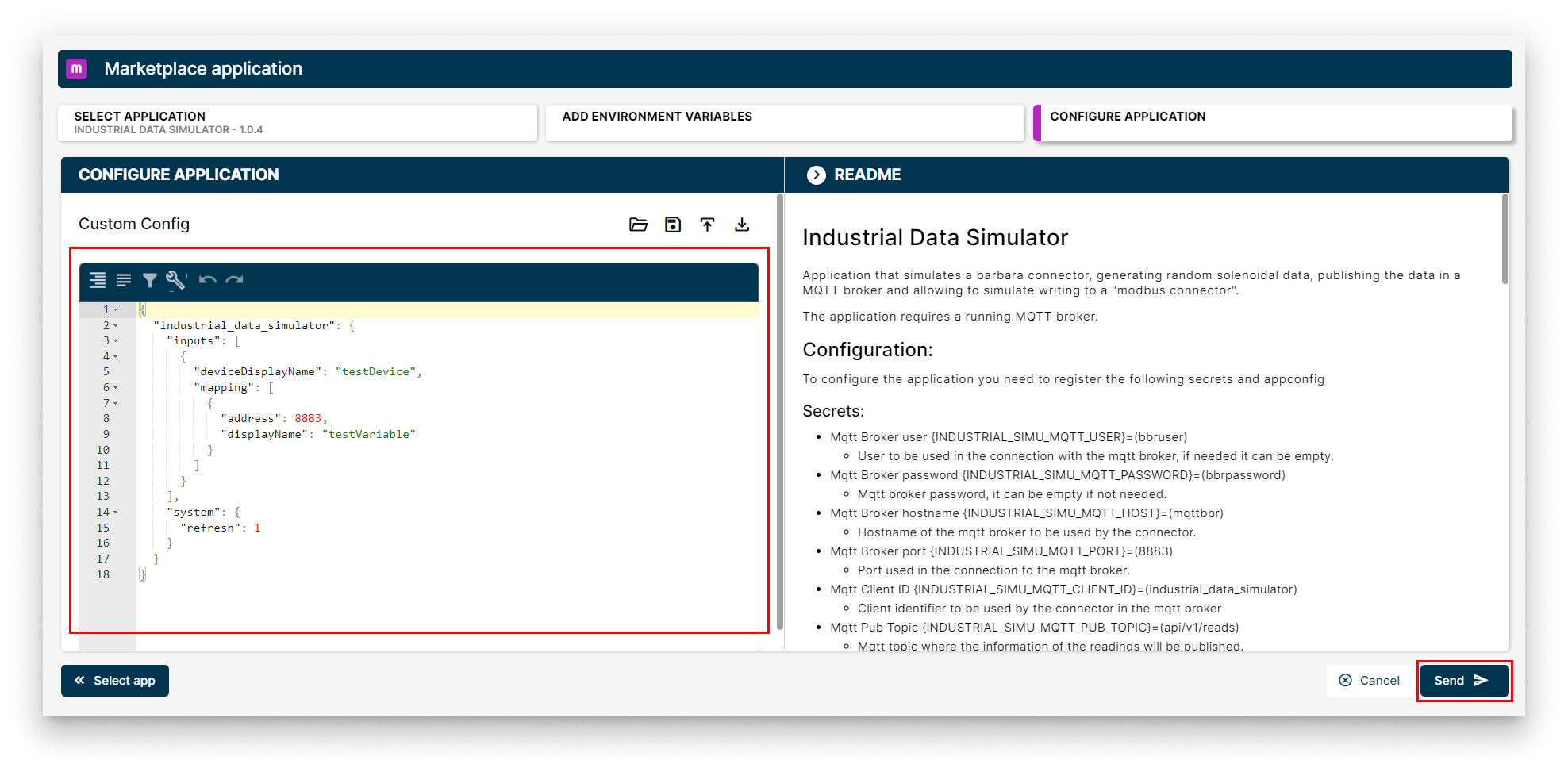
Send the IDS deployment
For a fuller IDS walkthrough that uploads a CSV file and configures the simulator to publish CNC machine data, see the quickstart equivalent.
Verify the deployment
Within a few seconds the IDS workload card appears on the Node Details page. When the status indicator turns green (Started), the simulator is publishing synthetic messages to the MQTT Broker.
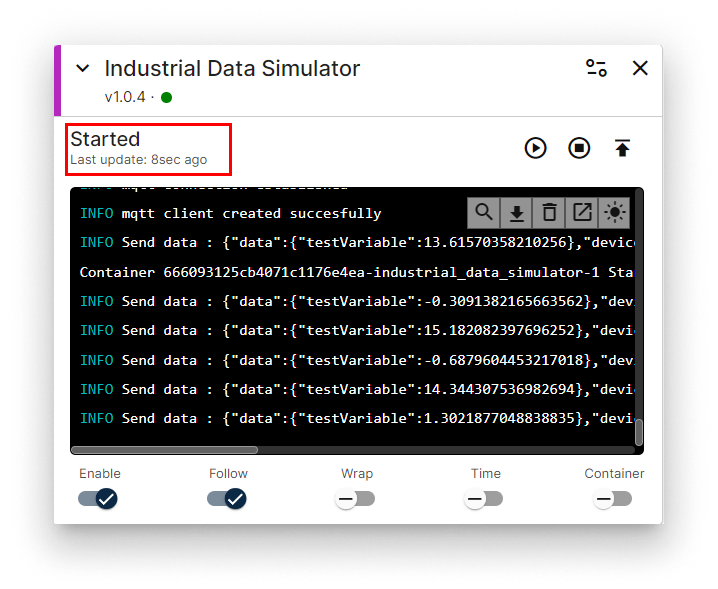
Industrial Data Simulator workload card
Summary
The Industrial Data Simulator is now publishing synthetic device data to the MQTT Broker. In the next step you will deploy InfluxDB to persist that data.