User profile
This article refers to Platform v3.0.0. The current Platform version is v3.4.0.
Overview
The user profile page lets you manage your personal information and your account security: update your name, position, and location; change your password; and enable Two Factor Authentication (2FA). Open it from the user menu in the top-right of Barbara Panel.
Profile section
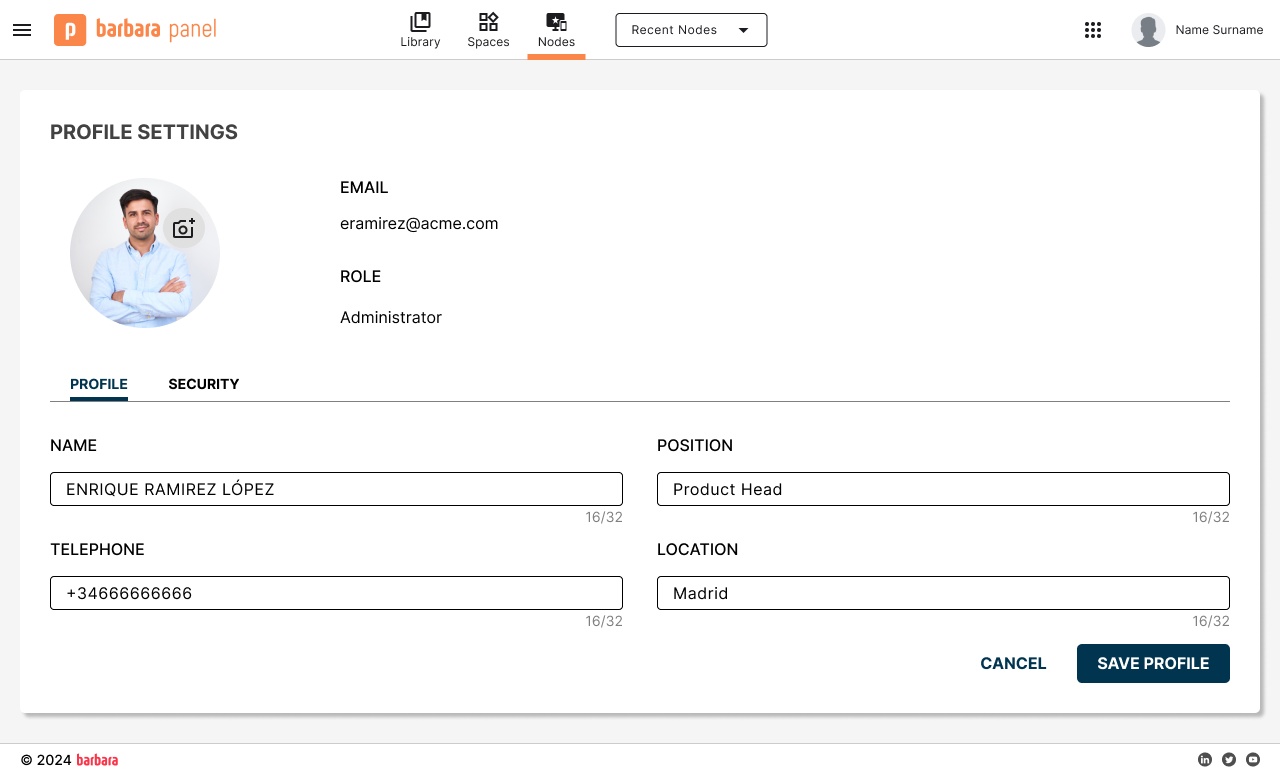
Profile section of the user profile page
The Profile section exposes:
- First name and Last name.
- Position (optional) — your role at the company.
- Location (optional) — your address.
Edit any field and click Save to persist the change.
Security section
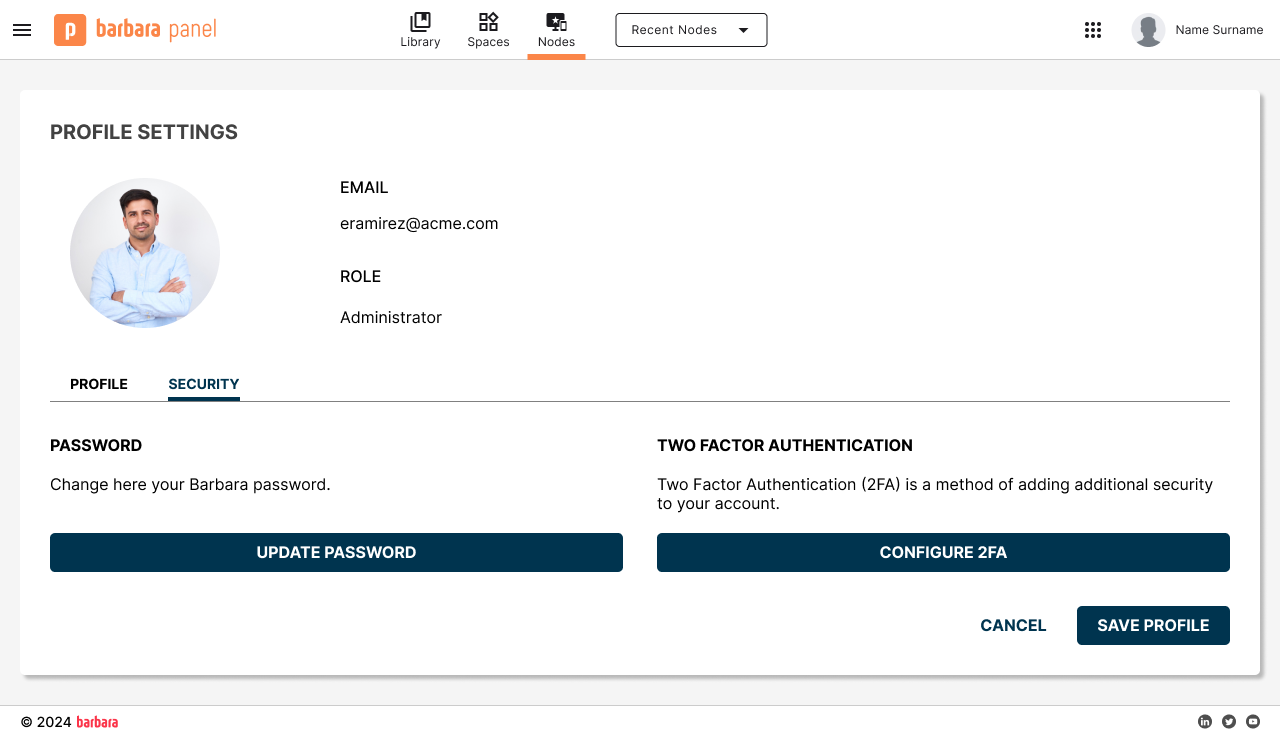
Security section of the user profile page
The Security section exposes two actions:
- UPDATE PASSWORD — start the password-change flow.
- CONFIGURE 2FA — start the Two Factor Authentication setup flow.
Both flows are served by Keycloak, the identity provider behind Barbara Panel. They require closing your current session first, which is why Panel asks for an explicit confirmation before redirecting you to the login page.
Update your password
- In the Security section, click UPDATE PASSWORD. A confirmation popup warns you that the session will close.
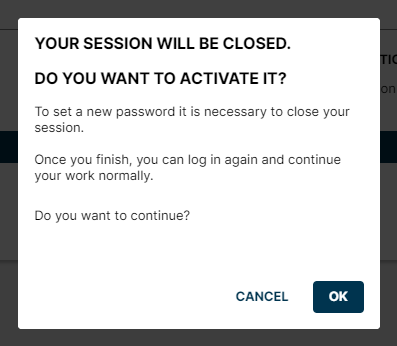
Close session confirmation
- Click OK to log out.
- Log back in. Keycloak shows the password-update page right after the login.
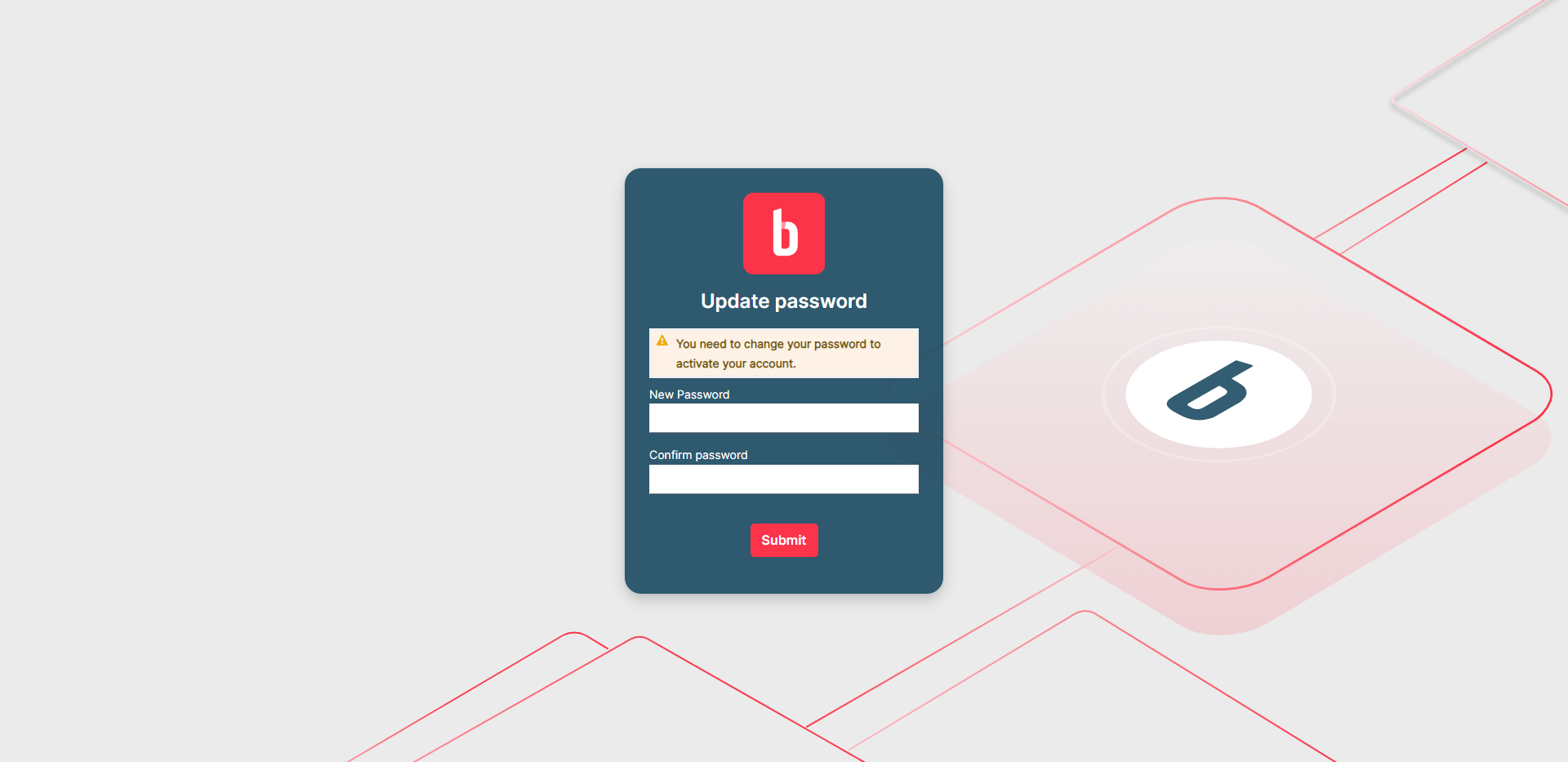
Change password page
- Enter the new password and click Submit. You are then redirected back to Barbara Panel as the logged-in user.
Configure Two Factor Authentication
- In the Security section, click CONFIGURE 2FA. A confirmation popup warns you that the session will close.
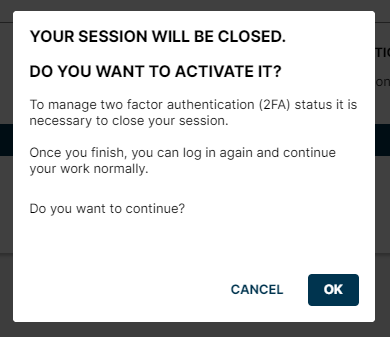
Close session for 2FA setup
- Click OK to log out.
- Log back in. Keycloak shows the 2FA setup page right after the login.
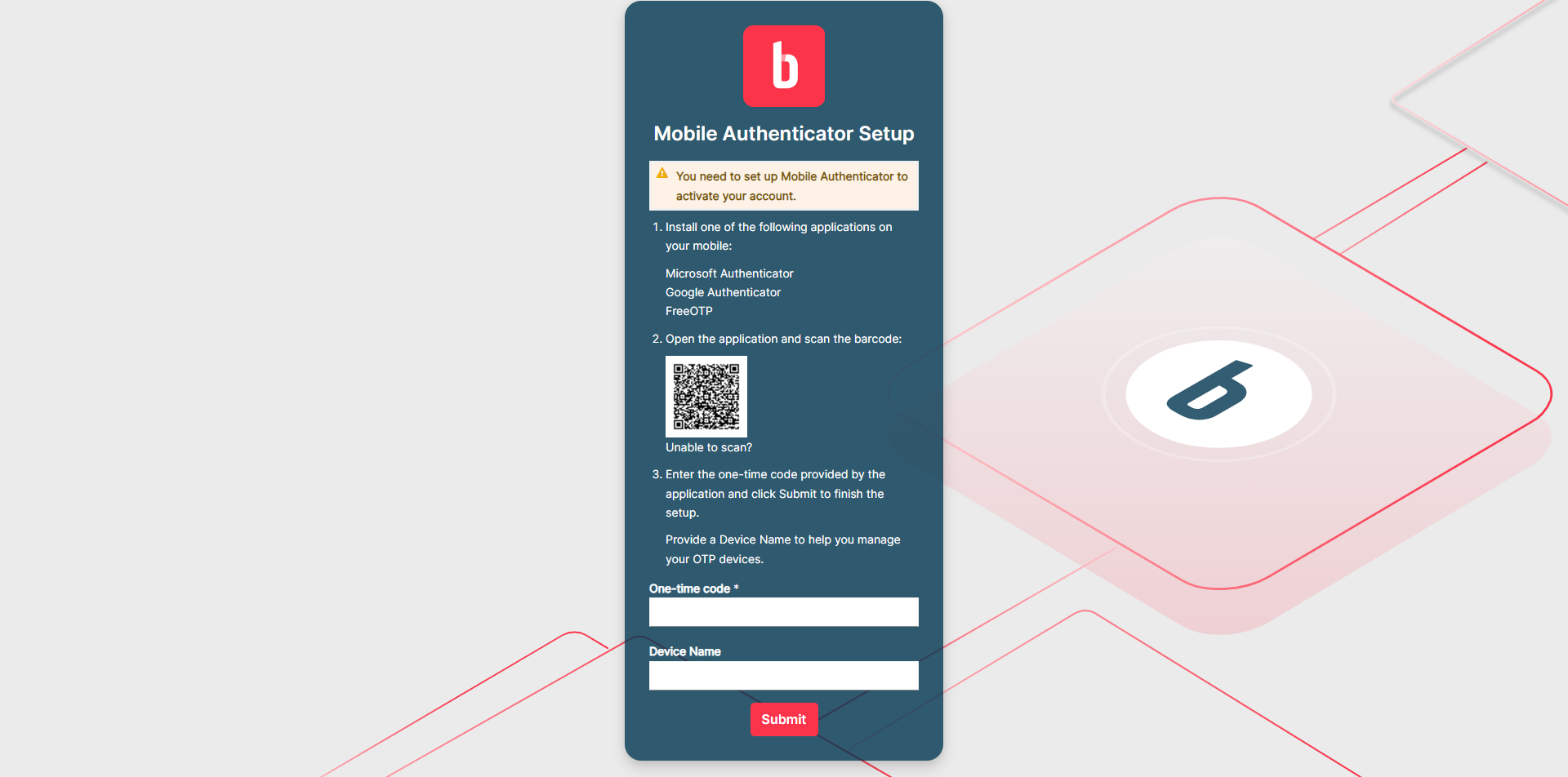
2FA setup page
- Install a TOTP authenticator app on your phone (Google Authenticator, Microsoft Authenticator, 1Password, …).
- Scan the QR code with the app.
- Enter the one-time code that the app generates and click Submit.
- Optionally, give this device a Device Name so you can identify it later if you set up 2FA on several devices.
Summary
Use the profile page to keep your personal details current and to manage your password and 2FA. Both security flows route through Keycloak and require a fresh login, so plan to re-authenticate every time you change them.