Organization management
This article refers to Platform v3.0.0. The current Platform version is v3.4.0.
Overview
The Organization view in Barbara Panel is where Administrators manage the users of the company. From here you can invite a new user by email, edit the role of an existing one, and remove a user from the organization.
Only users with the Administrator role can open the Organization view and act on users. See Roles and access control for the full RBAC model.
To open the view, click your username in the top-right corner of Barbara Panel and pick Organization.
Organization view UI
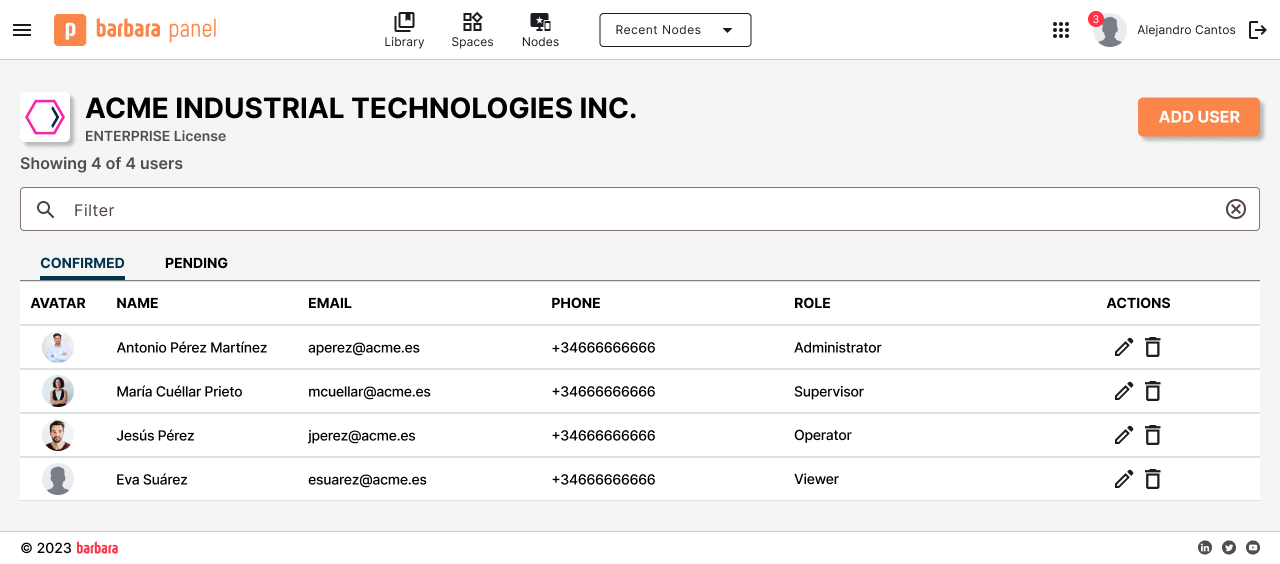
Organization view
- Company and license — your company name, license type, and total number of users.
- New User — opens the invite-user dialog.
- Search bar — filter the user list by name, surname, email, or role.
- Filtering tabs — switch between Confirmed users and Pending users.
- User list — every user with quick edit (pencil) and delete (trash) actions.
Invite a new user
- Click New User. A dialog opens.
- Enter the new user's email address.
- Click Send Invite.
The invited user shows up under the Pending tab. Once they accept the email invitation and complete their account creation in Keycloak, they move to the Confirmed tab.
Edit an existing user
- Click the pencil icon to the right of the user's name.
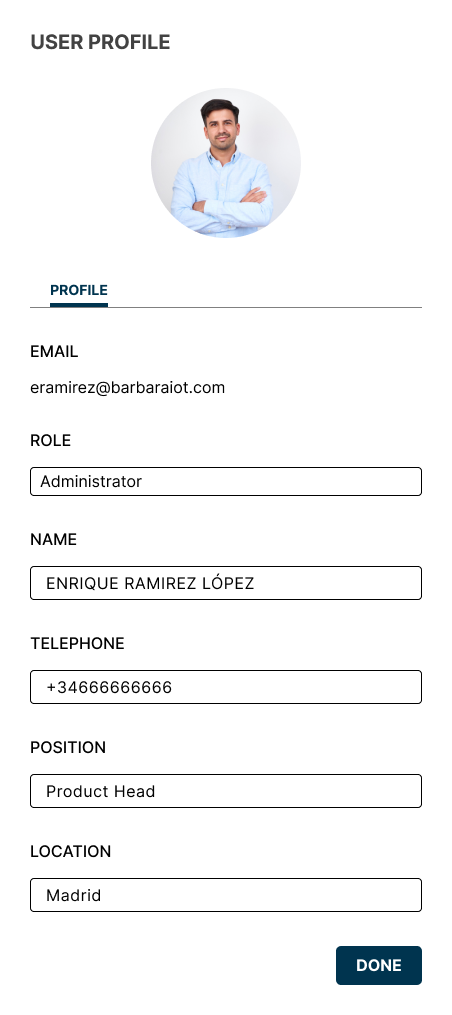
Edit user dialog
- Update the user's details — most commonly the role (Administrator / Supervisor / Editor / Viewer; see Roles and access control).
- Click Save.
Remove a user
- Click the trash icon to the right of the user's name.
- Confirm by clicking Delete in the confirmation dialog.
The user is removed from the organization and loses access to Barbara Panel immediately.
Summary
The Organization view is the Administrator's control surface for the company's users: invite by email, edit roles inline, and remove users when they leave the team. Every new user starts in the Pending tab and moves to Confirmed once they have accepted the email invitation.