USB Assistant Tool
This article refers to Platform v3.0.0. The current Platform version is v3.4.0.
Overview
The USB Assistant Tool is the recovery path for an edge node that does not show up as connected in Barbara Panel. Plug a FAT32-formatted USB drive into the node and the agent writes diagnostic information to it; if the node is offline, it also writes a network-configuration template you can edit on your laptop and feed back to the node.
The typical reason a node is unreachable from Panel is one of:
- The Barbara ID entered in Panel does not match the actual ID of the node.
- The node cannot reach the internet (wrong network configuration, DNS failure, no default gateway, firewall blocking Barbara's domains and ports).
Either way, this tool gets you the data you need from the node.
Prepare a FAT32 USB drive
The USB drive must be formatted as FAT32. Other file systems will not be detected.
Check the file system on Windows:
- Plug the USB drive into your laptop.
- Right-click the drive in File Explorer → Properties.
- Read the File system field on the General tab.
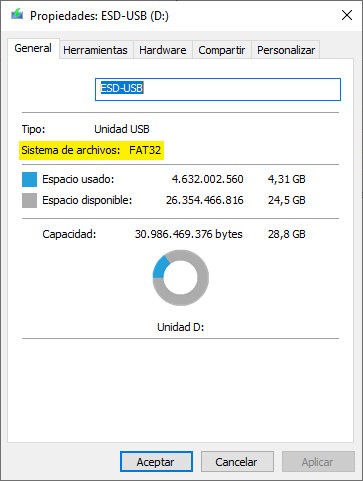
Check USB file system
If it is not FAT32, format it:
- Right-click the drive in File Explorer → Format.
- Pick FAT32 in the file-system dropdown and confirm.
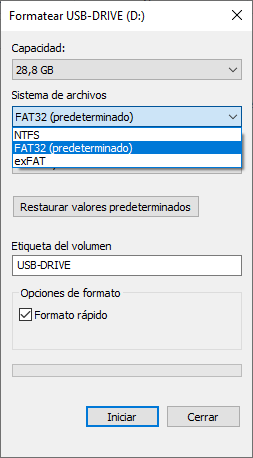
Format USB as FAT32
Run the tool on the node
The USB Assistant Tool is only available after the first boot of the node — which can take up to 10 minutes the first time it is powered on.
- Insert the prepared USB drive into the node.
- Wait about 20 seconds while the agent writes the diagnostics to the drive.
- Remove the USB drive.
Plug the USB back into your laptop. A new barbara folder appears at the root of the drive with all the diagnostics inside.
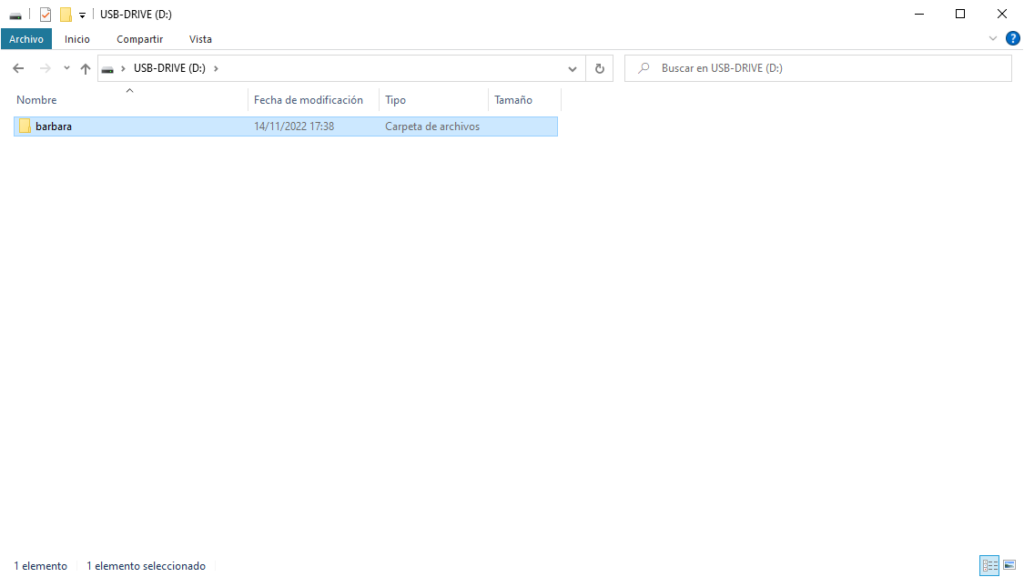
barbara folder at the USB root
barbaraInfo.txt
The main diagnostic file inside the barbara folder is barbaraInfo.txt (note the capital I). Open it in any text editor.
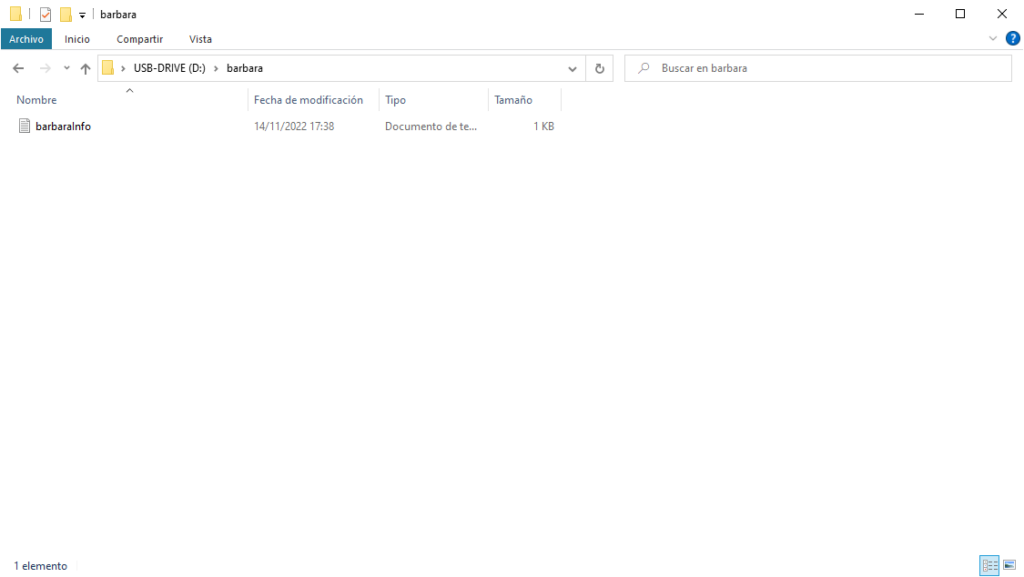
barbaraInfo.txt opened in a text editor
Timestamp:
    1693464784

Barbara ID:
    bt4pro-XXXXXXXXXXXX

Barbara OS version:
    4.3.0

Barbara OS UTC:
    1685403411

Network info:
    Iface name: lo IP: 127.0.0.1/8
    Iface name: lo IP: ::1/128
    Iface name: eth0 IP: 172.16.50.163/24
    Iface name: eth0 IP: fe80::1c0c:6c8e:a046:836e/64
    Iface name: wlan0 IP: 172.16.50.140/24
    Iface name: wlan0 IP: fe80::ee6a:e513:a50d:17cd/64
    Iface name: docker0 IP: 172.17.0.1/16

Connectivity status:
    NmStateConnectedGlobal

Docker support:
    true
Timestamp
Unix timestamp (seconds since epoch) when the file was written to the USB drive. Convert to a human-readable time with any online converter such as timestamp.online.
Barbara ID
The unique identifier of the node, also shown on the General Info card of the Node Details page. If a node does not come online after registration, double-check that the Barbara ID in Panel matches this value verbatim — delete the node in Panel and re-register it with the correct ID if they differ.
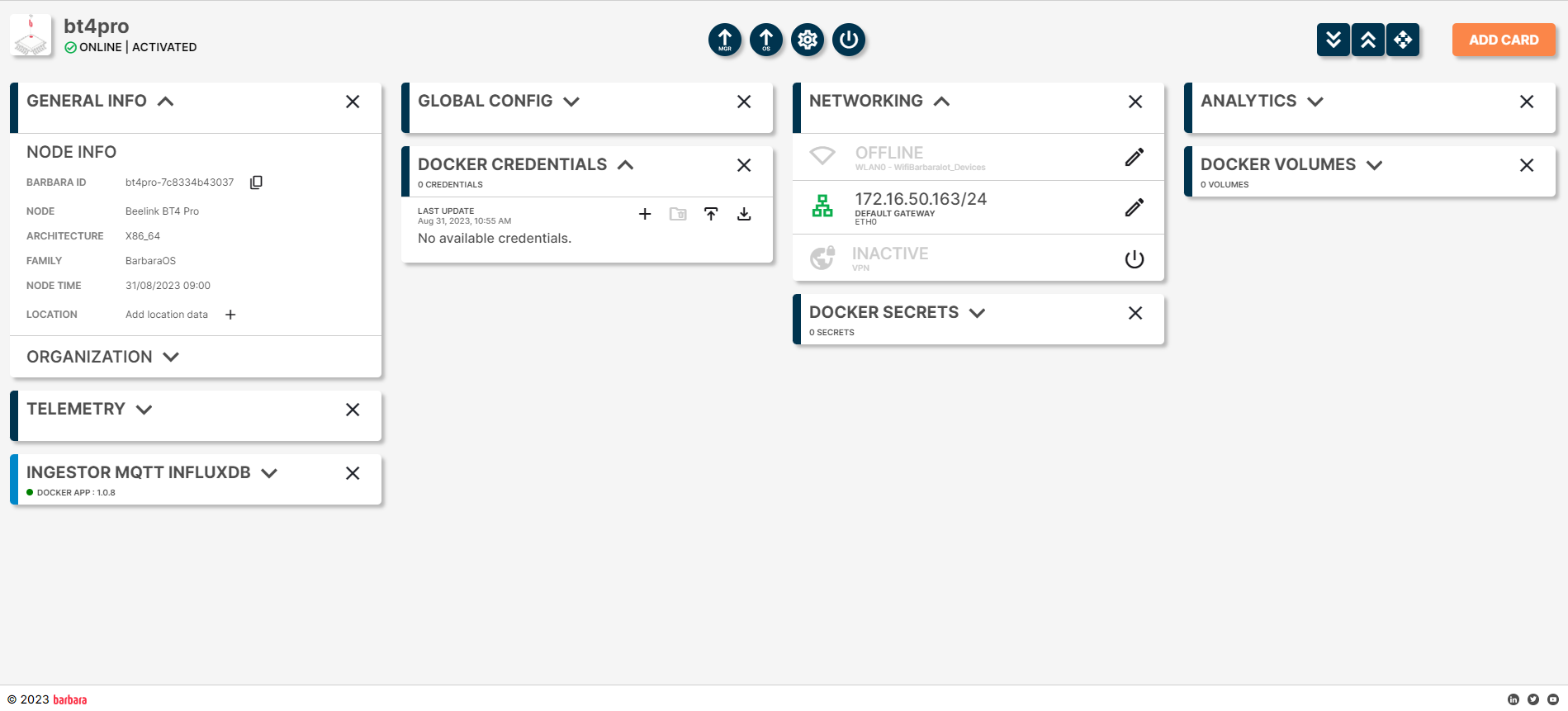
General Info card showing Barbara ID
Barbara OS version
The OS version installed on the node. You can verify the same value from the Node Details page via the Update OS Version action.
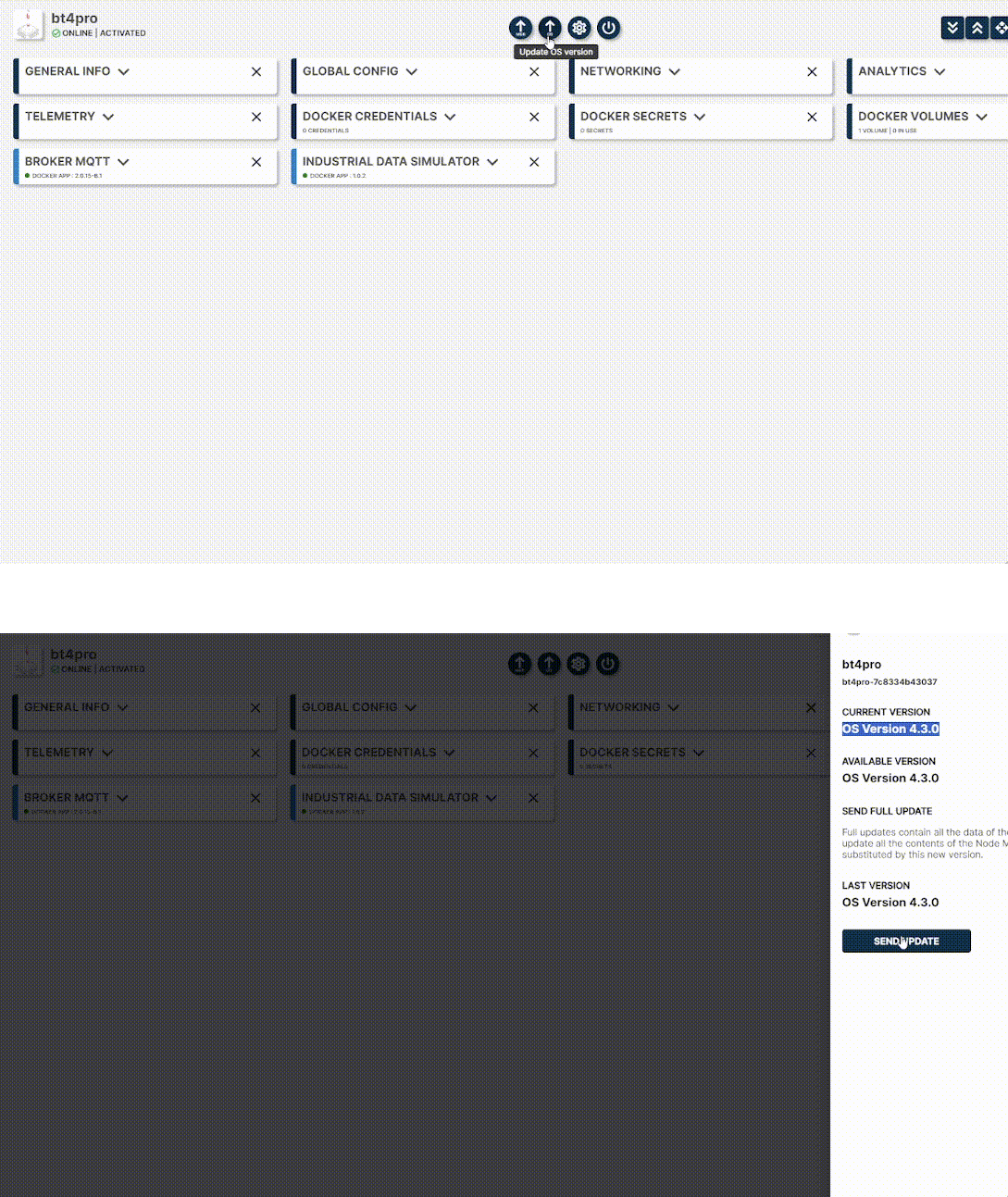
Update OS Version action
Barbara OS UTC
The build identifier of the installed Barbara OS image.
Network info
The list of network interfaces visible to the node, with their IPv4 and IPv6 addresses. Useful to confirm the node is on the expected subnet.
Connectivity status
The node's current network status, reported by NetworkManager. Possible values:
| Status | Meaning |
|---|---|
NmStateUnknown | NetworkManager could not determine the state — usually indicates a daemon error. |
NmStateAsleep | Networking is disabled (system suspending/resuming). |
NmStateDisconnected | No active network connection. |
NmStateDisconnecting | Network connections are being torn down. |
NmStateConnecting | A connection is being established. |
NmStateConnectedLocal | Only local IPv4 / IPv6 reachable — no default route. |
NmStateConnectedSite | Default route present, but the upstream connectivity check failed. |
NmStateConnectedGlobal | Full internet connectivity. Healthy state. |
A node reaching Barbara Panel is in NmStateConnectedGlobal. Any other value points at the root cause of the connectivity issue.
Docker support
true when the node can run Docker workloads.
Network configuration over USB
When the node is offline, the agent also writes two extra files to the barbara folder:
[deviceId]-CurrentNetworkConfig.json— the current network configuration on the node.[deviceId]-NetworkTemplate.json— a blank template you can edit and feed back to the node.
[deviceId]-CurrentNetworkConfig.json example:
[
  {
    "eth0": {
      "dns": "",
      "gateway": "",
      "ip": "",
      "metric": 10,
      "netmask": "",
      "type": "ethernet"
    }
  },
  {
    "wlan0": {
      "dns": "",
      "gateway": "",
      "ip": "",
      "metric": 1,
      "netmask": "",
      "psk": "",
      "ssid": "",
      "type": "wlan"
    }
  }
]
Apply a new configuration
- Open
[deviceId]-NetworkTemplate.jsonin a text editor and fill in the parameters for the interface you want to configure. Leave optional fields blank. - Save the file as one of:
[deviceId]-network.json— applies only to the node with that exactdeviceId(for examplebt4pro-XXXXXXXXXXXX-network.json).network.json— applies to any node that finds the file (used as a fallback when no[deviceId]-network.jsonis present).
- Plug the USB drive into the node and wait about 30 seconds. If the configuration is valid, the node comes online.
If the node is still offline after applying a new configuration via USB, re-read barbaraInfo.txt — the Connectivity status field is your next clue.
Summary
The USB Assistant Tool is your go-to recovery path for an edge node that does not reach Panel: plug a FAT32 USB drive in, read barbaraInfo.txt for the diagnostics, and use the JSON network template to push a working configuration back to the node when needed.