Docker Compose: structure and basic usage
This article refers to Platform v3.1.0. The current Platform version is v3.4.0.
Overview
When you deploy a Docker app to a Barbara edge node, you don't get a terminal on the device to run docker run by hand. Instead, the unit of deployment is a docker-compose.yaml file zipped together with anything else the app needs, uploaded to the App Library. The agent on the node consumes the compose file and runs the containers it describes.
This step walks you through the structure of a docker-compose.yaml, then deploys a simple Filebrowser application both locally and to a Barbara edge node.
Watch this step on YouTube: Understanding Docker Compose — Structure and Basic Usage.
Why Docker Compose?
- Single-file deployments. Define every service, network, and volume in one YAML file.
- Reproducibility. Share the same file across environments and get the same stack.
- Dependencies. Spell out start order and inter-service networking declaratively.
- Scaling. Modify the replica count of a service without rewriting the deployment.
Structure of docker-compose.yaml
A typical compose file has four top-level keys.
version
The Compose schema version.
version: '3.8'
services
The individual containers that make up the application.
services:
  web:
    image: nginx:latest
    ports:
      - "80:80"
networks
The networks services connect to.
networks:
  my_network:
volumes
Persistent storage shared between services.
volumes:
  my_volume:
Practice 1 — run a compose stack locally
Let's set up a Filebrowser service that exposes a web file manager.
1. Write the compose file
version: '3.8'
services:
  filebrowser:
    image: filebrowser/filebrowser:latest
    ports:
      - "8080:80"
    volumes:
      - ./data:/srv
    networks:
      - app_network
networks:
  app_network:
2. Start the stack
docker-compose up -d
3. Verify
docker ps
Open http://localhost:8080 — you should land on the Filebrowser UI.
4. Tear it down
docker-compose down
Practice 2 — deploy the same stack to a Barbara edge node
The Barbara agent expects the compose file zipped inside an application package. Same compose, different distribution channel.
1. Zip the compose file
Compress the folder that holds the docker-compose.yaml.
2. Create the app in the Library
- Open the Library view in Barbara Panel.
- Click New app, name it
filebrowser, type Docker, click CREATE. - Open the new application's row, click ADD VERSION, upload your zip, click CREATE.
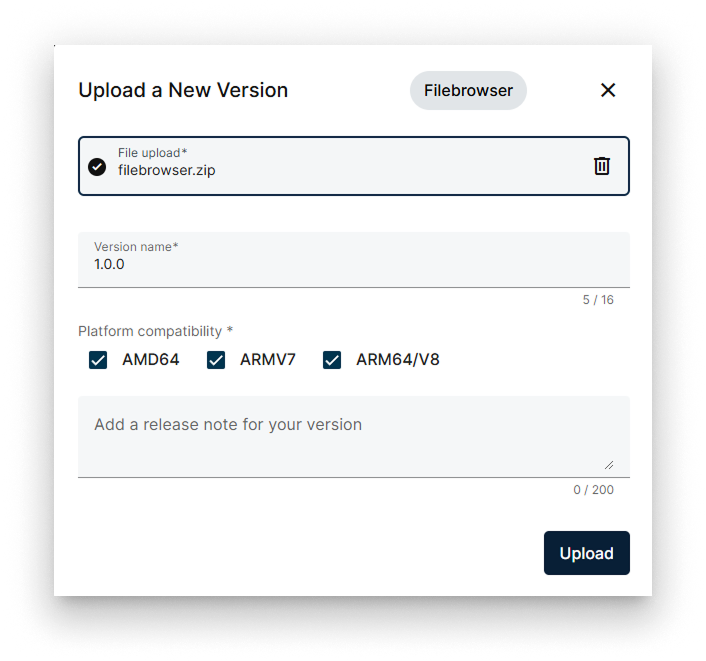
Upload a new version of the app
For the full Library reference, see App Library.
3. Deploy to a node
- Open the Node Details page of your edge node.
- Click Add card → Application.
- Pick filebrowser and follow the deployment wizard.
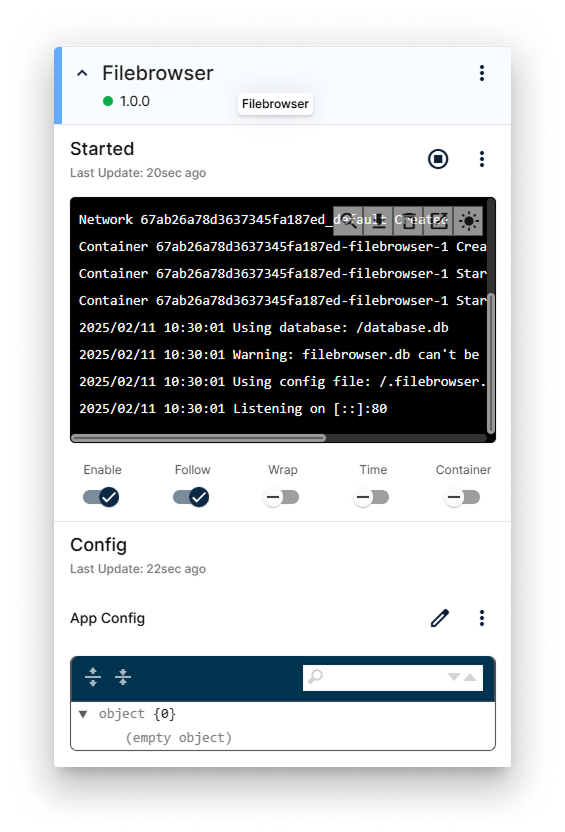
Filebrowser workload card on the Node Details page
4. Access the app
Open http://<NODE_IP>:8080 in a browser. The Filebrowser UI is now served from the edge node.
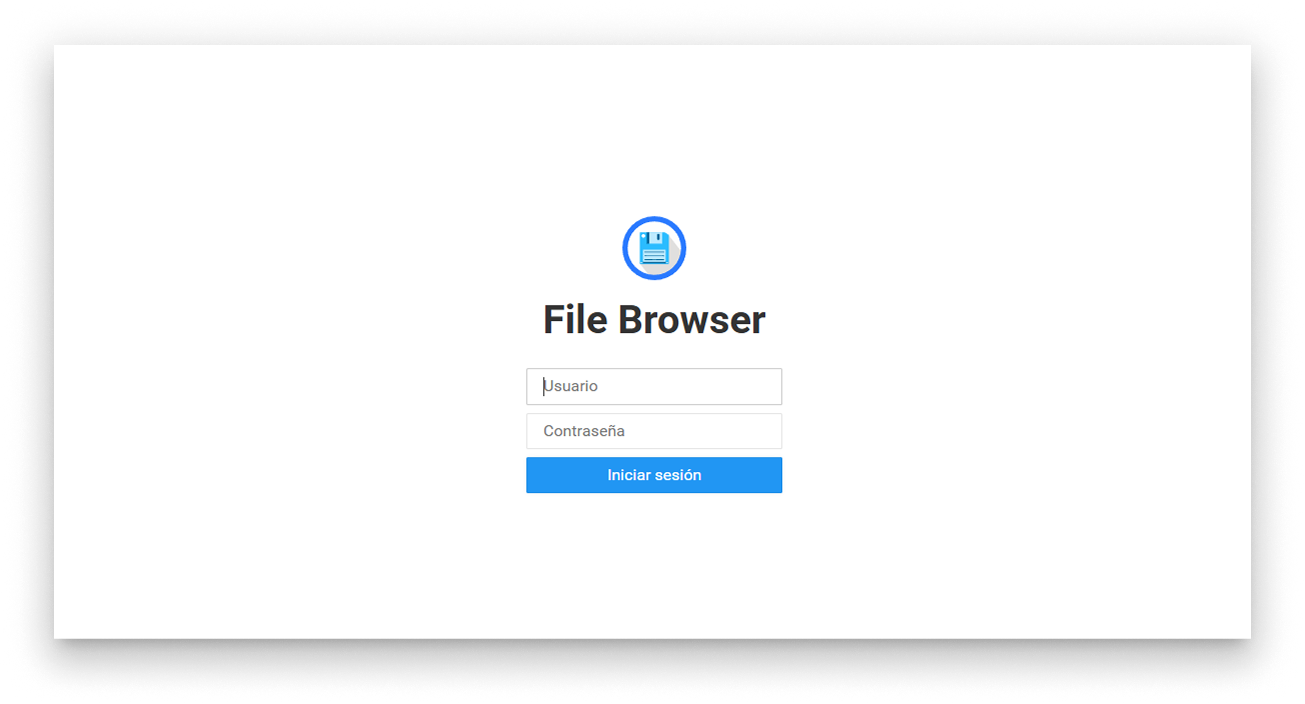
Filebrowser app installed on the node
5. Stop or uninstall
Use the application's workload card on the Node Details page to stop the app or uninstall it.
Summary
docker-compose.yaml is the single source of truth for everything Barbara needs to run your app — services, ports, volumes, networks. Knowing how to write one is the prerequisite for every Barbara-specific concept that follows (bind mounts, volumes, networks, secrets, app config, devices, restart policies).