Package a Docker app for Barbara
This article refers to Platform v2.9.0. The current Platform version is v3.4.0.
Overview
To deploy your own Docker application to a Barbara edge node, you ship it as a zip file containing a docker-compose.yaml at the root, then upload it to the App Library. The Barbara agent on the node consumes the compose file and runs the stack. This article is the focused packaging guide — the rules, the gotchas, and the runtime conventions you must respect.
For the full step-by-step Docker tutorial (Dockerfile basics, Compose, networking, secrets), follow the App development tutorial instead.
Free up the node before deploying
Edge nodes are usually resource-constrained. Before pushing your own apps, consider removing example apps you no longer need: open each app's workload card on the Node Details page and click the X next to the app name. Removing an app from one node does not affect other nodes.
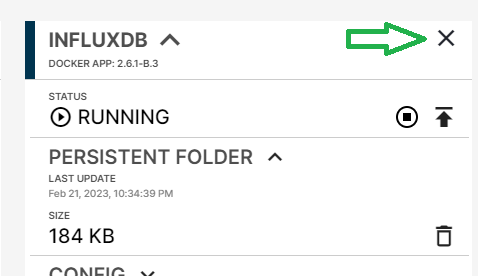
Remove an app from a node
Package layout
A Barbara Docker app is a zip whose root contains:
docker-compose.yaml** — the compose file Barbara executes../persist/(recommended) — files the workload should keep across restarts.
Anything else in the zip is allowed but is replaced or deleted on every update, so do not store data there.
Packaging rules
-
The compose file must be named
docker-compose.yamlordocker-compose.yml. Other names are rejected. -
Every persistent file must live under
./persist/. -
Native Docker volumes are supported (declared under the top-level
volumes:key of the compose file). -
Bind mounts are accepted only when the host-side path starts with
./persist/,./appconfig, or./sys/. -
Privileged containers are forbidden.
-
Admin-related capabilities are forbidden.
-
Device access must be declared explicitly via the
devices:block of the service:devices:
- HOST_PATH:CONTAINER_PATH[:CGROUP_PERMISSIONS]For example:
devices:
  - "/dev/ttyUSB0:/dev/ttyUSB0"
- "/dev/sda:/dev/xvda:rwm" -
The
alwaysrestart policy is forbidden on Barbara nodes — see Restart policies.
There are a couple of additional compose-parser quirks (around quoting, the name: property, tty:, and env_file:) that are covered in Docker Compose limitations.
Upload and deploy
- Open the App Library in Barbara Panel.
- Click New app and pick Docker as the application type.
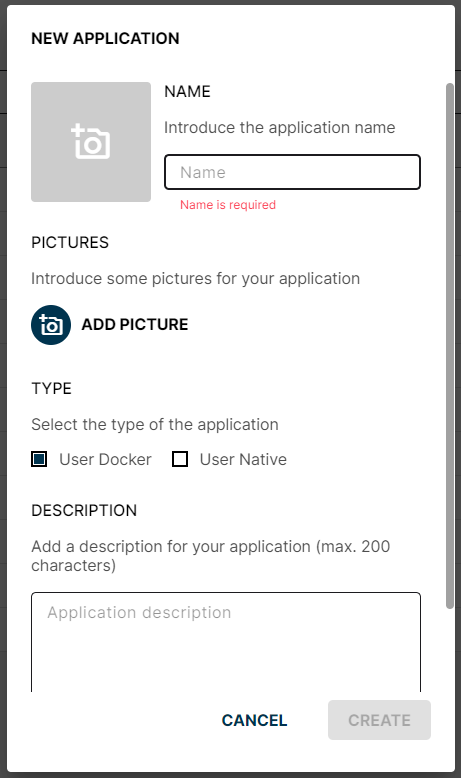
New Application popup
- Click the application's name, then ADD VERSION, and upload the zip.
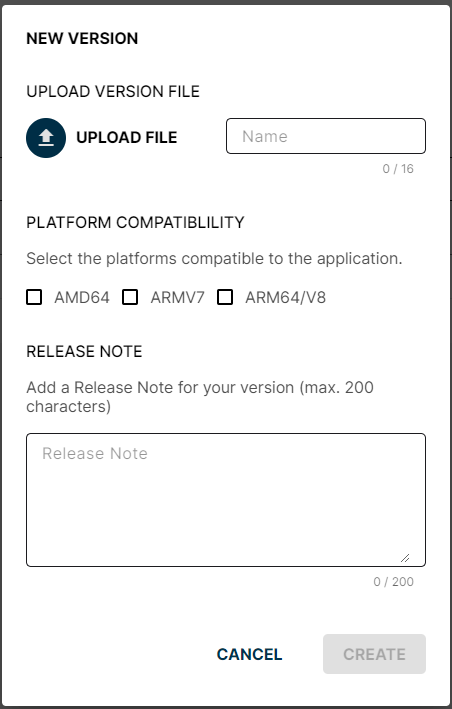
New Version popup
- On the Node Details page of the target node, click Add card → Application, pick your app and version, and confirm the wizard with Send App.
- Enable Logs on the workload card to follow the startup output.
If the app fails to start, check the logs first — the Barbara agent's rejection messages are explicit when a packaging rule (forbidden bind-mount path, privileged container, etc.) is violated.
Runtime configuration
Barbara surfaces four configuration channels inside every container. Use the right one for the right job — see Application configuration types for the full reference.
- Repository Credentials — used by the agent to pull private images. Defined on the Docker Credentials card; not exposed inside the running container.
- Secrets — encrypted key-value pairs, injected as environment variables. Define them on the Secrets card and read them with
os.getenv("MY_SECRET")(or the equivalent in your language). - Global Config — a JSON file shared by every workload on the node, available at
/appconfig/global.json. - App Config — a JSON file scoped to one workload, available at
/appconfig/appconfig.json.
Wire the runtime files in your compose
For the JSON config files to land in the container, mount the appconfig directory:
services:
  my_app:
    image: my-image:latest
    volumes:
      - "./appconfig/:/appconfig/"
      - "./persist/:/persist/"
    env_file:
      - .barbara_env
The agent injects the latest content into both JSON files on the fly — changes pushed from Panel are visible inside the running container without a restart, as long as the app re-reads the file.
Read App Config from Python
For example, with this JSON pushed in App Config:
{
  "data": "exampleData",
  "data_object": {
    "data_in": "exampleDataIn"
  }
}
The container can read it like any other JSON file:
import json


def read_app_config():
    with open("/appconfig/appconfig.json") as f:
        cfg = json.load(f)
    print(cfg["data"])
    print(cfg["data_object"]["data_in"])


if __name__ == "__main__":
    read_app_config()
Output:
exampleData
exampleDataIn
Read a Secret as an environment variable
Secrets defined on the Secrets card are injected as env vars with the same name. Inside the container:
import os

password = os.getenv("DB_PASSWORD")
No compose-side declaration is needed.
Summary
A Barbara Docker app is a zip + docker-compose.yaml + a small set of platform-specific rules: bind-mount whitelist, no privileged containers, explicit device access, no always restart, and four runtime channels for configuration. Get those right and the rest is plain Docker.