Step 7: Deploy Grafana
Overview
Grafana is an open-source data-visualization platform that takes the data collected by your edge nodes in InfluxDB and translates it into beautiful and informative dashboards.
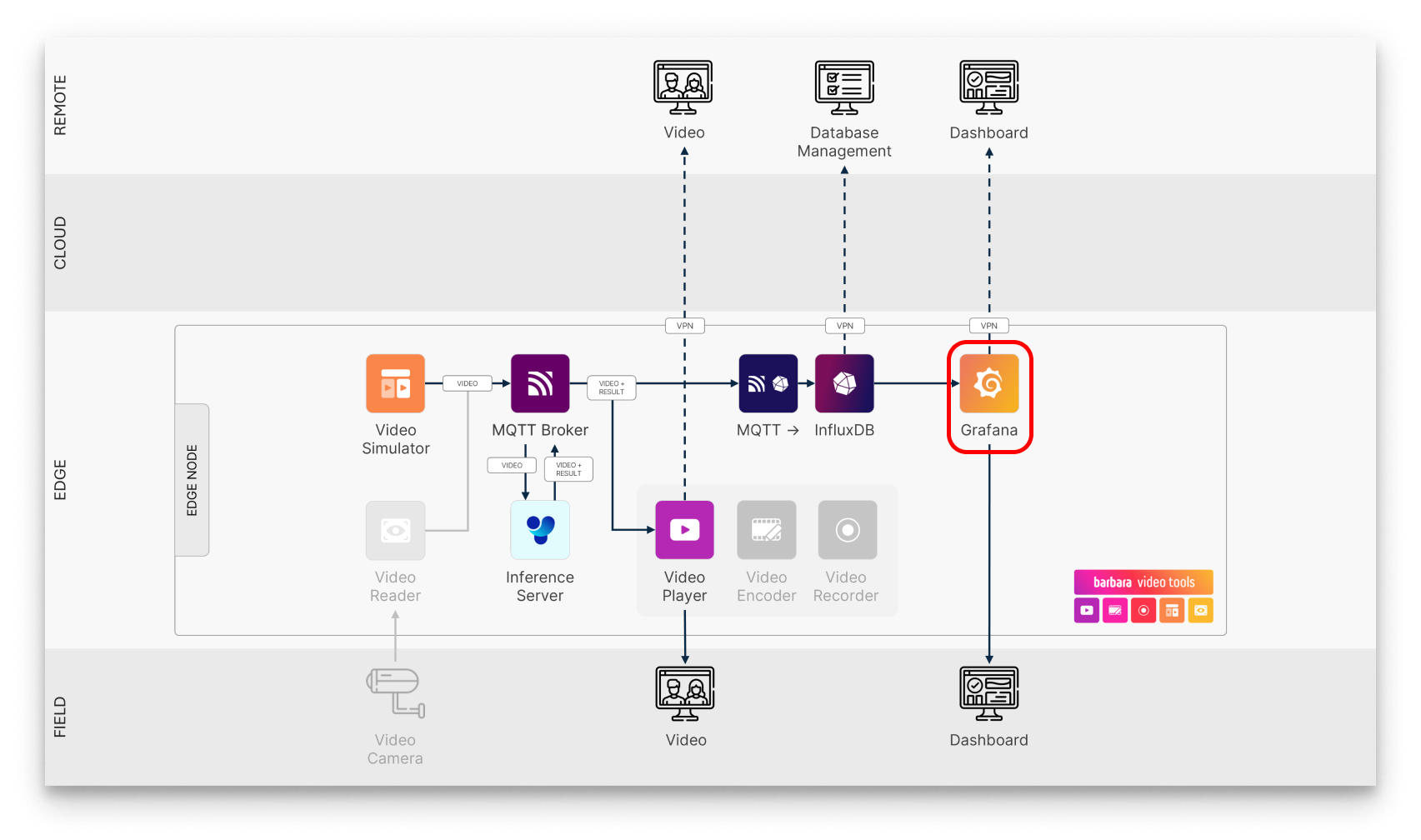
Grafana in the solution workflow
In this article you'll learn how to set up Grafana on your edge node and how to apply a stunning visualization of the telemetry data generated by Ultralytics YOLOv8.
Add the Grafana app to your library
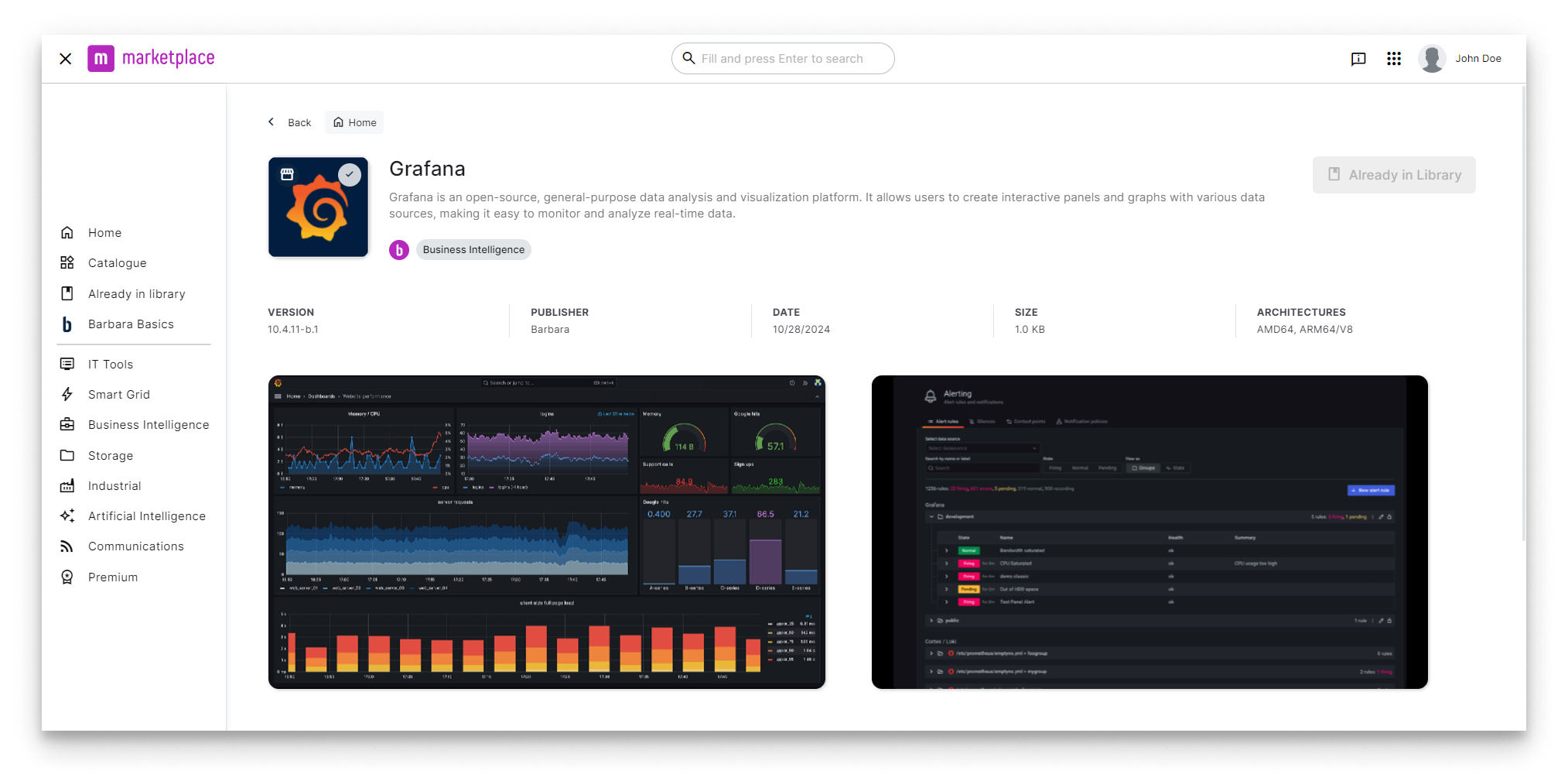
Grafana in Barbara Marketplace
Go to Barbara Marketplace, search for Grafana and add it to your Panel's library.
You will find the Grafana app in this link of the Barbara Marketplace.
Once added you will find it in your Barbara Panel App Library. Let's deploy it to your Edge Node.
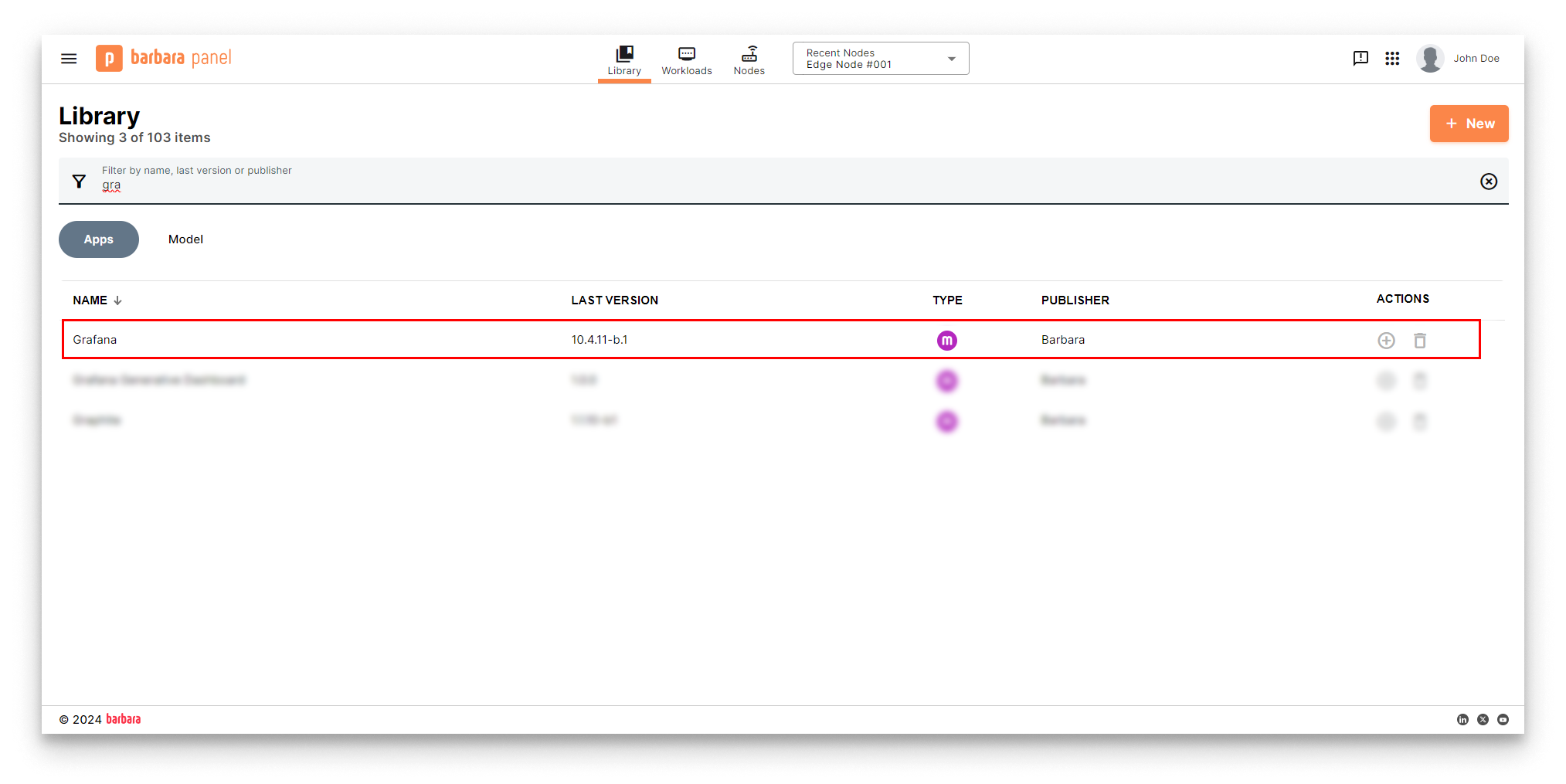
Grafana in the Panel's library
Install the Grafana App
- Head to your Node's details view and click the
+ Add Cardbutton.
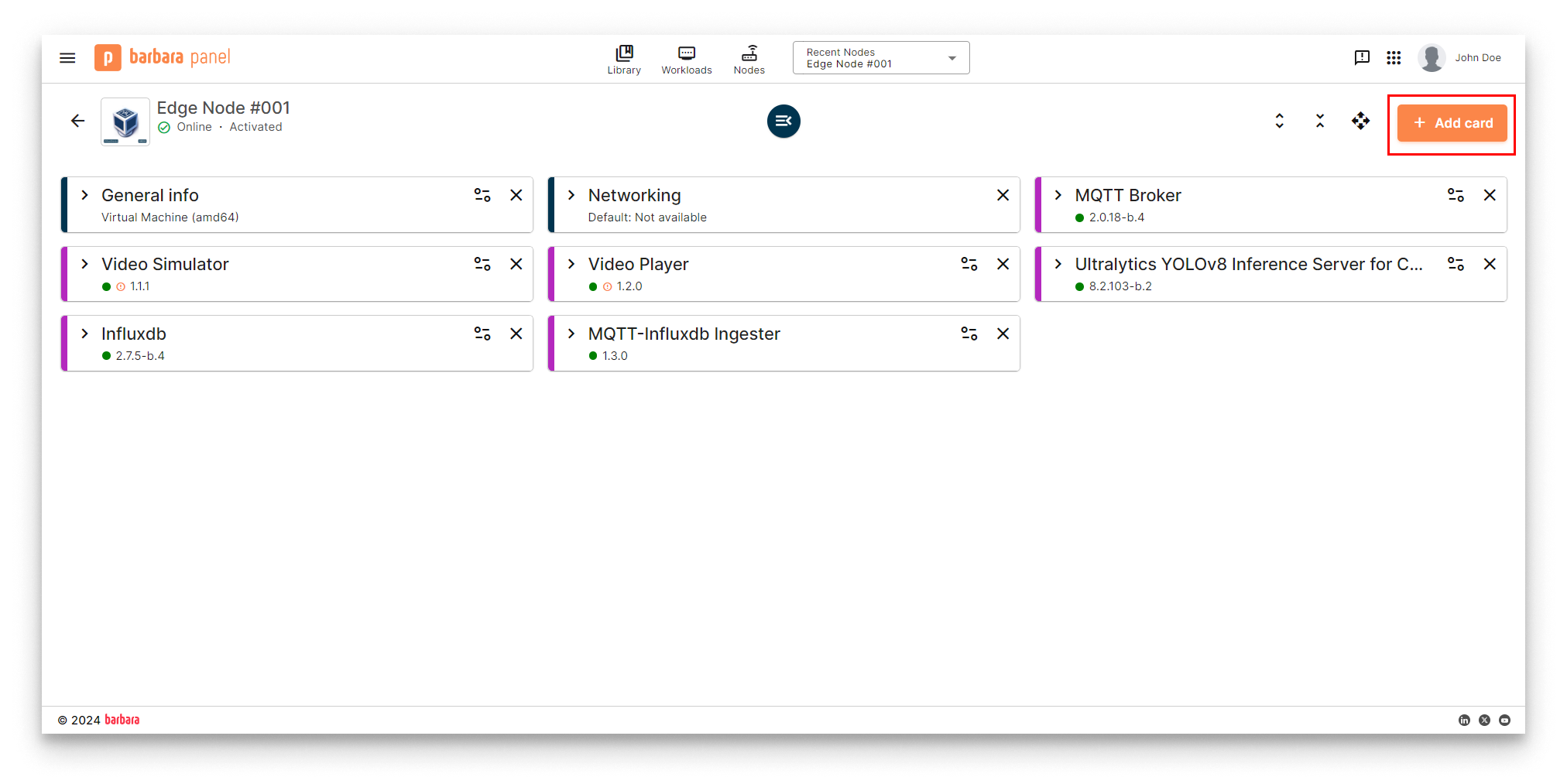
Add New Card
- Select the
Applicationoption in the dropdown menu.
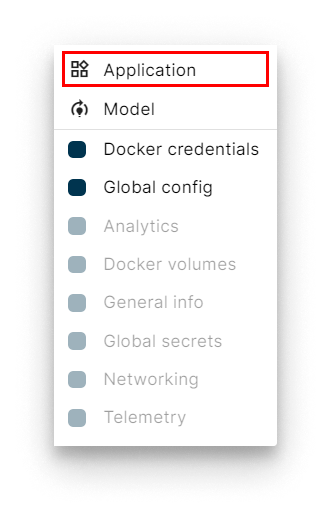
Select Application
- Select Application and Version: Select the
Grafanaapp from the application dropdown list and pick the latest existing version from the version dropdown list. Then clickNextto proceed with the next step.
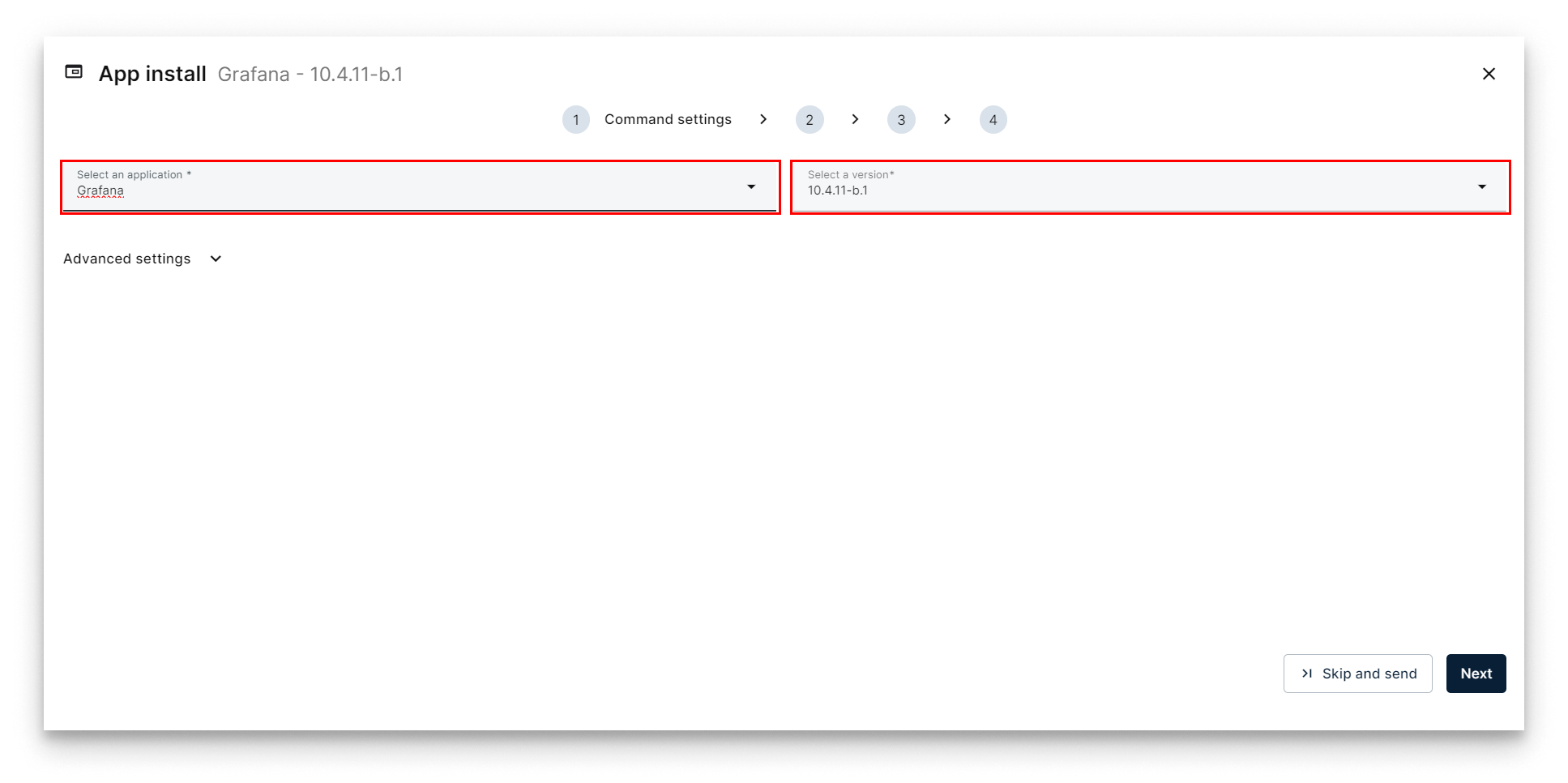
Select Grafana
- Add App Secrets Review the default configuration for app secrets and leave it as-is. Technical notes explain each variable on the
Read melink below the form. Once finish, just clickNext.
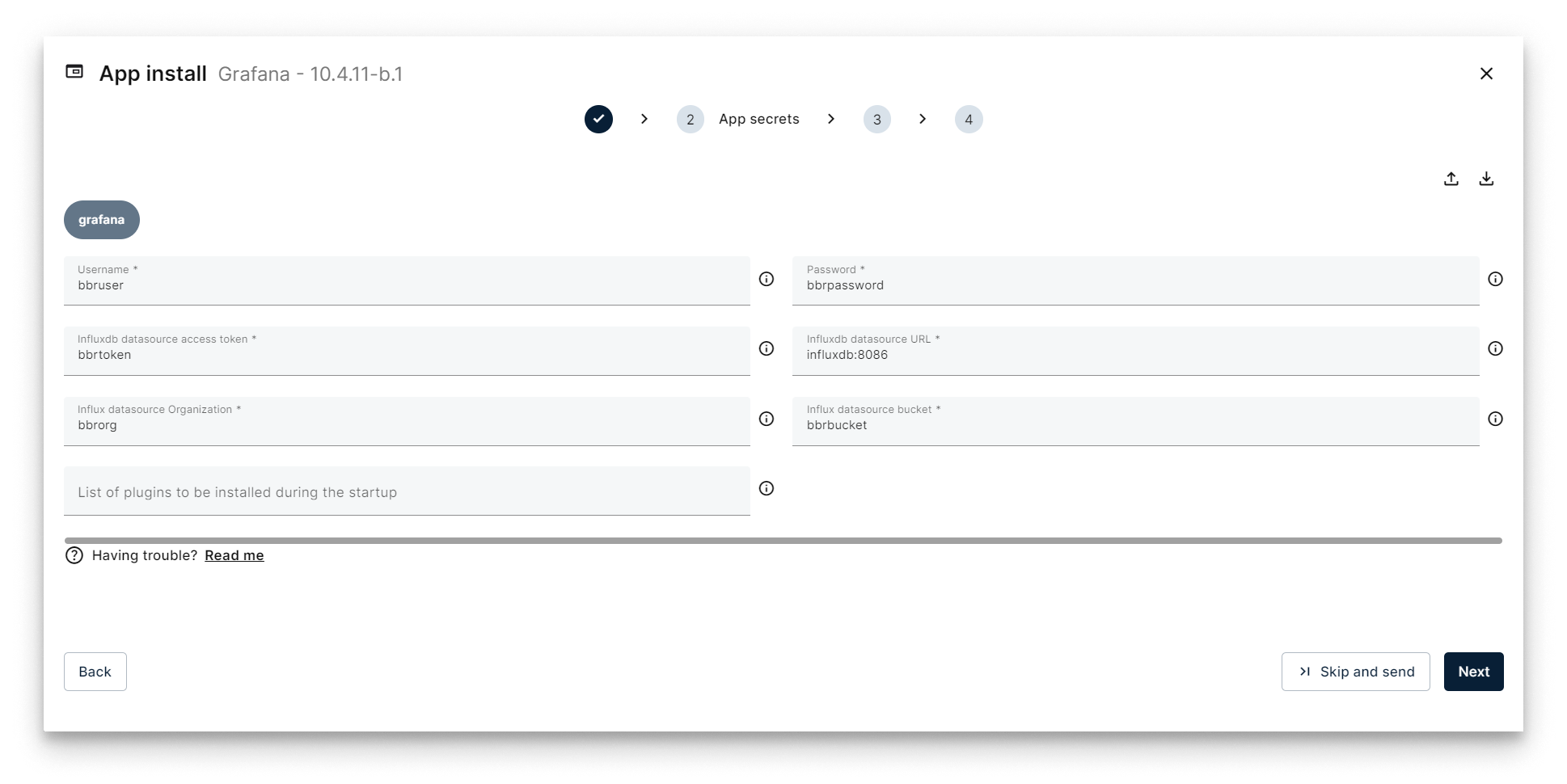
Add App Secrets
- Add your App Config: To streamline your Grafana setup, you can export a pre-designed dashboard as a JSON file. This JSON file can then be integrated into the Grafana application configuration, ensuring that the desired dashboard is automatically loaded and displayed upon startup.
Download the following appconfig that contains a predefined dashboard for this tutorial:
You can download here the JSON file for the predefined Grafaa dashboard.
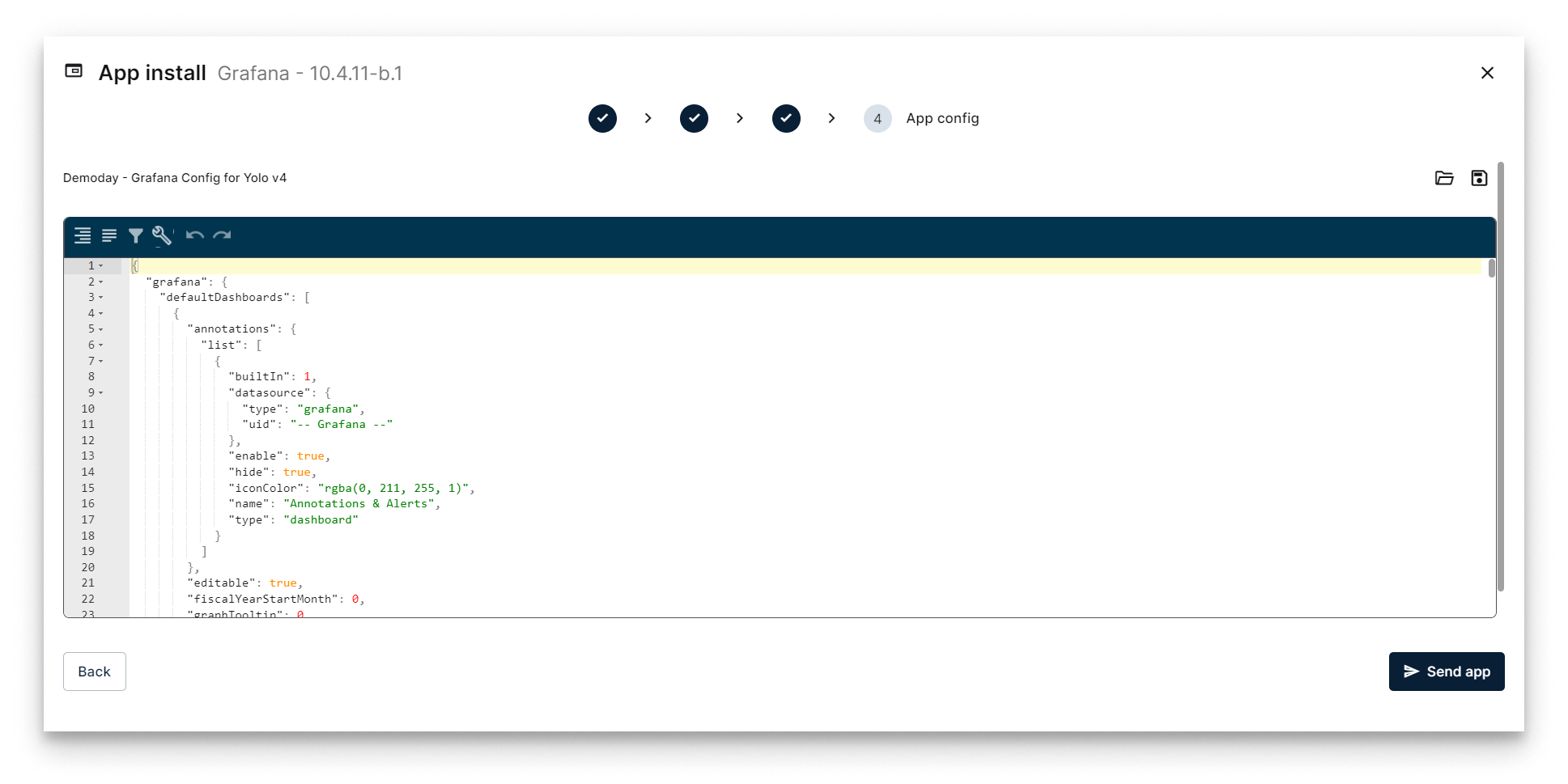
Configure Application
Verifying the Grafana application
Head back to your Node's details view. Within a few seconds, a new card should appear displaying the installed Ingester app. Look for the status label on the card - if it reads STARTED then your InfluxDB is up and running!
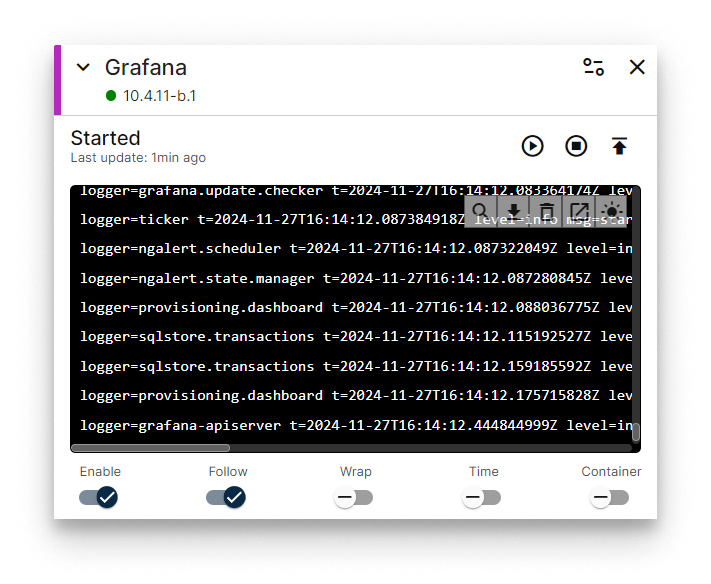
MQTT-InfluxDB Ingester installed
Now, you should see new data in the InfluxDB database. To confirm that poing, open a new tab in your browser and navigate to the following URL to access the InfluxDB database: [IP_OF_YOUR_NODE]:13000.
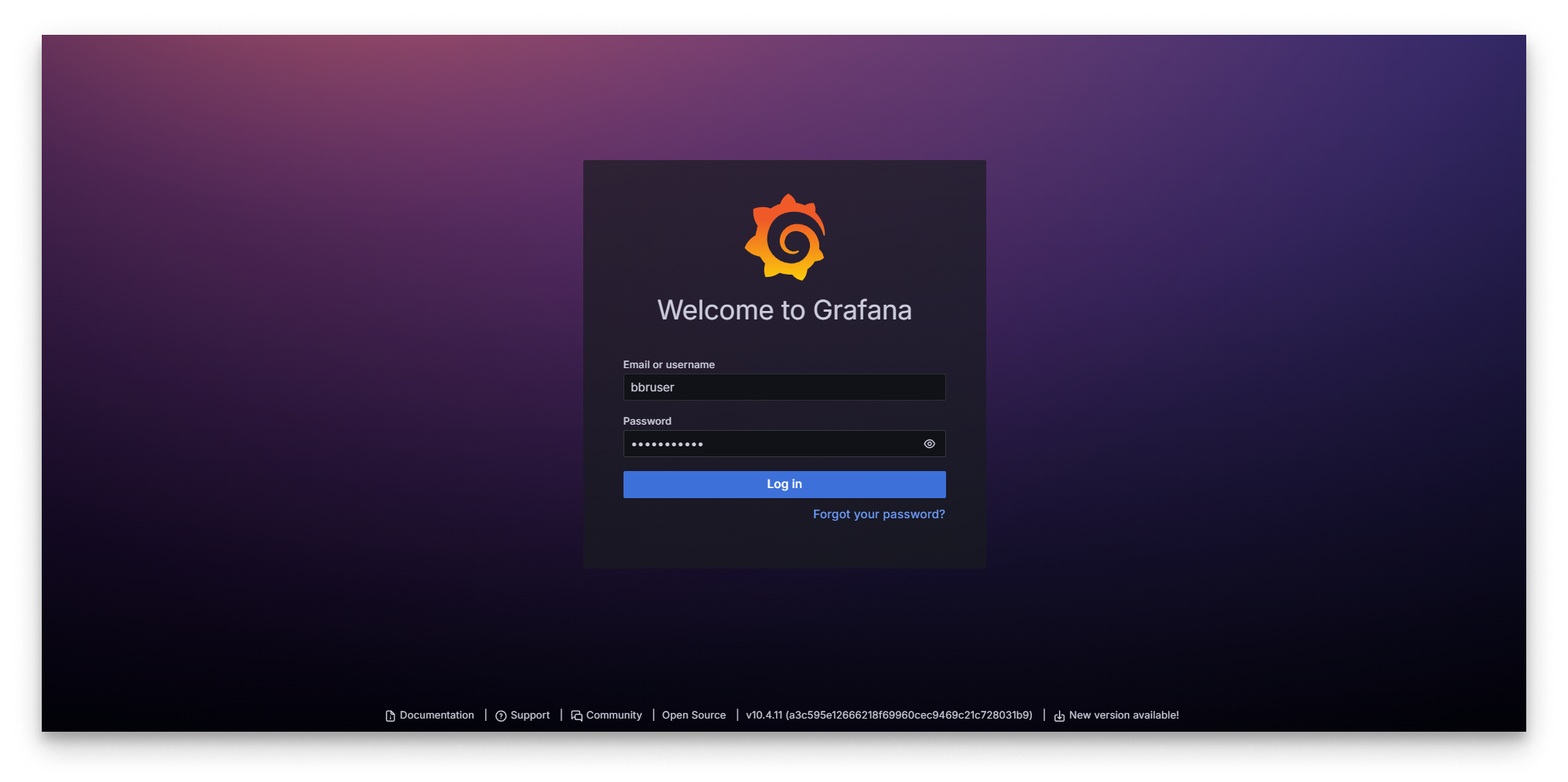
Grafana Login
Check that the port and the user/password are set in the Grafana's configuration:
| Parameter | Default Value | Configuration |
|---|---|---|
| port | 13000 | Compose config |
| user | bbruser | App Secrets |
| password | bbrpassword | App Secrets |
Remember that if your laptop is not connected to the same LAN as your edge node, you must activate your VPN and use its VPN's IP to access this web interface. You can check this IP on the Network card.
After logging into the Grafana application with the specified username and password, you will reach the predefined dahsboard loaded using the appconfig that shows the telemetry of the Ultralytics YOLOv8 application.
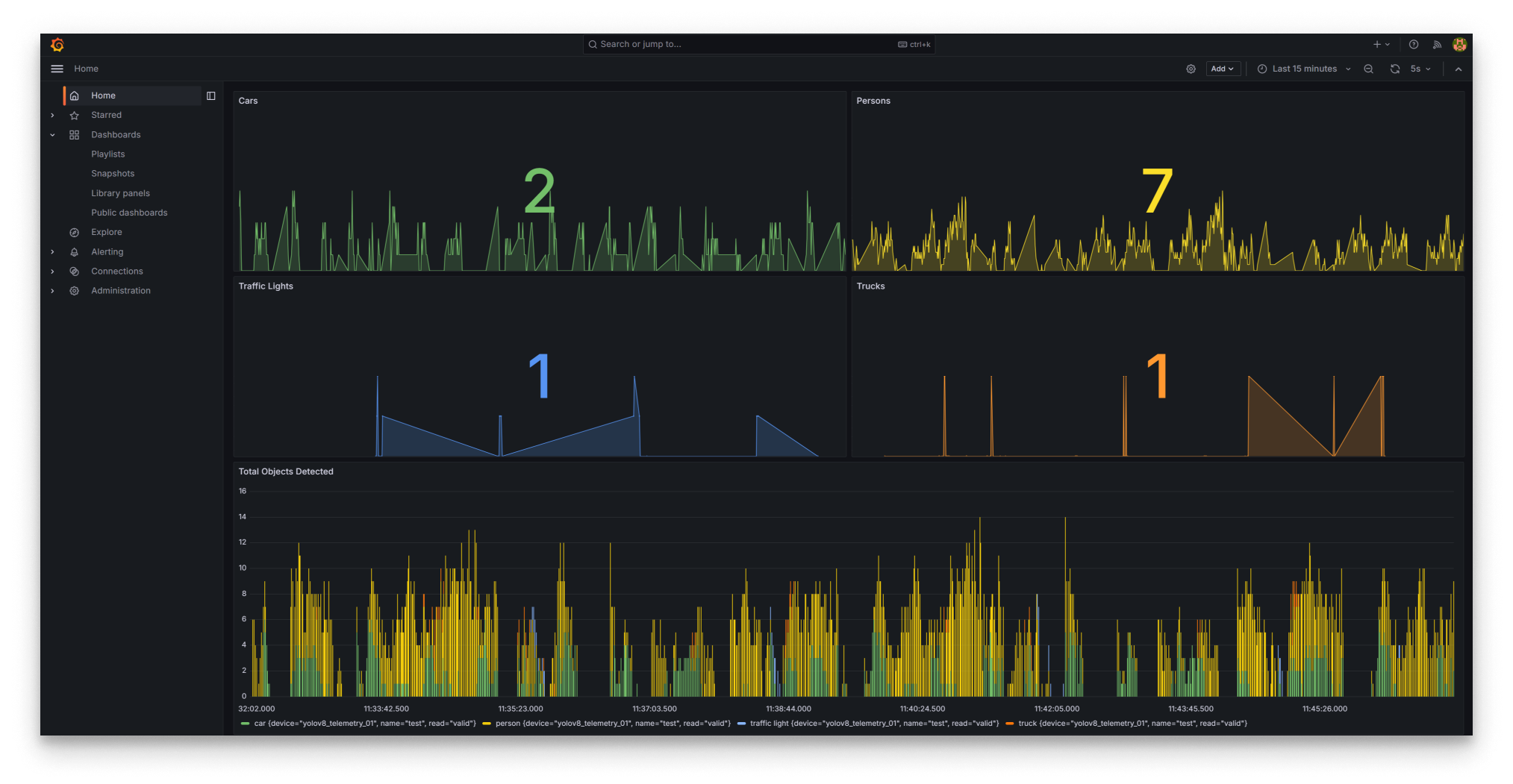
Grafana Dashboard
This concludes our tutorial on deploying a YOLO-based object detector. We've covered video stream capture, inference, data storage, and visualization on a Grafana dashboard.