Step 1: Deploy the MQTT Broker
Overview
An MQTT Broker is the central hub in an MQTT-based communication system. It acts like a post office, receiving messages published by devices (publishers) and securely delivering them to interested devices (subscribers) based on designated topics, ensuring efficient data exchange within your Edge Computing network.
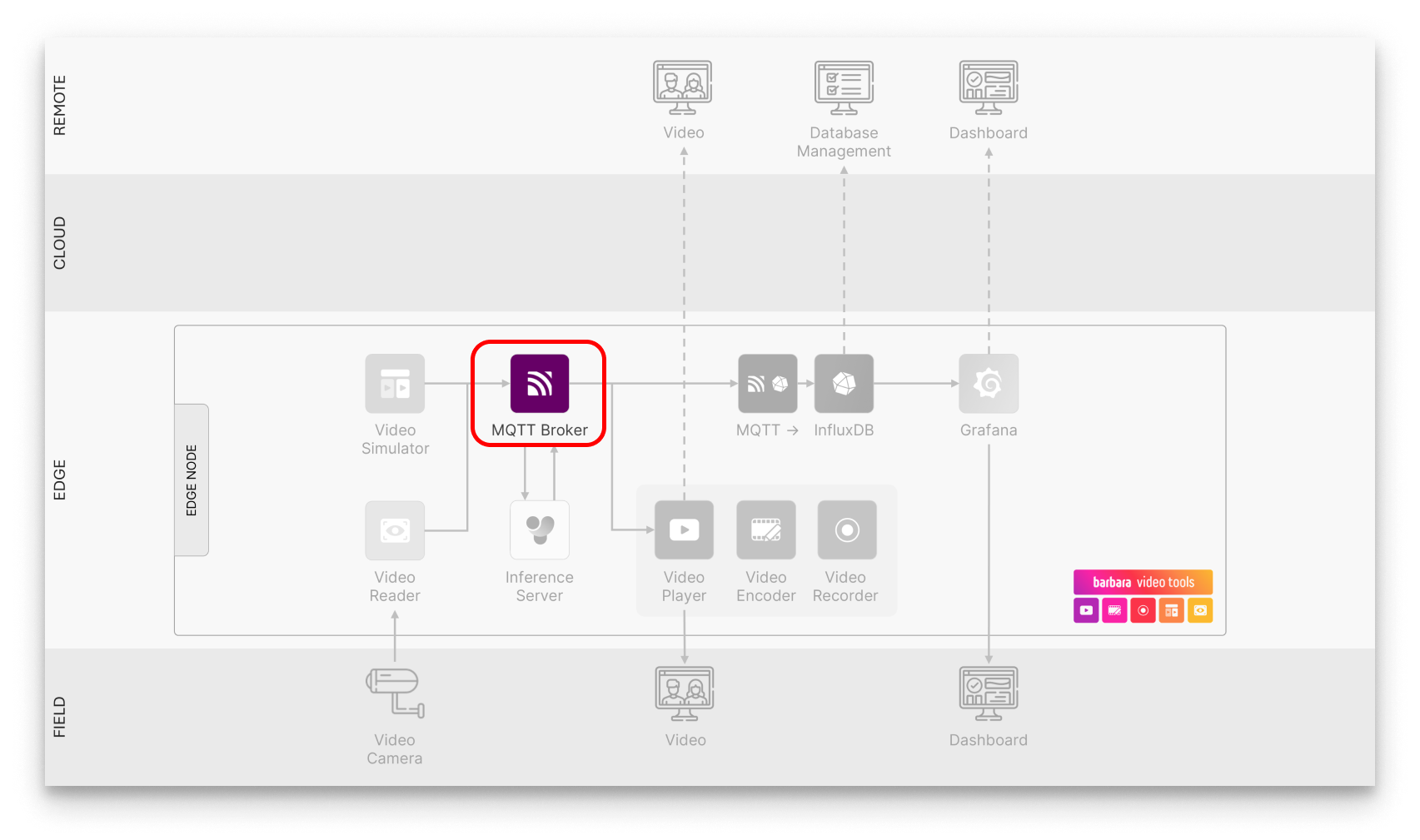
MQTT Broker in Solution Workflow
Nodes can talk with MQTT!! It's a messaging protocol, perfect for IoT/Edge nodes. Those nodes publish data to topics and subscribe to hear updates.
Do you want to know more about MQTT? Just check the official specification.
Add the MQTT Broker App to your library
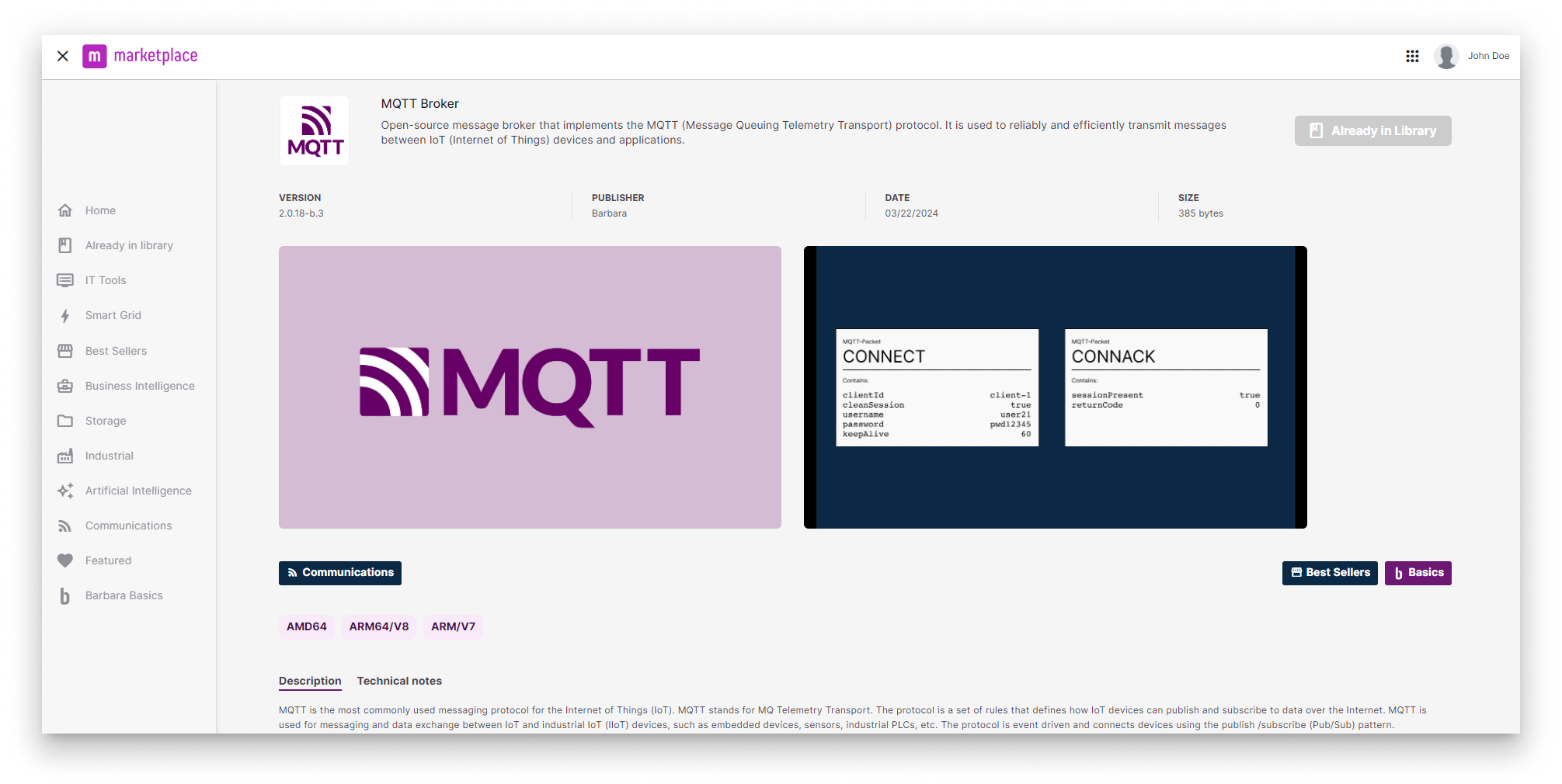
MQTT in Barbara Marketplace
Go to Barbara Marketplace, search for MQTT Broker and add it to your Panel's library.
You will find the MQTT Broker in this link of the Barbara Marketplace here.
If you have been given a demo or trial account, this app may be already added to your Library.
Once added you will find it in your Barbara Panel App Library. Let's deploy it to your Edge Node.
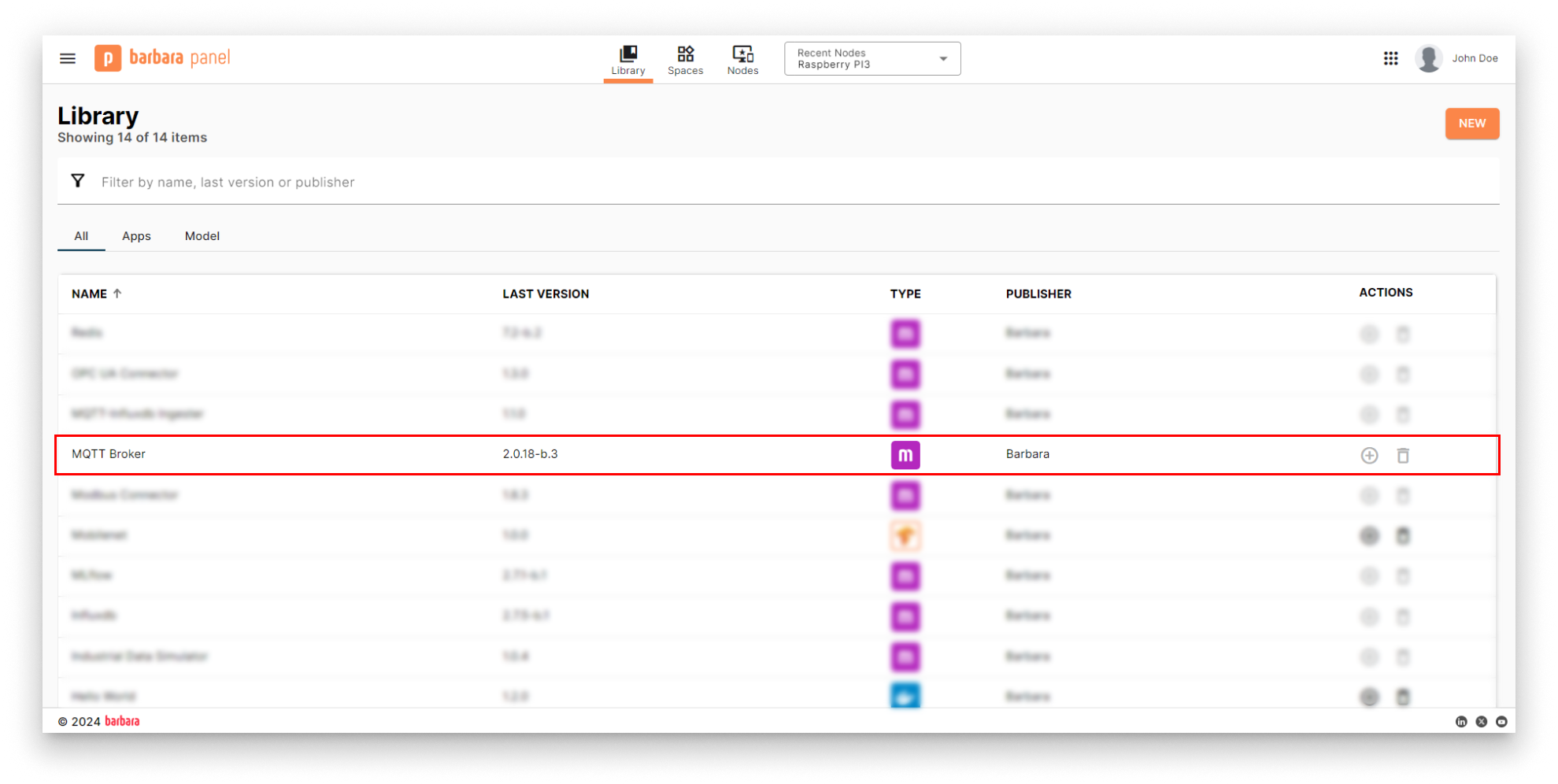
MQTT in Panel's library
Install the MQTT Broker App
- Head to your Node's details view and click the
+ Add Cardbutton.
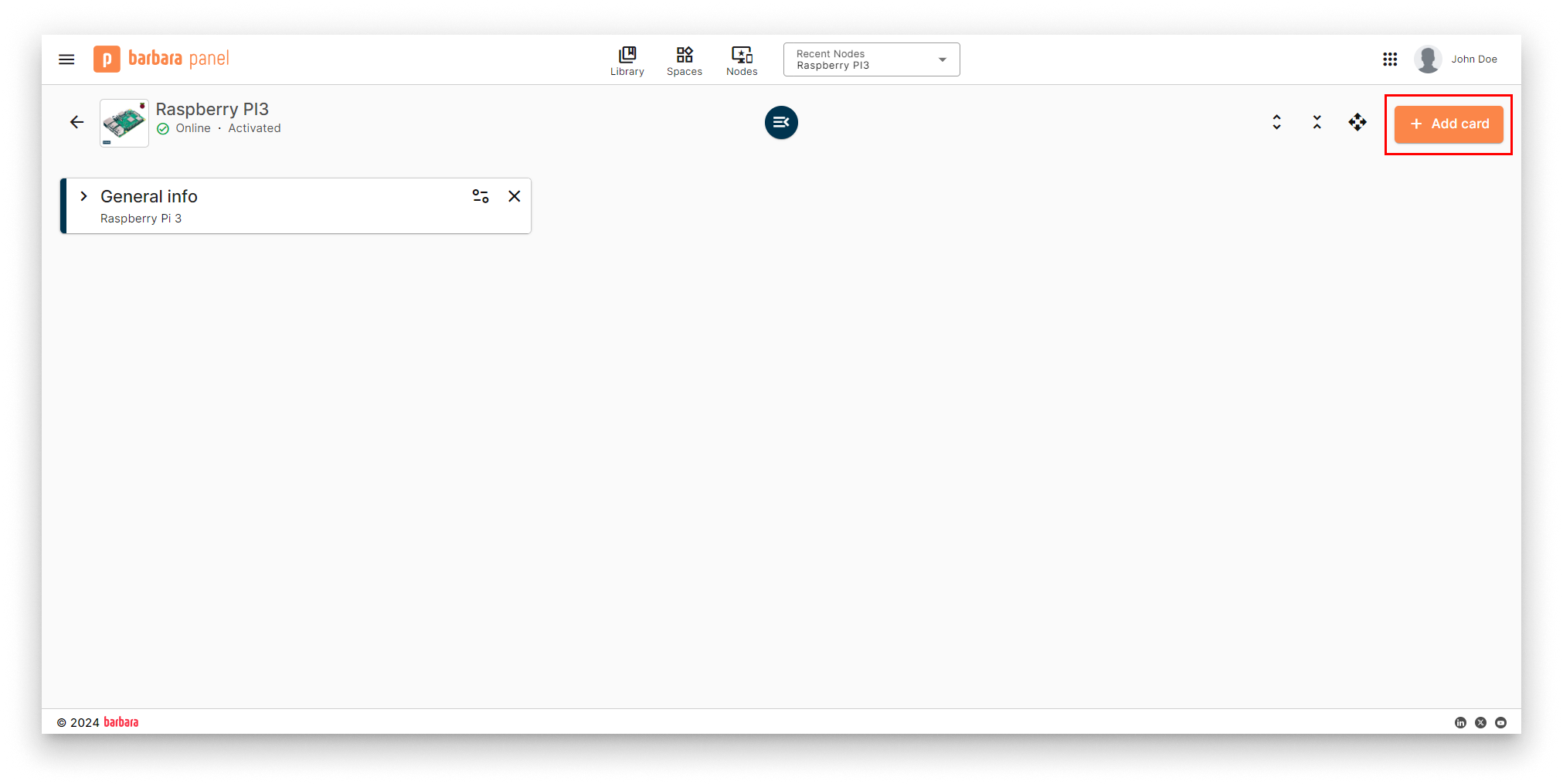
Add New Card
- Select the
Marketplace appoption in the dropdown menu.
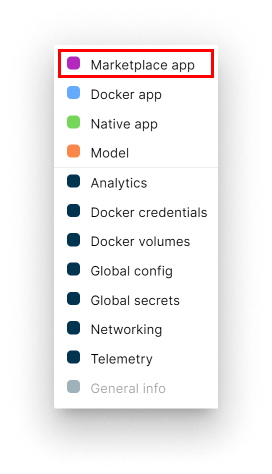
Select Marketplace Option
- Select Application and Version: Select the
MQTT Brokerapp from the application dropdown list and pick the latest existing version from the version dropdown list. Then clickADD VARIABLESto proceed with the next step.
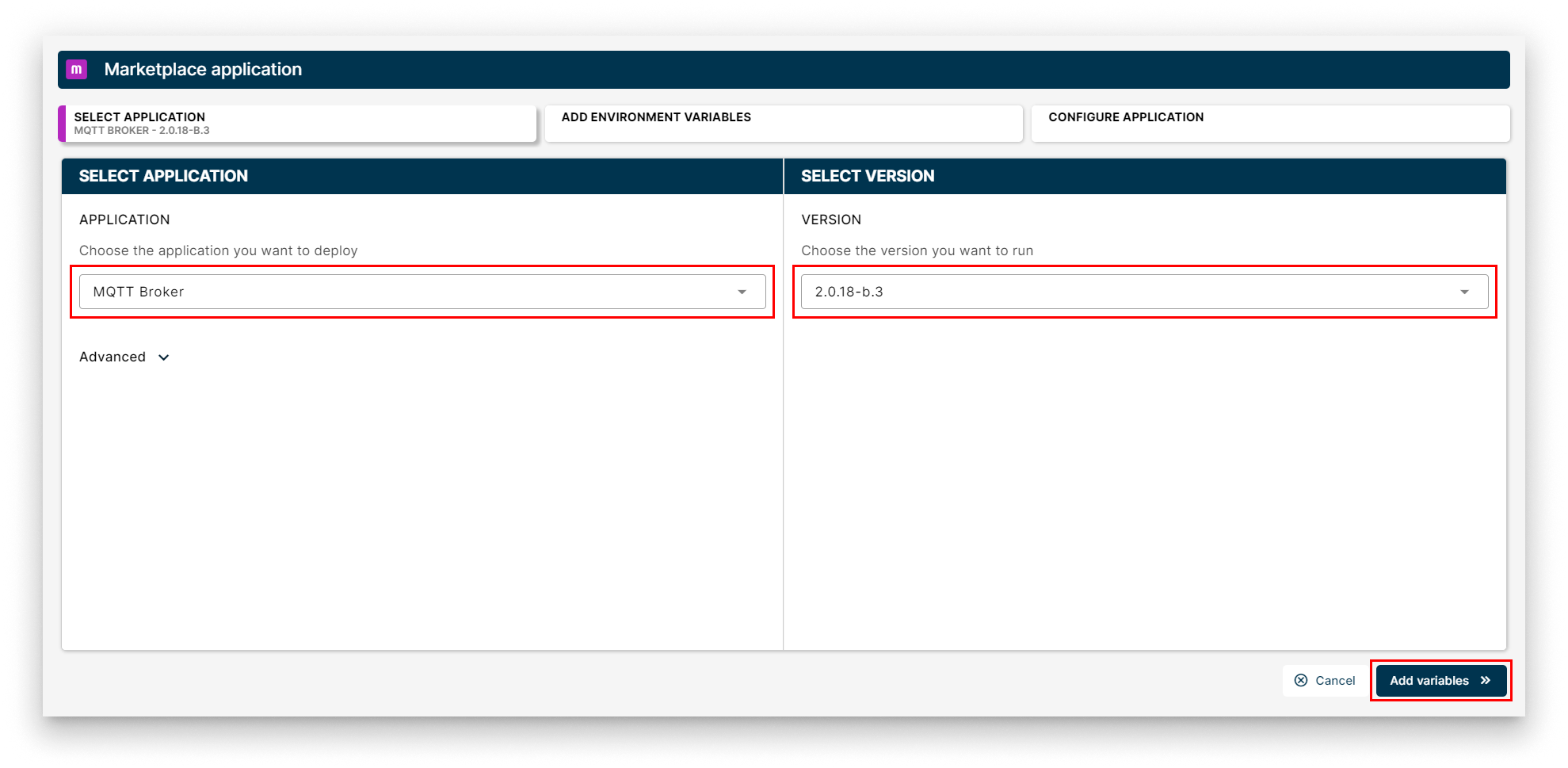
Select MQTT Broker
- Add Environment Variables Review the default configuration for env variables or leave it as-is. Technical notes explain each variable on the right side of the view. Once finish, just click
CONFIGURE.
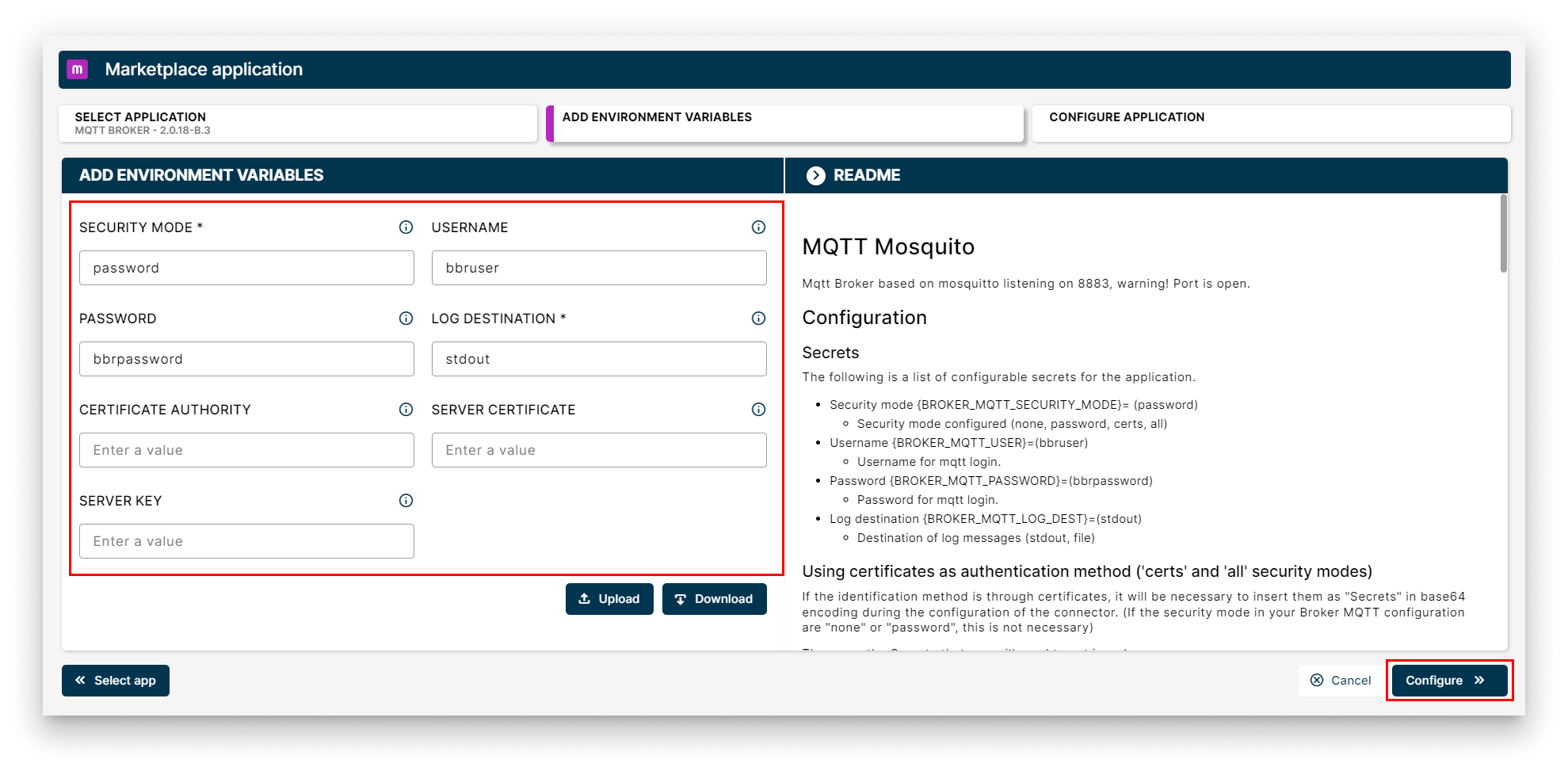
Add Env Variables
- Add your app Config: This step allows you to make some additional configuration through a JSON-format text. However, MQTT Broker does not need any extra configurations to work. Just click "
SEND" to finally deploy it to your node.
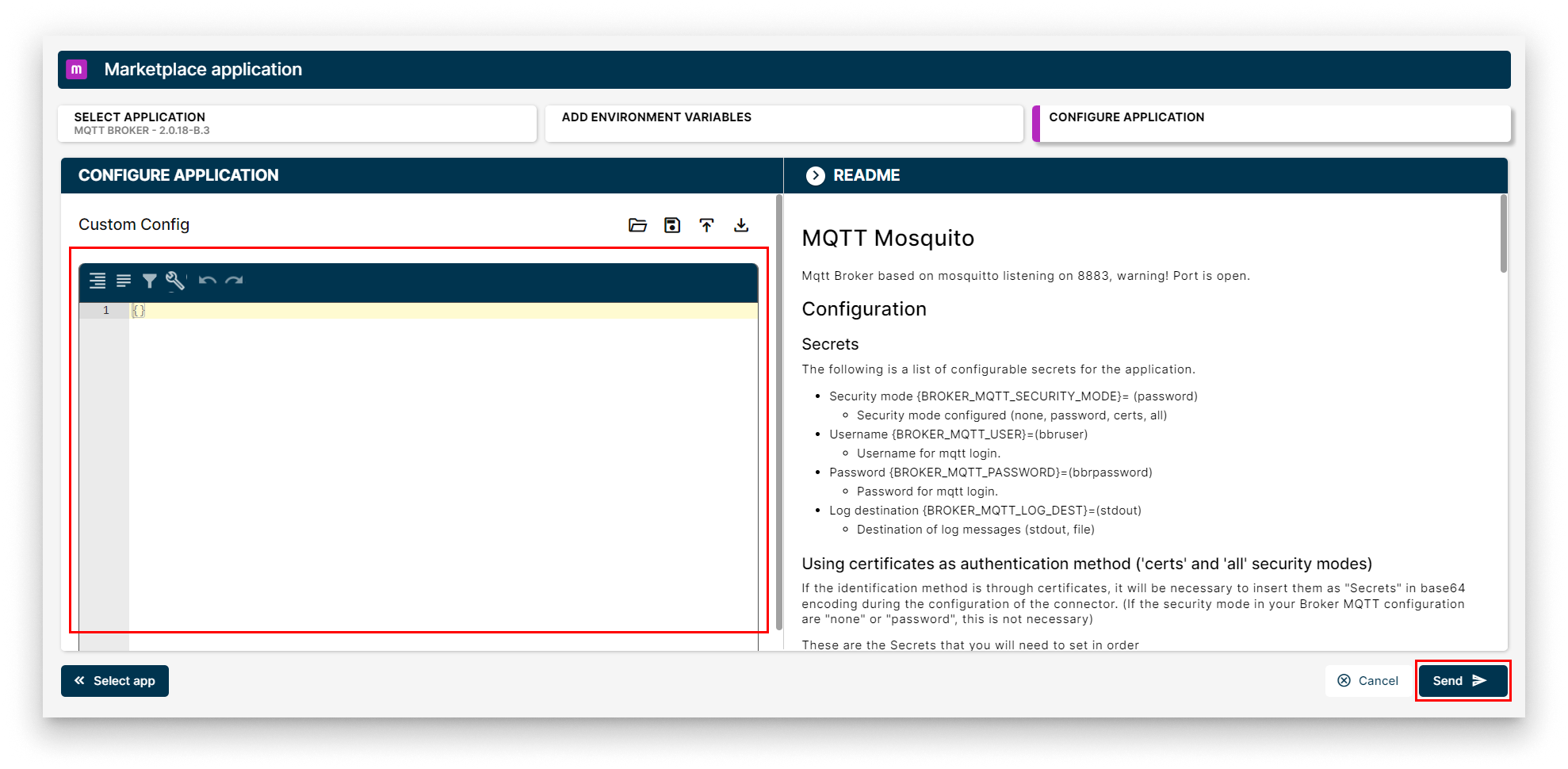
Configure Application
Verifying the MQTT Broker
Head back to your Node's details view. Within a few seconds, a new card should appear displaying the installed MQTT Broker app. Look for the status label on the card - if it reads STARTED then your MQTT Broker is up and running!
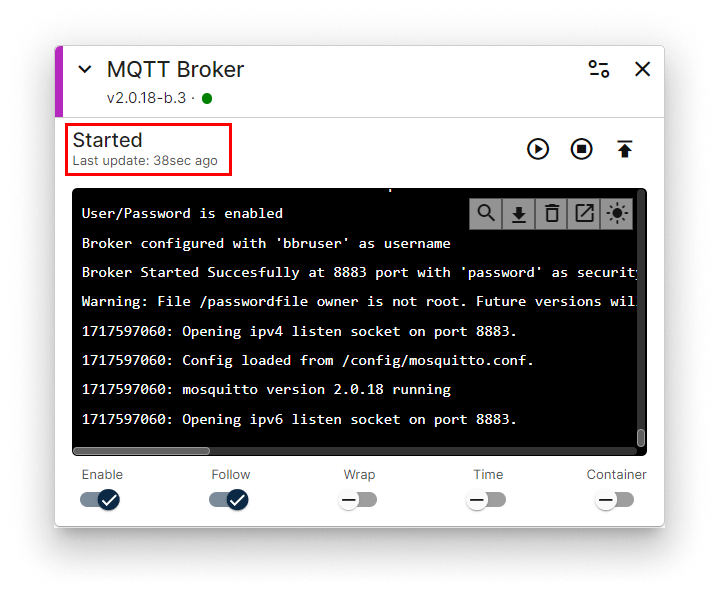
MQTT Broker installed
Congratulations! Your MQTT Broker is ready to connect your apps!