Step 5: Deploy InfluxDB
Overview
In this step, we'll delve into the deployment of the InfluxDB database app on your edge node. InfluxDB is a powerful time-series database, ideal for storing and analyzing the telemetry data we've been collecting. This crucial component will serve as the foundation for our data storage and retrieval infrastructure.
Visit the official site of InfluxDB.
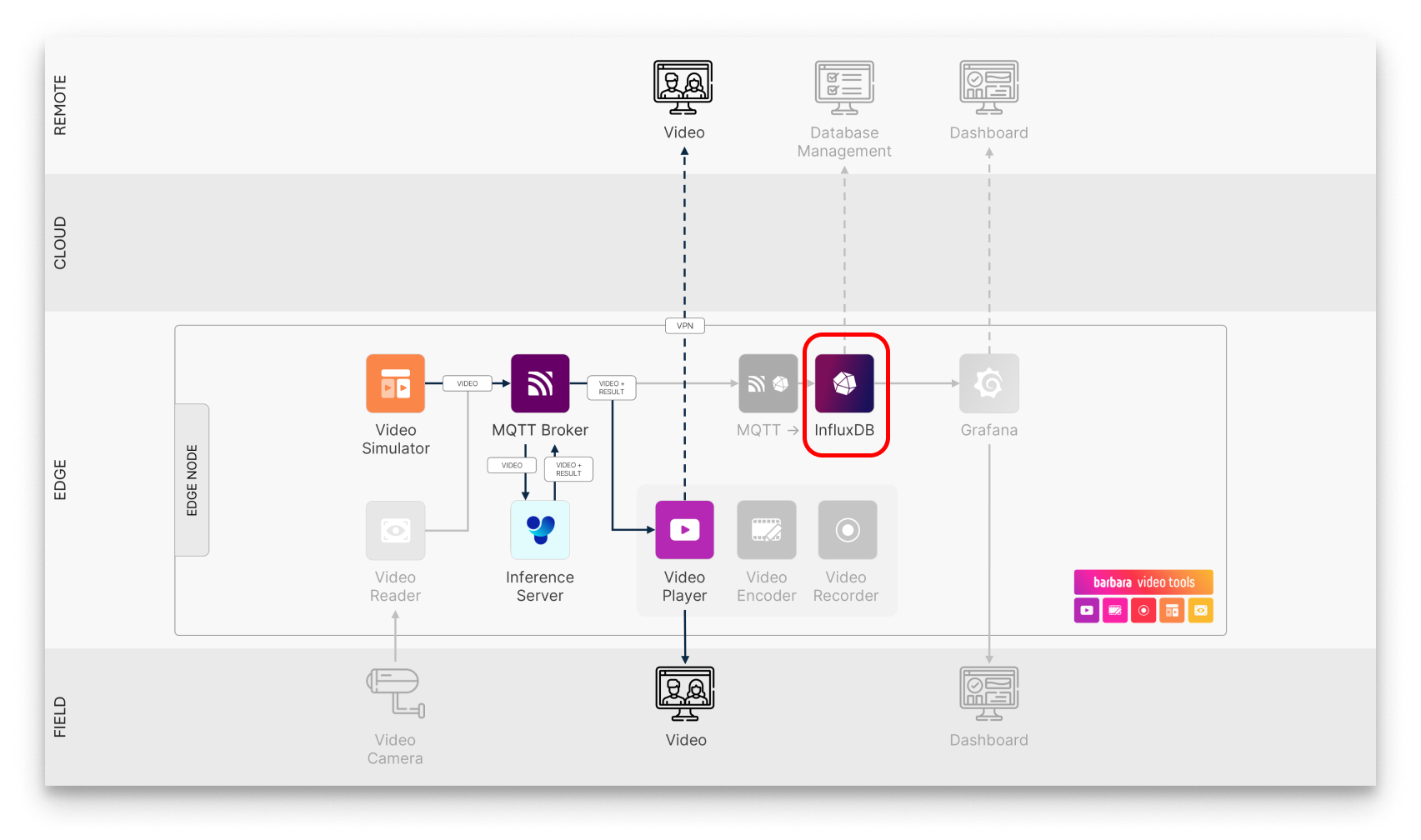
InfluxDB in the solution workflow
To store the telemetry stream generated by the Ultralytics YOLOv8 application, we'll deploy an InfluxDB database. In the subsequent tutorial, we'll introduce an MQTT-InfluxDB Ingester to efficiently ingest this data into the database.
Add the InfluxDB App to your library
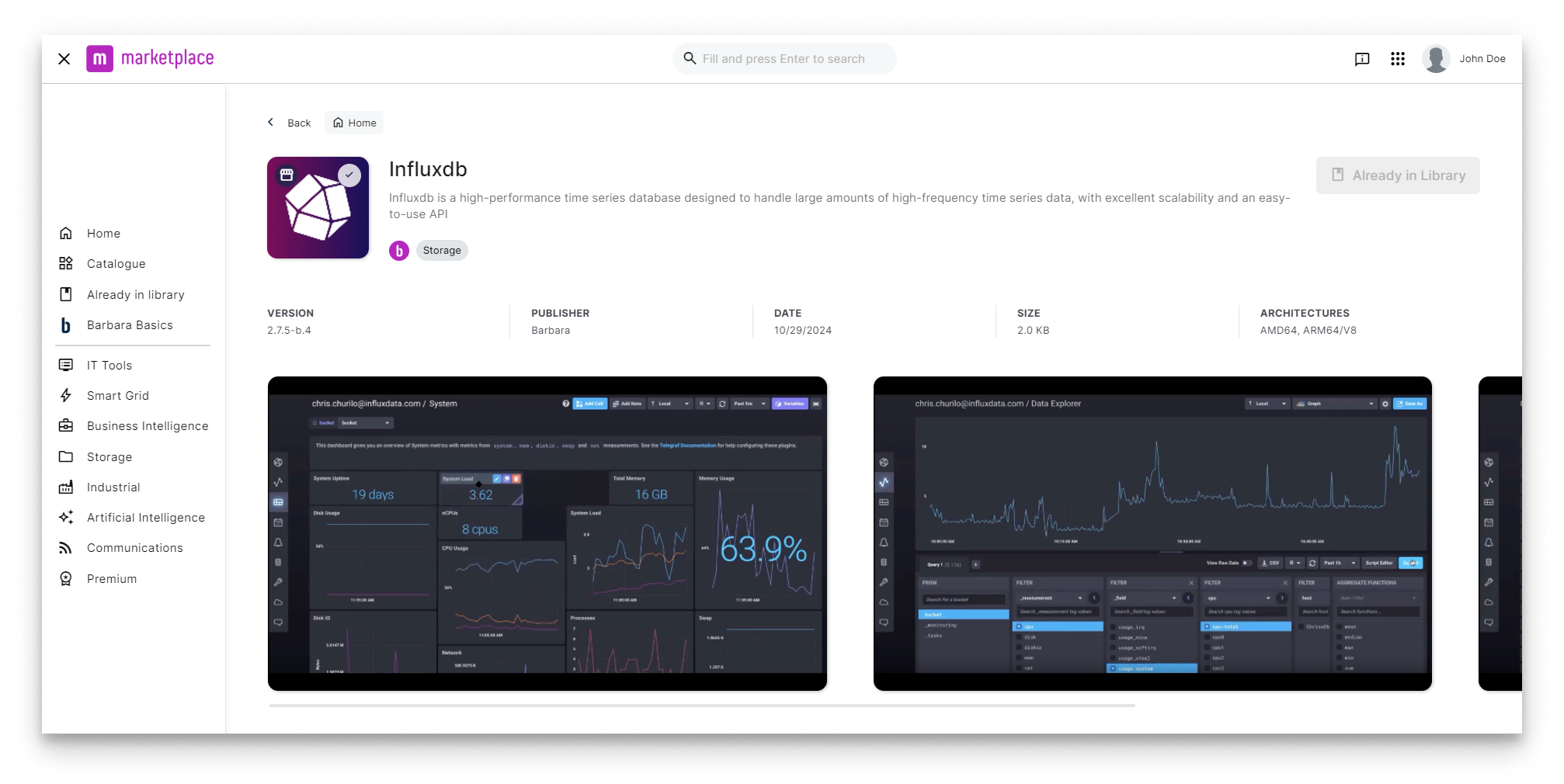
InfluxDB in Barbara Marketplace
Go to Barbara Marketplace, search for InfluxDB and add it to your Panel's library.
You will find the InfluxDB in this link of the Barbara Marketplace.
Once added you will find it in your Barbara PANEL App Library. Let's deploy it to your Edge Node.
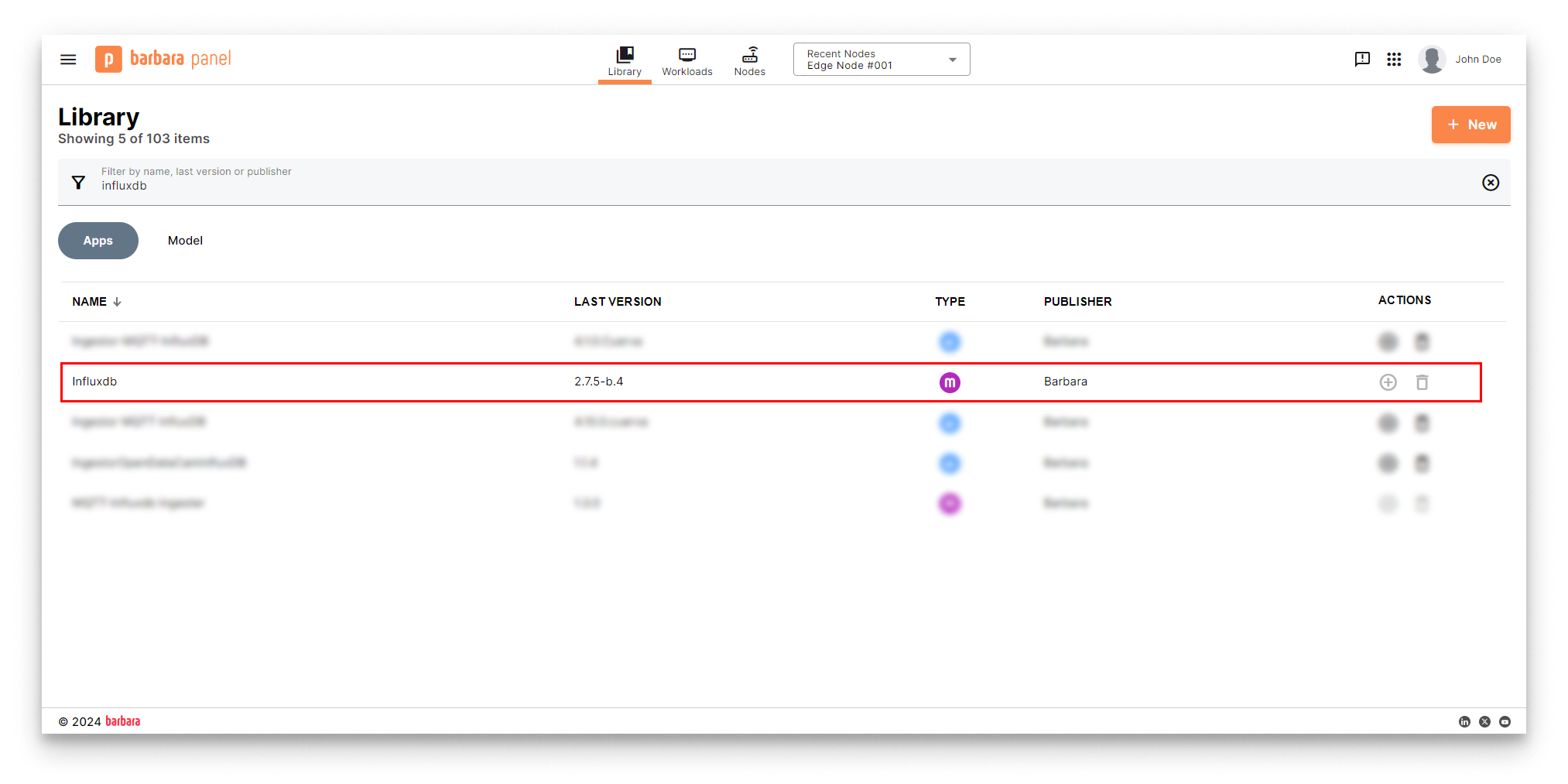
InfluxDB in Panel's library
Install the InfluxDB App
- Head to your Node's details view and click the
+ Add Cardbutton.
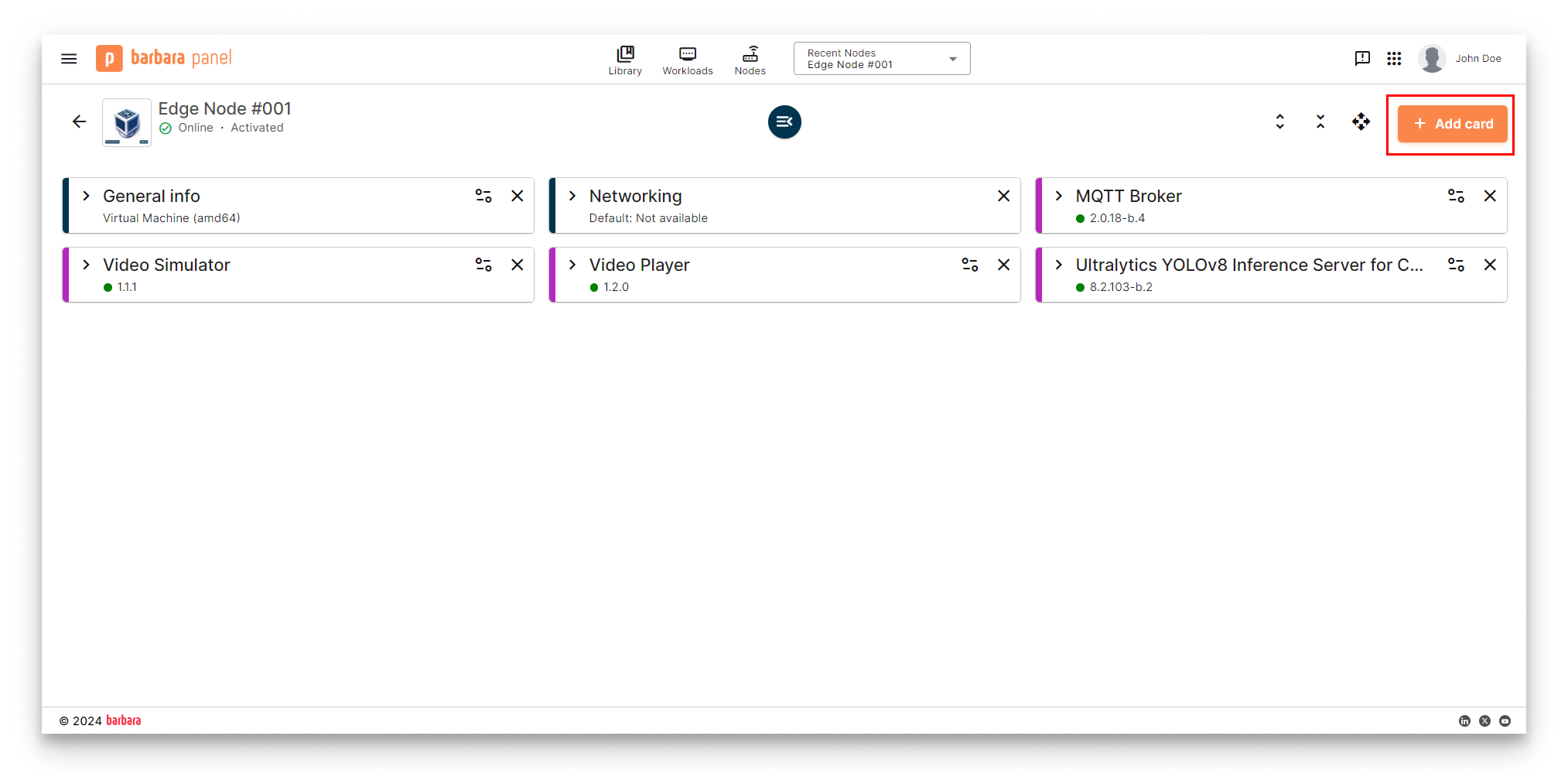
Add New Card
- Select the
Applicationoption in the dropdown menu.
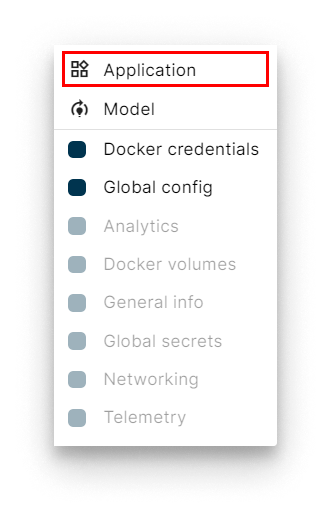
Select Application
- Select Application and Version: Select the
InfluxDBapp from the application dropdown list and pick the latest existing version from the version dropdown list. Then clickNextto proceed with the next step.
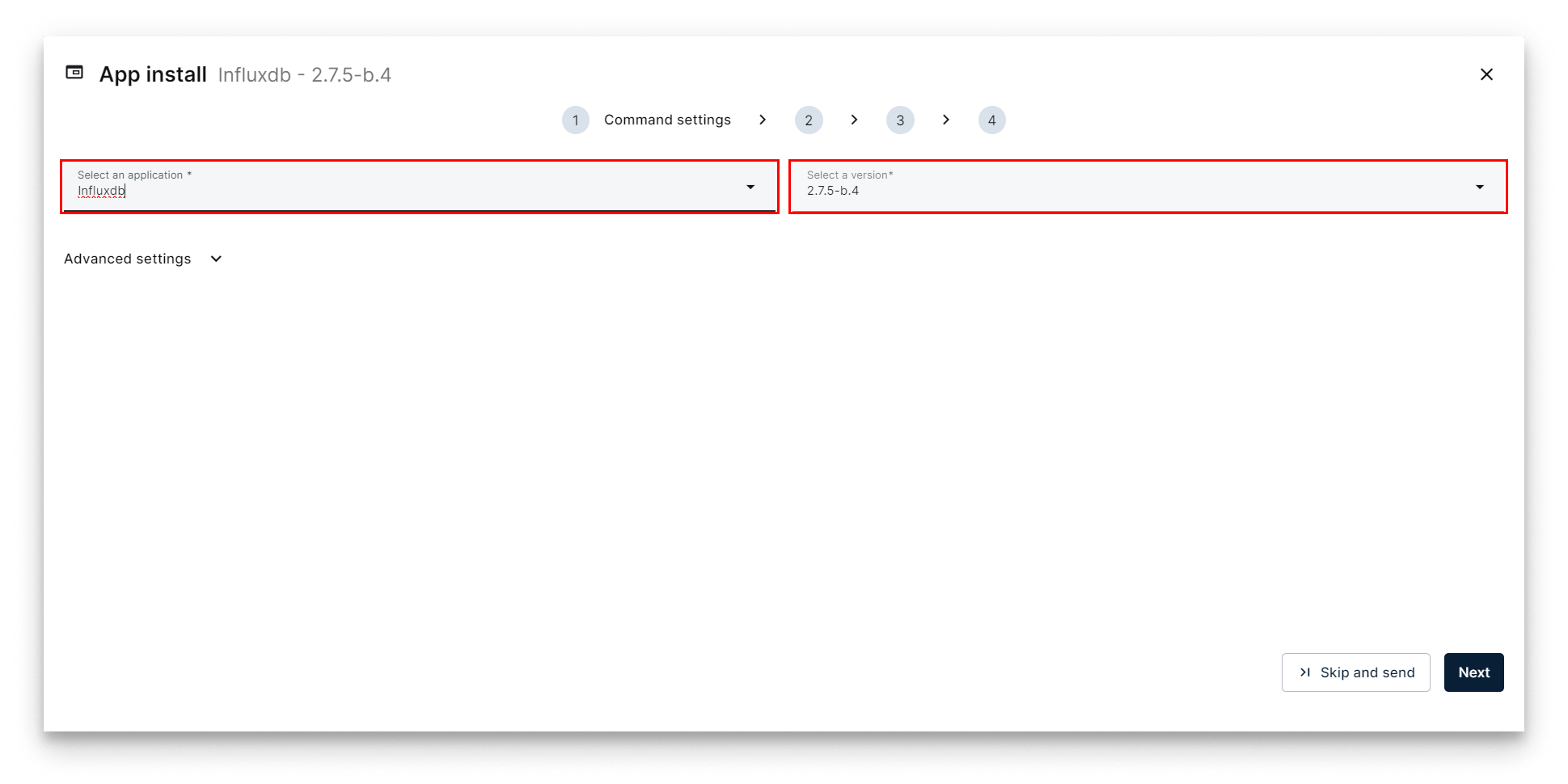
Select InfluxDB
- Add App Secrets Review the default configuration for app secrets and leave it as-is. Technical notes explain each variable on the
Read melink below the form. Once finish, just clickNext.
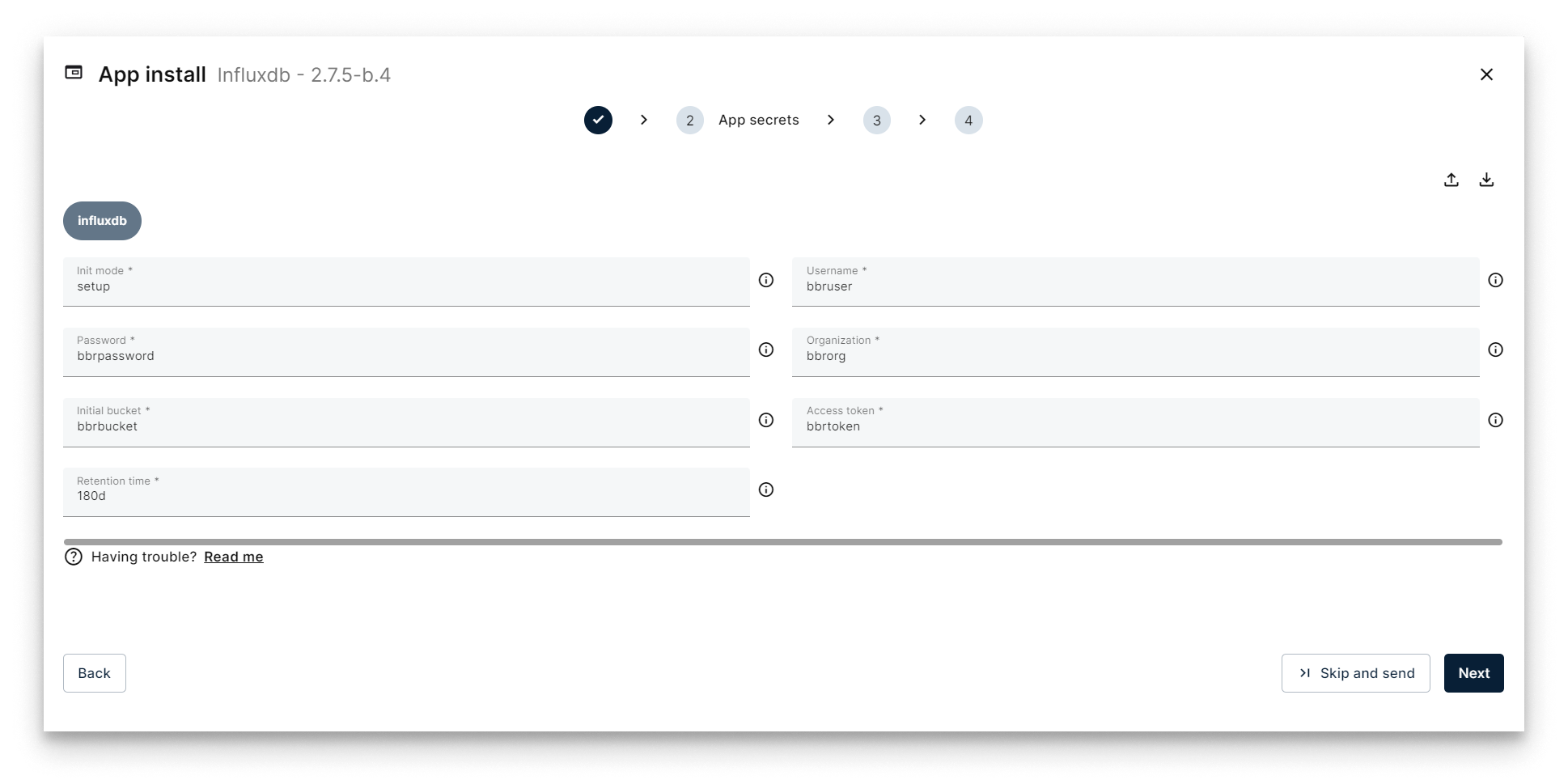
Add App Secrets
- Add the Compose Config. The only parameter that you can change in the Compose Configuration is the
InfluxDB Port. It determines the port where the InfluxDB will be pusblished. In this tutorial we can leave this configuration in its default value:8086.
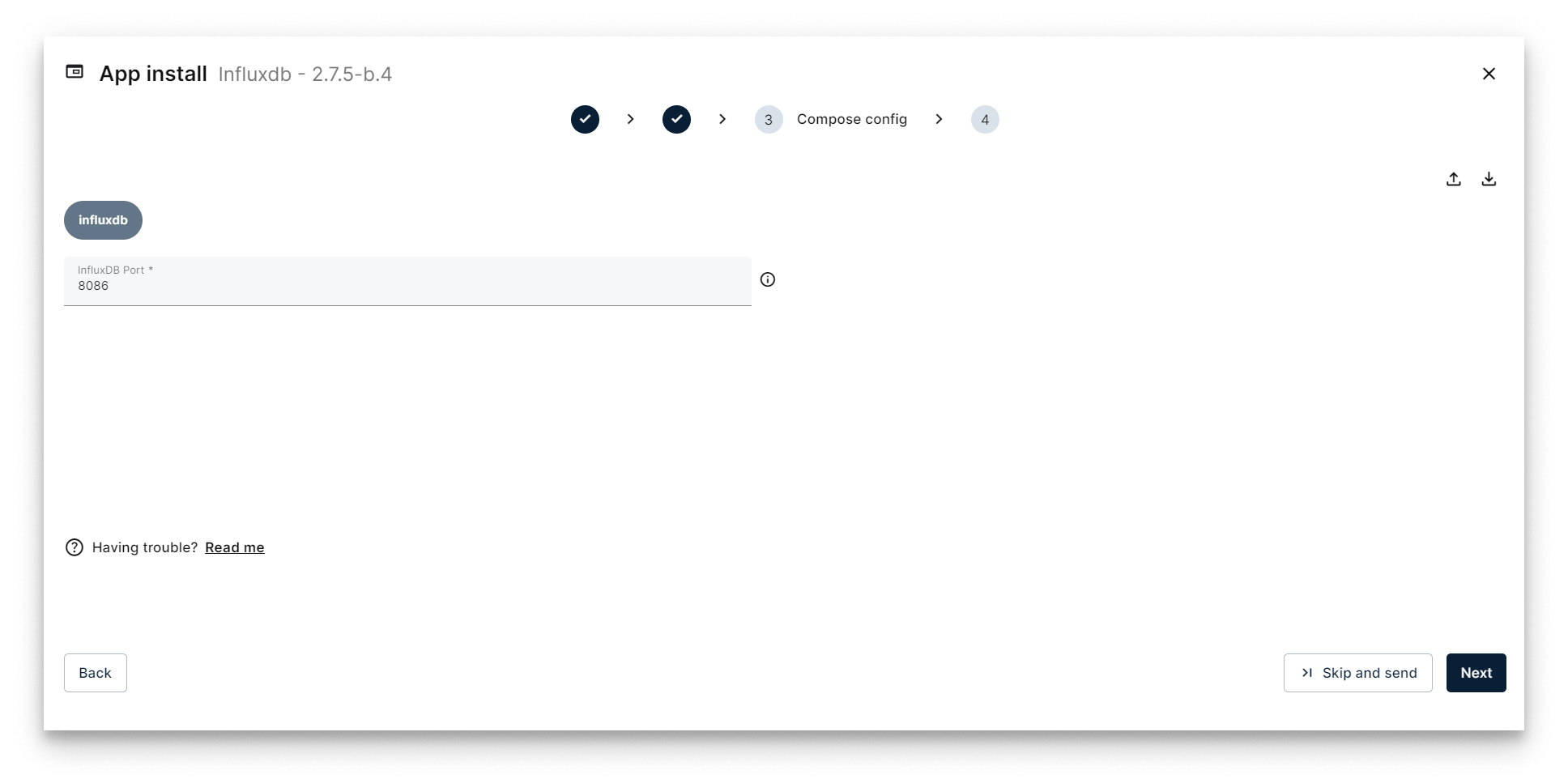
Add Compose Config
- Add your App Config: The InfluxDB application does not need any extra configuration in this step. Just leave the JSON editor empty and press the button
Send App.
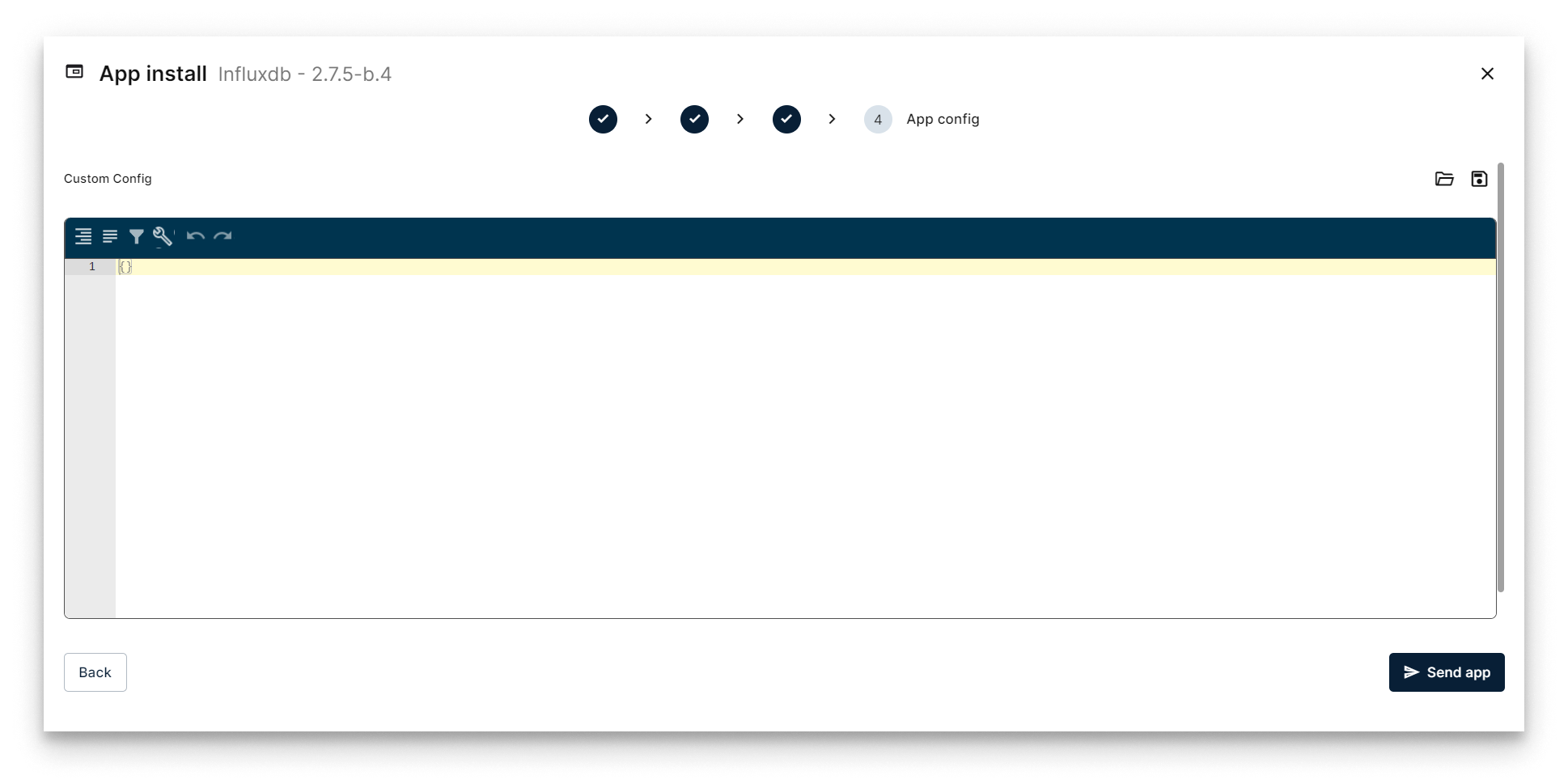
Configure Application
Verifying the InfluxDB database application
Head back to your Node's details view. Within a few seconds, a new card should appear displaying the installed InfluxDB app. Look for the status label on the card - if it reads STARTED then your InfluxDB is up and running!
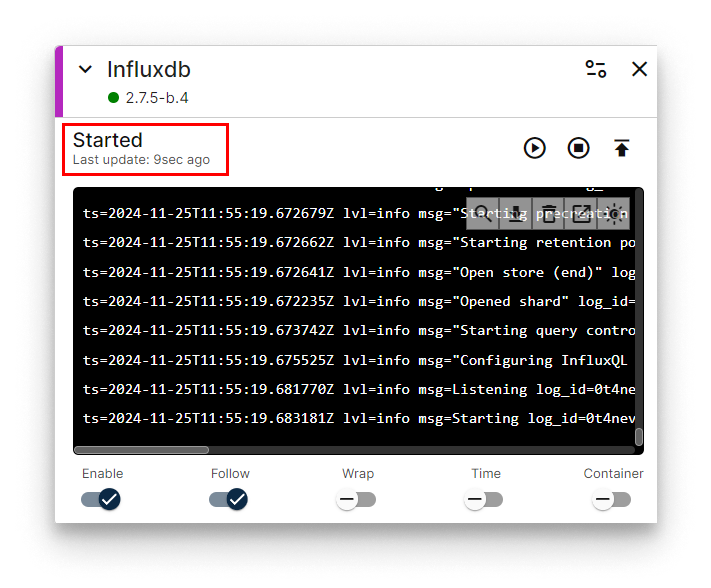
InfluxDB installed
Open a new tab in your browser and navigate to the following URL: [IP_OF_YOUR_NODE]:8086.
Check that the port and the user/password are set in the application configuration:
| Parameter | Default Value | Configuration |
|---|---|---|
| port | 8086 | Compose config |
| user | bbruser | App Secrets |
| password | bbrpassword | App Secrets |
Remember that if your laptop is not connected to the same LAN as your edge node, you must activate your VPN and use its VPN's IP to access this web interface. You can check this IP on the Network card.
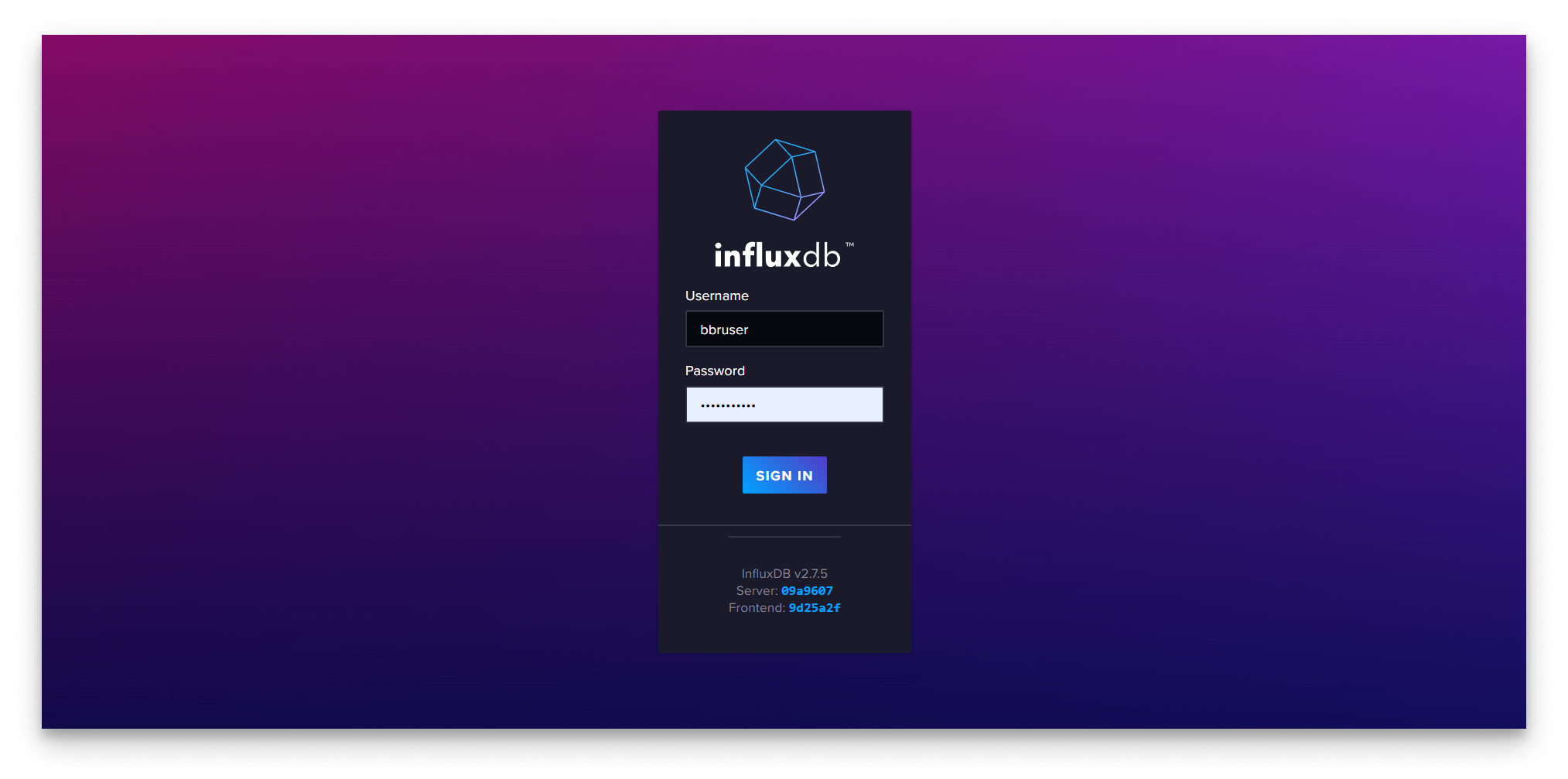
InfluxDB Login
Enter the selected user and password and you will reach the homesite of the InfluxDB database:
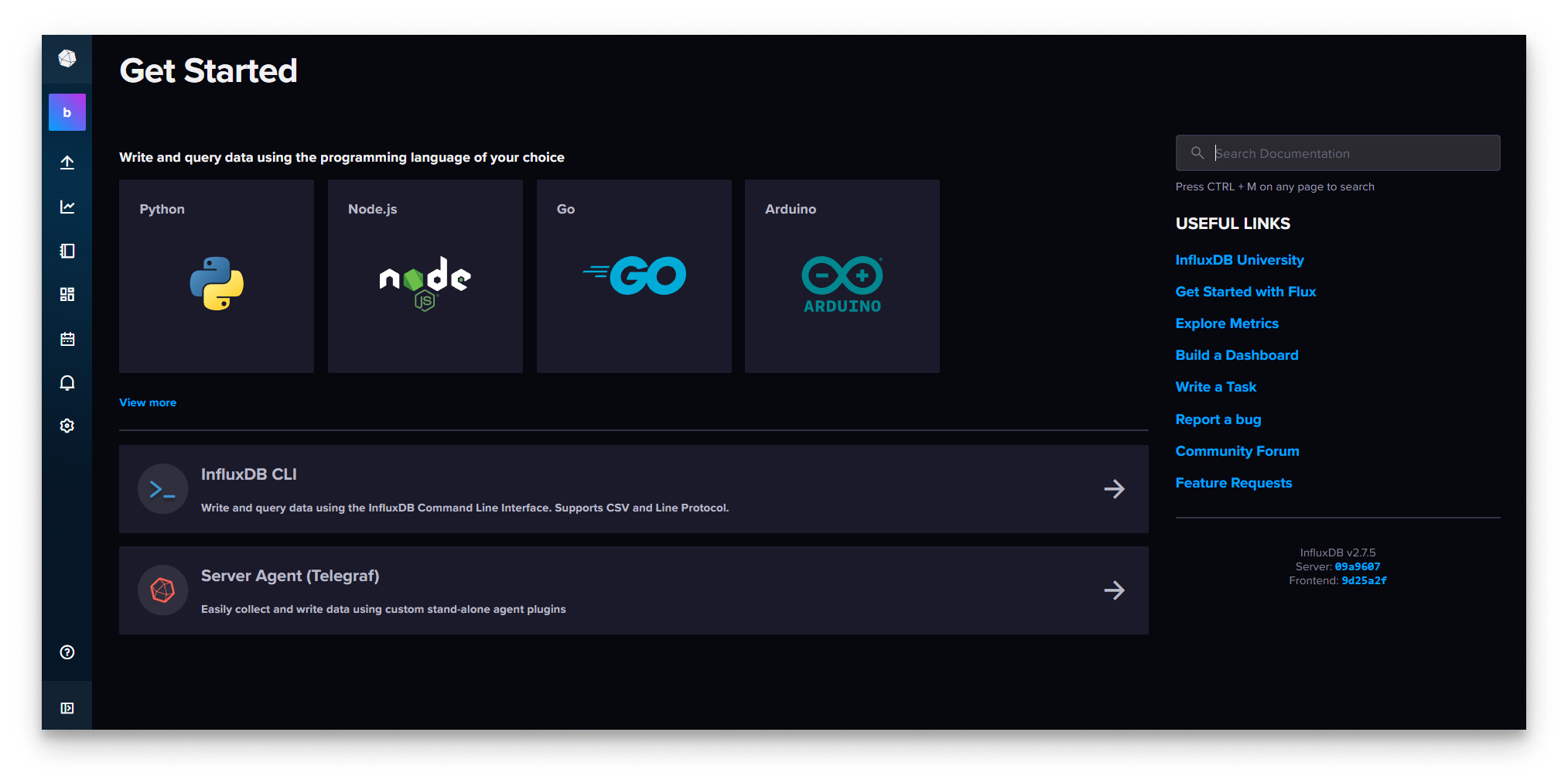
InfluxDB Home
Congratulations! You've successfully set up InfluxDB. Next, move on to Step 6 where we'll use an MQTT-InfluxDB Ingester to save YOLOv8 telemetry data to your database.