Step 2: Deploy the Video Simulator
Overview
Video Simulator is an application that generates a video stream from a local video file or a Youtube video. The video generated is published via MQTT in base64 format. The purpose of this app is to help you develop your own video-based apps (or computer vision applications) when you don’t yet have a real camera or live video stream to work with.
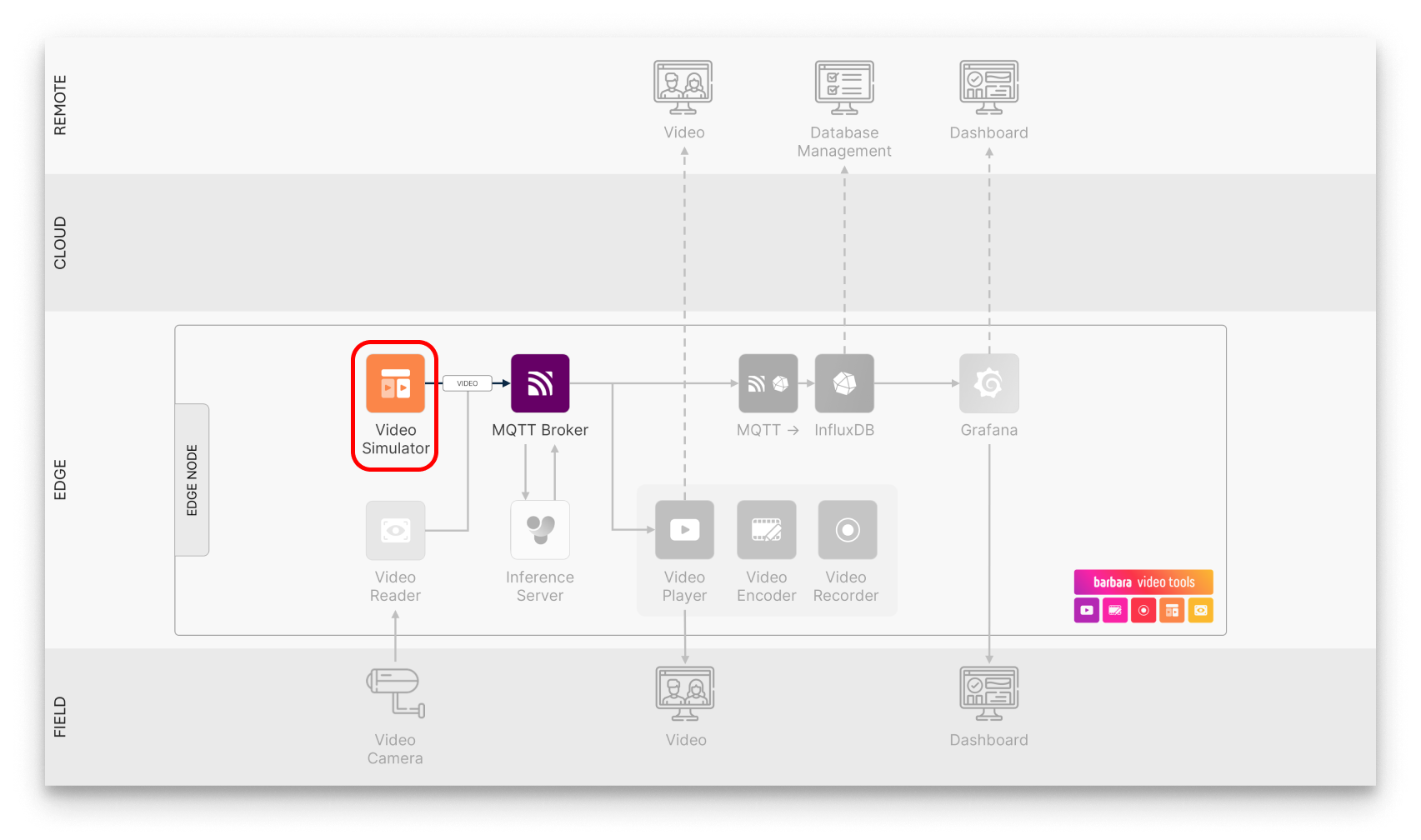
Video Simulator in the solution workflow
The app can generate the video stream from the following sources:
- Default: The app uses a default preloaded video.
- Youtube: The app downloads and shares a youtube video link
- Video file: The app uses a local video file that you can upload using the web file browser interface
In this case, we will use the default video and will send the video stream to the MQTT broker deployed in the last step of this tutorial.
Even though we'll be using a default video in this tutorial, the final section provides instructions on streaming video frames from a YouTube link or a pre-loaded video file.
Add the Video Simulator App to your library
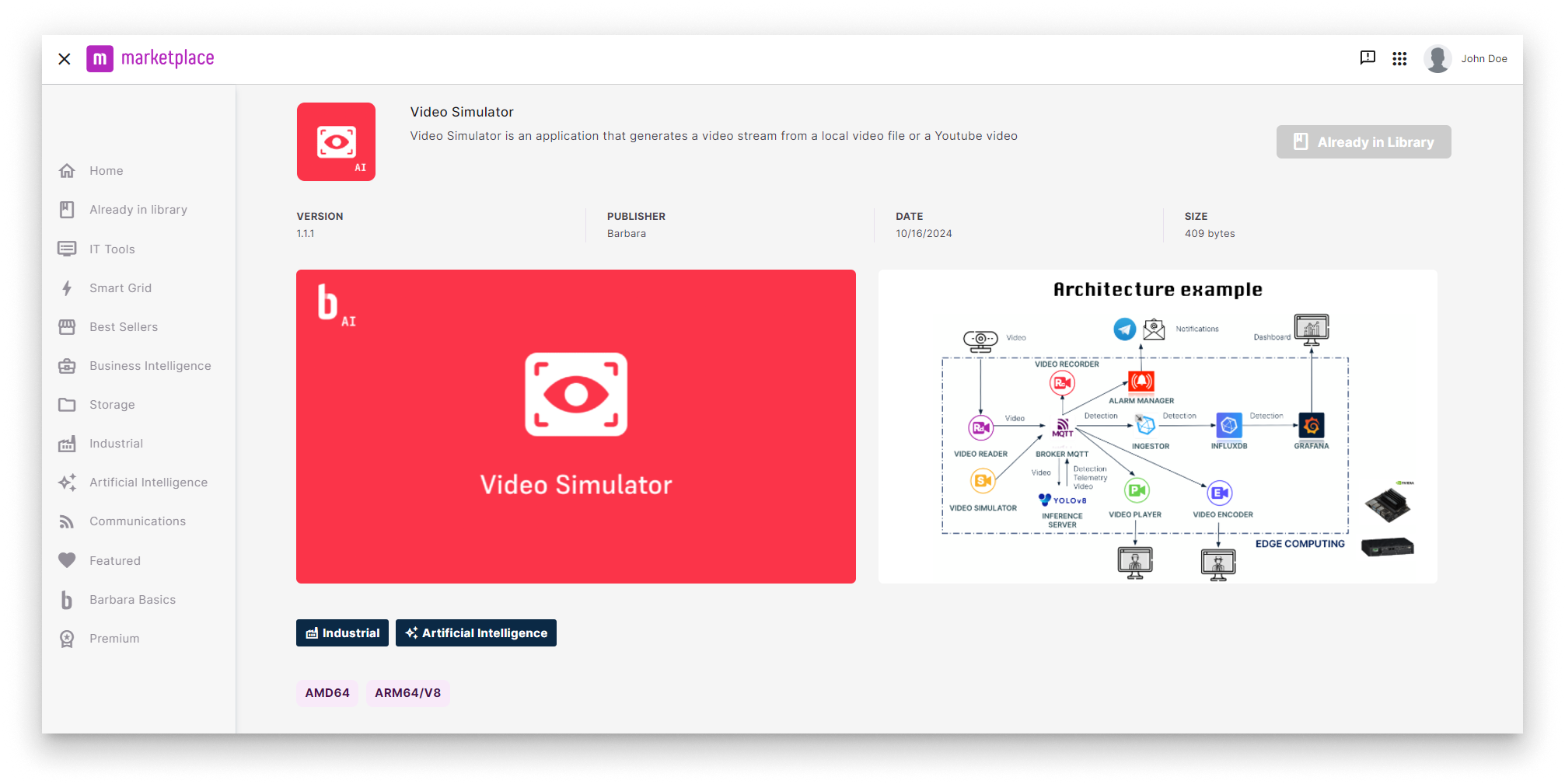
Video Simulator in Barbara Marketplace
Go to Barbara Marketplace, search for Video Simulator and add it to your Panel's library.
You will find the Video Simulator in this link of the Barbara Marketplace here.
Once added you will find it in your Barbara Panel App Library. Let's deploy it to your Edge Node.
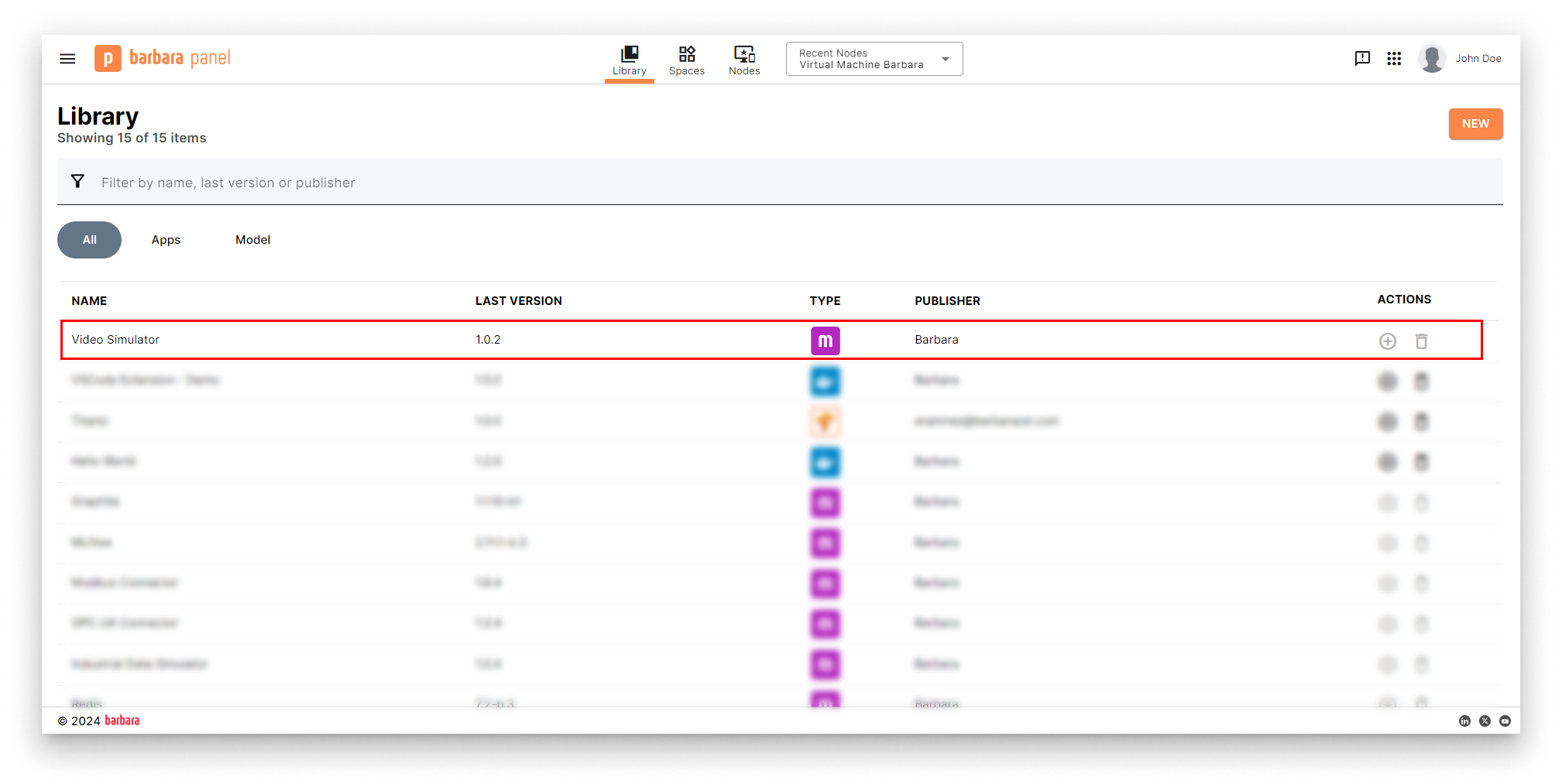
Video Simulator in Panel's library
Install the Video Simulator App
- Head to your Node's details view and click the
+ Add Cardbutton.
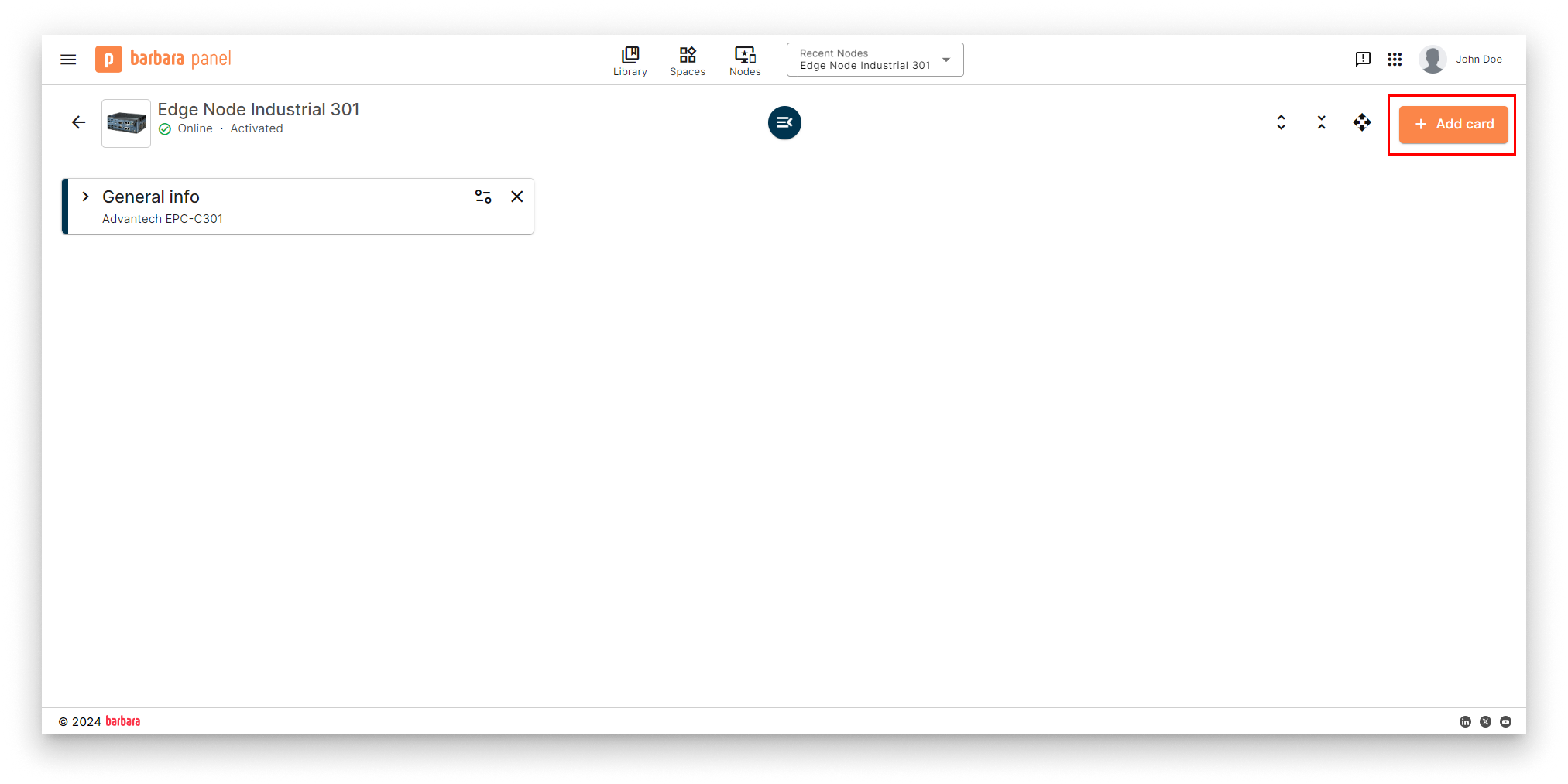
Add New Card
- Select the
Applicationoption in the dropdown menu.
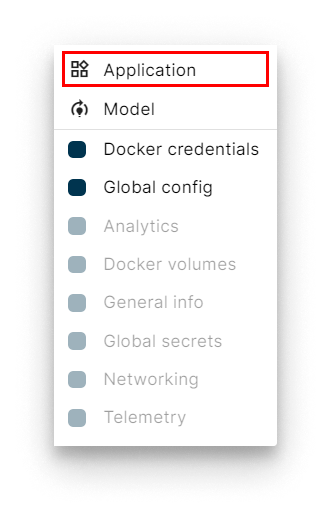
Select Application
- Select Application and Version: Select the
Video Simulatorapp from the application dropdown list and pick the latest existing version from the version dropdown list. Then clickNextto proceed with the next step.
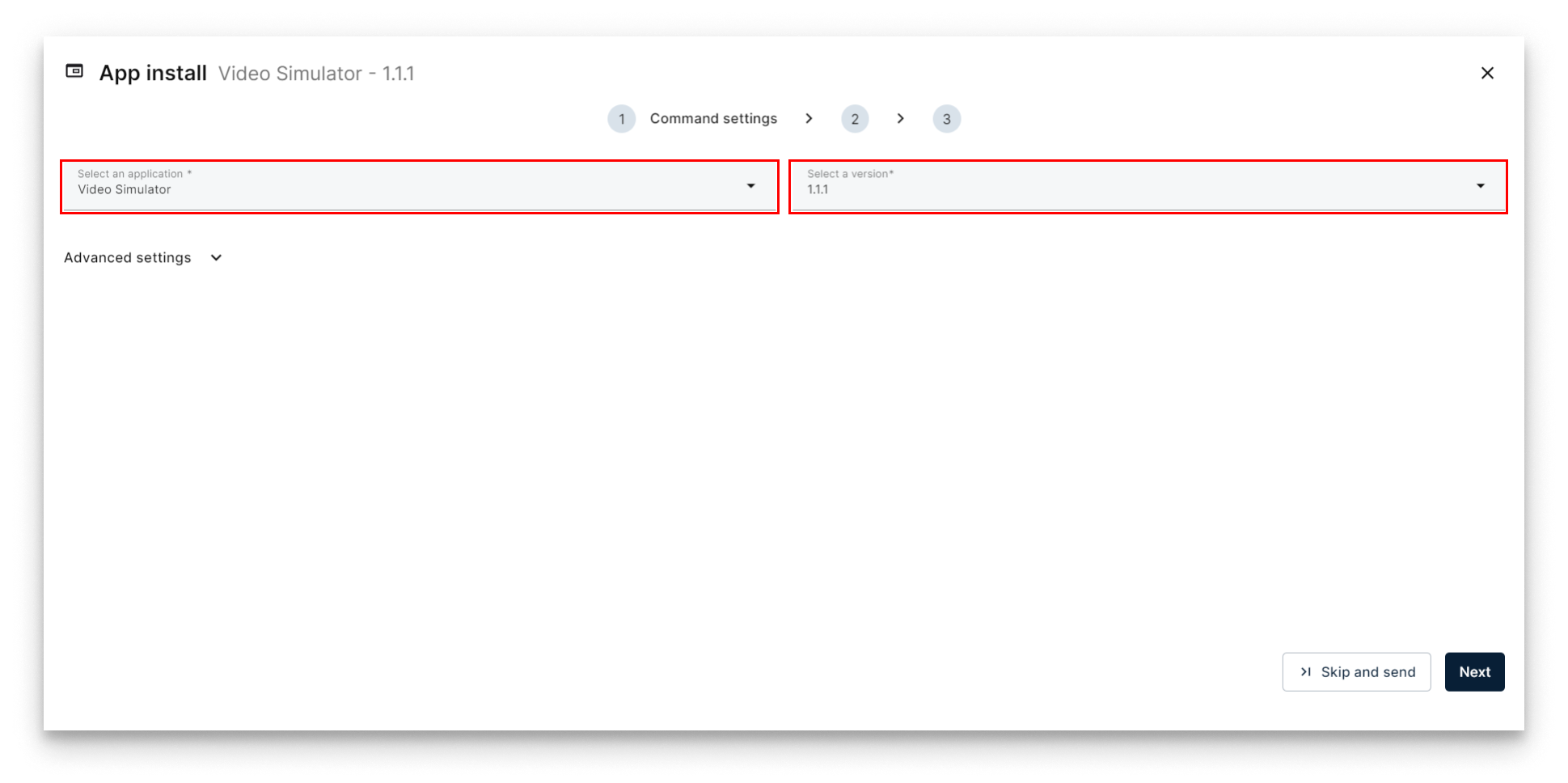
Select Video Simulator
- Add App Secrets Review the default configuration for app secrets and leave it as-is. Technical notes explain each variable on the
Read melink below the form. Once finish, just clickNext.
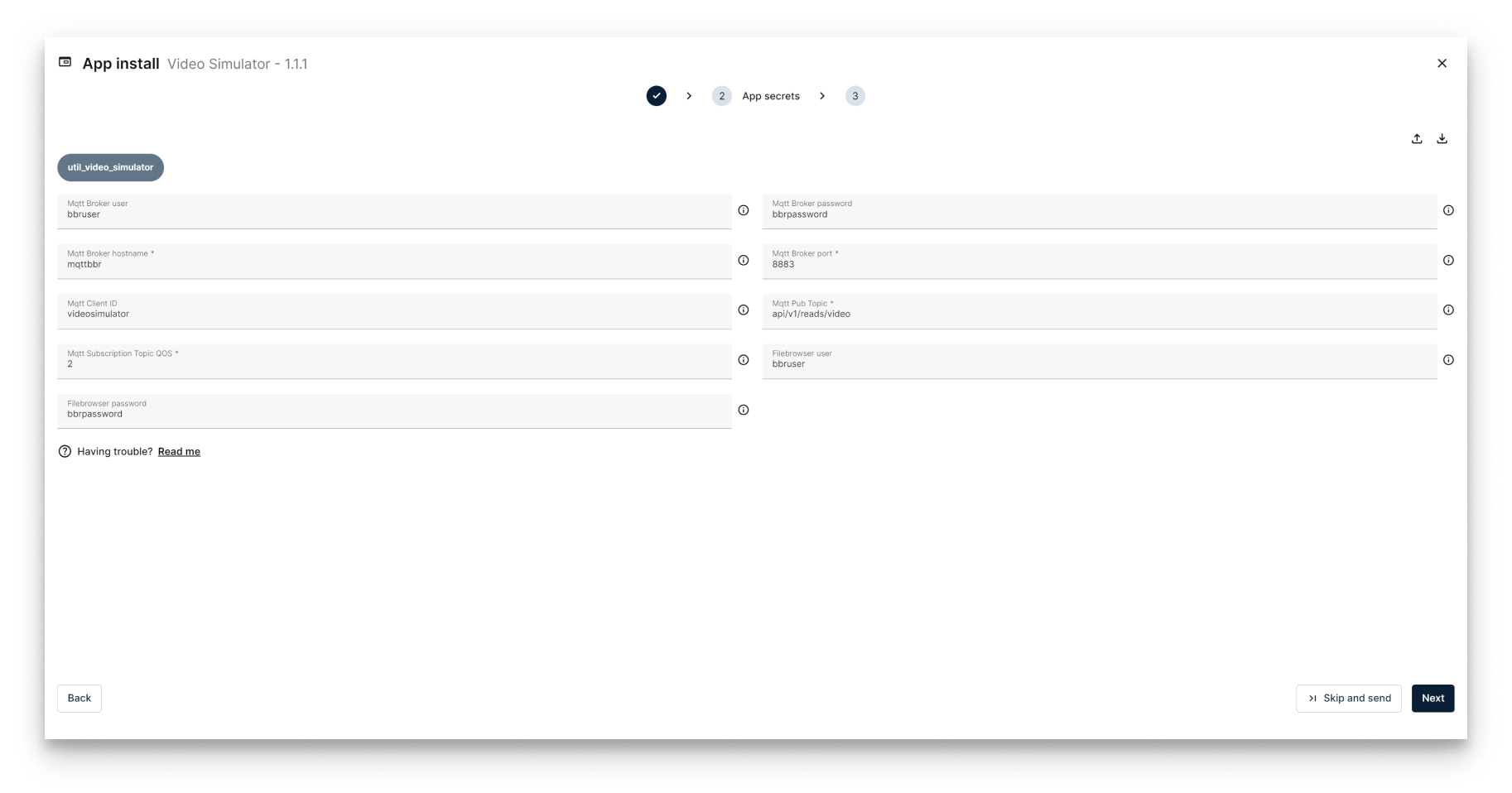
Add App Secrets
- Add your app Config: This step allows you to make some additional configuration through a JSON-format text.
{
  "util_video_simulator": {
    "system": {
      "debugLevel": "info"
    },
    "video": {
      "enabled": true,
      "fps": 30,
      "displayName": "video_simulator_01",
      "type": "default",
      "source": ""
    }
  }
}
Some important configuration parameters you need to take into account are:
- displayName: This is the unique identifier for your video stream within the MQTT Broker. You'll need to reference this name when setting up your video player or YOLO analysis application.
- type: This parameter specifies the video source. You can choose from the following options:
default: The application will utilize a default video file.youtube: The application will stream a video directly from a YouTube link.video: The application will process a pre-loaded video file.
- source: This field defines the location of your video source. For file-based videos, provide the file path. For YouTube links, input the video's URL.
However, Video Simulator does not need any extra configuration to work in this case. Just click "Send app" to finally deploy it to your node.
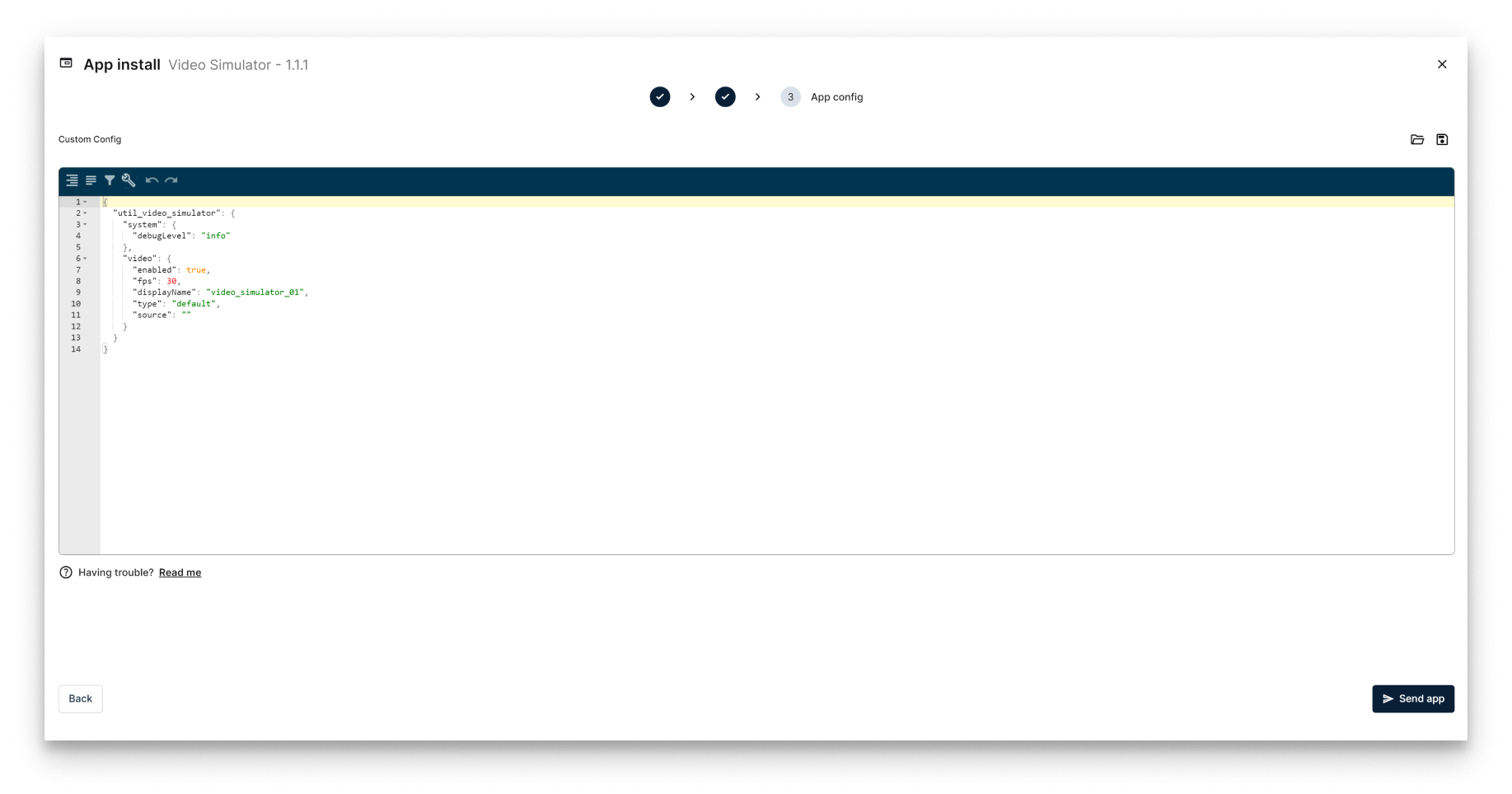
Configure Application
Verifying the Video Simulator
Head back to your Node's details view. Within a few seconds, a new card should appear displaying the installed Video Simulator app. Look for the status label on the card - if it reads STARTED then your Video Simulator is up and running!
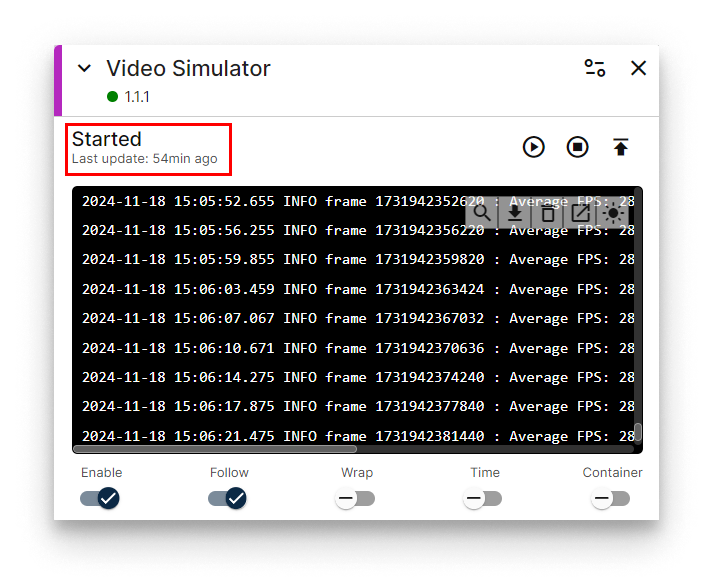
Video Simulator installed
Congratulations! Your Video Simulator has started and it is sending video frames to MQTT Broker!
Stream video from a YouTube link
Want to use a YouTube video for your streaming needs? It's simple! Just modify the following parameters in your application's configuration file:
- Change the type: set the
typeparameter asyoutube. - Specify the source: Paste the URL of your chosen YouTube video into the
sourceparameter.
For example, let's say you want to stream the video at this URL: https://www.youtube.com/watch?v=bwJ-TNu0hGM. Here's the corresponding app configuration you can use in your simulator:
{
  "util_video_simulator": {
    "system": {
      "debugLevel": "info"
    },
    "video": {
      "enabled": true,
      "fps": 30,
      "displayName": "video_simulator_01",
      "type": "youtube",
      "source": "https://www.youtube.com/watch?v=bwJ-TNu0hGM"
    }
  }
}
Streaming video from a preloaded file
Do you have a video file and you want to use it for your streaming needs? It is also very easy!
You can download here the video file we will be using in this tutorial.
The first step to use a video file is uploading it to your Edge Node. Video Simulator file has a file browser to upload videos to the edge node. To enter this filebrowser application you must open a new tab in your browser and use the URL: [IP_OF_YOUR_NODE]:10030. Then you will see the filebrowser's login page:
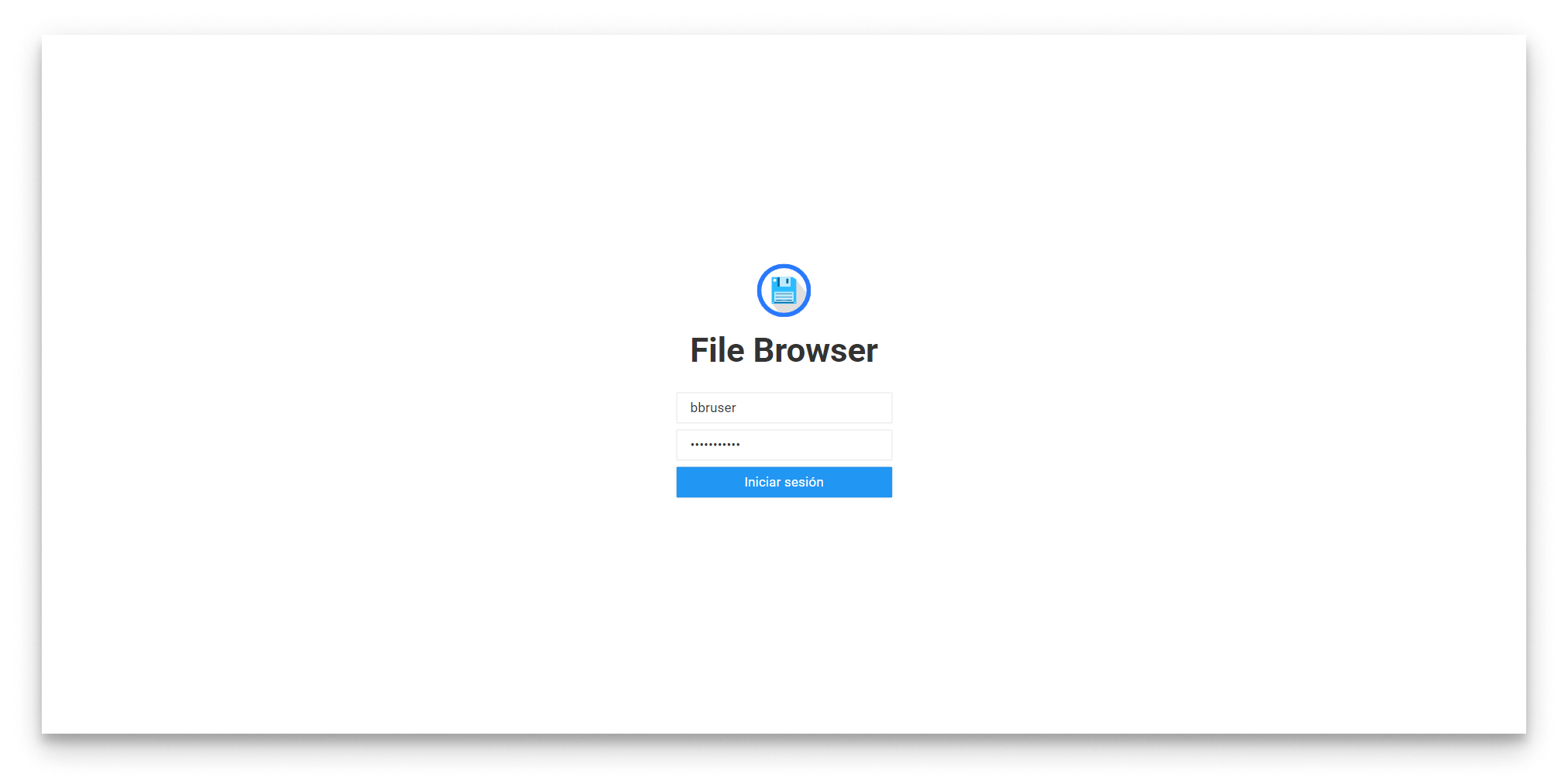
Filebrowser login page
The user and password to access the filebrowser have been set in the App Secrets.
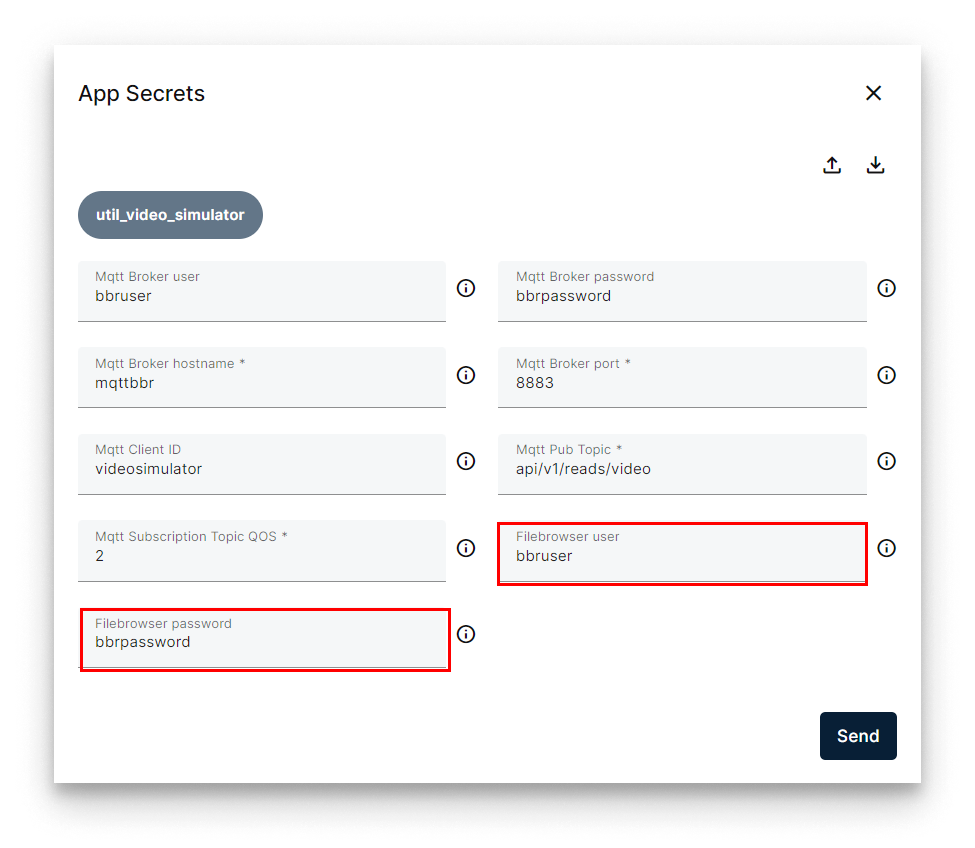
Filebrowser user & password
The user/pwd default values are:
- user: bbruser
- password: bbrpassword
After login with the default credentials you will reach the filebrowser interface to upload your video. Just press the upload button:
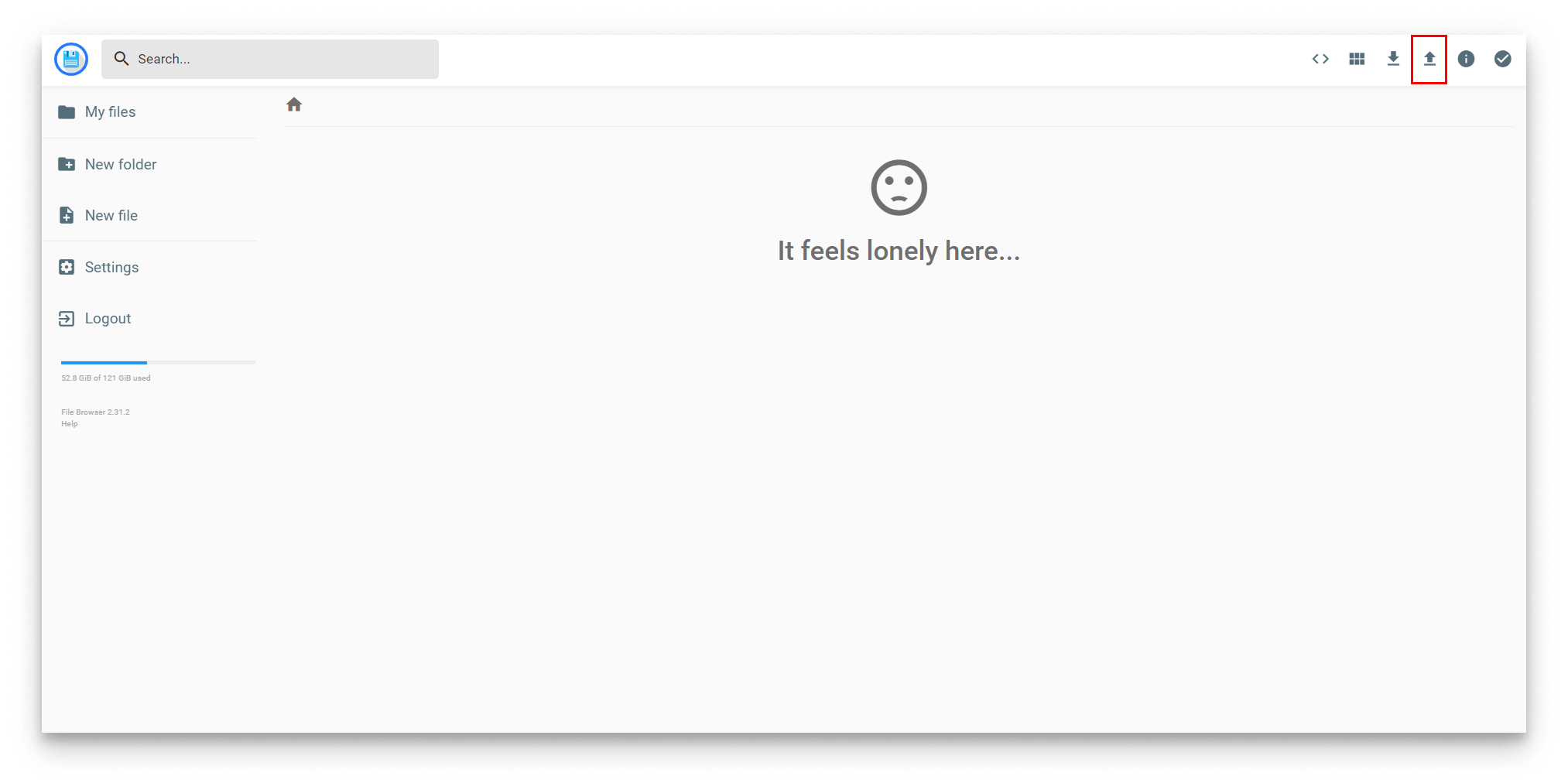
Filebrowser upload button
And then, the video will be available in your Edge Node.
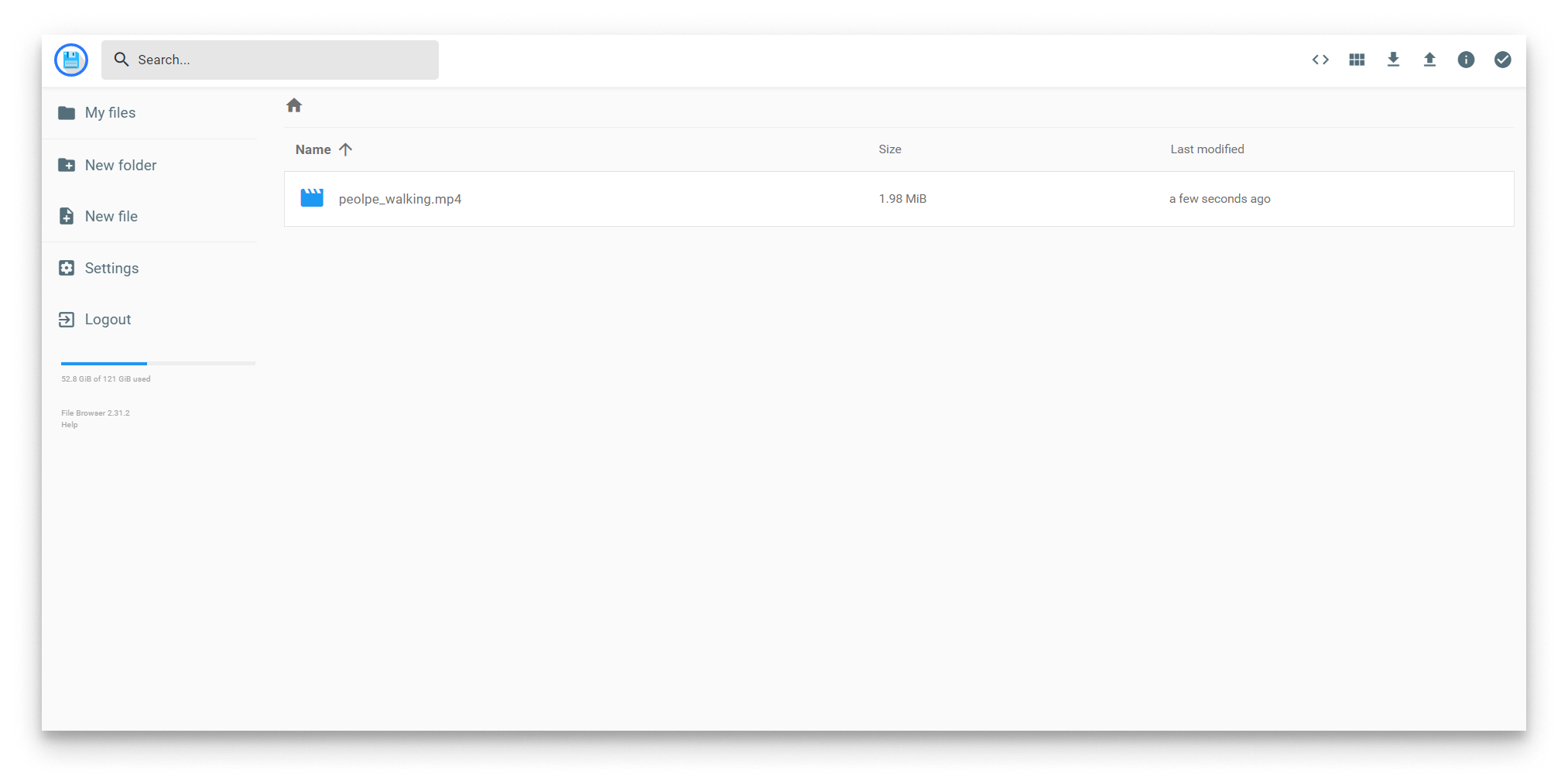
Filebrowser file uploaded
Once you have uploaded the video you must go back to the app config and change the following parameters:
- Change the type: set the
typeparameter asvideo. - Specify the source: Paste the URL of your chosen YouTube video into the
sourceparameter. In this case:people_walking.mp4
Here's the corresponding app configuration you can use in your simulator:
{
  "util_video_simulator": {
    "system": {
      "debugLevel": "info"
    },
    "video": {
      "enabled": true,
      "fps": 30,
      "displayName": "video_simulator_01",
      "type": "video",
      "source": "people_walking.mp4"
    }
  }
}