Step 4: Deploy Ultralytics Yolov8
Overview
The Ultralytics YOLOv8 Inference Server is a cutting-edge application designed to process and analyze video streams in real-time. By subscribing to MQTT topics, it seamlessly integrates with other applications like Video Reader or Video Simulator to receive video data.
In this tutorial, we will deploy the Ultralytics YOLOv8 Inference Server to:
- Process the Video Simulator video stream: Receive and analyze video frames transmitted from the Video Simulator application.
- Enrich Video Content: Generate new video streams that overlay the original video with detected objects, bounding boxes, and labels.
- Share Insights: Transmit valuable telemetry data, such as object counts, inference times, and other relevant metrics, via MQTT.
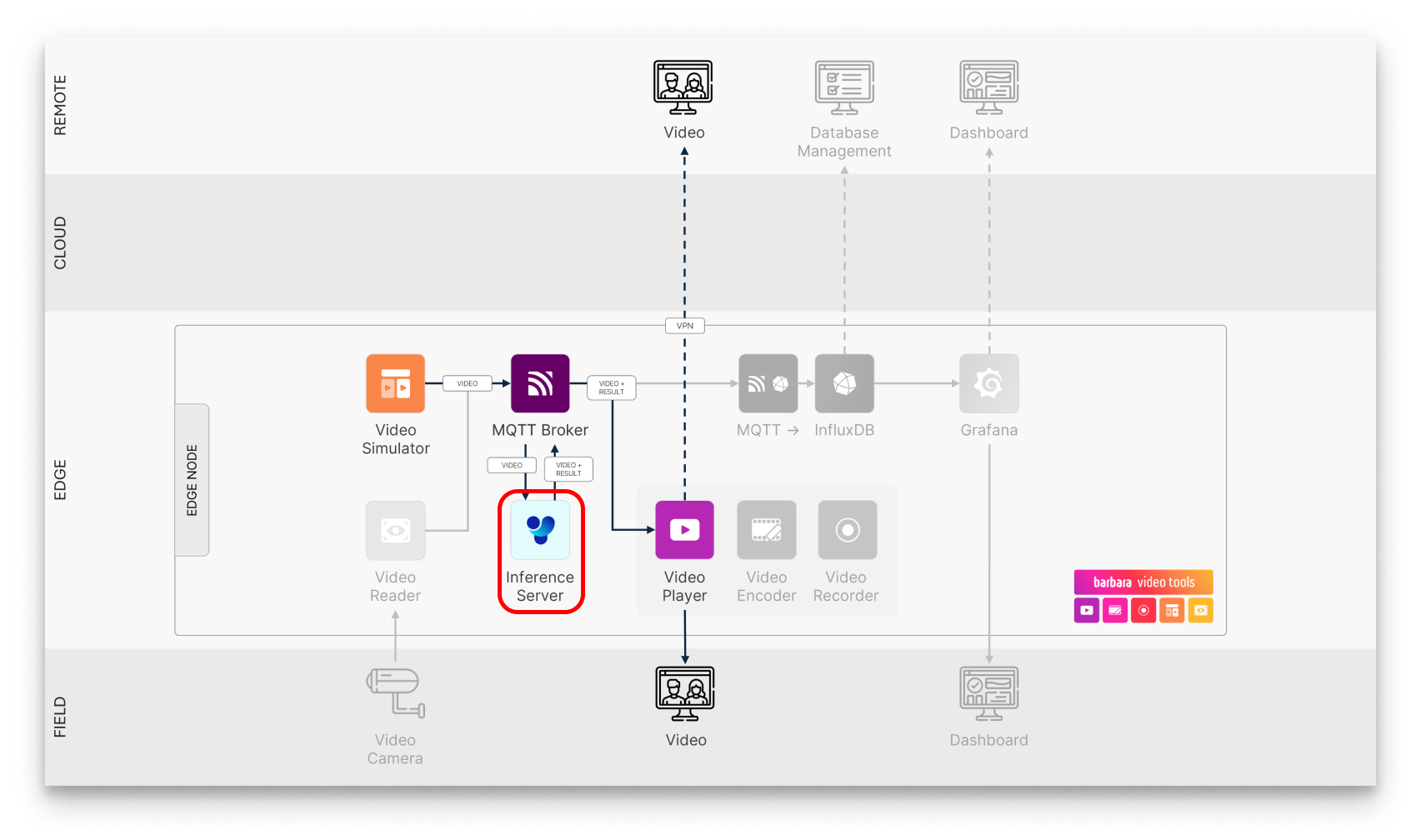
Ultralytics YOLOv8 in the usecase workflow
The key features of this application are:
- Advanced Video Analysis:
- Object Detection: Accurately identify and locate objects within video frames.
- Pose Estimation: Precisely determine the pose and keypoints of people and objects.
- Image Segmentation: Segment images into distinct regions based on semantic or instance-level information.
- Image Classification: Categorize images into specific classes.
- Oriented Bounding Box (OBB) Detection: Detect objects with arbitrary orientations.
- Flexible Model Deployment:
- Pre-trained Models: Utilize powerful pre-trained YOLOv8 models for immediate use.
- Custom Model Integration: Easily upload and deploy your own fine-tuned models for tailored analysis.
- Real-Time Insights:
- Composite Video Generation: Visualize analyzed video frames with overlaid detections and annotations.
- Telemetry Data: Access valuable performance metrics like inference time and object counts.
- MQTT-Based Communication: Share analyzed data and insights with other applications or systems.
Add the Ultralytics YOLOv8 App to your library
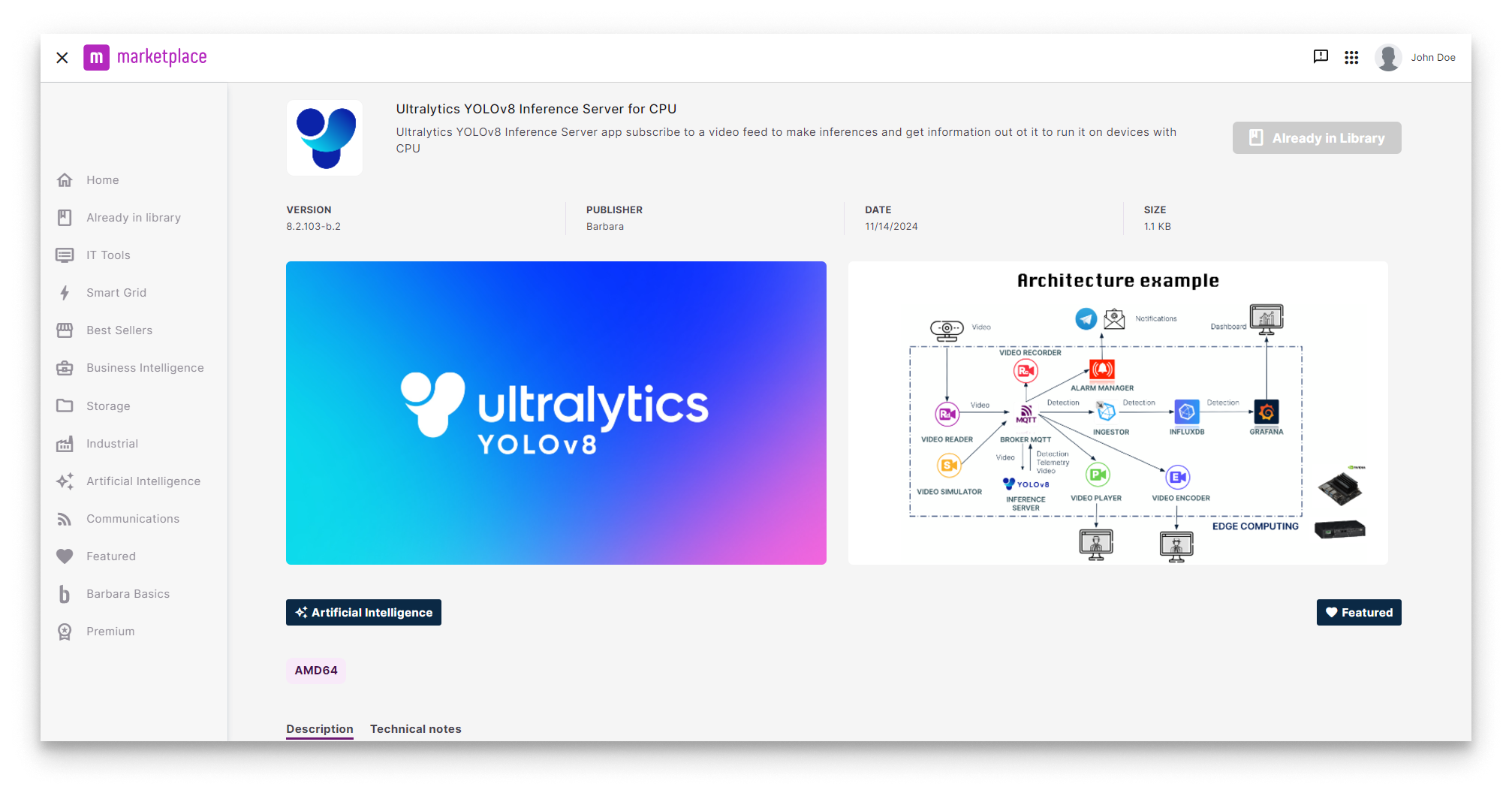
YOLOv8 in Barbara Marketplace
Go to Barbara Marketplace, search for Ultralytics YOLOv8 Inference Server and add it to your Panel's library.
You will find the Ultralytics YOLOv8 Inference Server in this link of the Barbara Marketplace.
Once added you will find it in your Barbara Panel App Library. Let's deploy it to your Edge Node.
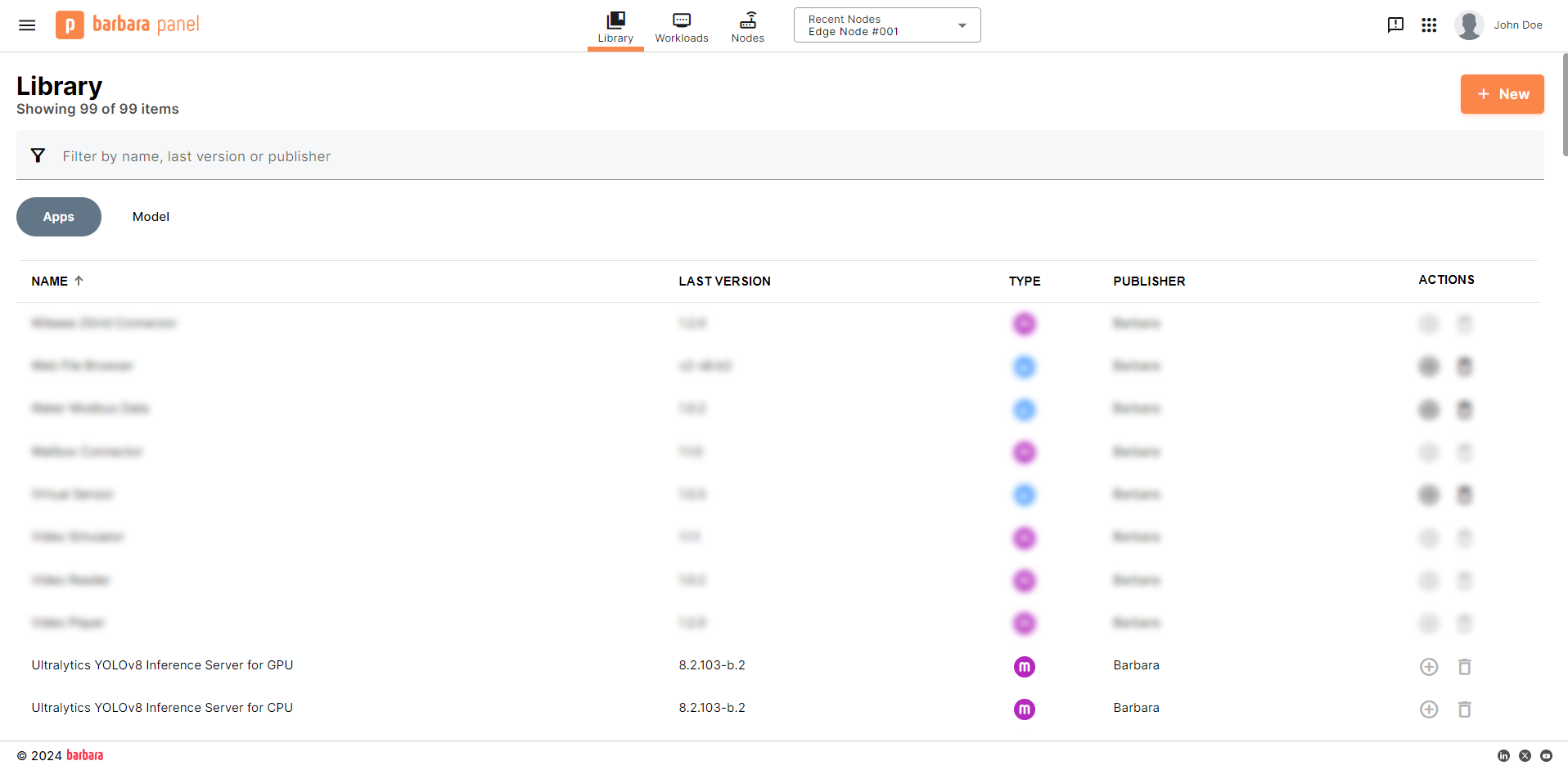
Ultralytics YOLOv8 in Panel's library
Install the Ultralytics YOLOv8 Inference Server App
- Head to your Node's details view and click the
+ Add Cardbutton.
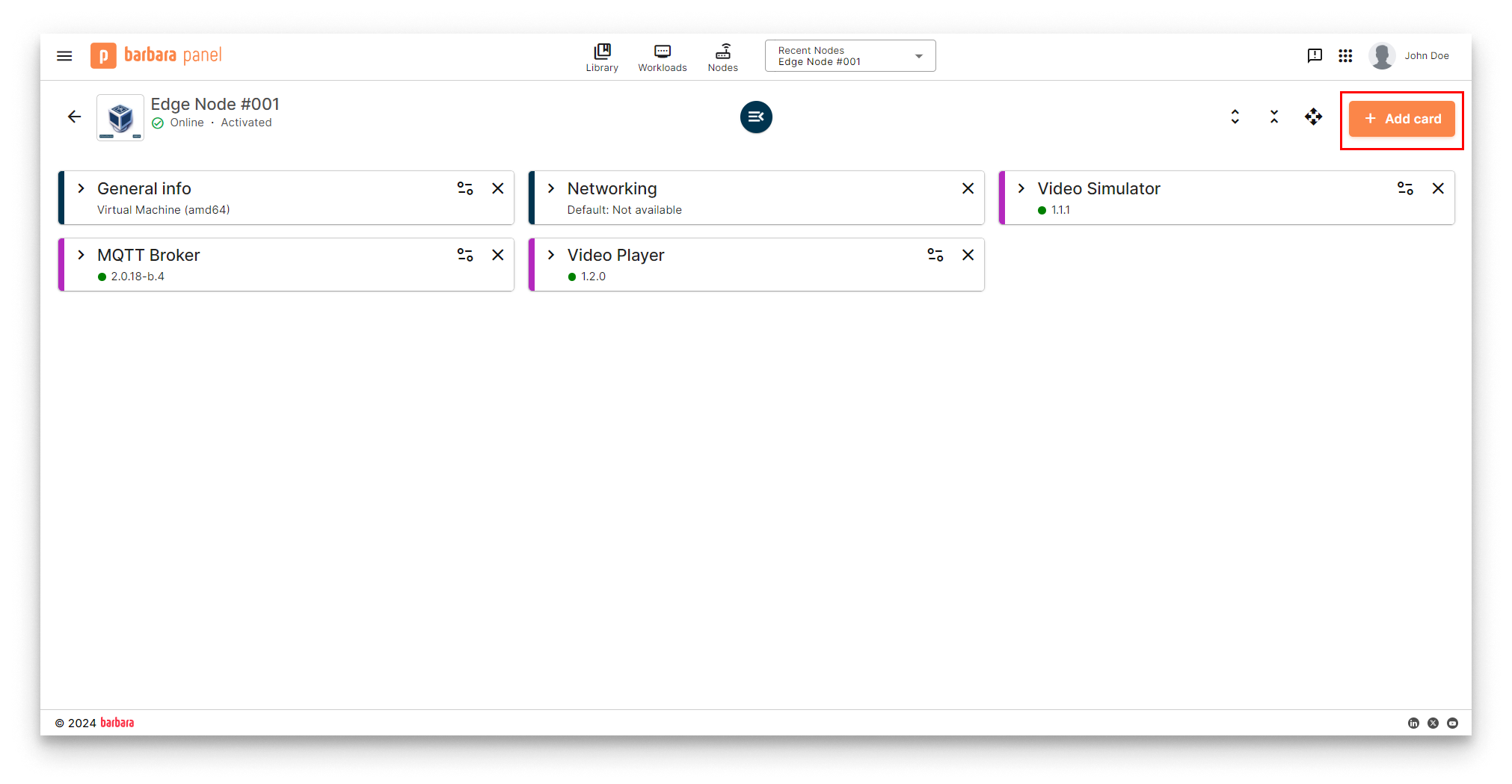
Add New Card
- Select the
Applicationoption in the dropdown menu.
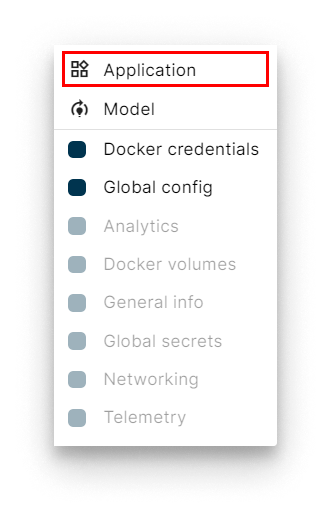
Select Application
- Select Application and Version: Select the
Video Playerapp from the application dropdown list and pick the latest existing version from the version dropdown list. Then clickNextto proceed with the next step.
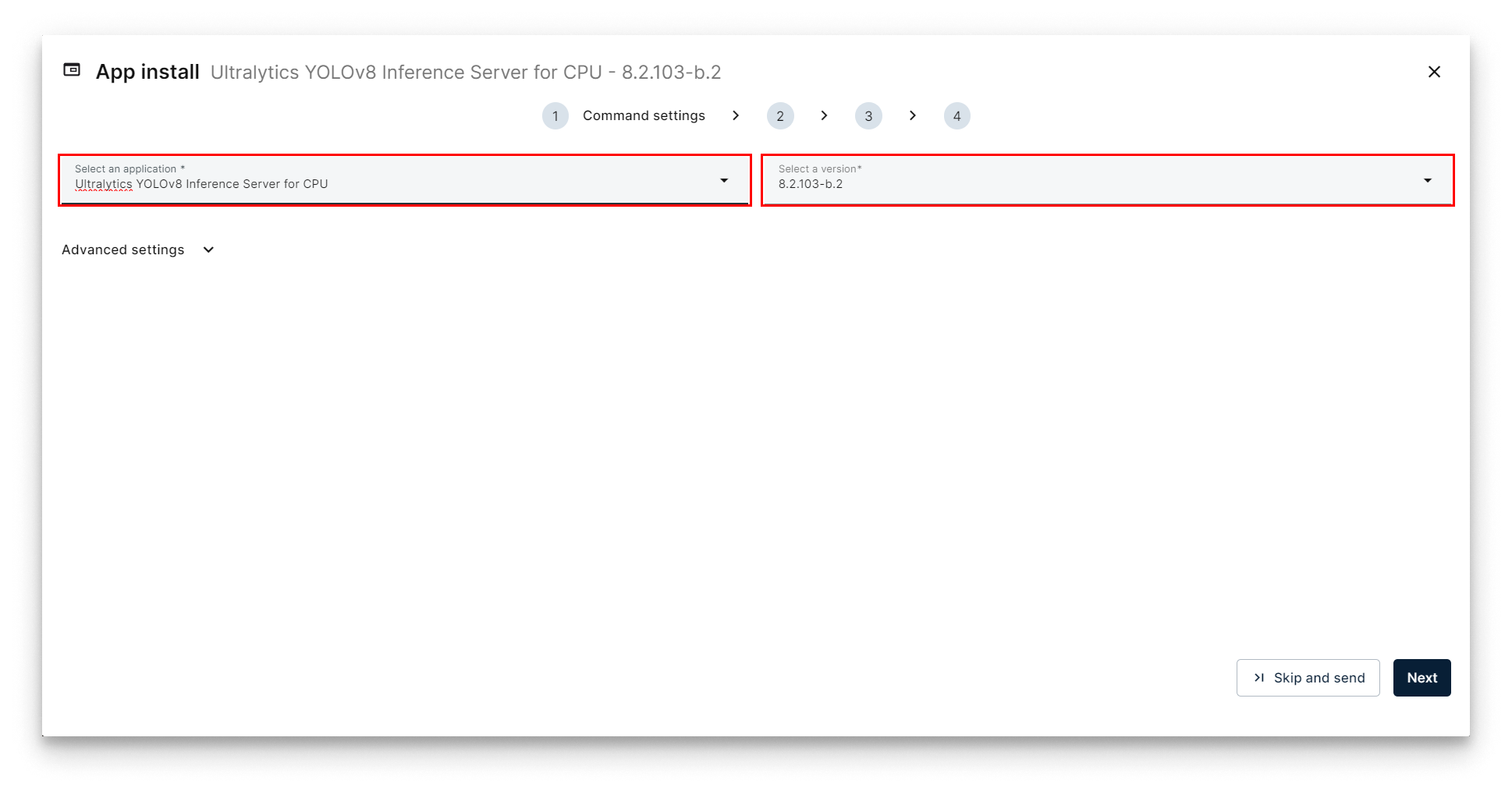
Select Ultralytics YOLOv8
- Add App Secrets Review the default configuration for app secrets and leave it as-is. Technical notes explain each variable on the
Read melink below the form. Once finish, just clickNext.
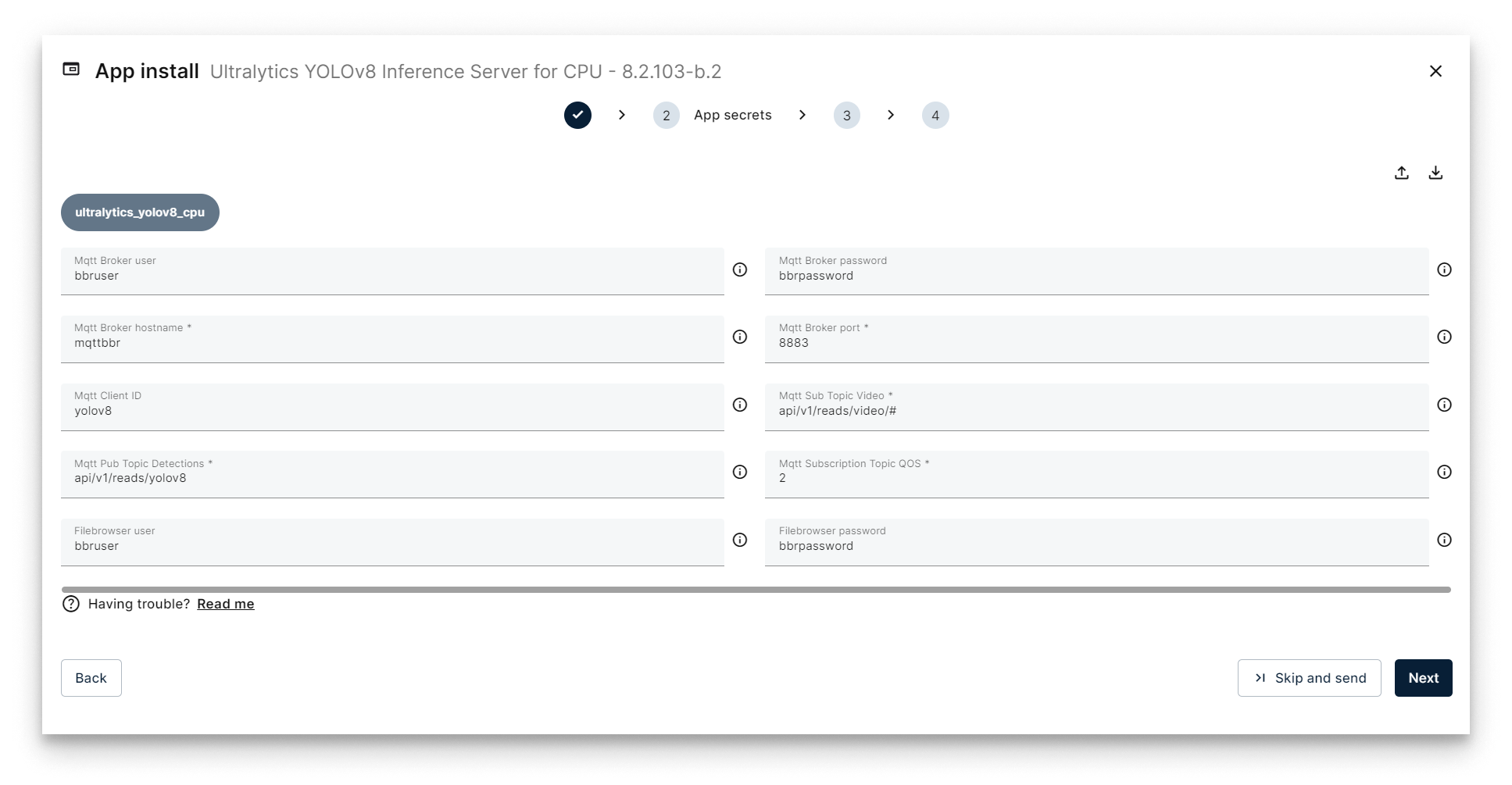
Add App Secrets
- Add the Compose Config. The only parameter that you can change in the Compose Configuration is the
Yolo Webbrowser Port. It determines the port where the Ultralytics YOLOv8 filebrowser will be pusblished. We will check later the use of this filebrowser later to upload our own models instead of the default ones. In this tutorial we can leave this configuration in its default value:10020.
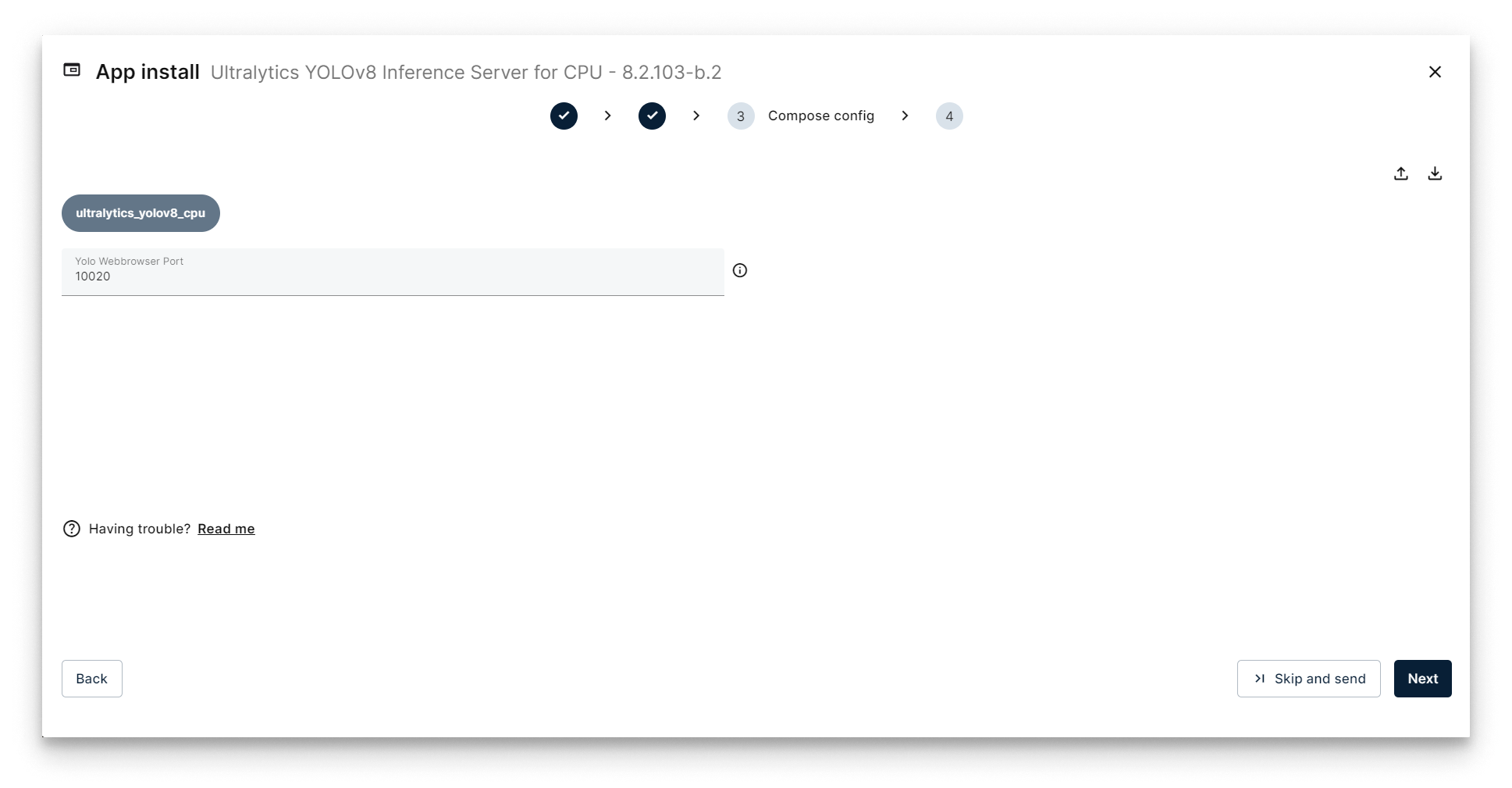
Add App Secrets
- Add your app Config: This step allows you to make some additional configuration through a JSON-format text. Copy the following JSON configuration and paste it in the JSON editor of Panel.
{
  "yolov8": {
    "inference_server": {
      "agnosticNms": false,
      "augment": false,
      "classes": [],
      "conf": 0.5,
      "displayNameDetections": "yolov8_detections_01",
      "displayNameTelemetry": "yolov8_telemetry_01",
      "displayNameVideoOutput": "yolov8_video_01",
      "iou": 0.7,
      "lineWidth": 0,
      "maxDet": 300,
      "model": "coco_yolov8n",
      "showBoxes": true,
      "showConf": true,
      "showLabels": true,
      "streamBuffer": true,
      "vidStride": 1,
      "videoOutputEnabled": true
    },
    "system": {
      "debugLevel": "info"
    },
    "video_input": {
      "displayName": "video_simulator_01"
    }
  }
}
Let's review some important parameters in this JSON config to deploy our YOLO example (you have all the information about the app configuration in the application's README file):
| Section | Parameter | Value | Description |
|---|---|---|---|
video_input | displayName | video_simulator_01 | This is the name of the input video receiced via MQTT Broker that we will analyze using the AI model. In this case, set this value to the displayName sent from the VideoSimulator. |
yolov8 | displayNameVideoOutput | yolov8_video_01 | This is the name of the output video that the application will generate and publish to the MQTT Broker. Leave its default value. |
yolov8 | displayNameTelemetry | yolov8_telemetry_01 | This is the name of the telemetry that the application will generate and publish to the MQTT Broker. Leave its default value. |
yolov8 | model | coco_yolov8n | This is the name of the AI Model that the application will use in its analysis.Leave its default value. |
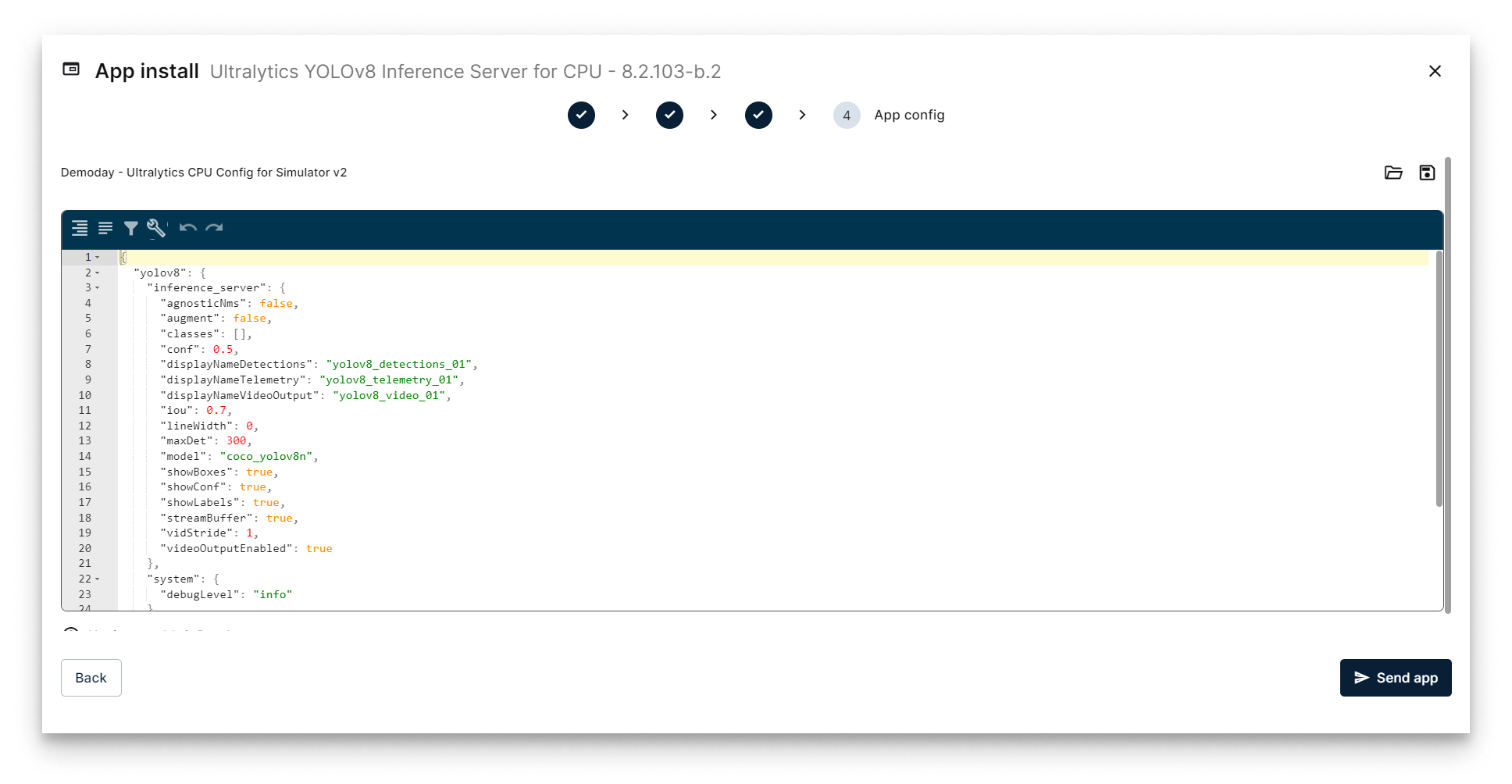
Configure Application
The telemetry stream consists of data points about objects detected in each video frame. This data, which includes object types, will be ingested into InfluxDB and subsequently visualized in Grafana.
Verifying the Ultralytics YOLOv8 inference server
Head back to your Node's details view. Within a few seconds, a new card should appear displaying the installed Ultralytics YOLOv8 app. Look for the status label on the card - if it reads STARTED then your Ultralytics YOLOv8 is up and running!
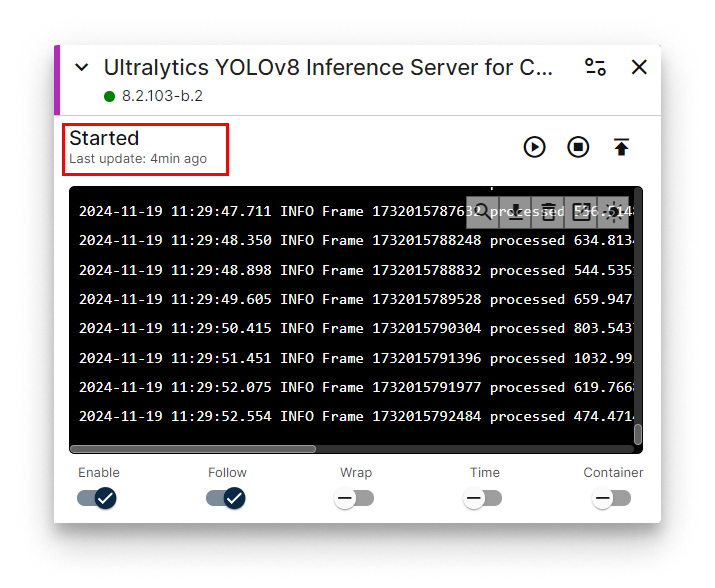
Ultralytics YOLOv8 installed
Now let's check again the Video Player web interface to visualize the video sent by Ultralytics YOLOv8 in this case.
First, open the app config of the Video Player application installed in the previous step by pressing the "pencil" button in the Config Section:
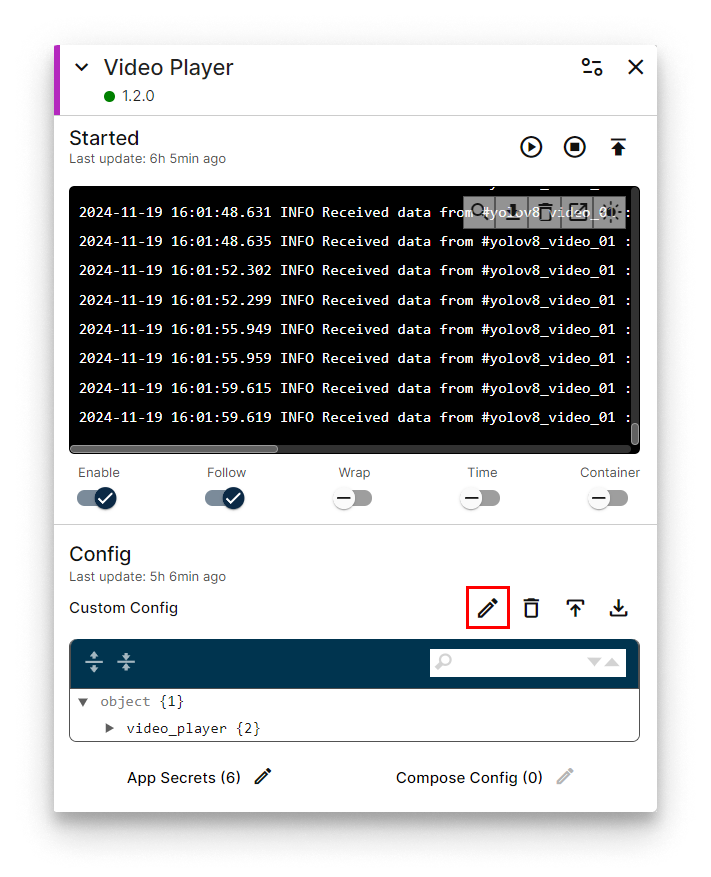
Press config button
Then, use the following JSON app config to visualize the YOLOv8 output video (check that the deviceDisplayName parameter is set to the name of the YOLOv8 output video yolov8_video_01):
{
  "video_player": {
    "system": {
      "debugLevel": "info"
    },
    "video": {
      "deviceDisplayName": "yolov8_video_01"
    }
  }
}
Open a new tab in your browser and navigate to the following URL: [IP_OF_YOUR_NODE]:5080. You should now see the original video stream displaying the iconic streets of New York City but containing the frames of the objects detected using the AI model. This is the new video generated by Ultralytics YOLOv8 Inference Server.
Remember that if your laptop is not connected to the same LAN as your edge node, you must activate your VPN and use its VPN's IP to access this web interface. You can check this IP on the Network card.
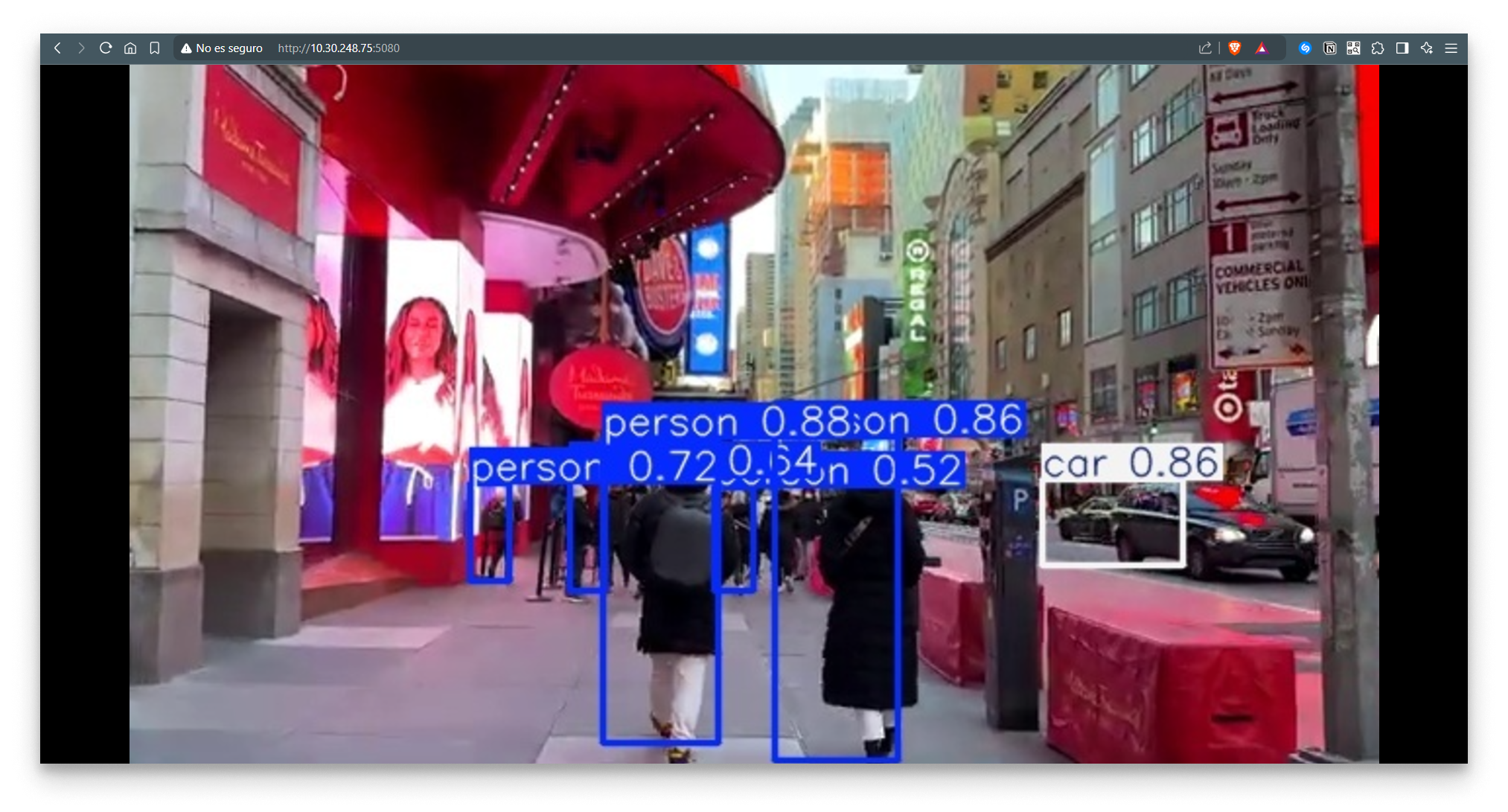
Video Player Web Interface
Congratulations! You've successfully set up your Ultralytics YOLOv8 and are now visualizing the video frames transmitted from the AI Model via the MQTT Broker.
Now, you can continue going to the step 5 to save the telemetry data generated by the Ultralytics YOLOv8 in an InfluxDB database. But before continuing, we will explain how to use a different AI model in the Ultralytics application.
Using a different predefined AI model
This step is provided for informational purposes only and is not required to complete this tutorial.
In order to use a different AI model to analyze the input video, just modify the parameter model in the appconfig. For example, if you want to perform a pose detection in the video using the model coco_yolov8n-pose, just use the following configuration in the "Config" section:
{
  "yolov8": {
    "inference_server": {
      "agnosticNms": false,
      "augment": false,
      "classes": [],
      "conf": 0.5,
      "displayNameDetections": "yolov8_detections_01",
      "displayNameTelemetry": "yolov8_telemetry_01",
      "displayNameVideoOutput": "yolov8_video_01",
      "iou": 0.7,
      "lineWidth": 0,
      "maxDet": 300,
      "model": "coco_yolov8n-pose",
      "showBoxes": true,
      "showConf": true,
      "showLabels": true,
      "streamBuffer": true,
      "vidStride": 1,
      "videoOutputEnabled": true
    },
    "system": {
      "debugLevel": "info"
    },
    "video_input": {
      "displayName": "video_simulator_01"
    }
  }
}
Check that now, if you open the Video Player interface, you will see a different output video, with the pose estimation of the persons detected in every frame:
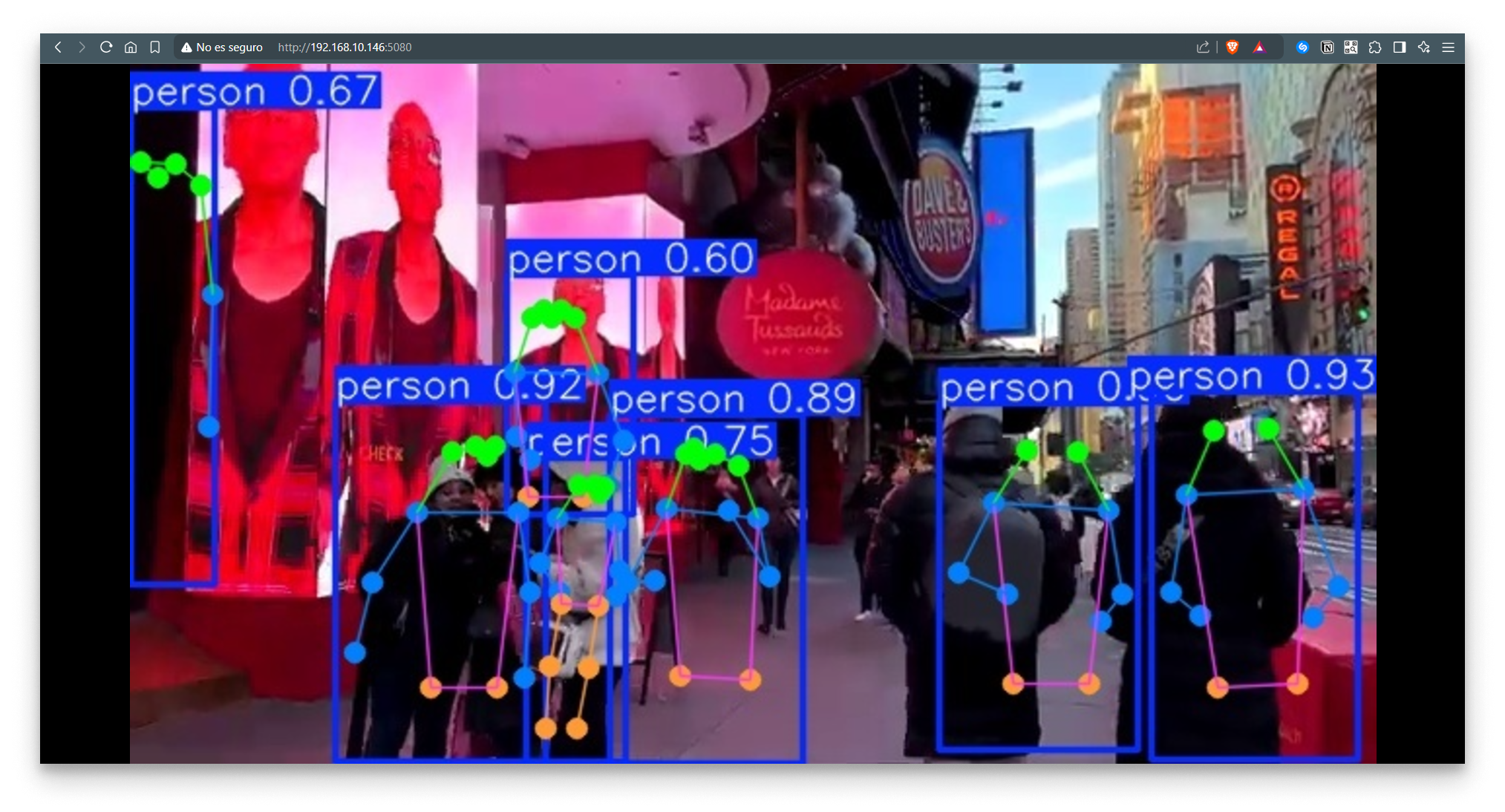
Video Player Web Interface
The application offers a range of pre-trained AI models. You can easily select the desired model by specifying its name in the model configuration parameter. Here's a list of available models:
| Type | Model | Size (pixels) | mAPval 50-95 | Speed CPU ONNX (ms) | Speed A100 TensorRT (ms) | Params (M) | FLOPs (B) |
|---|---|---|---|---|---|---|---|
| Object Detection | coco_yolov8n | 640 | 37.3 | 80.4 | 0.99 | 3.2 | 8.7 |
| Object Detection | coco_yolov8s | 640 | 44.9 | 128.4 | 1.20 | 11.2 | 28.6 |
| Object Detection | coco_yolov8m | 640 | 50.2 | 234.7 | 1.83 | 25.9 | 78.9 |
| Object Detection | coco_yolov8l | 640 | 52.9 | 375.2 | 2.39 | 43.7 | 165.2 |
| Object Detection | coco_yolov8x | 640 | 53.9 | 479.1 | 3.53 | 68.2 | 257.8 |
| Object Detection | openimagev7_yolov8n | 640 | 18.4 | 142.4 | 1.21 | 3.5 | 10.5 |
| Object Detection | openimagev7_yolov8s | 640 | 27.7 | 183.1 | 1.40 | 11.4 | 29.7 |
| Object Detection | openimagev7_yolov8m | 640 | 33.6 | 408.5 | 2.26 | 26.2 | 80.6 |
| Object Detection | openimagev7_yolov8l | 640 | 34.9 | 596.9 | 2.43 | 44.1 | 167.4 |
| Object Detection | openimagev7_yolov8x | 640 | 36.3 | 860.6 | 3.56 | 68.7 | 260.6 |
| Segmentation | coco_yolov8n-seg | 640 | 36.7 / 30.5 | 96.1 | 1.21 | 3.4 | 12.6 |
| Segmentation | coco_yolov8s-seg | 640 | 44.6 / 36.8 | 155.7 | 1.47 | 11.8 | 42.6 |
| Segmentation | coco_yolov8m-seg | 640 | 49.9 / 40.8 | 317.0 | 2.18 | 27.3 | 110.2 |
| Segmentation | coco_yolov8l-seg | 640 | 52.3 / 42.6 | 572.4 | 2.79 | 46.0 | 220.5 |
| Segmentation | coco_yolov8x-seg | 640 | 53.4 / 43.4 | 712.1 | 4.02 | 71.8 | 344.1 |
| Pose | coco_yolov8n-pose | 640 | 50.4 / 80.1 | 131.8 | 1.18 | 3.3 | 9.2 |
| Pose | coco_yolov8s-pose | 640 | 60.0 / 86.2 | 233.2 | 1.42 | 11.6 | 30.2 |
| Pose | coco_yolov8n-pose | 640 | 65.0 / 88.8 | 456.3 | 2.00 | 26.4 | 81.0 |
| Pose | coco_yolov8l-pose | 640 | 67.6 / 90.0 | 784.5 | 2.59 | 44.4 | 168.6 |
| Pose | coco_yolov8x-pose | 640 | 69.2 / 90.2 | 1607.1 | 3.73 | 69.4 | 263.2 |
| Pose | coco_yolov8x-pose p6 | 1280 | 71.6 / 91.2 | 4088.7 | 10.04 | 99.1 | 1066.4 |
| OBB | dotav1_yolov8n-obb | 1024 | 78.0 | 204.77 | 3.57 | 3.1 | 23.3 |
| OBB | dotav1_yolov8s-obb | 1024 | 79.5 | 424.88 | 4.07 | 11.4 | 76.3 |
| OBB | dotav1_yolov8m-obb | 1024 | 80.5 | 763.48 | 7.61 | 26.4 | 208.6 |
| OBB | dotav1_yolov8l-obb | 1024 | 80.7 | 1278.42 | 11.83 | 44.5 | 433.8 |
| OBB | dotav1_yolov8x-obb | 1024 | 81.36 | 1759.10 | 13.23 | 69.5 | 676.7 |
| Clasification | imagenet_yolov8n-cls | 224 | 69.0 / 88.3 | 12.9 | 0.31 | 2.7 | 4.3 |
| Clasification | imagenet_yolov8s-cls | 224 | 73.8 / 91.7 | 23.4 | 0.35 | 6.4 | 13.5 |
| Clasification | imagenet_yolov8m-cls | 224 | 76.8 / 93.5 | 85.4 | 0.62 | 17.0 | 42.7 |
| Clasification | imagenet_yolov8l-cls | 224 | 78.3 / 94.2 | 163.0 | 0.87 | 37.5 | 99.7 |
| Clasification | imagenet_yolov8x-cls | 224 | 79.0 / 94.6 | 232.0 | 1.01 | 57.4 | 154.8 |
Using your own pretrained AI model
This step is provided for informational purposes only and is not required to complete this tutorial.
With Ultralytics YOLOv8 app it is also possible to upload your own trained models in Torchscript format.
To upload your own model, use the filebrowser embedded in the Ultralytics YOLOv8 application.
Open a new tab in your browser and navigate to the URL: [IP_OF_YOUR_NODE]:10020. Remember that the port, user and password used for the filebrowser site can be modified in the configuration of the Ultralytics application.
| Parameter | Default Value | Configuration |
|---|---|---|
| Filebrowser port | 10020 | Compose config |
| Filebrowser user | bbruser | App Secrets |
| Filebroser password | bbrpassword | App Secrets |
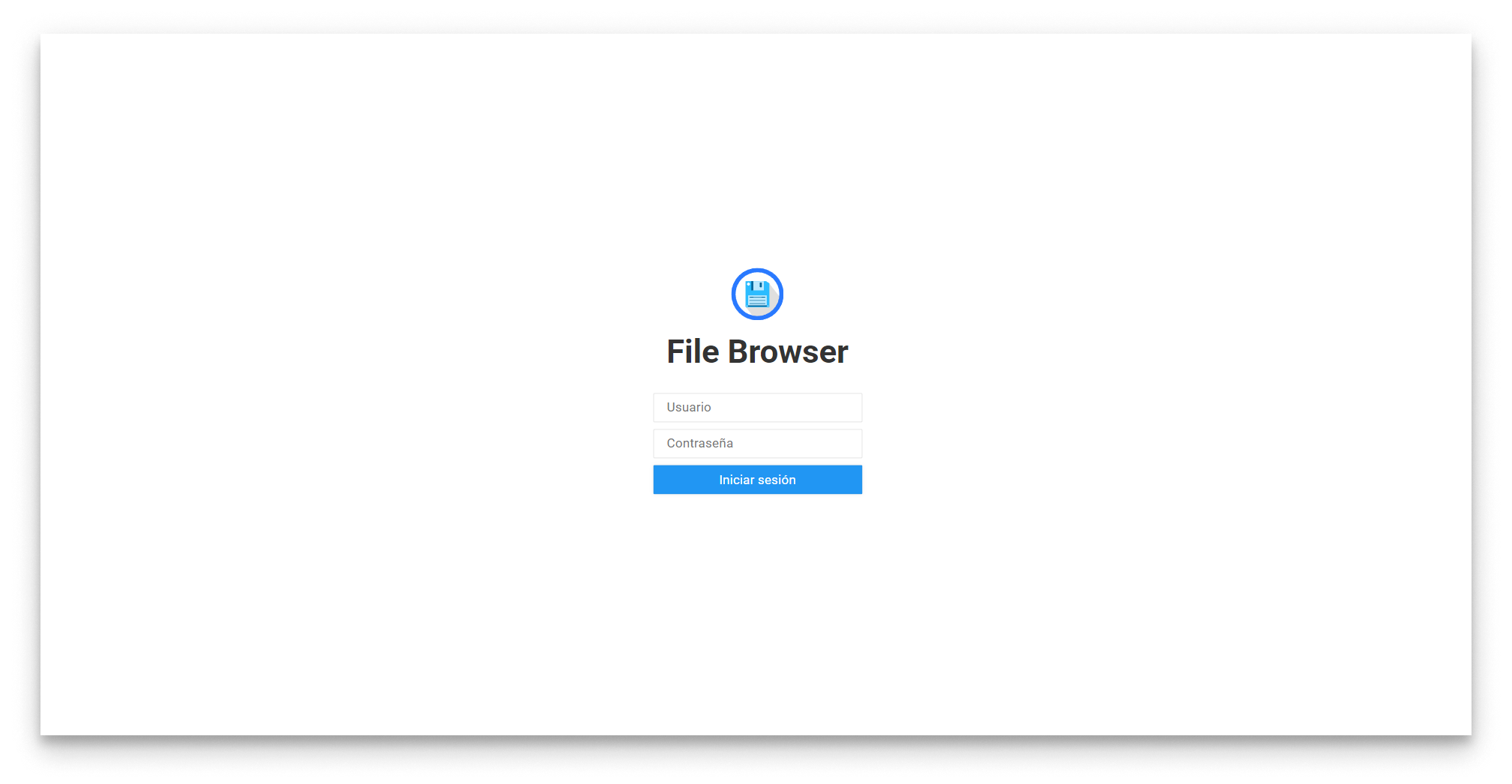
File browser web interface - Login
Once you reach the main view of the filebrowser, just press the Upload button and upload the trained model in Torchscript format (.pt file).
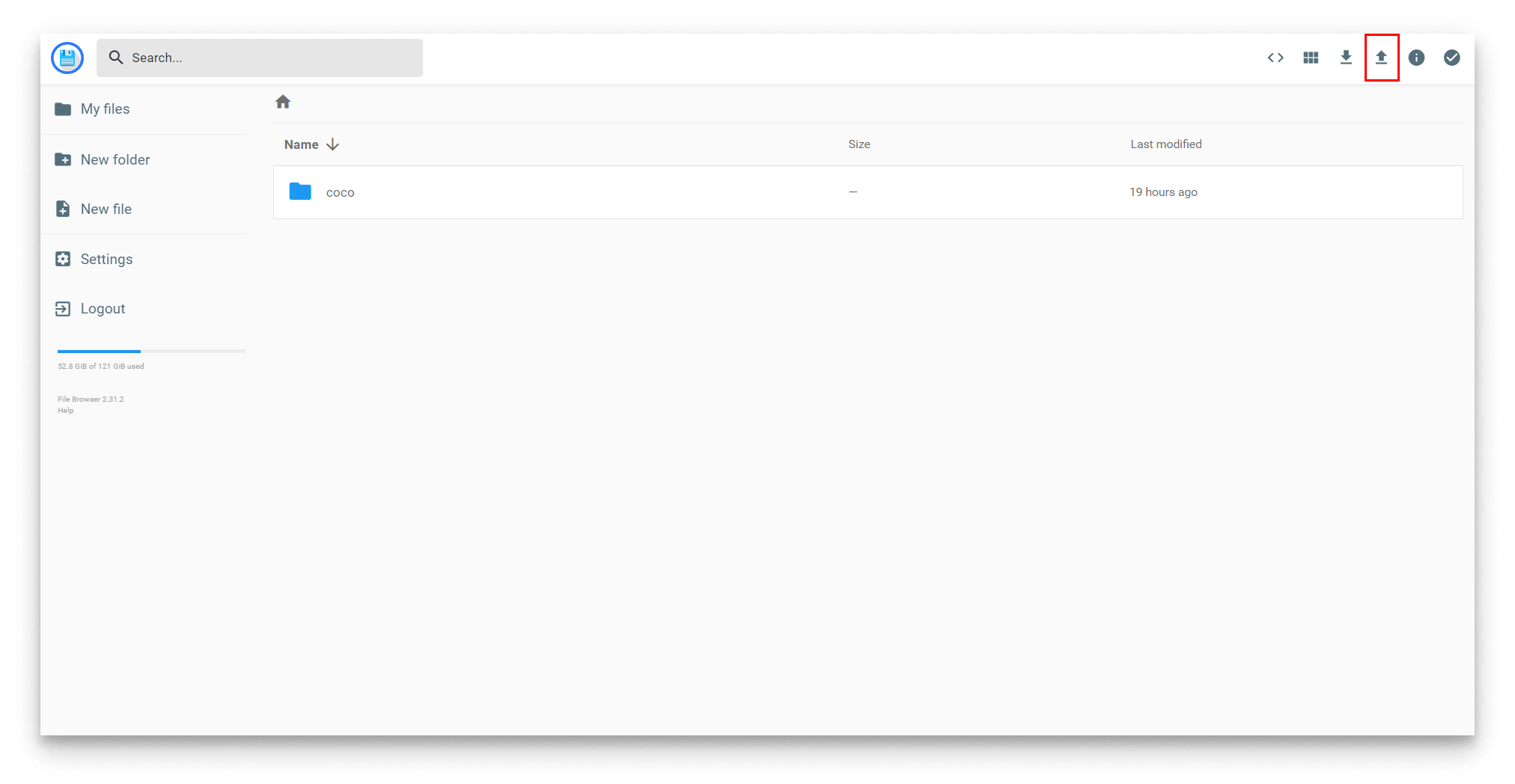
File browser web interface - Upload
Once your model has been uploaded it will appear in the filebrowser:
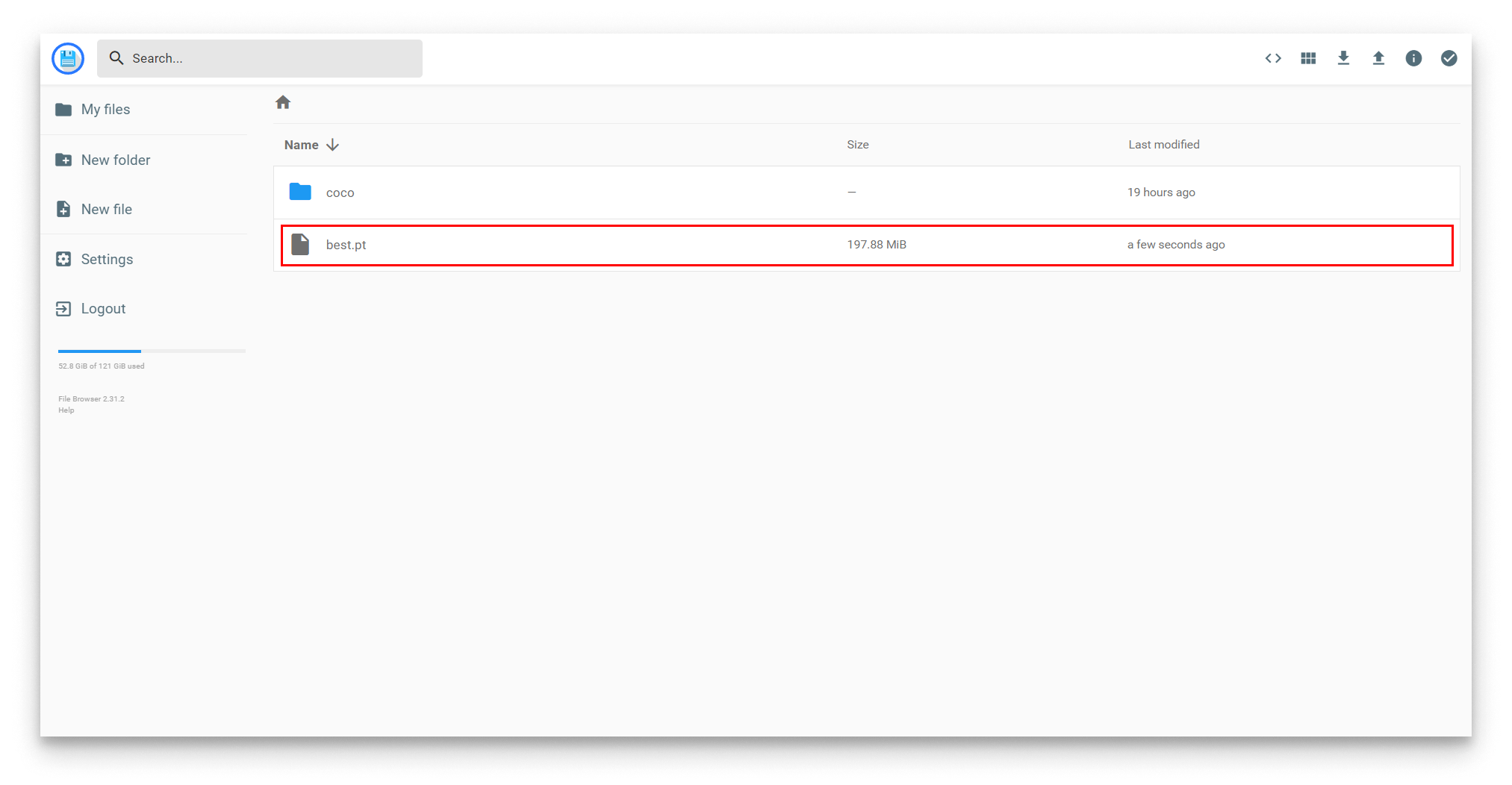
File browser web interface - Uploaded
Then, just change the model parameter in your appconfig and set the name of your uploaded model:
{
  "yolov8": {
    "inference_server": {
      "agnosticNms": false,
      "augment": false,
      "classes": [],
      "conf": 0.5,
      "displayNameDetections": "yolov8_detections_01",
      "displayNameTelemetry": "yolov8_telemetry_01",
      "displayNameVideoOutput": "yolov8_video_01",
      "iou": 0.7,
      "lineWidth": 0,
      "maxDet": 300,
      "model": "best.pt",
      "showBoxes": true,
      "showConf": true,
      "showLabels": true,
      "streamBuffer": true,
      "vidStride": 1,
      "videoOutputEnabled": true
    },
    "system": {
      "debugLevel": "info"
    },
    "video_input": {
      "displayName": "video_simulator_01"
    }
  }
}