Step 6: Deploy the InfluxDB ingester
Overview
An MQTT-InfluxDB data ingester is an application that facilitates the seamless transfer and storage of data received via the MQTT protocol to an InfluxDB database.
Here's a breakdown of its core functions:
- MQTT Protocol Understanding: The ingester is designed to comprehend and interpret data transmitted using the MQTT protocol.
- Data Extraction and Transformation: The ingester extracts relevant data from the incoming MQTT messages. It then transforms this data into a format suitable for storage within an InfluxDB database.
- Data Ingestion into InfluxDB: Once the data is prepared, the ingester sends it to the designated InfluxDB database.
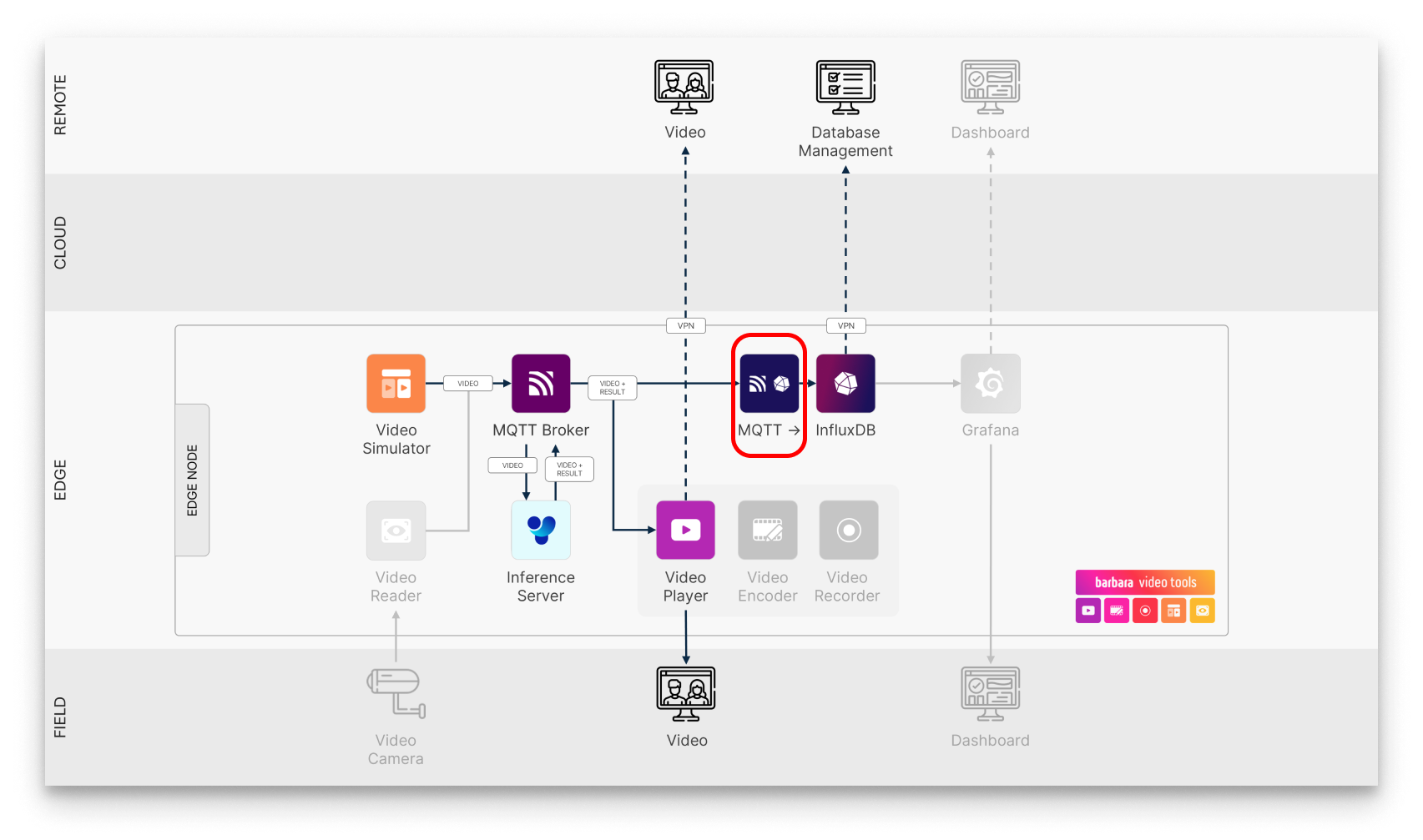
MQTT-InfluxDB Ingester in the solution workflow
In this tutorial, we'll demonstrate how to deploy an MQTT-InfluxDB Ingester on your edge node. This essential component will facilitate the efficient transfer and storage of telemetry data generated by the Ultralytics YOLOv8 application to an InfluxDB database.
Add the Ingester App to your library
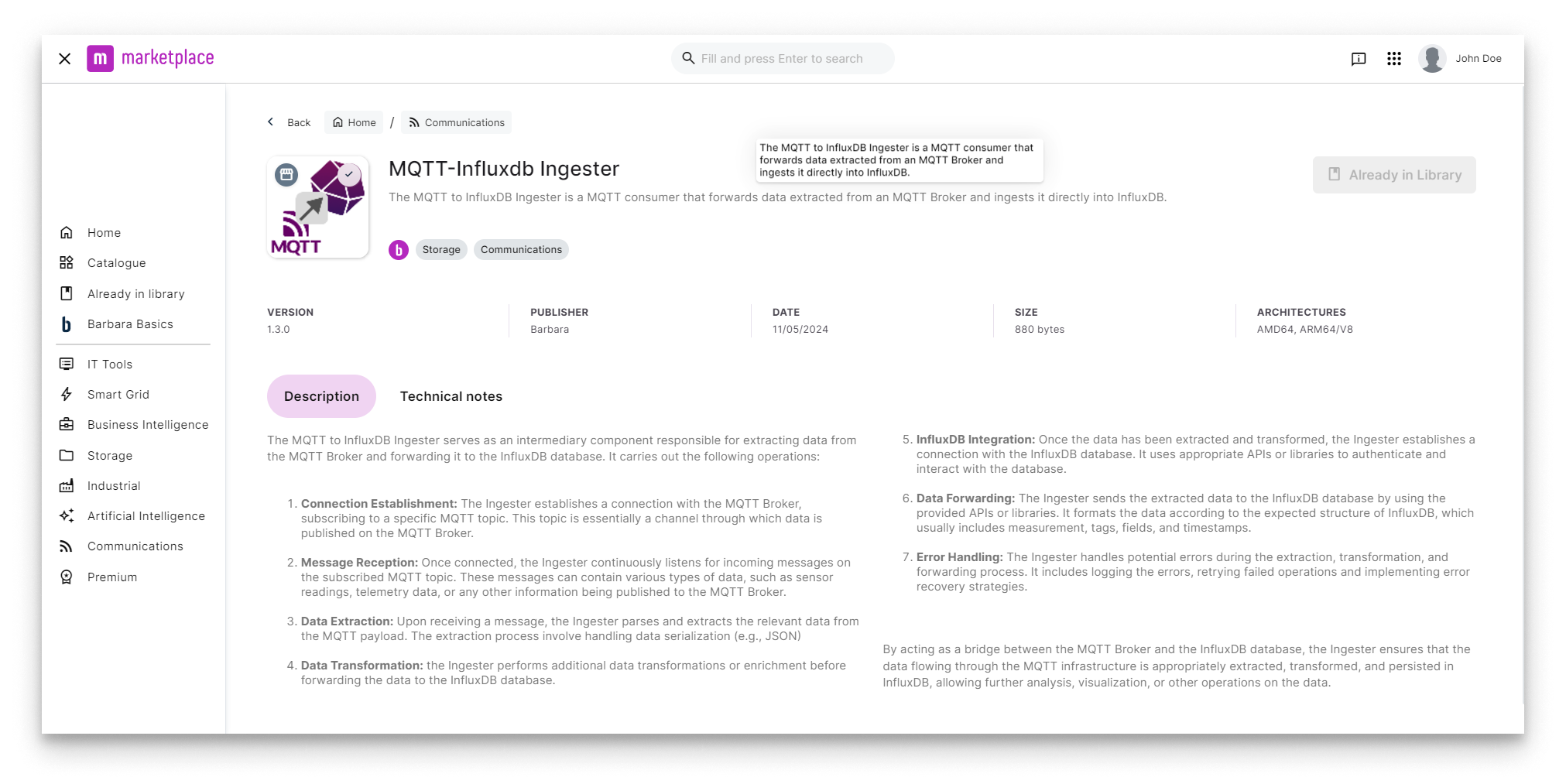
MQTT-InfluxDB Ingester in Barbara Marketplace
Go to Barbara Marketplace, search for MQTT-InfluxDB Ingester and add it to your Panel's library.
You will find the MQTT-InfluxDB Ingester in this linkof the Barbara Marketplace.
Once added you will find it in your Barbara Panel App Library. Let's deploy it to your Edge Node.
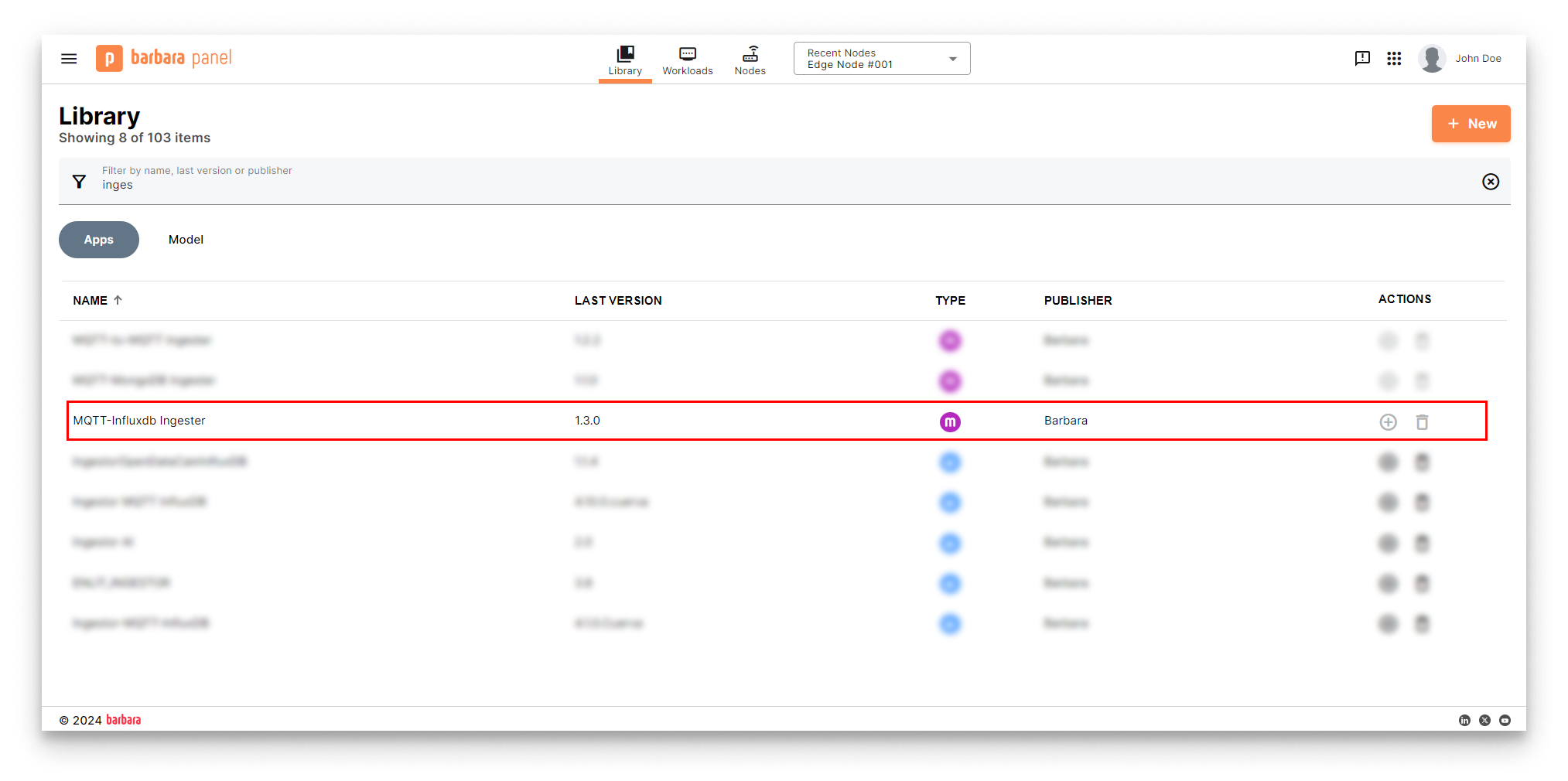
MQTT-InfluxDB Ingester in Panel's library
Install the MQTT-InfluxDB Ingester App
- Head to your Node's details view and click the
+ Add Cardbutton.
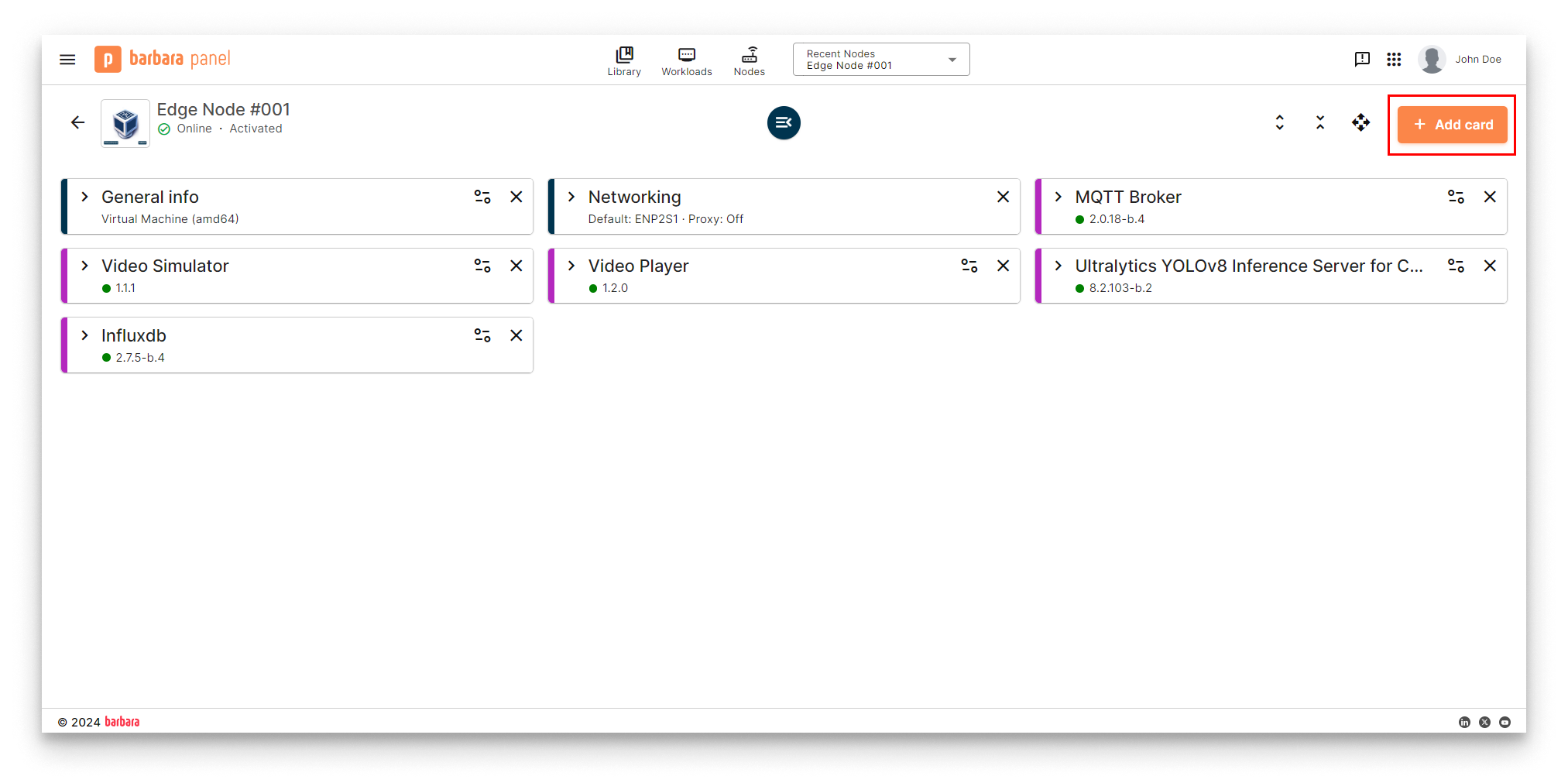
Add New Card
- Select the
Applicationoption in the dropdown menu.
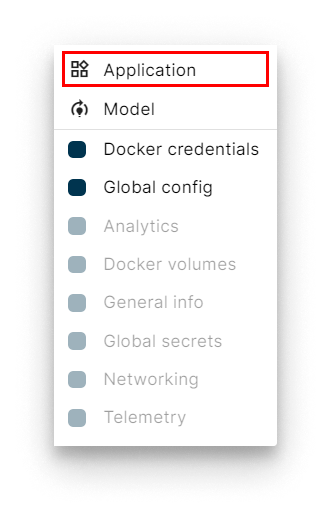
Select Application
- Select Application and Version: Select the
MQTT-InfluxDB Ingesterapp from the application dropdown list and pick the latest existing version from the version dropdown list. Then clickNextto proceed with the next step.
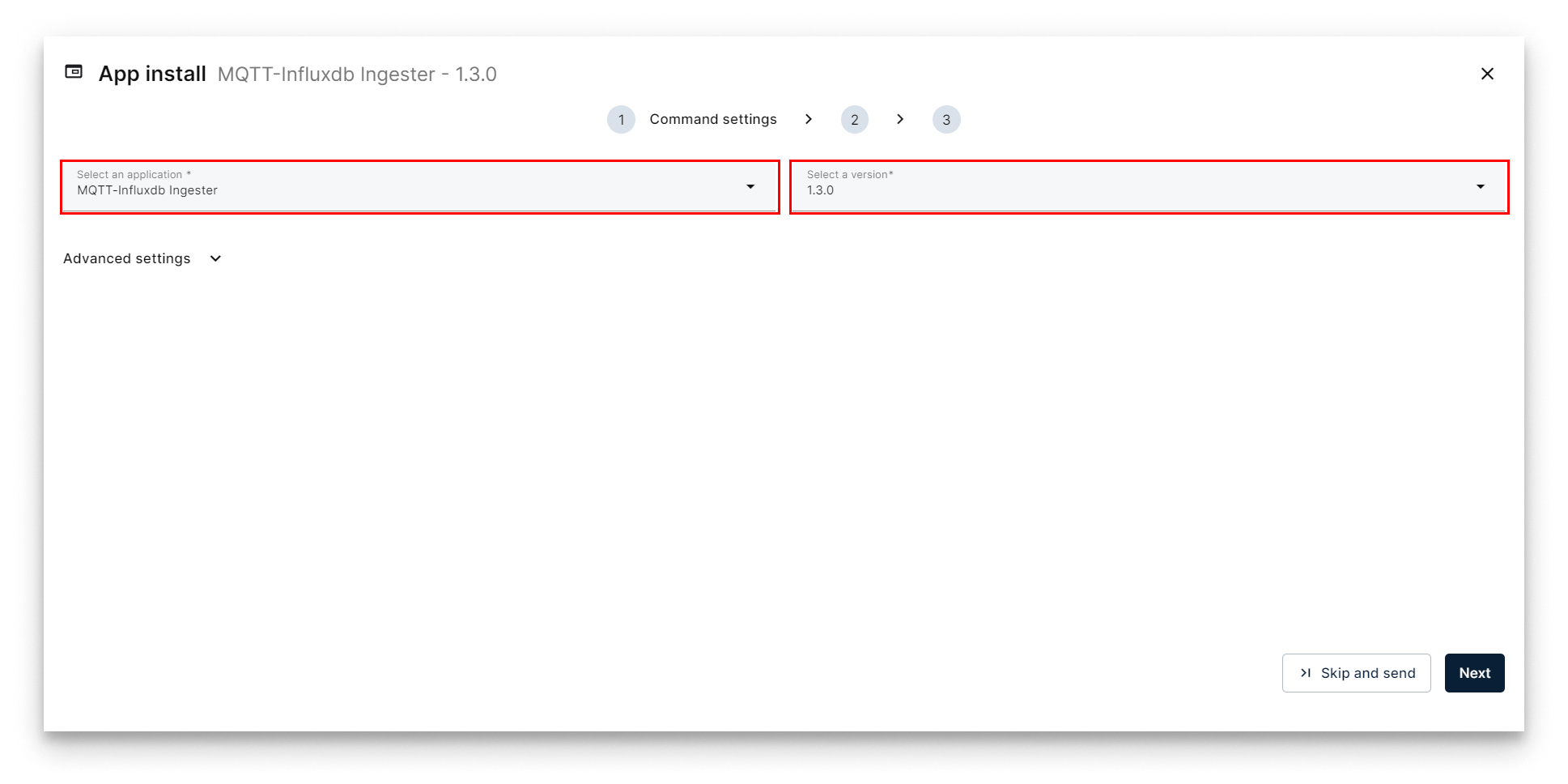
Select MQTT-InfluxDB Ingester
- Add App Secrets Review the default configuration for app secrets and leave it as-is. Technical notes explain each variable on the
Read melink below the form. Once finish, just clickNext.
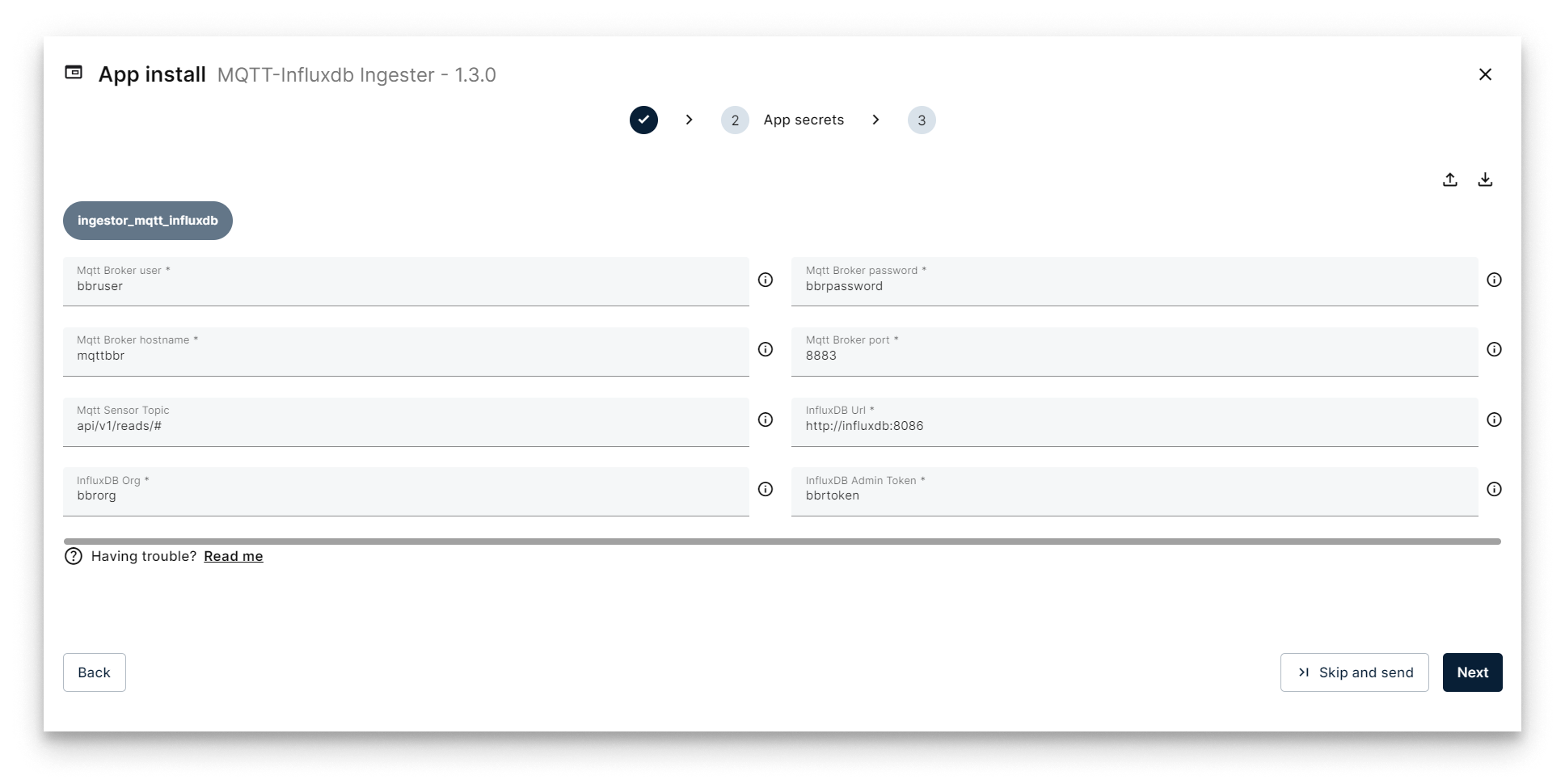
Add App Secrets
- Add your App Config: This step allows you to make some additional configuration through a JSON-format text. Copy the following JSON configuration and paste it in the JSON editor of Panel.
{
  "ingestorMqttInfluxdb": {
    "inputs": [
      {
        "bucketInflux": "bbrbucket",
        "dataFields": [],
        "dataTags": [],
        "deviceDisplayName": "yolov8_telemetry_01",
        "deviceNameInflux": "yolov8_telemetry_01",
        "deviceTags": [],
        "measurementInflux": "test",
        "subDeviceTags": [],
        "tags": "",
        "type": "read",
        "userTags": []
      }
    ],
    "system": {
      "bucketAutoCreate": true,
      "bucketAutoCreateRetention": 3600,
      "debugLevel": "info",
      "forceType": false
    }
  }
}
Let’s review some important parameters in this JSON config to deploy the ingester application (you have all the information about the app configuration in the application’s README file):
| Section | Parameter | Value | Description |
|---|---|---|---|
inputs | bucketInflux | bbrbucket | This is the name of the InfluxDB's bucket where the data will be stored. |
inputs | deviceDisplayName | yolov8_video_01 | This is the identifier of the telemetry data that the application will reading in the MQTT Broker. |
inputs | deviceNameInflux | yolov8_video_01 | This is the identifier of the data that we will be storing in the database. |
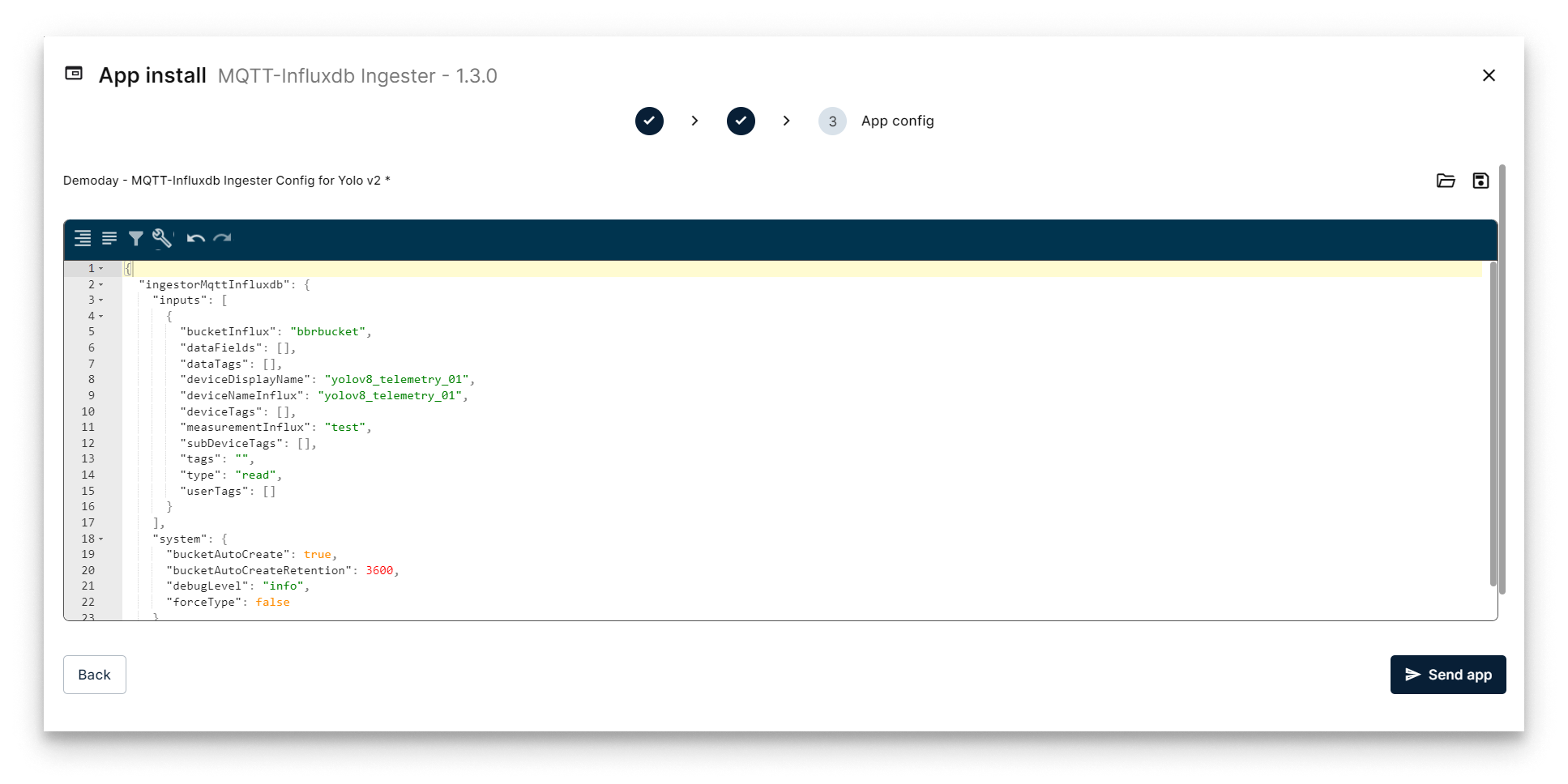
Configure Application
Verifying the Ingester application
Head back to your Node's details view. Within a few seconds, a new card should appear displaying the installed Ingester app. Look for the status label on the card - if it reads STARTED then your InfluxDB is up and running!
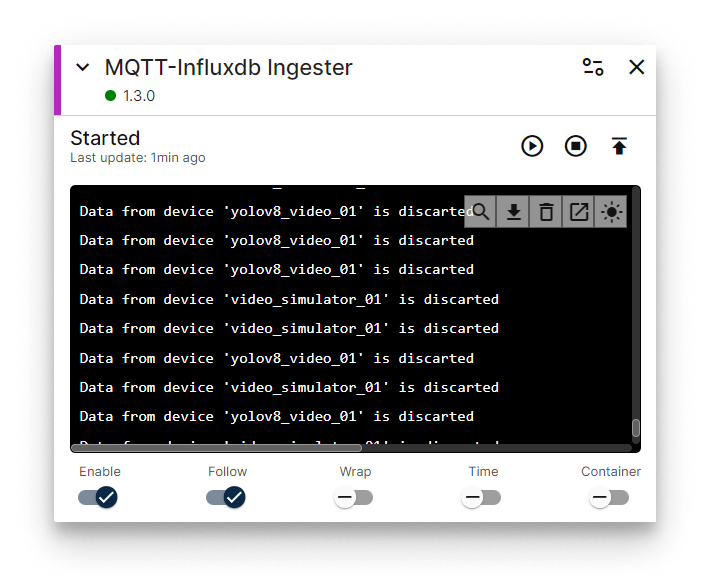
MQTT-InfluxDB Ingester installed
Now, you should see new data in the InfluxDB database. To confirm that poing, open a new tab in your browser and navigate to the following URL to access the InfluxDB database: [IP_OF_YOUR_NODE]:8086.
Check that the port and the user/password are set in the InfluxDB's application configuration:
| Parameter | Default Value | Configuration |
|---|---|---|
| port | 8086 | Compose config |
| user | bbruser | App Secrets |
| password | bbrpassword | App Secrets |
Remember that if your laptop is not connected to the same LAN as your edge node, you must activate your VPN and use its VPN's IP to access this web interface. You can check this IP on the Network card.
After logging into the InfluxDB database with the specified username and password, access the 'Data Explorer' section from the side menu. Within the 'Data Explorer,' execute a query targeting the bbrbucket bucket and the yolov8_video_01 device. This query will reveal the data that has been stored in the database.
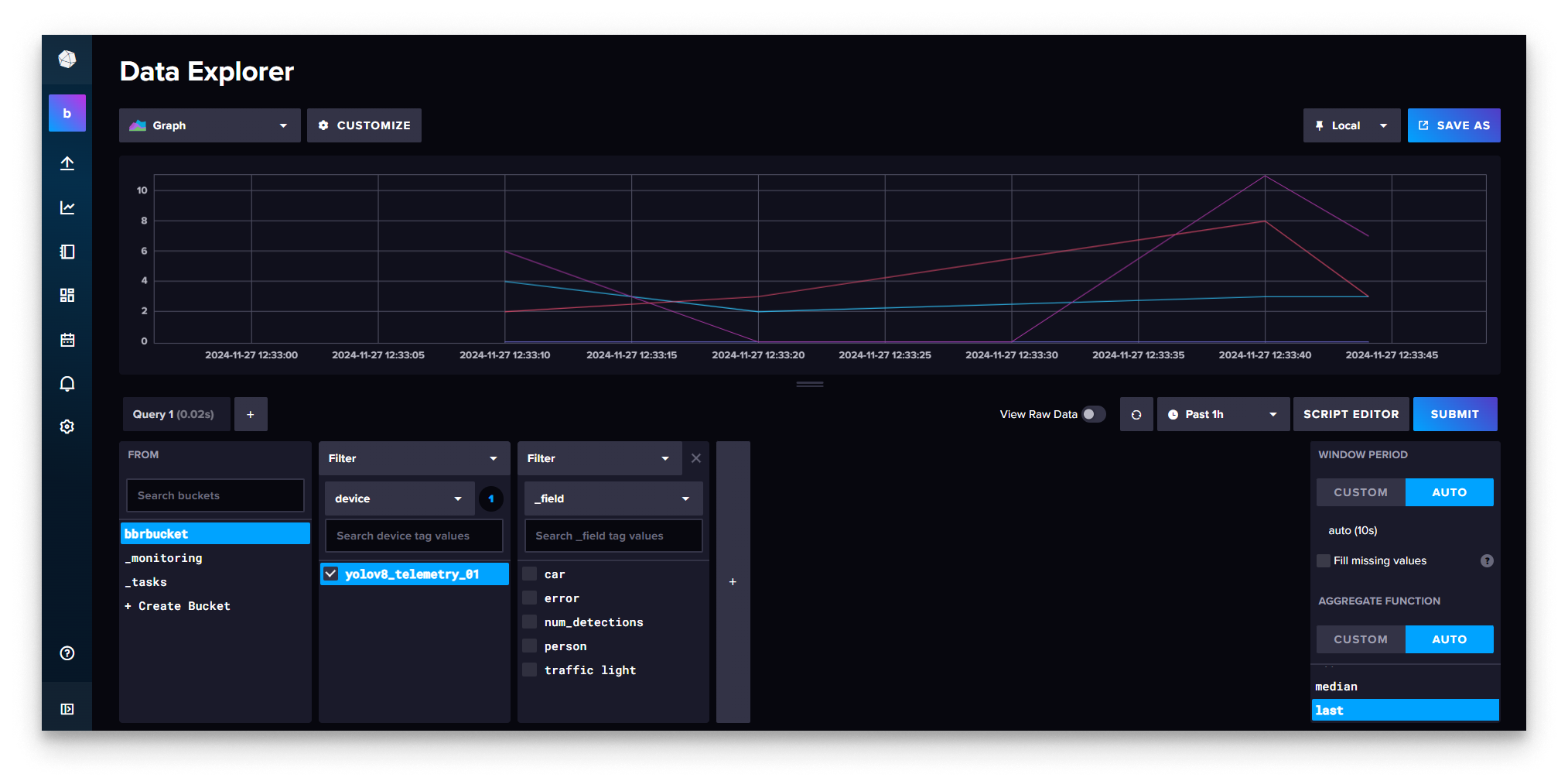
InfluxDB Login
Congratulations! You've successfully set up the ingester and the telemetry data is being stored in InfluxDB. Next, move on to Step 7 where we'll detail how to deploy Grafana and monitorize the data using a predefined dashboard.