Step 2 — Deploy the Video Simulator
This article refers to Platform v3.0.0. The current Platform version is v3.4.0.
This step assumes the MQTT Broker is already deployed on the same node. If it isn't, go back to Step 1 first.
Overview
The Video Simulator generates a video stream and publishes its frames as base64 over MQTT, so the rest of the pipeline can consume it without needing a real camera. It can pull from three sources:
- Default — a preloaded video shipped with the app.
- YouTube — any YouTube link.
- Video file — a local file you upload to the app's file browser.
This tutorial uses the default video by default; the Stream from YouTube and Stream from a local file sections below show how to swap the source.
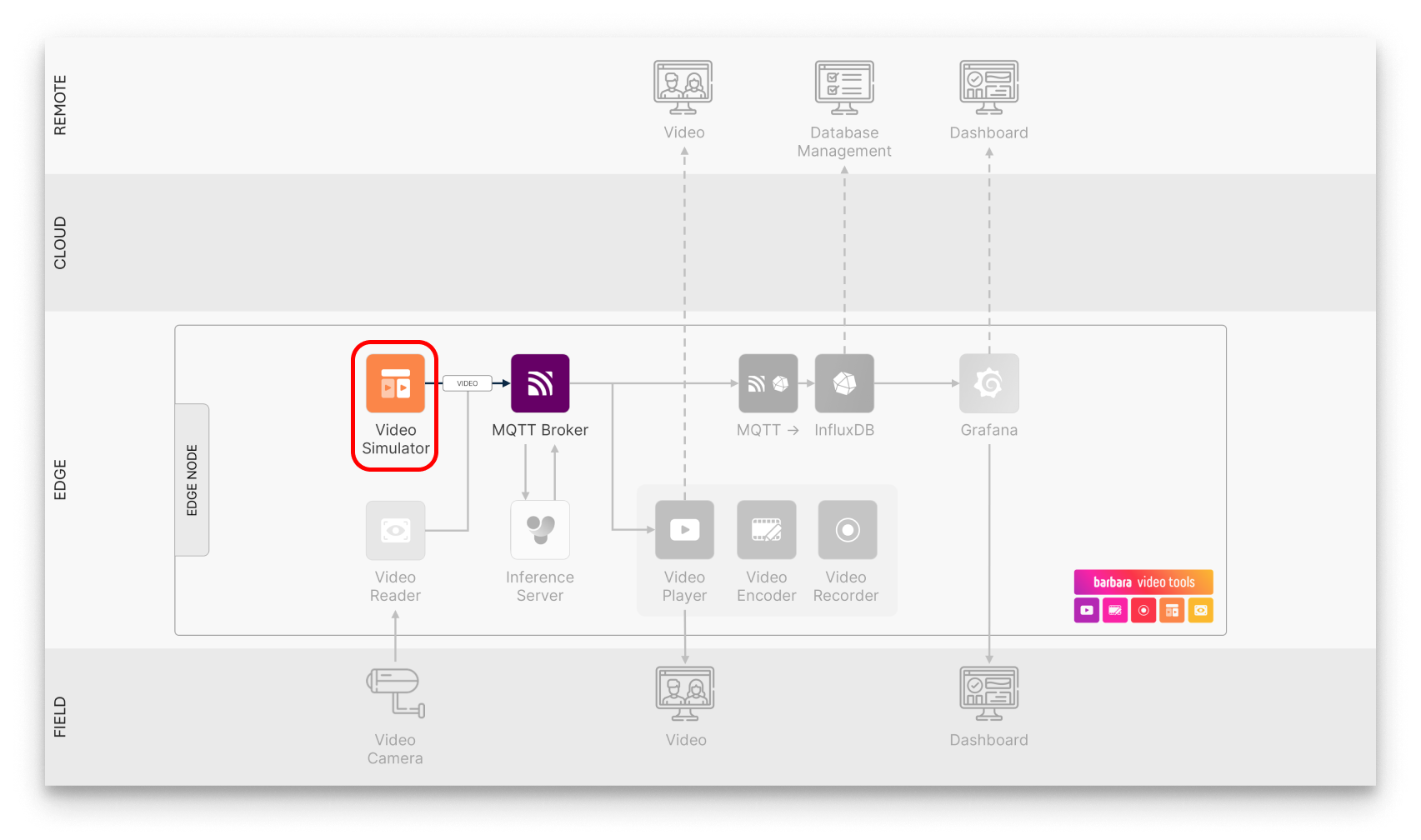
Video Simulator in the pipeline
Add the Video Simulator to your Library


Video Simulator
Publishes a video stream (default, YouTube, or local file) frame by frame to the MQTT Broker in base64.
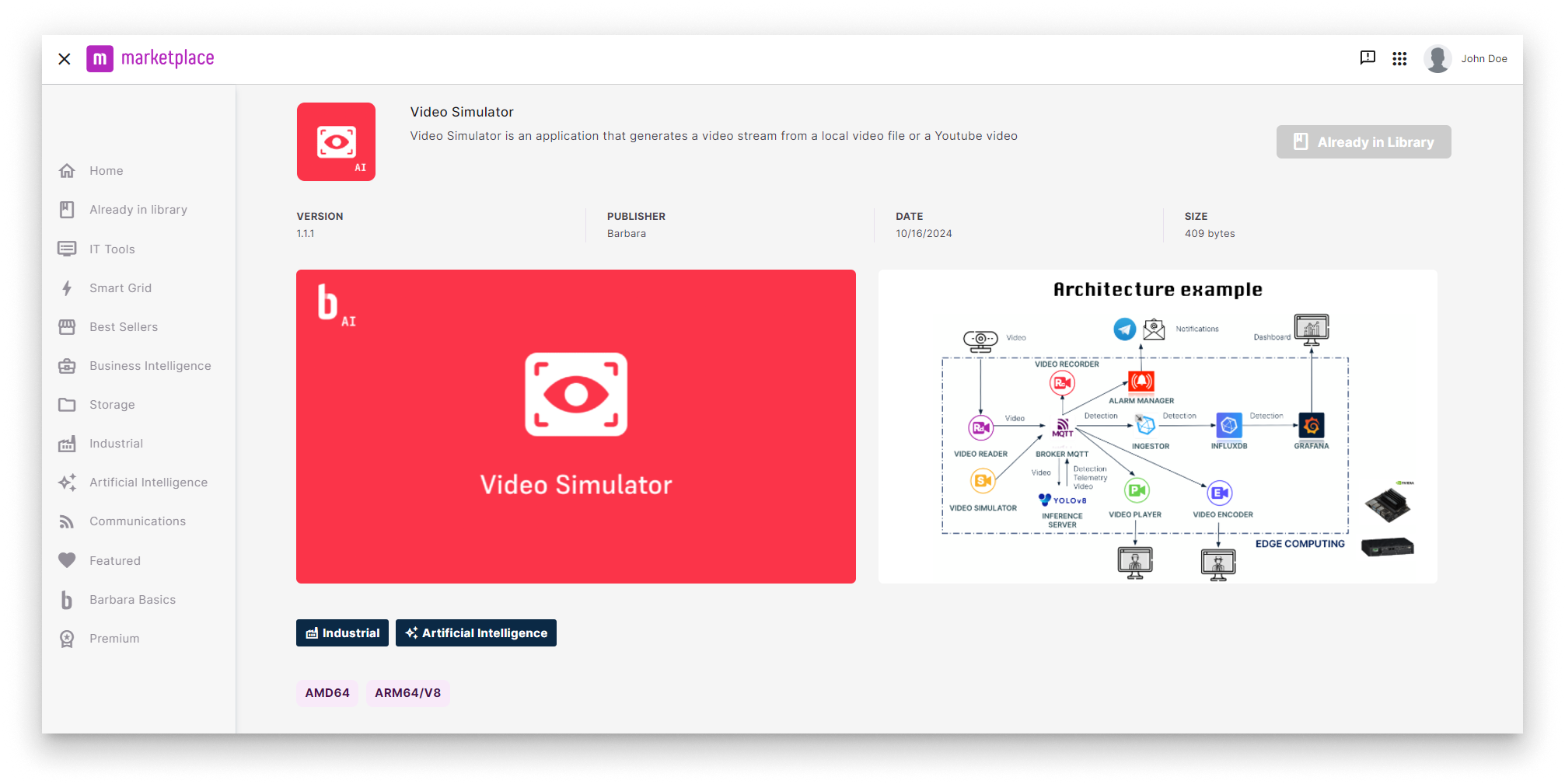
Video Simulator in the Marketplace
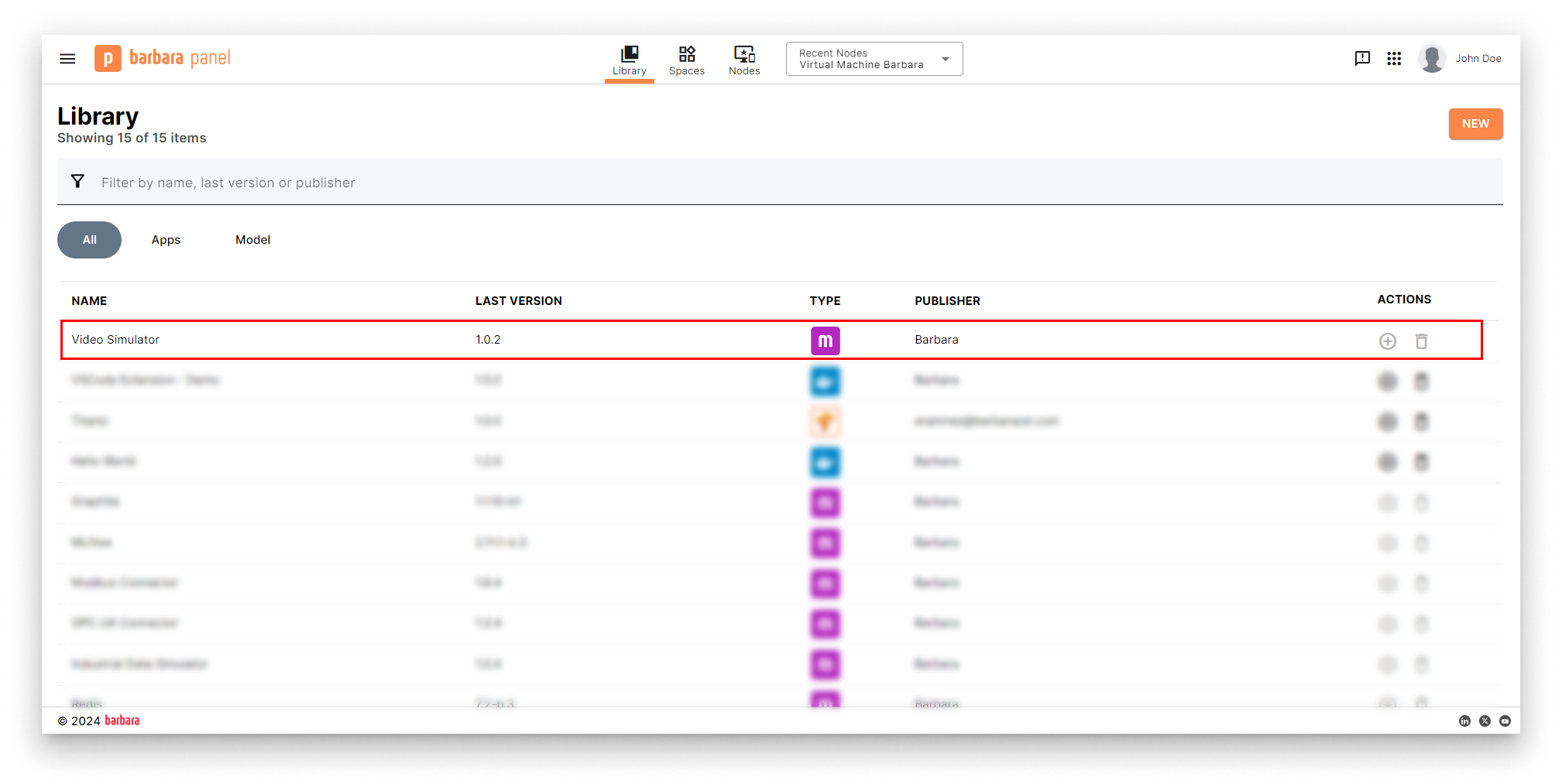
Video Simulator in the App Library
Deploy the Video Simulator
- Open the Node Details page and click Add card → Application.
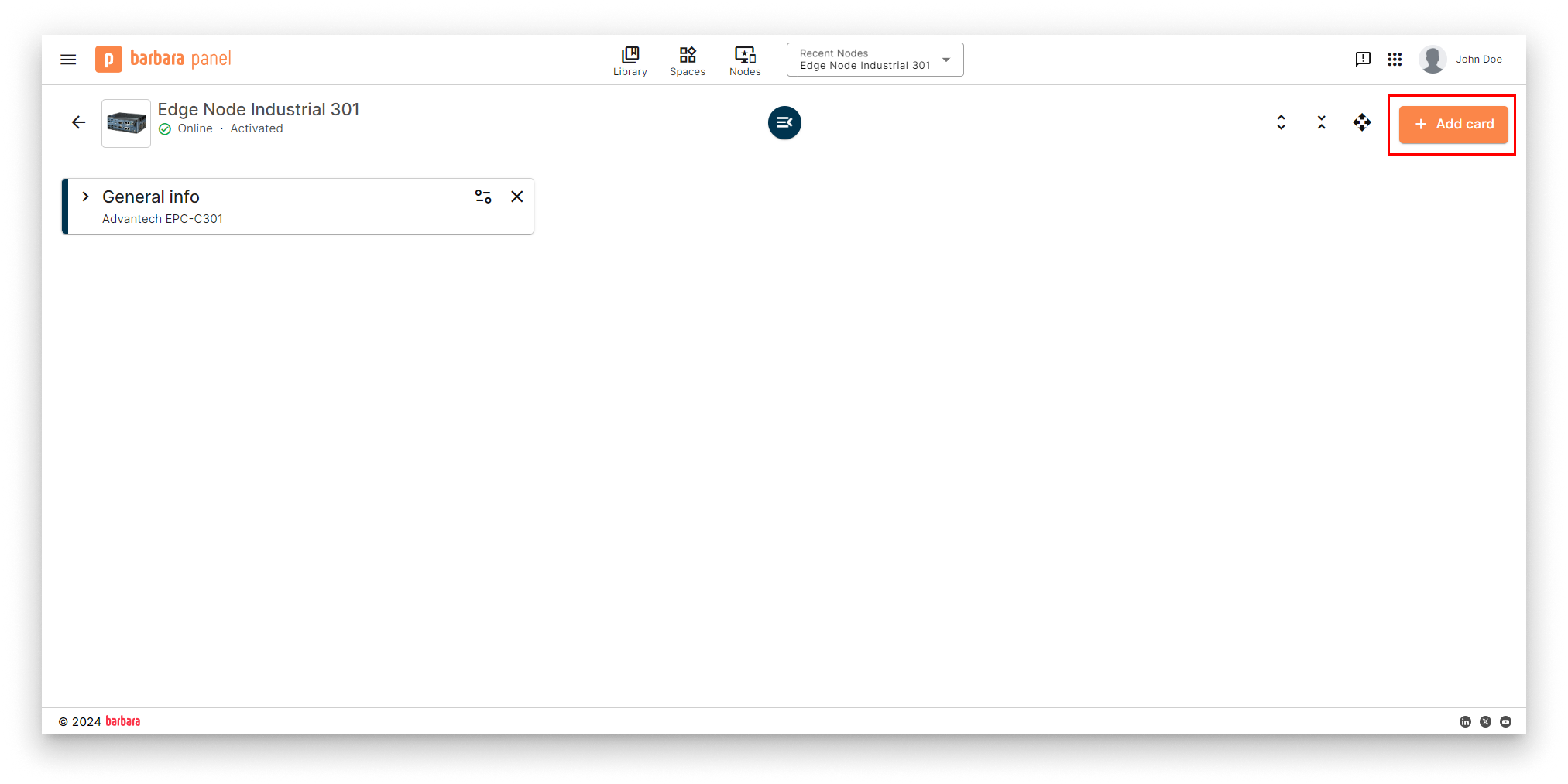
Add card menu
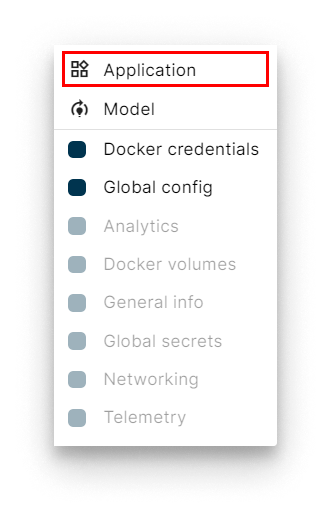
Select Application
- Select app and version. Pick Video Simulator and its latest version. Click Next.
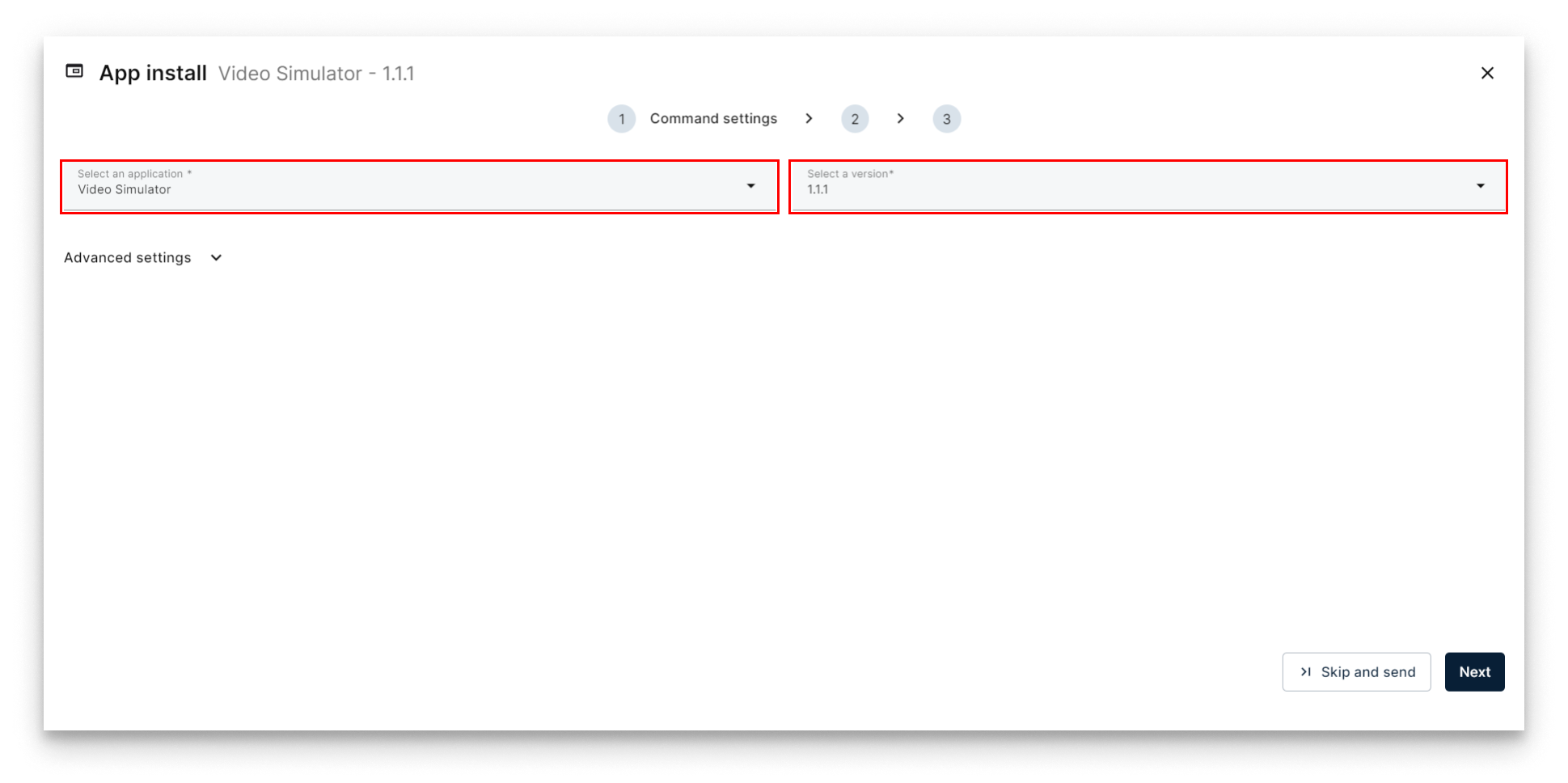
Select the Video Simulator
- App Secrets. Keep the defaults and click Next. The README link below the form documents every variable.
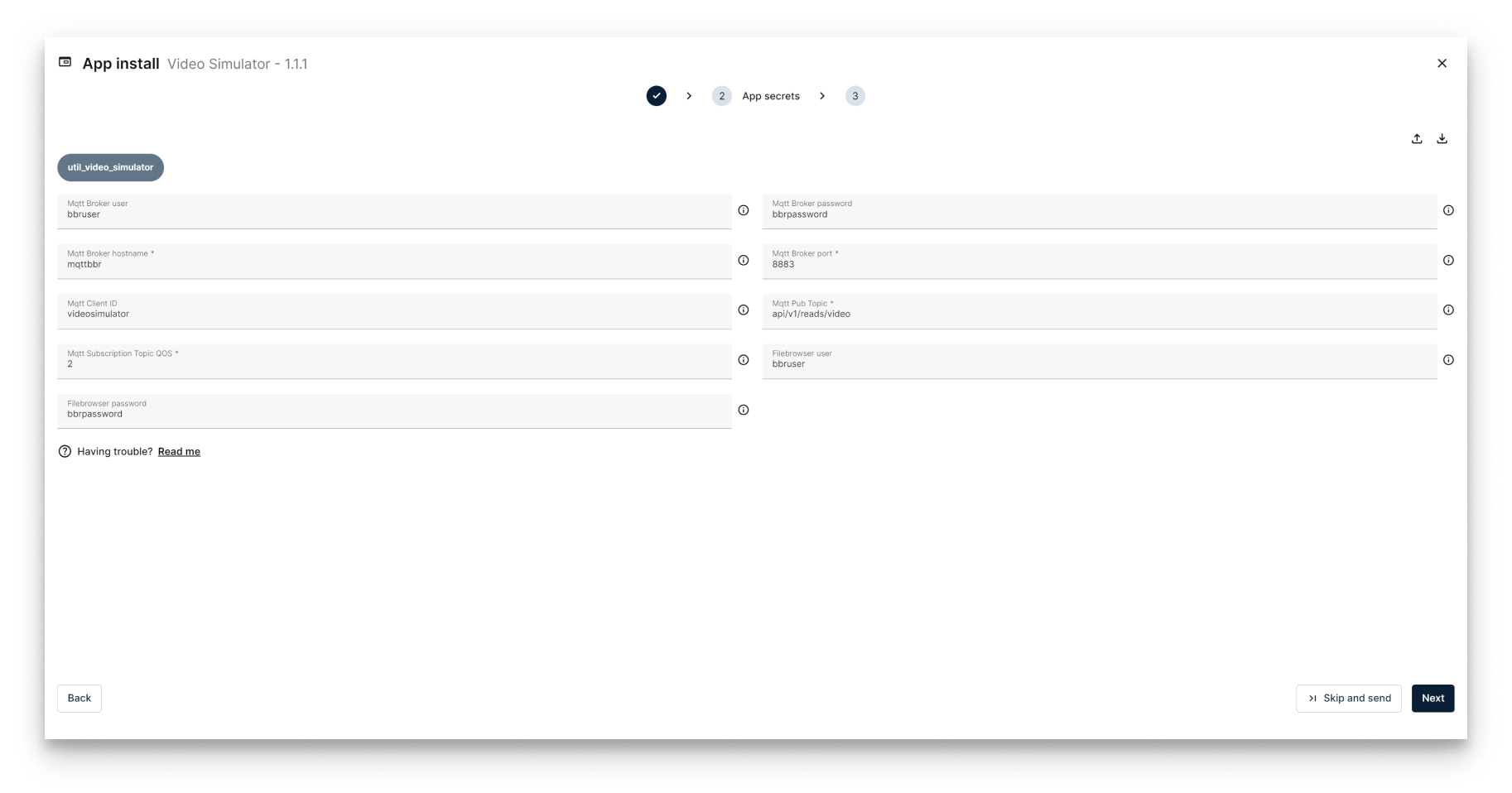
App Secrets for the Video Simulator
-
App Config. Paste the JSON below to use the default video:
{
  "util_video_simulator": {
    "system": {
      "debugLevel": "info"
    },
    "video": {
      "enabled": true,
      "fps": 30,
      "displayName": "video_simulator_01",
      "type": "default",
      "source": ""
    }
  }
}
Key fields:
displayName— the unique identifier of this stream on the MQTT broker. Other apps (Video Player, YOLOv8) point at this name to consume the stream.type—default,youtube, orvideo.source— a YouTube URL or a file name in the app's file browser. Empty whentypeisdefault.
-
Click Send App to deploy.
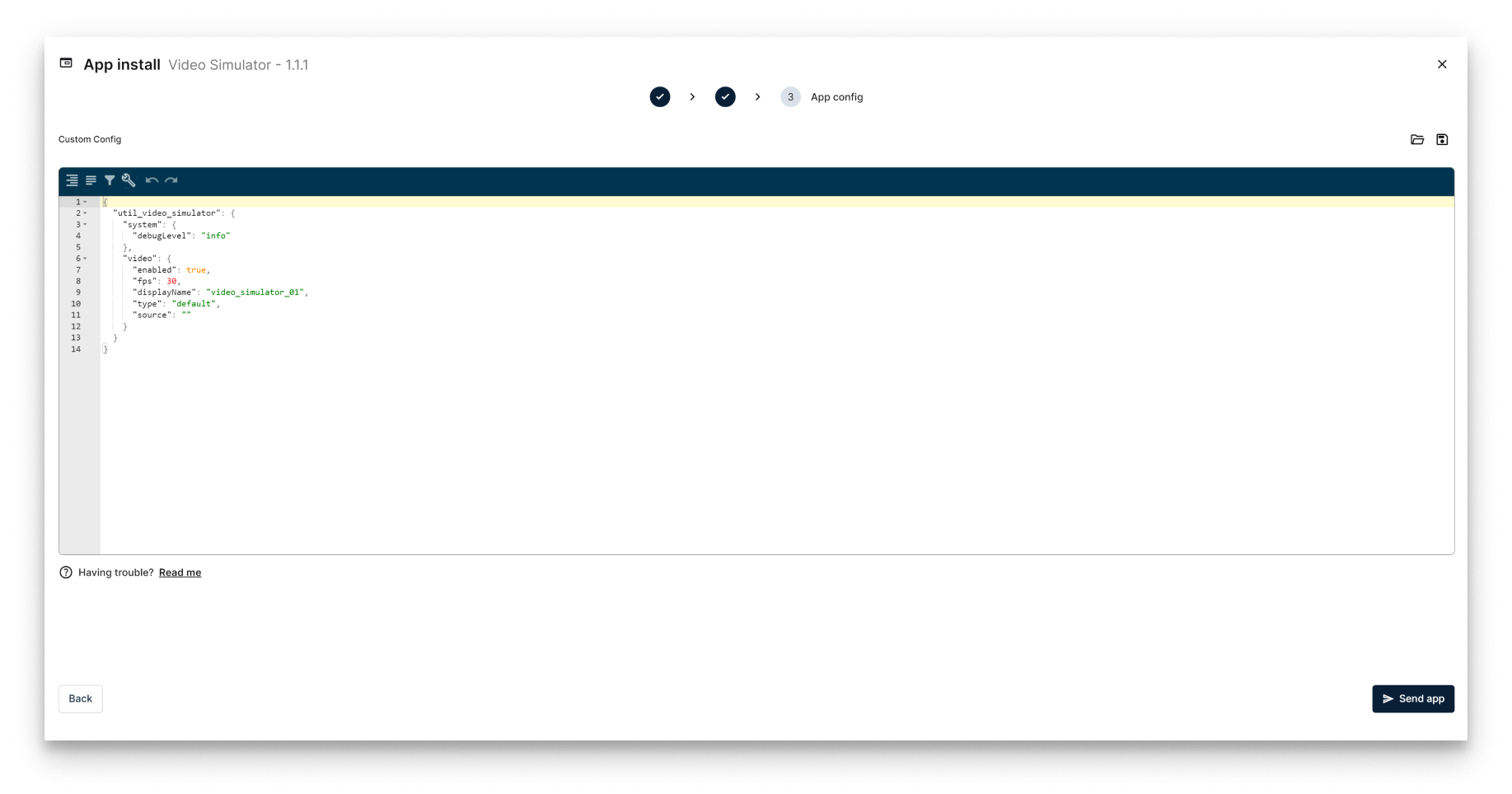
Send the Video Simulator deployment
Verify the deployment
The Video Simulator workload card appears on the Node Details page. When it turns green (Started), the simulator is publishing frames to the broker.
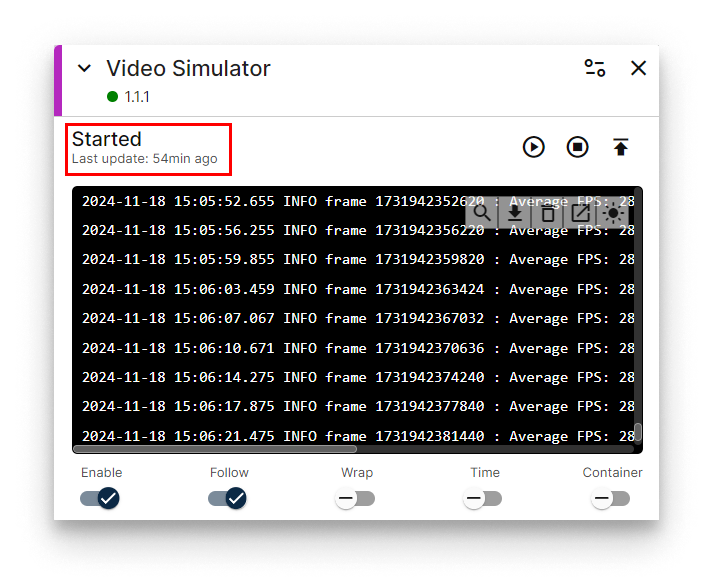
Video Simulator workload card
Stream from YouTube
To stream from a YouTube URL instead of the default video, change two fields in the App Config:
{
  "util_video_simulator": {
    "system": {
      "debugLevel": "info"
    },
    "video": {
      "enabled": true,
      "fps": 30,
      "displayName": "video_simulator_01",
      "type": "youtube",
      "source": "https://www.youtube.com/watch?v=bwJ-TNu0hGM"
    }
  }
}
Stream from a local file
To stream from a video file, upload it first to the app's file browser.
You can download a sample file here: people_walking.mp4.
- Open
http://<NODE_IP>:10030in a browser. The Video Simulator file browser opens on its own login page.
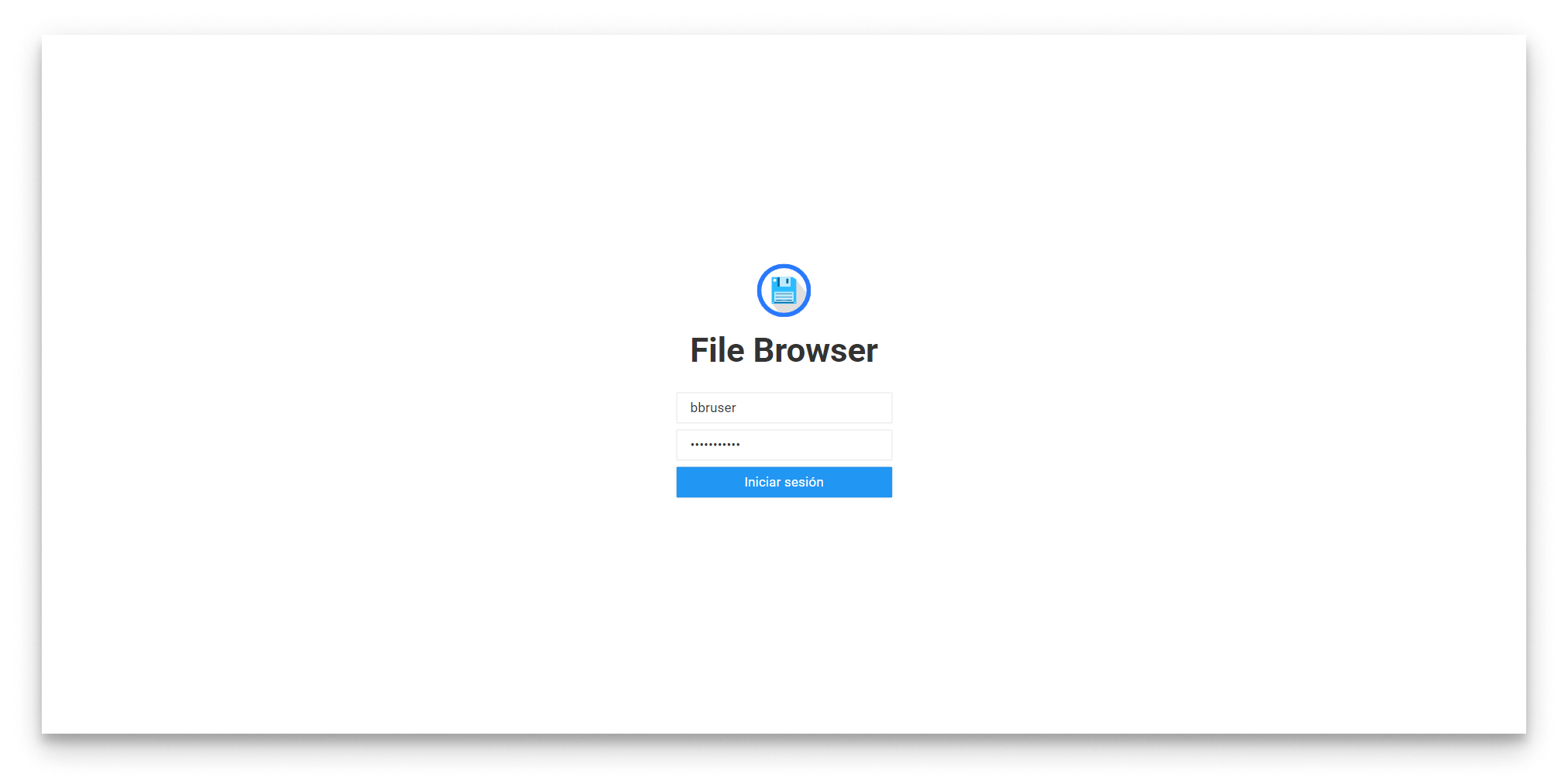
File browser login page
- Log in with the credentials defined in App Secrets (defaults
bbruser/bbrpassword).
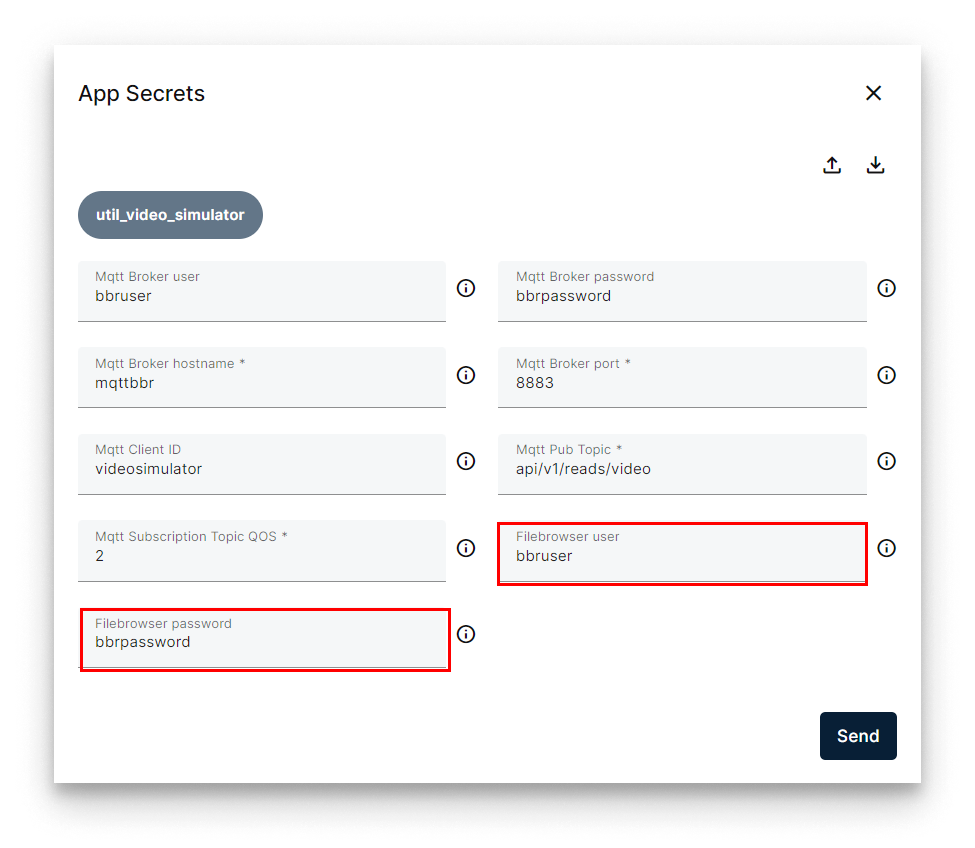
File browser credentials in App Secrets
- Click Upload and pick the video file.
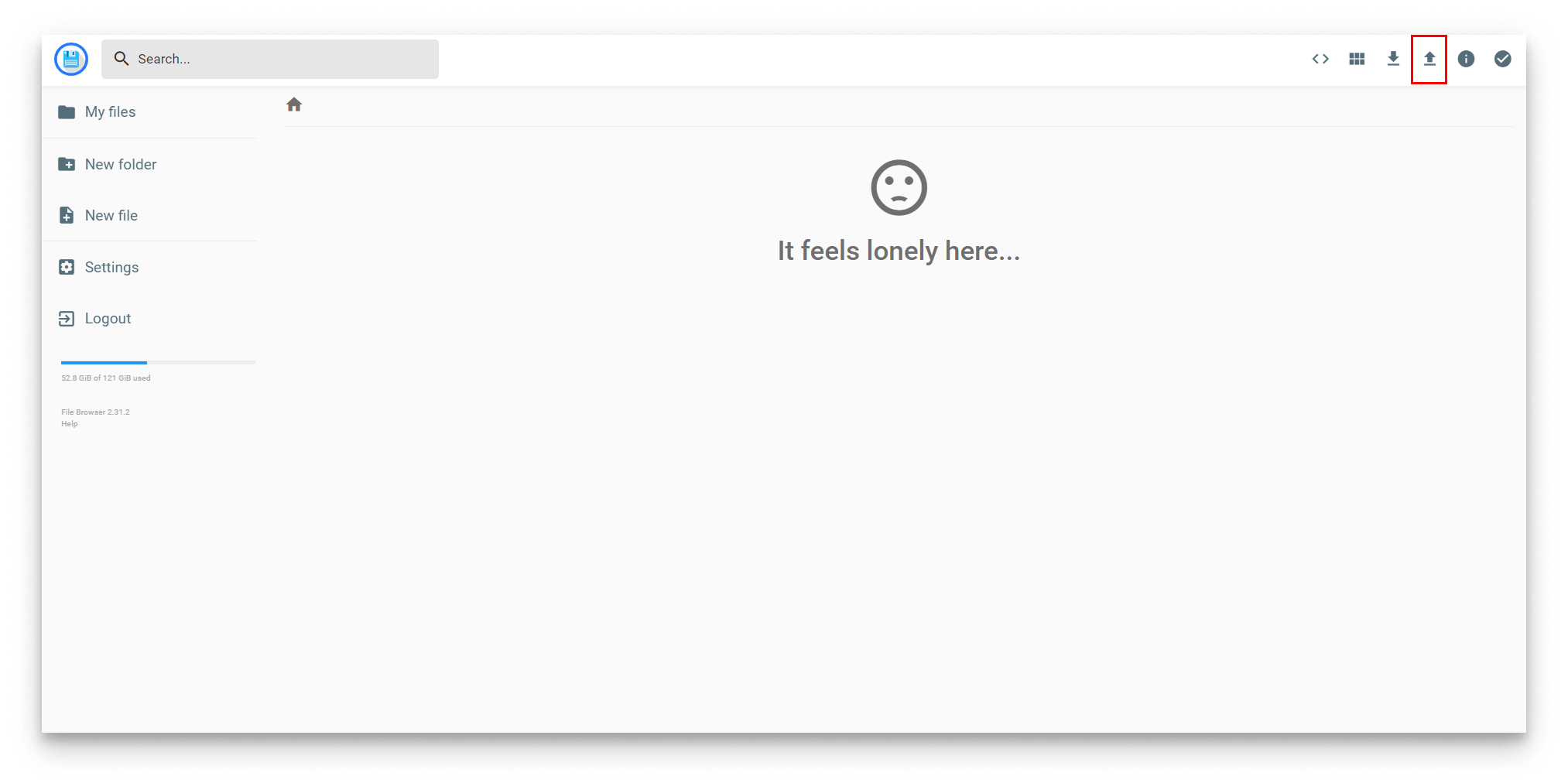
Upload a video file
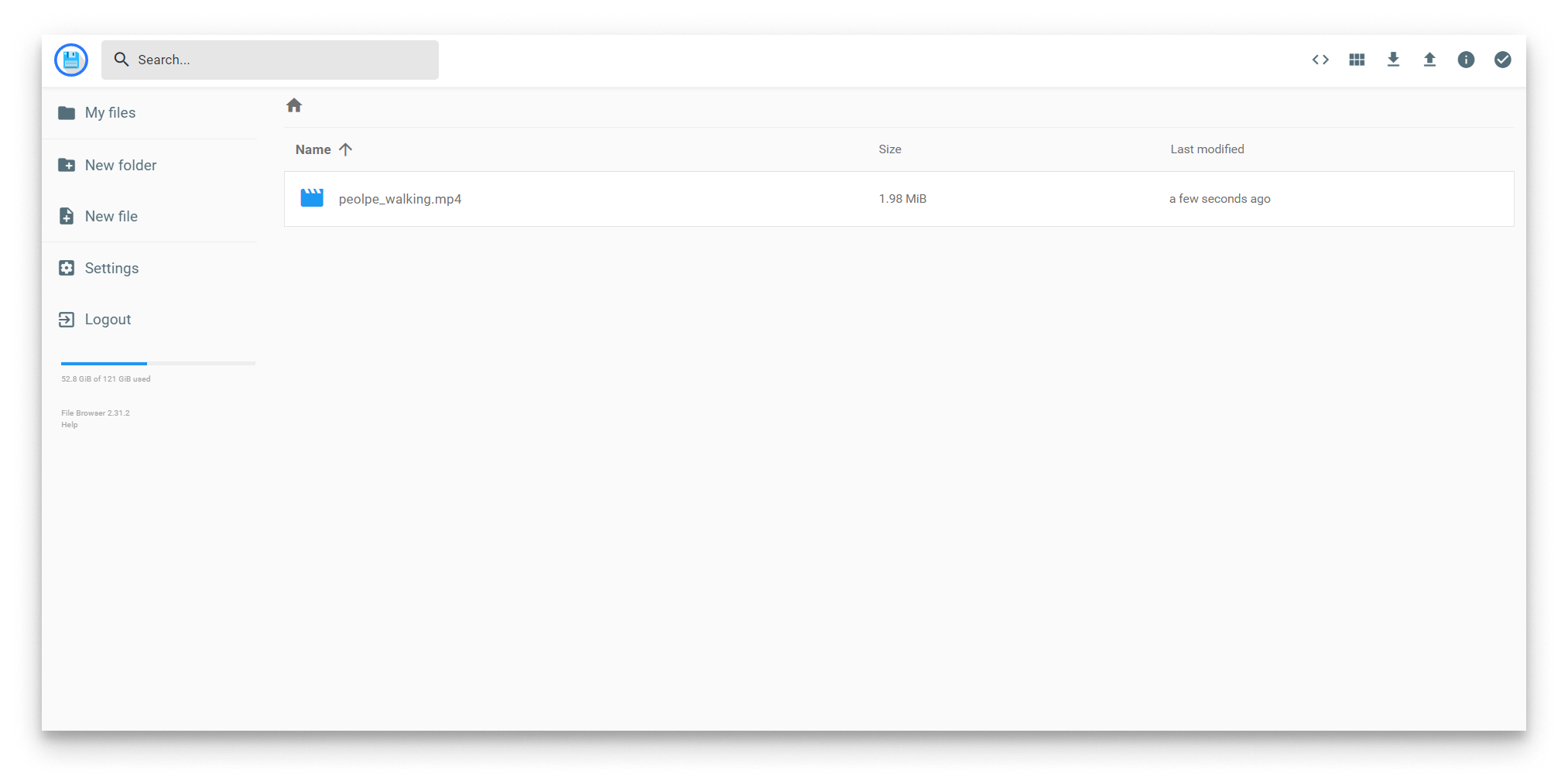
File uploaded
-
Update the App Config to point at the file:
{
  "util_video_simulator": {
    "system": {
      "debugLevel": "info"
    },
    "video": {
      "enabled": true,
      "fps": 30,
      "displayName": "video_simulator_01",
      "type": "video",
      "source": "people_walking.mp4"
    }
  }
} -
Click Send App on the App Config card to apply.
Summary
The Video Simulator is now publishing frames as base64 over MQTT under the topic identified by displayName: video_simulator_01. The next step deploys the Video Player to render that stream in a browser.