Connect from EAE and run your application
This article refers to Platform v3.3.0. The current Platform version is v3.4.0.
Overview
The pair is deployed and synchronizing. Now you model it in EcoStruxure Automation Expert (EAE), point it at the two controllers on your LAN, and deploy and run your IEC 61499 application. EAE treats the pair as a single redundant device.
Create the redundant device
In the System editor, open the device palette and, under DPAC Modules, drag Soft dPAC redundant iPC onto the canvas. EAE creates the redundant pair as two sides, iPCA_1 and iPCB_1, each holding a Softdpac container.
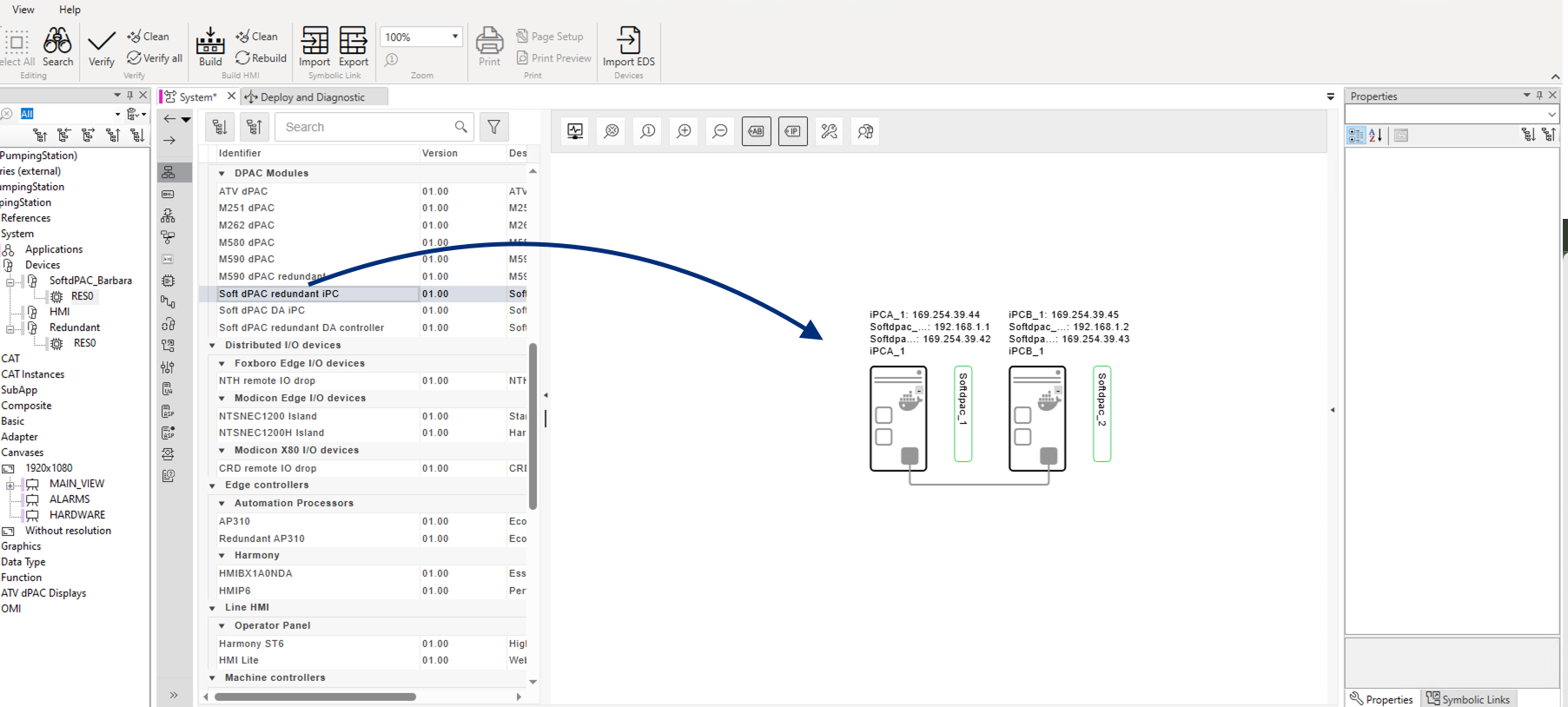
Creating the redundant device
Configure the device network
The device is created with template addresses. You now set three things so it matches the pair you deployed on Barbara.
Disable EAE's network redundancy
Select the iPC and, in Properties → High Availability, set Network redundancy mode to Disabled, and leave Preferred primary at Yes. The Barbara application already provides the redundancy synchronization over its own interlink, so EAE's redundancy network is not used here.
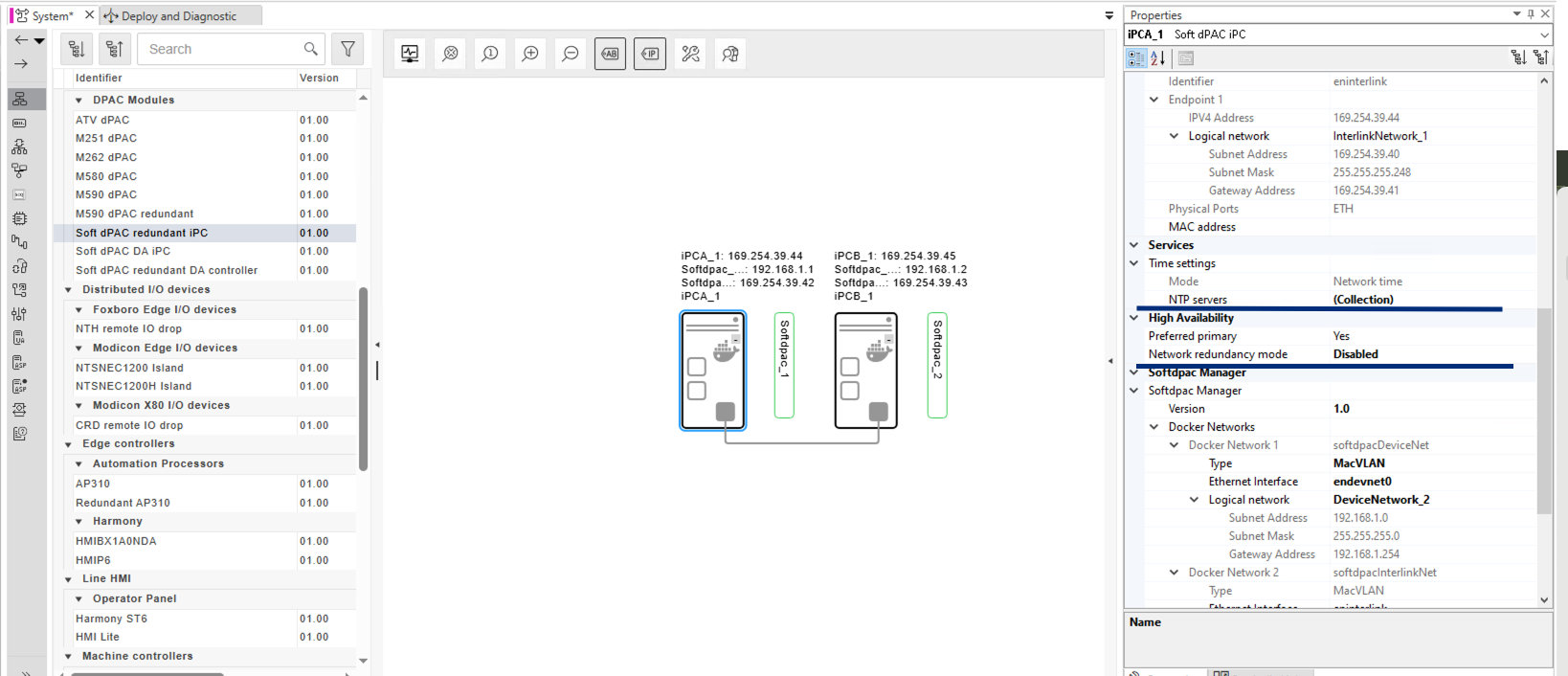
Disabling EAE's network redundancy
Point the device network at your LAN
Under Softdpac Manager → Docker Networks, the device network is softdpacDeviceNet (type MacVLAN). Set its logical network to your LAN: subnet 172.16.50.0, mask 255.255.255.0, gateway 172.16.50.1. This is the same LAN the controllers took on Barbara.
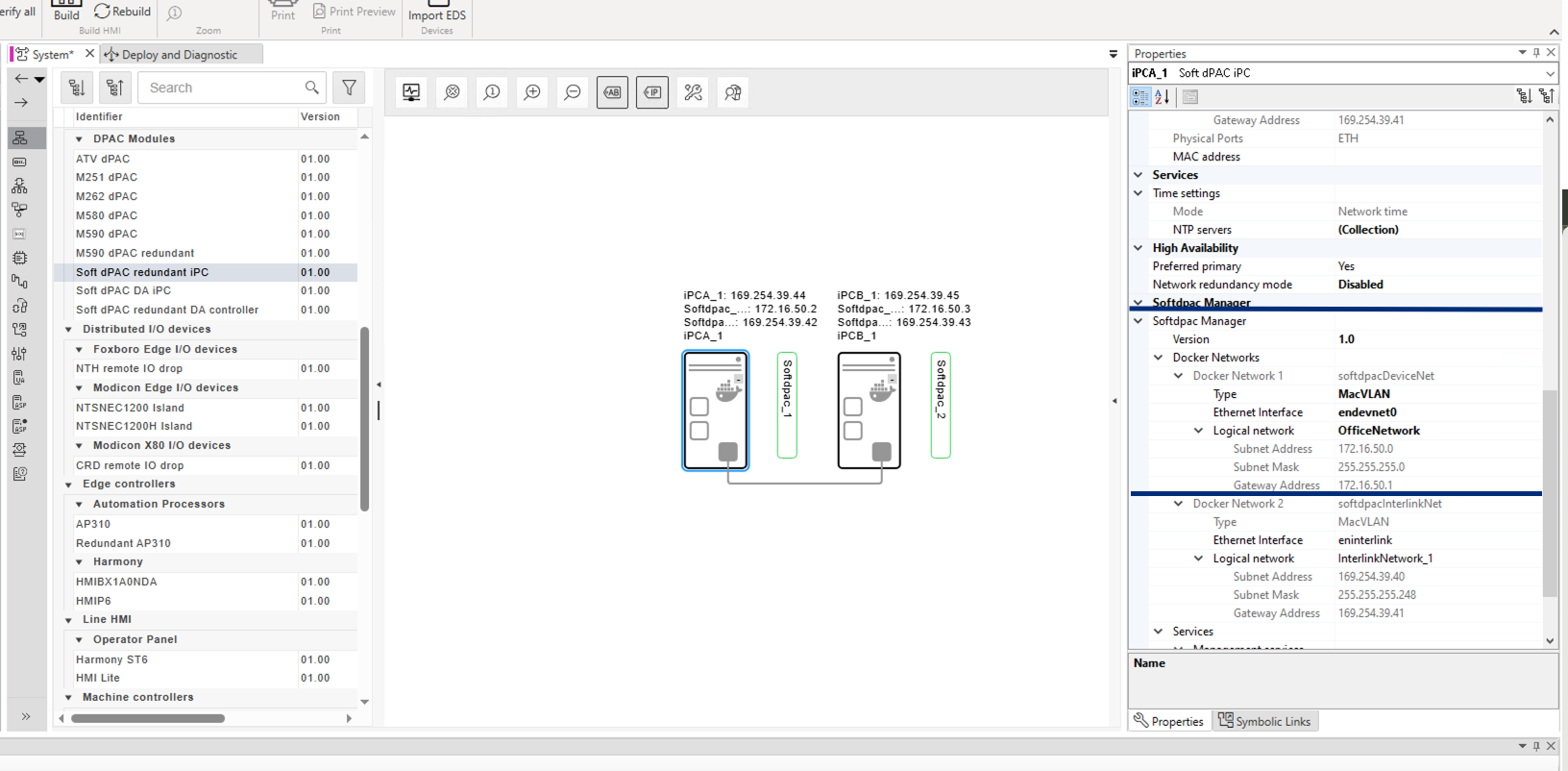
Setting the device network to your LAN
Set the controller A and B addresses
Give each side the PLC IP it uses on Barbara: Softdpac_1 = 172.16.50.22 and Softdpac_2 = 172.16.50.23, both on softdpacDeviceNet. These must match the SOFTDPAC_IP values from the two deployments. The remaining parameters don't affect the connection.
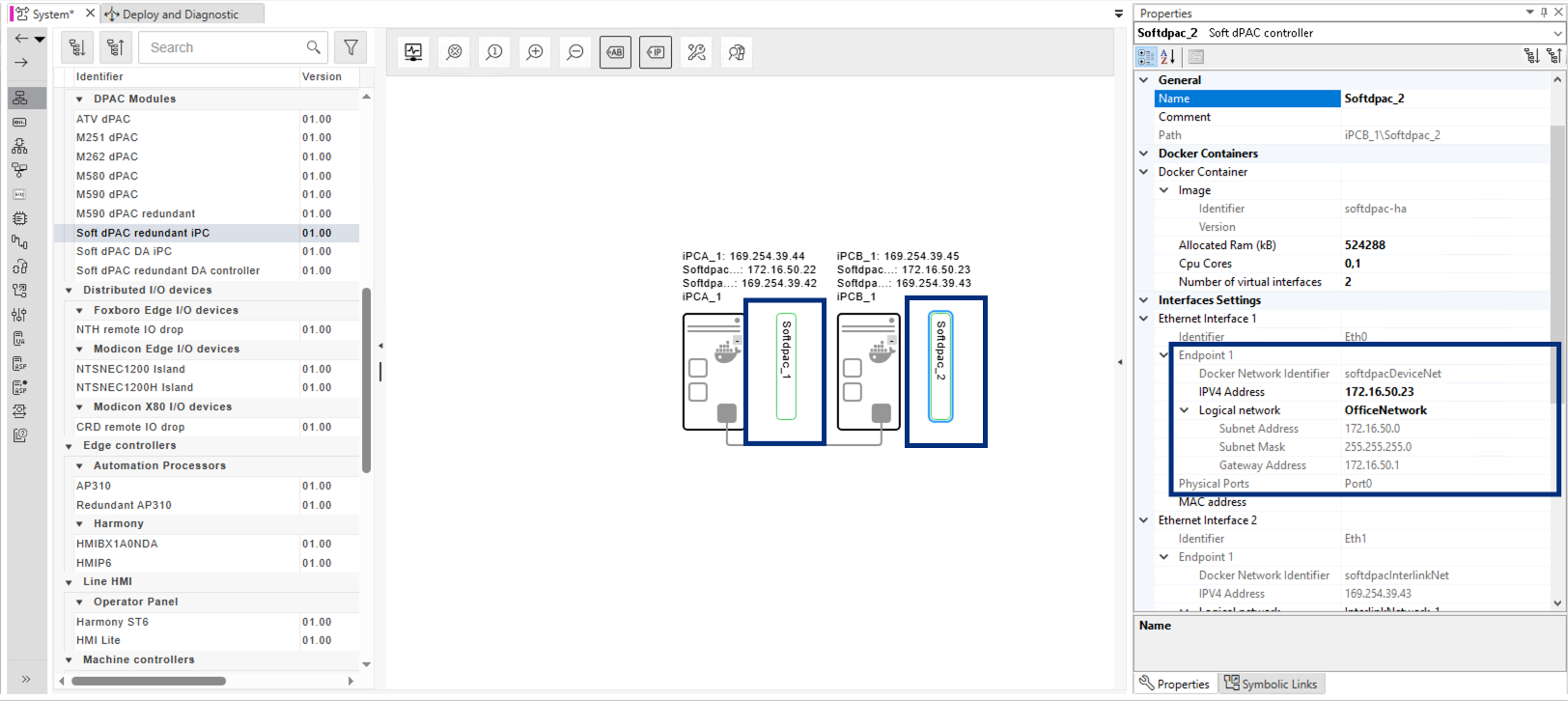
Setting the controller A and B addresses
Assign the physical controllers to the logical device
In the Logical Device view, the redundant logical device (SE.DPAC.Soft_dPAC_RDNT) has two controllers. Assign the physical devices to them: iPCA_1\Softdpac_1 to Redundant_Left, and iPCB_1\Softdpac_2 to Redundant_Right.
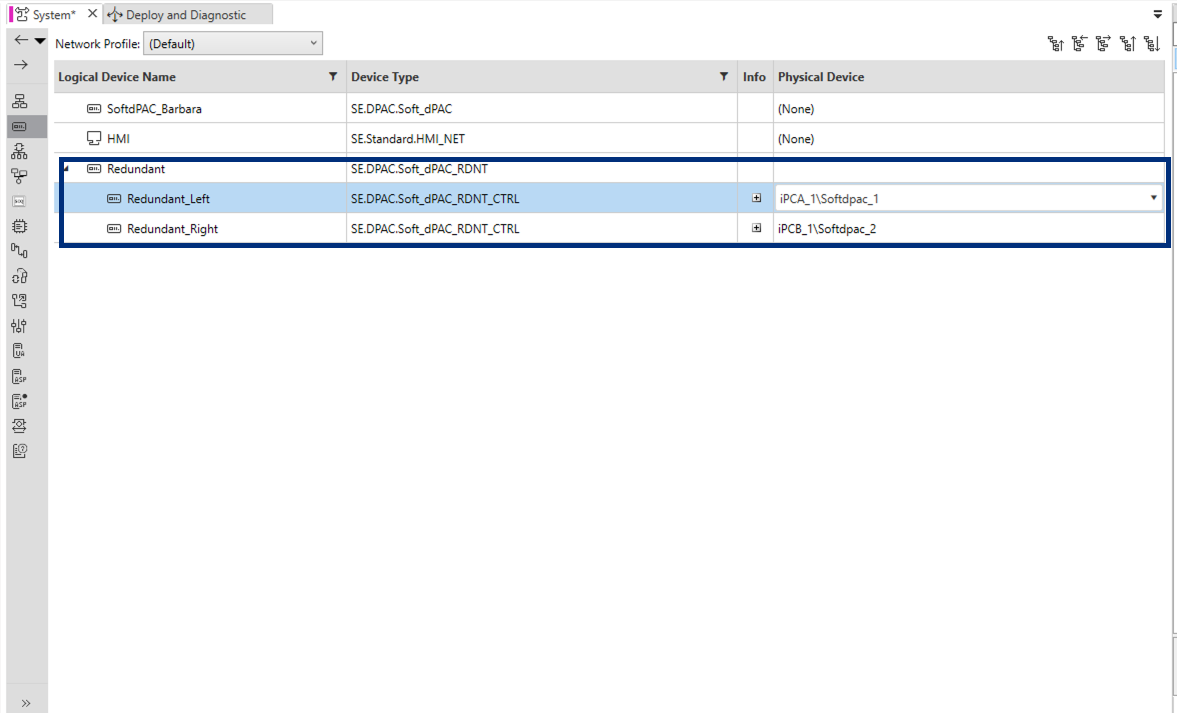
Assigning the physical controllers
Log in, deploy and run
Open the Deploy and Diagnostic editor. The Redundant device now shows its two controllers at 172.16.50.22:51443 and 172.16.50.23:51443.
On the Redundant row, open the Action menu and choose Login. Log in with the device defaults installer / Inst@ller1.
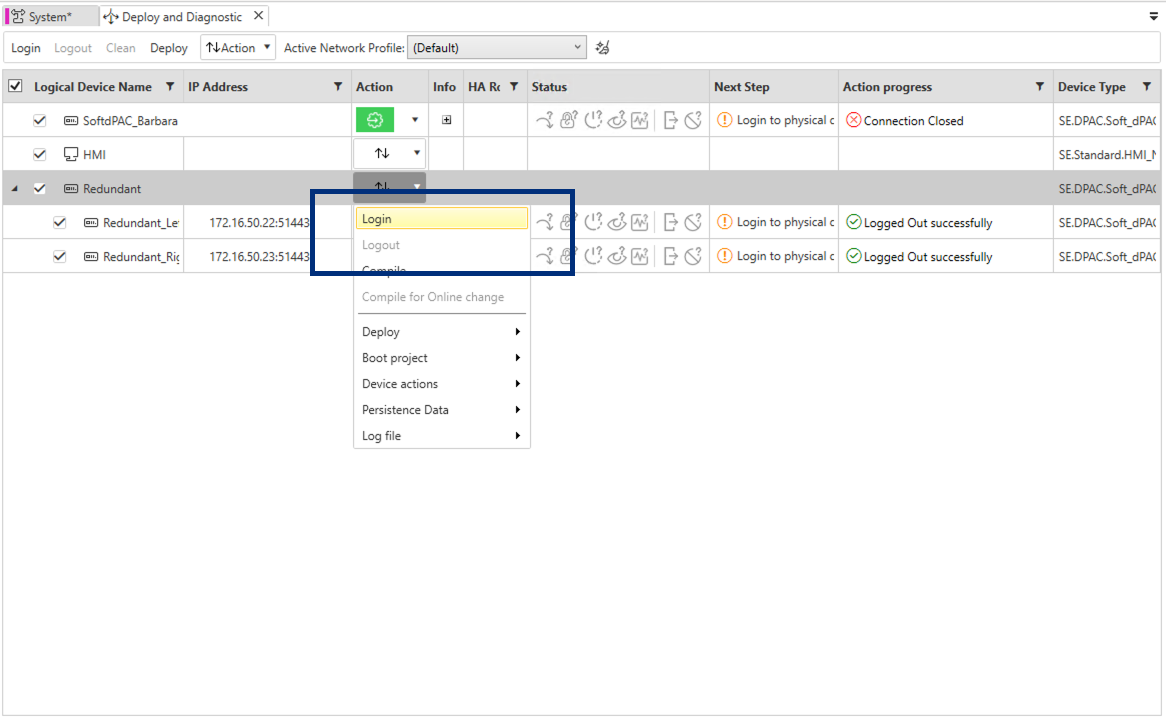
Logging in to the device
The device self-generates its TLS certificate and EAE trusts it on first connection. For EAE-managed certificates and custom credentials, use the Managed edition.
Here EAE uses each controller's LAN IP (172.16.50.22 / 172.16.50.23). The management port 51443 is also published on the node's host IP and reachable over the Barbara VPN, with the device certificate valid for the VPN address. So when the PLC isn't on a routable LAN, you can point EAE at the host or VPN address on 51443 instead. See Configure the VPN.
From the same Action menu, choose Deploy. When it finishes, the HA Role column shows one controller as Primary and the other as Secondary.
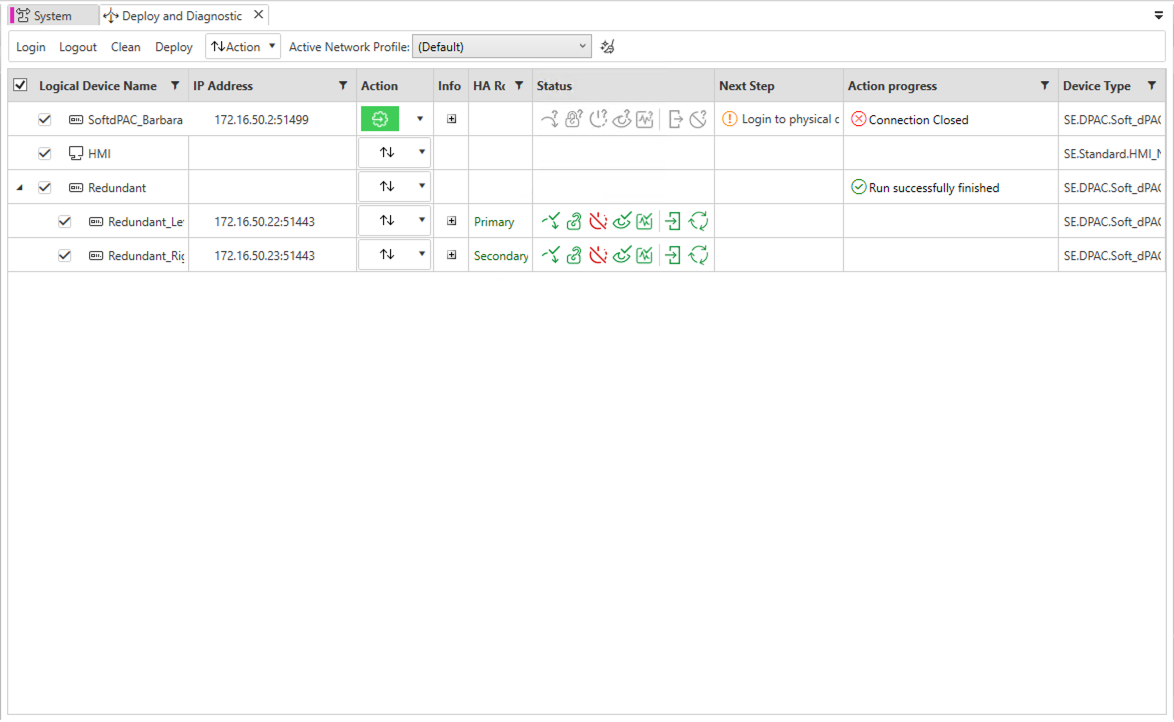
Deployed, with HA roles assigned
Then run the application: Action → Device actions → Run.
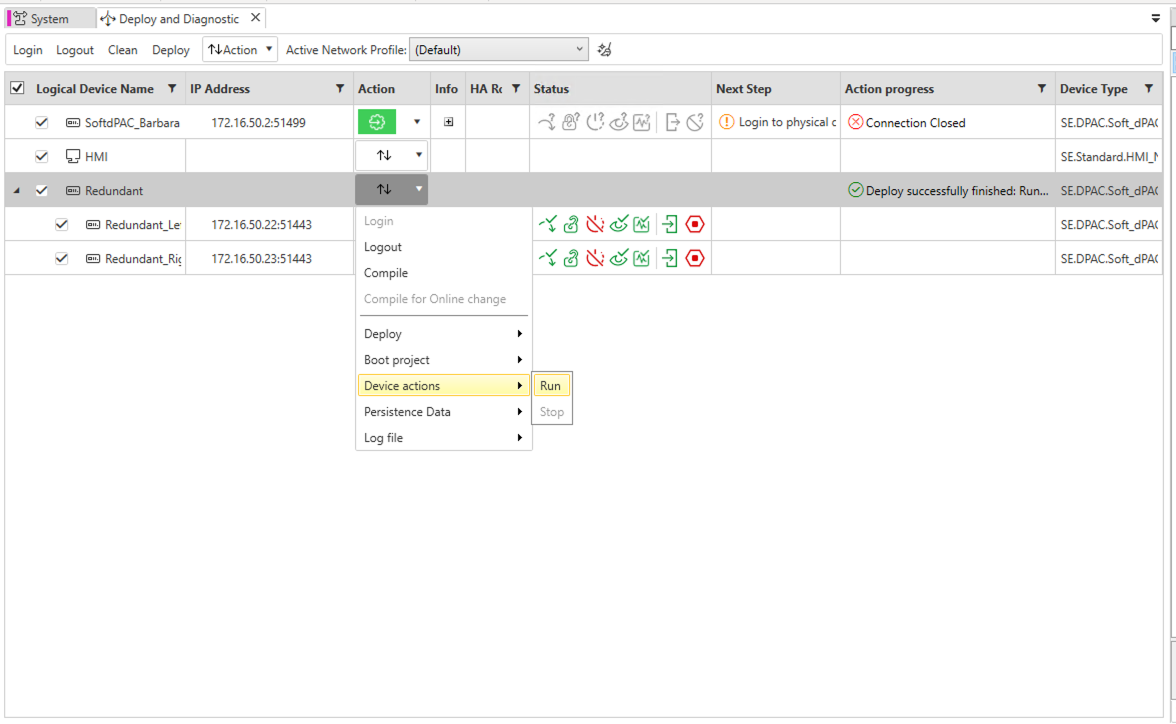
Running the application on the pair
If the IP Address column is empty in Deploy and Diagnostic, click Verify (F8) in the System editor. The IEC application and the devices need to be compiled before their addresses appear.
Confirm from the HMI (if you have one, if not, skip this step)
With the application running, the HMI shows live process data. Its Info dialog confirms both controllers are Operational: 172.16.50.22 as Primary and 172.16.50.23 as Secondary.
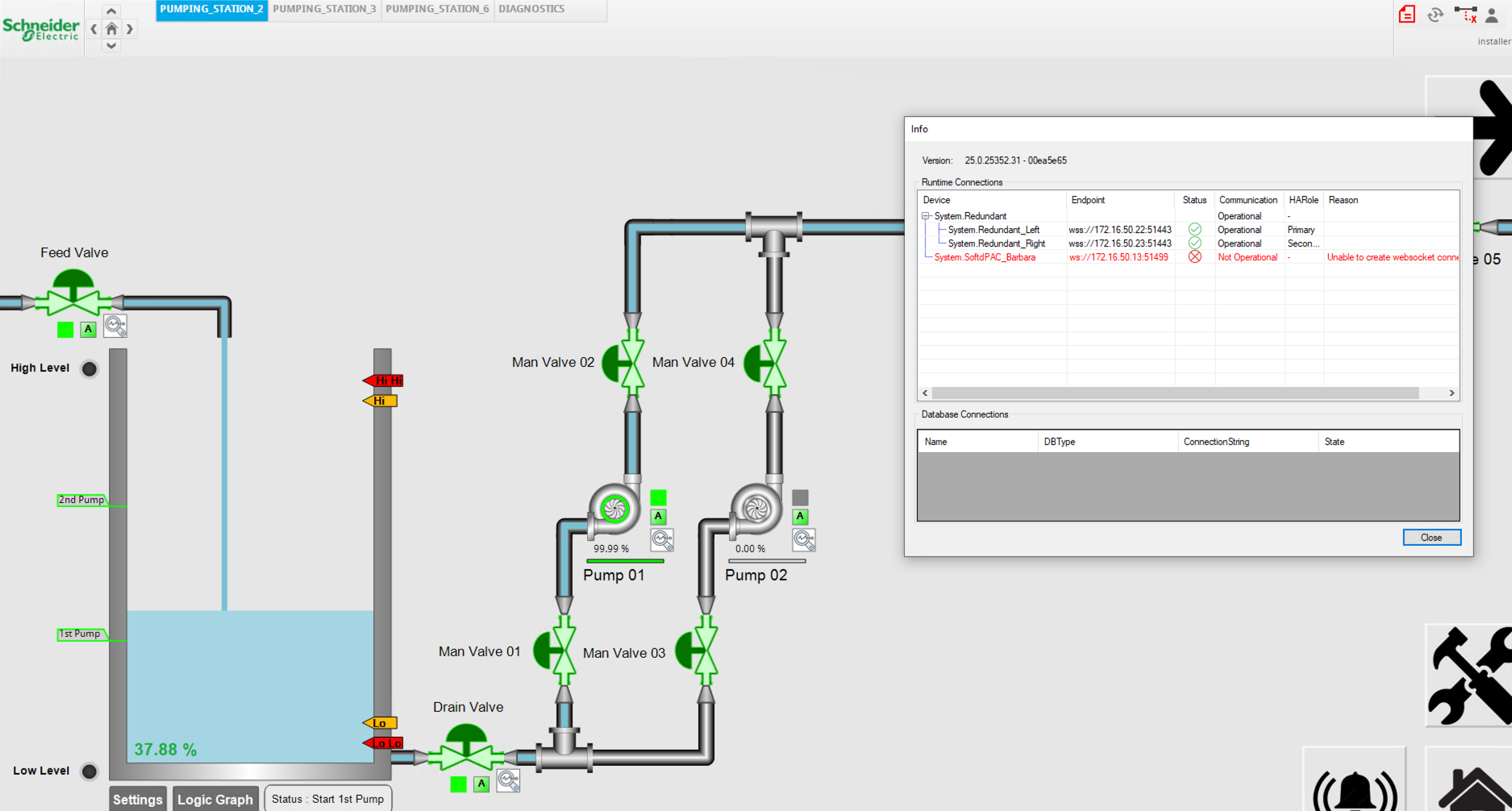
HMI running against the pair
Summary
Your IEC 61499 application is running on the redundant SoftdPAC pair, modeled and deployed from EAE like a hardware controller, on standard Barbara edge hardware. Next, verify that the pair fails over automatically when a node goes down.
Continue with Verify automatic failover.