3.1 - Deploy InfluxDB
This article refers to Platform v3.2.0. The current Platform version is v3.4.0.
Overview
In this step, you will set up a local database at the edge to serve as persistent storage for all data published to the MQTT Broker by the Industrial Data Simulator and Node-RED for the cnc01 machine. This ensures data can be stored and queried even if the node loses connectivity.
Storing data at the edge provides significant advantages over a cloud-only approach:
- Lower latency for reads and writes, enabling near real-time decisions.
- Resilience when connectivity to the cloud is limited or unavailable.
- Bandwidth savings by locally filtering or aggregating data before sending it upstream.
Specifically, you will deploy InfluxDB at the edge. InfluxDB is a high-performance time-series database optimized for fast writes, efficient compression, and powerful querying of time-stamped signals, metrics, and events. This makes it an ideal choice for OT (Operational Technology) scenarios.


InfluxDB
Powerful, open-source time-series database that is designed to store, query, and analyze large amounts of time-stamped data.
Go to the official website: www.influxdata.com.
Add the InfluxDB database to the App Library
As in previous steps, open the Marketplace in Panel, search for InfluxDB, and click Add to Library. You can also use the direct link provided above.
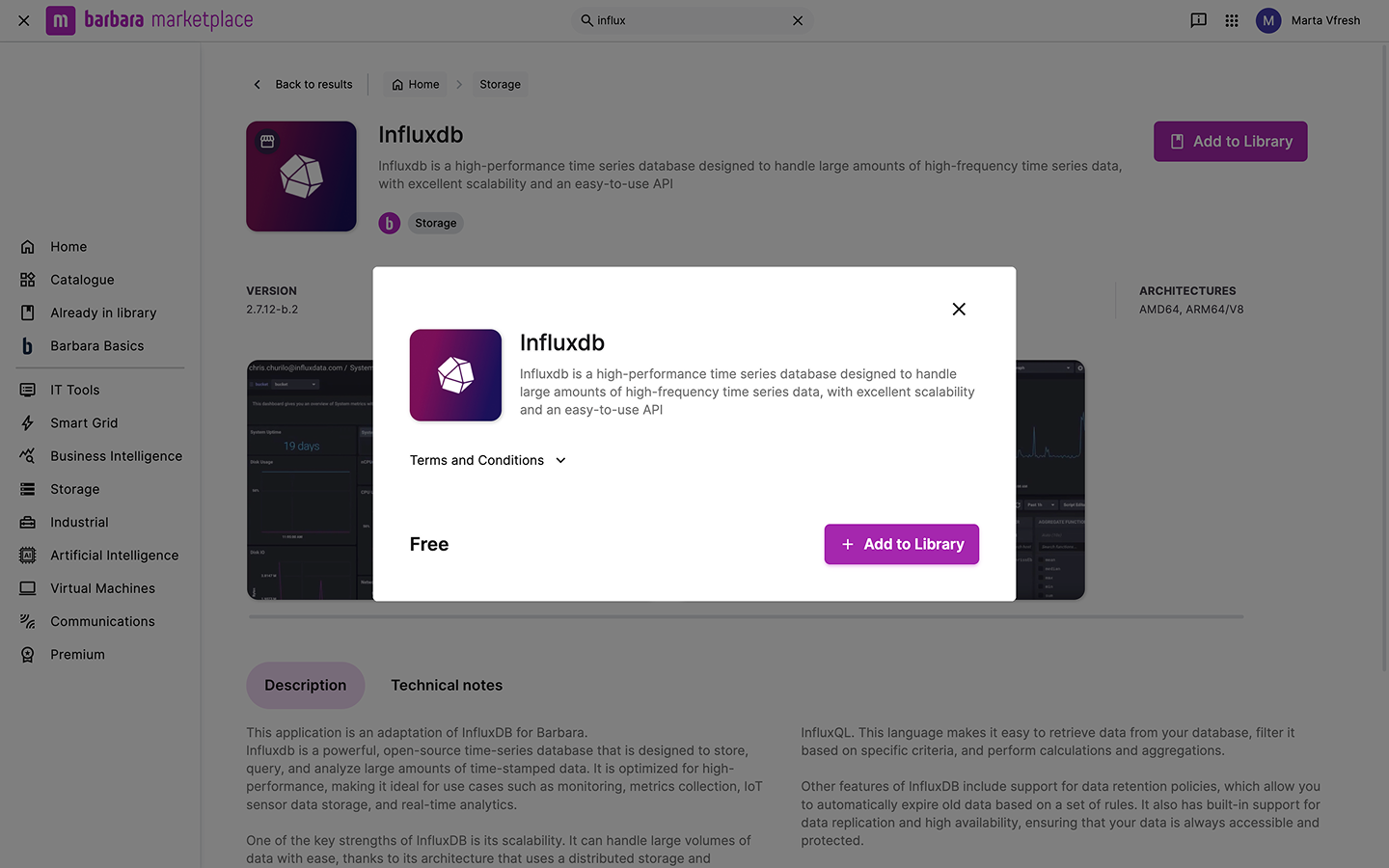
InfluxDB in Marketplace
Once added, the application will appear in your App Library and will be ready to deploy on your nodes.
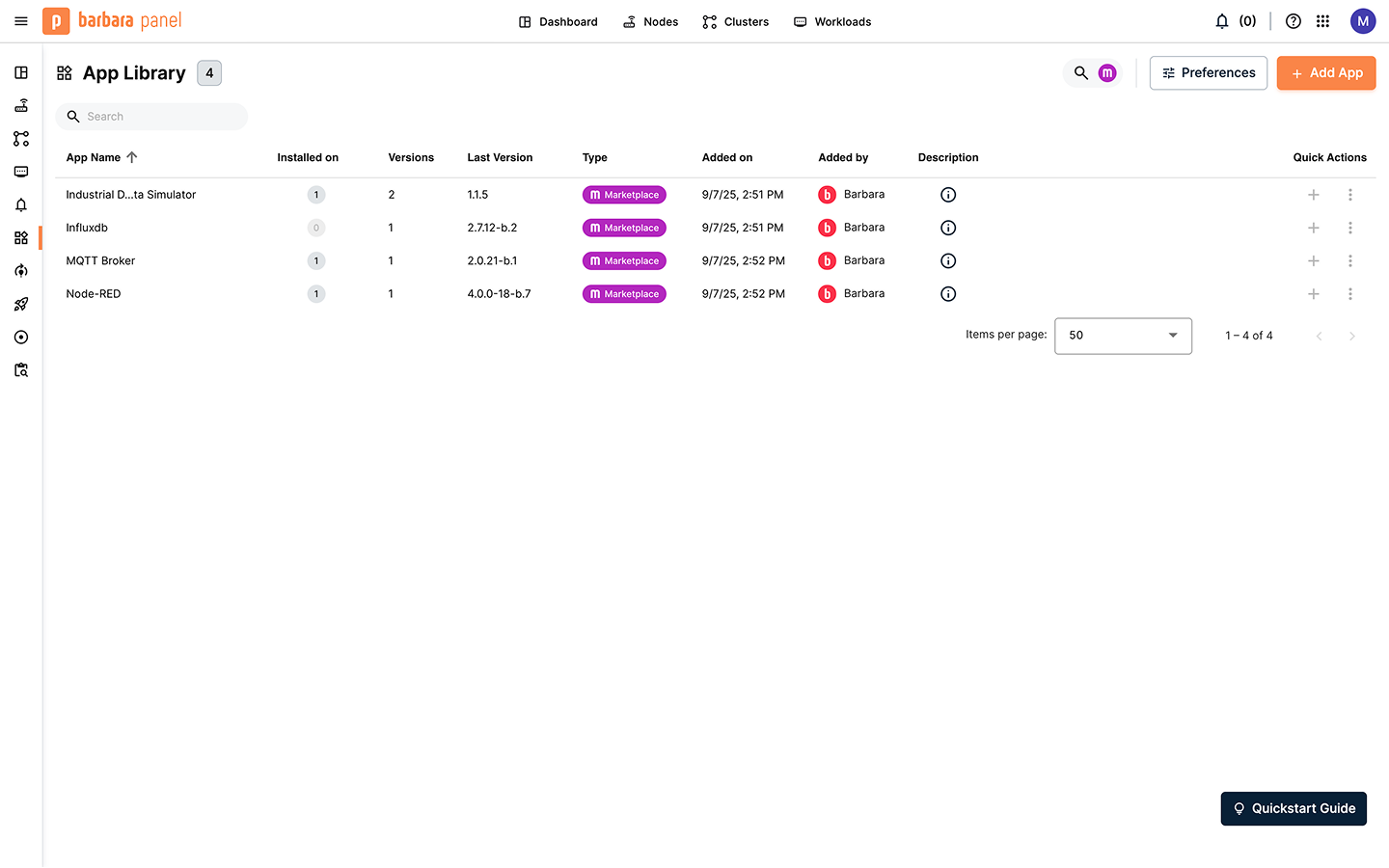
InfluxDB in the Application Library
Deploy InfluxDB on the Edge Node
For simplicity, you will install InfluxDB using its default parameters:
- Click the + Add button on the Node Details page.
- Select Application.
- In the install wizard, choose InfluxDB and the latest available version.
- Click Skip and Send to deploy with the default values for the remaining steps.
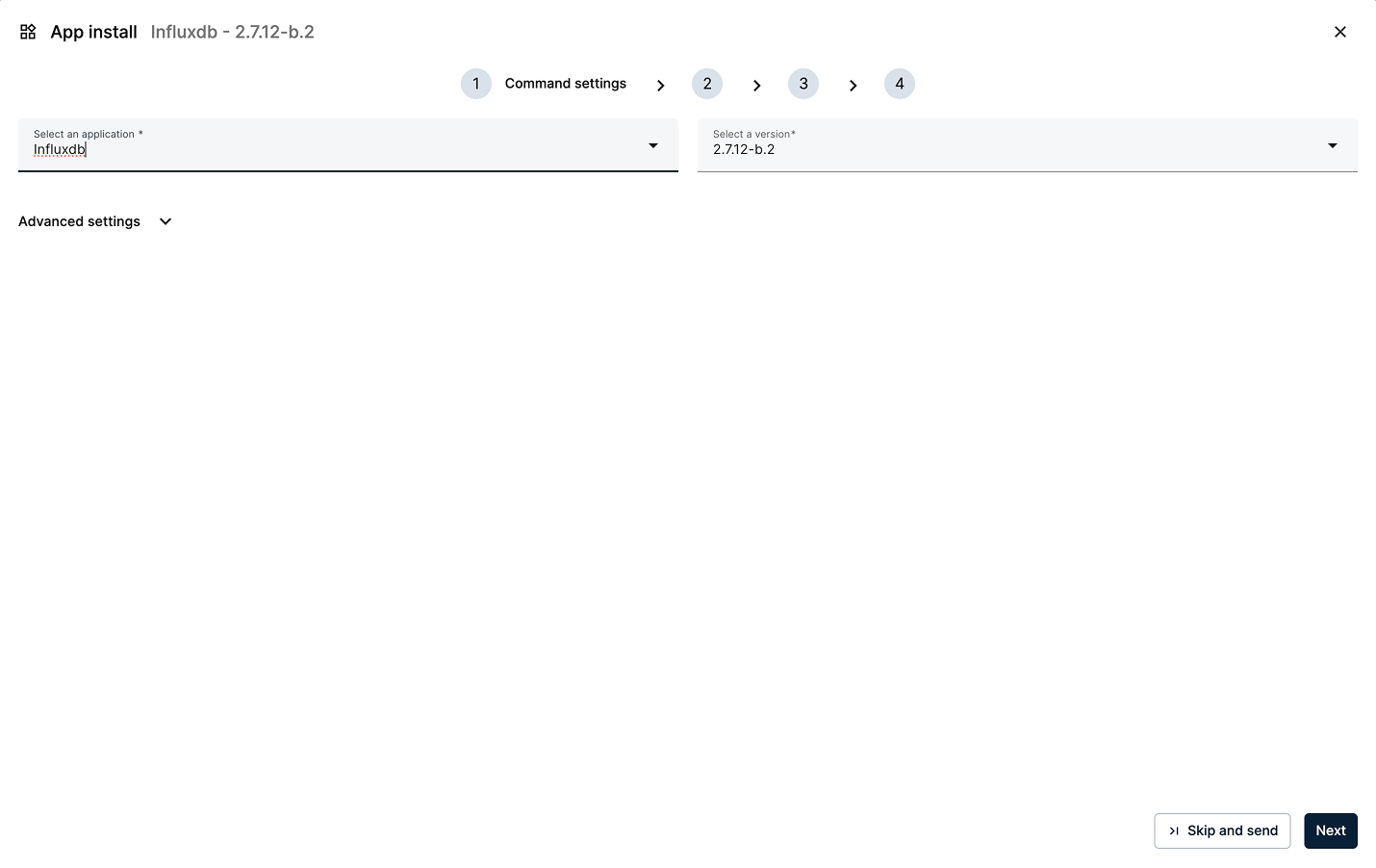
Deploy InfluxDB with default values
Once deployed, the InfluxDB card will appear under Apps & Models on your node.
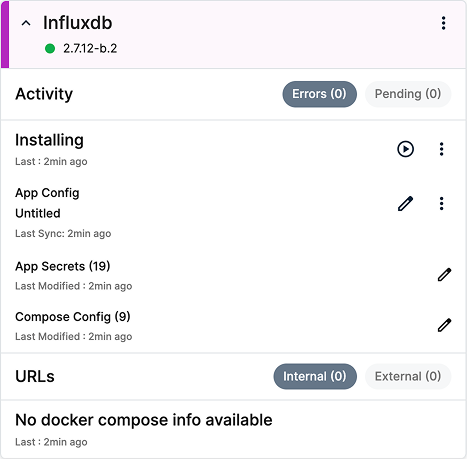
InfluxDB workload card
Accessing the InfluxDB Web Interface
To verify the service is running, open a new browser tab and navigate to: http://[EDGE_NODE_IP]:8086.
Log in using the following default credentials:
- Username:
bbruser - Password:
bbrpassword
These credentials are set in the App Secrets and can be changed in the same way you configured Node-RED in Step 1.3.
You can find a complete list of configuration options in the app's Technical Notes in the Marketplace.
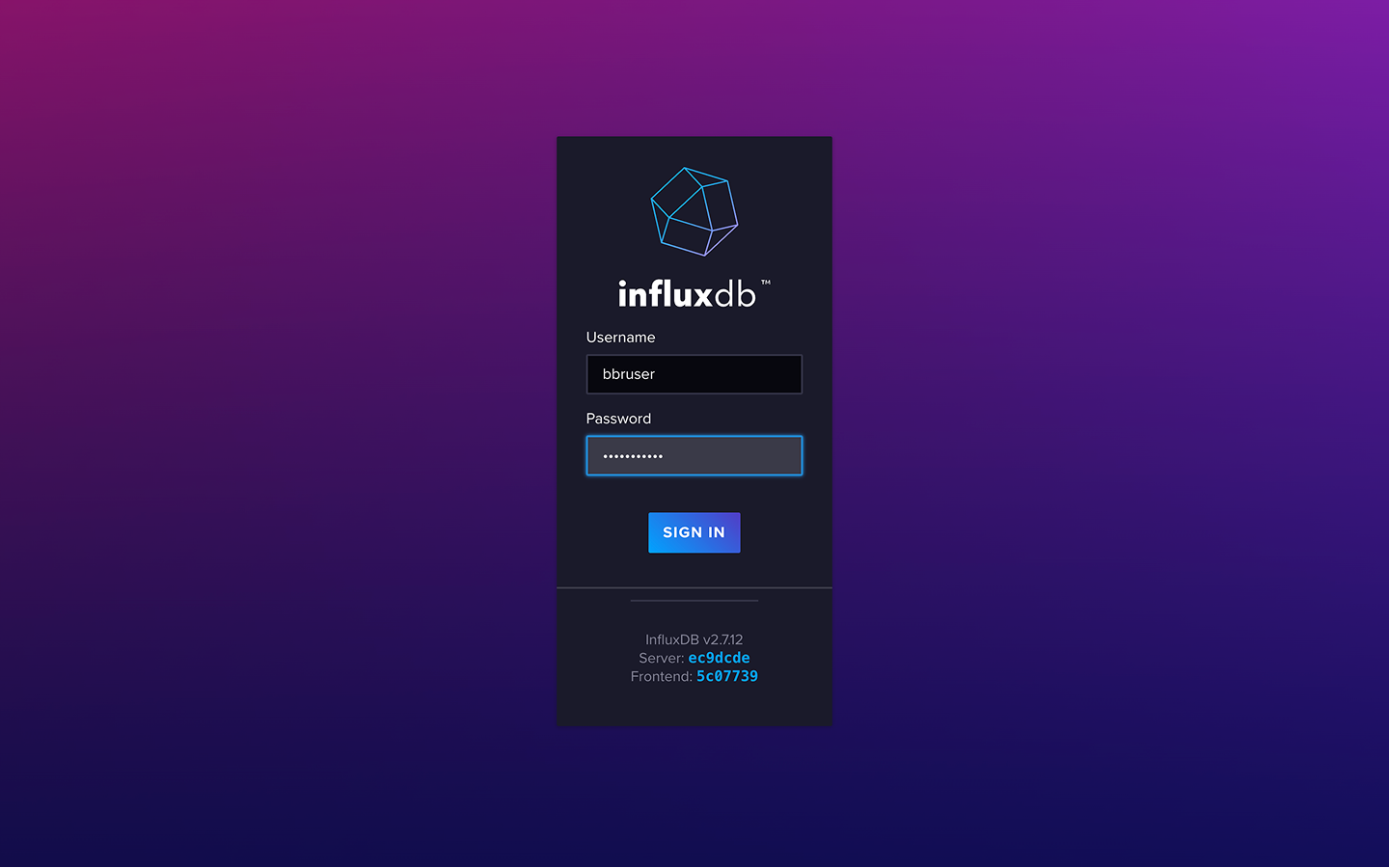
InfluxDB login page
Once inside the UI, open the Data Explorer from the side menu to confirm the database is reachable. The default bucket is bbrbucket. At this point, you should not see any measurements yet because no data has been ingested.
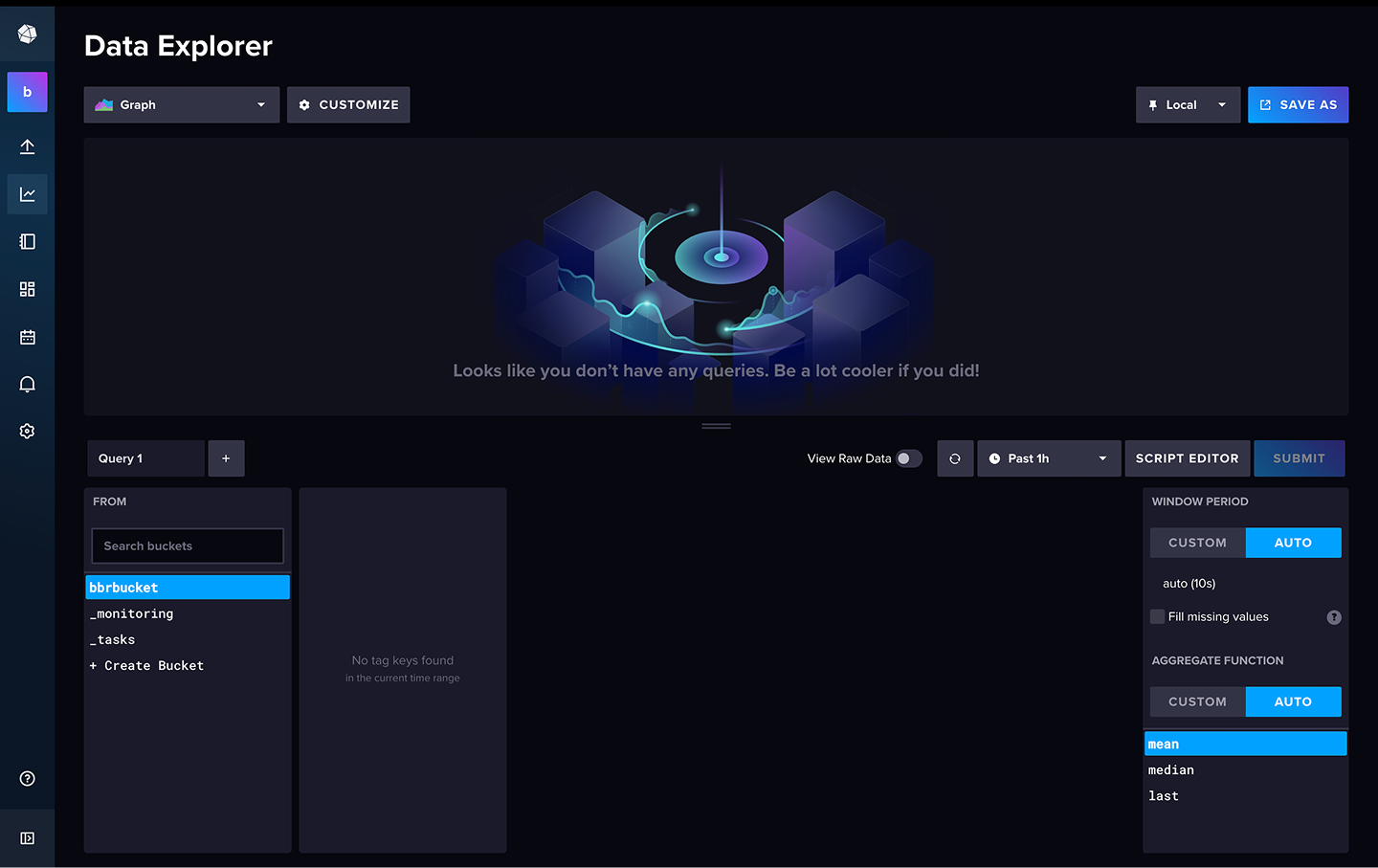
InfluxDB data explorer page
Summary
You have successfully deployed InfluxDB on your edge node. Next, you will deploy an MQTT–InfluxDB ingester to move data from the MQTT Broker into InfluxDB and start populating your bucket.