2.1 - Deploy the MQTT broker
This article refers to Platform v3.2.0. The current Platform version is v3.4.0.
Overview
This guide walks you through deploying an MQTT Broker on your Edge Node. This broker is essential as it will enable communication between the different applications in your solution. MQTT uses a publish/subscribe pattern, receiving messages from publishing clients and delivering them to subscribed clients based on topic, which allows for lightweight data exchange.
Read the official documentation: mqtt.org.
Deploying the MQTT Broker is the first step in building the complete solution shown below. This basic example demonstrates how easily Barbara can be used to capture and process industrial data at the edge.
The solution is based on a MING stack — MQTT, InfluxDB, Node-RED, and Grafana — integrating the following applications:
- MQTT Broker: Handles communication between devices using a lightweight publish/subscribe messaging system.
- InfluxDB: A time-series database designed for the efficient storage and querying of high-volume data from connected devices.
- Node-RED: A low-code development tool used to orchestrate data flows between devices, services, and databases.
- Grafana: A visualization platform for creating dashboards and monitoring system performance in real time.
In addition, a simulator of industrial data will be used to emulate data acquisition. In a real-world environment, this data would be collected from industrial equipment such as PLCs or sensors.
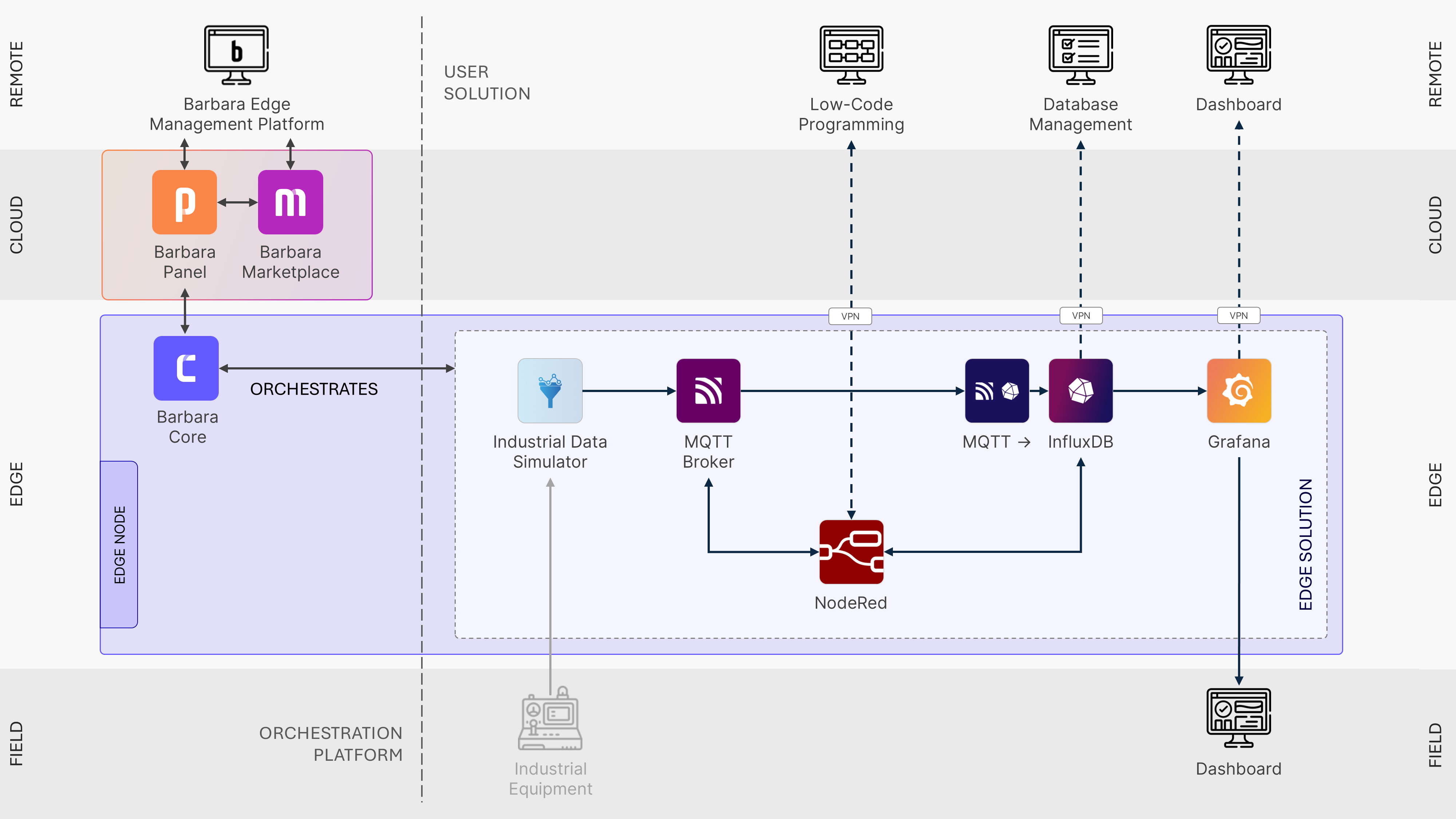
Overall architecture of the solution
Add the MQTT Broker to the App Library
Start by opening Barbara Marketplace and searching for MQTT Broker. For this tutorial, ensure you select the standard MQTT Broker.
You can also use this direct link:


MQTT Broker
MQTT is a messaging protocol that defines how IoT devices publish and subscribe to data over communication networks.
Once you've located the app, click the Add to Library button and accept the terms and conditions.
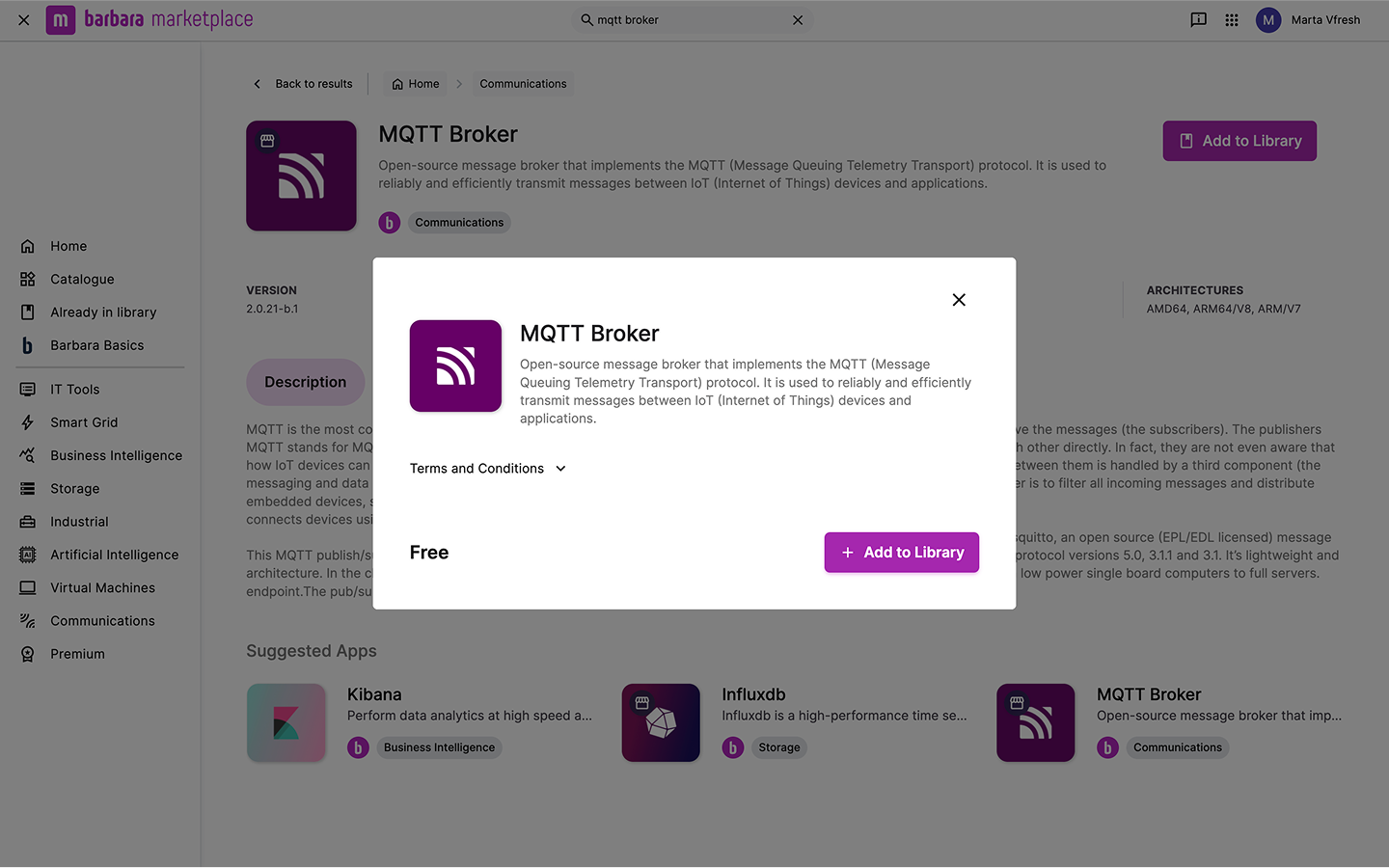
MQTT Broker in Marketplace
After being added, the MQTT Broker will appear in your Panel's App Library, ready for deployment.
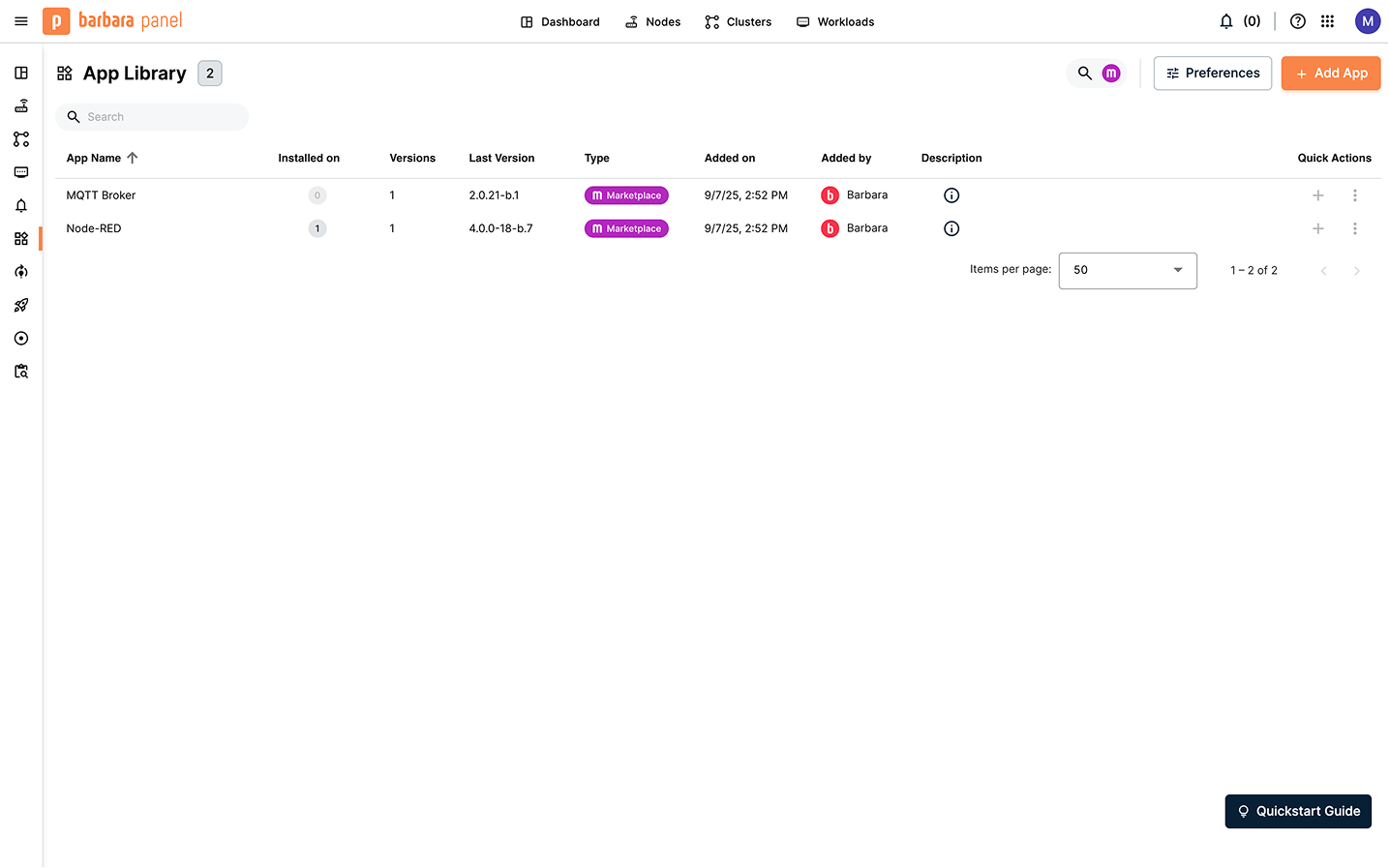
MQTT Broker in the Application Library
Deploy the MQTT Broker to the Edge Node
- Select the target node in the Nodes List and open its Node Details page.
- Click the + Add button and choose Application from the dropdown to start the deployment.
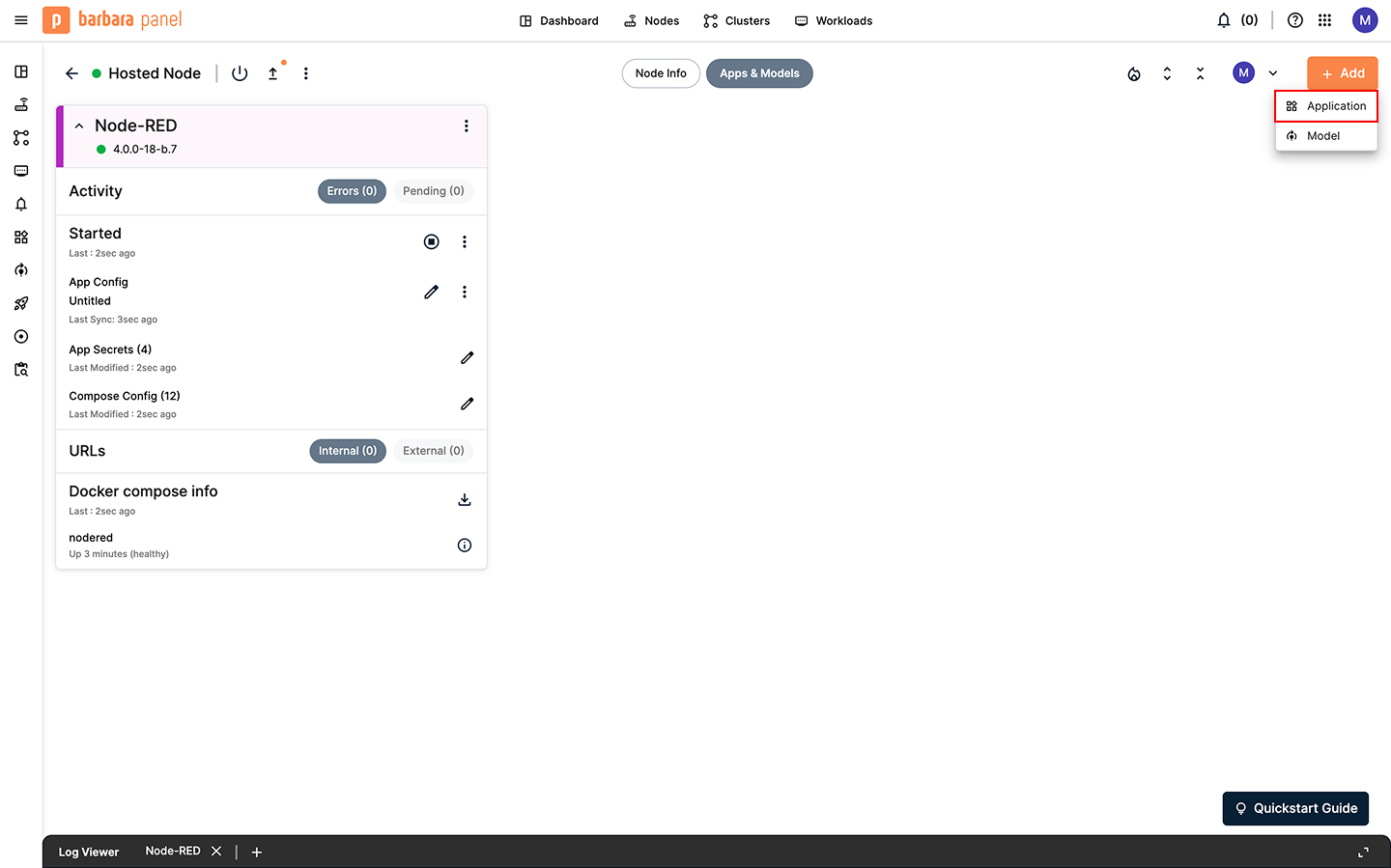
Add a new application in the Node Details page
The app deployment wizard opens. In the first step, select the MQTT Broker application and the latest available version. For this tutorial, you will use the default values. You can achieve this by simply clicking Skip and send, which deploys the app without needing further configuration.
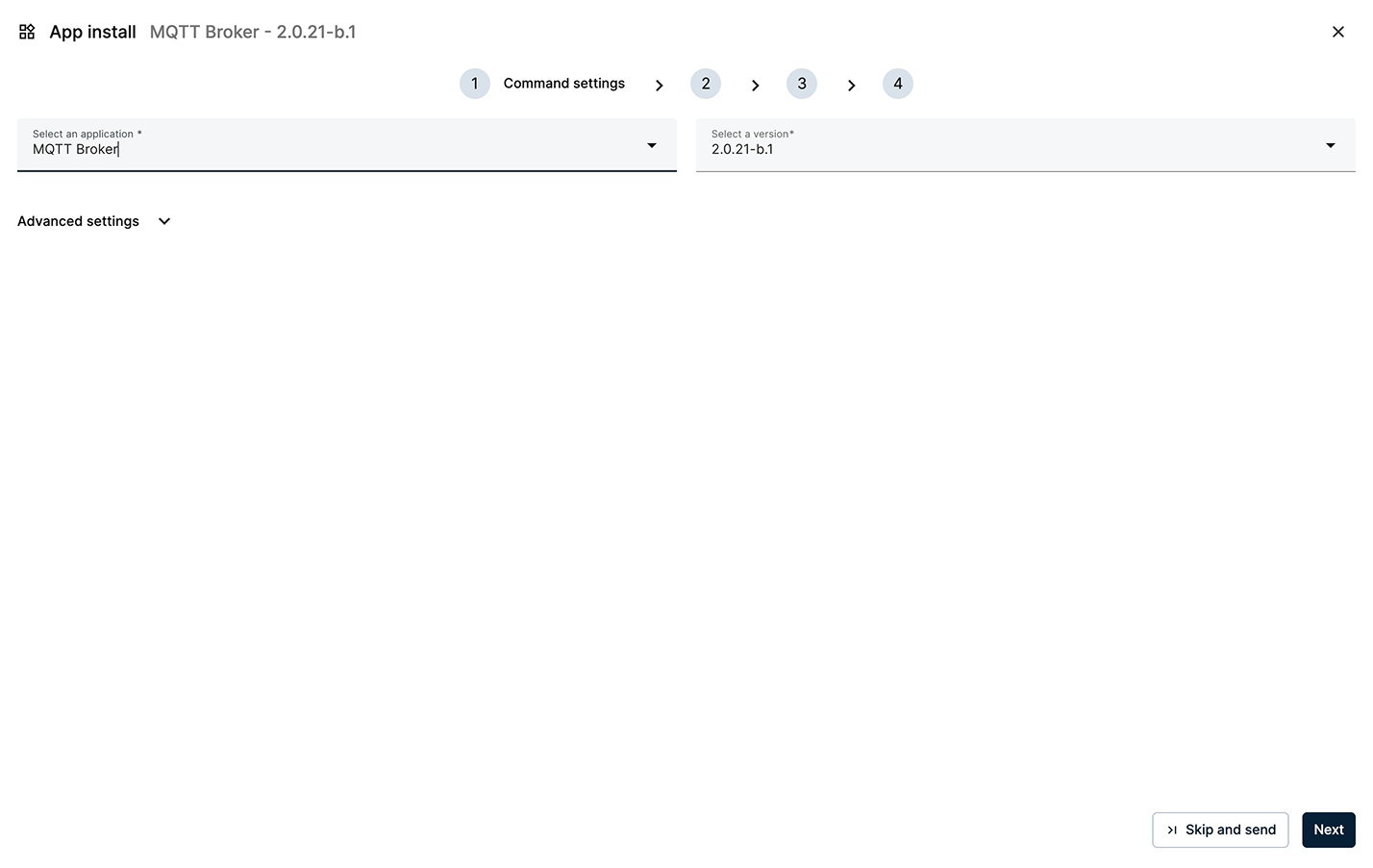
Deploy the MQTT Broker with default values
Once deployed, a new MQTT Broker workload will appear in the Apps and Models section. Similar to Node-RED, this card provides all relevant workload information and allows for interaction. You will also find a new tab for this workload's logs in the log viewer.
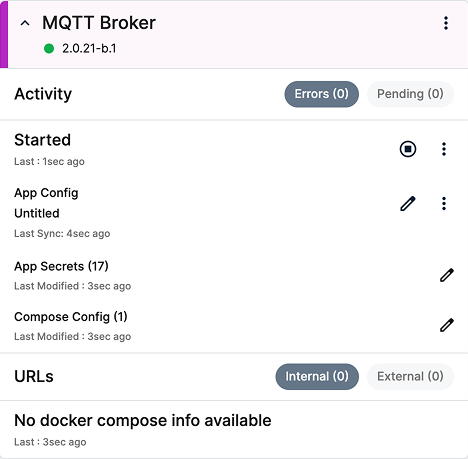
MQTT Broker workload
Accessing the MQTT Broker using MQTT Explorer
MQTT Explorer is a desktop client that lets you connect to an MQTT Broker, browse topics, publish messages, and inspect payloads in real time. Download it from its official website: https://mqtt-explorer.com.
After installation, configure the connection settings on your computer:
- URL/Host:
EDGE_Node_IP(The same IP you used to access Node-RED in Step 1.2) - Port:
8883 - User:
bbruser - Password:
bbrpassword
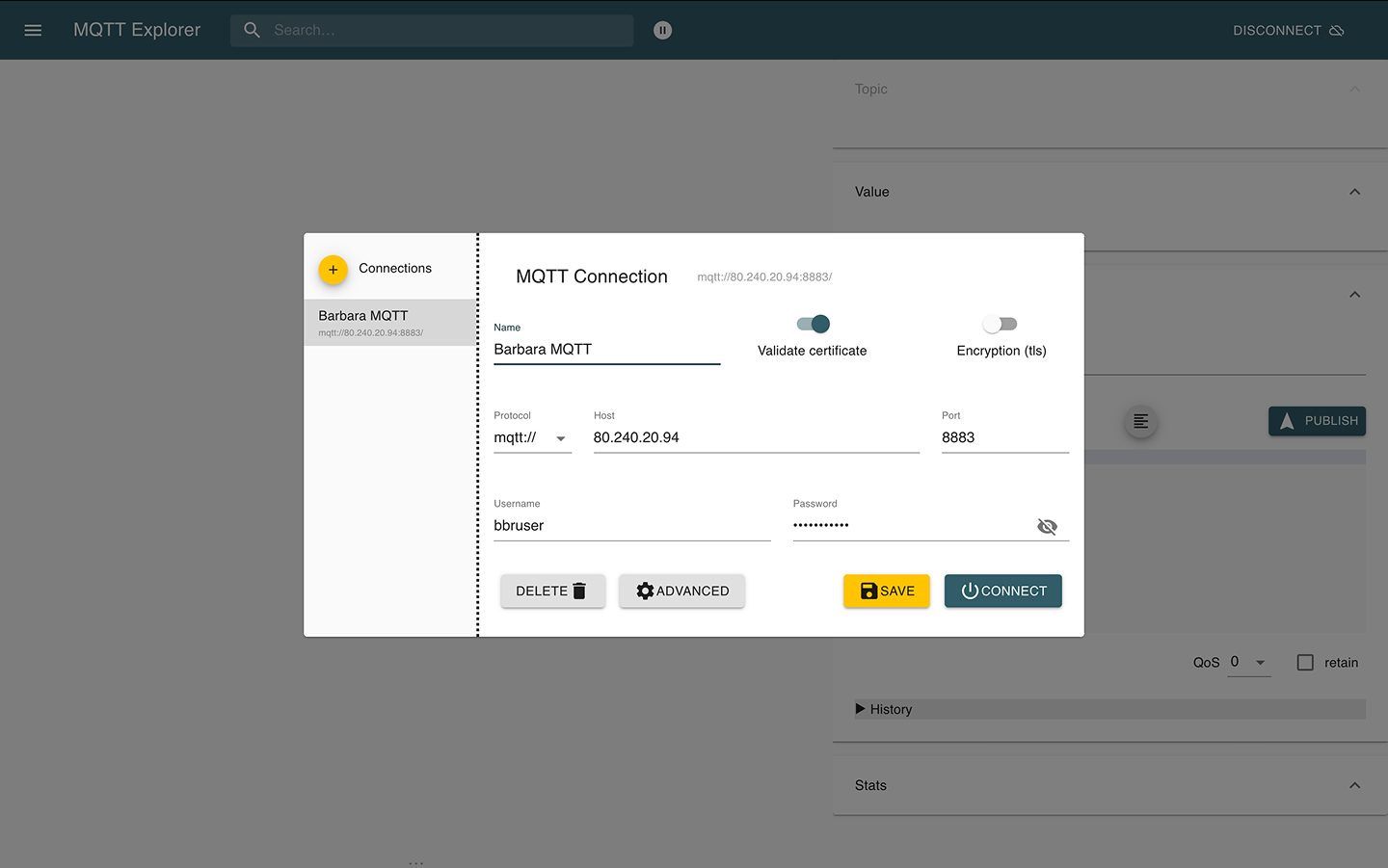
MQTT Explorer connection settings
Once configured, connect from your computer to the MQTT Broker running on the node. Since no other client is publishing yet, the topic tree will initially appear empty.
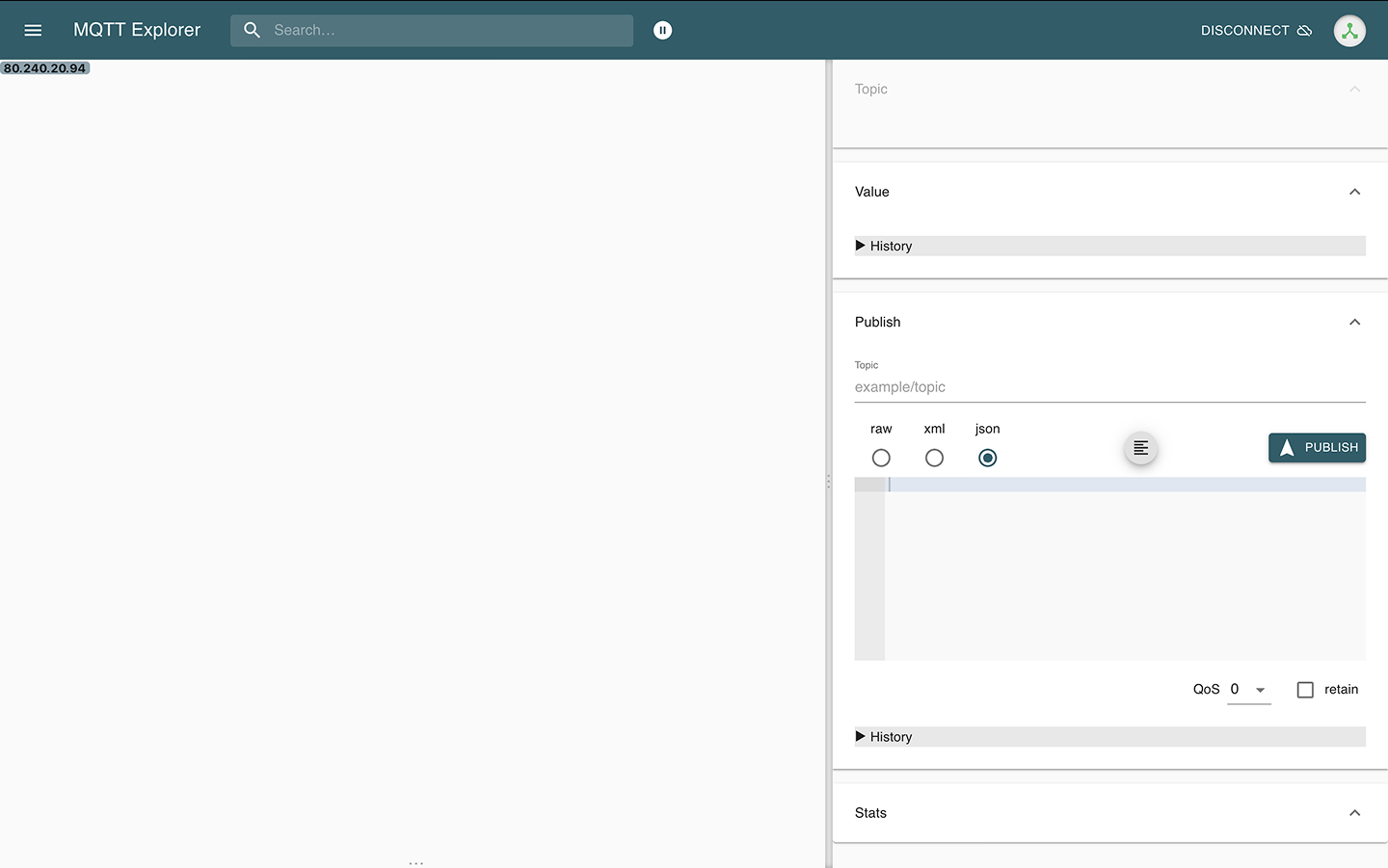
Successful connection to the broker
Summary
You have successfully added the MQTT Broker to your library, deployed it to your edge node with default settings, and verified connectivity using the MQTT Explorer desktop client. Next, you will use the Industrial Data Simulator to start publishing messages to the broker and verify the full data path at the edge.