2.3 - Extend Node-RED with some more edge processing
This article refers to Platform v3.2.0. The current Platform version is v3.4.0.
Overview
In this step, we'll use the previously deployed Node-RED workload to calculate Overall Equipment Effectiveness (OEE) metrics using data from the Industrial Data Simulator. The calculated metrics will then be republished to the MQTT Broker, making them available for consumption by other applications or dashboards.
In industrial settings, OEE is a key performance indicator (KPI) that quantifies how effectively manufacturing assets are utilized. It is calculated by integrating three factors: Availability, Performance, and Quality.
Get an in-depth explanation here: https://www.oee.com.
Configuring Node-RED on the Edge Node
You can configure Node-RED flows using the App Config.
You can access the App Config editor from the workload card in two ways:
- By clicking the edit icon next to the App Config section of the card.
- By selecting Upload JSON from the menu (the three dots) next to the edit icon.
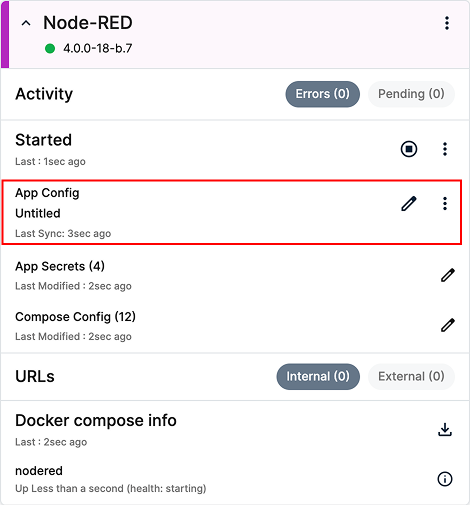
Access to the App Config editor from the Node-RED card
Paste the content of the configuration file below into the editor, or upload the file and click Send to apply the configuration.
You can download the configuration file from here: flow_oee_calculator.json.
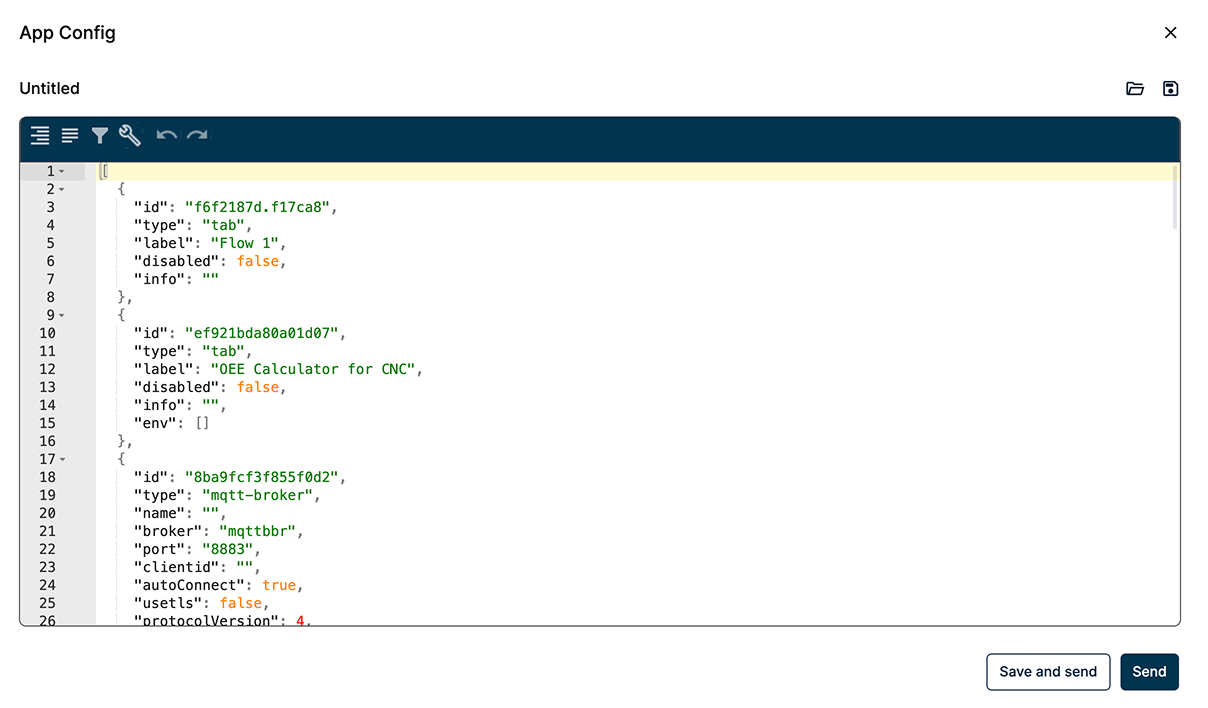
Loading the OEE flow JSON into the App Config editor
After applying the configuration, you must restart the application to ensure Node-RED reloads the flow data.
Setting MQTT Credentials in the Node-RED Flow
With the flow loaded, access the Node-RED editor as you did before by navigating to: http://[NODE_IP]:1881.
Log in when prompted, using the following credentials:
- User:
new_bbruser - Password:
new_bbrpassword
Port 1881 and credentials new_bbruser/new_bbrpassword were configured in Step 1.3.
You can modify them in the Compose Config and App Secrets sections of the Node-RED workload card, respectively.
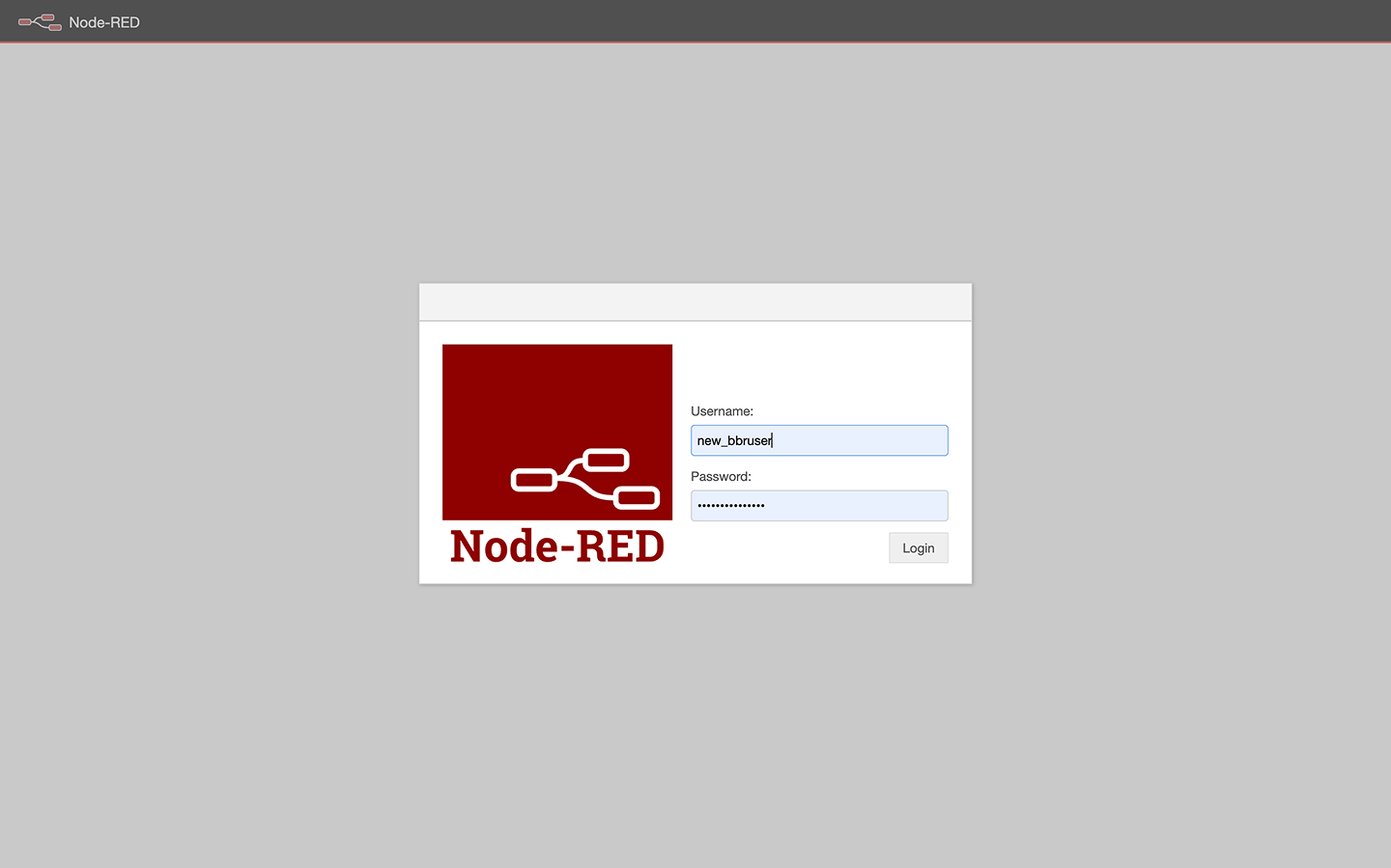
Node-RED login page
Once authenticated, you'll see the OEE flow you just configured. Initially, the MQTT IN and MQTT OUT nodes may show a "not connected" status because the connection parameters still need to be configured.
To configure the MQTT broker connection:
- Select the MQTT IN node and click Edit Server.
- Open the Security tab and enter the default MQTT broker credentials:
- User:
bbruser - Password:
bbrpassword
- User:
- Save the configuration and Deploy the flow.
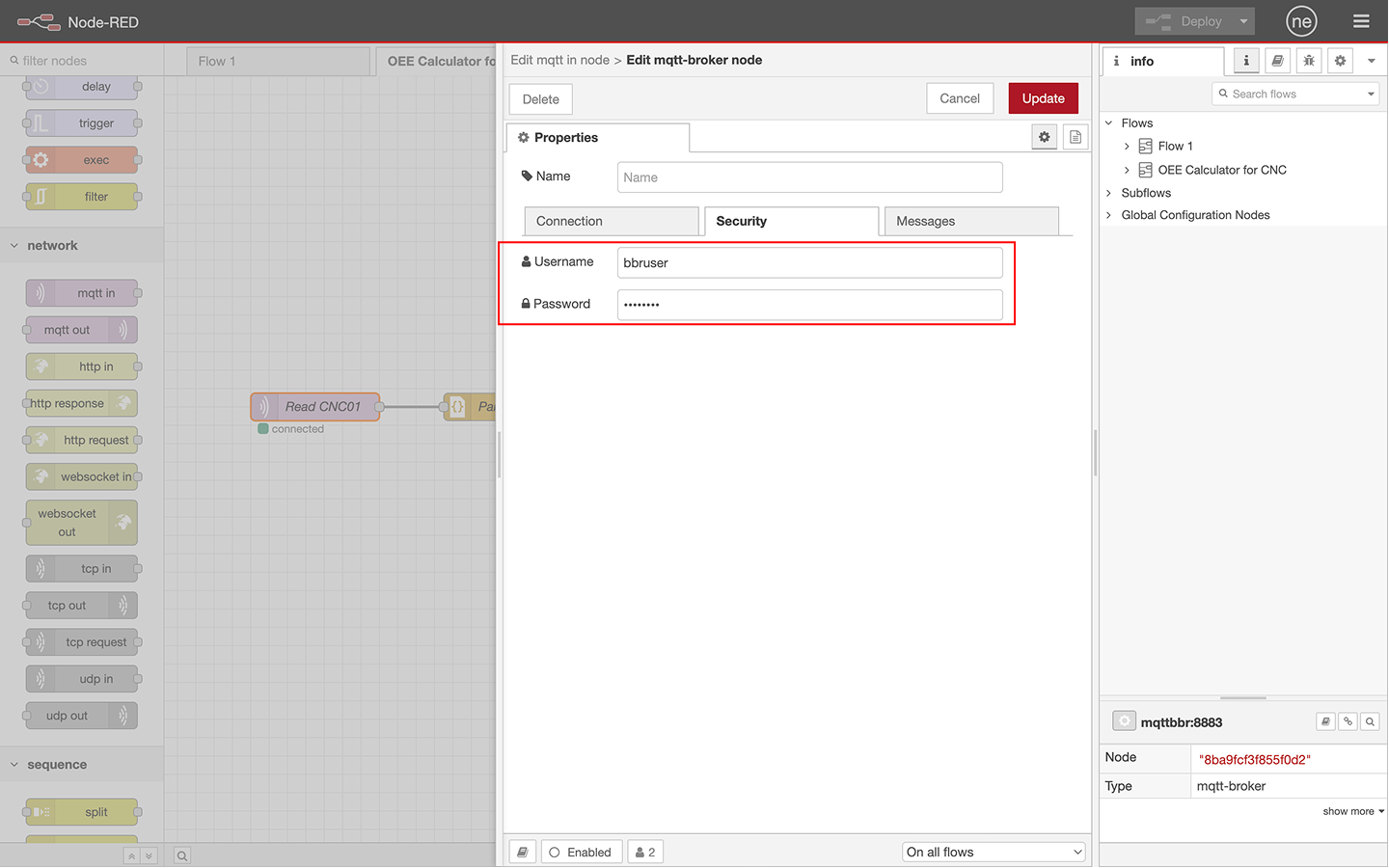
MQTT server configuration dialog with authentication parameters
After deployment, both MQTT nodes should turn green, indicating a successful connection. Now, open the Debug panel to inspect the messages being published with the computed OEE metrics.
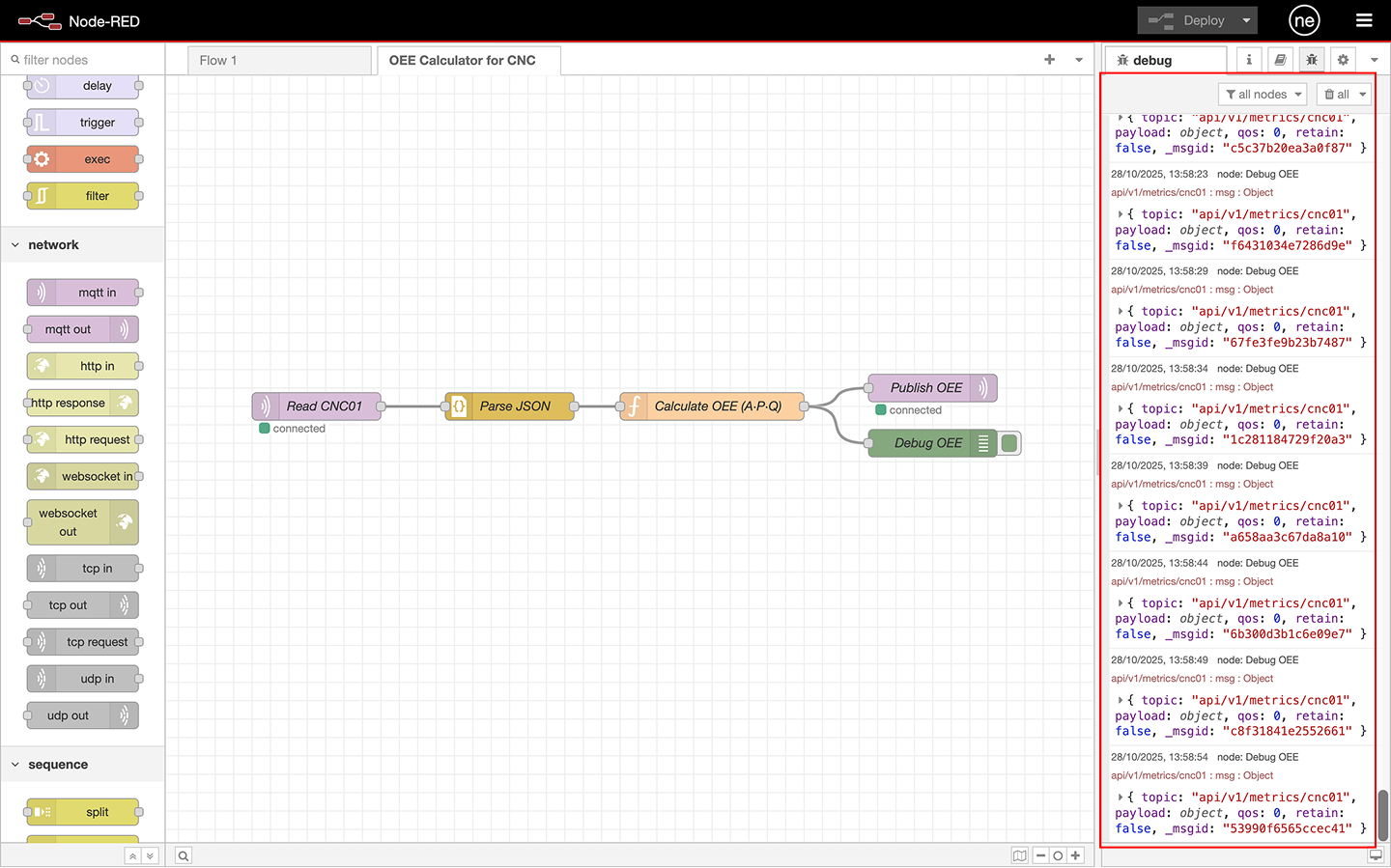
Debug panel displaying messages in the api/v1/metrics/cnc01 topic
You can check the OEE calculation logic, which resides within the function node named Calculate OEE (A·P·Q).
Double-click it to inspect the function's JavaScript implementation that computes Availability, Performance, and Quality.
Implementation details are out of scope for this guide.
Verifying MQTT Messages on the Broker
The flow you uploaded reads data from the MQTT Broker and also publishes the results back to it. Use MQTT Explorer to connect to your MQTT Broker and validate the data being published by the Node-RED flow.
Once connected, you will observe two sets of messages:
- The original Industrial Data Simulator messages under:
api/v1/reads/cnc01 - The OEE metrics published by Node-RED under:
api/v1/metrics/cnc01
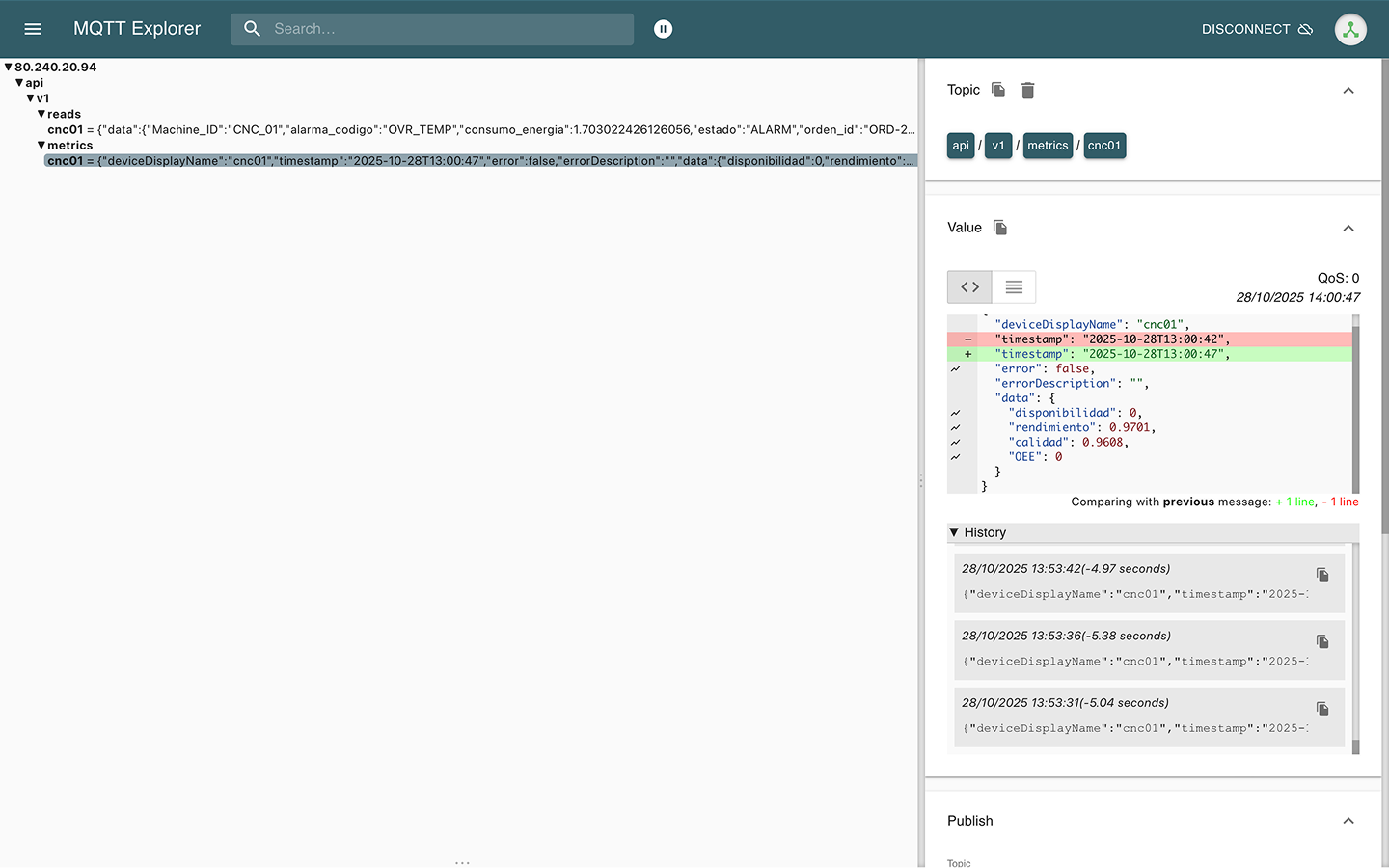
Data being published by the Node-RED flow
Summary
By completing this step, you have successfully implemented the second stage of the quickstart workflow. You used a data simulator to publish device data, performed a calculation on that data in Node-RED, and managed both the original data and the results using an MQTT Broker.
In the next steps, you will make all the data persistent in a local database and visualize it using a dashboard.