Deploy Ignition
This article refers to Platform v3.3.0. The current Platform version is v3.3.0.
Overview
Ignition and Ignition Edge gateways deployed across remote industrial locations such as substations, field stations, and production plants often require on-site installation and configuration, making deployments costly and time-consuming.
Barbara eliminates the need for on-site visits. From the Barbara Panel, you can deploy Ignition to any registered edge node, regardless of its physical location. Configuration can be fully automated using the Bootstrap mechanism: on first startup, the container downloads a pre-built gateway backup (.gwbk) from a specified URL and restores it automatically.
In this tutorial, you will create a gateway backup, publish it through Google Drive, and deploy Ignition to a remote edge node directly from the Barbara Panel. In less than 15 minutes, you'll have a fully configured Ignition or Ignition Edge gateway running at the edge.
Prepare the configuration package
The .gwbk file is the configuration package that defines the state of your Ignition gateway. During the initial deployment, the Bootstrap mechanism downloads this file and restores it automatically, allowing the gateway to start with a predefined configuration. Before deploying Ignition from the Barbara Panel, you must prepare the backup file and make it available through a reachable URL.
1) Download the demo .gwbk
Download the demo gateway backup from the Ignition Exchange (a free Inductive Automation account is required).
Ignition 8 Demo Projects on the Ignition Exchange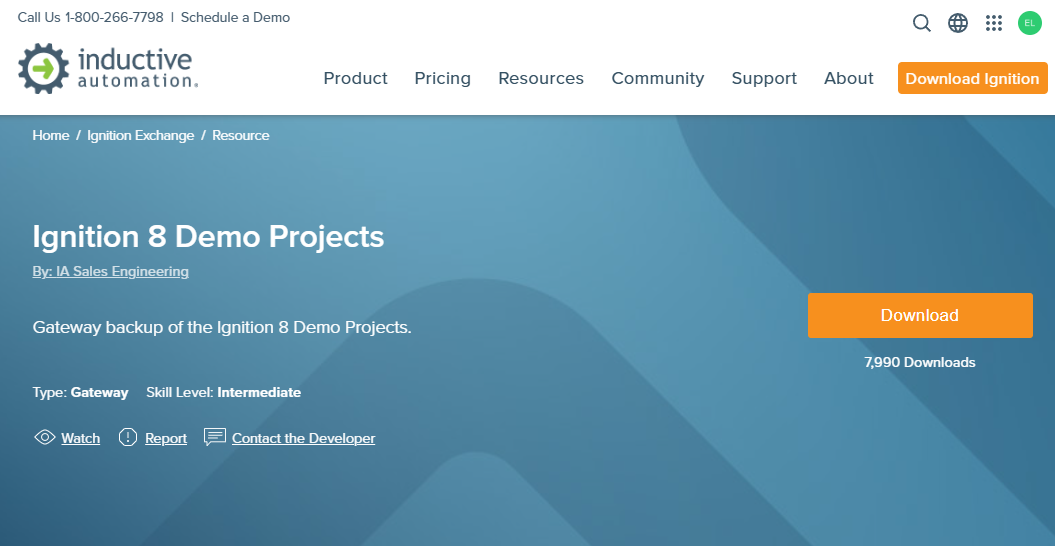
Ignition 8 Demo Projects on the Ignition Exchange
After signing in, click Download and save the ZIP package.
Extract the file Ignition Demo VM_Ignition-backup.gwbk (approximately 149 MB) from the downloaded ZIP archive.
The .gwbk major version must match the Ignition version being deployed.
The demo package from Ignition Exchange targets Ignition 8.1, so you must deploy the Ignition 8.1 application from the Barbara Marketplace. If the versions do not match, the restore operation will fail.
Inductive Automation also provides this backup on their Extra Materials page.
2) Host the .gwbk on a reachable URL
The Bootstrap mechanism downloads the gateway backup from the URL you set as SOURCE_URL. The application supports several source types: HTTP/HTTPS direct links, Google Drive, OneDrive/SharePoint, and SMB/CIFS network shares. This tutorial uses Google Drive.
- Upload
Ignition Demo VM_Ignition-backup.gwbkto Google Drive. - Open the sharing settings and set General access to Anyone with the link → Viewer.
- Copy the generated sharing link — but do not use it directly as
SOURCE_URL. Google provides a view URL, not a download URL.
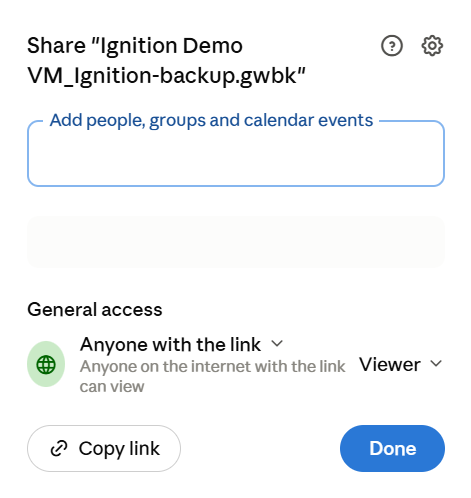
Google Drive share settings
The sharing link has this form:
https://drive.google.com/file/d/<FILE_ID>/view?usp=sharing
The file ID is the segment between /d/ and /view. Use it to construct the SOURCE_URL:
https://drive.usercontent.google.com/download?id=<FILE_ID>&export=download&confirm=t
The confirm=t parameter bypasses Google's antivirus confirmation page, which otherwise intercepts large files and causes the download to fail with only a few kilobytes transferred.
For publicly shared Google Drive files, no access token or additional configuration is required. For private files, set GDRIVE_ACCESS_TOKEN to an OAuth2 access token.
For OneDrive/SharePoint and SMB/CIFS configuration, see the full variable reference in the application's technical notes on the Barbara Marketplace.
Add Ignition to your Library
If the edition you want is not yet in your Library, add it from the Barbara Marketplace:

Ignition
Ignition is a full-featured SCADA platform for unlimited industrial deployments, acting as the central hub for plant-wide data, visualization, and IT/OT integration.

Ignition Edge
A lightweight edition of the Ignition platform for edge nodes, field devices, and remote sites, bringing local SCADA, IIoT, and data acquisition to the source of the data.
For the complete process, see Add a Marketplace app to your Library.
Deploy Ignition
Open the Node Details page for the target edge node in the Barbara Panel. The node must be registered and ACTIVATED before applications can be deployed to it. If your Nodes List is empty, follow one of the install paths first.
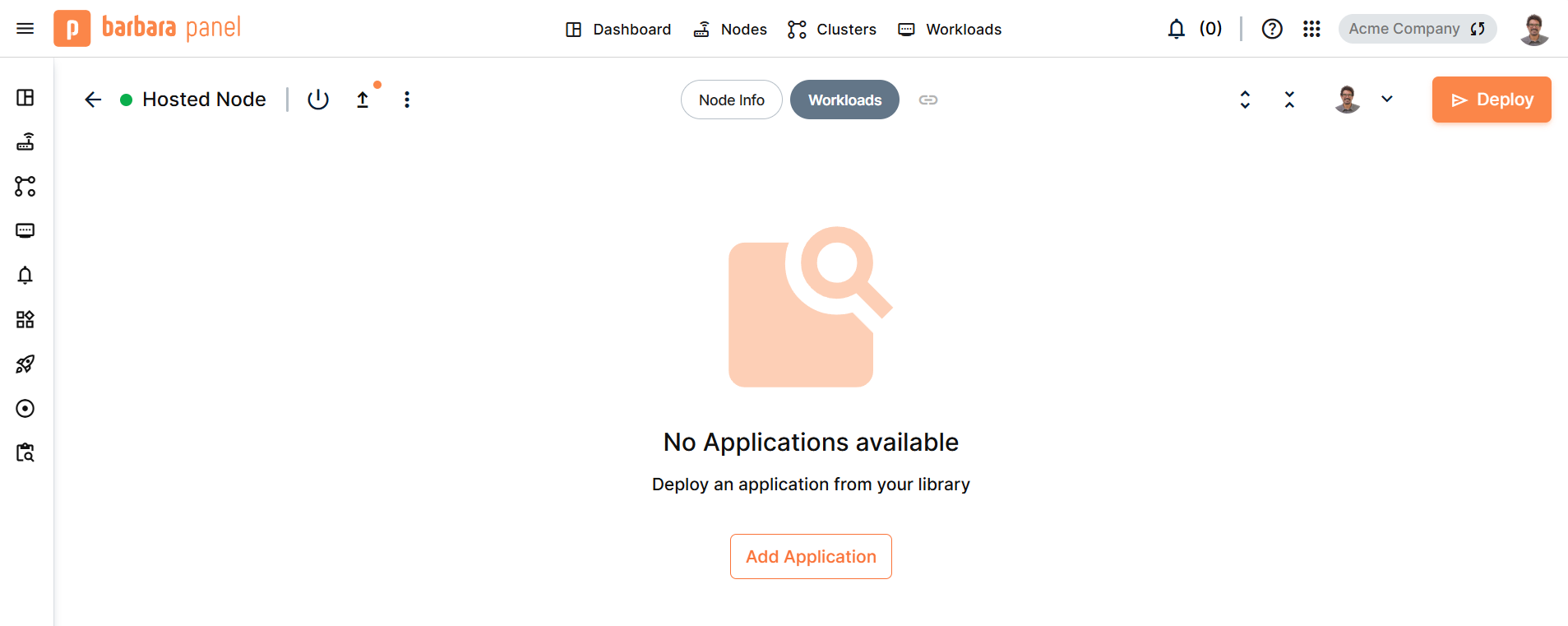
Node Details for the remote node
Click Add Application to open the deployment wizard.
1) Select application
Select the application you want to deploy (Ignition or Ignition Edge) and the version, then click Next. The remaining steps are identical for both editions.
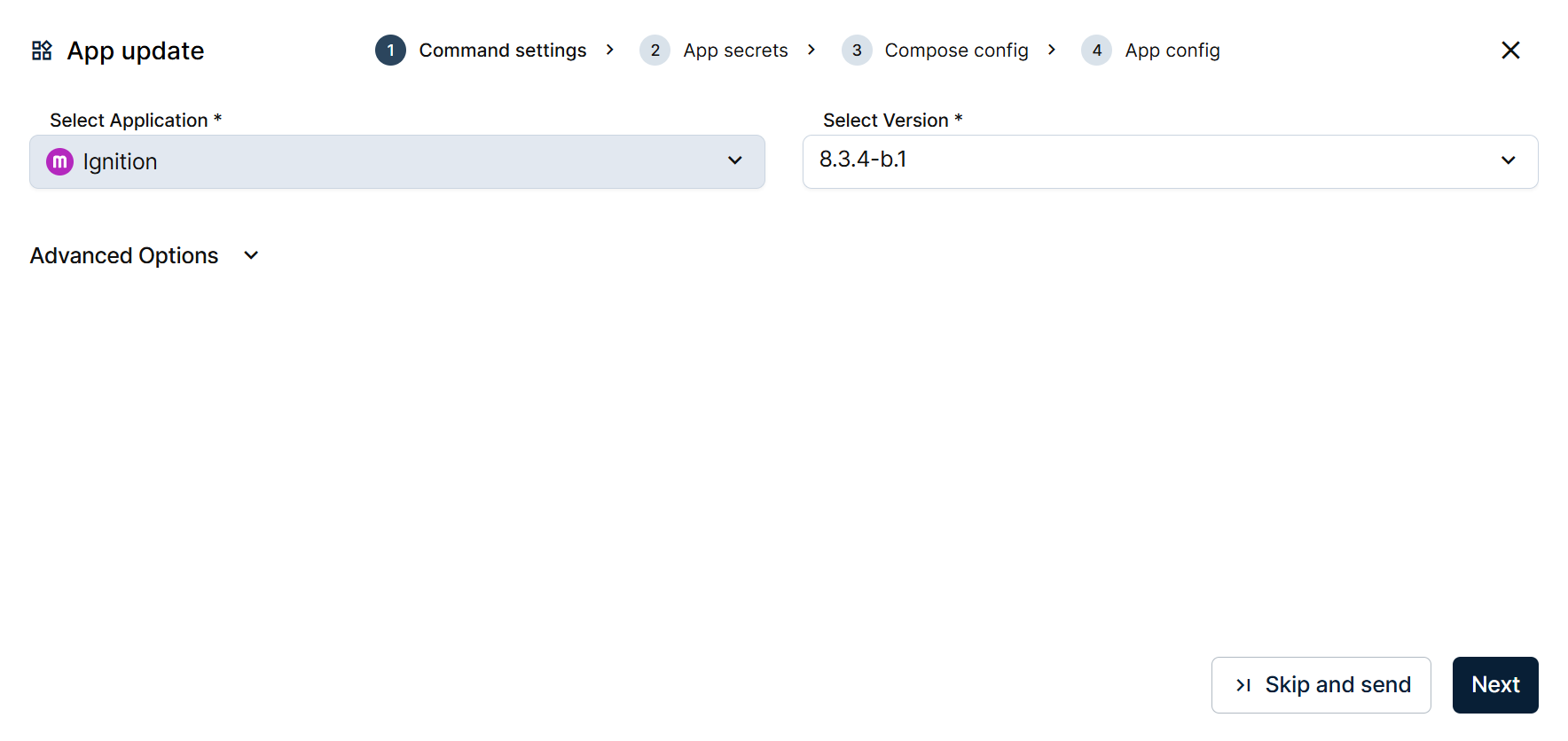
Selecting the Ignition application
2) App Secrets
In this step, you'll configure the gateway and define how the initial backup is restored during deployment.
On the Gateway tab, set ACCEPT_IGNITION_EULA to Y; the gateway will not start without it. Leave IGNITION_ACTIVATION_TOKEN empty to run in 2-hour trial mode, which is enough for this tutorial. The demo project is large, so set GATEWAY_MAX_MEMORY to 2048. The remaining gateway fields keep their defaults; adjust TZ if you need a different timezone.
On the Backup provisioning tab, enable the restore that defines this deployment: set BOOTSTRAP to true and SOURCE_URL to the Google Drive sharing link of your .gwbk. On first start, the gateway downloads that file and applies it automatically, so it comes up with your projects, tags, and connections already in place.
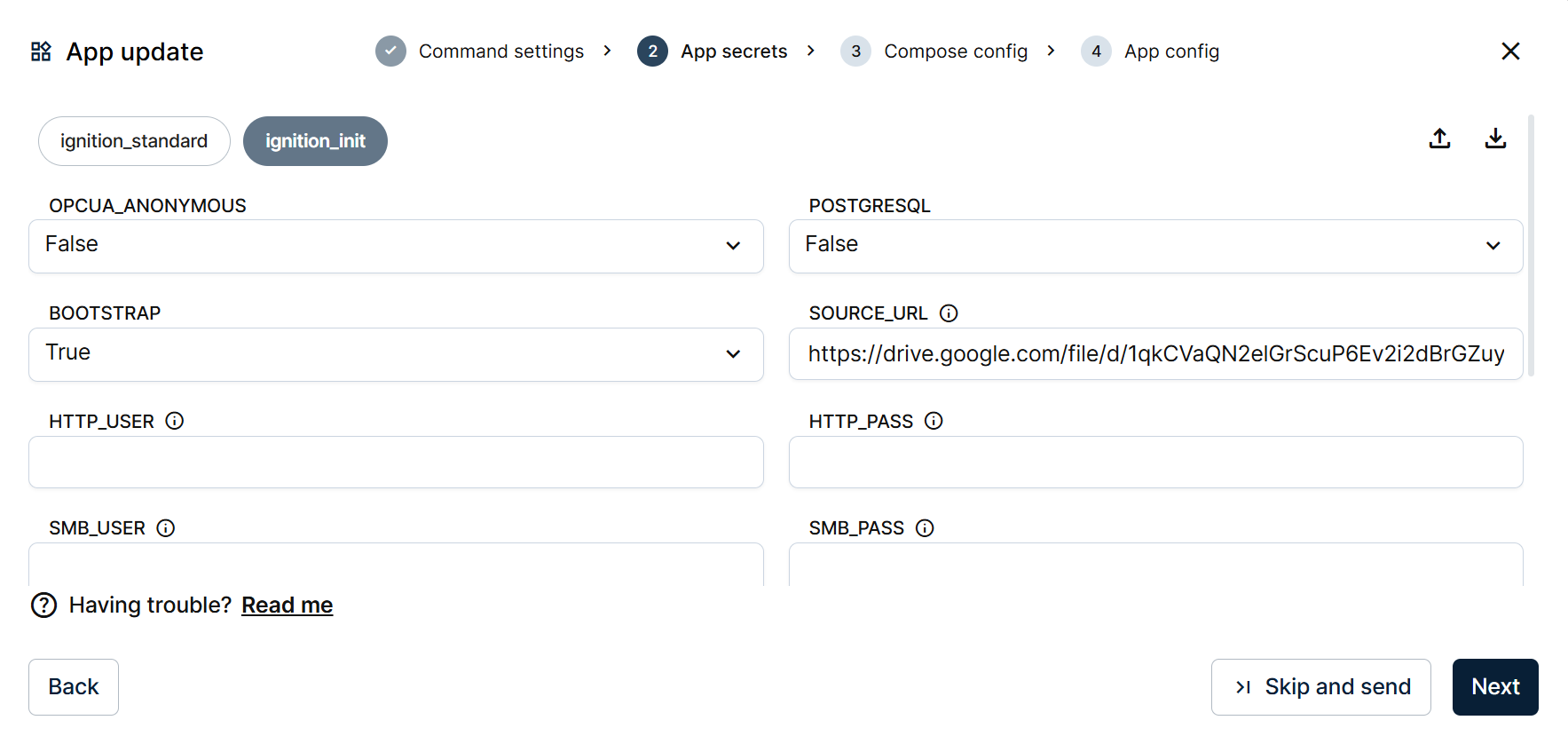
BOOTSTRAP and SOURCE_URL configured
BOOTSTRAP applies the backup only on the first deployment when no gateway data exists. Subsequent restarts do not re-apply it.
To push an updated backup to an existing gateway, use OVERRIDE_BACKUP=true instead. It applies the .gwbk on every deploy, but only when the remote file has changed.
Every configuration variable and its default value is documented in the application's technical notes on the Barbara Marketplace.
3) Compose Config
The Compose Config step defines the persistent volume and the host ports Ignition exposes. For this tutorial, you can keep all the default values.
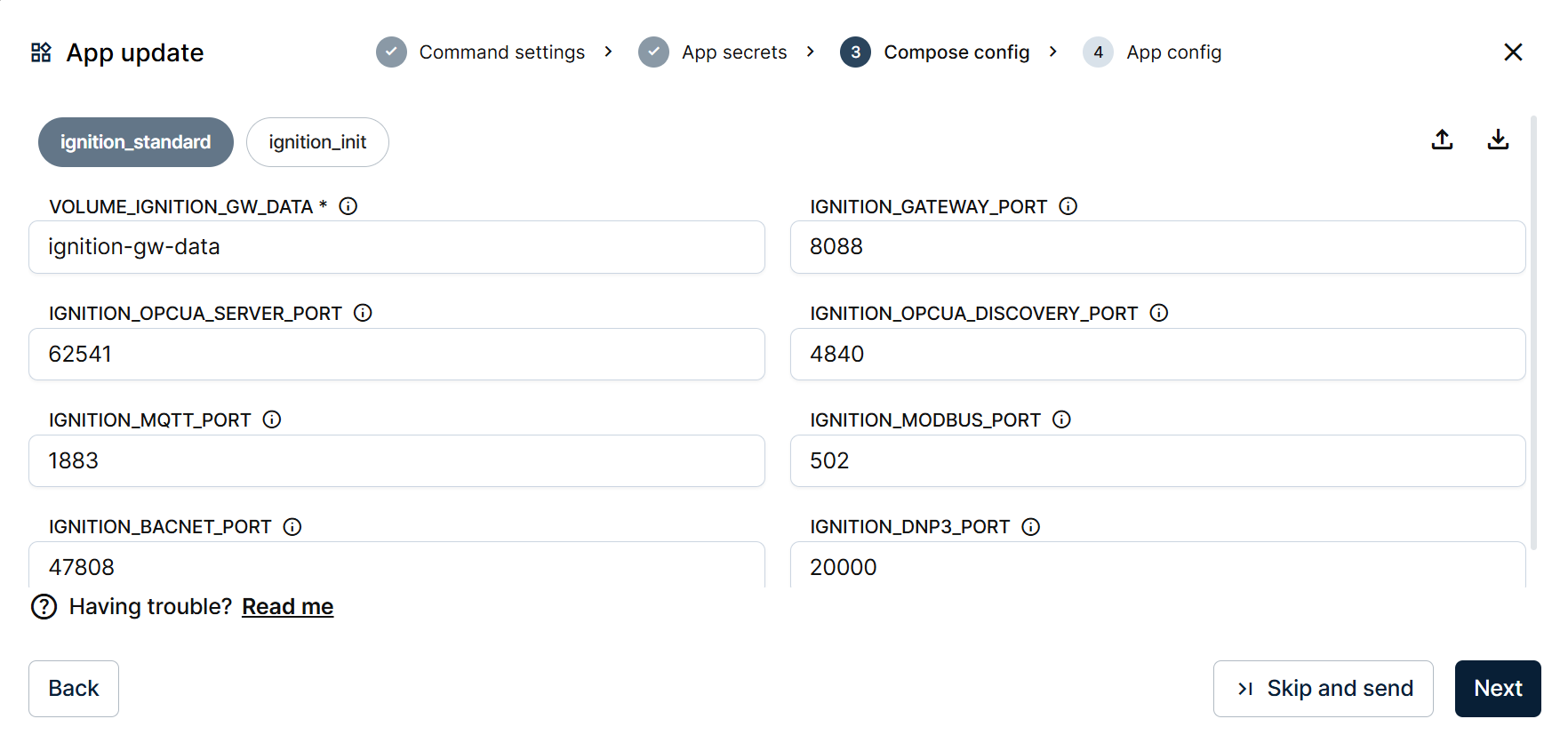
Default port mapping
Only the ports of the protocols you actively use need to be reachable from the network. If your deployment does not use BACnet or DNP3, those ports can stay unchanged without impact.
4) App Config
Leave the editor unchanged and click Send App. Barbara now deploys the app to the remote node.
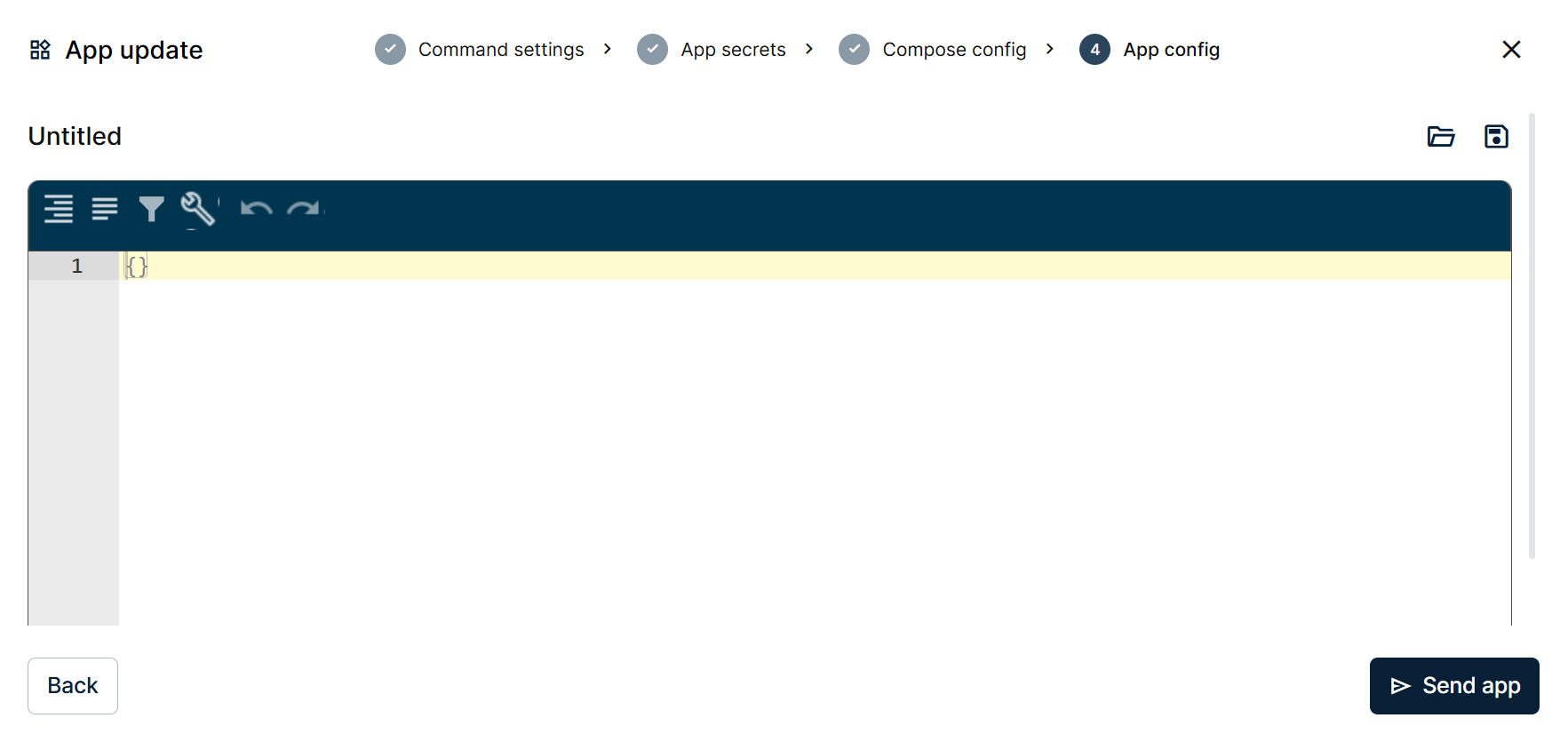
The App Config step
Wait for the gateway to start
The node now performs the deployment autonomously. Ignition starts, downloads the .gwbk from the configured URL, and restores the gateway configuration. The process typically takes 3–5 minutes.
You can monitor the deployment from the workload card in the Barbara Panel. When the workload card turns green (Started), the gateway is ready.
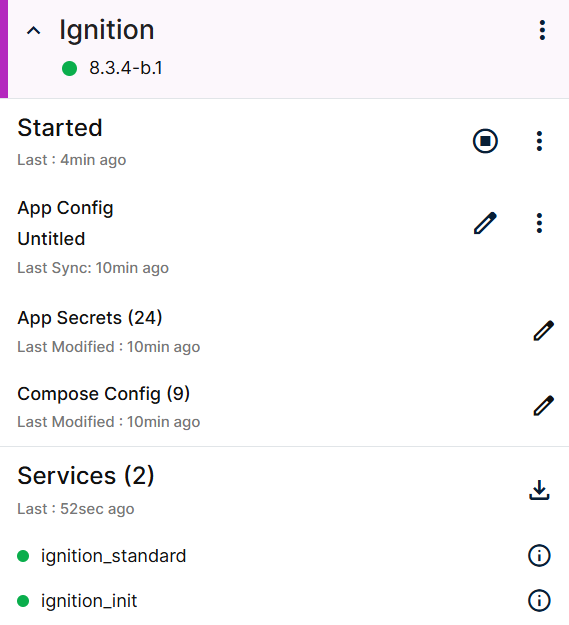
Workload started
Open the Gateway UI using the Ignition Gateway UI link in the workload card URLs panel, or navigate directly to http://<NODE_IP>:8088.
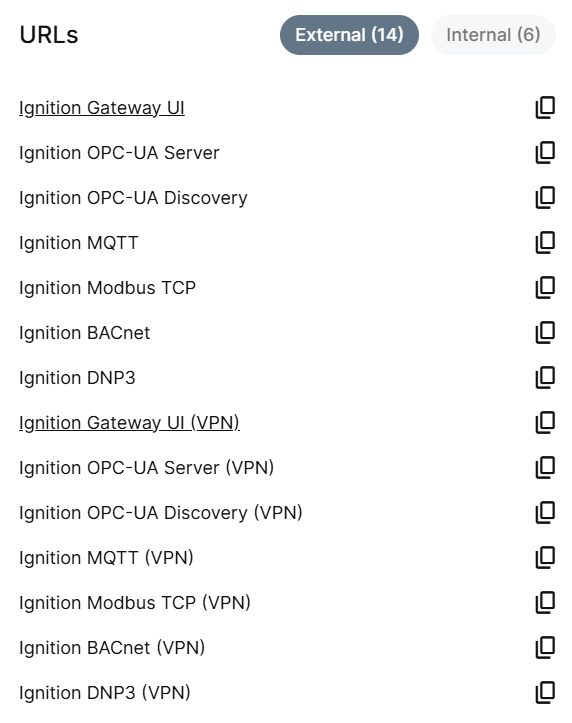
The workload URLs panel
If you try to open the UI while the restore is still in progress, you'll see the standard Ignition startup page.
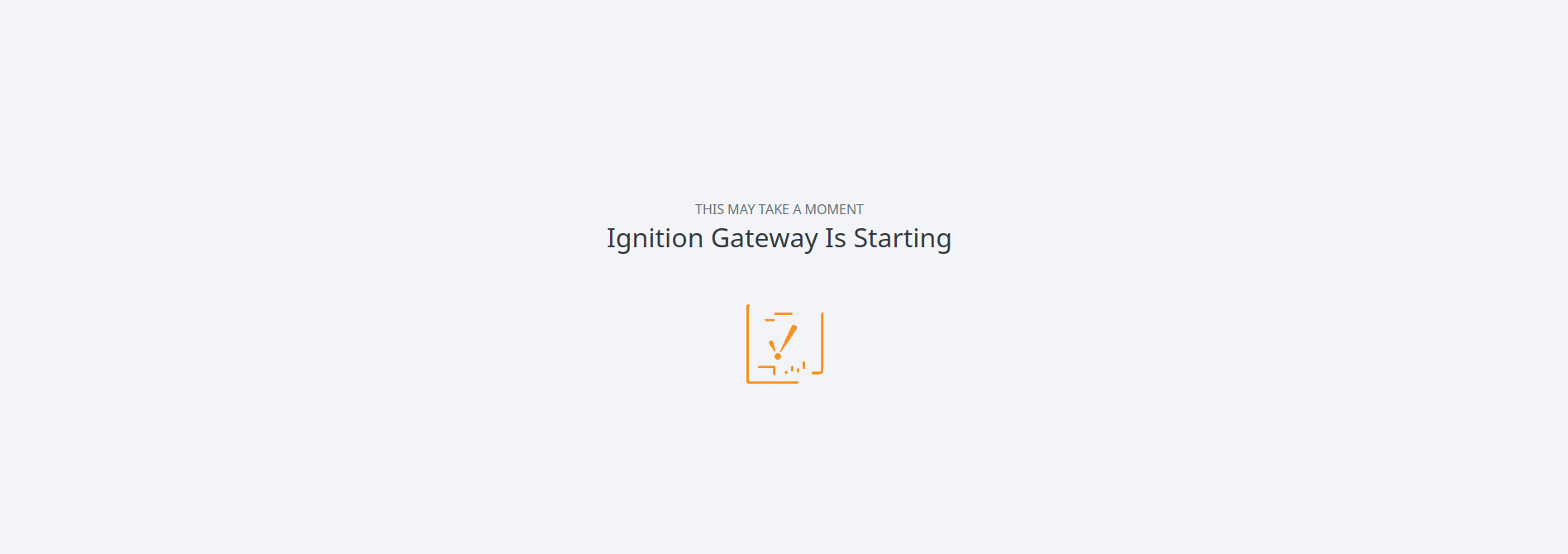
The Ignition startup splash
Open a demo project
The gateway is now online and running with the configuration restored from your backup. As noted earlier, the Ignition Gateway UI link in the workload card provides direct access to the UI without requiring knowledge of the node's network address or workload port.
Direct access to the Gateway UI requires your computer to have network connectivity to the edge node. If the node is located on a different network, connect through Barbara's VPN first.
See Configure the VPN for setup instructions.
Log in with admin / password, the default credentials of the Ignition demo backup.
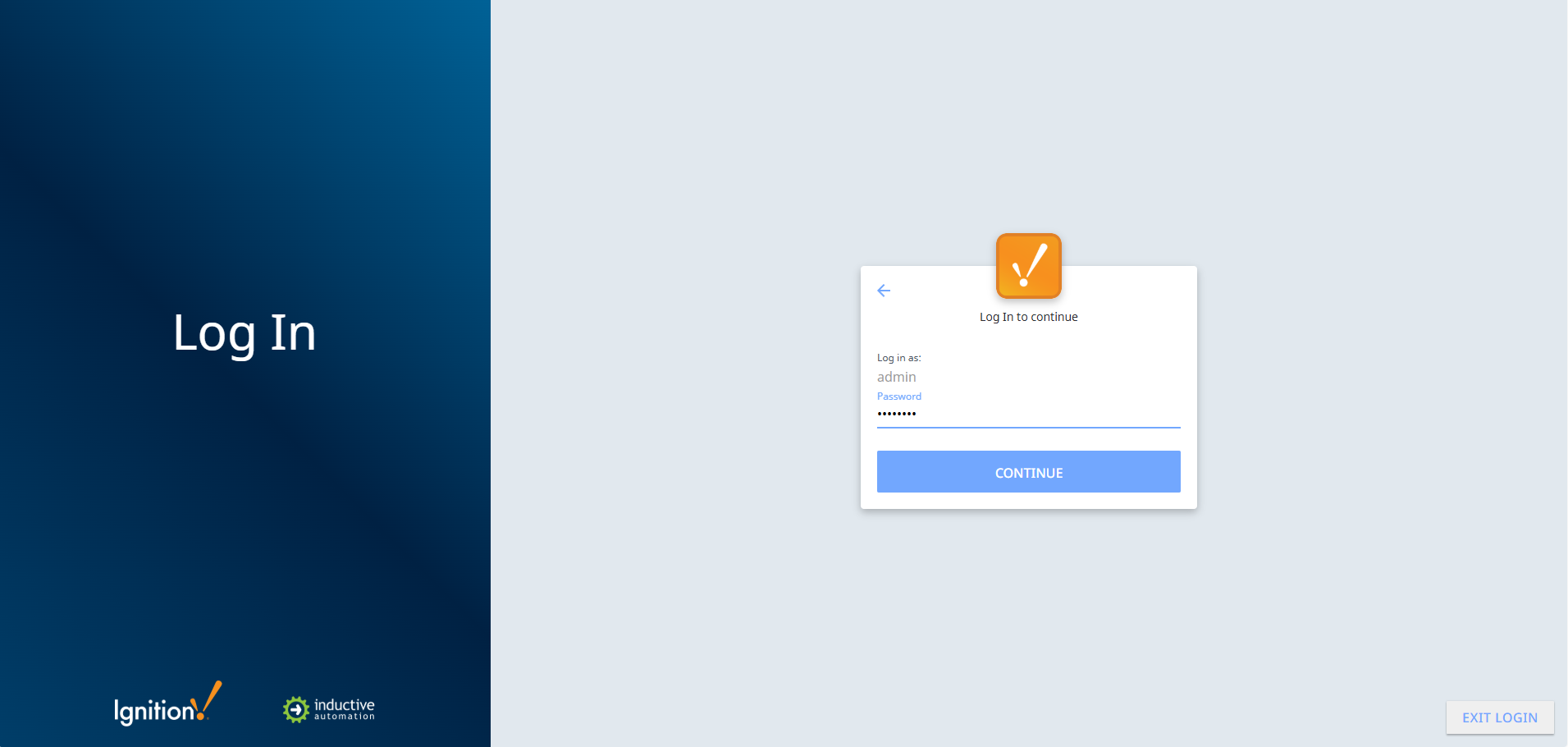
Ignition Gateway login
In the Gateway UI, locate Perspective in the left sidebar and click Launch. A list of the sessions restored from your .gwbk appears. Select Oil and Gas (or any other project) and click Launch to open its HMI in the browser.
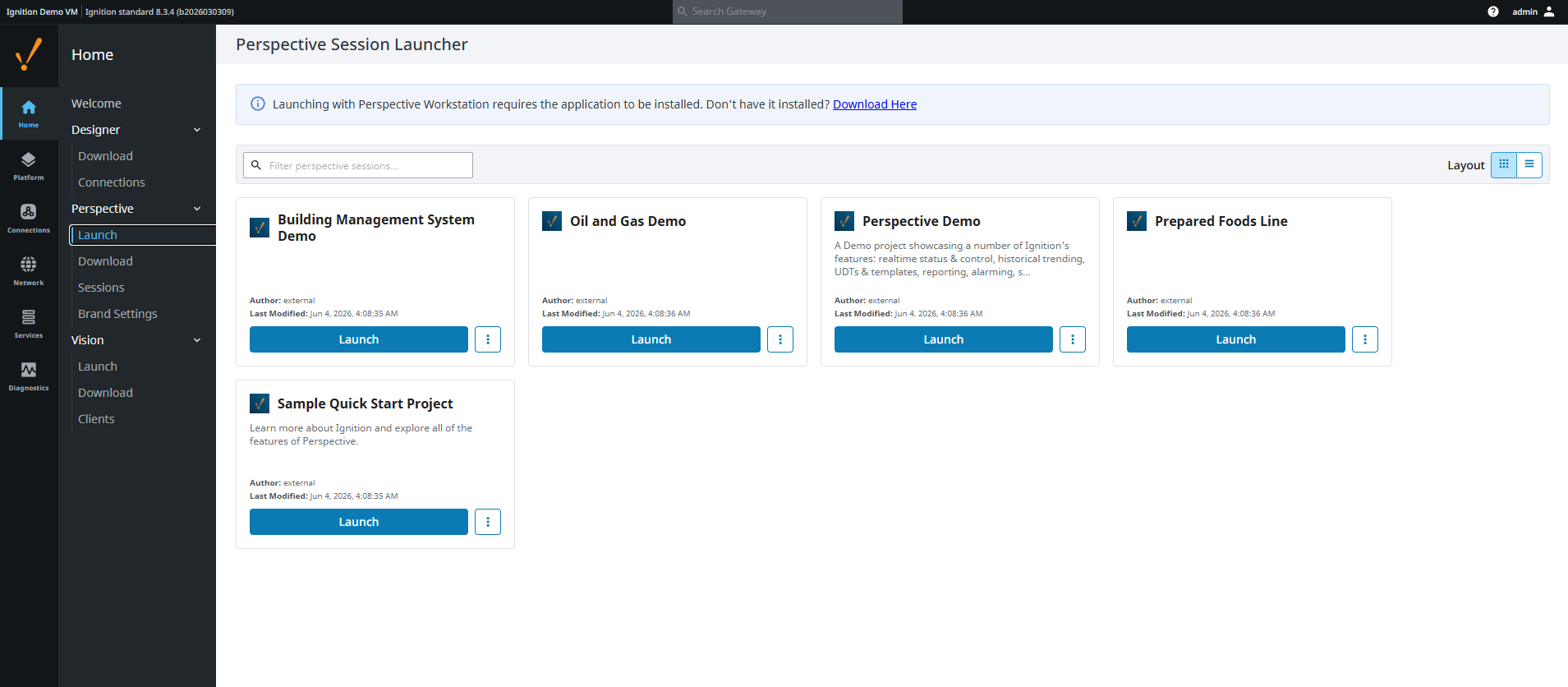
Perspective Session Launcher
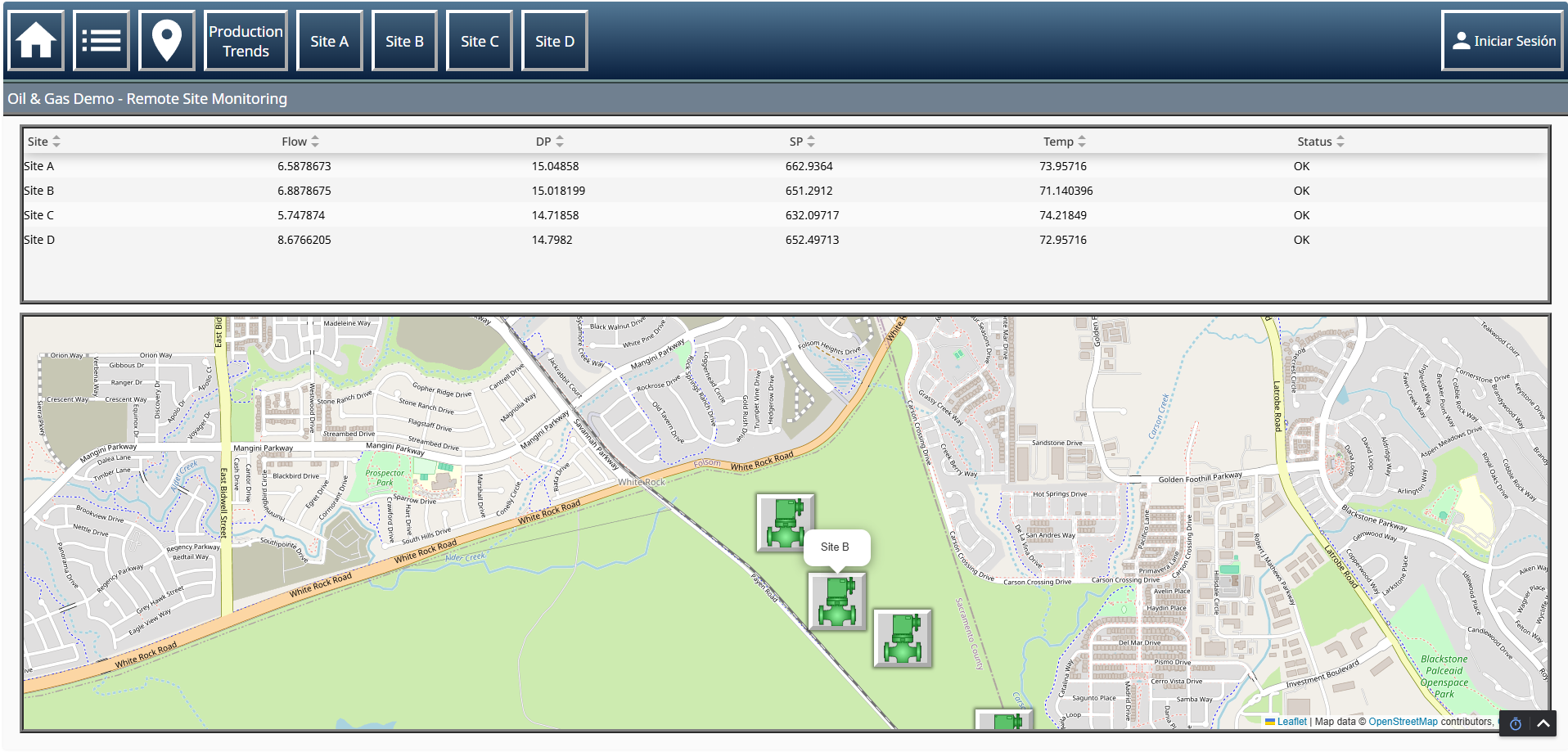
Oil and Gas demo HMI
The demo backup includes database connections that reference MySQL instances not deployed as part of this tutorial. As a result, some connections appear as Faulted in the Gateway UI. This does not affect the Perspective demo projects.
To clear the warnings, deploy MySQL and phpMyAdmin from the Barbara Marketplace and import the corresponding demo datasets.
Summary
You have successfully deployed an Ignition gateway to a remote edge node without requiring physical access to the device. Barbara delivered the application, restored the gateway backup, and brought the system online with its projects and configuration already in place.
Because the configuration is packaged in a .gwbk file, the same workflow scales from a single site to hundreds of nodes. Prepare the backup once, then deploy it consistently across your fleet from the Barbara Panel.
When you need to roll out an updated configuration, set OVERRIDE_BACKUP=true and provide the new backup URL. Barbara automatically detects changes and applies each backup only once, making repeated deployments safe and predictable.