Deploy Ignition for Cluster
This article refers to Platform v3.2.0. The current Platform version is v3.3.0.
Overview
A single Ignition or Ignition Edge gateway represents a single point of failure. If the gateway becomes unavailable (whether due to maintenance, hardware failure, or an operating system crash), client sessions disconnect and data collection stops until service is restored.
Ignition for Cluster and Ignition Edge for Cluster provide high availability through a Hot Standby redundancy architecture. Two Ignition gateways run side by side: a Master gateway that serves all client traffic and a Backup gateway that continuously synchronizes its state with the Master through the Ignition Gateway Network.
A Traefik reverse proxy sits in front of both gateways and exposes a single endpoint to users and applications. If the Master becomes unavailable, Traefik automatically redirects traffic to the Backup while Ignition promotes it to active status. As a result, clients experience only a brief reconnection and no manual intervention is required.
Barbara automates the deployment of the entire stack, including the Master gateway, Backup gateway, Traefik, and the initialization service required to prepare the cluster. Once deployed, Ignition's redundancy engine continuously synchronizes both gateways and manages role transitions automatically.
High Availability and Failover
Gateway Failover
Traefik monitors the active gateway through Ignition's /StatusPing endpoint every 5 seconds, with a 3-second timeout. If the health check fails, Traefik automatically redirects HTTP traffic to the Backup in approximately 5–8 seconds.
Ignition's redundancy engine then completes the failover process by promoting the Backup to Master. This promotion typically takes an additional 30 seconds, ensuring the newly promoted gateway assumes control with a fully synchronized state.
Because traffic routing and gateway promotion are handled independently, clients typically experience only a brief reconnect while the cluster continues operating normally.
TCP Protocol Failover
Industrial protocols such as OPC-UA, MQTT, Modbus, BACnet, and DNP3 are exposed through Traefik and distributed between the Master and Backup gateways while both are healthy.
If one gateway fails its connection-level health check, all new protocol connections are automatically routed to the remaining healthy gateway. Existing sessions may need to reconnect, depending on the protocol and client implementation.
Infrastructure Requirements
The Ignition redundancy pair provides application-level high availability: gateway services remain available when a node or gateway fails. However, the redundancy pair alone does not guarantee full cluster-level high availability.
Docker Swarm relies on the Raft consensus protocol, which requires a majority of manager nodes to remain reachable. In a two-manager cluster, the required quorum is 2 out of 2. If either manager fails, the remaining node continues running existing workloads, but the Swarm control plane can no longer schedule, update, or recover services automatically.
For this reason, production deployments should use three Swarm manager nodes. With three managers, quorum becomes 2 out of 3, allowing the cluster to tolerate the loss of any single node while remaining fully operational.
Our cluster applications therefore run best on a Barbara cluster with three active nodes. If your cluster does not exist yet, follow the Clusters guide to create one and ensure all nodes are in Active availability status.
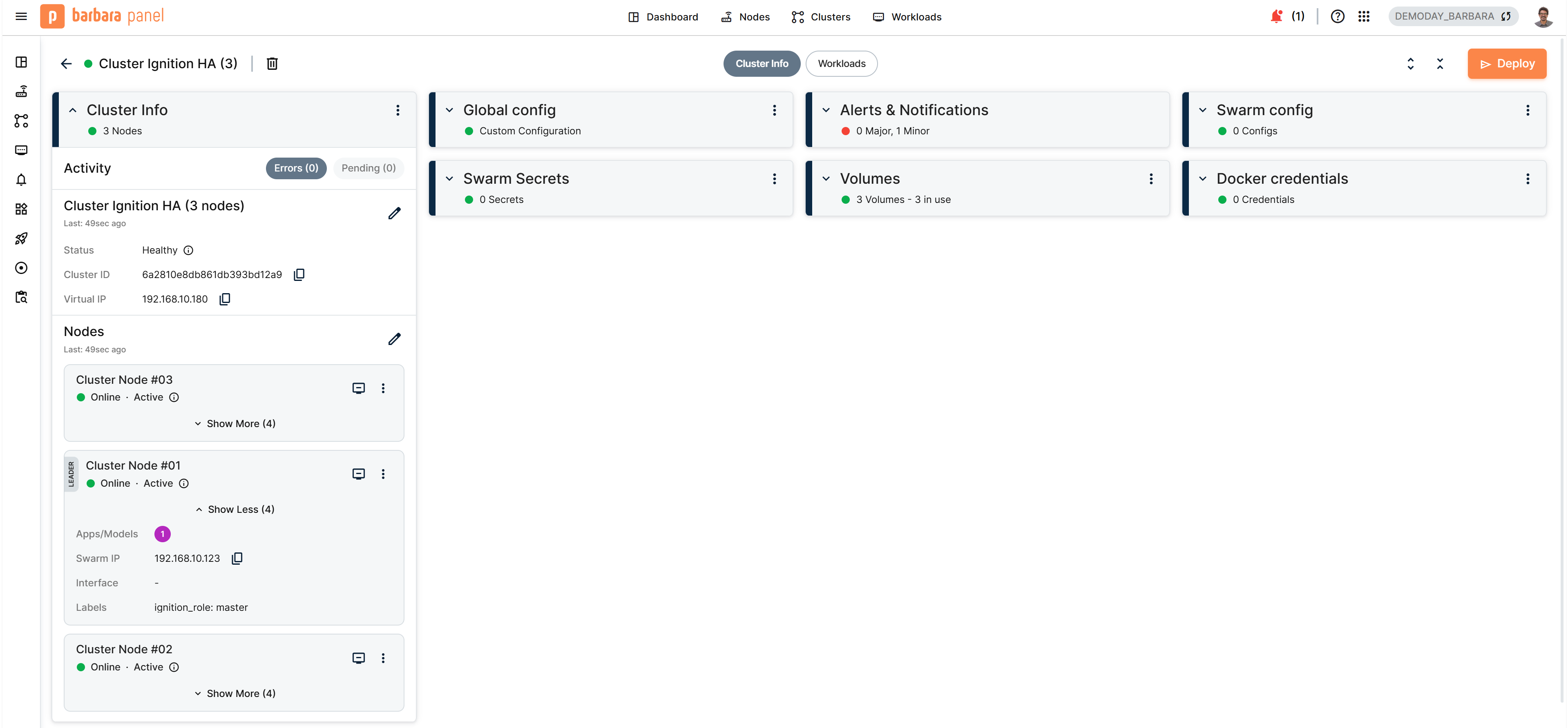
A three-node cluster ready for deployment
In this tutorial, you will deploy Ignition for Cluster and verify that redundancy is operating correctly from the Ignition Gateway UI. The same steps apply to both Ignition for Cluster and Ignition Edge for Cluster.
Add Ignition for Cluster to your Library
If the edition you want is not yet in your Library, add it from Barbara Marketplace:


Ignition for Cluster
Ignition for Cluster packages the full Ignition SCADA platform as a high-availability deployment, running two redundant instances in your cluster for continuous, uninterrupted operation.

Ignition Edge for Cluster
The lightweight Ignition Edge edition deployed as a Hot Standby redundancy pair, bringing high-availability local SCADA and IIoT to edge sites.
For the full add-to-Library flow, see Add a Marketplace app to your Library.
Create cluster volumes
Before deploying Ignition for Cluster, create one persistent volume for each stateful service: Traefik, the Master gateway, and the Backup gateway. Open your cluster from the Clusters list and go to Cluster Info. In the Volumes card, click + to add a new volume.
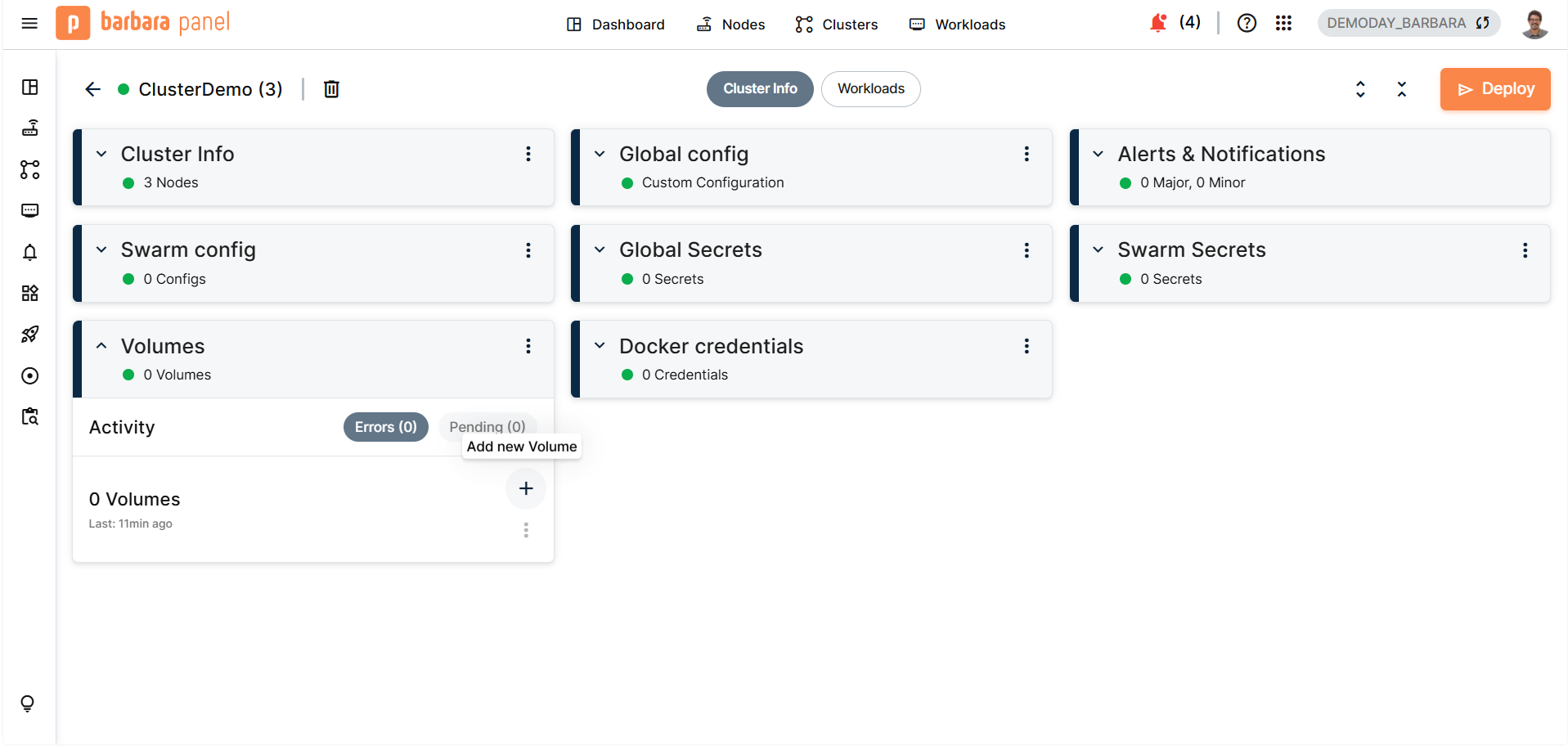
The Volumes card in Cluster Info
Create the following three volumes. In the Add new Volume dialog, enter each name and click Add:
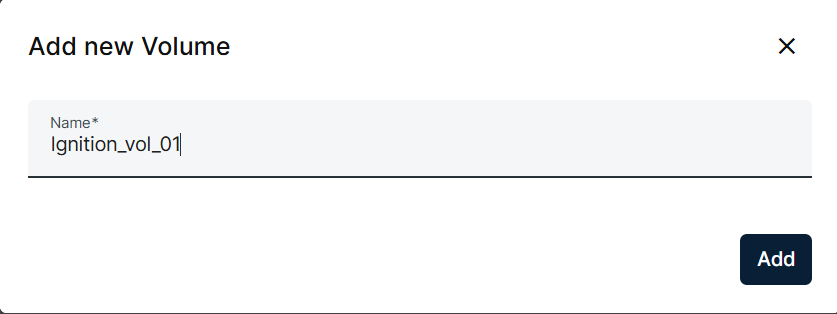
Add new Volume dialog
| Volume name | Used by |
|---|---|
Ignition_vol_01 | Traefik |
Ignition_vol_02 | Master gateway (gateway) |
Ignition_vol_03 | Backup gateway (gatewayr) |
When all three are created, the Volumes card lists them with status Not in use, which is expected before deployment:
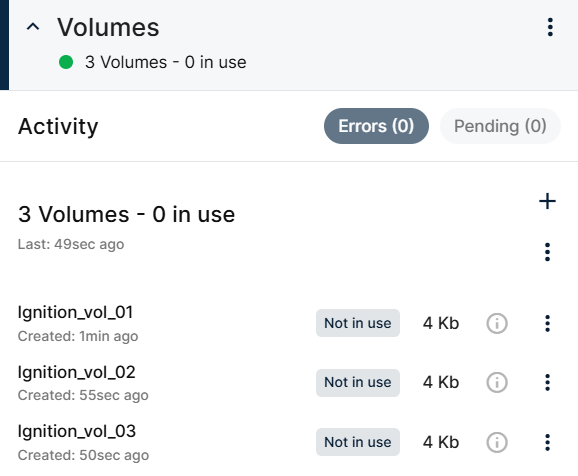
Three cluster volumes created
Open the cluster and start the wizard
Open your cluster from the Clusters list in the Barbara Panel.
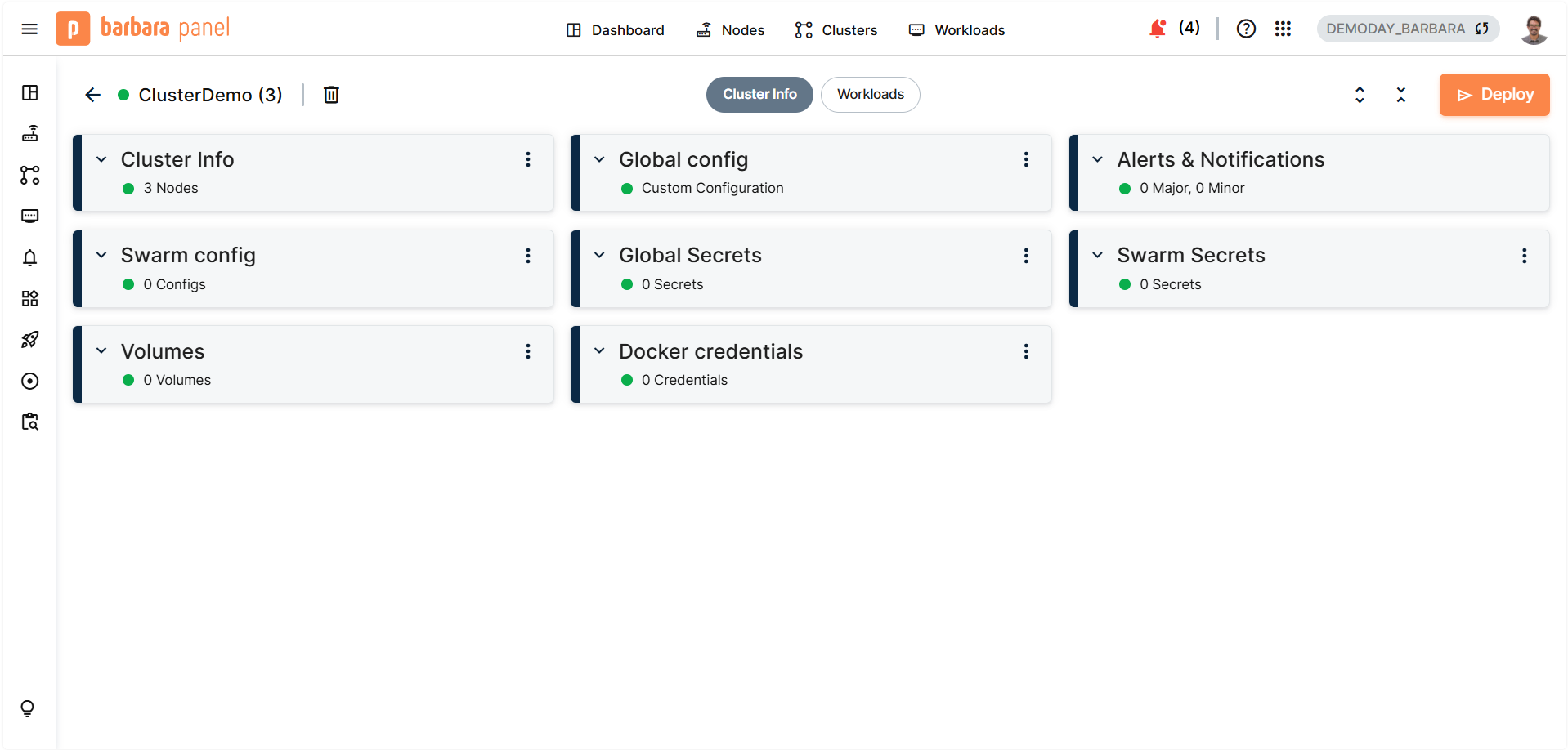
Cluster detail view
Switch to the Workloads tab and click Deploy to open the installation wizard.
1) Select application
Select the application you want to deploy (Ignition for Cluster or Ignition Edge for Cluster) and the version, then click Next. The remaining steps are identical for both editions.
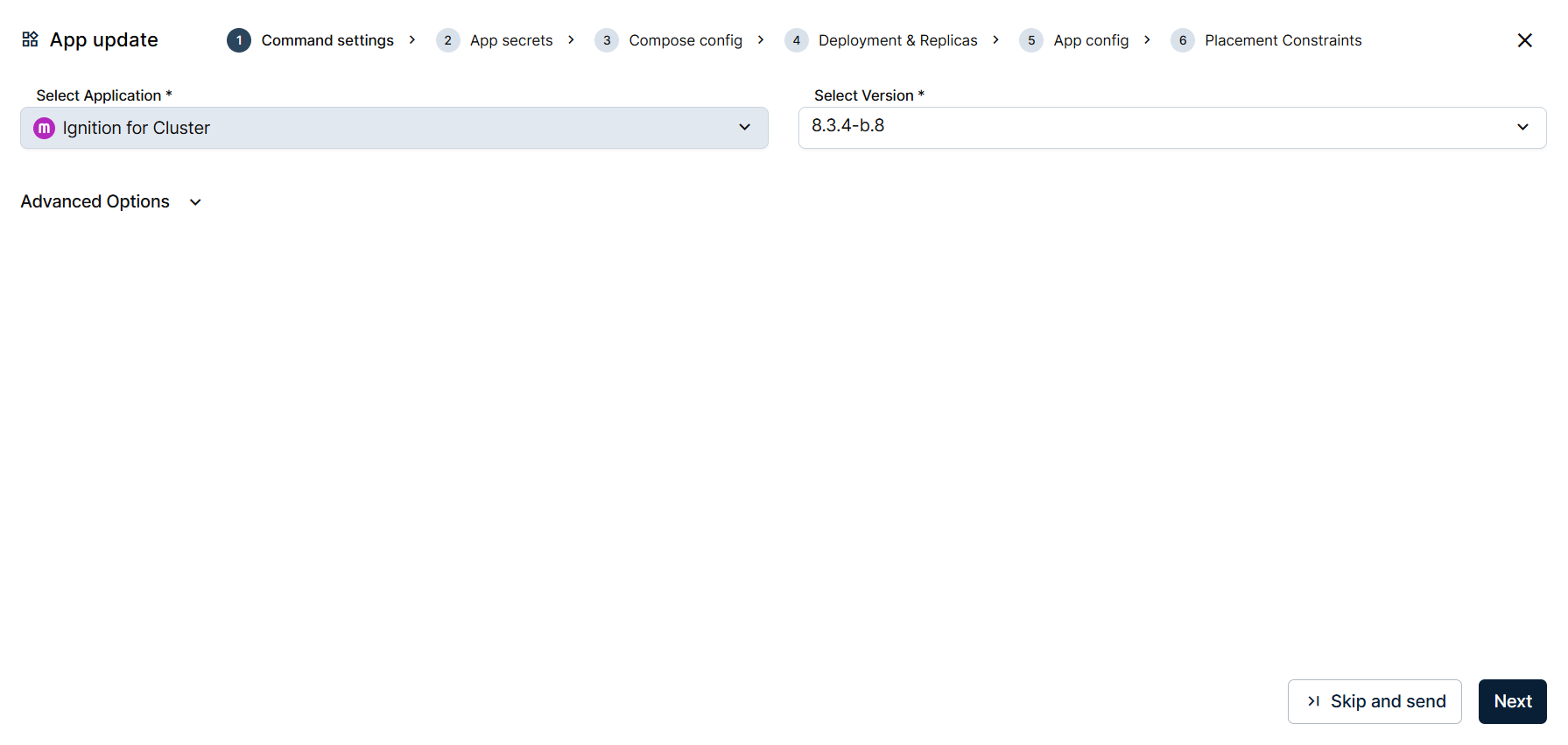
Selecting Ignition for Cluster
2) App Secrets
The App Secrets step has four tabs: traefik, gateway, gatewayr, and bbrinit. For this tutorial, you only need to change two settings; leave everything else unchanged.
On the traefik tab, set TLS_MODE to selfsigned. Traefik generates a self-signed certificate and automatically redirects HTTP traffic to HTTPS. This is sufficient for clusters running on private networks, where no public domain or external certificate authority is required.
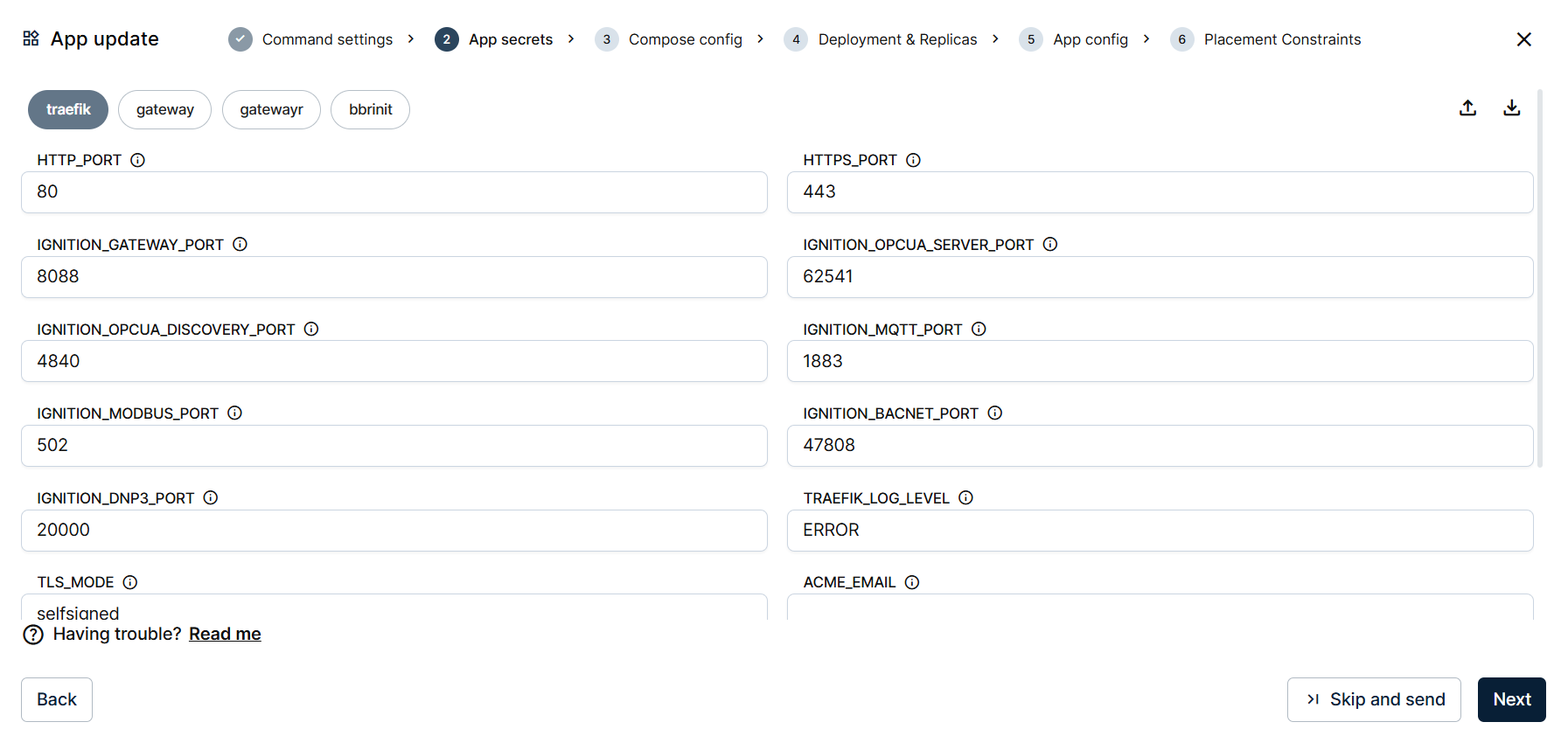
App Secrets: traefik tab
On the gateway tab (the Master), set ACCEPT_IGNITION_EULA to Y. The Master will not start without it.
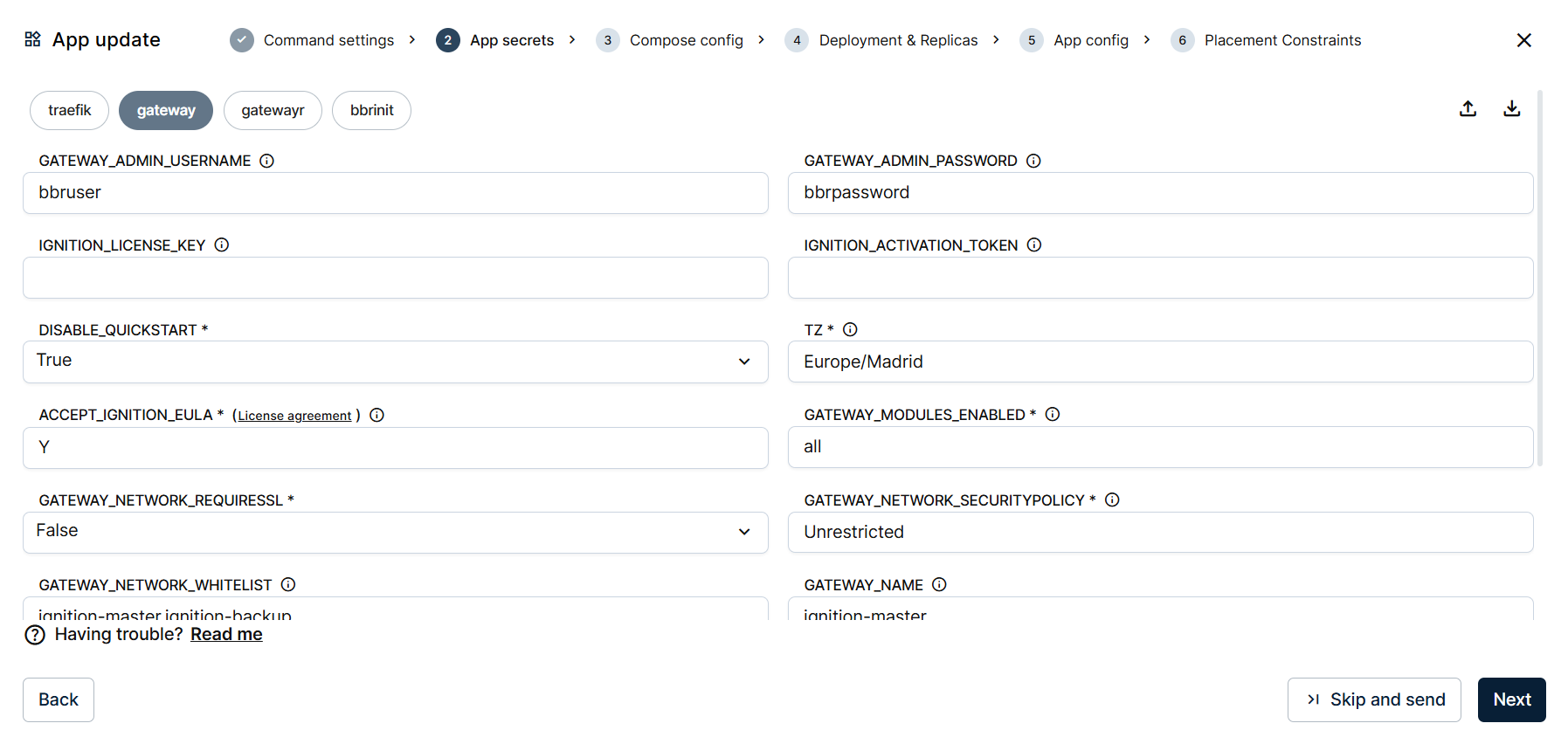
App Secrets: gateway tab
Leave the gatewayr (Backup) tab unchanged.
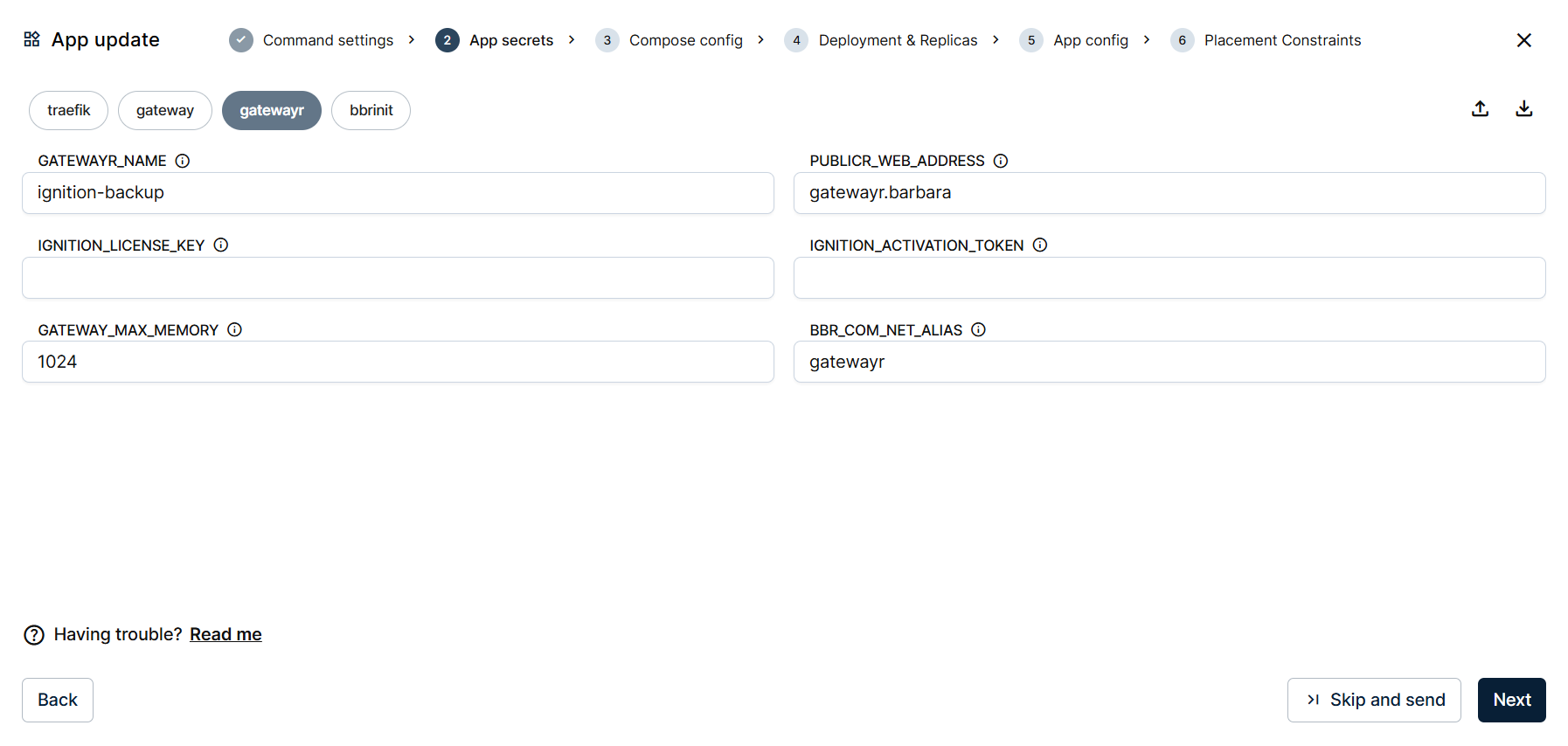
App Secrets: gatewayr tab
Leave the bbrinit tab unchanged unless you want to initialize the cluster from an existing gateway backup. To restore a .gwbk, set SOURCE_URL and enable BOOTSTRAP, following the same process described in Deploy Ignition.
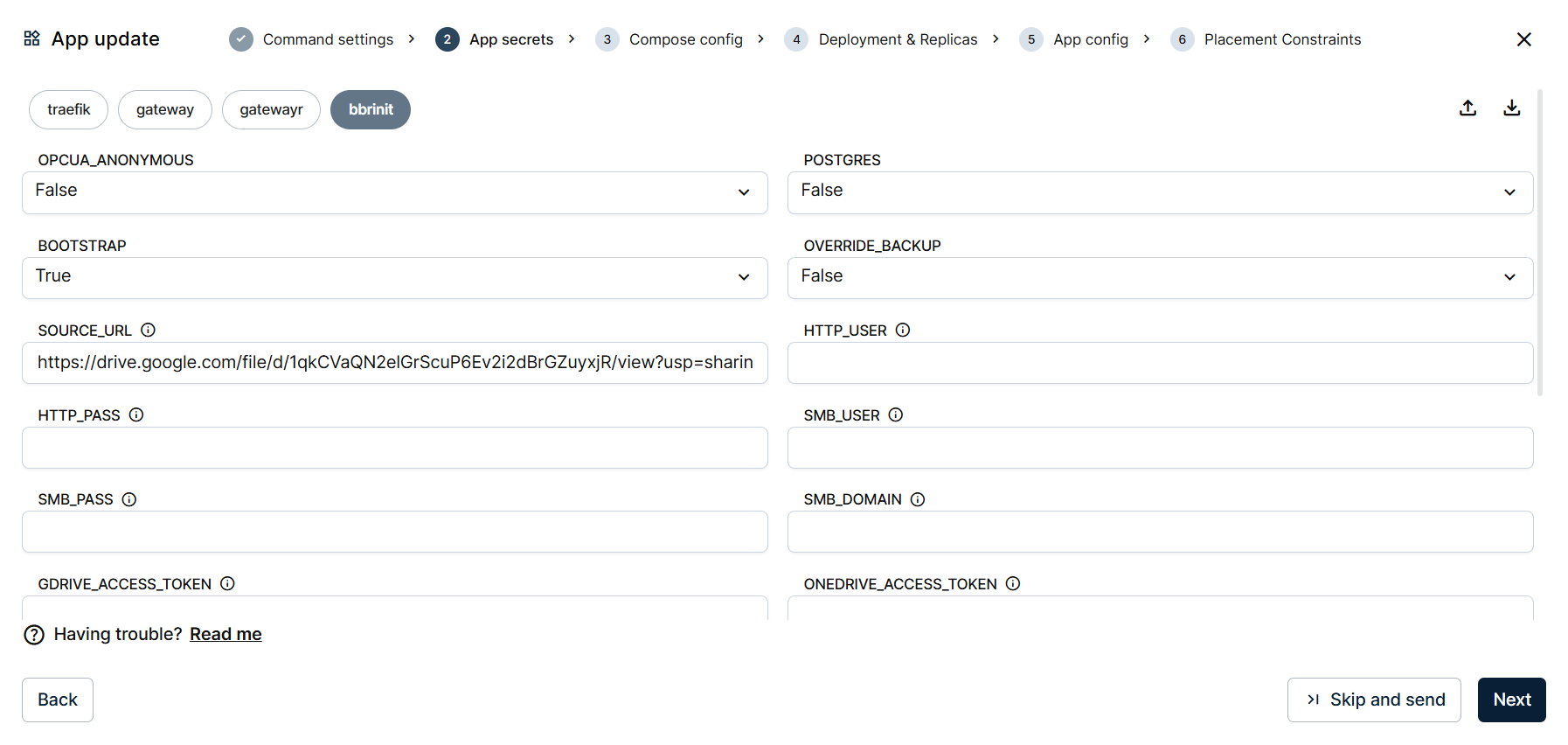
App Secrets: bbrinit tab
The PostgreSQL application is available in the Barbara Marketplace and can be deployed on the same cluster in parallel. Once running, point POSTGRES_USER, POSTGRES_PASSWORD, and POSTGRES_DB in the bbrinit tab to match its credentials.
Every configuration variable and its default value is documented in the application's technical notes on the Barbara Marketplace.
3) Compose Config
In the Compose Config step, assign each service to the volume you created for it. Set VOLUME_TRAEFIK to Ignition_vol_01 on the traefik tab. Leave the port mappings unchanged.
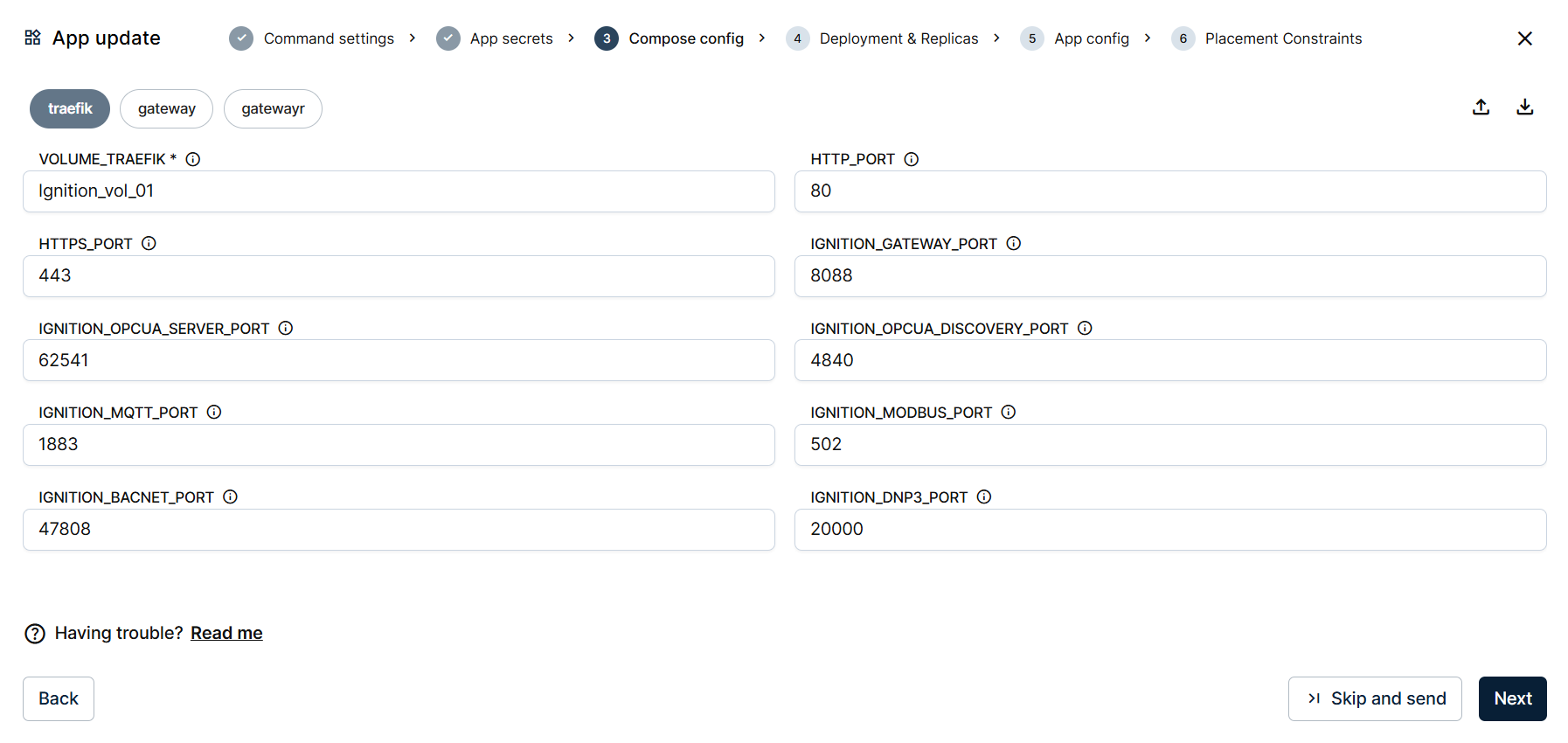
Compose Config: traefik tab
Set VOLUME_IGNITION_GW_DATA to Ignition_vol_02 on the gateway tab.
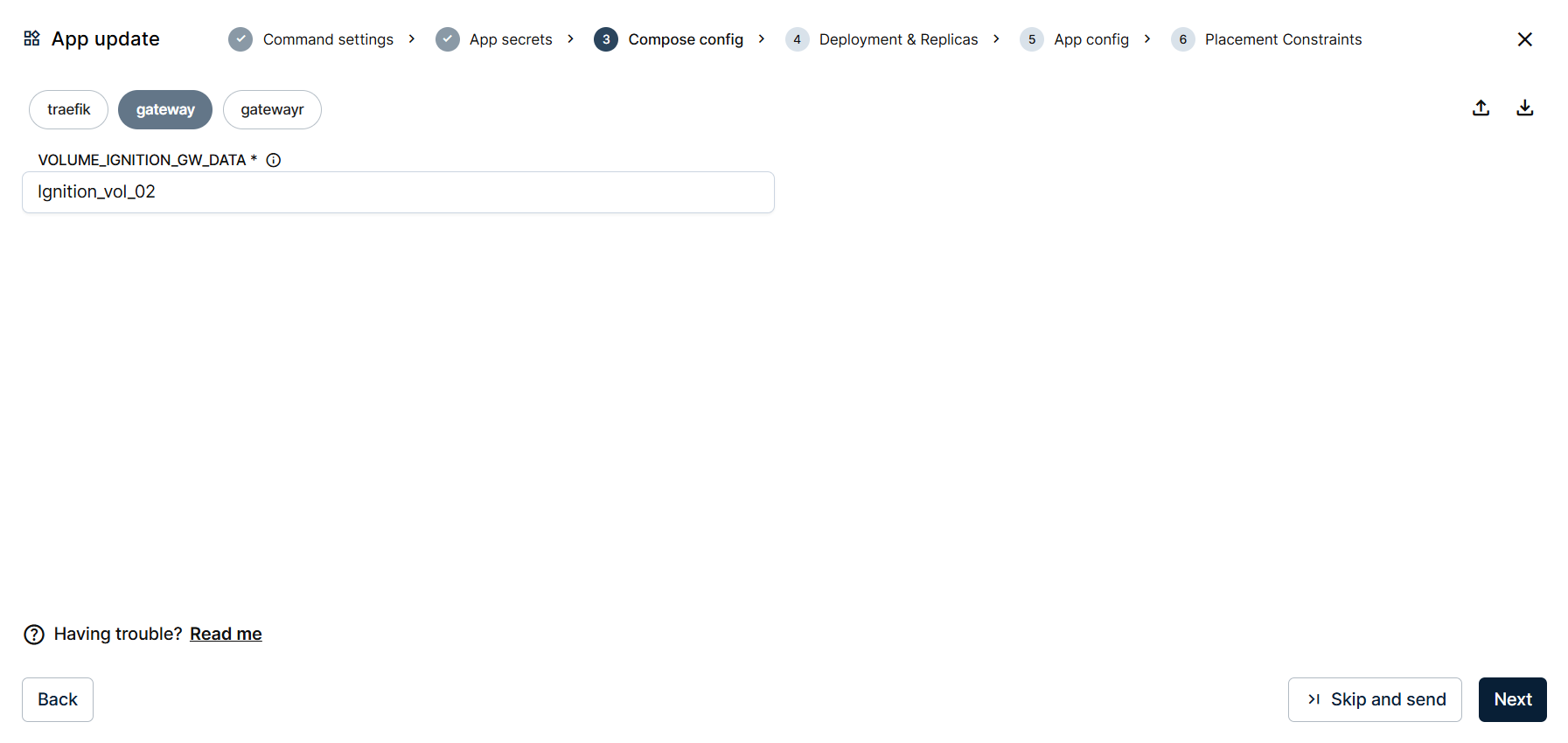
Compose Config: gateway tab
And set VOLUME_IGNITION_GWR_DATA to Ignition_vol_03 on the gatewayr tab.
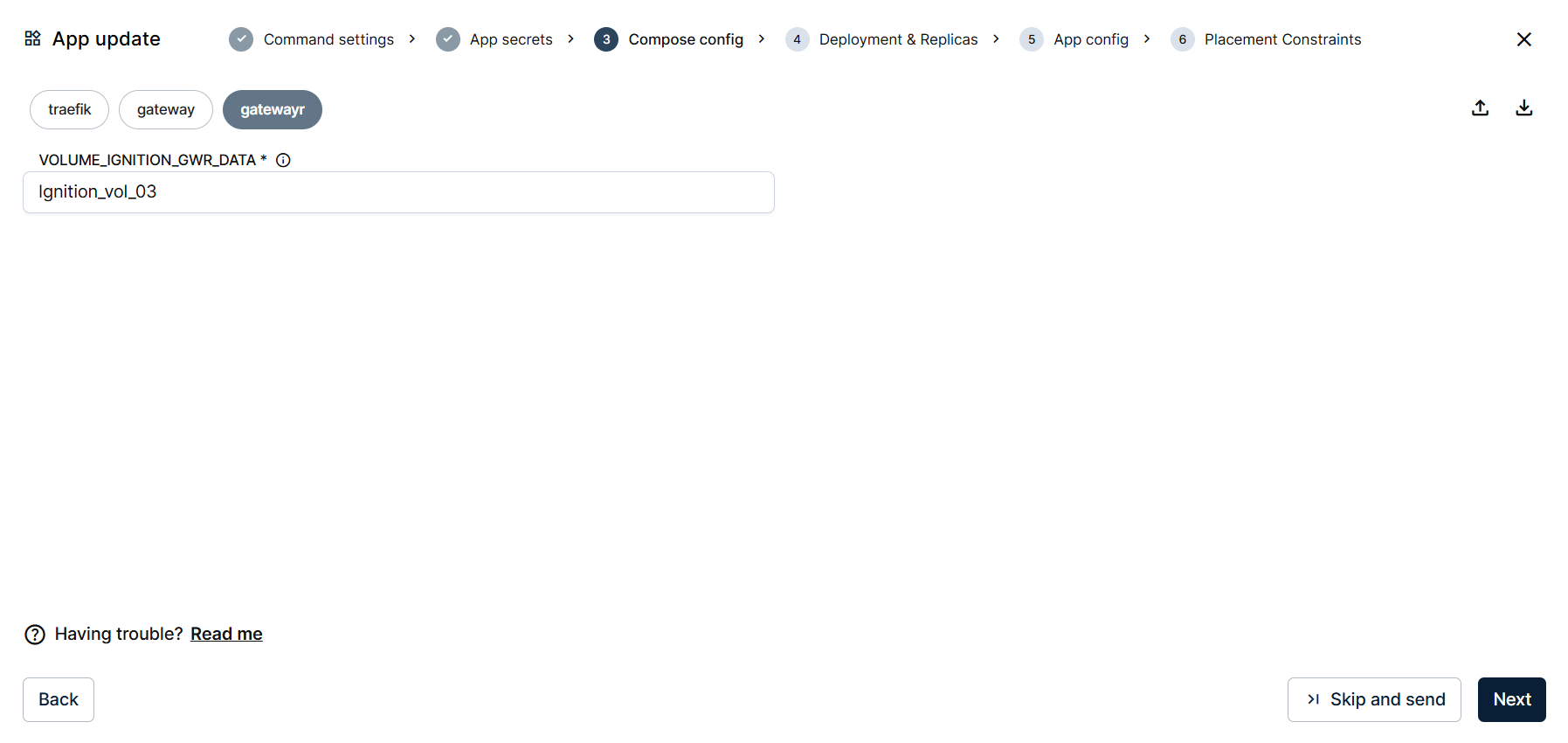
Compose Config: gatewayr tab
The Backup is also reachable directly on port 8089 (bypassing Traefik), which is useful for diagnostics when you need to reach it without going through the proxy.
4) Deployment and Replicas
On the Deployment and Replicas step, set the traefik service to Global mode so every cluster node runs its own Traefik instance, keeping the load balancer available even if a node goes down.
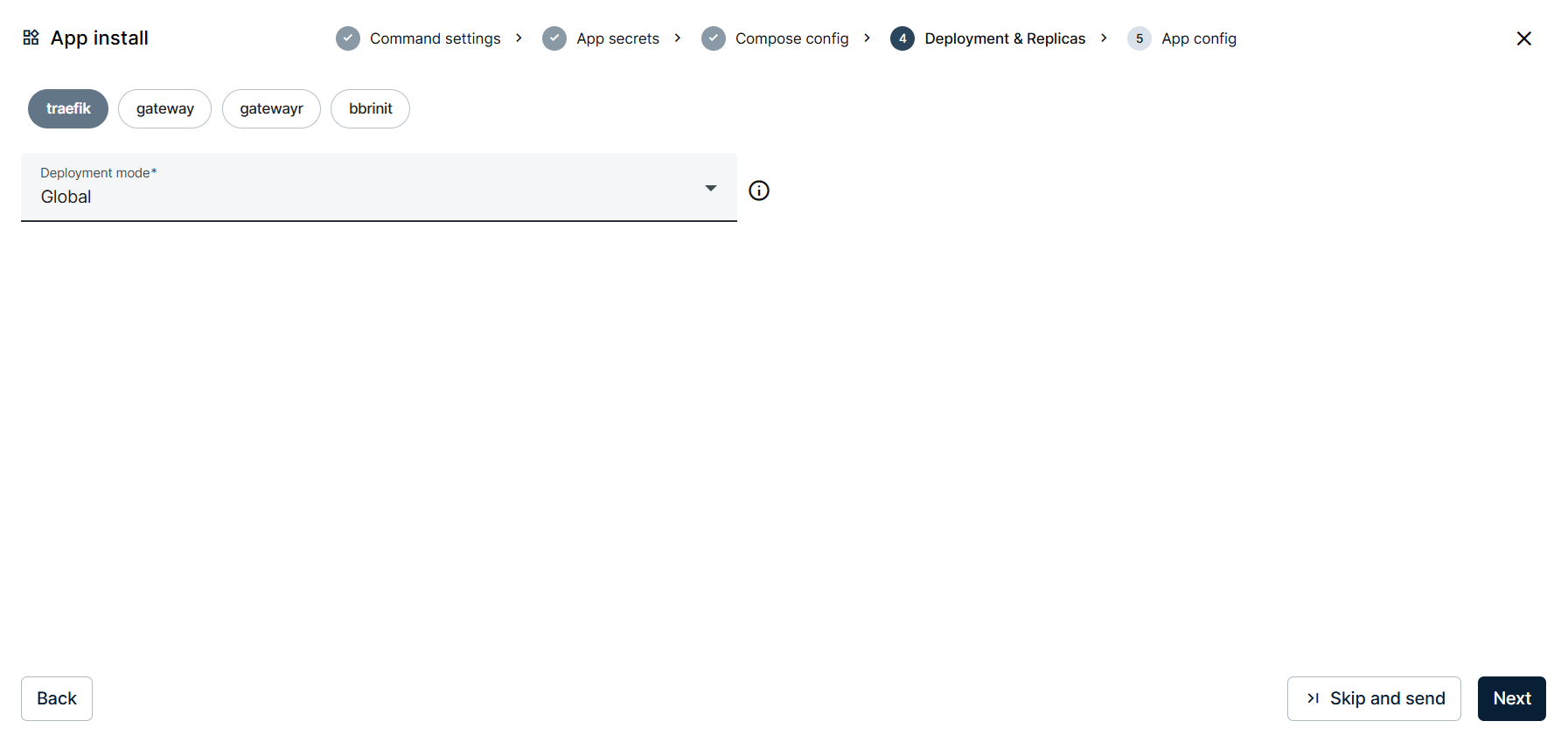
Deployment & Replicas: traefik tab
Leave gateway, gatewayr, and bbrinit in the default Replicated mode with 1 replica each.
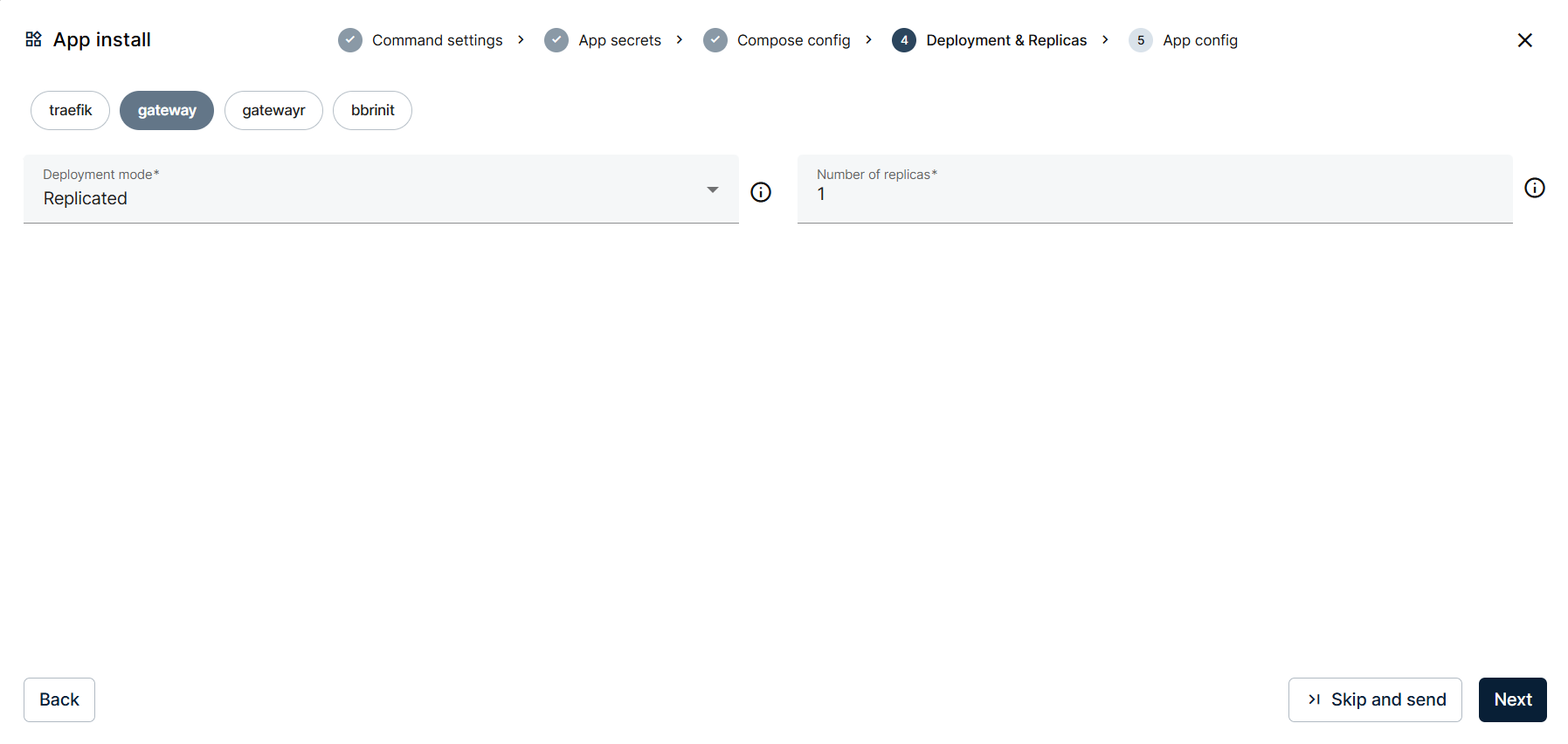
Deployment & Replicas: gateway, gatewayr, and bbrinit
5) App Config
Ignition does not use this configuration type. Leave the editor with its default empty value and click Send app. Barbara dispatches the deployment to the cluster.
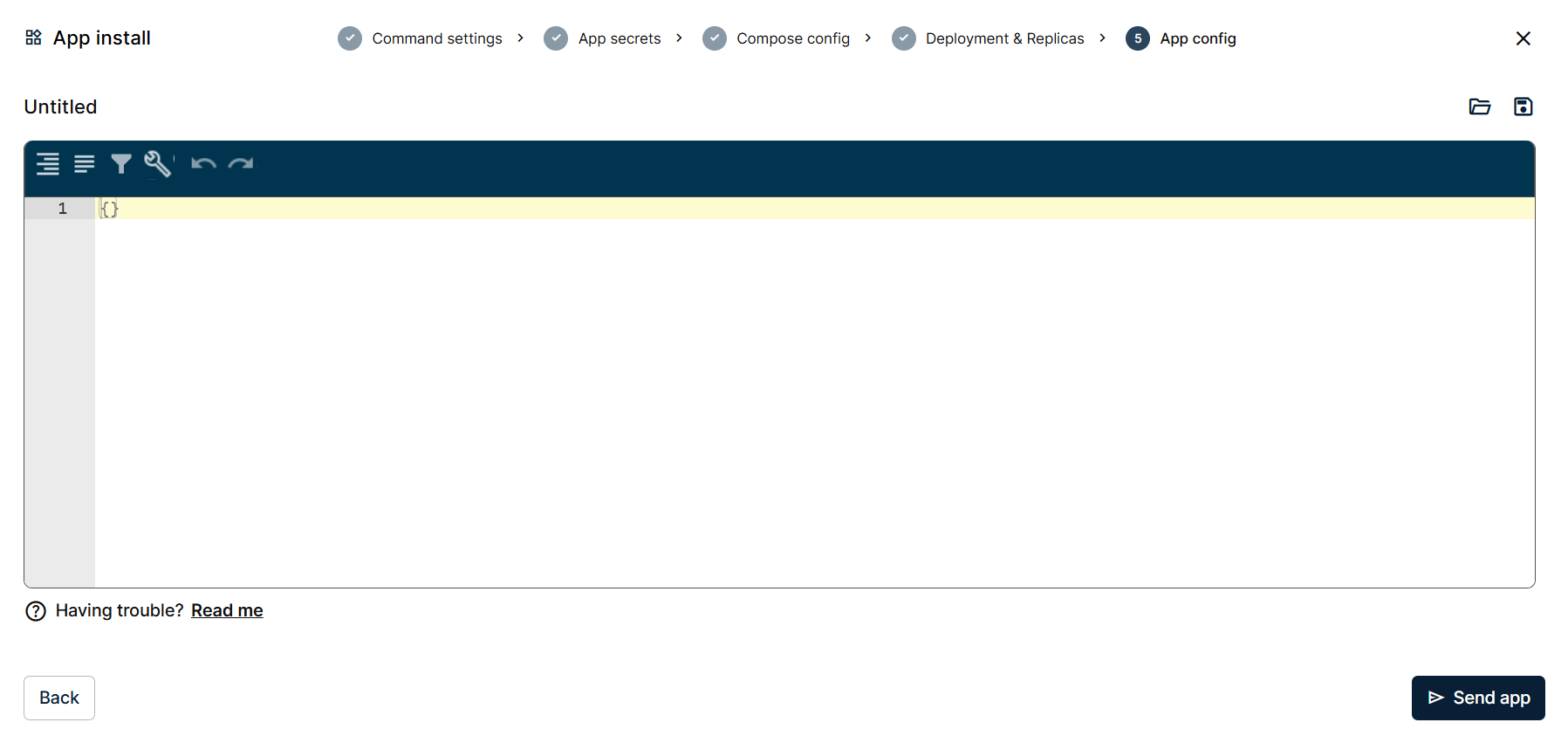
The App Config step
Wait for both gateways to start
The deployment now runs automatically. The initialization service prepares the environment, and both gateways start, initialize, and synchronize with each other. The full sequence takes 3–5 minutes. You can monitor the deployment from the Workloads tab; the workload card shows a Services section with the status of each service.
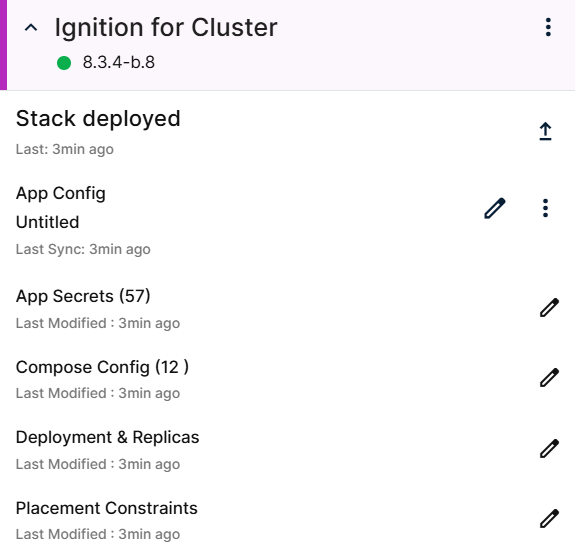
Workload card with all services running
Access the Ignition Gateway UI
Open the Ignition Gateway UI from the URLs section of the workload card, which provides HTTP and HTTPS access through Traefik, together with a direct link to the Backup and the exposed protocol endpoints:
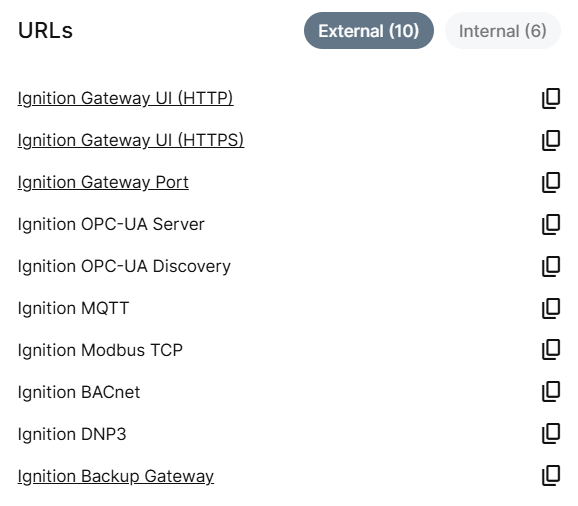
The workload URLs panel
- Ignition Gateway UI (HTTP): routes through Traefik to whichever gateway is currently active.
- Ignition Gateway UI (HTTPS): HTTPS entrypoint (active when
TLS_MODEis notoff). - Ignition Backup Gateway (Direct): direct access to the Backup on port
8089, bypassing Traefik. Use this for diagnostics when you need to reach the Backup specifically.
Log in with the credentials set in App Secrets; the defaults are bbruser / bbrpassword.
Verify Ignition Redundancy
With both gateways running and communicating over the Gateway Network, Ignition automatically elects a Master and keeps the Backup synchronized. You can verify the redundancy state from the Gateway UI.
In the left navigation, go to Platform → Redundancy.
The Master shows Gateway Role: Master, Activity Level: Active, and Sync Status: Good with the peer connected:
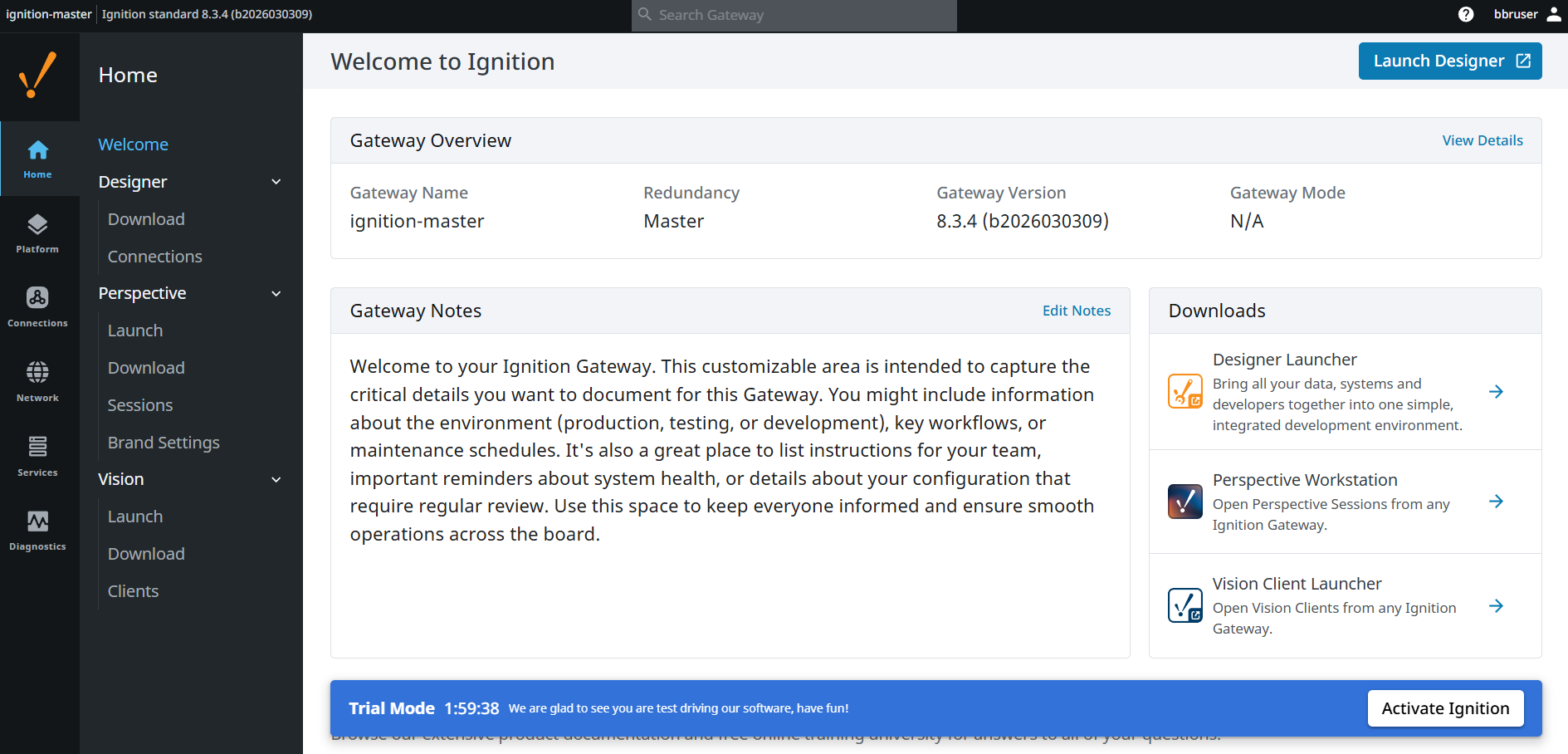
Redundancy on the Master
Open the Ignition Backup Gateway (Direct) URL to verify the Backup. On first startup it may show Sync Status: Out of Date. Once synchronization completes, the status changes to Good:
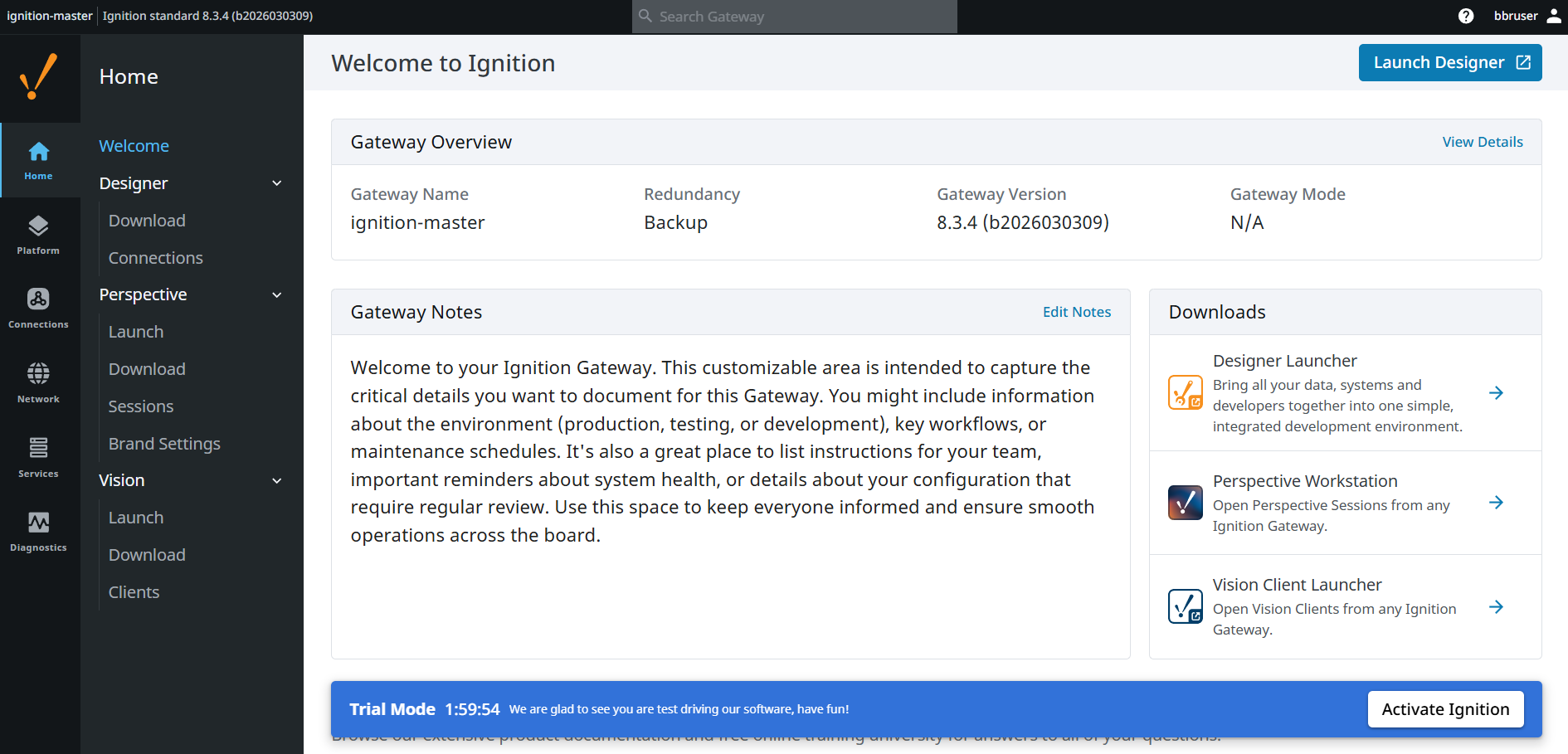
Redundancy on the Backup
Summary
You have deployed a highly available Ignition cluster on Barbara. Traefik provides a single entry point to the active gateway, while Ignition continuously synchronizes the Master and Backup gateways.
If the active gateway becomes unavailable, Traefik redirects traffic in approximately 5–8 seconds, and Ignition completes the promotion in about 30 seconds, allowing the system to continue operating with minimal disruption.
You can monitor the redundancy state at any time from Platform → Redundancy in the Ignition Gateway UI.