Annex 1: The Modbus connector
As part of the Barbara Basics apps you can find on Barbara Marketplace, you can deploy to your edge nodes a Modbus Connector.
The MODBUS connector
The MODBUS connector is an industrial connector that reads and writes data from a Modbus interface (RTU o TCP). It processes real data received from Modbus industrial equipment and publishes it in the MQTT broker. It also allows writing to the Modbus interface by publishing in the MQTT broker.
The application requires a running MQTT broker, so make sure to install it as explained in the first step of this tutorial.
Install the Modbus Connector
To install the Modbus Connector, simply follow these steps:
1. Go to your Edge Node's details view
2. Click the “ADD CARD” button in the Edge Node details view.
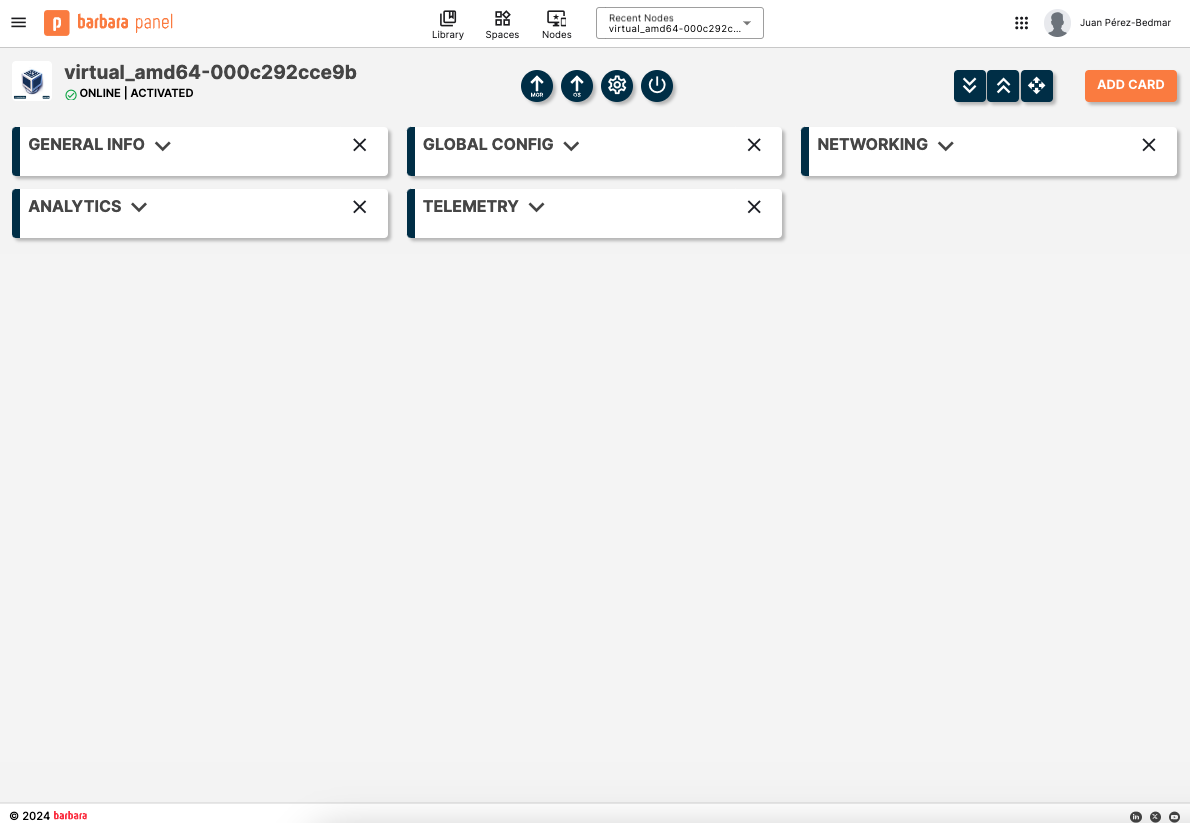
add_card
3. Select the "Marketplace App" option
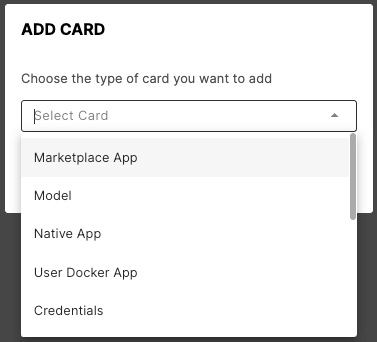
Select Marketplace app
4. Select the Modbud Connector app from the APPLICATION dropdown list and pick the latest existing version from the VERSION dropdown list. Then click “ADD VARIABLES” to proceed with the next step.
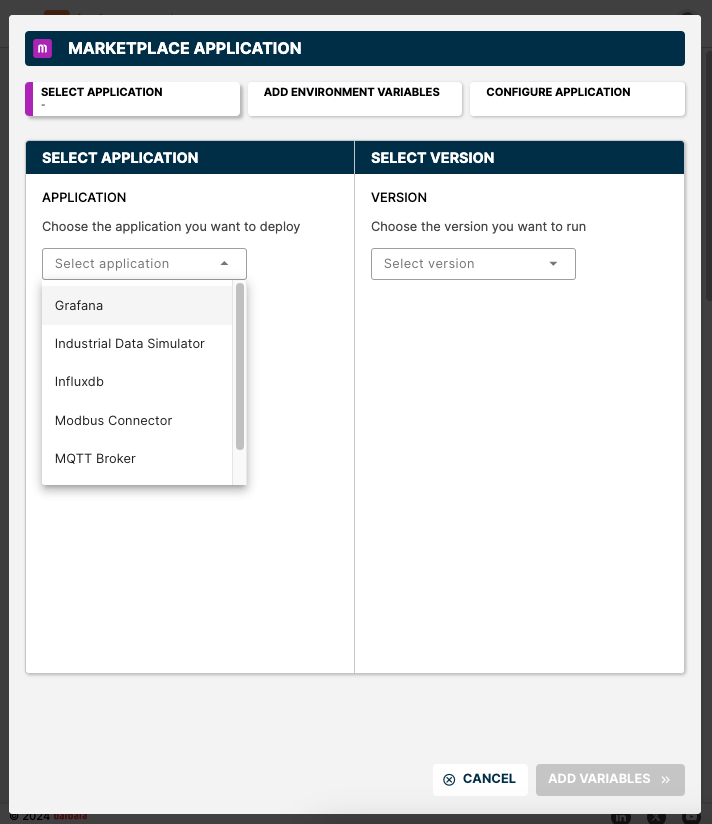
Select App
5. In this step you may change the configuration and values of the application variables. You will see that these variables already have a default value:
| NAME | VALUE |
|---|---|
MQTT BROKER USER | bbruser |
MQTT BROKER PASSWORD | bbrpassword |
MQTT BROKER PORT | 8883 |
MQTT BROKER HOSTNAME | mqttbbr |
MODBUS CLIENT ID | connector_modbus |
MQTT PUB TOPIC | api/v1/reads/ |
MQTT SUBSCRIPTION TOPIC | api/v1/write/# |
MQTT SUBBSCRIPTION TOPIC QOS | 0 |
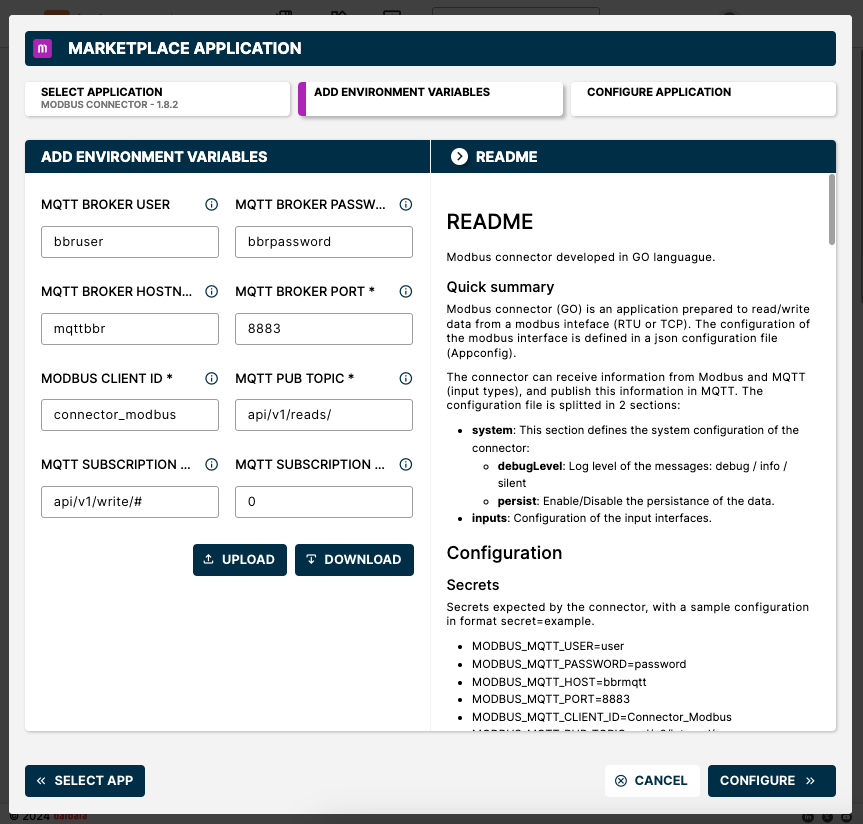
Add variables
You can modify these values at your will but, if you are not too familiar yet with the application, we recommend you just leave them as they are. (note: in the right panel of the screen you will see the technical notes that explains what these variables are for and how they work).
Then click "CONFIGURE" to proceed with the next step.
6. This step allows you to make some additional configuration through a JSON-format text. You will that there is already a JSON text preloaded:
{
  "connectorModbus": {
    "system": {
      "debugLevel": "info",
      "persist": true,
      "refreshMs": 1000,
      "resetOnFailure": false,
      "resetOnFailureAttemps": 3,
      "rwGapTimeMs": 100
    },
    "inputs": [
      {
        "connection": {
          "type": "tcp",
          "server": "127.0.0.1",
          "port": 502,
          "baudRate": 9600,
          "parity": "N",
          "dataBits": 8,
          "stopBits": 1,
          "timeoutMs": 500
        },
        "devices": [
          {
            "slaveId": 1,
            "deviceDisplayName": "",
            "mapping": [
              {
                "displayName": "",
                "address": 0,
                "access": "",
                "bitQuantity": 0,
                "dataType": "",
                "registerType": "",
                "bigEndian": true,
                "correctionFactor": 0,
                "ieee754": true
              }
            ]
          }
        ]
      }
    ]
  }
}
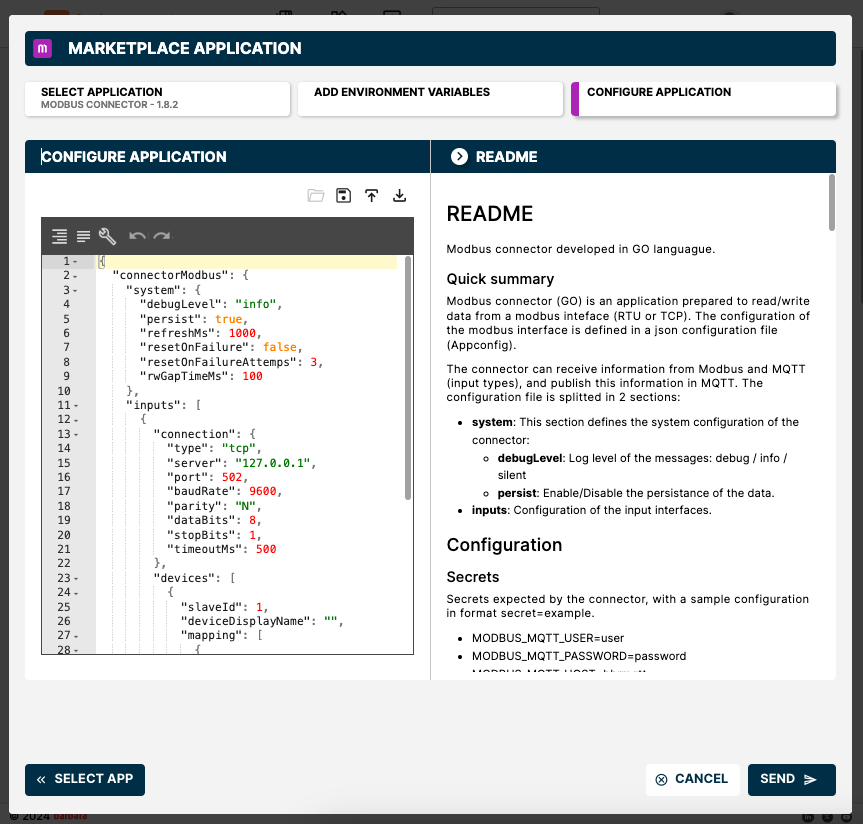
Additional configuration
(Each JSON value is explained in technical notes on the right panel of the screen)
You can modify this configuration at your will but, again, if you are not too familiar yet with the application, we recommend you just leave it as it is.
7. You will finally see a new card in your dashboard with the app information within. After a few seconds, this App card status will switch to STARTED.
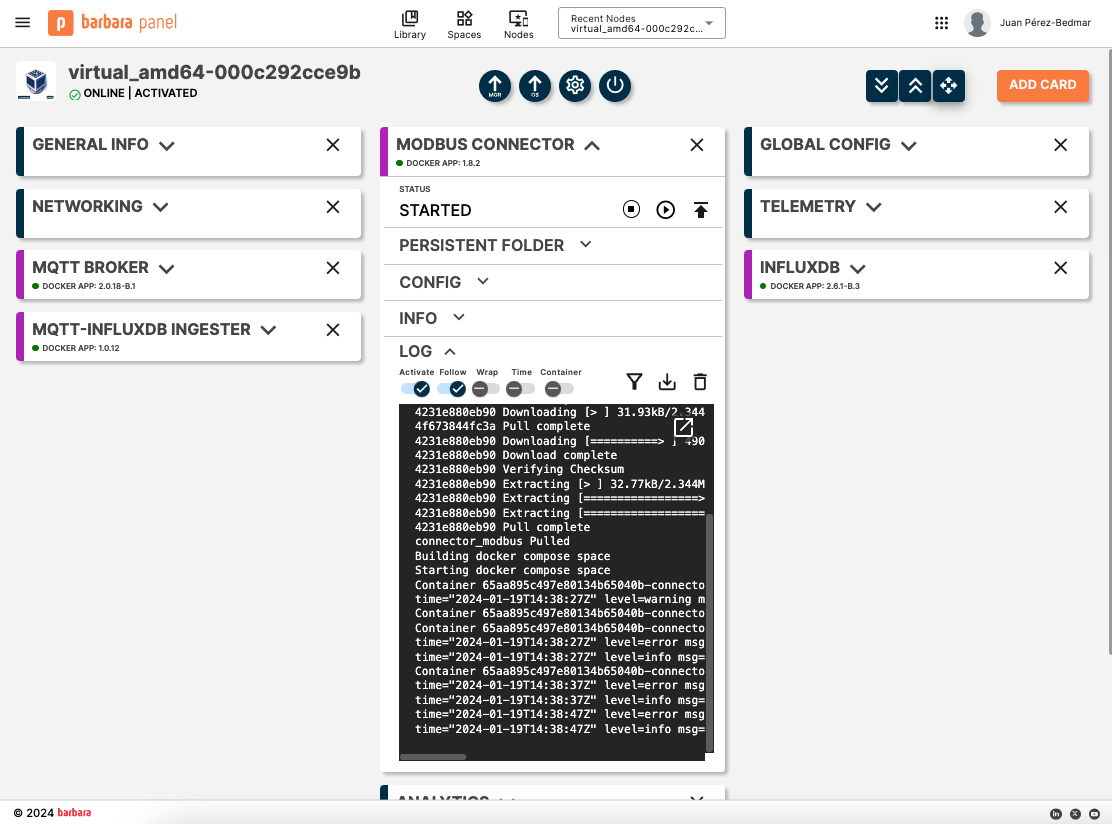
Add Modbus Connector
Notice that the values above are just examples. The meaning of each JSON field is explained in the section that follows: