Step 4: Deploy the InfluxDB Ingester
This is the 4th step of the guide "Deploy a Data Monitoring Solution". If you haven't done so already, jump back to the first step.
Overview
MQTT-InfluxDB Ingester is a data bridge that allow edge nodes to send data (like sensor readings) using MQTT protocol to InfluxDB, a database optimized for time series data. This simplifies data collection, stores it efficiently, and enables easier analysis.
Add the InfluxDB database to your library
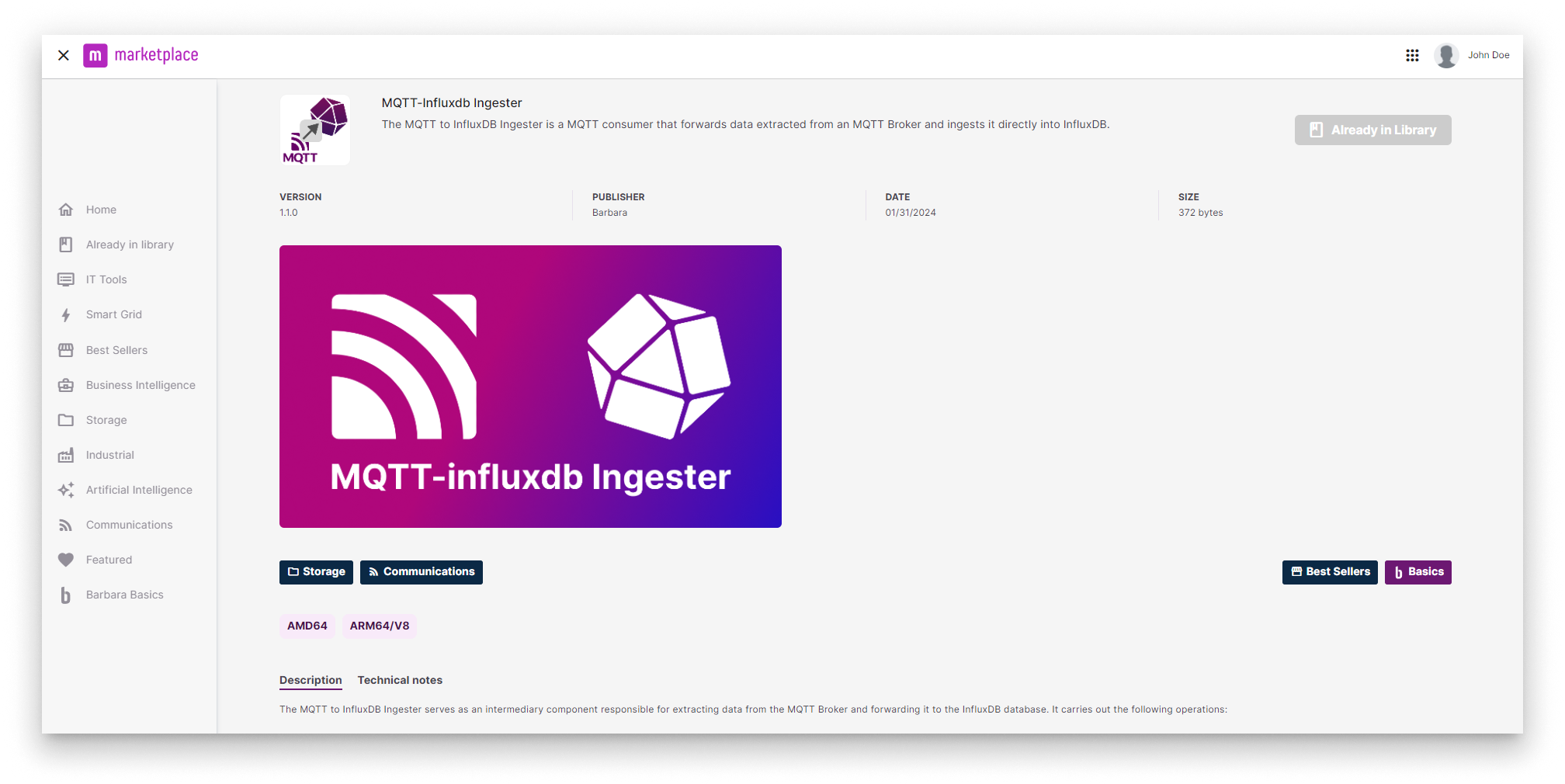
Ingester in Barbara Marketplace
Go to Barbara Marketplace, search for MQTT-InfluxDB Ingester and add it to your Panel's library.
You will find the MQTT-InfluxDB Ingester in this link of the Barbara Marketplace.
If you have been given a demo or trial account, this app may be already added to your Library.
Once added you will find it in your App Library. Let's deploy it to your Edge Node.
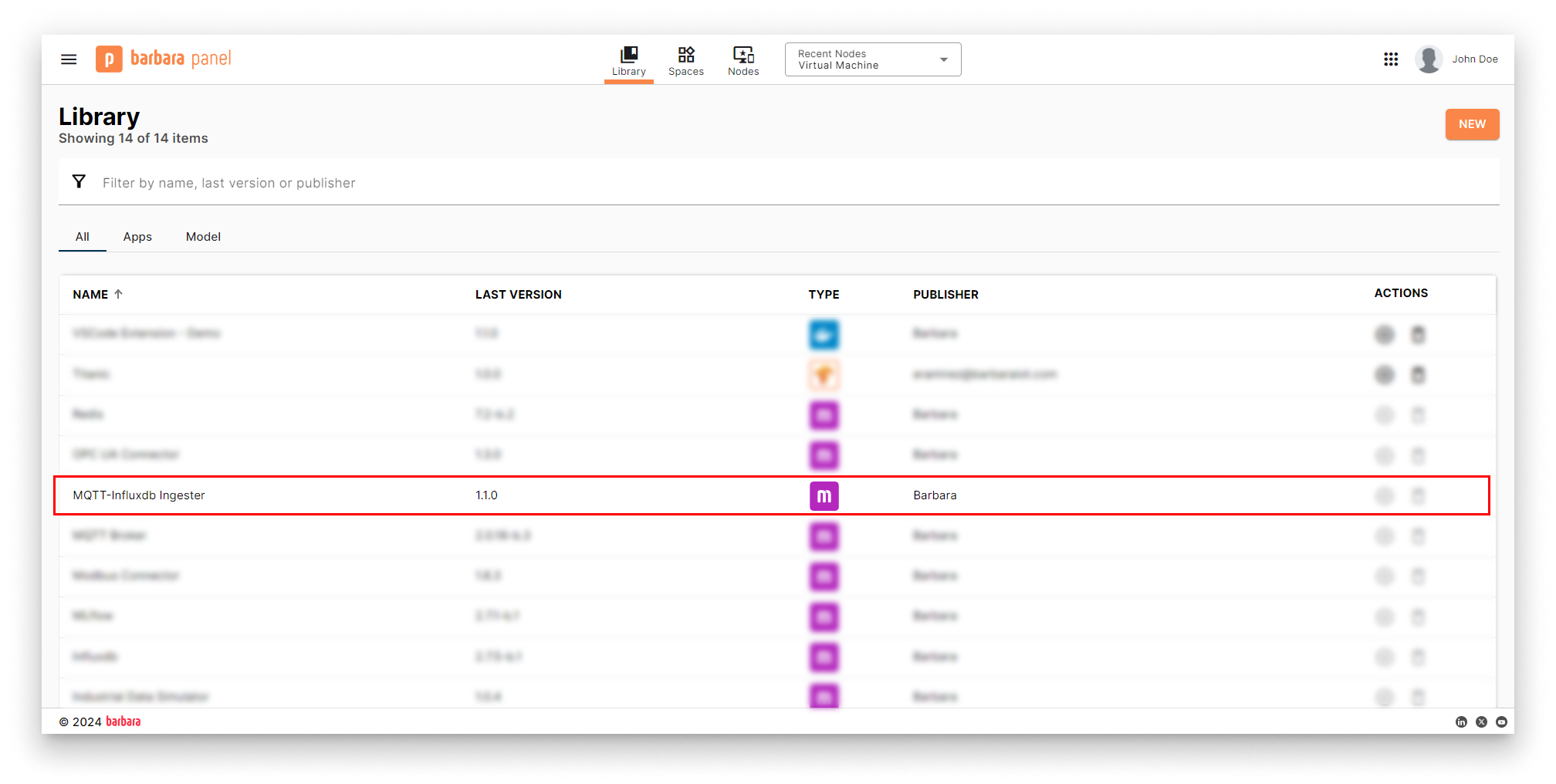
MQTT-InfluxDB Ingester in Panel's library
Install the Ingester app
- Head to your Node's details view and click the
+ Add Cardbutton.
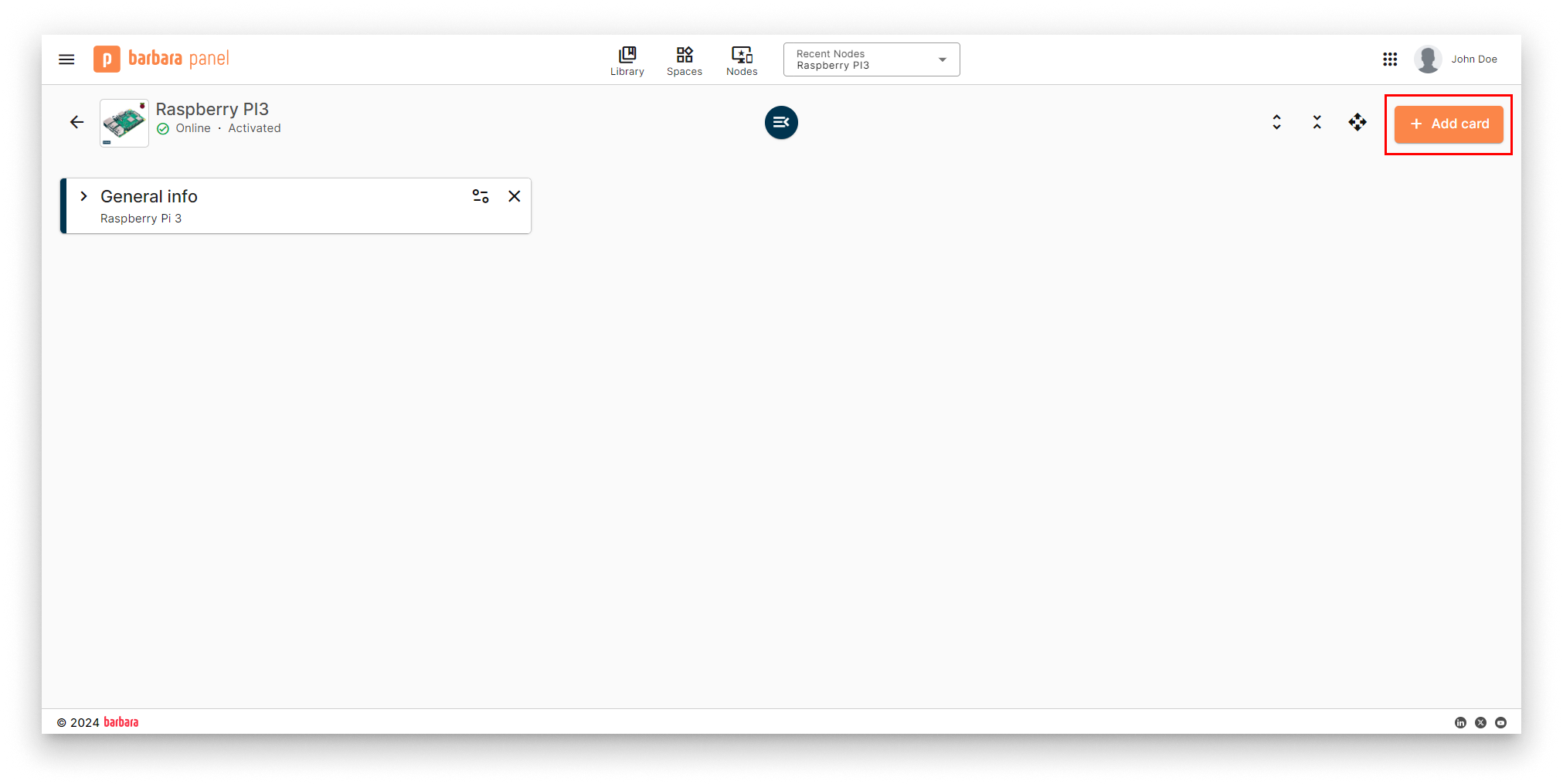
Add New Card
- Select the
Marketplace appoption in the dropdown menu.
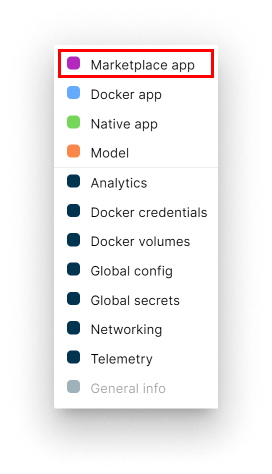
Select Marketplace Option
- Select Application and Version: Select the
MQTT-InfluxDB Ingesterapp from the application dropdown list and pick the latest existing version from the version dropdown list. Then clickADD VARIABLESto proceed with the next step.
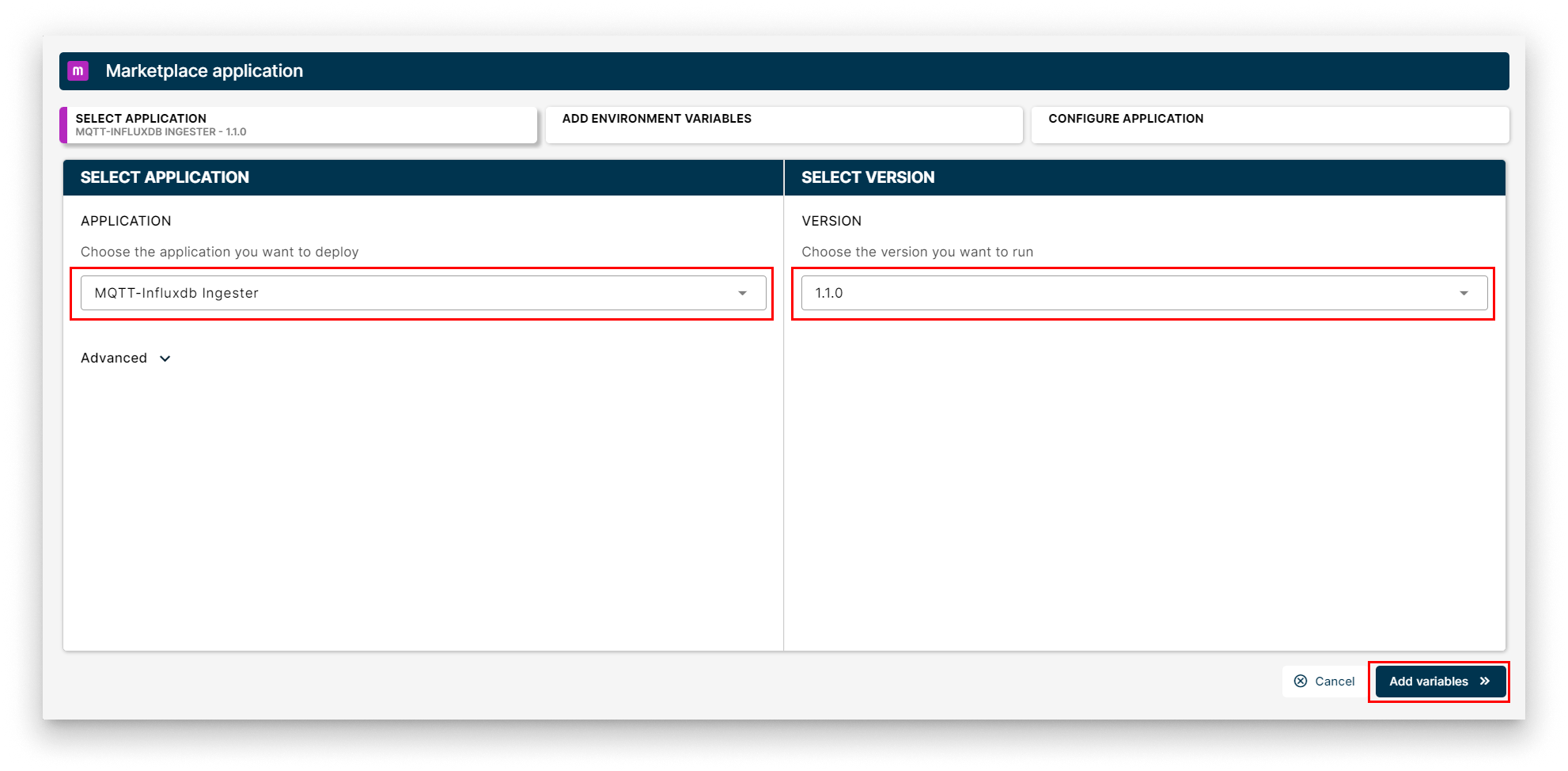
Select Ingester
- Add Environment Variables Review the default configuration for env variables or leave it as-is. Technical notes explain each variable on the right side of the view. Once finish, just click
CONFIGURE.
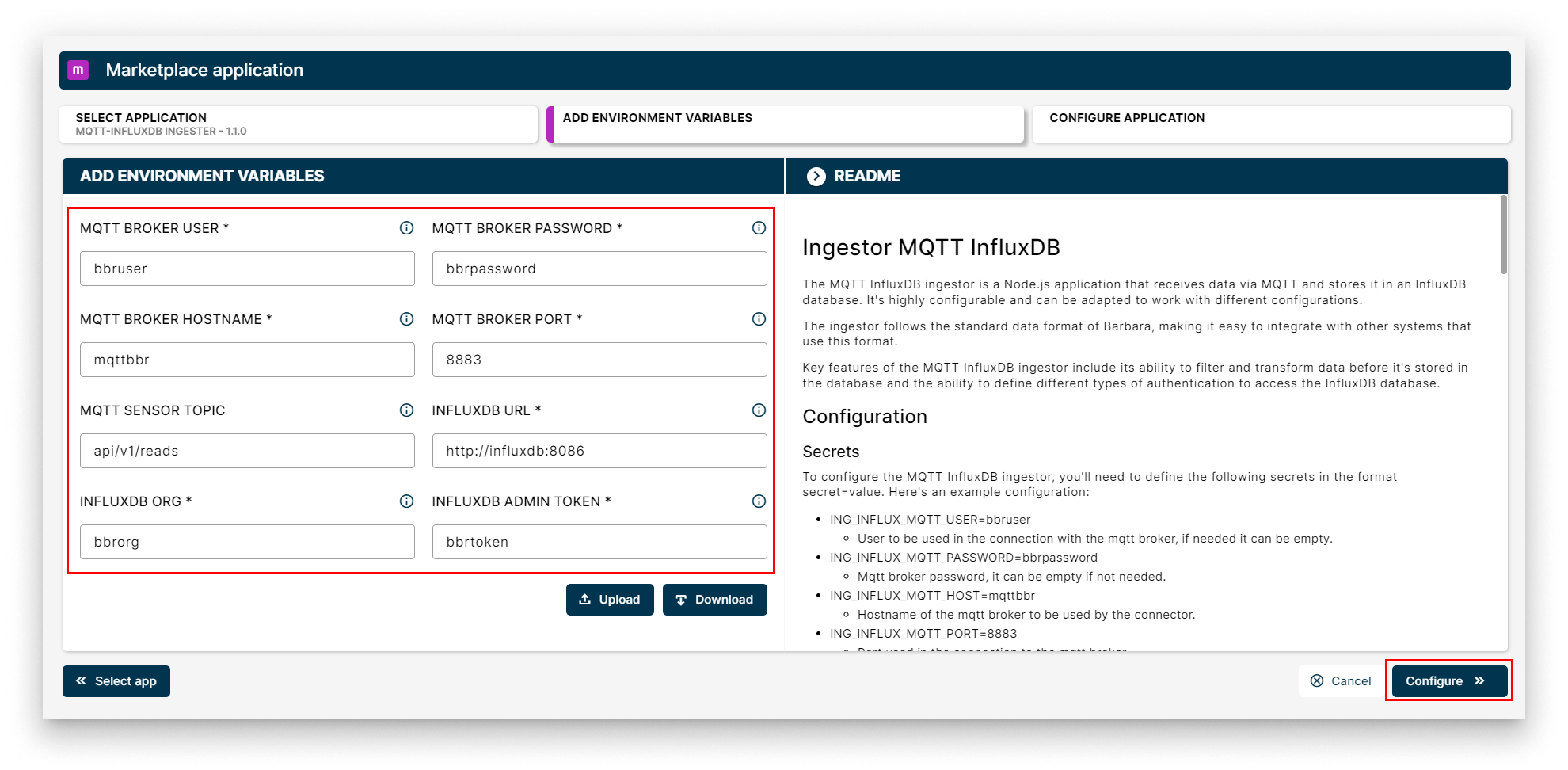
Add Env Variables
- Add your app Config: This step allows you to make some additional configuration through a JSON-format text. Add the following JSON configuration in the editor and press
Send.
{
  "ingestorMqttInfluxdb": {
    "inputs": [
      {
        "bucketInflux": "bbrbucket",
        "deviceDisplayName": "testDevice",
        "measurementInflux": "testDevice",
        "type": "read"
      }
    ],
    "system": {
      "bucketAutoCreate": true,
      "bucketAutoCreateRetention": 3600,
      "debugLevel": "info"
    }
  }
}
(Each JSON value is explained in technical notes on the right panel of the screen)
You can modify these values at your will but, again, if you are not too familiar yet with the application, we recommend you just leave it as it is.
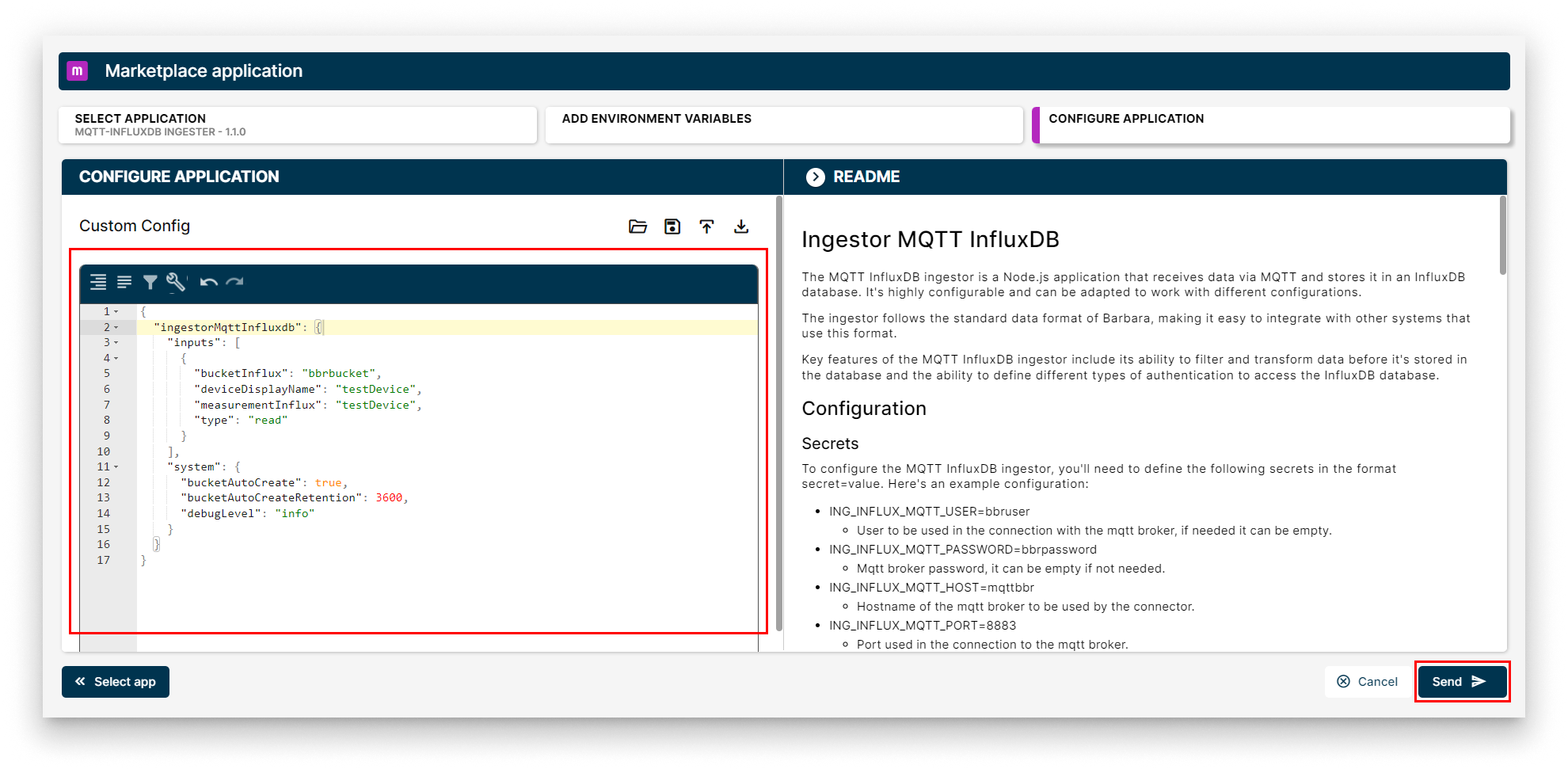
Configure Application
Verifying the Ingester app
Head back to your Node's details view. Within a few seconds, a new card should appear displaying the installed MQTT-InfluxDB Ingester. Look for the status label on the card - if it reads STARTED then your Ingester is up and running!
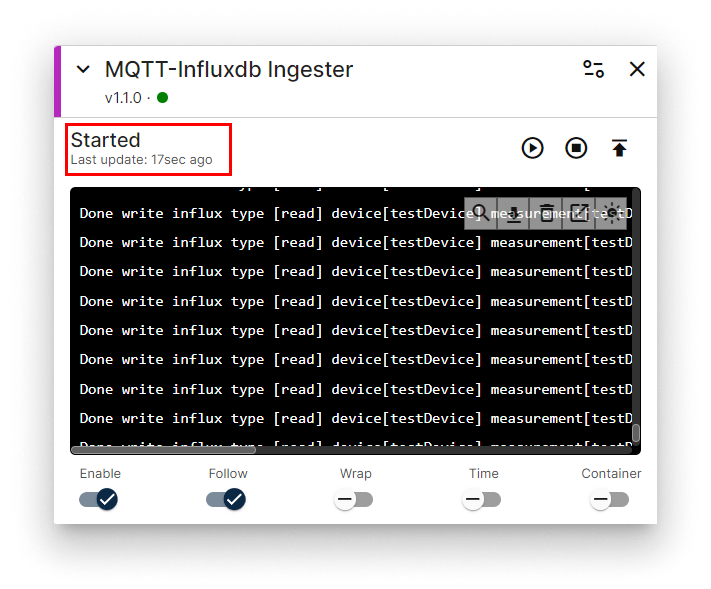
Ingester installed
Congratulations! Your InfluxDB database is running sending data from MQTT Broker to InfluxDB!
Let's continue by checking that InfluxDB is receiving data properly.
Verifying data in InfluxDB Database
Enter again in your InfluxDB database (remember your default username and passwords are bbruser and bbrpassword).
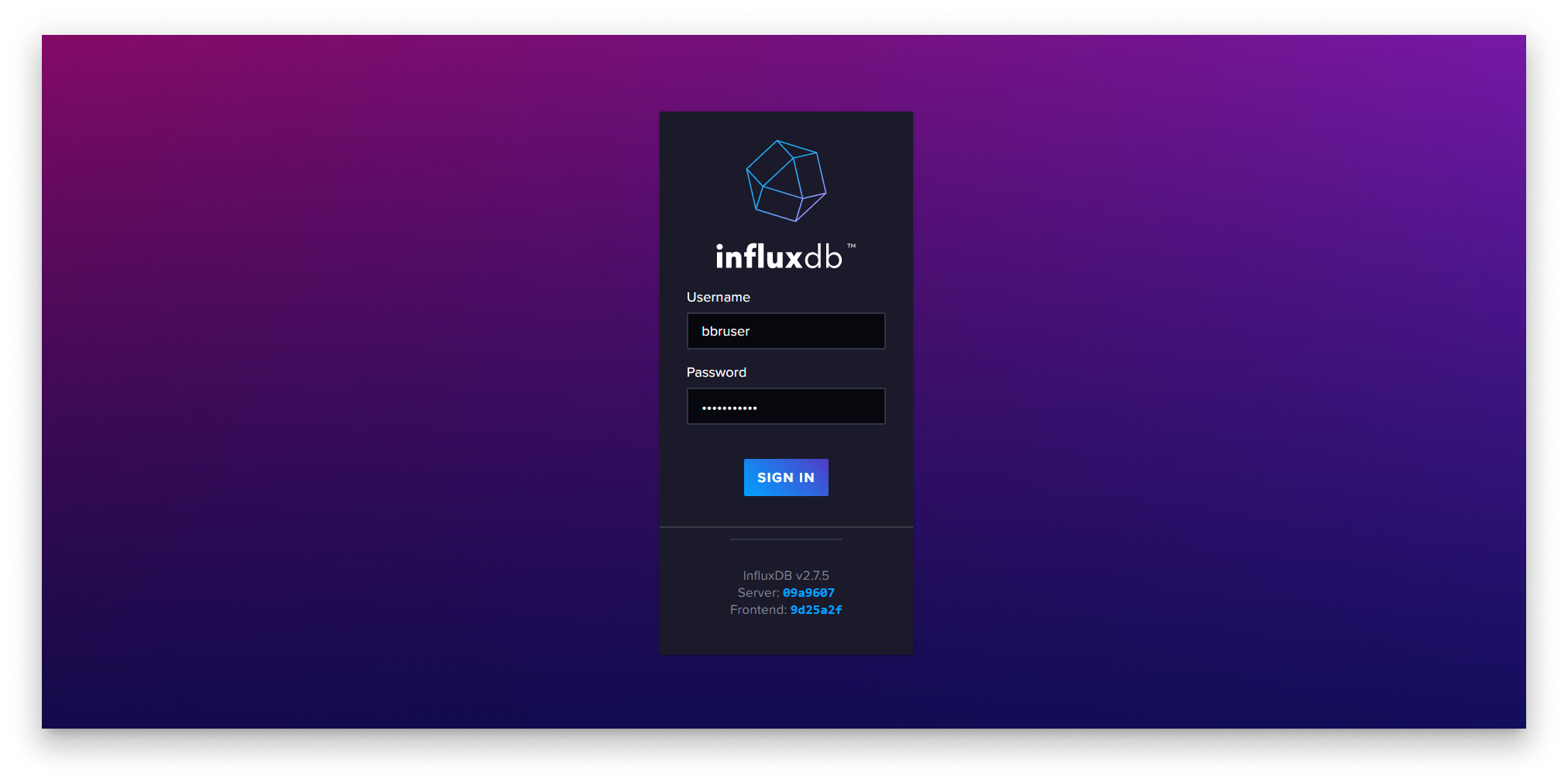
InfluxDB home
Once you log in, select the lateral menu option Data Explorer:
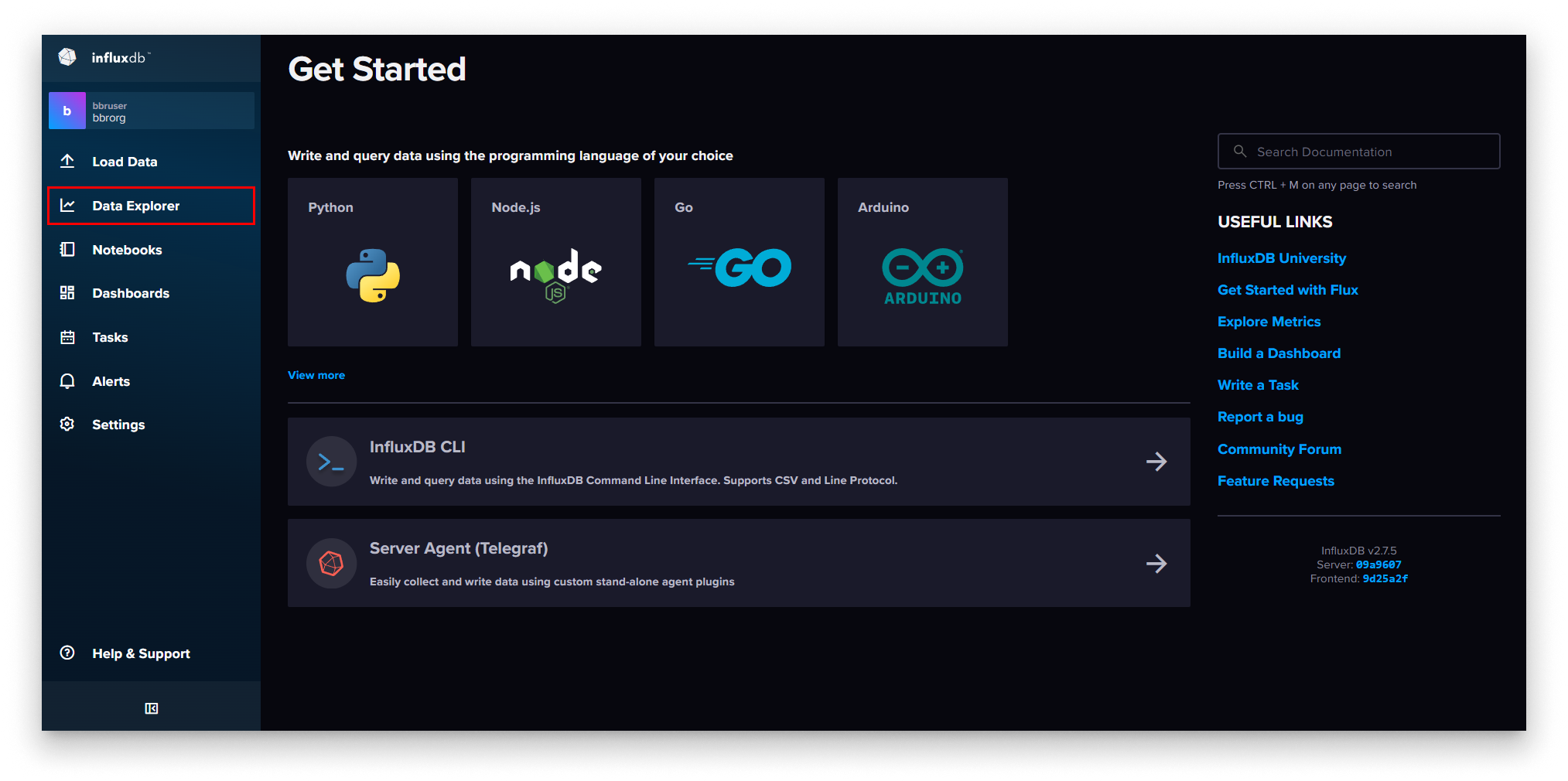
InfluxDB Select Data Explorer
In the Data Explorer view:
- Select the
bbrbucketin the "FROM" column. - Select
testDevicein the filter "_measurement". - Select
lastas the aggregate function. - Click on the
Submitbutton to send the query to the database.
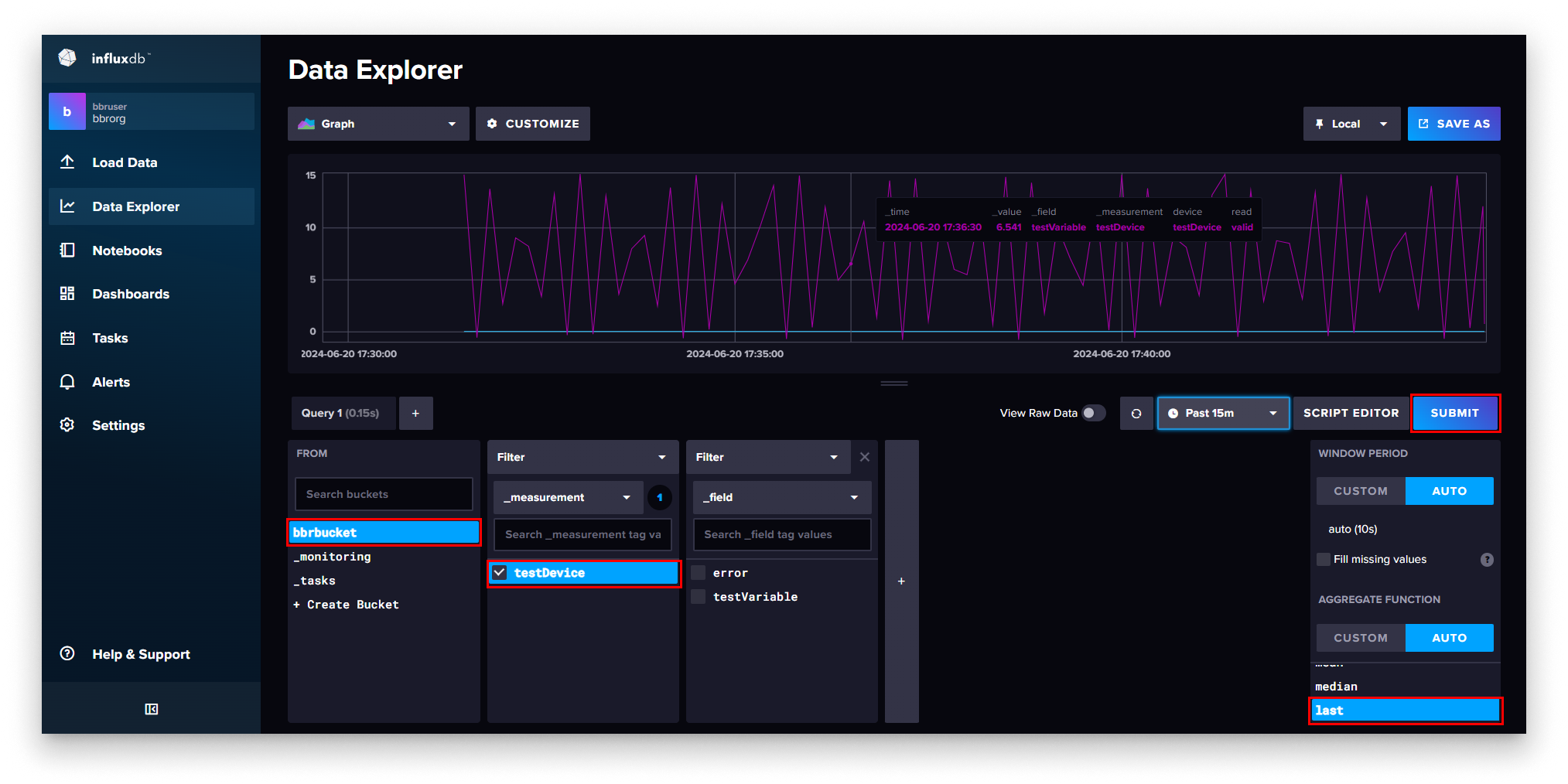
InfluxDB Submit query
Then you will see a graphic with last received measurements. This is the confirmation that data is being correctly received from MQTT Broker.