Step 5: Deploy Grafana
This is the 5th step of the guide "Deploy a Data Monitoring Solution". If you haven't done so already, jump back to the first step.
Overview
Grafana is an open-source data-visualization platform that takes the data collected by your edge nodes in InfluxDB and translates it into beautiful and informative dashboards.
Add Grafana to your library
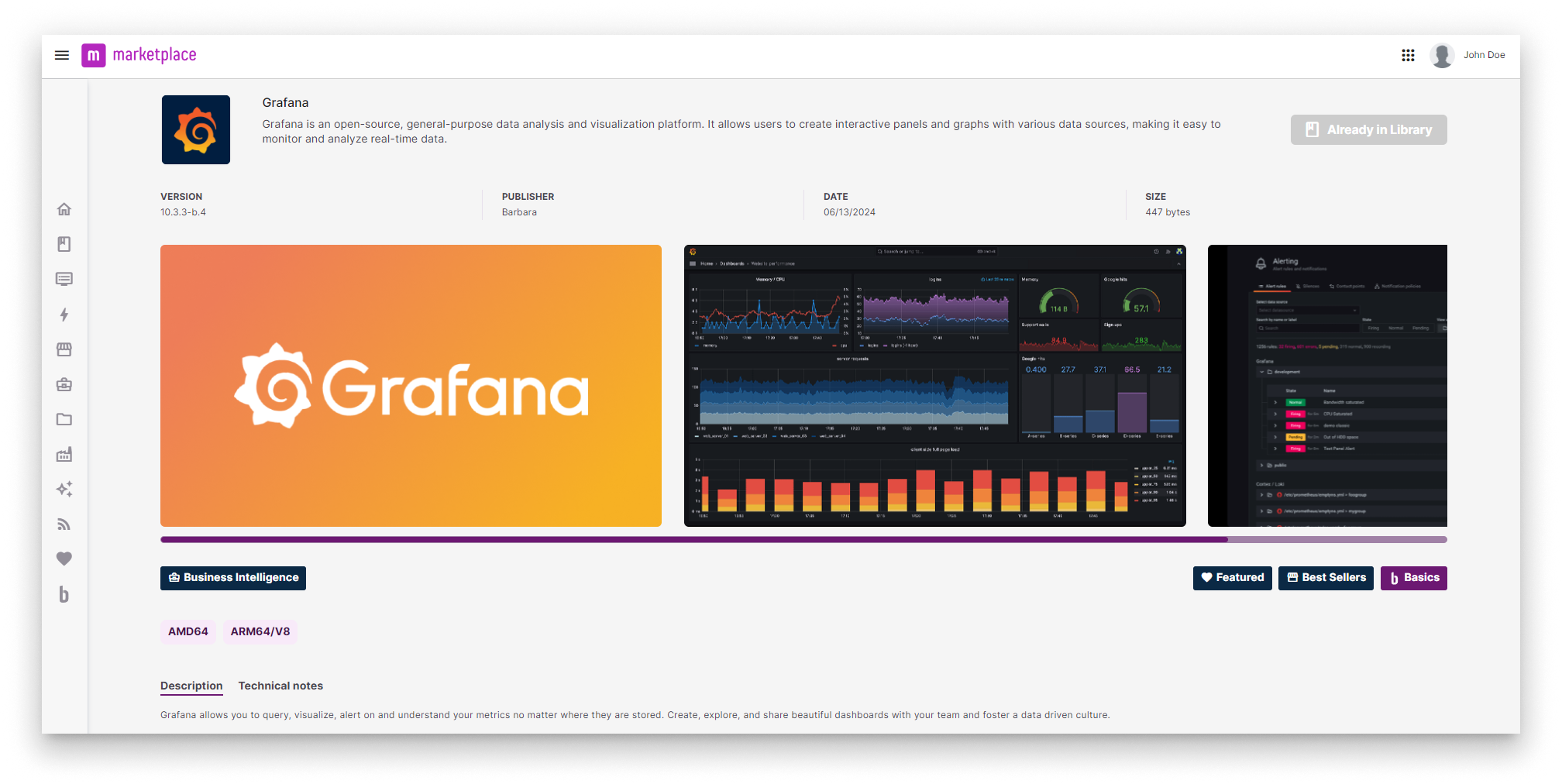
Grafana in Barbara Marketplace
Go to Barbara Marketplace, search for Grafana and add it to your Panel's library.
You will find Grafana in this link of the Barbara Marketplace.
If you have been given a demo or trial account, this app may be already added to your Library.
Once added you will find it in your App Library. Let's deploy it to your Edge Node.
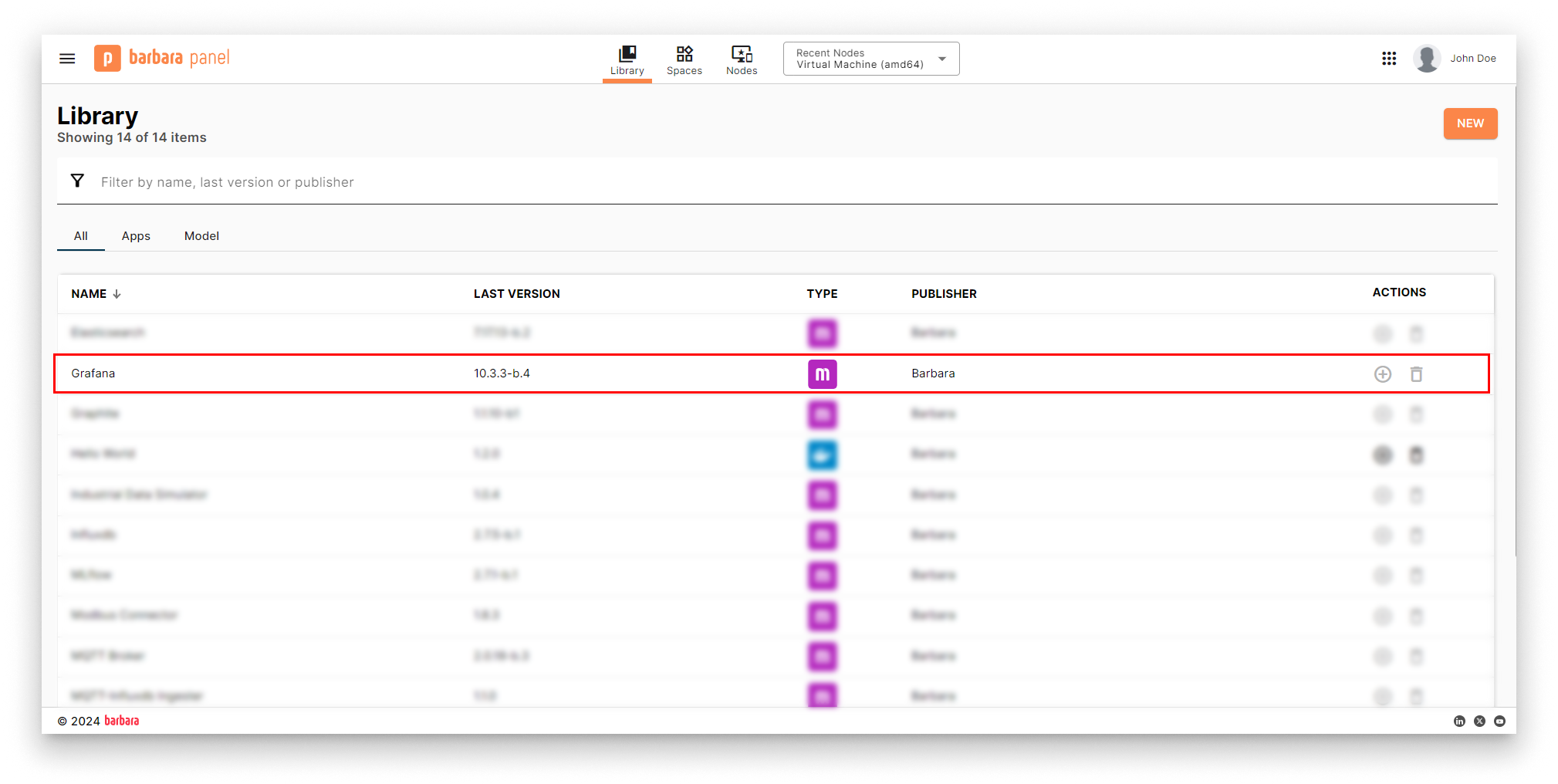
Grafana in Panel's library
Install the Grafana app
- Head to your Node's details view and click the
+ Add Cardbutton.
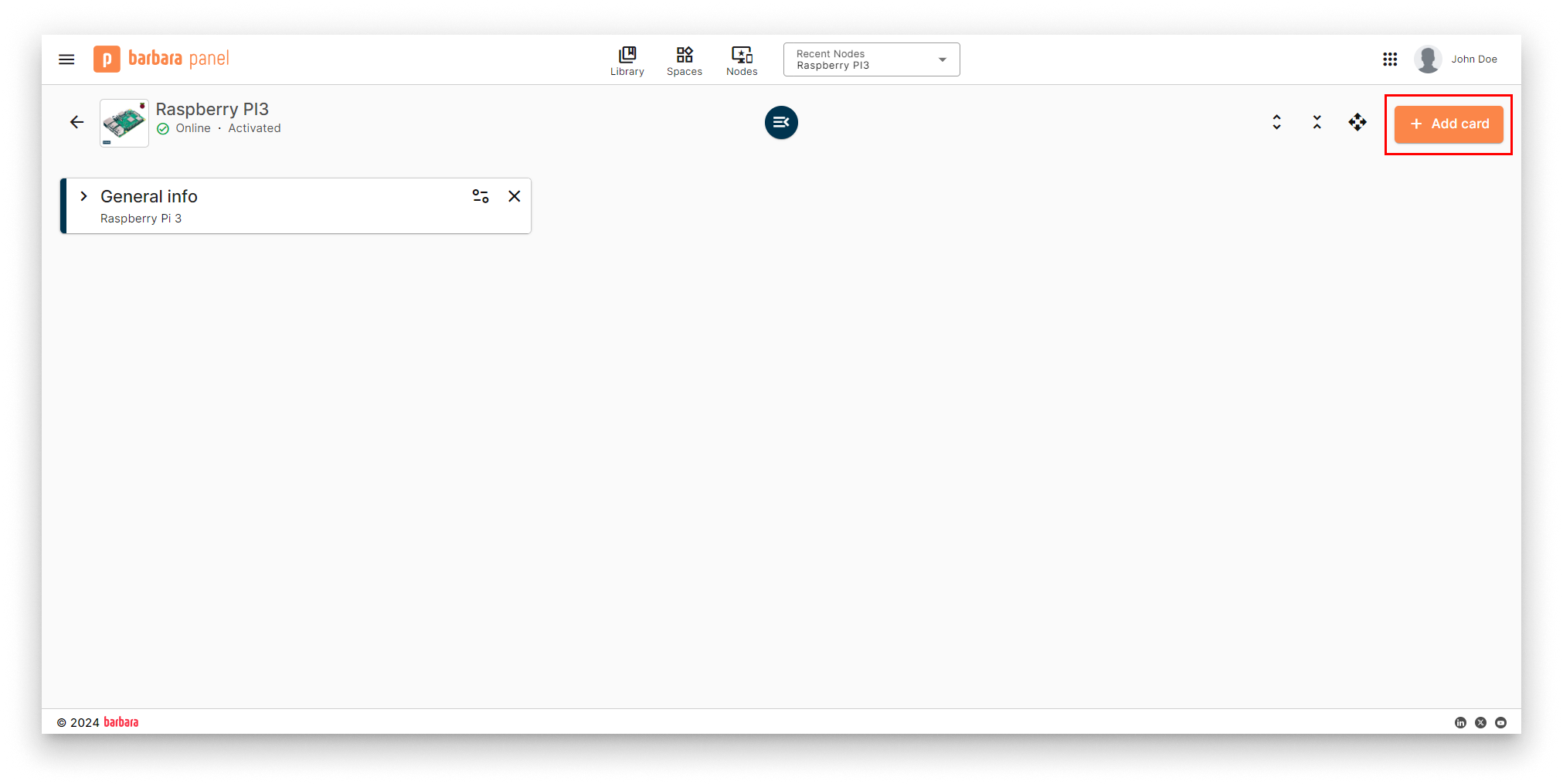
Add New Card
- Select the
Marketplace appoption in the dropdown menu.
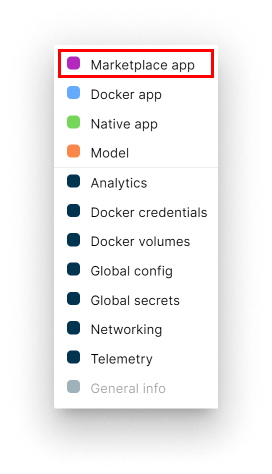
Select Marketplace Option
- Select Application and Version: Select the
Grafanaapp from the application dropdown list and pick the latest existing version from the version dropdown list. Then clickADD VARIABLESto proceed with the next step.
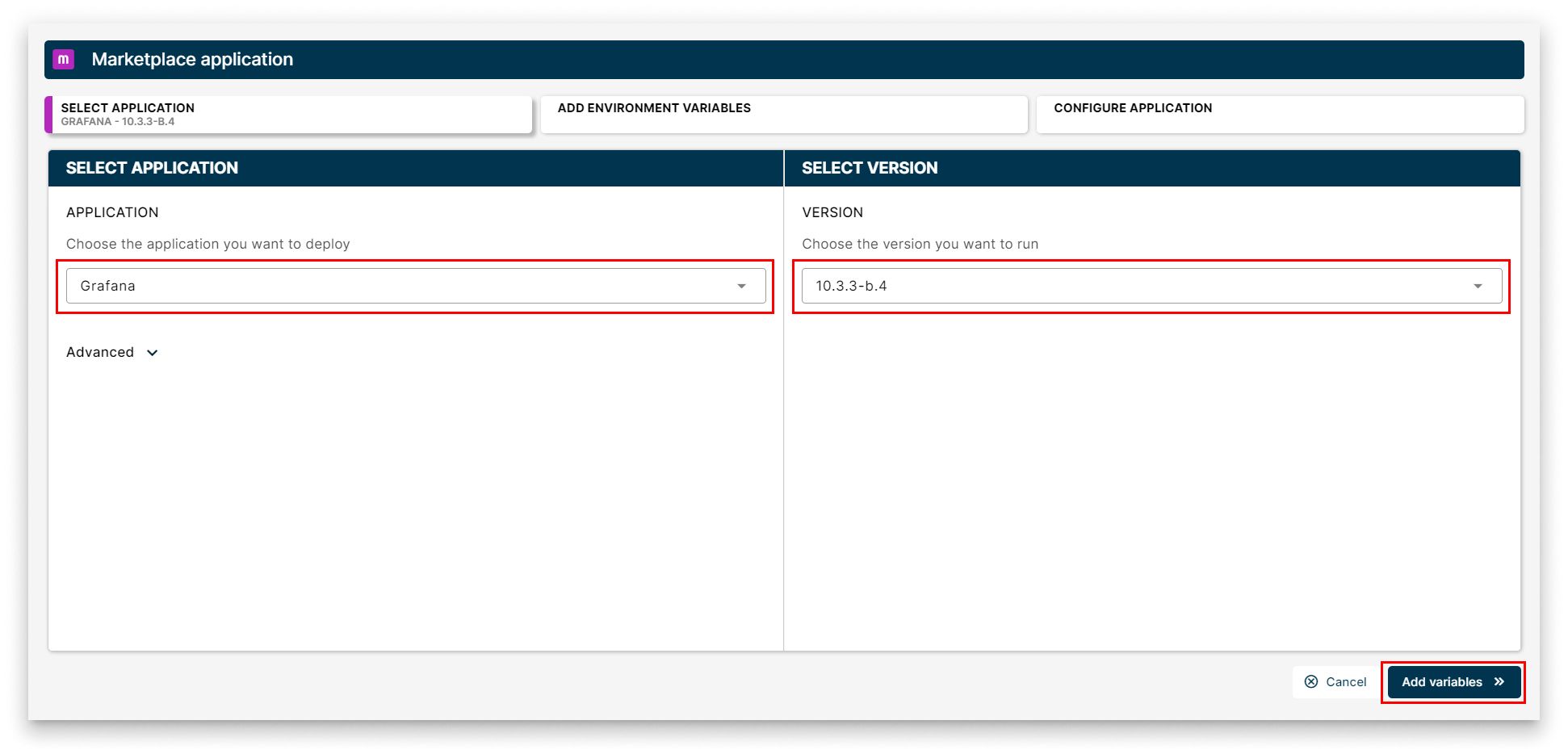
Select Grafana
- Add Environment Variables Review the default configuration for env variables or leave it as-is. Technical notes explain each variable on the right side of the view. Once finish, just click
CONFIGURE.
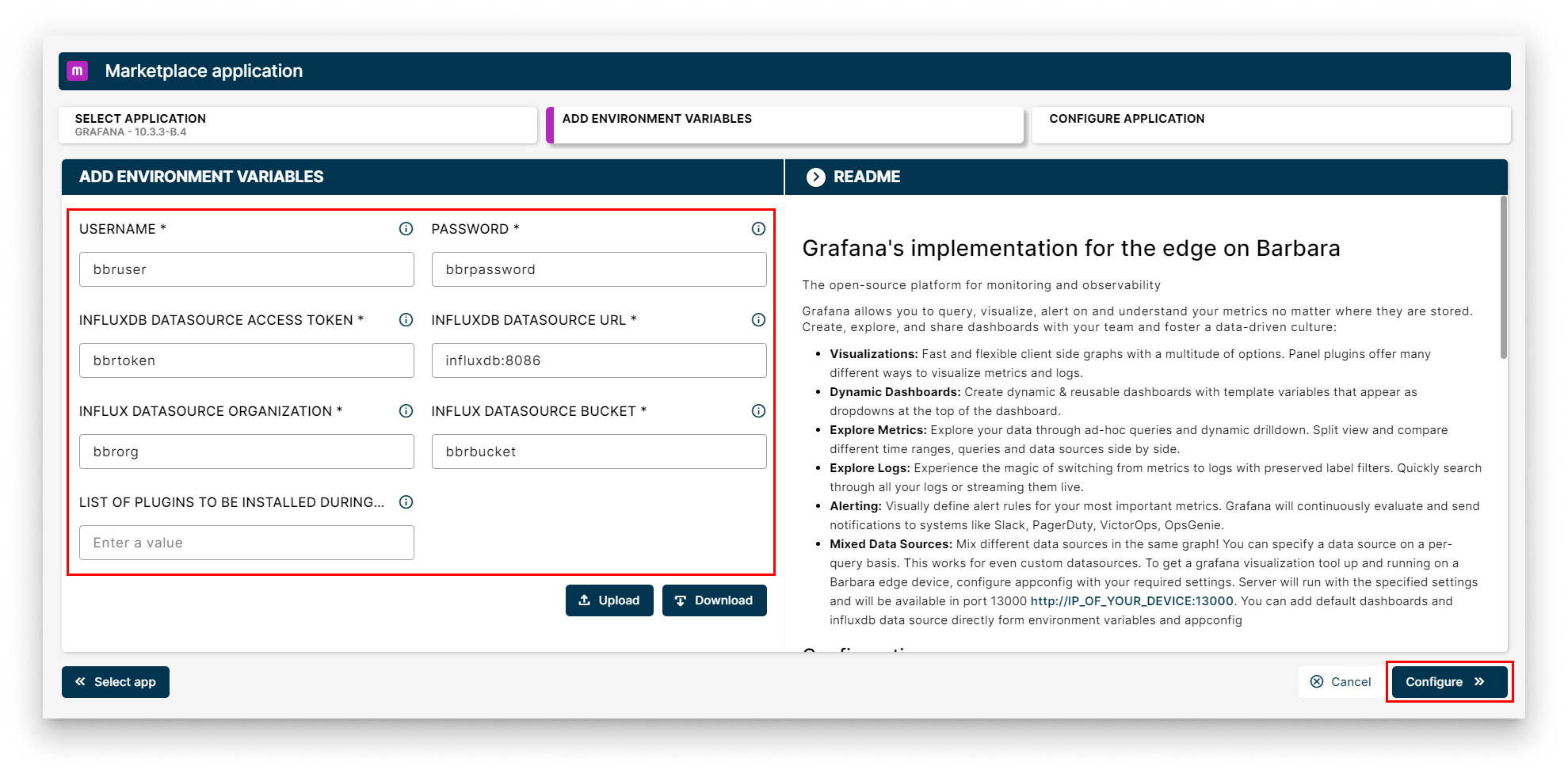
Add Env Variables
- Add your app Config: This step allows you to make some additional configuration through a JSON-format text. However, Grafana does not need any extra configurations to work. Just click "
SEND" to finally deploy it to your node.
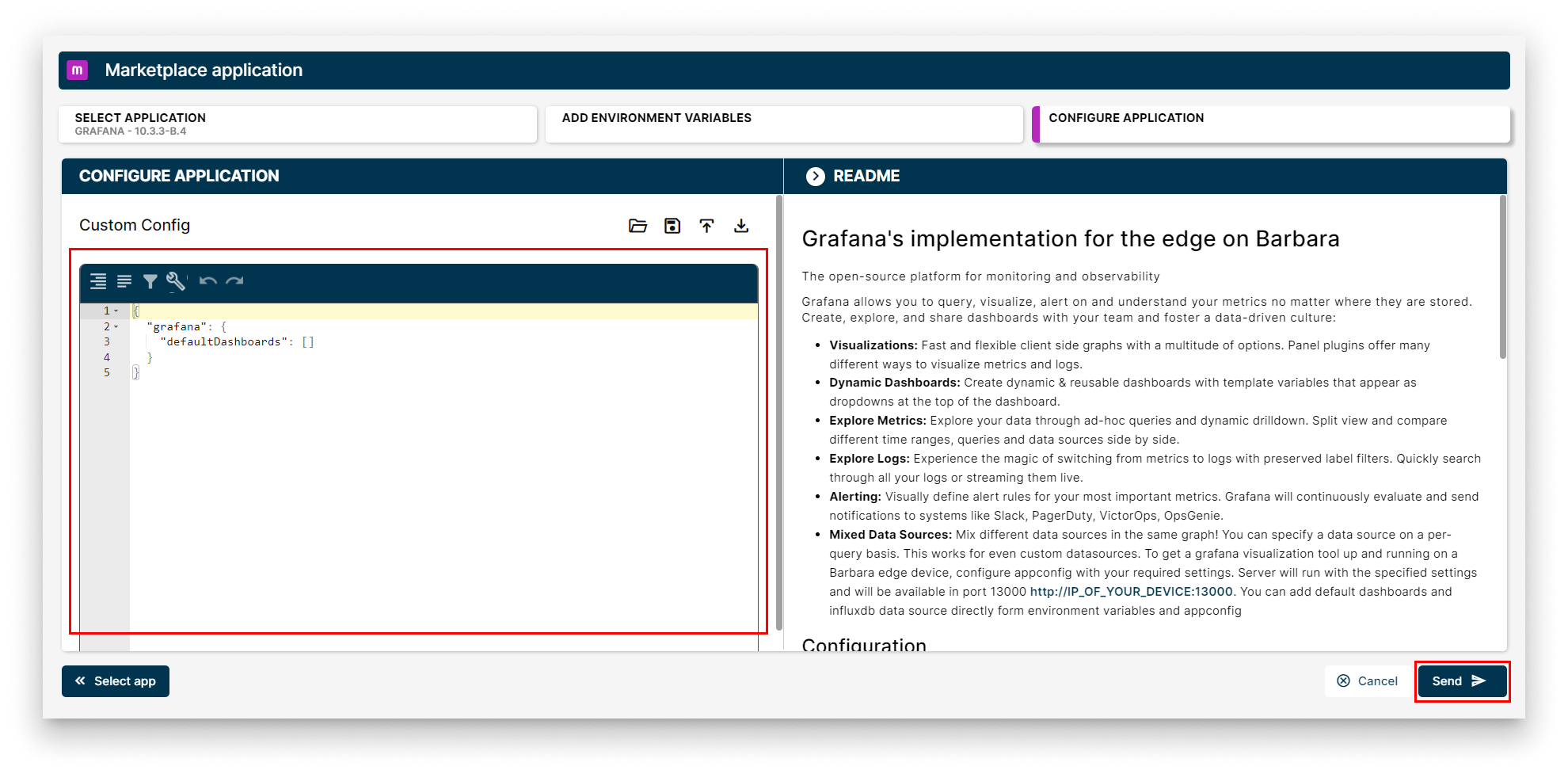
Configure Application
Verifying your Grafana App
Head back to your Node's details view. Within a few seconds, a new card should appear displaying the installed Grafana app. Look for the status label on the card - if it reads STARTED then your Grafana is up and running!
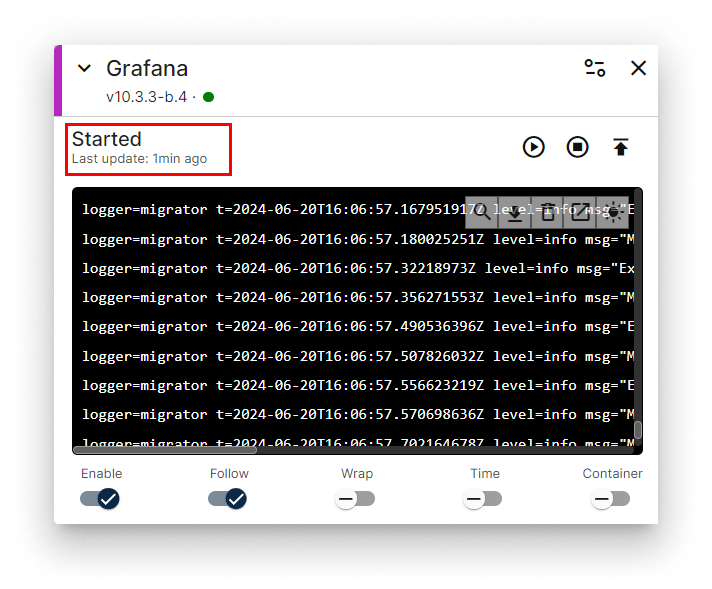
Grafana installed
Congratulations! Your Grafana is running and ready to start visualizing data from InfluxDB database!
Access Grafana Home
You can access the Grafana GUI while the app is running through a web interface. Typing the following route in a web browser {IP_DEVICE}:13000, where {IP_DEVICE} is the Edge Node’s IP address that appears in the Networking card.
To log into the Grafana, use as credentials the values for USERNAME and PASSWORD you defined when you configured the app before deployin it.
(If you left the default values, then the credentials will be bbruser and bbrpassword)
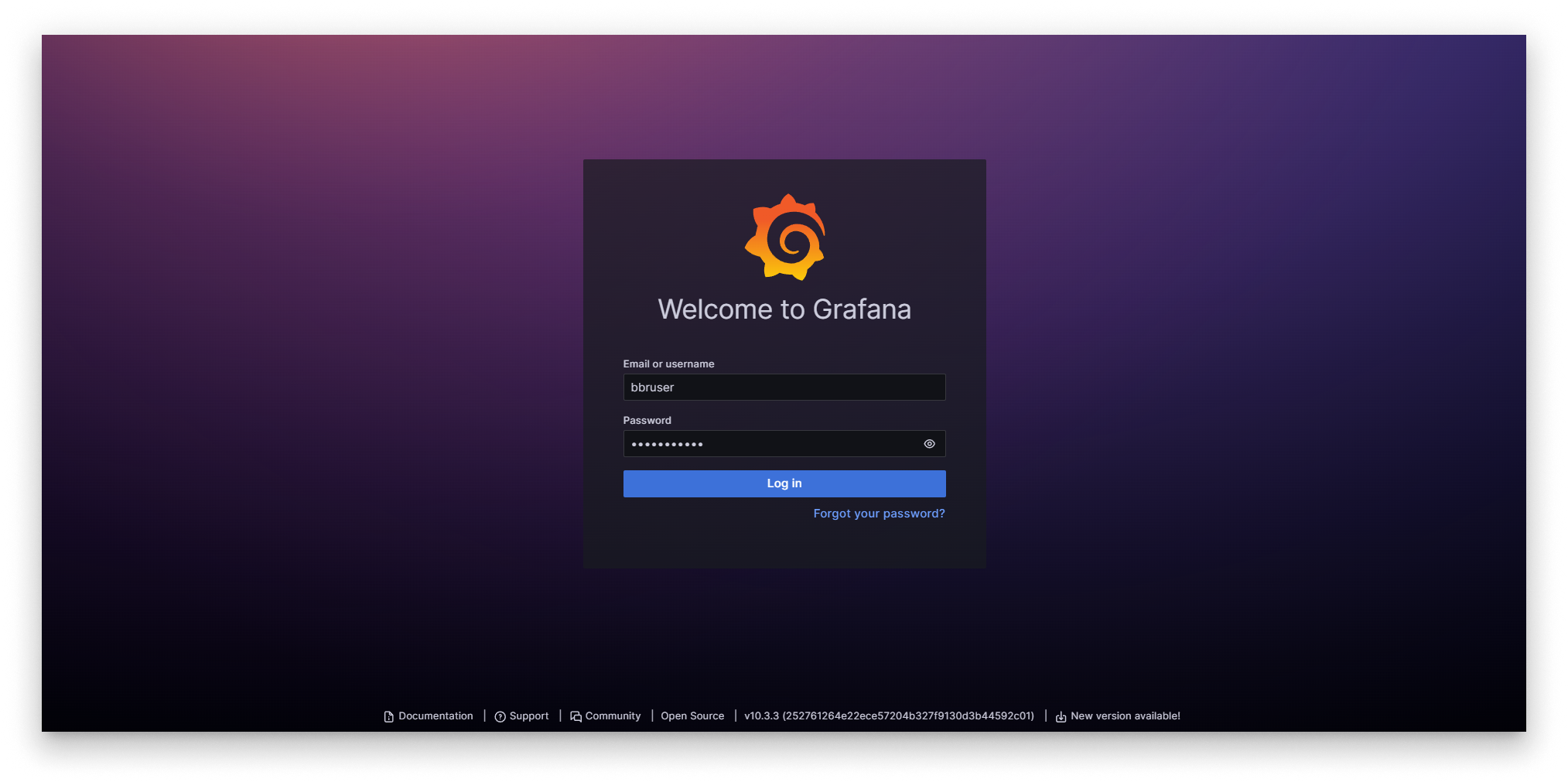
Grafana Home
After log in, select Data Sources in the lateral menu.
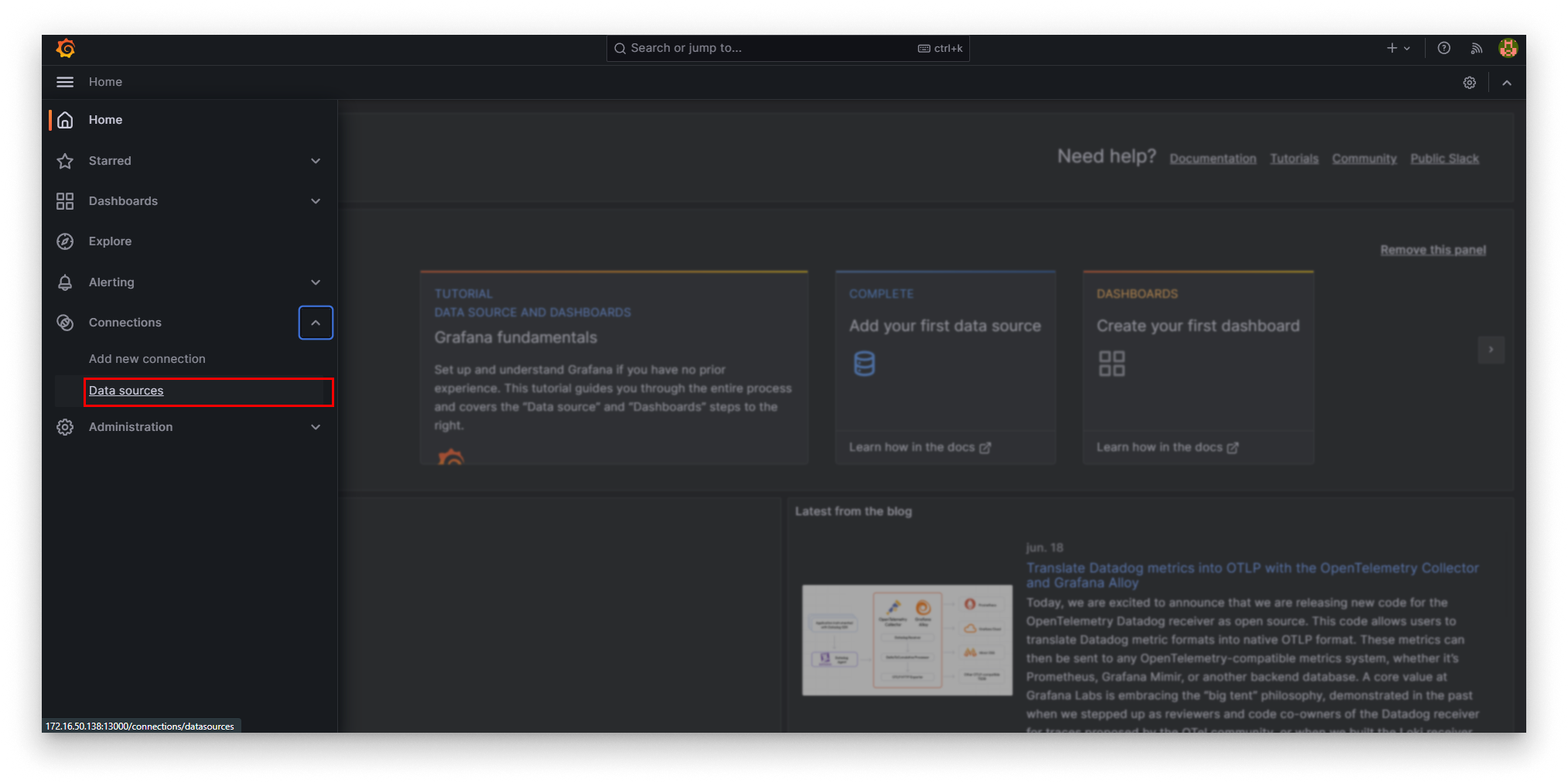
Grafana Select Data Sources
In Data Sources view, select the InfluxDB_BarbaraDefault data source.
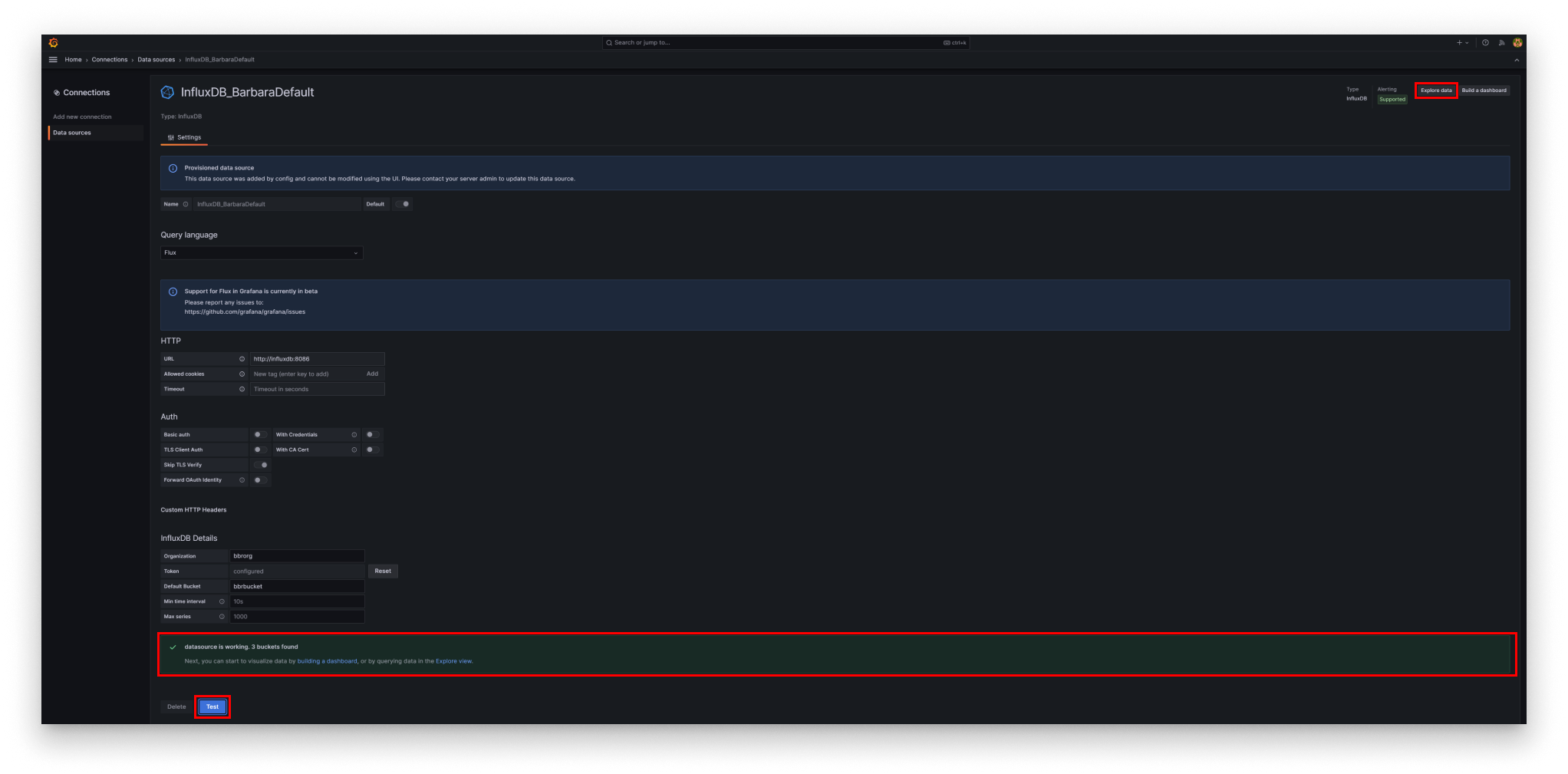
Grafana Select Barbara Data Source
In the settings tab, press the Testbutton to check the data source. The message datasource is working. 3 buckets found must be displayed.
Then press the button Explore data.
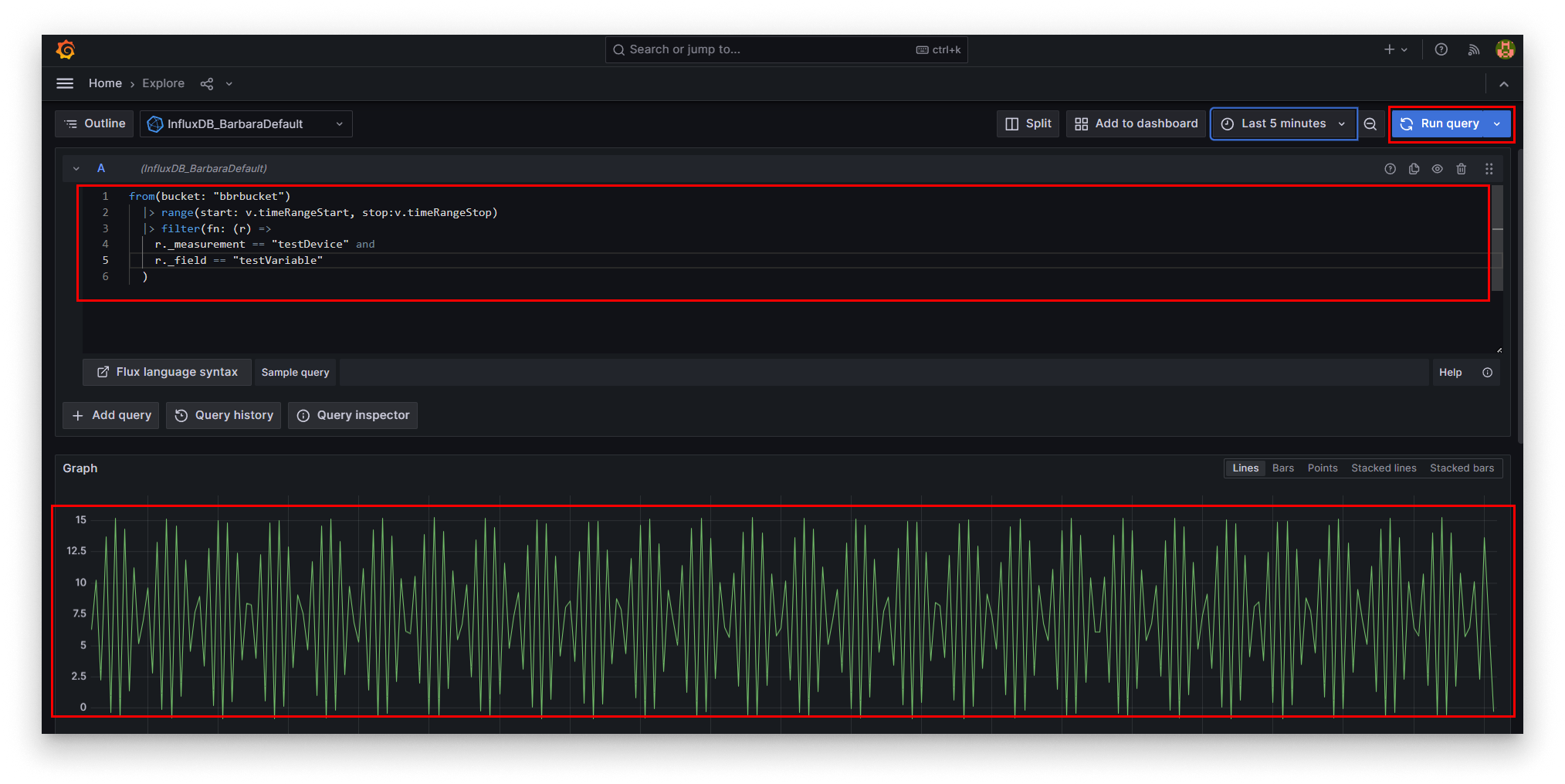
Grafana Send Query
- Enter following query in the editor:
from(bucket: "bbrbucket")
  |> range(start: v.timeRangeStart, stop:v.timeRangeStop)
  |> filter(fn: (r) =>
    r._measurement == "testDevice" and
    r._field == "testVariable"
  )
- Press the button
Run query. - You will see the data visualized in the graphic chart.